

Send a welcome message to staff
This article explains how to send a welcome message to staff in RosterElf. The welcome message helps employees access their accounts by providing login details and setup instructions. It’s especially useful for new team members who haven’t activated their accounts or downloaded the RosterElf app. With this guide, you’ll learn how to open the staff tab, select employees, and send the welcome message.
1. Send a welcome message to a staff member
This section explains how to send the welcome message from the RosterElf web app. It emails the staff member a link to set their own password, plus the app downloads and their My HR Hub tasks.
1.1 open the staff tab
1.1.1 Log in to your RosterElf account.
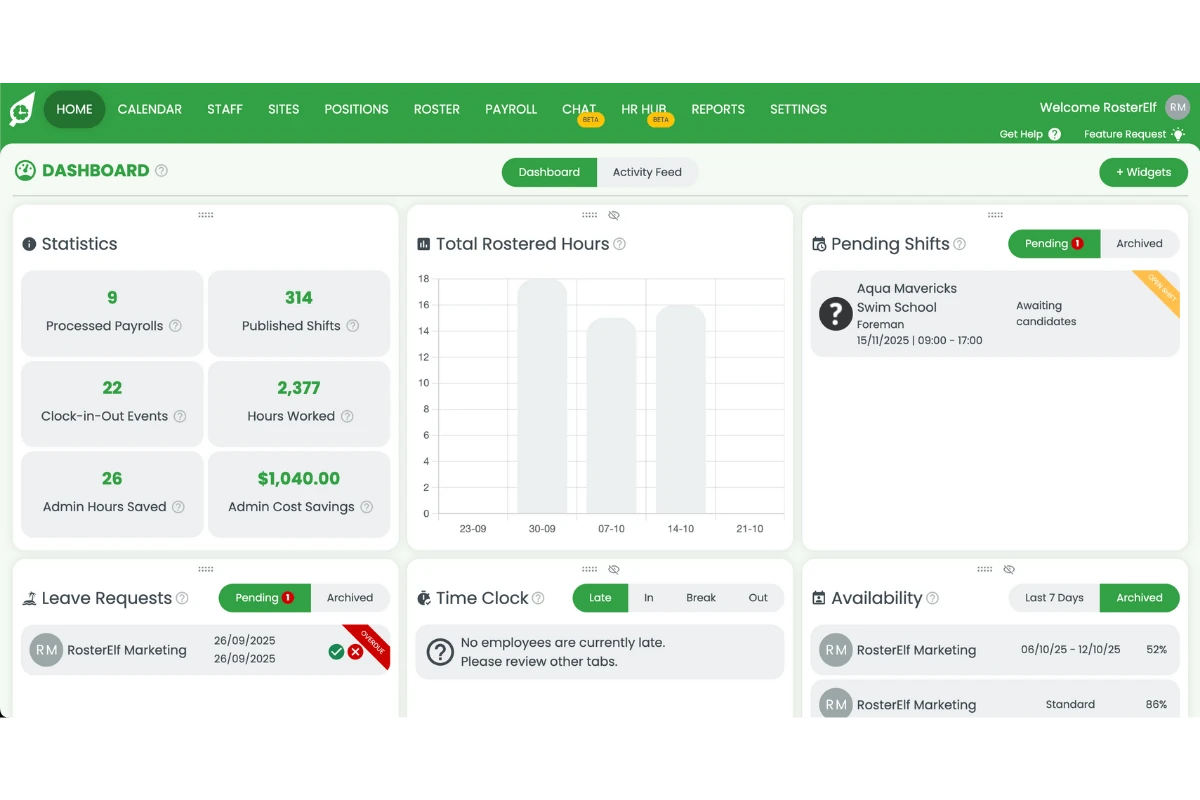
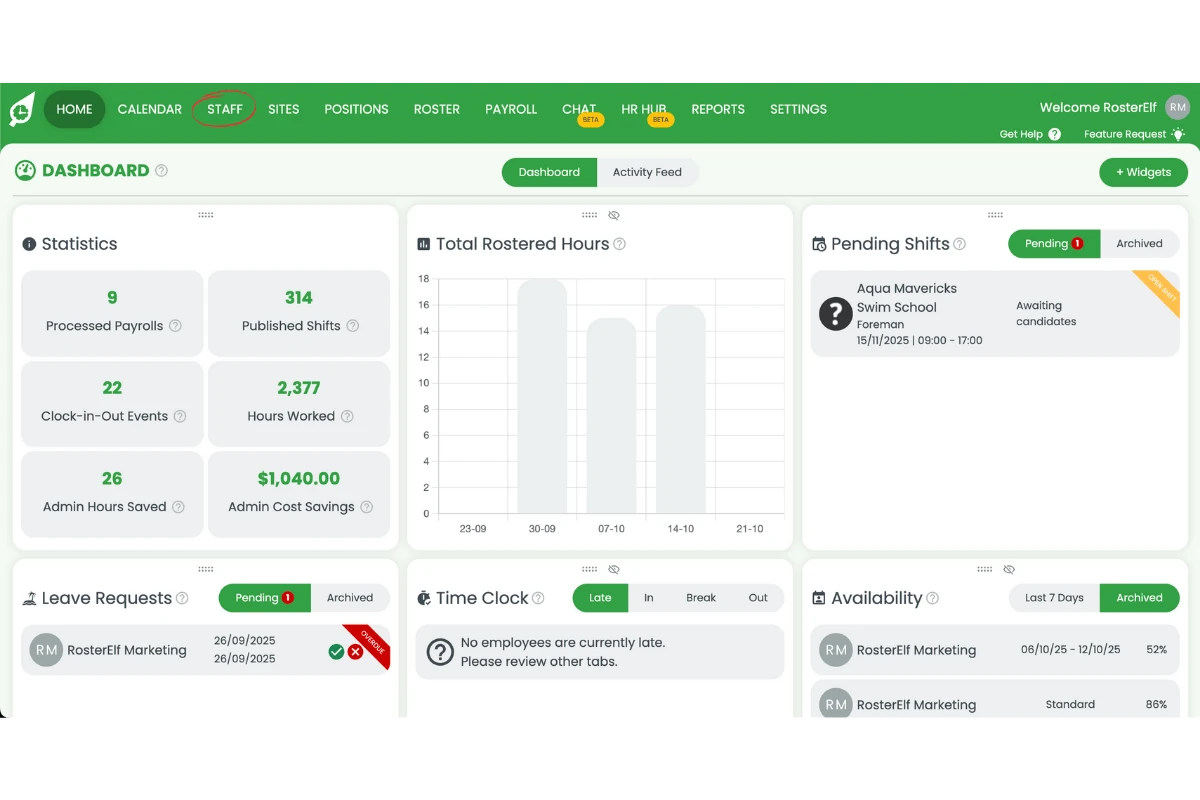
1.1.2 Click the Staff tab on the top menu.
1.2 send the welcome message
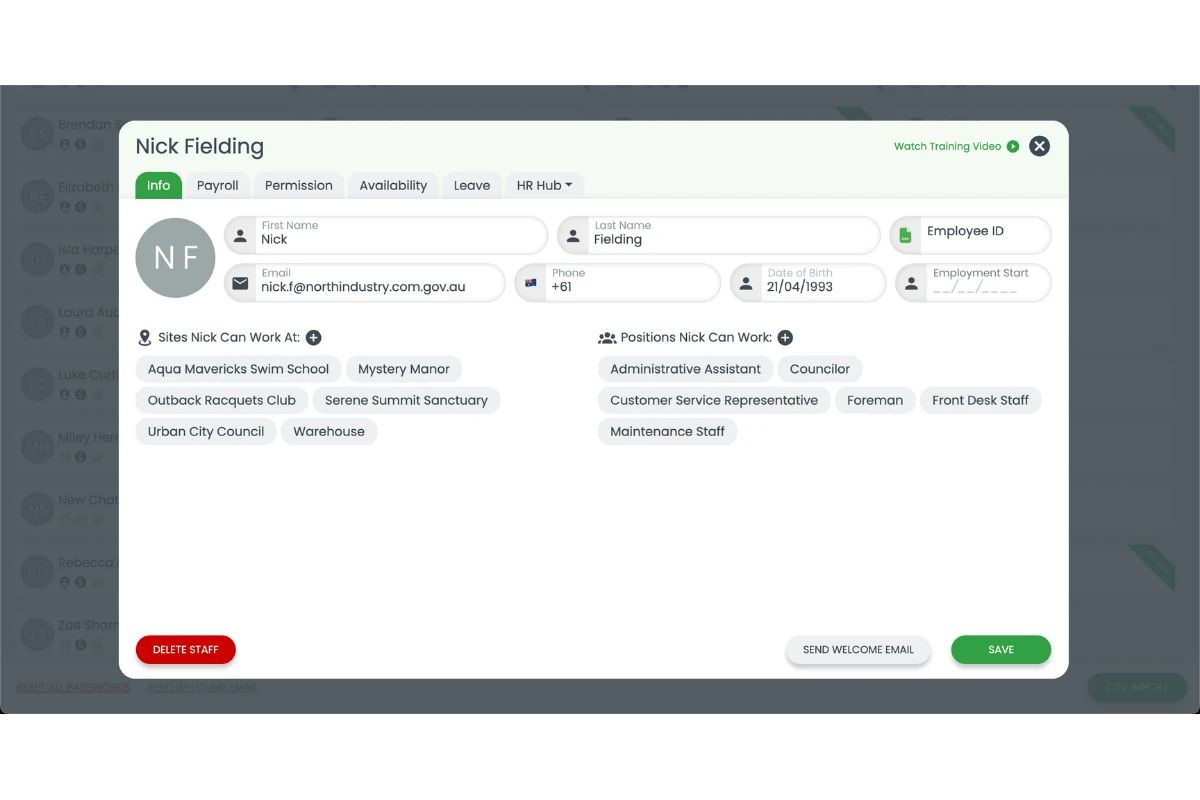
1.2.1 Select the staff member you want to send the message to.
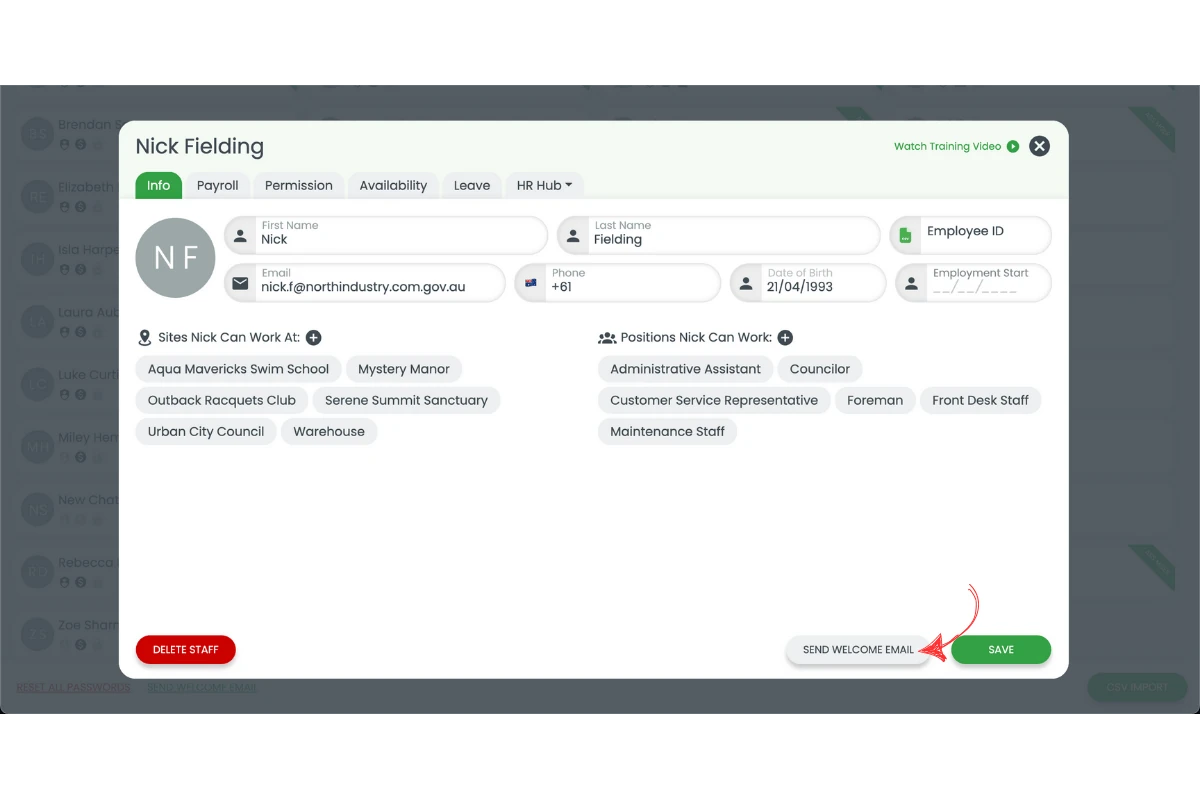
1.2.2 Click Send Welcome Message.
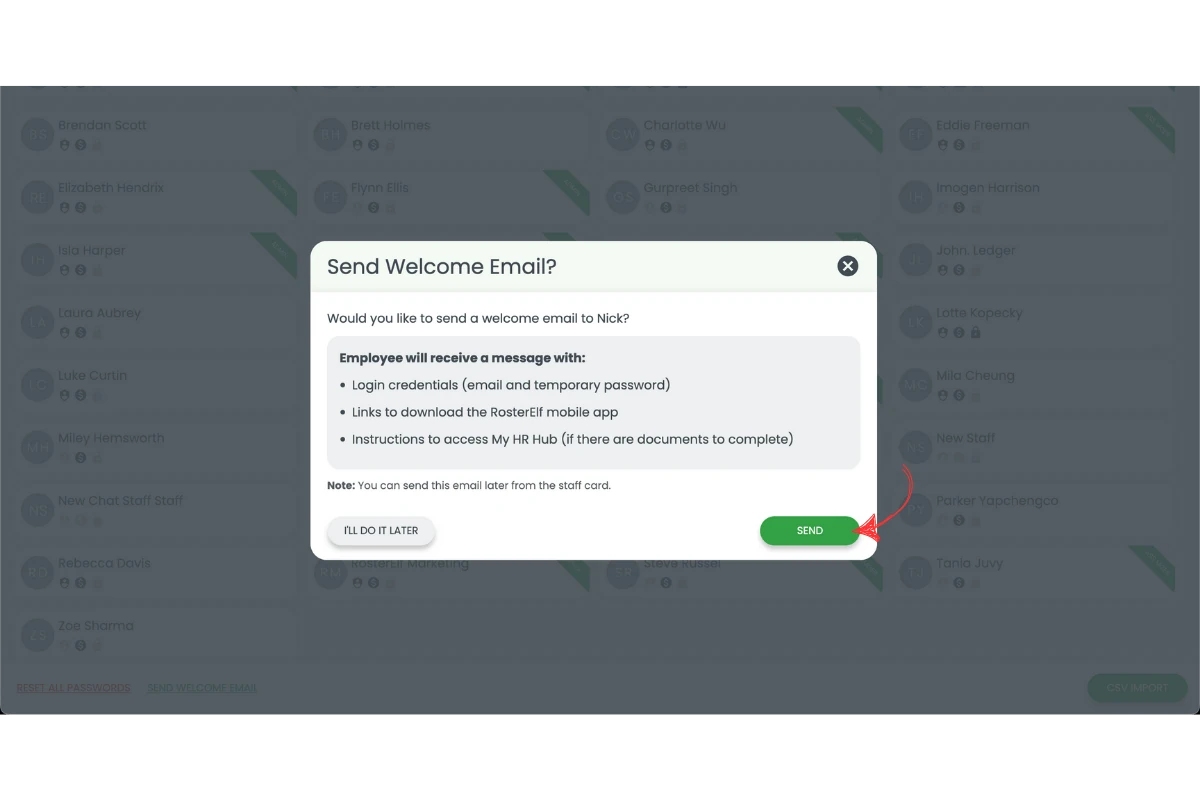
1.2.3 Press Send to confirm.
Note
The welcome email asks staff to set their own password — RosterElf never emails a password. The link lasts 48 hours; see the exact wording in section 2 below.
2. What the welcome email says
Here’s the actual email your staff receive, so you know what to expect. Their name and your business name are filled in automatically.
Welcome to RosterElf
Hi [Employee Name],
Exciting news! [Your Business Name] has upgraded to RosterElf 🎉
Managing your work schedule just got a whole lot easier. With RosterElf, you can view your rostered shifts, request leave and check your balance, update your personal information, swap shifts with colleagues, clock in and out, and receive instant notifications about schedule changes – all from your phone or computer, wherever you are.
Choose how you want to access RosterElf — download on the App Store, get it on Google Play, or use it in a browser.
Set your password — the email shows their login email address and a Set your password button. This link expires in 48 hours. If it does, use the ‘Forgot password’ option on the login page to get a new one.
Complete your setup in My HR Hub — before you can start, [Your Business Name] needs you to complete a few documents and provide some information. Log in and finish any outstanding items in My HR Hub.
Australian Fair Work information — if you are working in Australia, the Fair Work Act requires that you receive the Fair Work Information Statement and the Casual Employment Information Statement. Both are included for AU accounts.
Need help getting started? Reply to this email or contact help@rosterelf.com.
Frequently asked questions
1. How do I send a welcome message to new staff in RosterElf?
Log in to RosterElf, open the Staff tab, select the employee, and click Send Welcome Message. Confirm by pressing Send. The message includes login details and setup instructions to help staff access their accounts.
2. Can I send a welcome message to multiple staff members at once?
Yes. You can select multiple employees in the Staff tab and send a group welcome message. This is ideal when onboarding several new team members at the same time.
3. What information is included in the RosterElf welcome message?
Links to download the app, the employee’s login email address and a Set your password button, a prompt to finish any outstanding items in My HR Hub, and — for Australian accounts — the Fair Work Information Statement and Casual Employment Information Statement. It does not contain a password: the employee sets their own. See the exact wording in “What the welcome email says” below.
4. Do staff need to download the app before receiving the welcome message?
No. The email works from any browser — staff can set their password and log in on a computer, and download the app whenever suits them.
5. Why should I resend a welcome message to staff?
Resend a welcome message if a team member hasn’t activated their account, lost their login email, or recently joined. This keeps your team’s access details up to date and ensures everyone can log in smoothly.
6. What does the RosterElf welcome email actually say?
It opens with “Hi [Employee Name], Exciting news! [Your Business Name] has upgraded to RosterElf,” then explains staff can view rostered shifts, request leave, update their details, swap shifts, clock in and out, and get instant notifications from their phone or computer. It then offers the app downloads, shows their login email with a Set your password button, prompts them to finish any outstanding items in My HR Hub, and — for Australian accounts — includes the Fair Work Information Statement and Casual Employment Information Statement. See the full text in “What the welcome email says” below.
7. How long does the Set your password link last?
48 hours. After that the employee should use Forgot password on the login screen, or you can resend the welcome email from their profile — see reset a staff member’s password.