

How to approve leave requests in RosterElf
This article explains how to manage employee leave requests in RosterElf. It guides you through viewing and processing requests directly from the dashboard. You’ll learn how to access leave details, view Xero balances (for Xero-integrated customers), and use the leave report to make informed decisions. Additionally, you’ll find instructions on approving or denying requests, sending approved leave to Xero, and understanding how approved leave integrates with payroll. This guide is designed to simplify leave management for admins and managers, saving time and ensuring accuracy.
1. Reviewing leave requests
This section explains how to locate and view pending leave requests in RosterElf. You’ll learn how to access leave details and see any pending requests directly on the dashboard.
1.1 accessing leave requests
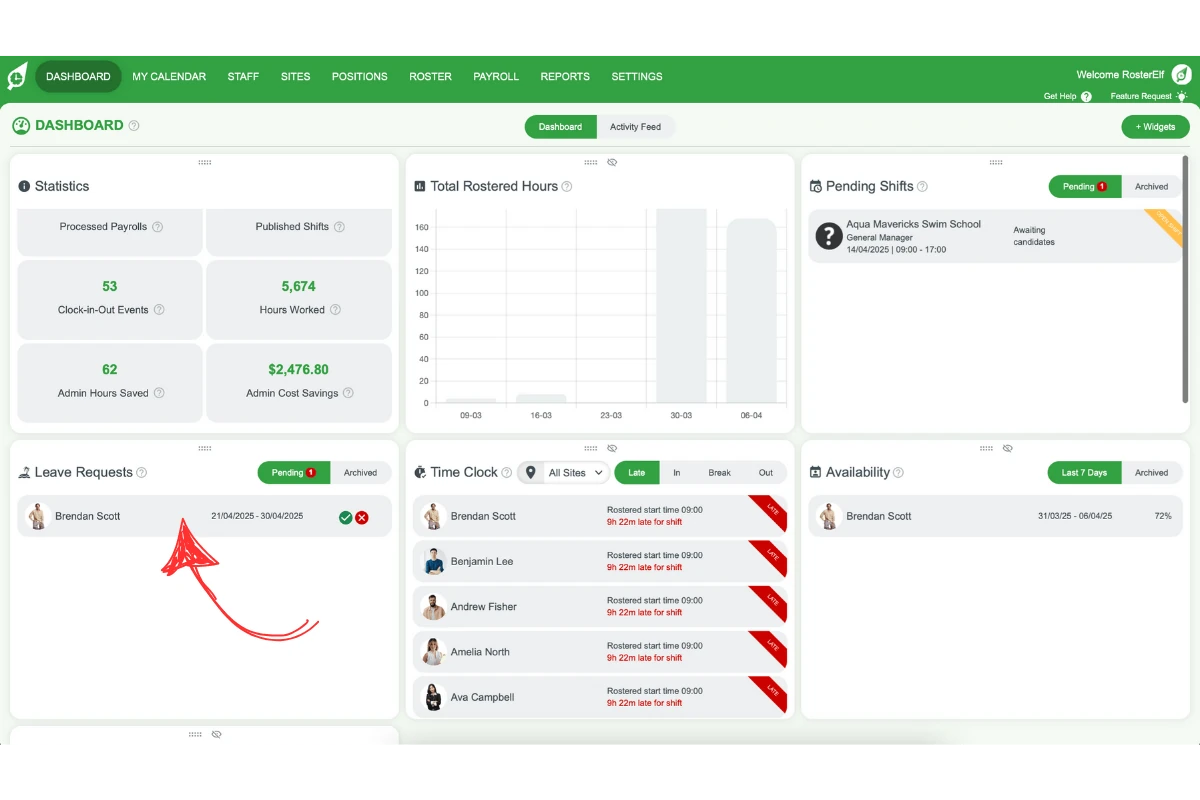
1.1.1 From the dashboard, locate the Leave block.
1.1.2 Click on the pending request to open a detailed popup window.
2. Viewing leave request details
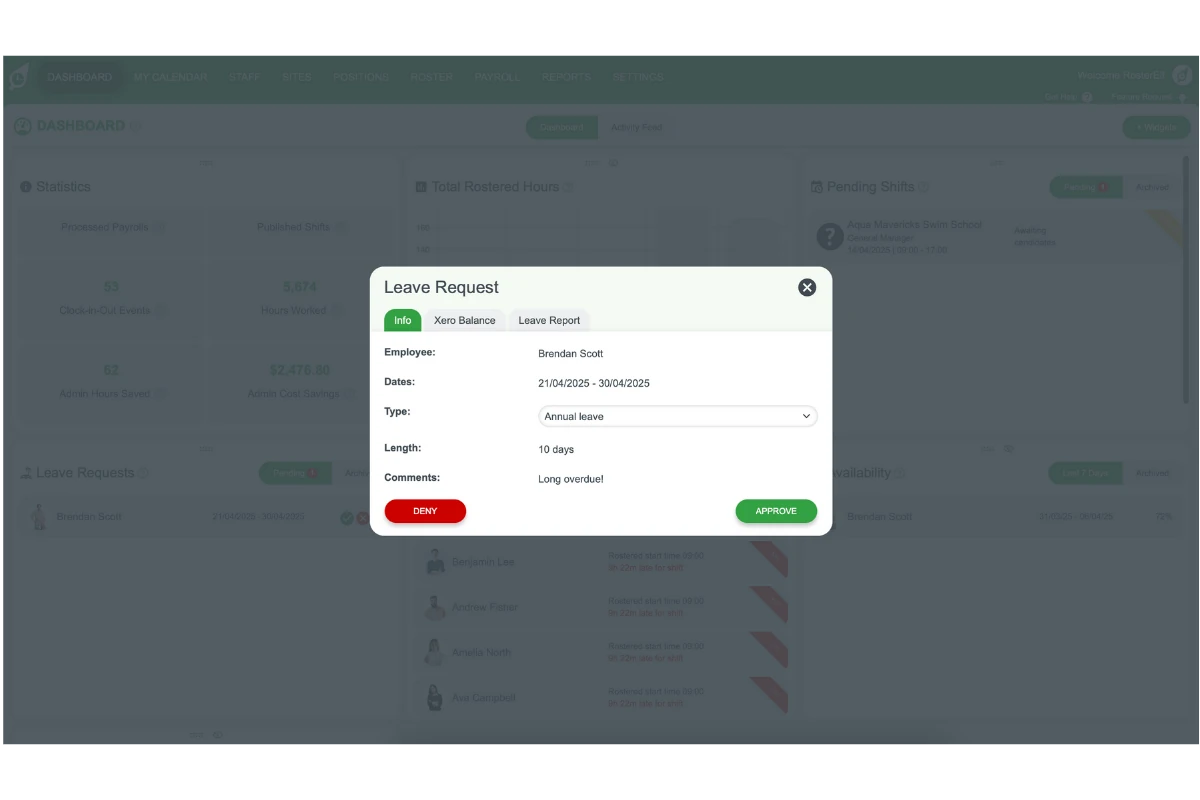
Here, we cover the information available in each leave request. You can review the employee’s leave type, dates, and any comments. You can also adjust the leave type if needed before approving.
2.1 info tab
2.1.1 Check the employee’s name, requested dates, type of leave, leave length, and comments.
2.1.2 If necessary, adjust the leave type if it appears incorrect.
2.2 Xero balance tab (Xero integrated customers Only)
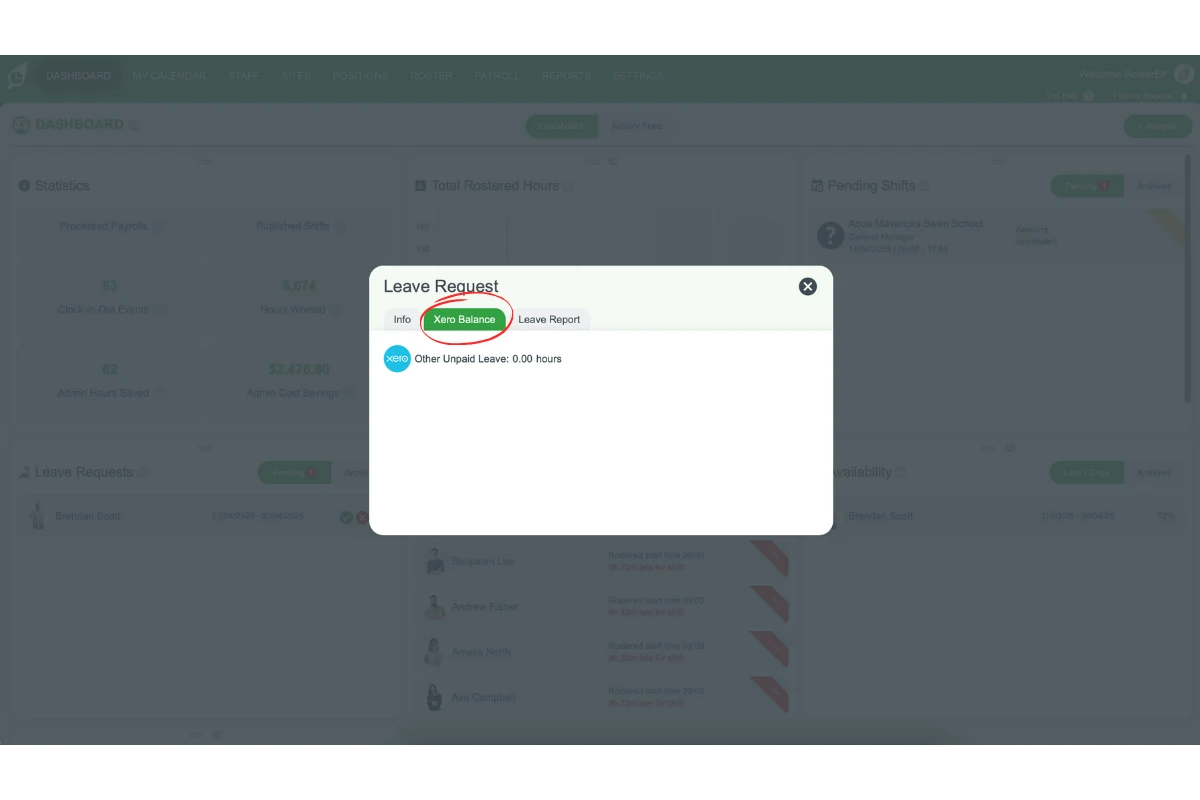
2.2.1 View the available leave balance synced from Xero.
2.2.2 Consider these totals when deciding to approve or deny the leave.
Note: Xero leave balances update only after payroll processing.
3. Using the leave report
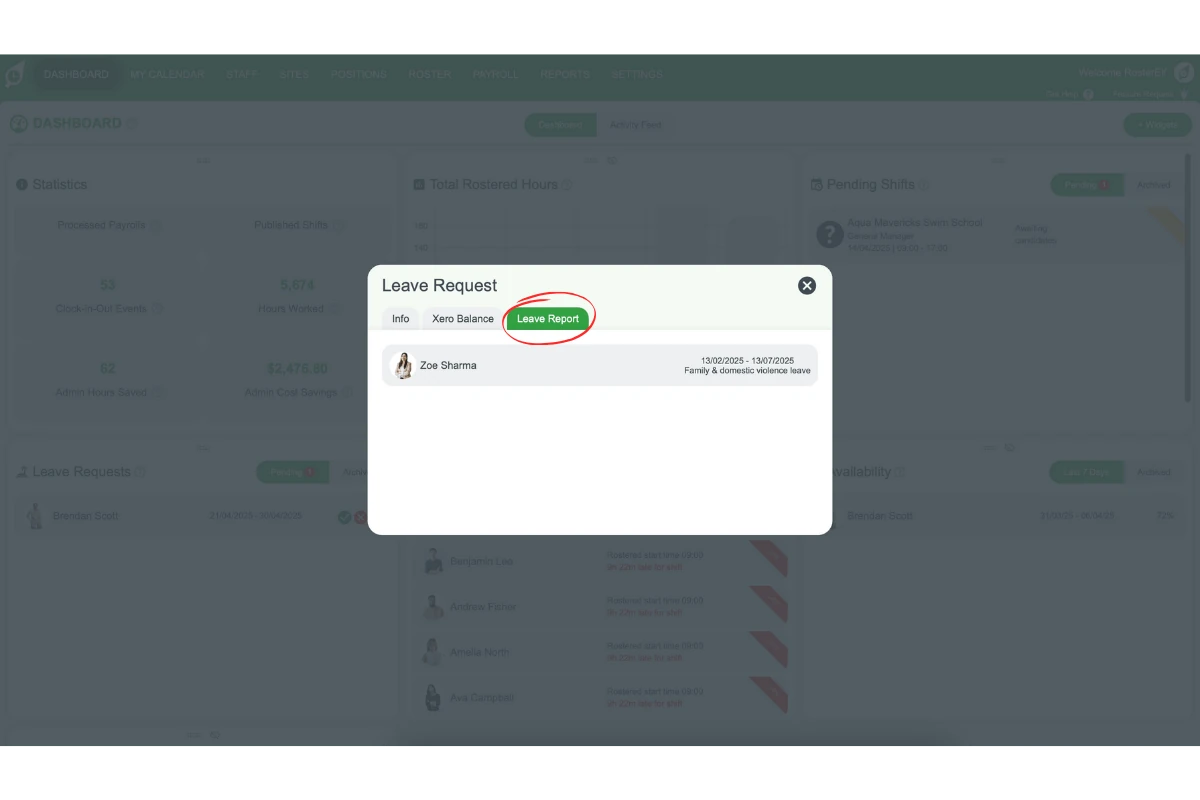
This section explains how the leave report helps you make informed decisions by showing other approved leave for the same dates.
3.1 checking the leave report
3.1.1 Open the leave report to see other team members’ leave schedules.
3.1.2 Assess overlapping leave before deciding on the request.
4. Approving or denying leave requests
Learn how to approve or deny leave requests and notify employees of your decision. Approved requests will automatically update in Payroll during the relevant pay cycles.
4.1 actioning the leave request
4.1.1 Once you’ve reviewed the request, click Approve or Deny.
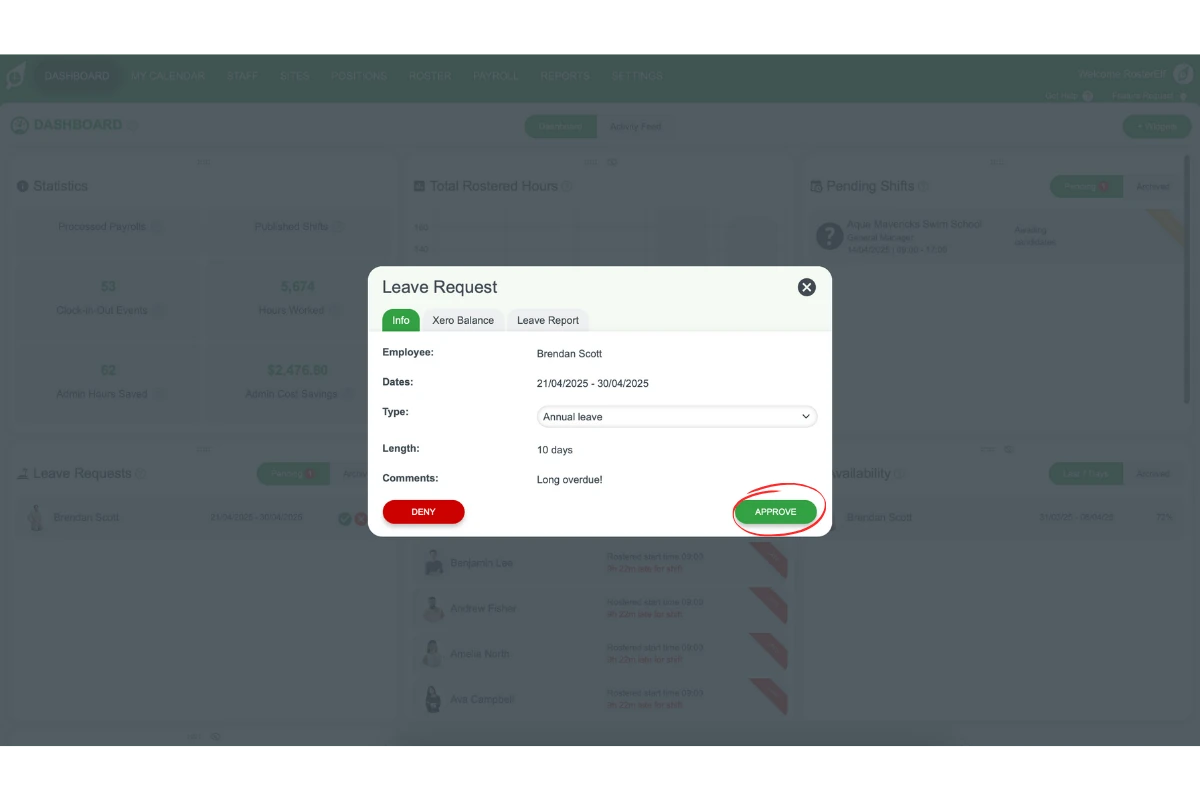
4.1.2 The employee will be notified of your decision.
4.1.3 Approved requests move to the Archived tab and appear in Payroll during the corresponding pay cycles.
5. Sending leave requests to Xero (Xero integrated customers Only)
For customers with Xero integration, this section explains how to send approved leave requests to Xero. You can push leave requests directly to Xero if you have the correct permissions. Before proceeding, ensure you understand how to process various leave types in payroll. Refer to these guides for further details:
5.1 sending approved leave to Xero
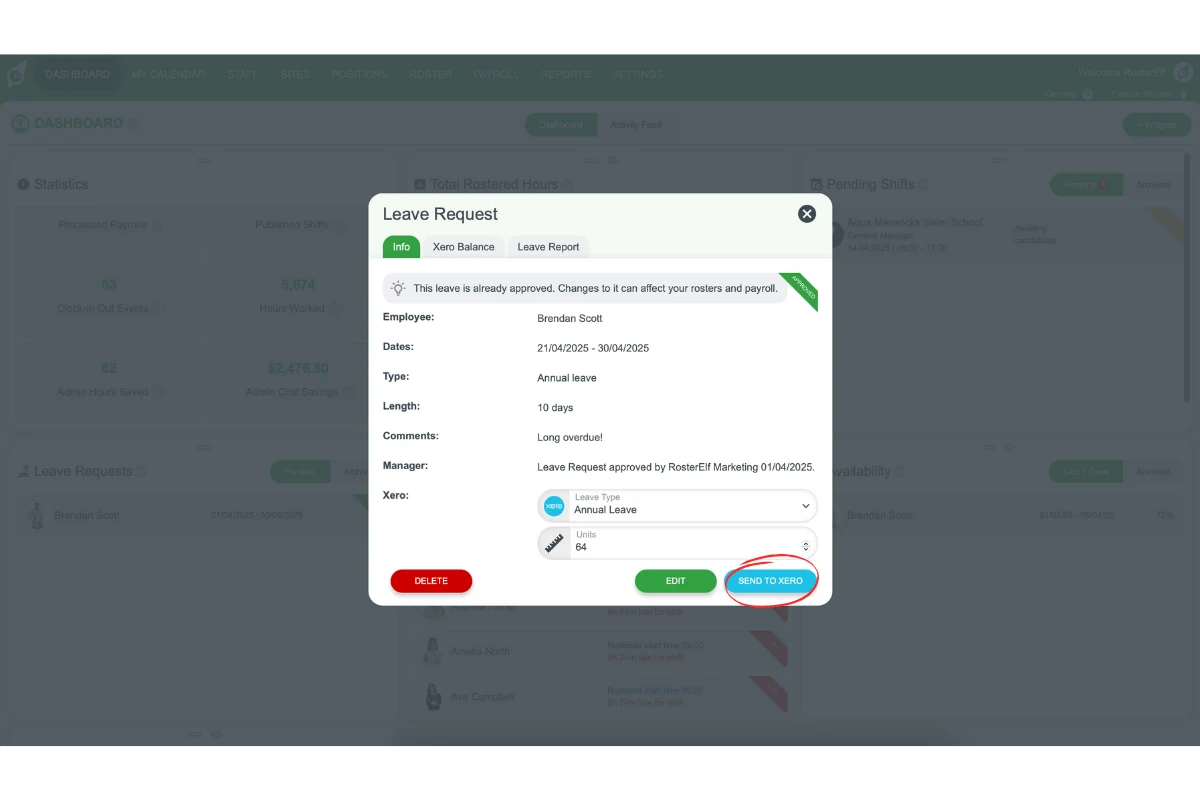
5.1.1 Select the leave type and enter the number of units (in hours).
5.1.2 Click Send to Xero if you have the necessary permissions. If any errors arise, consult the following guide to troubleshoot common issues: Troubleshooting Xero Errors When Sending Leave to Payroll.
Note: If you don’t have permissions, an admin or payroll manager can process it during the payroll cycle.
Frequently asked questions
1. How do I view pending leave requests in RosterElf?
To view pending leave requests, go to the RosterElf dashboard, locate the Leave block, and click on any pending requests to see the details.
2. How can I process different leave types for payroll?
Processing leave types such as sick leave or public holidays may have specific steps. You can review these detailed guides for each leave type: Process sick leave in payroll and Export public holiday leave to Xero.
3. How can I resolve errors when sending leave to Xero?
If you encounter errors while sending approved leave to Xero, check the Xero Errors When Sending Leave to Payroll guide for troubleshooting steps.
4. What happens to approved leave requests?
Approved requests move to the Archived tab and appear in Payroll during the corresponding pay cycles. The employee will be notified automatically of the approval.
5. Why can't I see approved leave on the roster?
Approved leave doesn’t show on the roster by default. Click the Availability button on your roster screen to turn on the availability and leave overlay — leave then appears as a red line or shading. See view staff availability and leave on the roster for the full breakdown. If you’d rather leave was always visible without turning the overlay on, you can add a leave position and roster staff under it instead.
6. Can I view Xero leave balances in RosterElf?
Yes. Xero-integrated customers can view available leave balances synced from Xero in the Xero Balance tab. Note that Xero leave balances update only after payroll processing.