

Manage leave requests in RosterElf
This guide explains how to delete or edit archived leave requests in RosterElf. Managing leave records ensures your employee data stays accurate and up-to-date. Whether you need to remove outdated entries or update leave details, these steps help you maintain clean and compliant records.
Who's deleting the leave?
- You’re a manager or admin — delete approved or archived leave from your Dashboard. Follow the steps below.
- You’re a staff member, on a browser — you can delete your own pending or approved leave from My Calendar. See requesting leave from a browser.
- You’re a staff member, on the mobile app — you can’t delete approved leave yourself; a manager needs to remove it for you (using the steps below). See requesting leave from a smartphone.
- It’s a sick leave entry — follow delete a sick leave request instead.
1. Delete a leave request
Deleting a leave request ensures your records remain up-to-date. Follow these steps to remove any unnecessary or outdated entries.
1.1 steps to delete a leave request
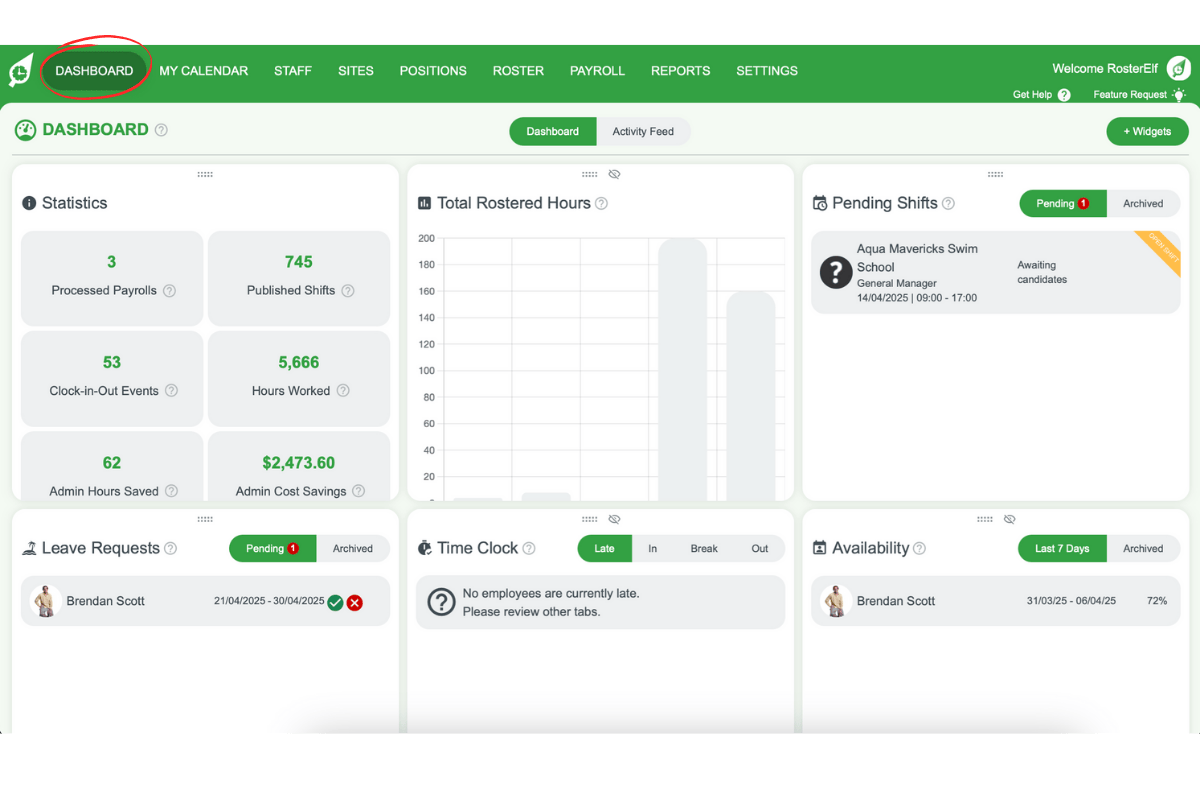
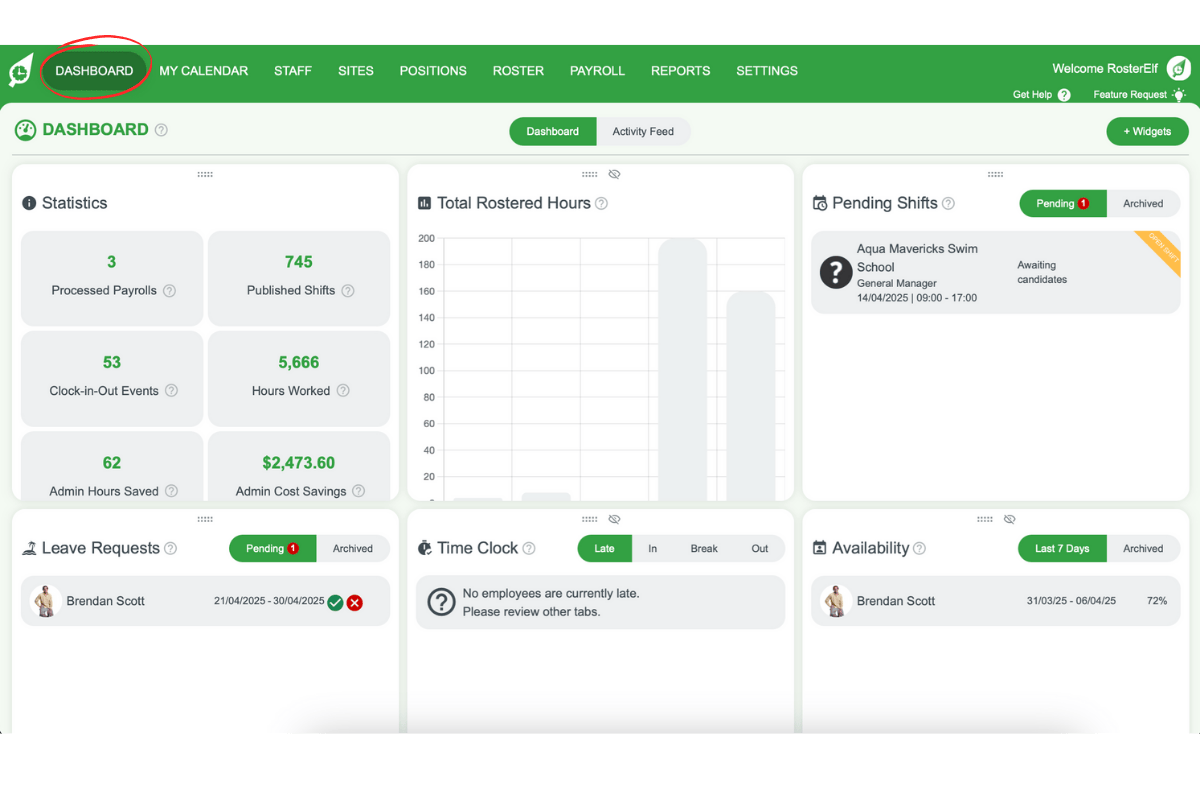
1.1.1 Click onto your dashboard.
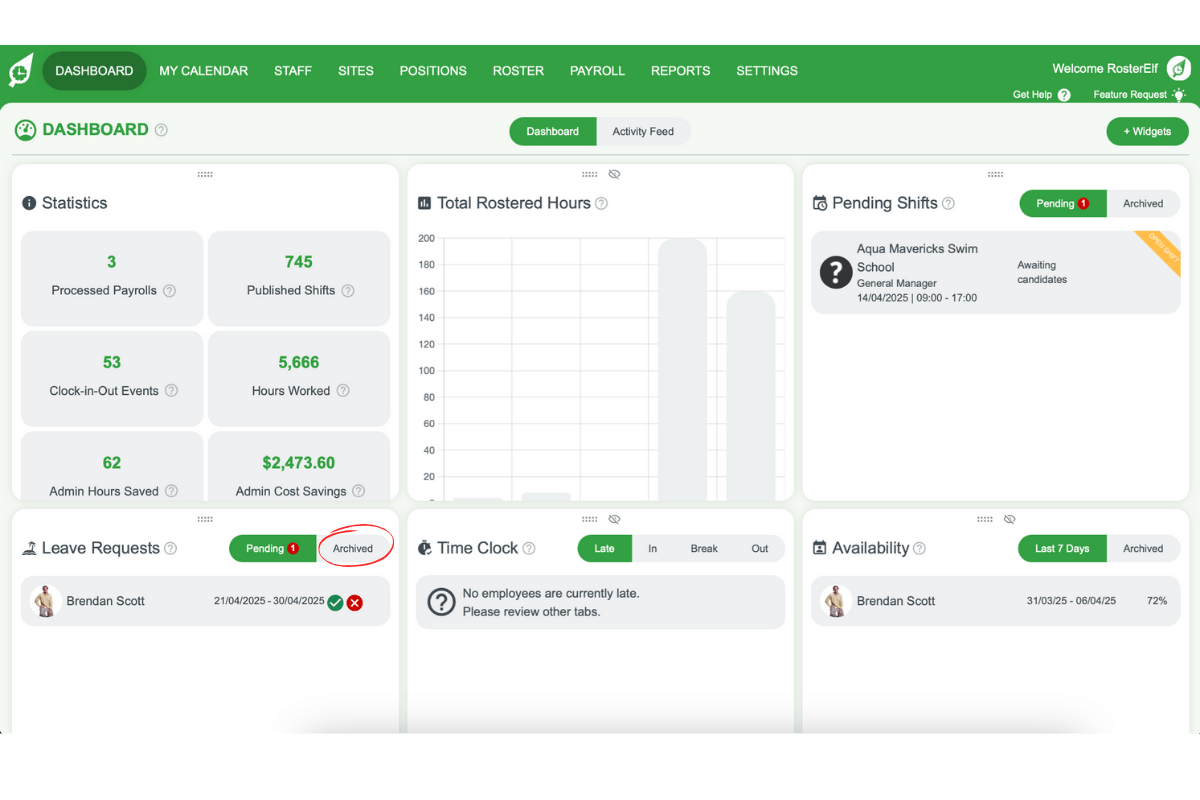
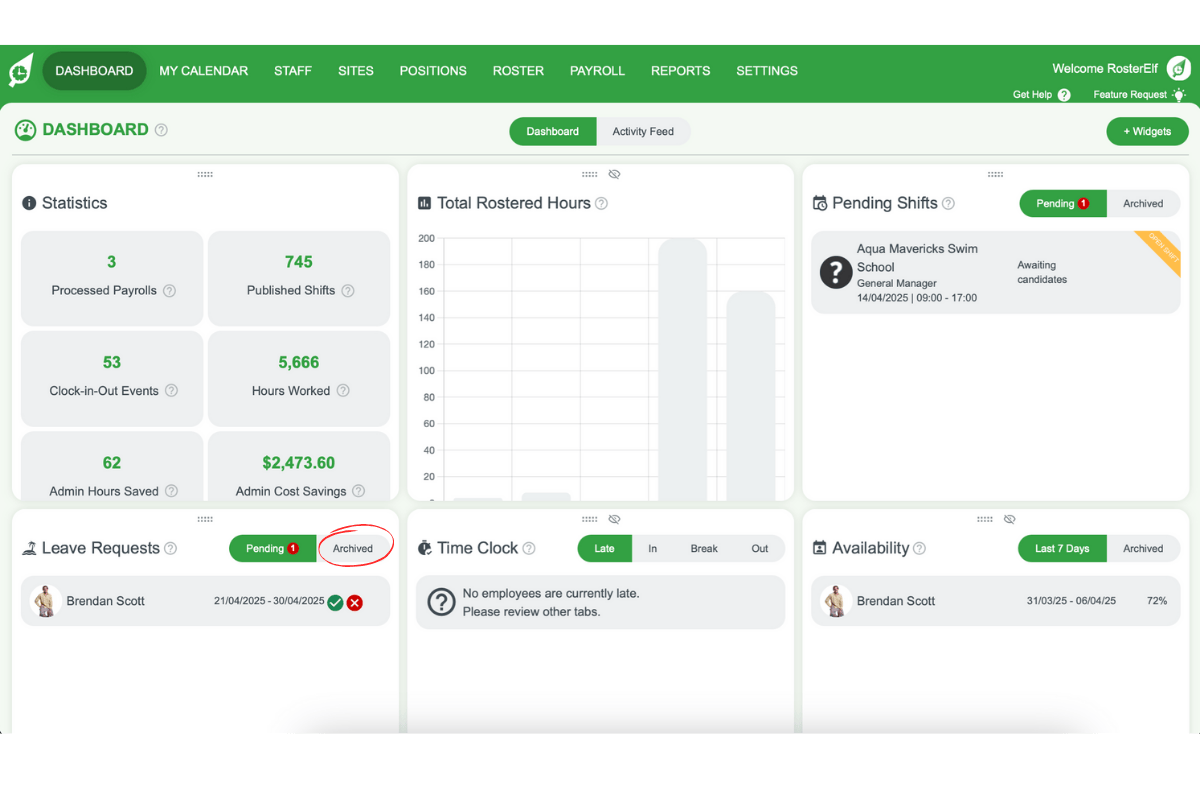
1.1.2 Select the archived tab on the leave widget.
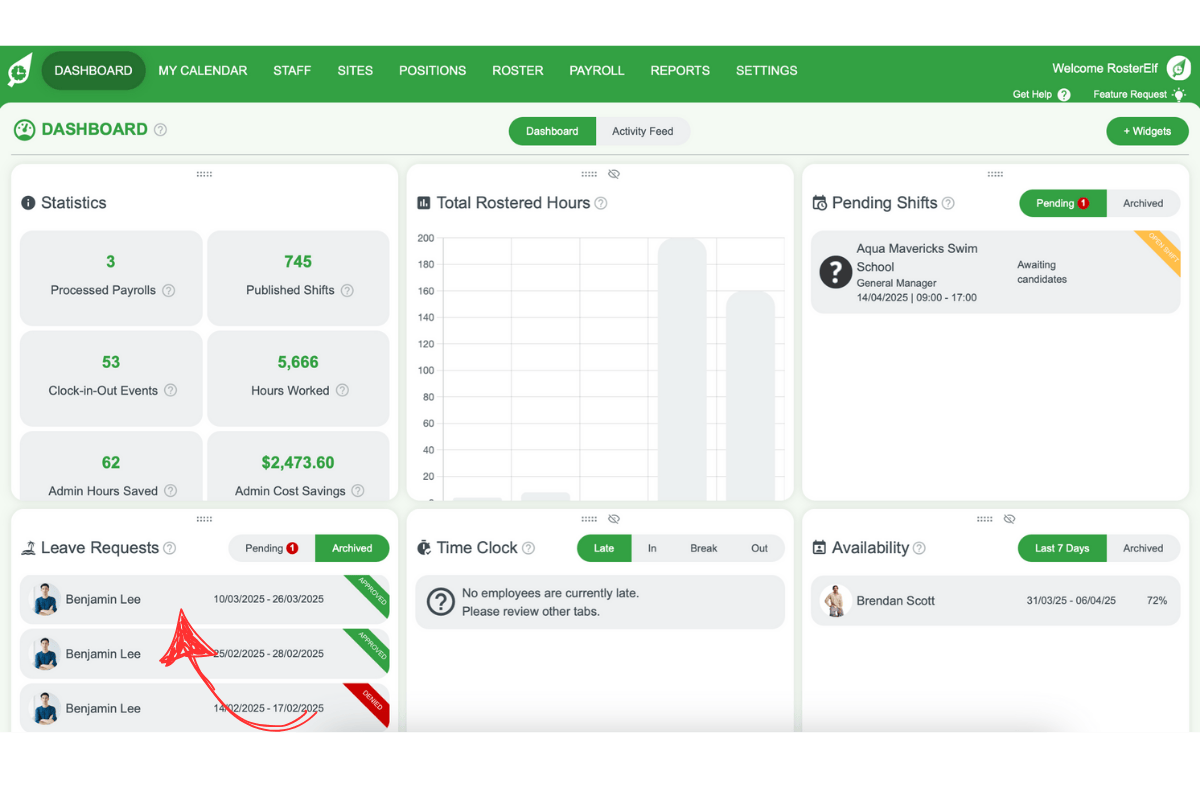
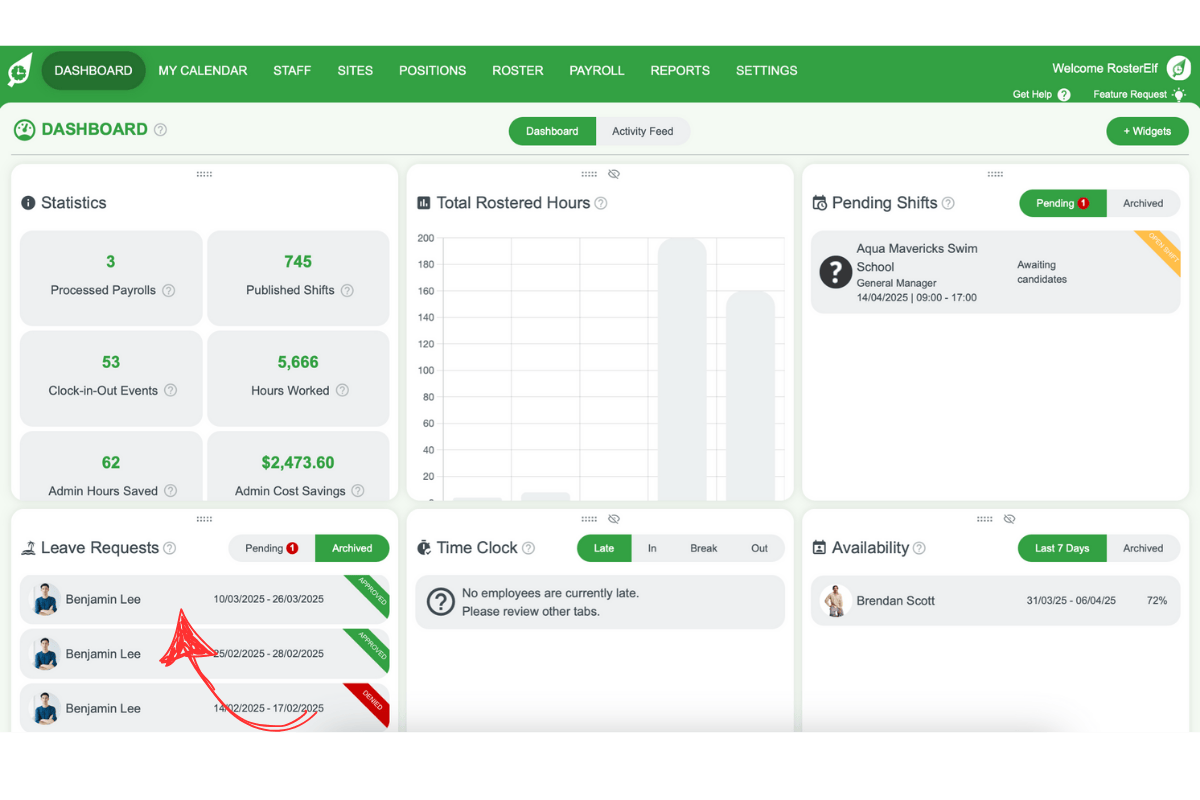
1.1.3 Find and click on the leave you want to delete.
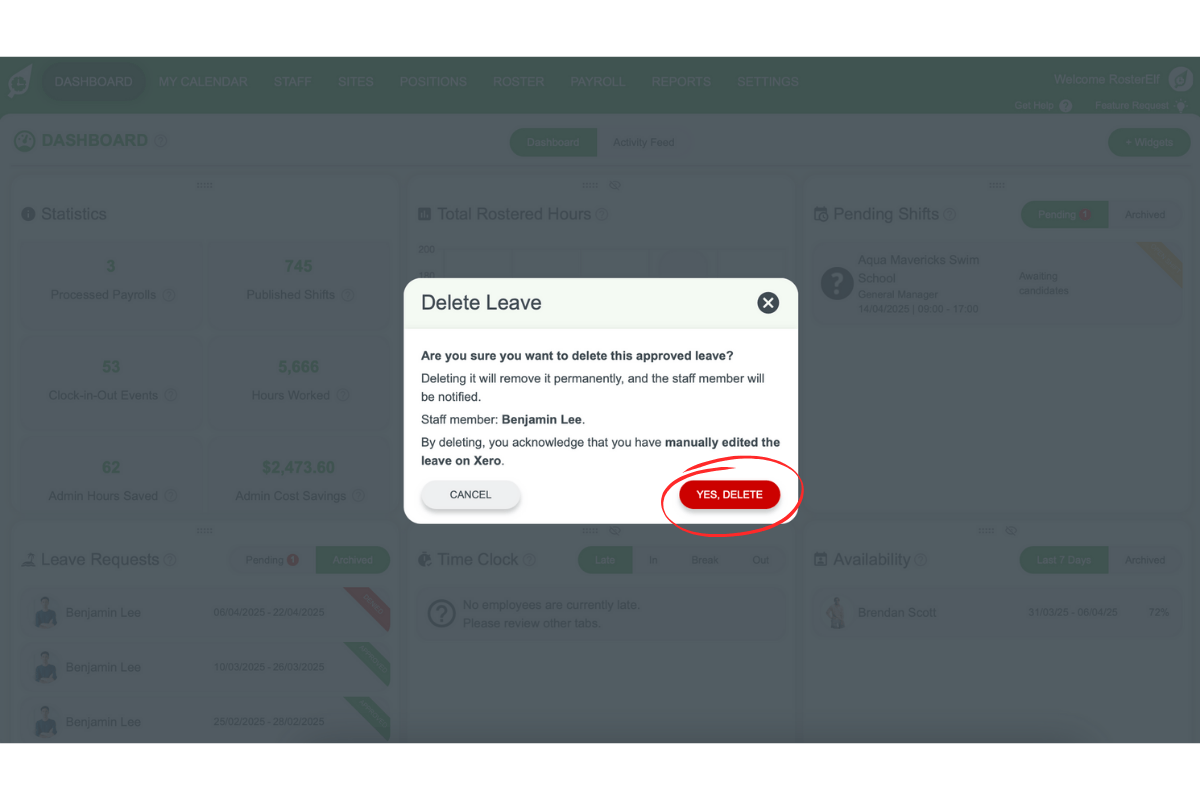
1.1.4 Click delete.
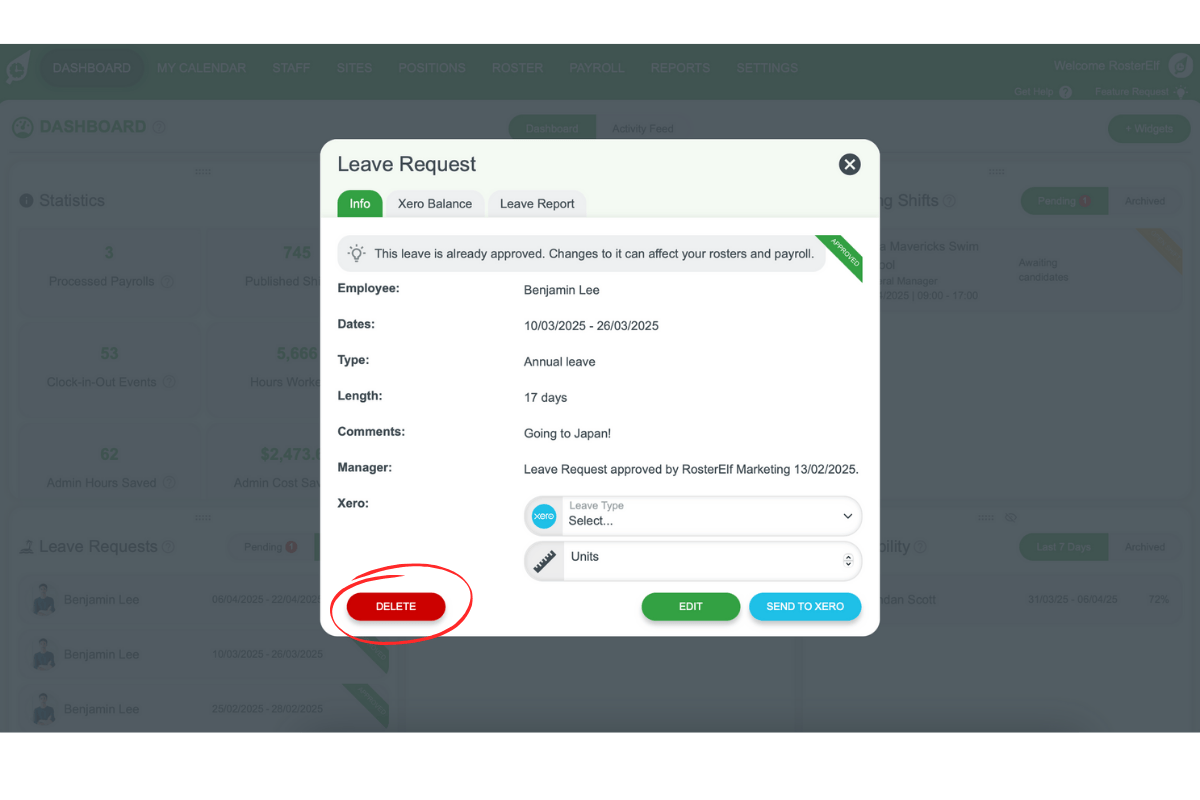
1.1.5 Confirm you want to delete the leave.
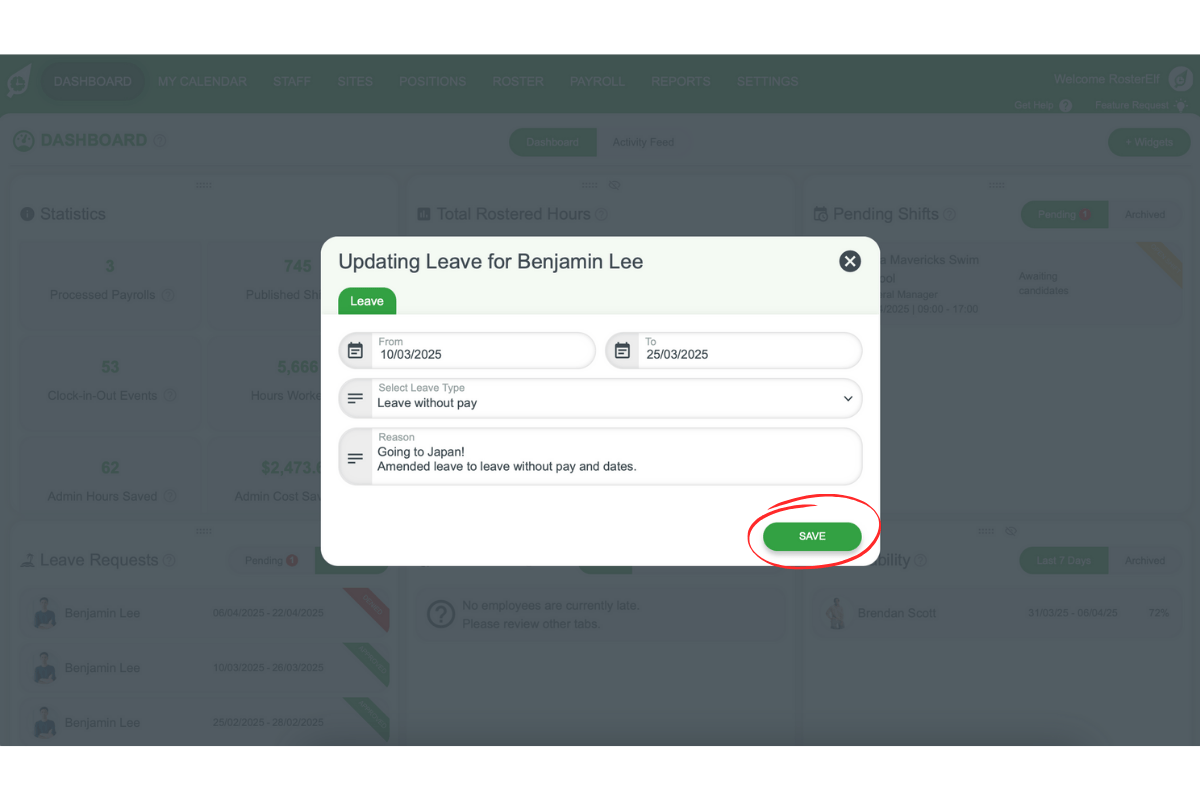
2. Edit an archived leave request
Editing archived leave allows you to update details like dates, leave type, or comments. Use these steps to make changes quickly.
2.1 steps to edit archived leave
2.1.1 Click onto your dashboard.
2.1.2 Select the archived tab on the leave widget.
2.1.3 Find and click on the leave you want to edit.
2.1.4 Hit edit.
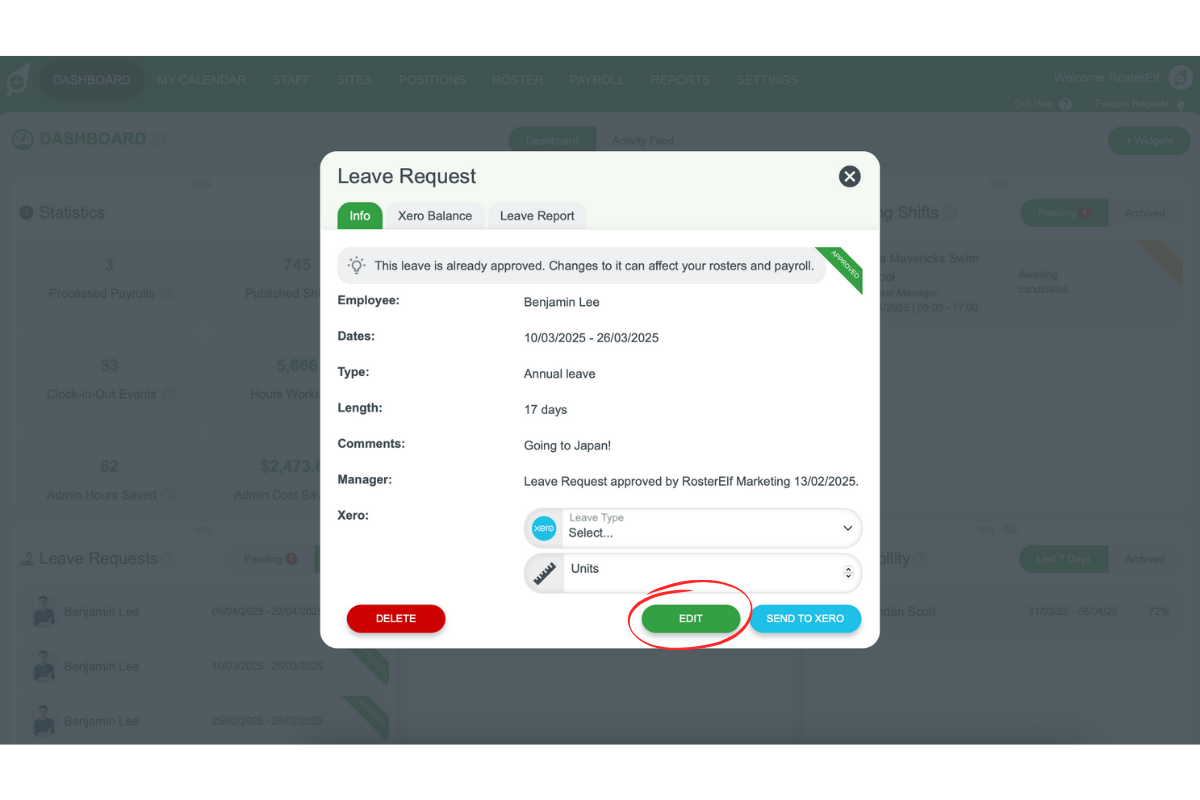
2.1.5 Select the new dates and hit ok.
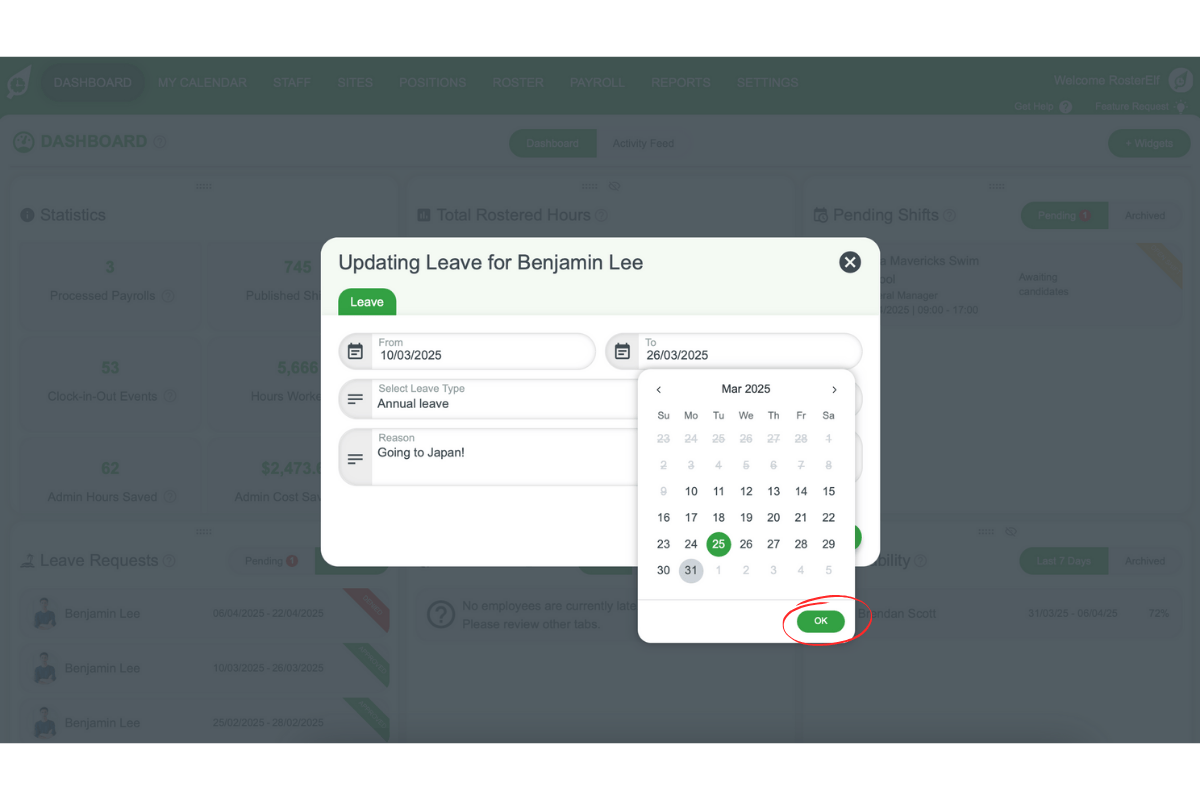
2.1.6 Change the leave type.
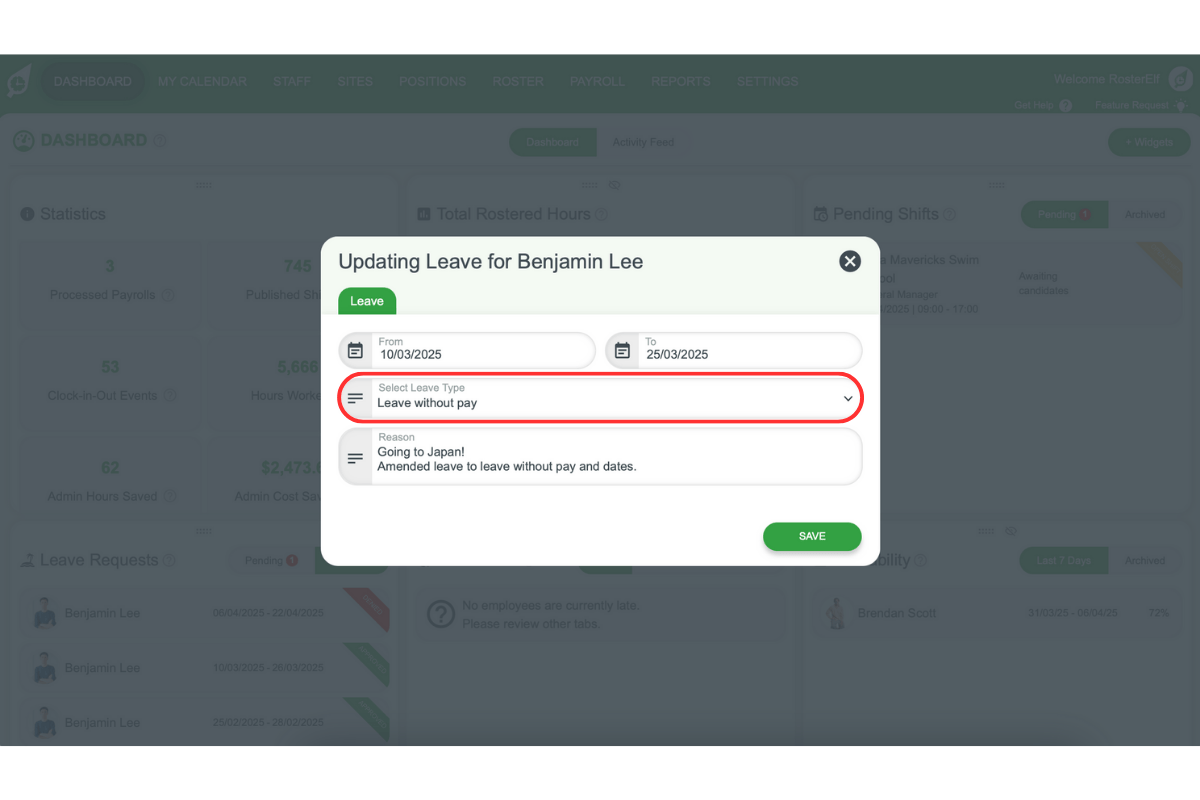
2.1.7 Add or amend the comment.
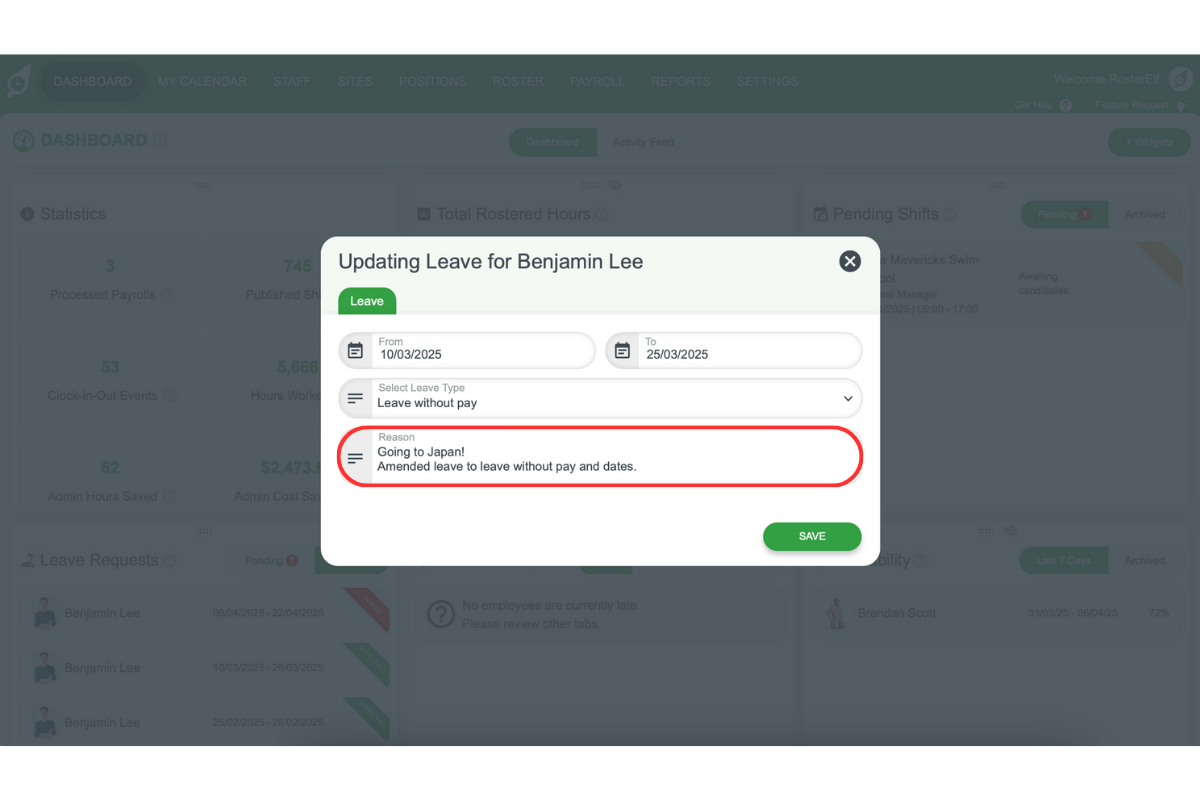
2.1.8 Hit save to confirm the changes.
Frequently asked questions
1. How do I delete a leave request?
To delete a leave request, go to your dashboard, select the archived tab in the leave widget, click on the leave request you wish to delete, click delete and confirm. This process ensures your records are accurate and up-to-date.
2. Can I edit a leave request that has been archived?
Yes, you can edit archived leave requests. Simply navigate to your dashboard, access the archived tab in the leave widget, click the leave request you want to edit, hit edit to modify dates, leave type, or comments, and save the changes to finalise the update.
3. What happens if I delete a leave request?
When you delete a leave request, it is permanently removed from your records. Ensure you double-check before confirming the deletion.
4. Are there restrictions on editing archived leave?
Editing is flexible, allowing you to update dates, leave types, and comments. However, ensure all changes comply with company policies or approval processes.
5. Can deleted leave requests be recovered?
No, deleted leave requests cannot be recovered. Always verify the request before deletion to avoid accidental loss of important records.