

Manage staff leave requests on mobile
This article explains how to review and action staff leave requests in the RosterElf iPhone and Android apps. You will learn to open the Leave tab, inspect each request, approve or deny it and consult archived decisions later. Every step uses clear screenshots and short instructions so managers handle annual, personal or parental leave without returning to a desktop. Notifications fire automatically, ensuring employees receive instant confirmation of the outcome. By the end of this guide you can keep the roster accurate, maintain compliance records and respond to leave enquiries on the go, all from the palm of your hand.
1. Open leave requests list
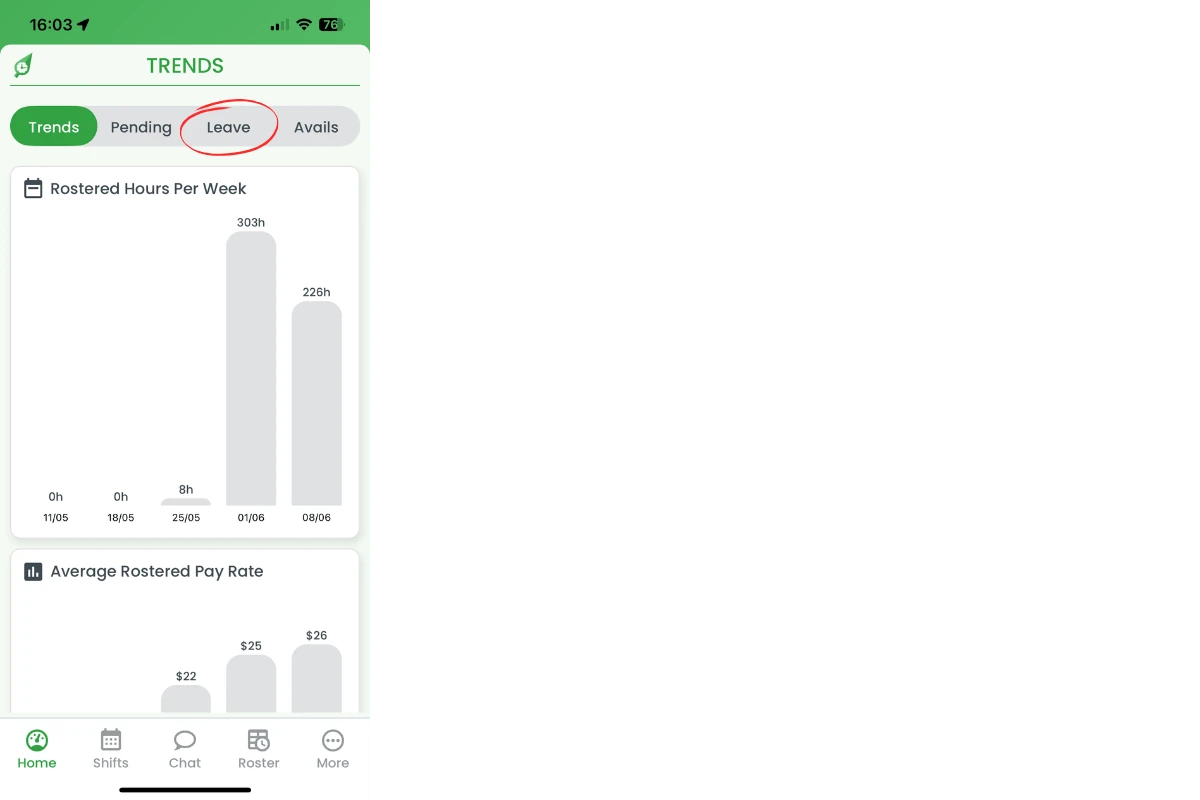
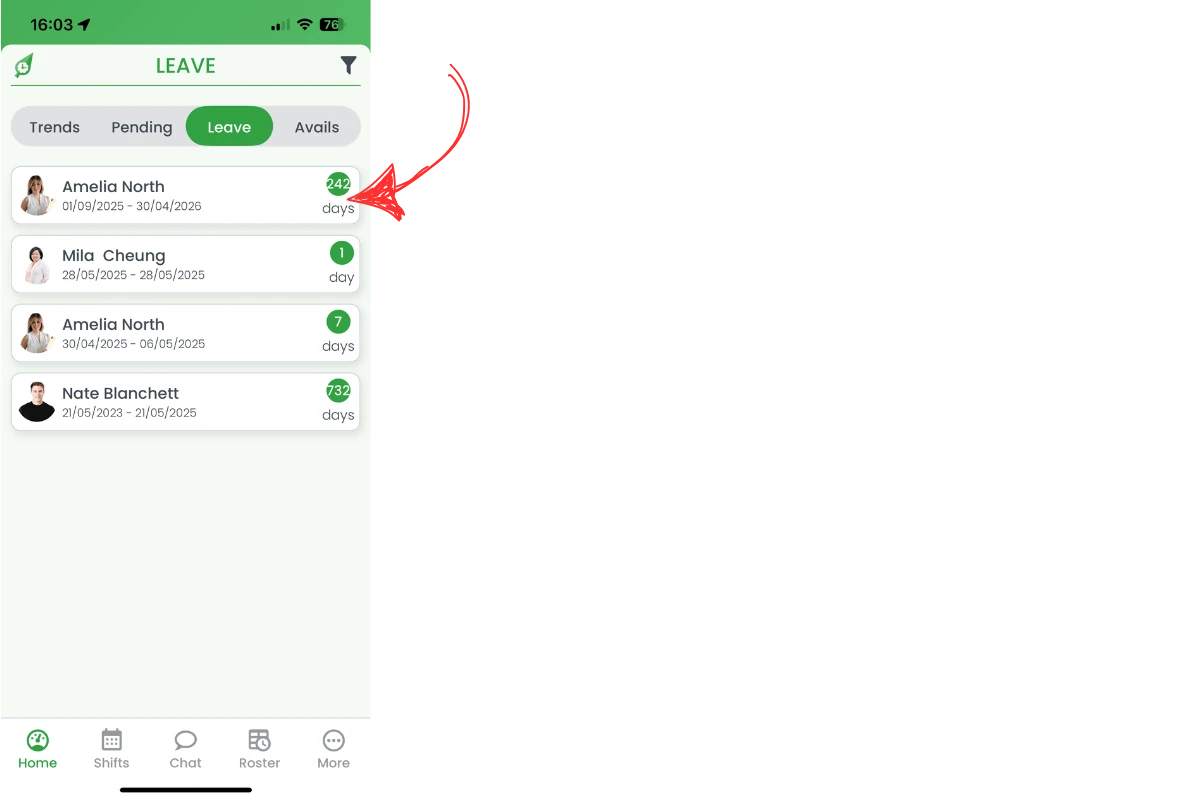
The Leave tab sits in the Home dashboard beside Trends, Pending and Avails. Opening it shows every current request in date order, with a green badge displaying the length. This section guides you to the tab so you have a clear starting point before approving or denying any request.
1.1 navigate to leave tab
1.1.1 In the Home view, tap Leave on the top menu bar.
1.1.2 A list of pending leave requests appears. Tap any item to review details.
2. Approve or deny leave
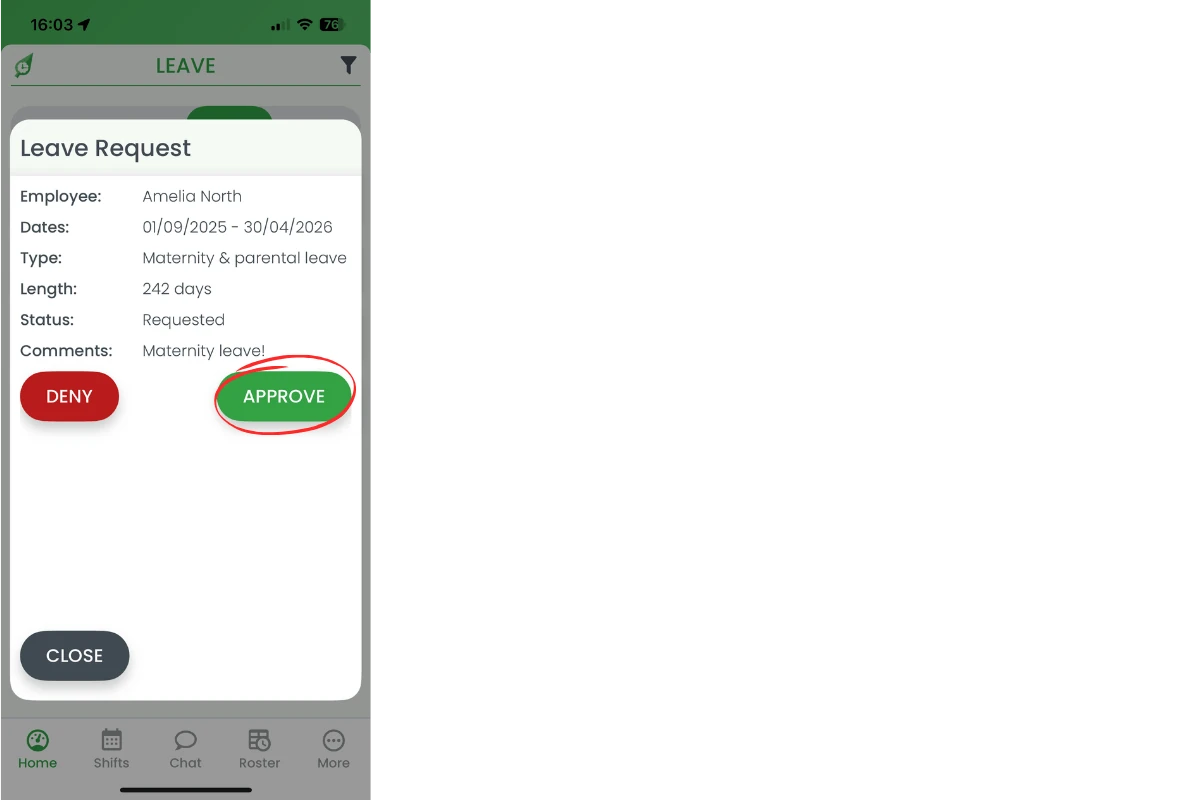
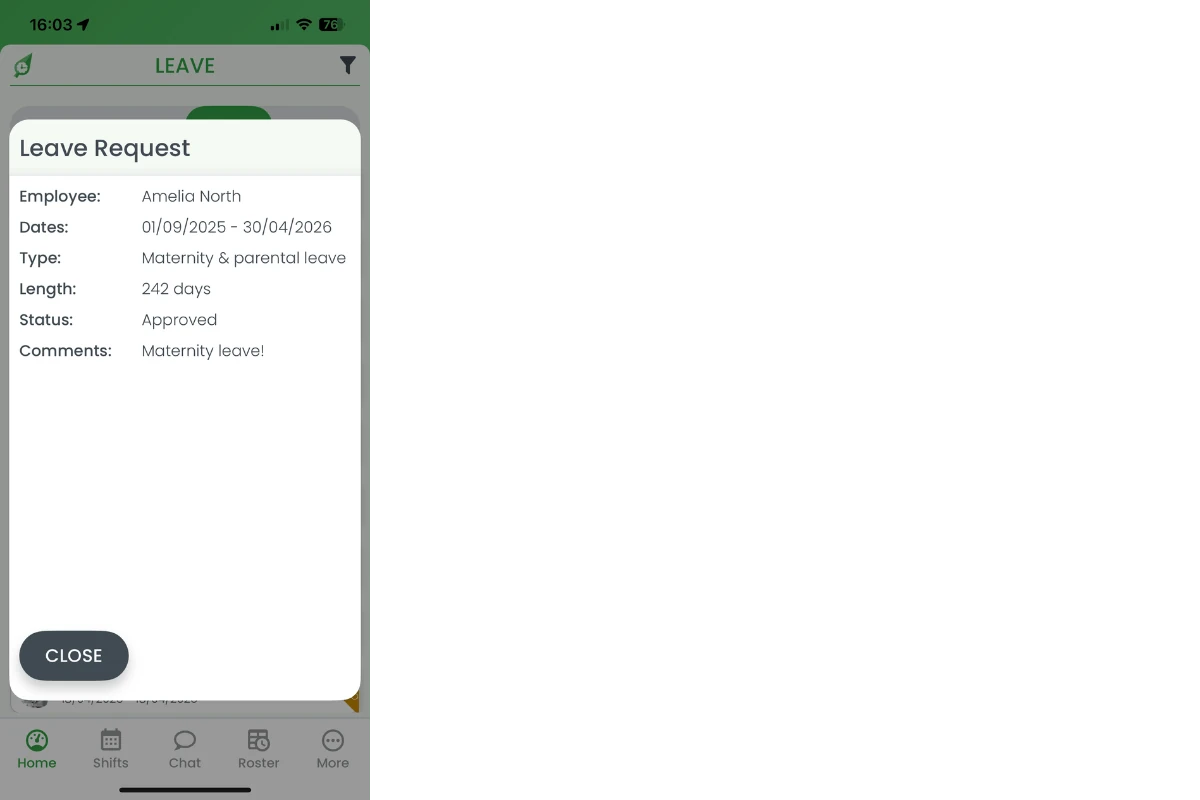
Each leave card shows employee name, dates, type, length and comments. After checking overlaps and staffing levels, choose Approve or Deny. The app asks for confirmation, then emails the employee instantly so they stay informed of any roster changes.
2.1 approve leave request
2.1.1 Tap Approve in the Leave Request modal.
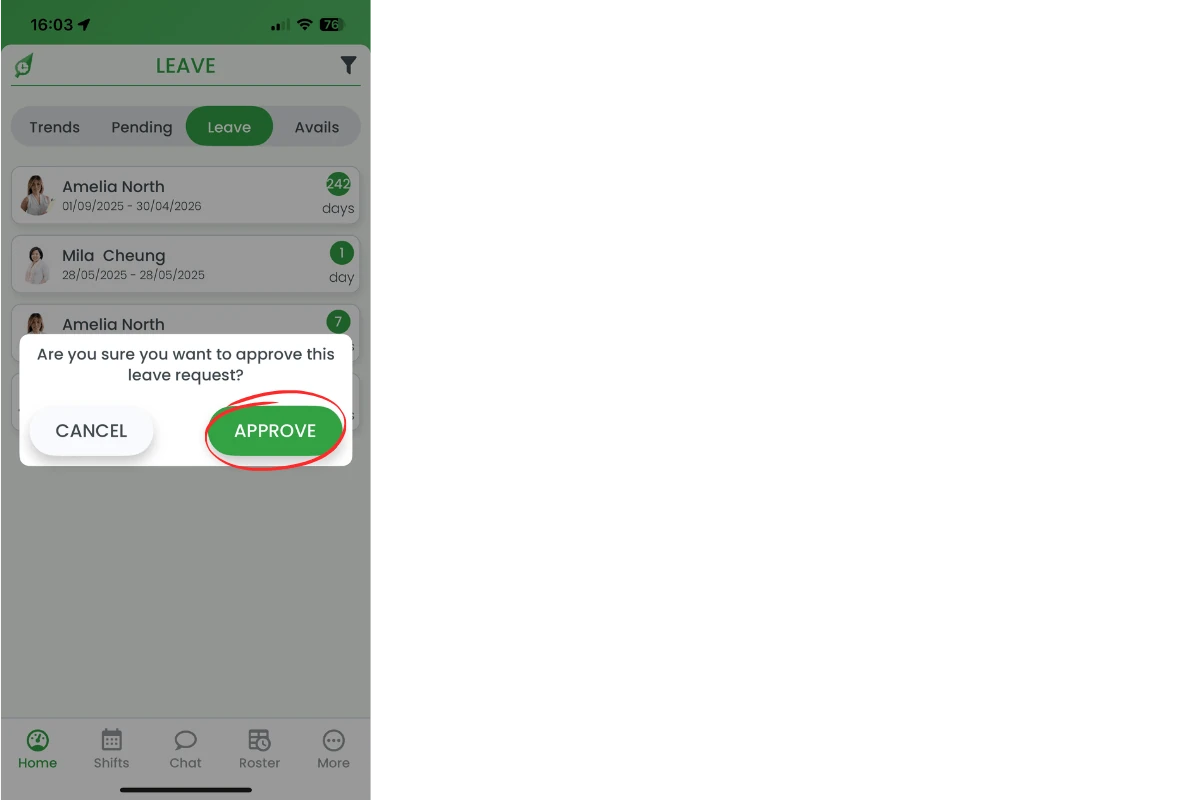
2.1.2 Confirm approval in the pop-up window.
2.2 deny leave request
2.2.1 Tap Deny to decline the request.
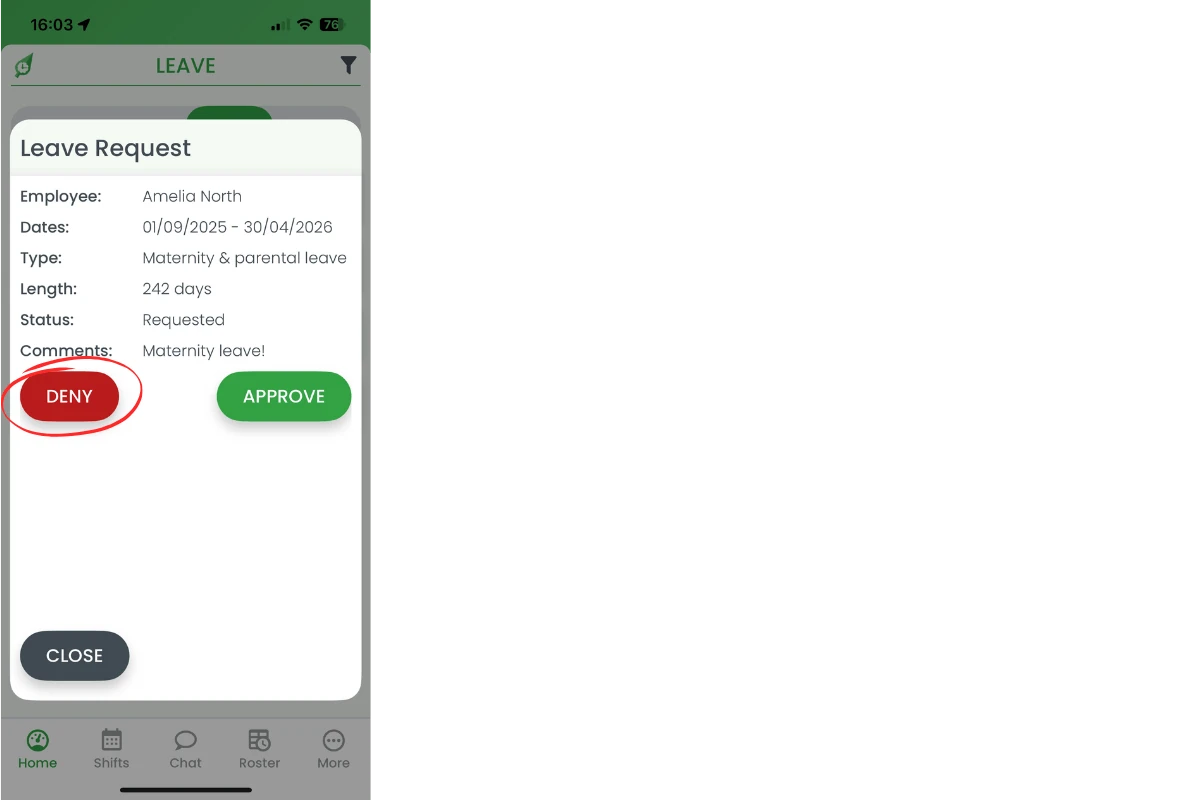
2.2.2 Confirm denial in the pop-up window.

3. View archived leave history
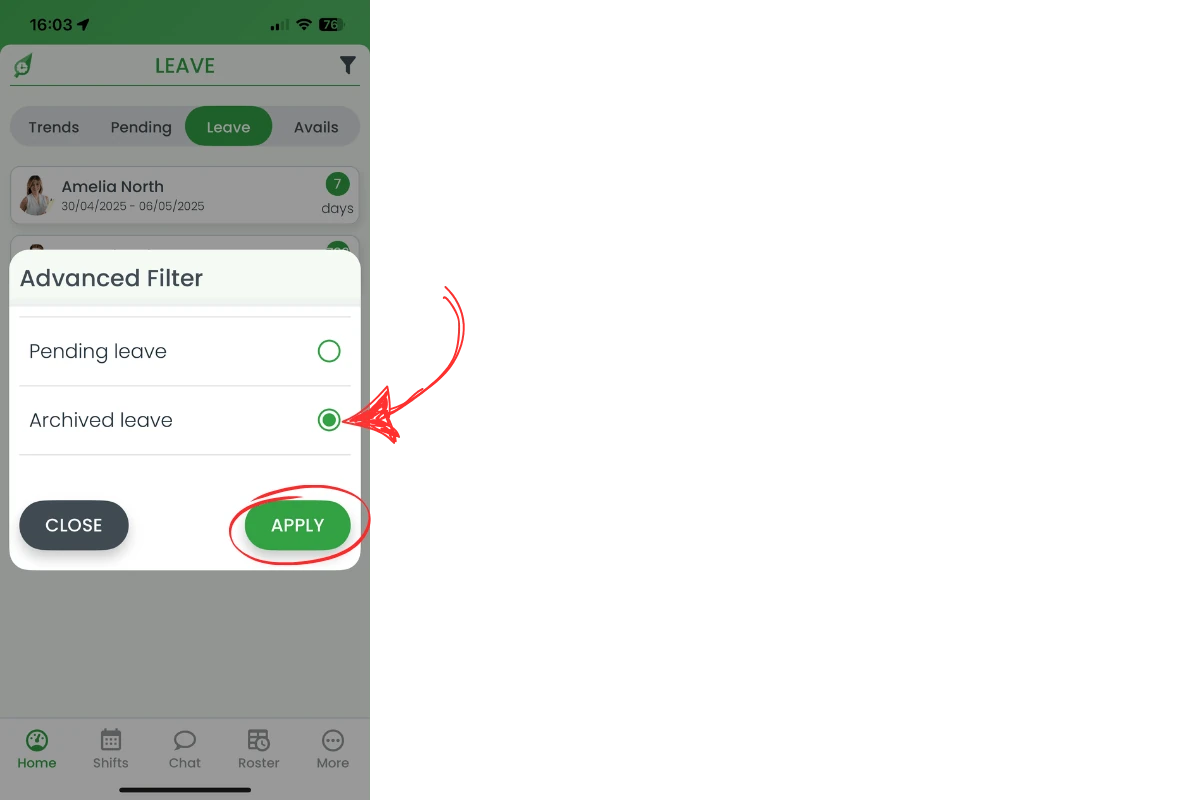
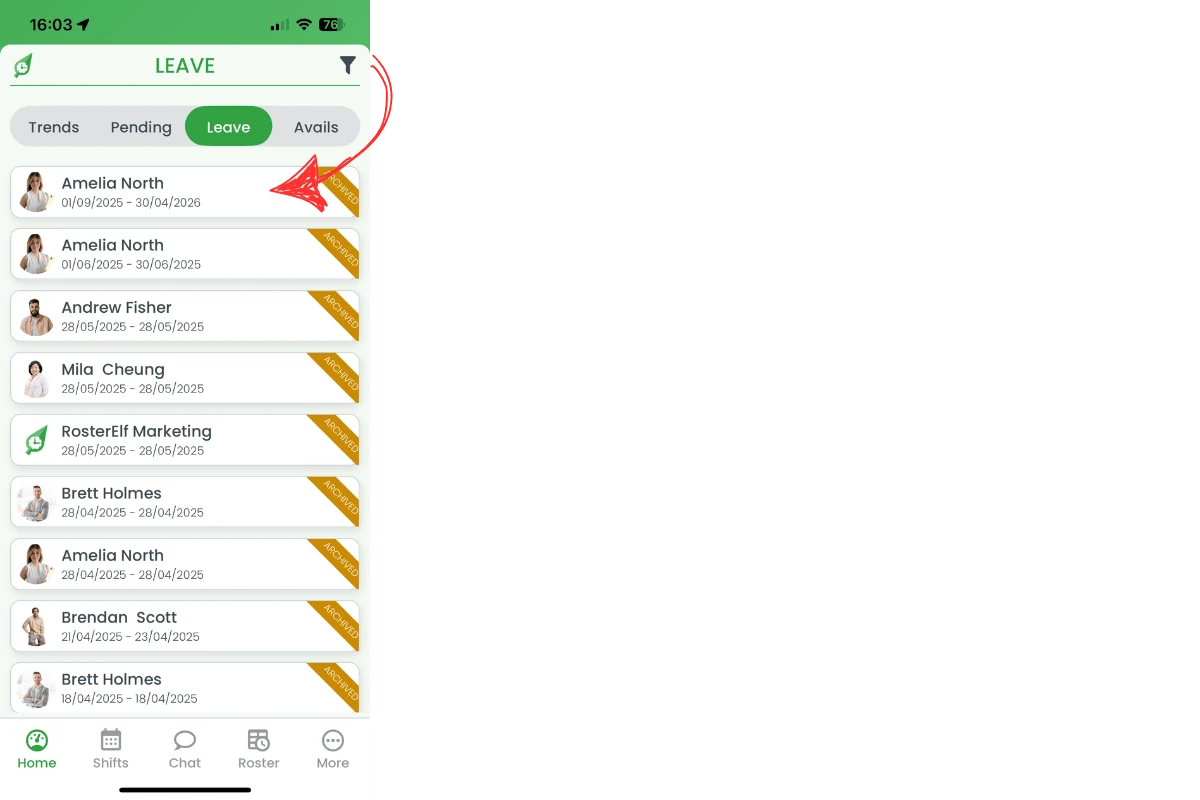
After taking action, requests move to the archive. You can filter the Leave list to show previously approved or denied items, useful for audits, payroll or dispute checks. This section shows the filter workflow and how to open any archived record for a quick recap.
3.1 filter for archived leave
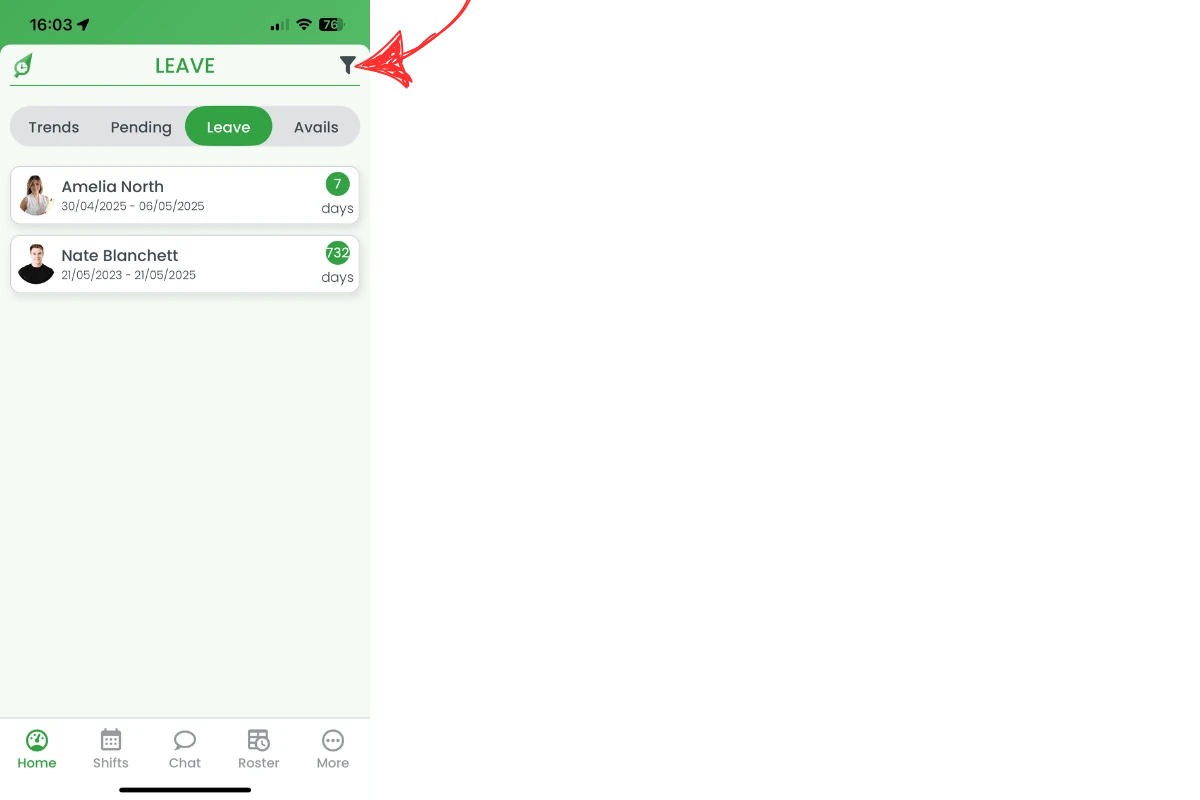
3.1.1 Tap the filter icon in the top-right of the Leave header.
3.1.2 Select Archived leave and tap Apply.
3.2 review archived request
3.2.1 Tap an archived card to view its full details.
Frequently asked questions
1. Where do I action leave requests on mobile?
Tap Home > Leave, then select any request to approve or deny it.
2. Does the employee get an email after I decide?
Yes. RosterElf emails the employee instantly with the approval or denial outcome.
3. Can I reverse a decision later?
Use the web platform to reopen an archived request and change its status if needed.
4. How do I see old leave requests?
Tap the filter icon, choose Archived leave and press Apply.
5. Will approved leave show on the roster automatically?
No, not by default. Approved leave only becomes visible on the roster once a manager clicks the Availability button to turn on the availability and leave overlay — leave then shows as a red line or shading. See view staff availability and leave on the roster for the full breakdown, or add a leave position if you’d rather leave was visible without turning the overlay on each time.