

Updating availability in RosterElf
This article explains how to update your availability in RosterElf. Keeping your availability up-to-date ensures you receive rosters that align with your schedule. You can update your standard availability for regular commitments or set an availability block for a specific week. An availability block overrides your standard availability for that week only, allowing flexibility for temporary changes. This guide walks you through updating both standard availability and creating a weekly availability block.
For further information on updating availability across devices, refer to:
- Updating your availability from a browser
- Staff availability updates (smartphone)
- Staff availability updates (browser)
1. Updating standard availability
This section details the steps to update your regular availability in RosterElf. Your standard availability is your general weekly schedule. By adjusting this, you set your consistent availability, which your manager will consider when creating rosters.
1.1 Accessing standard availability
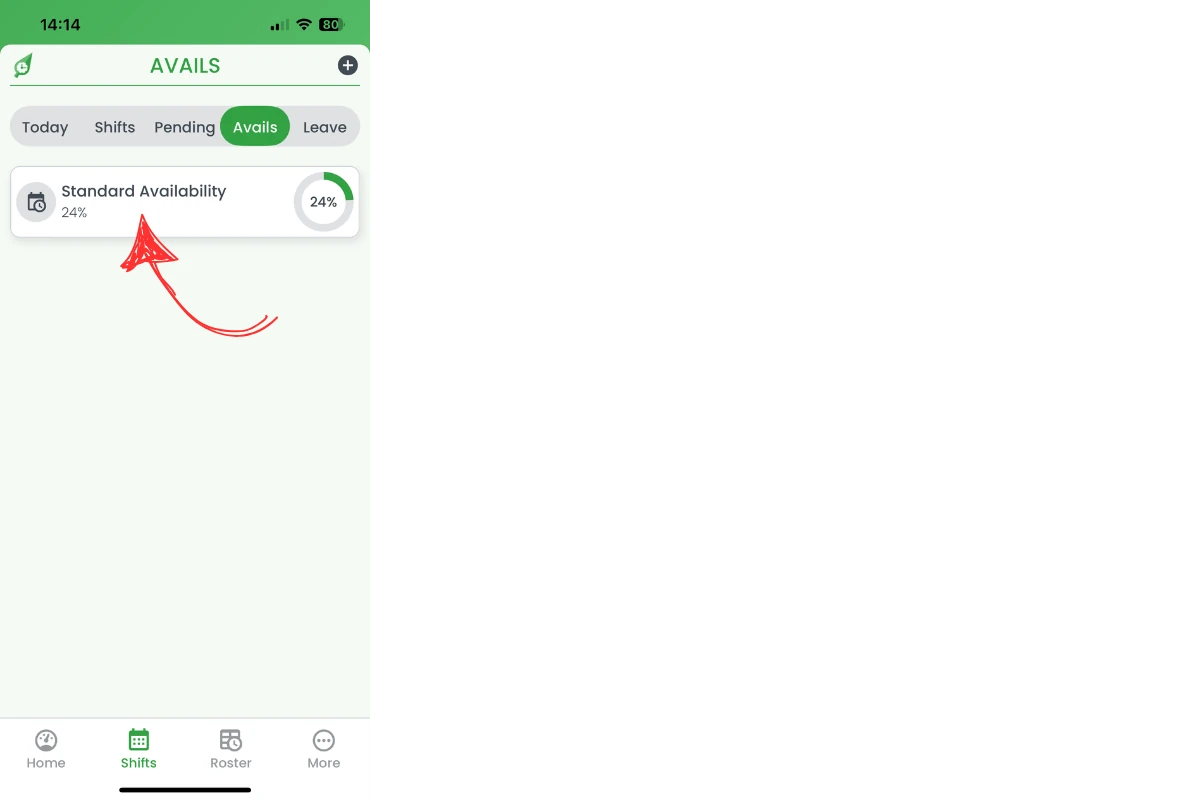
1.1.1 Tap Shifts at the bottom of your screen.

1.1.2 Tap Avails from the top tabs.

1.1.3 Tap Standard Availability.
1.2 Adjusting availability times
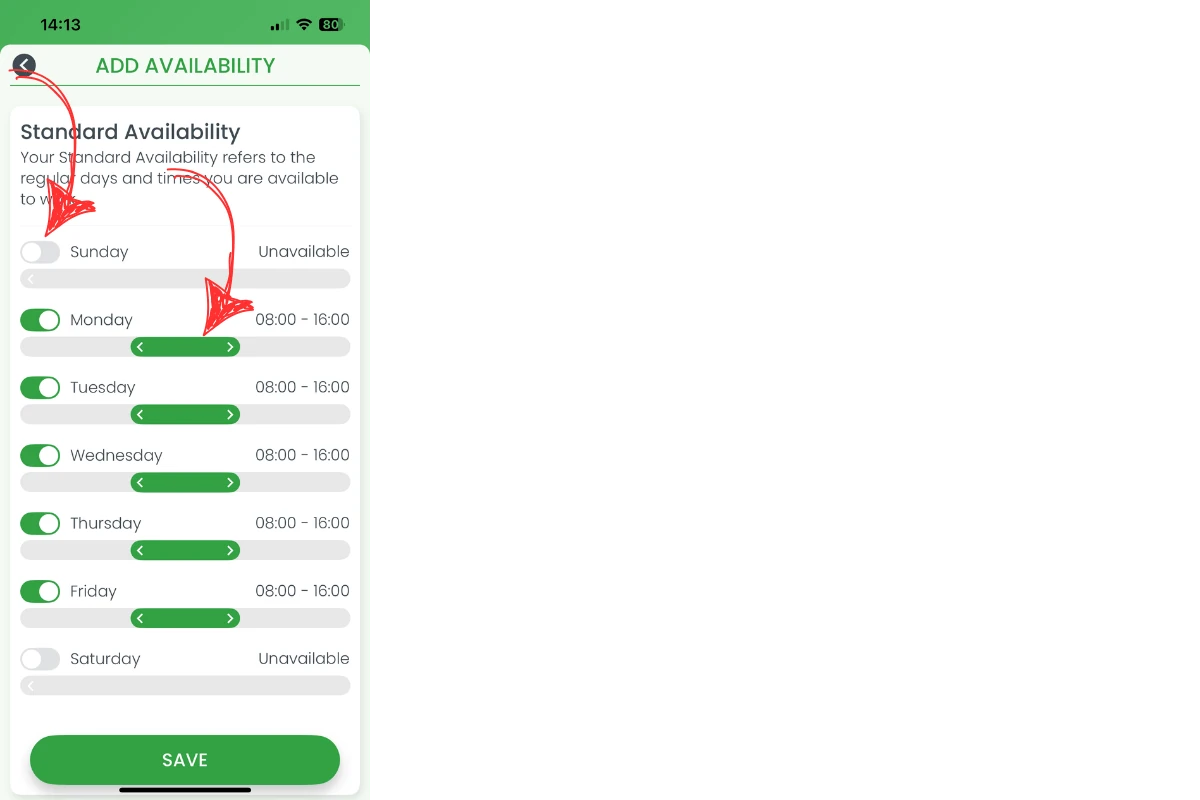
1.2.1 For each relevant day, turn the toggle on or off and drag the slider to set your available hours.
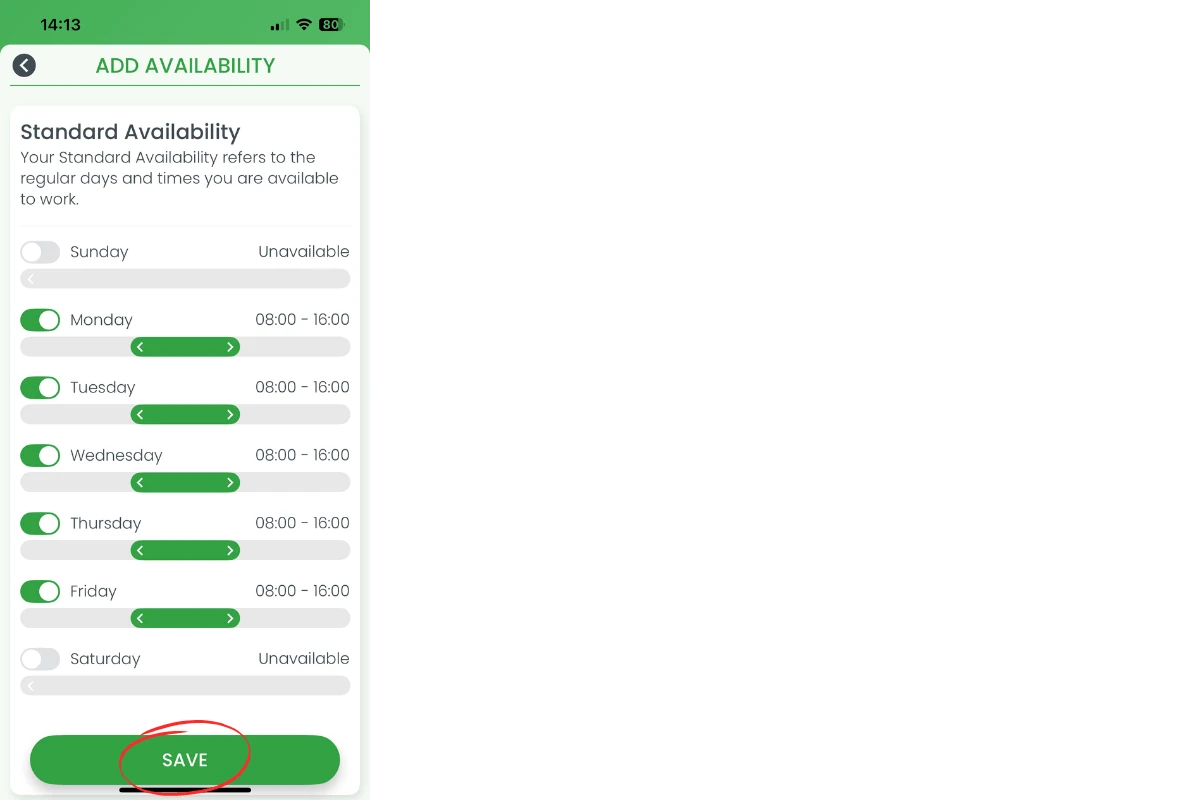
1.2.2 Tap Save to keep your changes.
For managers needing to view or update staff availability, refer to:
- Viewing or updating a staff member’s availability
- View staff availability and leave on roster
2. Adding an availability block
This section explains how to create an availability block for a specific week, which overrides your standard availability. Use this feature for temporary adjustments to your schedule, such as a change in availability for one week.
2.1 Creating a new availability block
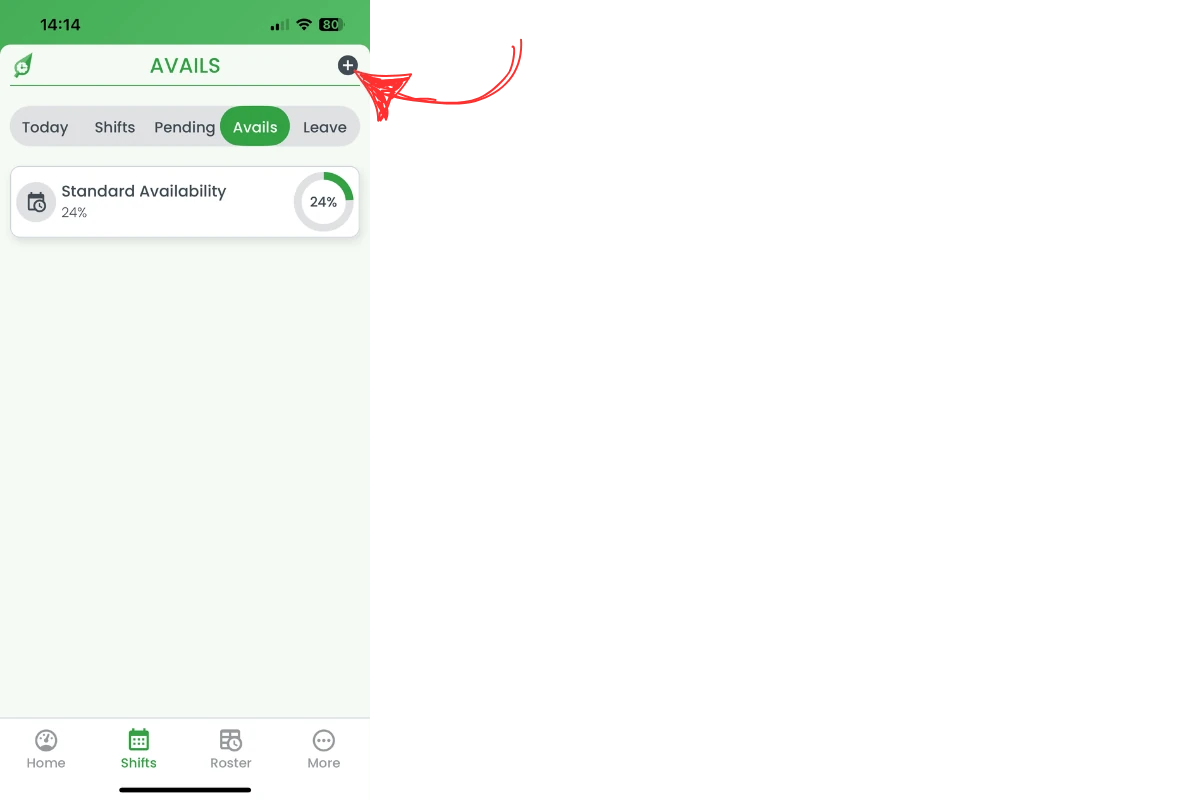
2.1.1 Tap Shifts at the bottom of your screen.
2.1.2 Tap Avails from the top tabs.
2.1.3 Tap the Plus (+) icon in the top-right to add a new availability block.
2.2 Setting block details
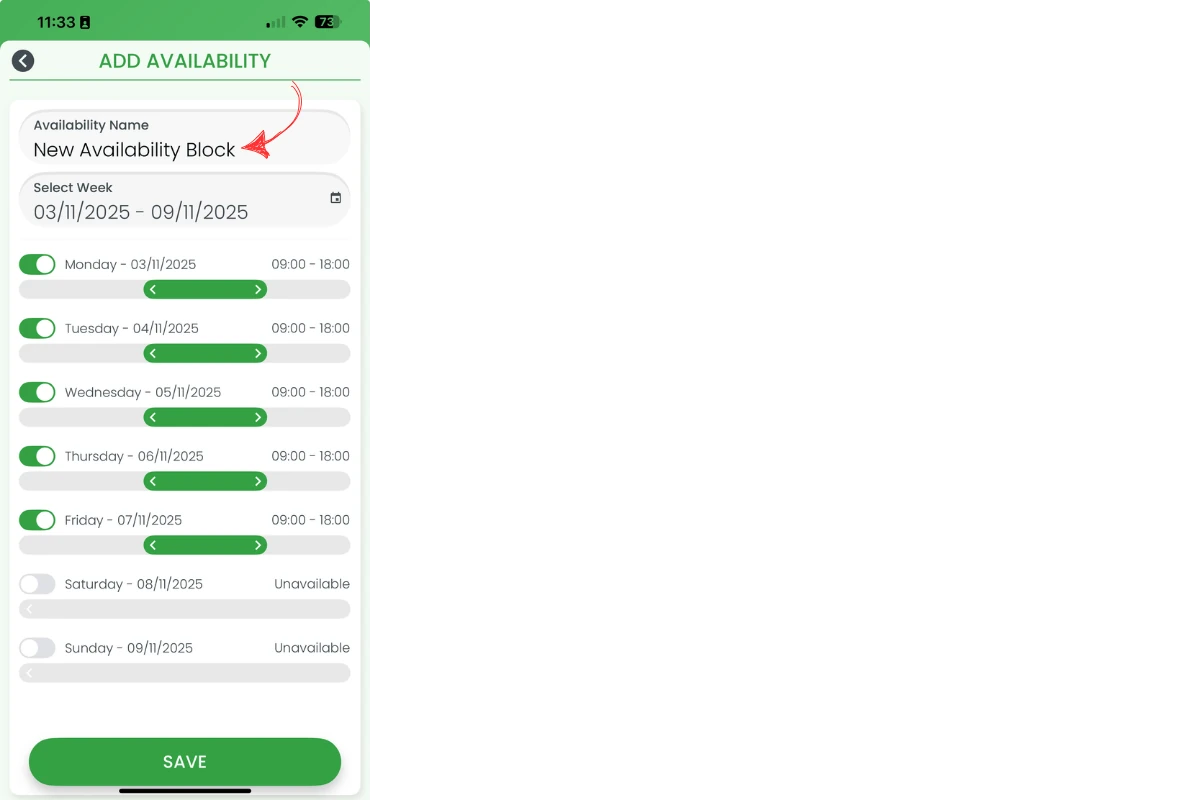
2.2.1 Enter a name for the availability block.
2.2.2 Tap Select Week and choose the relevant week.
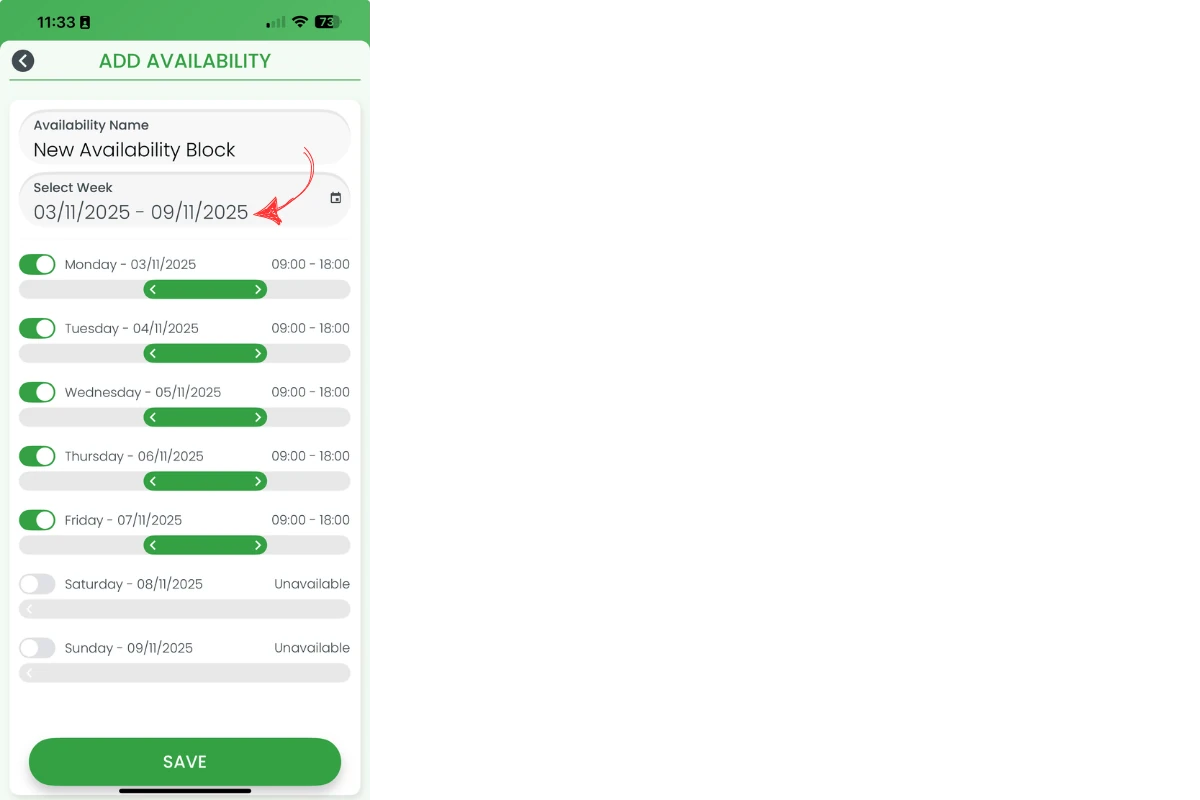
Note: You can select any day within the weekly roster cycle. RosterElf assigns the correct week based on your organisation’s rostering cycle.
2.3 Adjusting block availability times
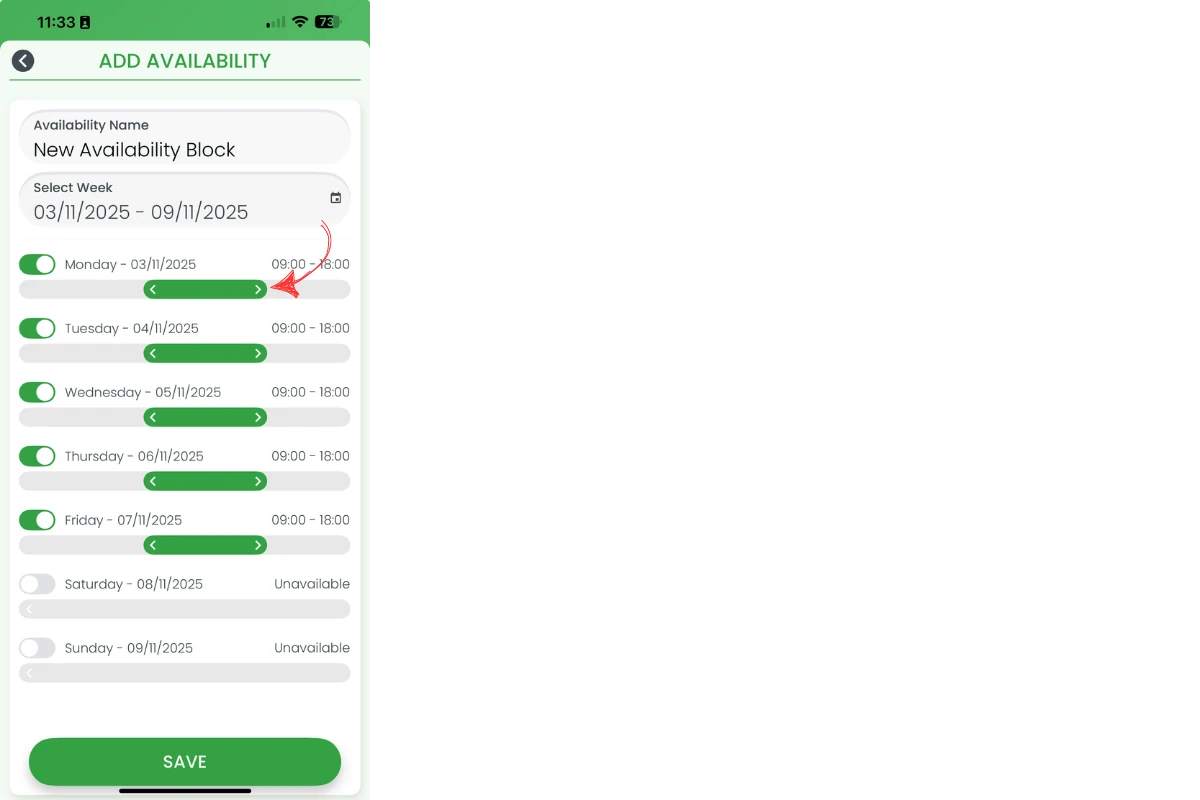
2.3.1 Adjust the days and times by moving the sliders for each relevant day.
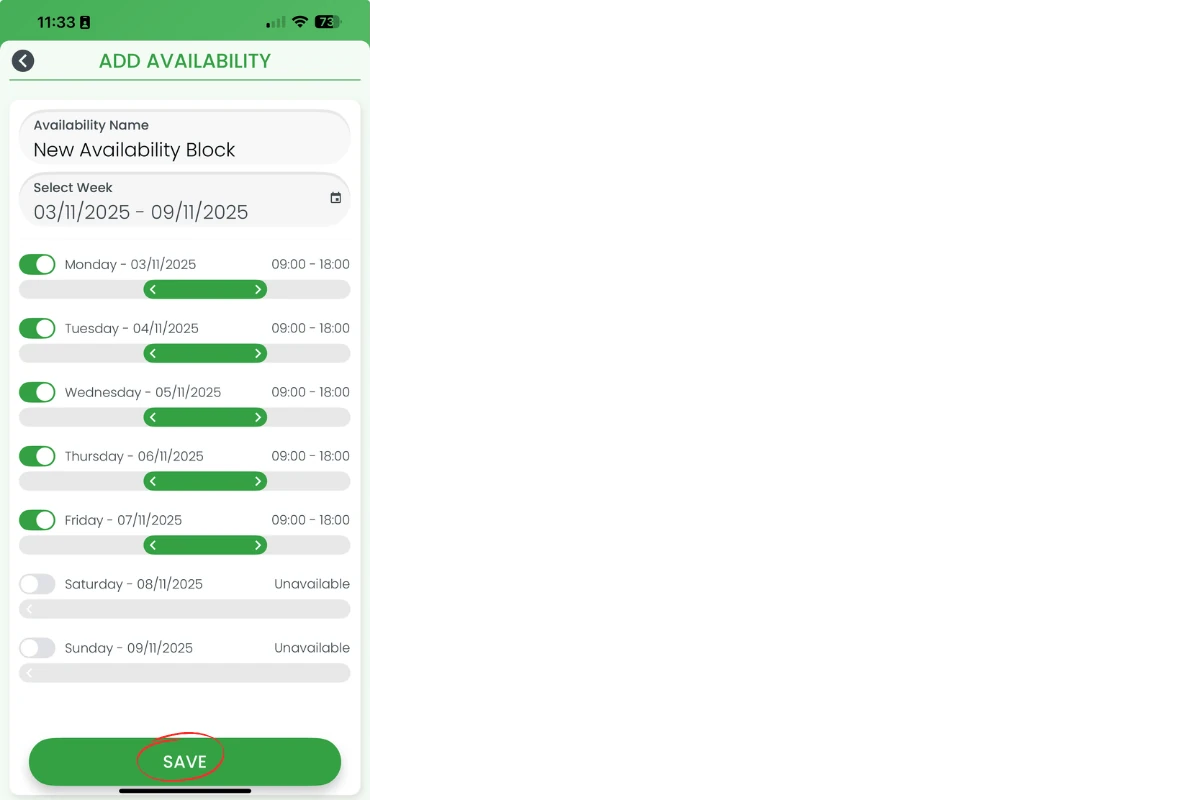
2.3.2 Tap Save to save your availability block.
Frequently asked questions
1. How do I update my standard availability in RosterElf?
Go to Shifts > Avails, tap Standard Availability, adjust the sliders for each day, and tap Save.
2. Can I set temporary availability changes in RosterElf?
Yes. Add an availability block in the Avails section, select the week, set your temporary hours, and tap Save.
3. What is the difference between standard availability and an availability block?
Standard availability is your regular weekly schedule. An availability block is a one-off adjustment for a single week and overrides your standard availability for that period.
4. How do I set an availability block for one week?
In Shifts > Avails, tap the Plus (+) icon, name the block, choose the week, configure your hours, and tap Save.
5. Will my manager see my updated availability in RosterElf?
Yes, managers can view both your standard availability and any availability blocks you create, ensuring rosters align with your current schedule.