

Update standard availability or create weekly availability block
This article explains how to update your standard availability and create availability blocks in the RosterElf system. Understanding these options will help you communicate your work availability to management effectively. Standard Availability is your recurring weekly schedule, while Availability Blocks allow temporary changes for specific weeks only. By the end of this guide, you’ll be able to set both Standard Availability and Availability Blocks to accommodate shifts in your availability, like during school exams or holidays.
1. Understanding standard availability
Standard Availability represents your regular weekly availability for shifts. Once set, it applies to all future weeks unless changed. This setting helps management plan rosters based on your usual availability. If your availability remains steady, updating this section is essential for long-term accuracy.
1.1 how standard availability works
1.1.1 Standard Availability applies to all future weeks unless you create an Availability Block for a specific week.
1.1.2 Changes made to Standard Availability automatically update all future weeks where no Availability Blocks exist.
2. Understanding availability blocks
Availability Blocks let you change your availability temporarily for a specific week without affecting future weeks. These blocks are helpful when you have unique commitments, like school exams or holidays, that impact your usual schedule. Once the week ends, your Standard Availability automatically resumes.
2.1 examples of availability blocks
2.1.1 Adjust availability during a school break to pick up more shifts.
2.1.2 Reduce availability during exam weeks or other special commitments.
3. Managing availability in My calendar
To manage your availability, use the My Calendar tab to view or update your Standard Availability or Availability Blocks. This section guides you through accessing and editing your availability settings on the RosterElf platform. You can also view your shifts in My Calendar to see upcoming rosters alongside your availability.
3.1 updating standard availability or availability blocks
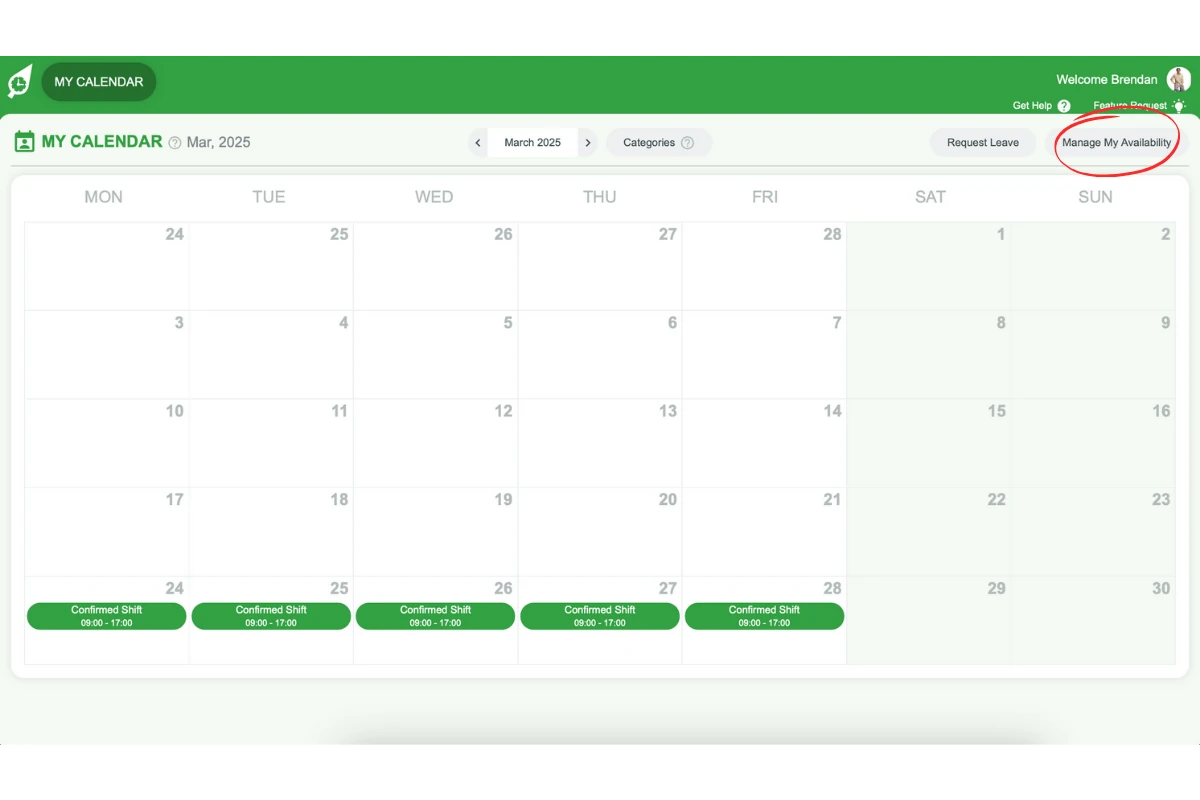
3.1.1 Open the My Calendar tab (employees only have access to this screen, so you can skip this step if applicable).
3.1.2 Click Manage My Availability in the top right corner.
3.1.3 Select the Standard Availability or Availability Block tab at the top of the modal.
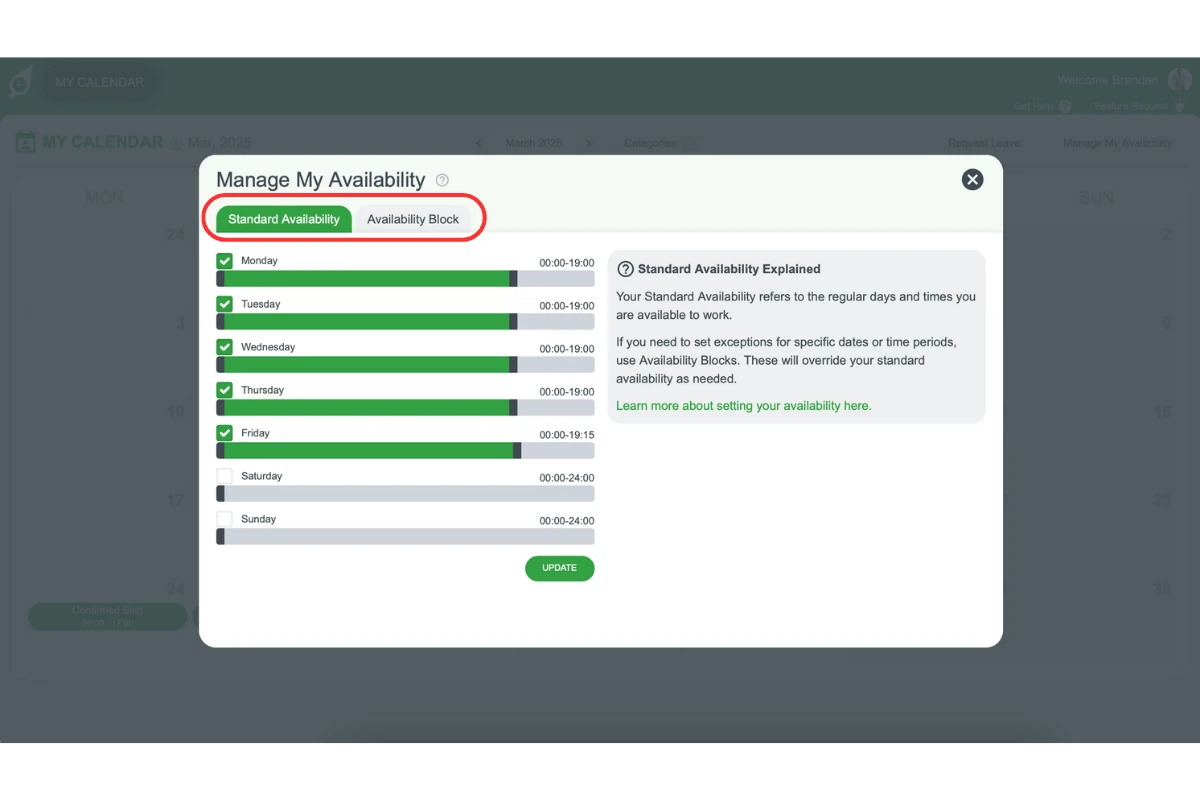
3.1.4 Use the sliding bars to adjust your available days and hours.
3.1.5 For an Availability Block, name the block and select the roster week it applies to.
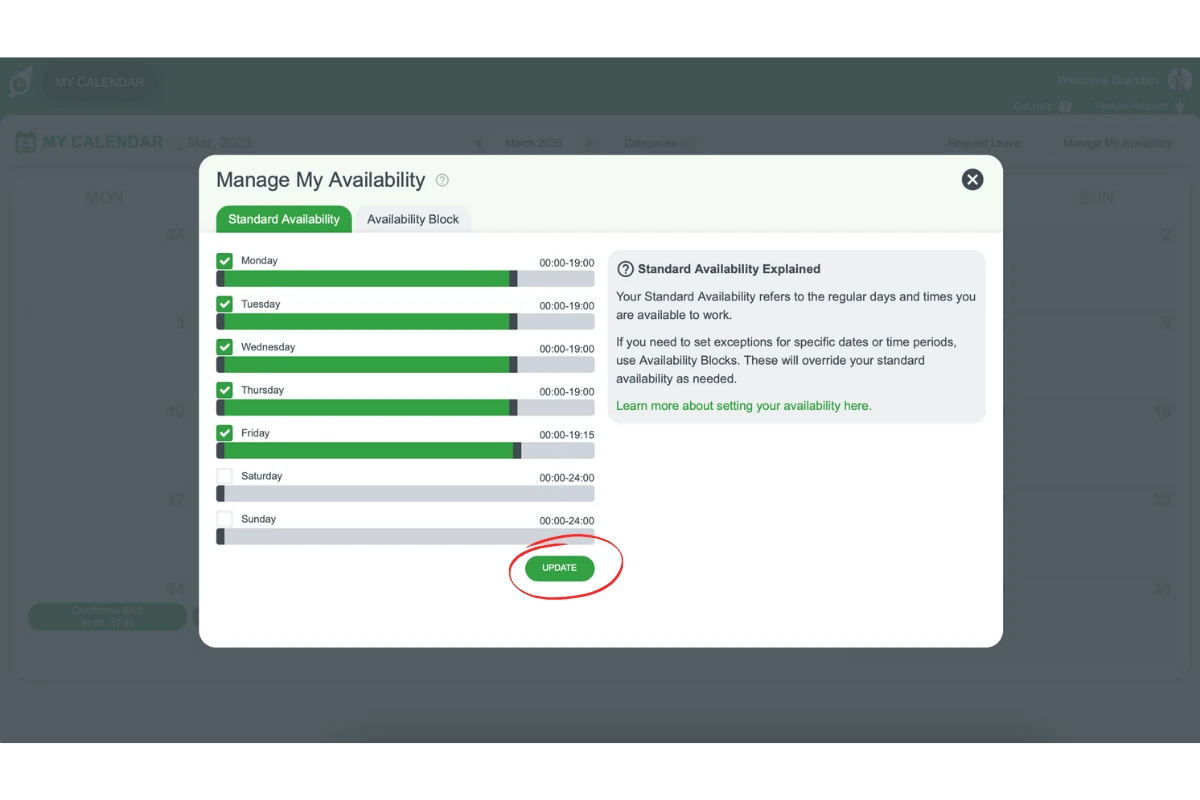
3.1.6 Click Update (Standard Availability) or Save (Availability Block) in the bottom right-hand corner to save changes.
3.2 deleting an availability block
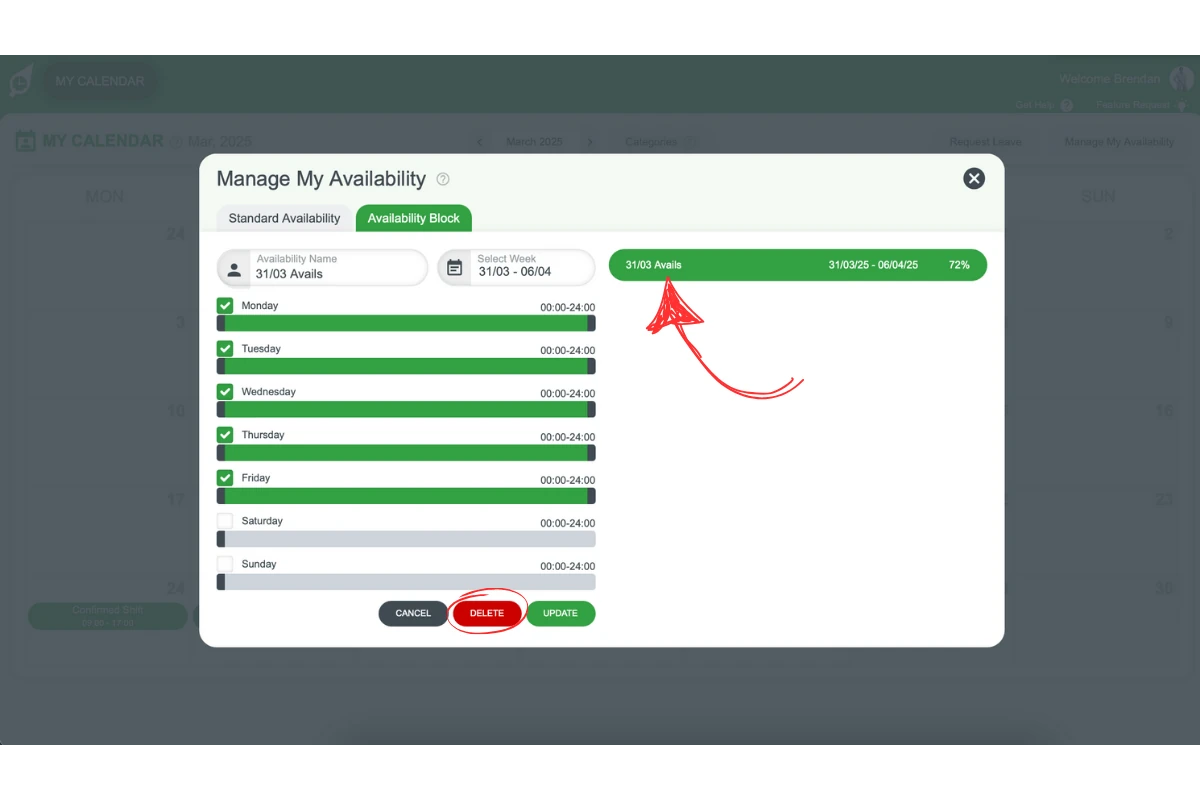
3.2.1 Open the relevant availability on the right-hand side of the screen.
3.2.2 Click Delete to remove the Availability Block.
Note: Can availability be restricted by anyone? No, there is no option to restrict availability for any permission level in RosterElf.
Frequently asked questions
1. How do I set my standard availability in RosterElf?
To set your standard availability, go to the My Calendar tab and click on Manage My Availability. Select the Standard Availability tab, and use the sliding bars to adjust your available days and hours. This will apply to all future weeks unless you update it or create an Availability Block for a specific week.
2. What is an availability block in RosterElf?
An availability block is a temporary change to your usual weekly availability for a specific week. Use this option when you have unique commitments, like exams or holidays, that affect your regular schedule. Once the week ends, your standard availability will resume automatically.
3. Can I change my standard availability once it's set?
Yes, you can update your standard availability anytime by returning to the My Calendar tab and selecting Manage My Availability. Changes will apply to all future weeks that don’t have an Availability Block.
4. How do I delete an availability block in RosterElf?
To delete an availability block, open My Calendar, select the availability block on the right-hand side, and click Delete. This will remove the block, and your standard availability will apply to that week.
5. What happens if I don't create an availability block?
If you don’t create an availability block, your standard availability will automatically apply to all weeks. Availability blocks are only necessary for temporary changes to your usual availability.