

Send a welcome message to all staff
This article explains how to send a welcome message to all staff in RosterElf. The welcome message helps staff access their accounts by providing login instructions and key setup details. It’s useful for reminding team members to activate their profiles or download the RosterElf app. With this guide, you’ll learn how to open the staff tab, apply filters, and send the message in just a few steps.
1. Send a welcome message to staff
This section explains how to send the welcome message to your staff from the web app. Sending it ensures all team members receive a link to set up their accounts. You can filter staff by site or position to target the right group before sending.
1.1 open the staff tab
1.1.1 Log in to RosterElf.
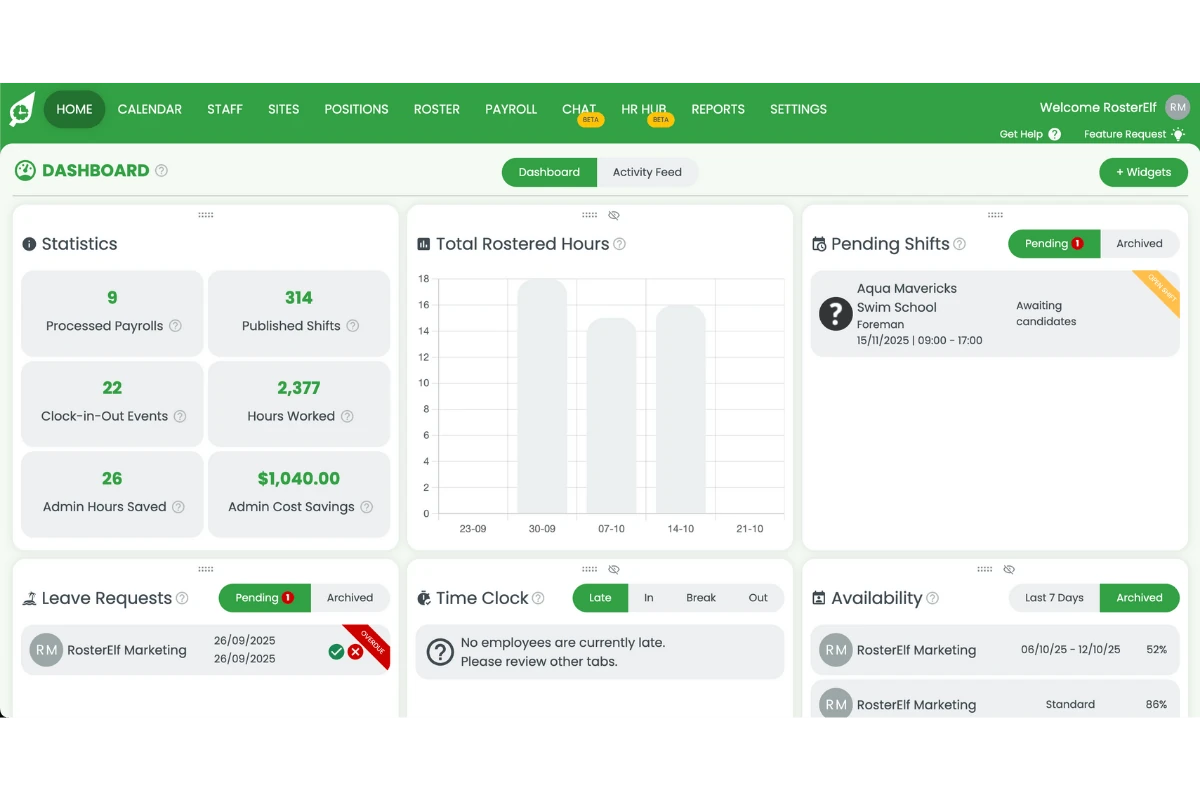
1.1.2 Click the Staff tab on the top menu.
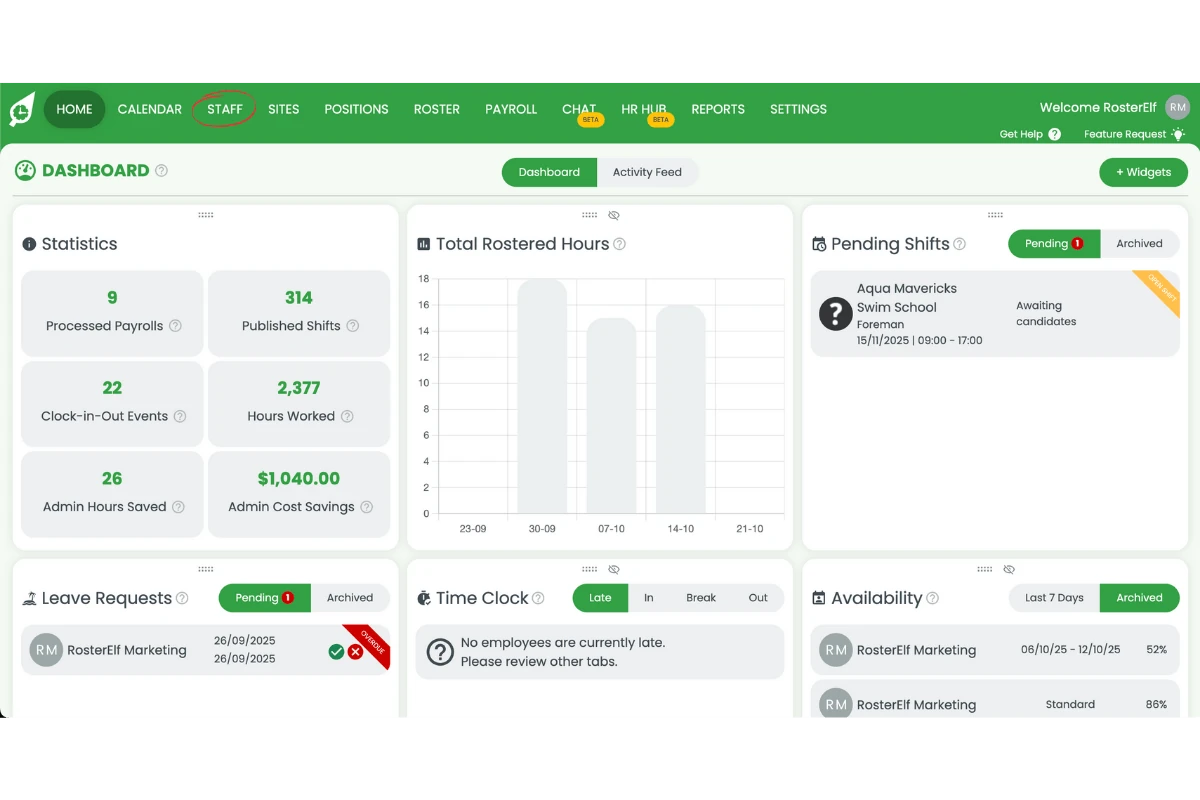
1.2 send the welcome message
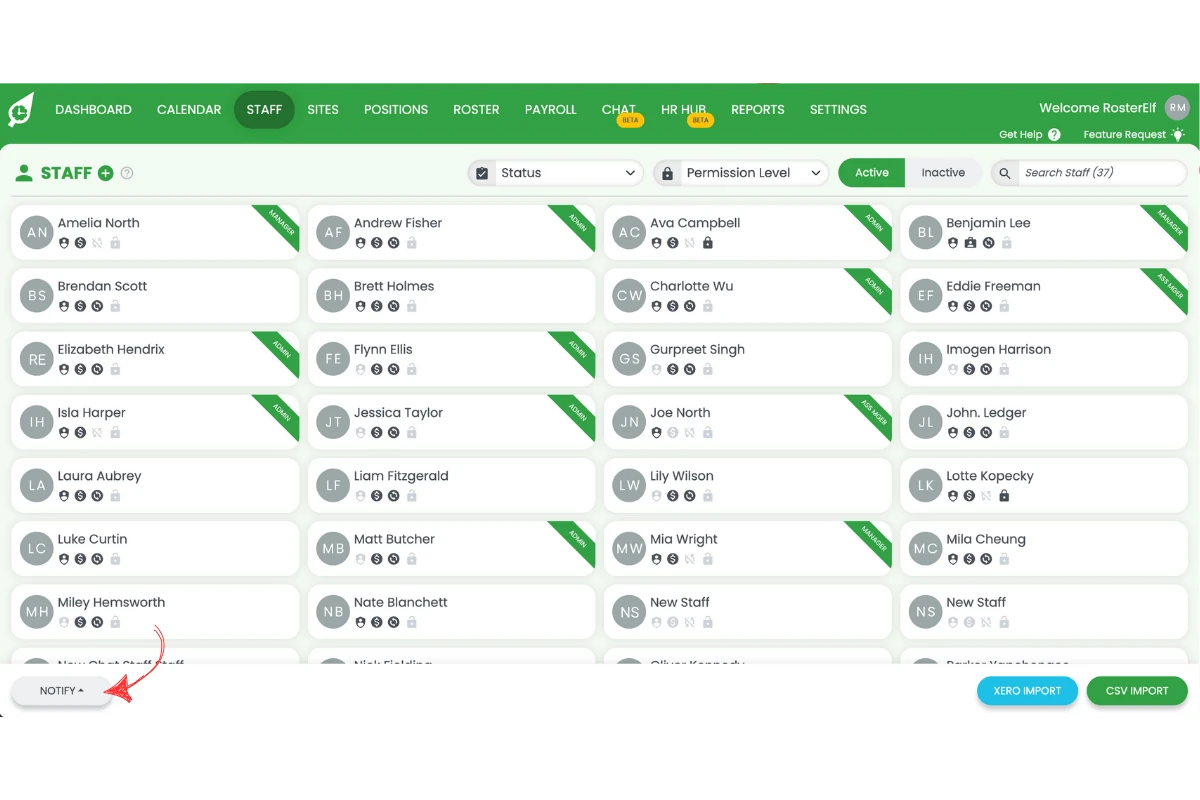
1.2.1 Press Notify.
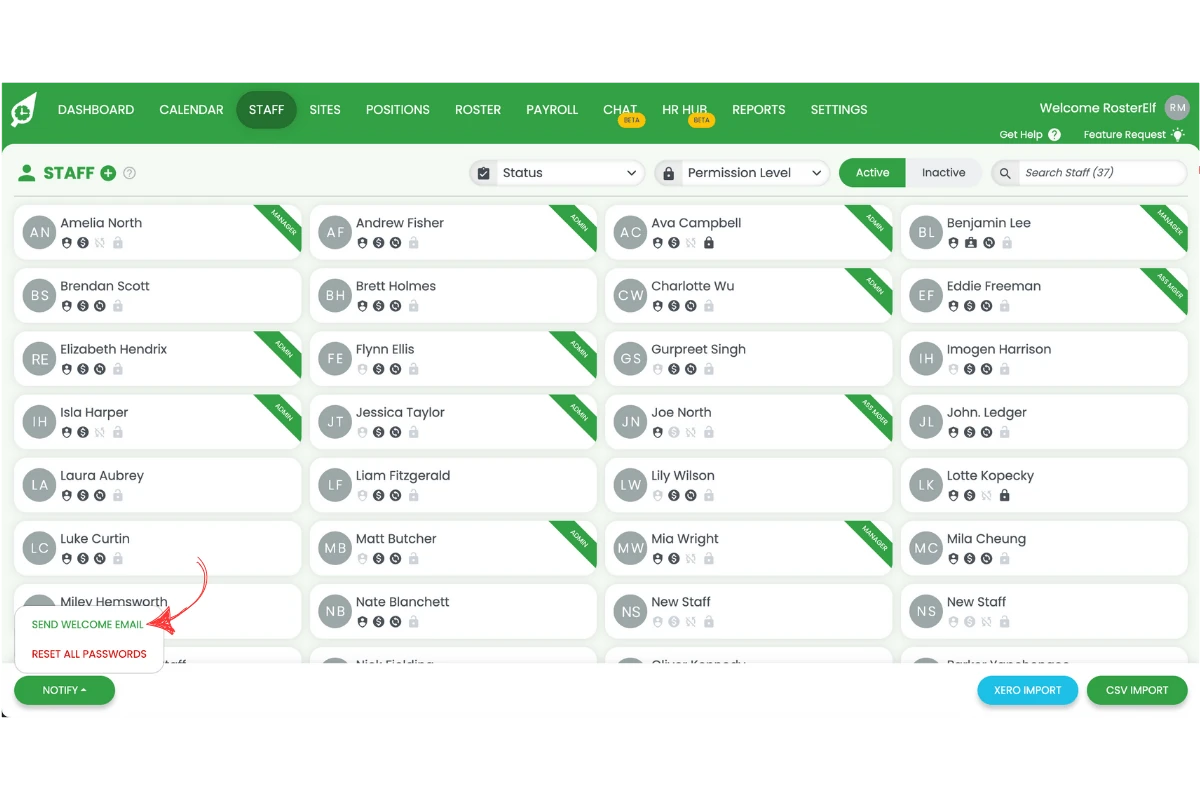
1.2.2 Press Send welcome email.
1.2.3 Select your filter.
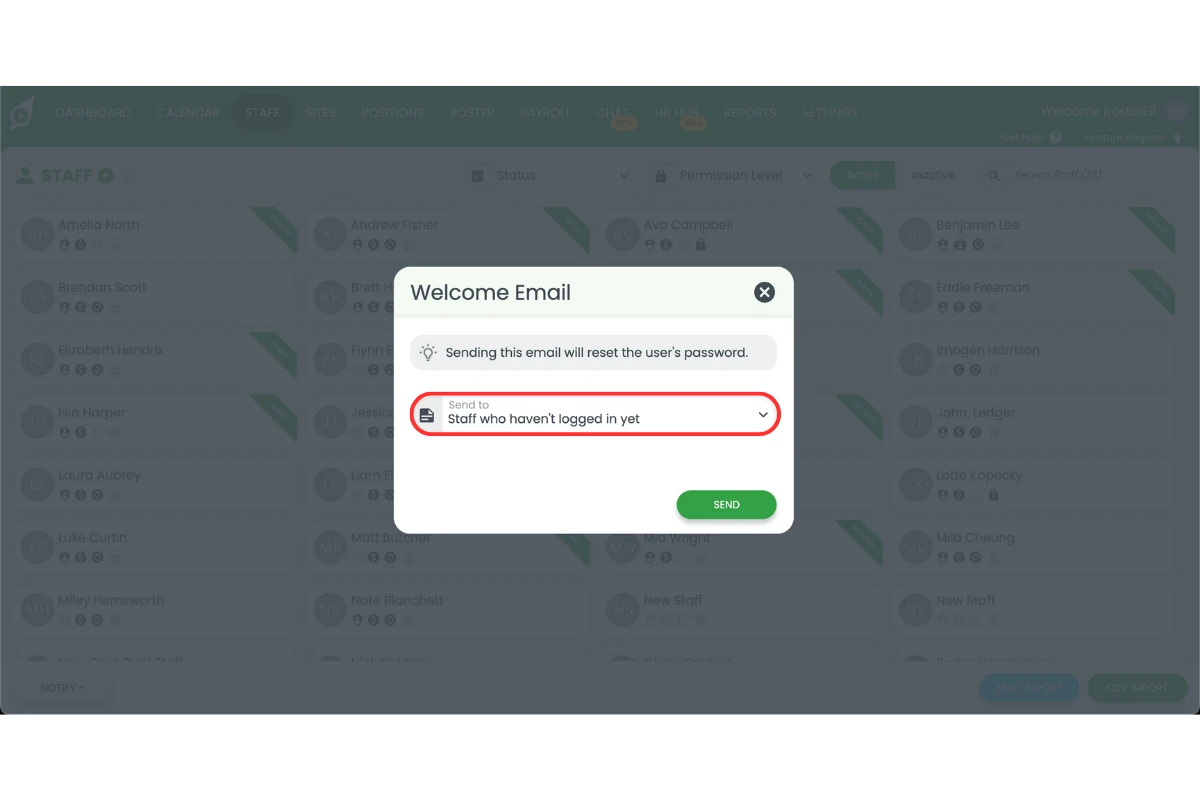
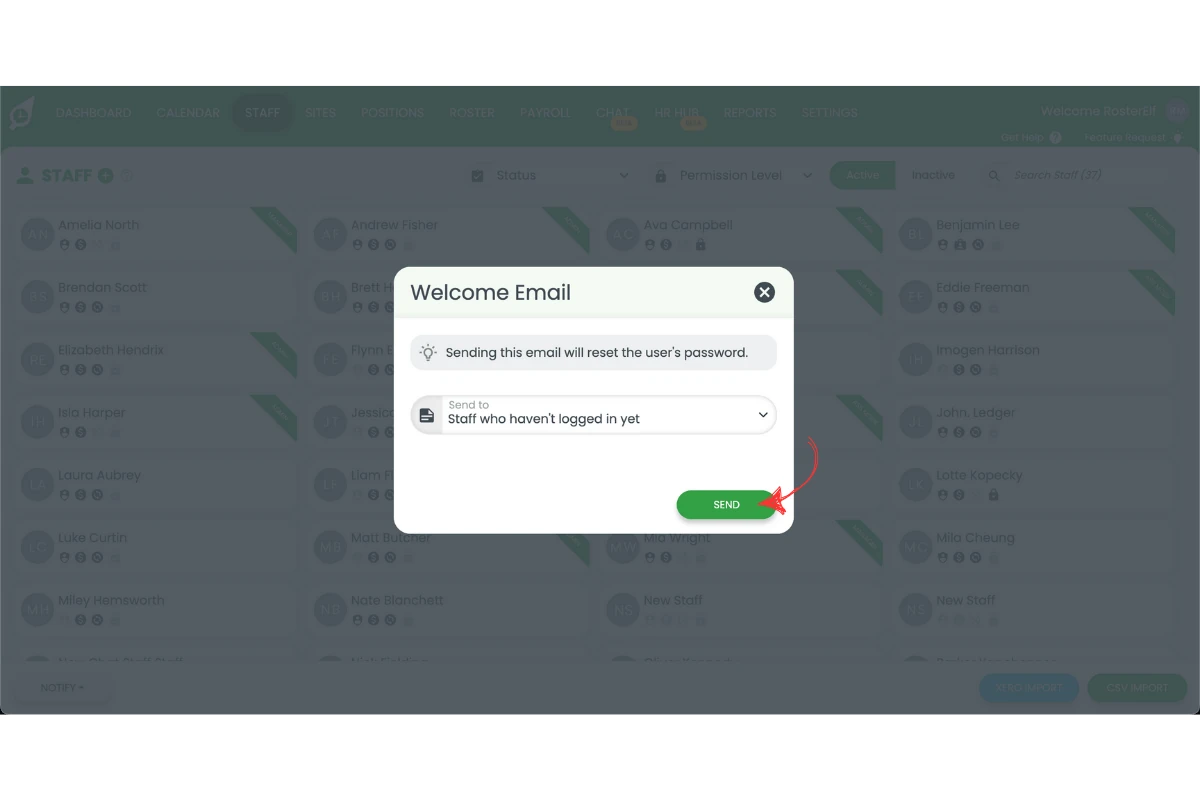
1.2.4 Press Send.
Note
You can filter staff by site or position to send targeted welcome messages to specific groups within your team.
Frequently asked questions
1. What is the RosterElf welcome message used for?
The RosterElf welcome message helps staff access their accounts by providing login instructions and setup links. It’s designed to make onboarding easier by guiding employees to activate their profiles and download the RosterElf app.
2. Can I send the welcome message to specific staff only?
Yes. You can apply filters before sending the message to target specific groups of staff, such as by site or position. This ensures only the intended team members receive the welcome message.
3. How do I resend the welcome message if staff missed it?
You can resend it at any time from the Staff tab: press Notify, select Send welcome email, filter to the staff who missed it, then press Send again. To resend to just one staff member instead, open their profile and see send RosterElf welcome email to a staff member.
4. Will staff who already have accounts receive the message again?
Yes, if you include them in your selection. However, staff who already have active accounts can ignore the message as their access remains unchanged.
5. What should staff do after receiving the welcome message?
Staff should open the email, click the setup link, and follow the instructions to log in or download the RosterElf app. Once completed, they can start using RosterElf to view rosters, update availability, and clock in and out of shifts.