

Export staff details to Xero
This article explains how to export staff details from RosterElf to Xero. Exporting staff information ensures that employee records such as personal details, tax file numbers, and superannuation data are correctly transferred to Xero for payroll processing.
With this guide, you’ll learn how to open the Staff tab, access the HR Hub, and send the staff file directly to Xero. Following these steps helps maintain data accuracy and saves time during payroll setup.
1. Export staff details to Xero
This section explains how to export a staff member’s details to Xero from the RosterElf web app. Use this when adding a new employee or updating existing records in Xero. Exporting ensures both systems stay synchronised and reduces manual data entry.
1.1 open the staff tab
1.1.1 Log in to your RosterElf account.
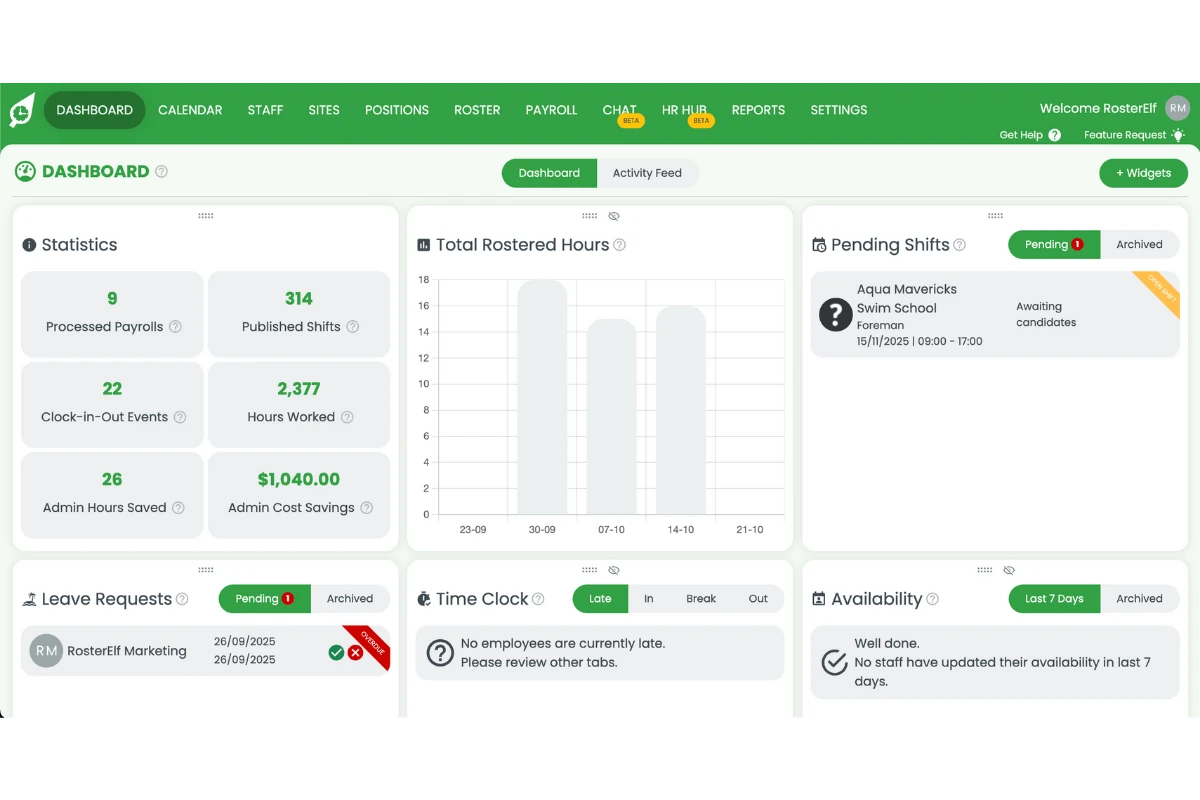
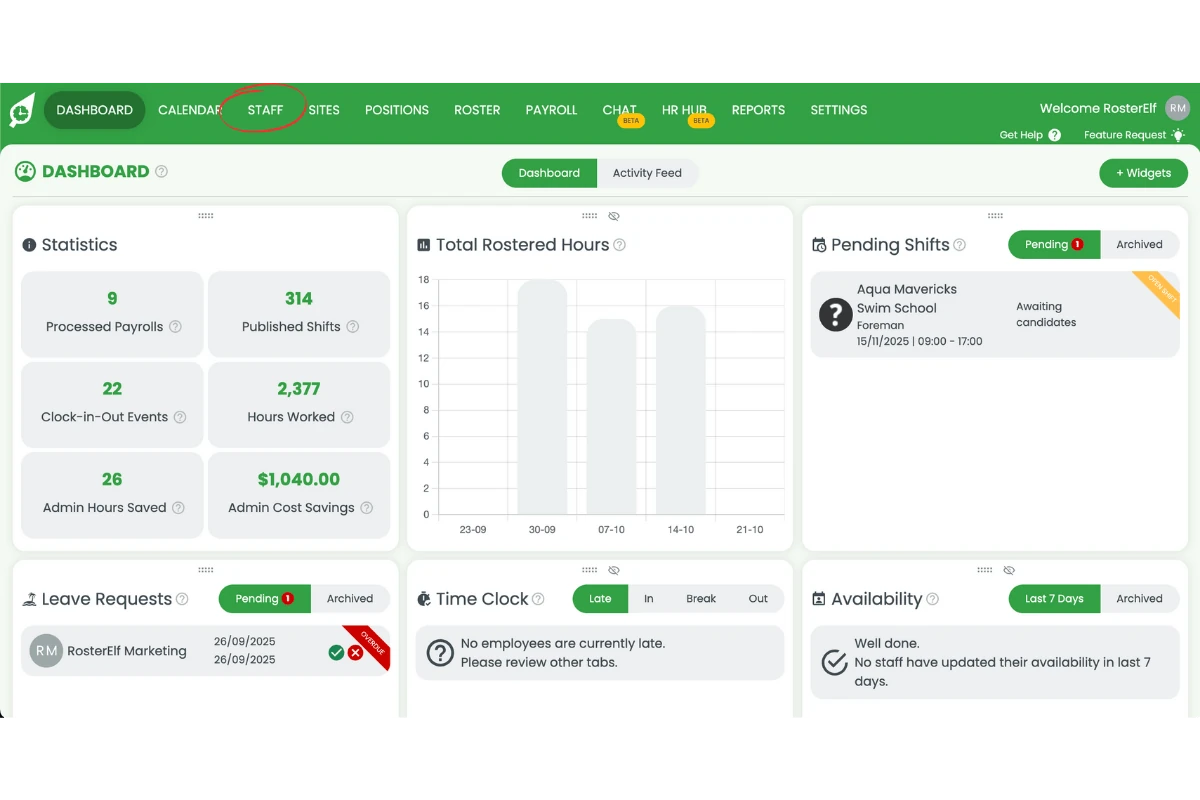
1.1.2 Click the Staff tab on the top menu.
1.2 access HR Hub
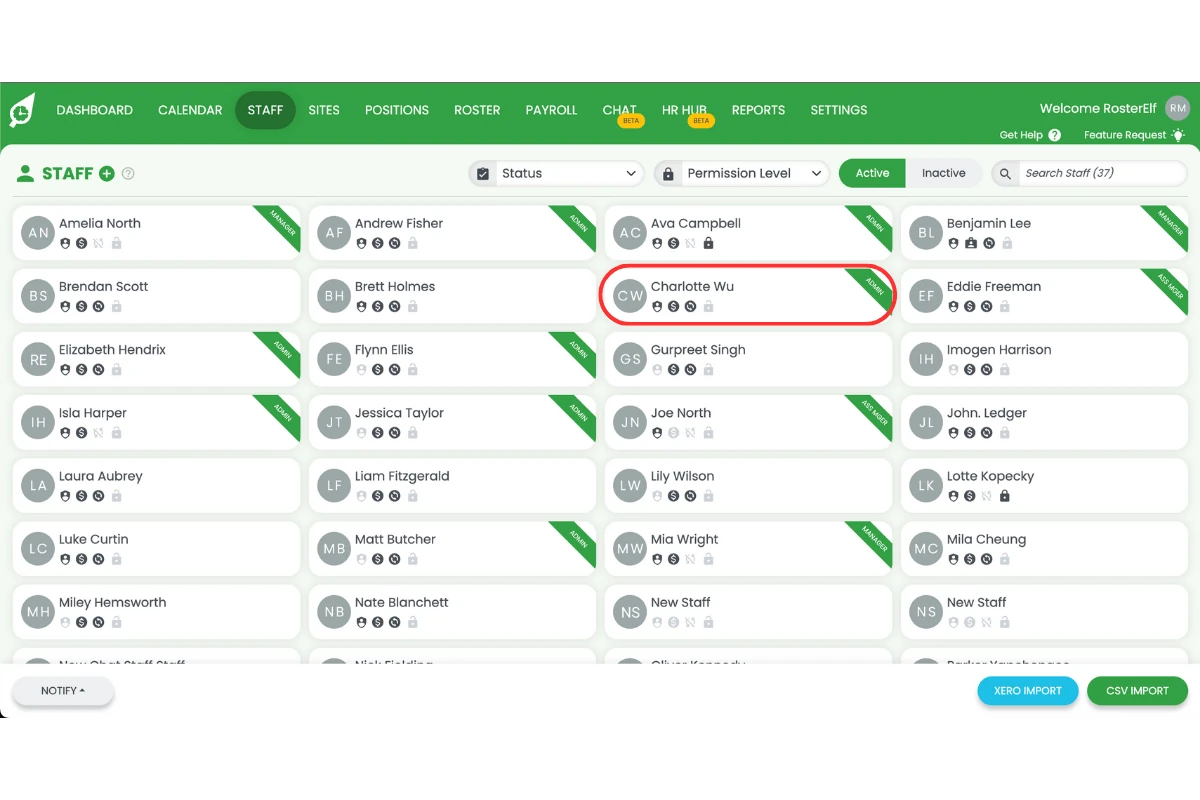
1.2.1 Select the staff member whose details you want to export.
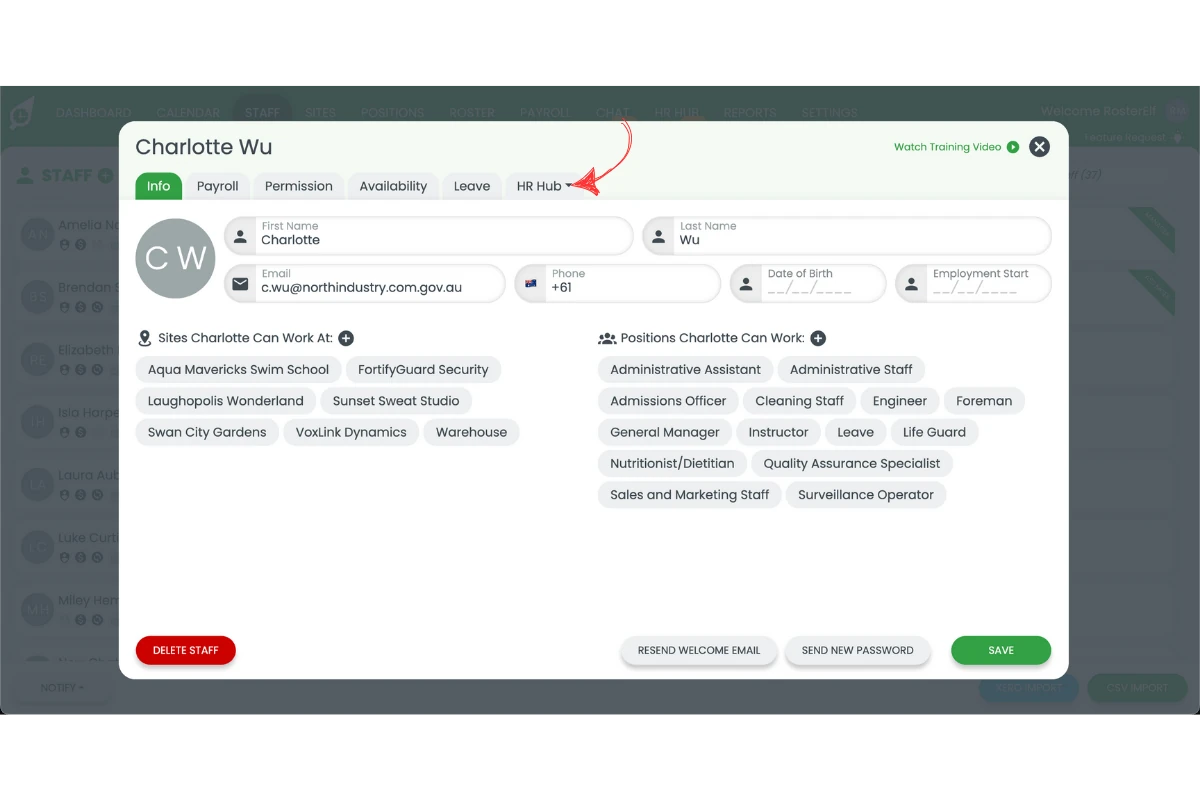
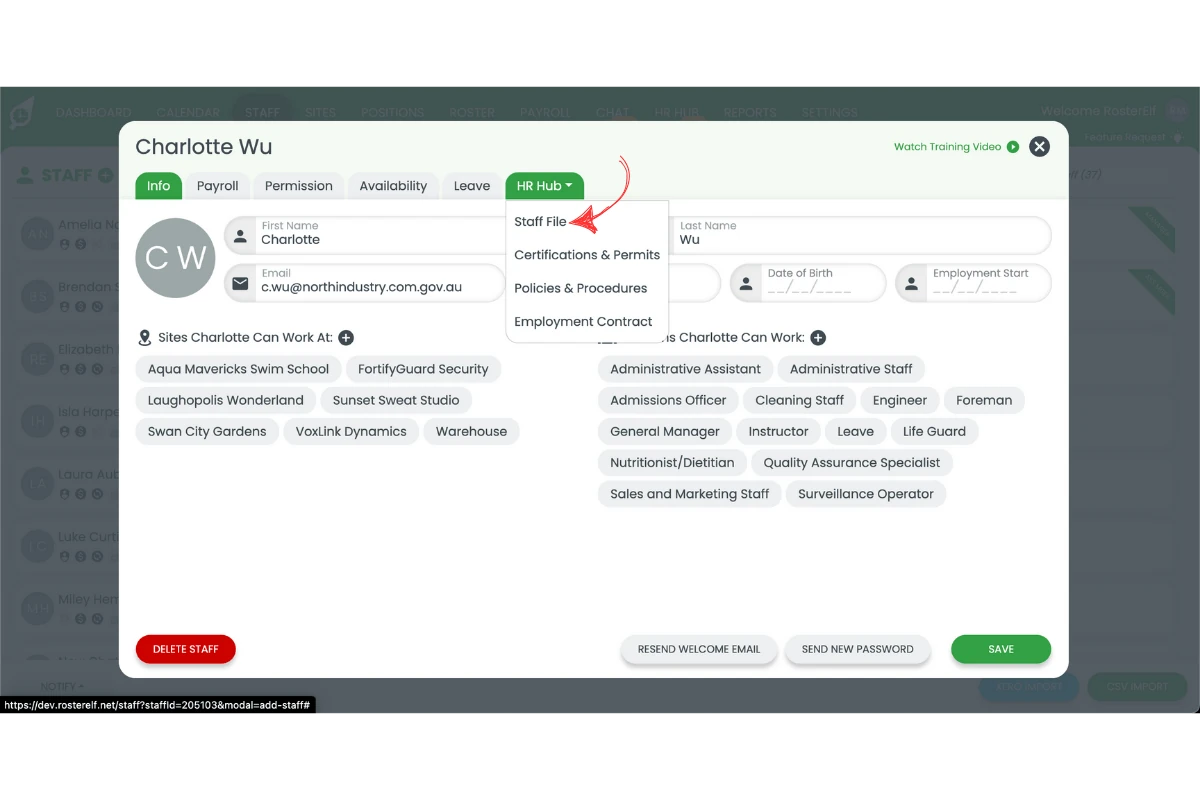
1.2.2 Click HR Hub to open the drop down menu.
1.3 send staff file to Xero
1.3.1 Click Staff File within the HR Hub.
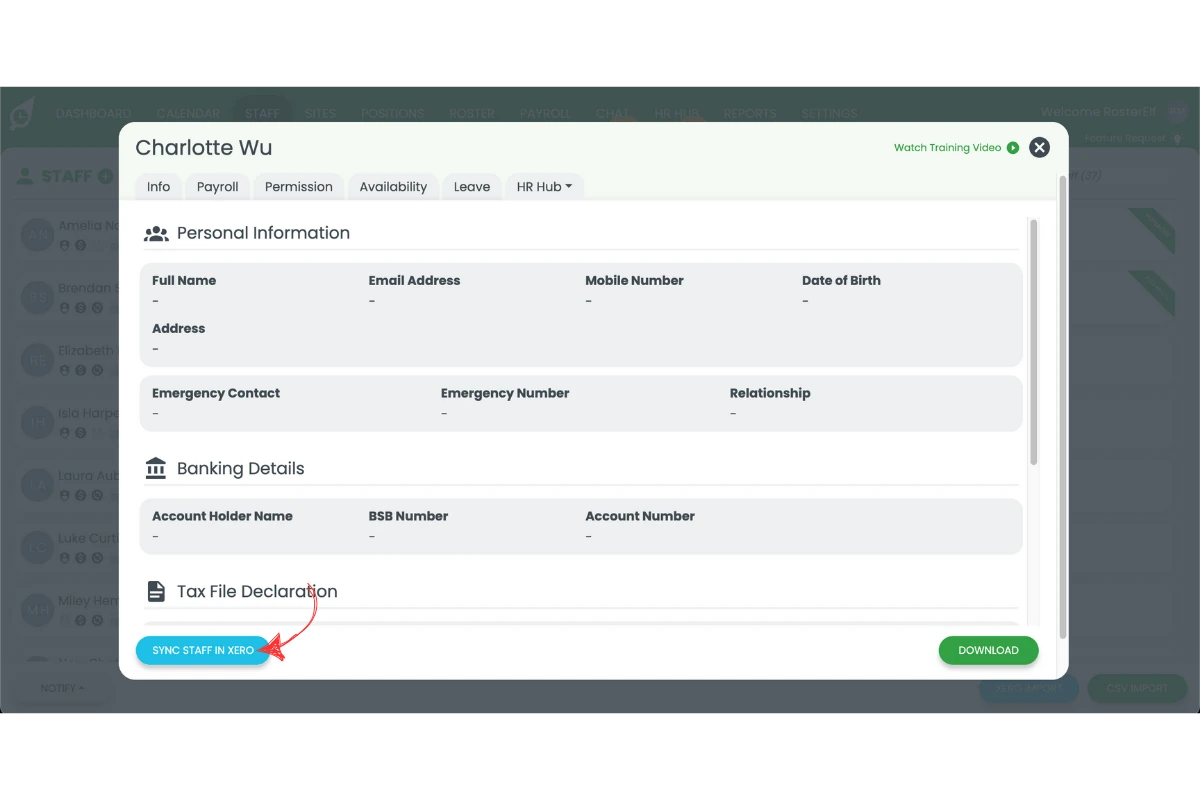
1.3.2 Press Send to Xero.
Frequently asked questions
1. How do I export staff details from RosterElf to Xero?
To export staff details, log in to your RosterElf account, open the Staff tab, and select the relevant employee. Then click HR Hub, choose Staff File, and press Send to Xero. Confirm the action to complete the export.
2. What information is included when exporting staff to Xero?
RosterElf exports key employee details such as name, address, contact information, tax file number, and superannuation details. This ensures Xero receives accurate data for payroll processing.
3. Can I update existing staff details in Xero through RosterElf?
Yes. If a staff member’s details change, you can follow the same export process. RosterElf will automatically update the existing employee record in Xero to keep both systems synchronised.
4. Why can't I send a staff file to Xero?
You may not have permission to export, or your Xero connection may be inactive. Check your Xero integration settings in RosterElf and ensure your account is linked correctly before trying again.
5. Do I need to export staff manually each time?
No. Once your staff are exported, updates are only required when details change. Regular exports are only needed if new employees are added or when updating existing records in Xero.