

View the total rostered hours report
This article explains how to view the total rostered hours report in RosterElf. The report provides a clear overview of total rostered hours by staff member, site, or department. By reviewing this report, managers can monitor scheduling patterns, ensure fair workload distribution, and maintain compliance with labour budgets.
With this guide, you’ll learn how to access the Reports tab, locate the Total Rostered Hours Report, apply filters, and export results. Following these steps helps you analyse staff scheduling efficiency and make informed rostering decisions that support operational performance.
1. Generate a total rostered hours report
This section explains how to generate the Total Rostered Hours Report in the RosterElf web app. Use this report to view the total rostered hours for each staff member or team across selected dates. Applying filters helps tailor the report to your business needs for more accurate labour analysis.
1.1 open the reports tab
1.1.1 Log in to your RosterElf account.
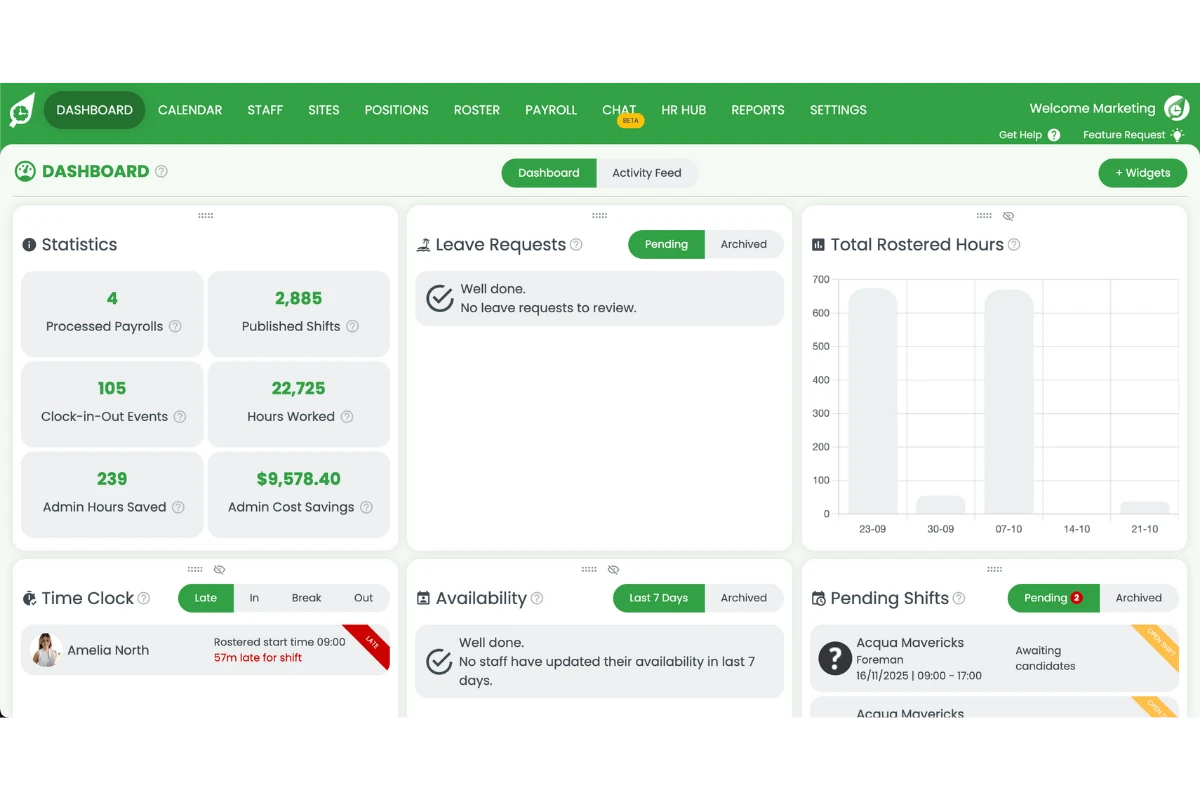
1.1.2 Click the Reports tab on the top menu.
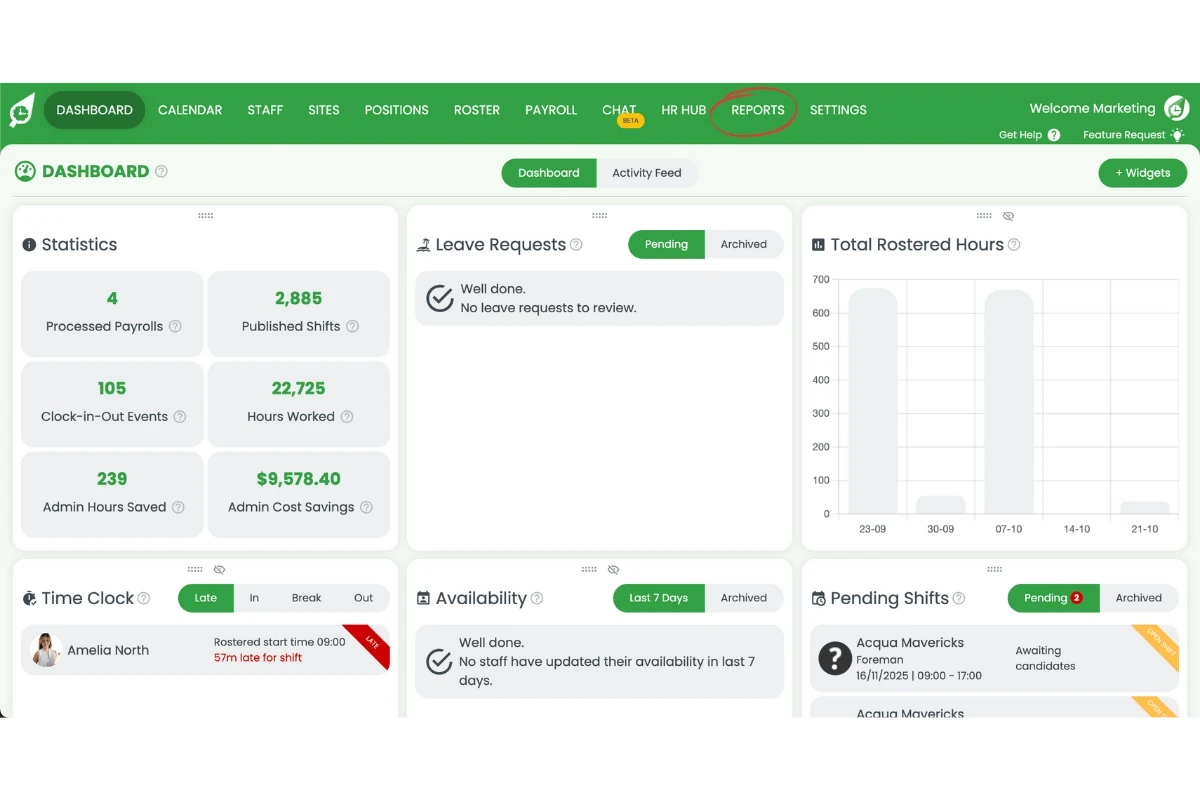
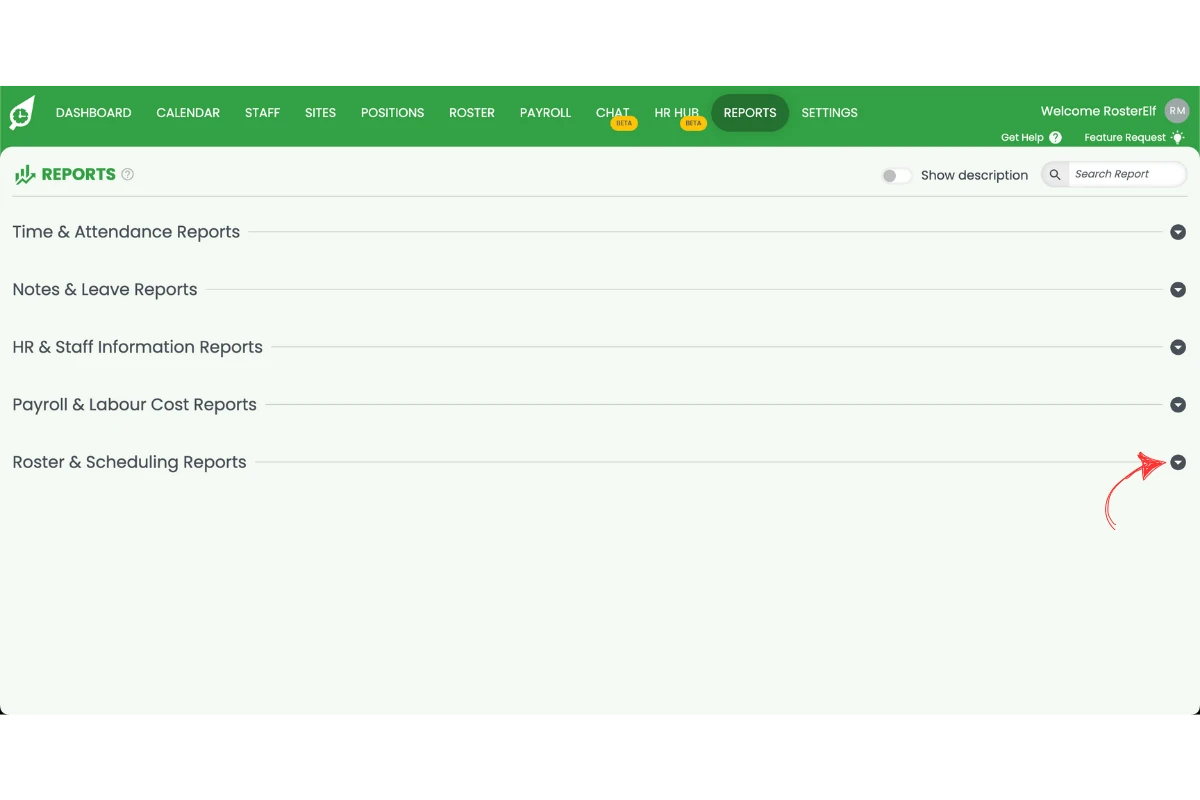
1.2 access the total rostered hours report
1.2.1 Scroll down to find the Rostered Hours Report.
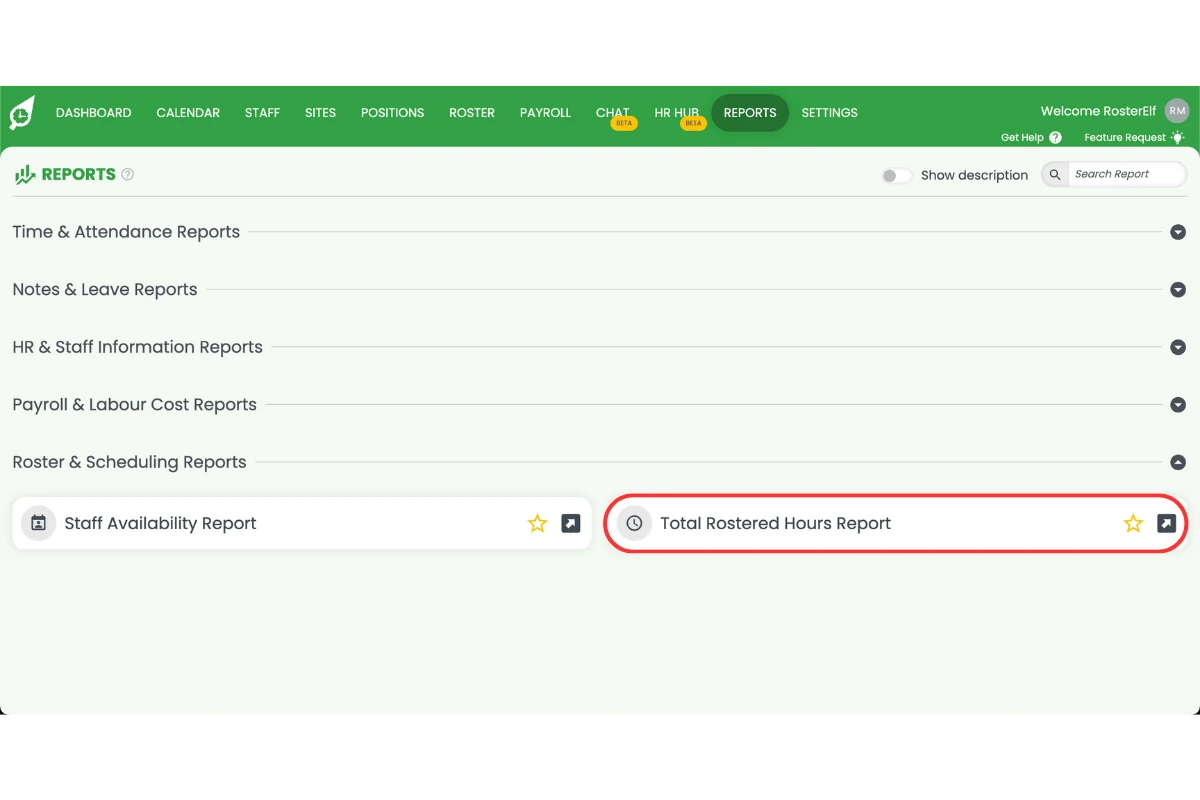
1.2.2 Click Total Rostered Hours Report.
1.3 apply filters and generate results
1.3.1 Enter your preferred date range, site, or department filters.
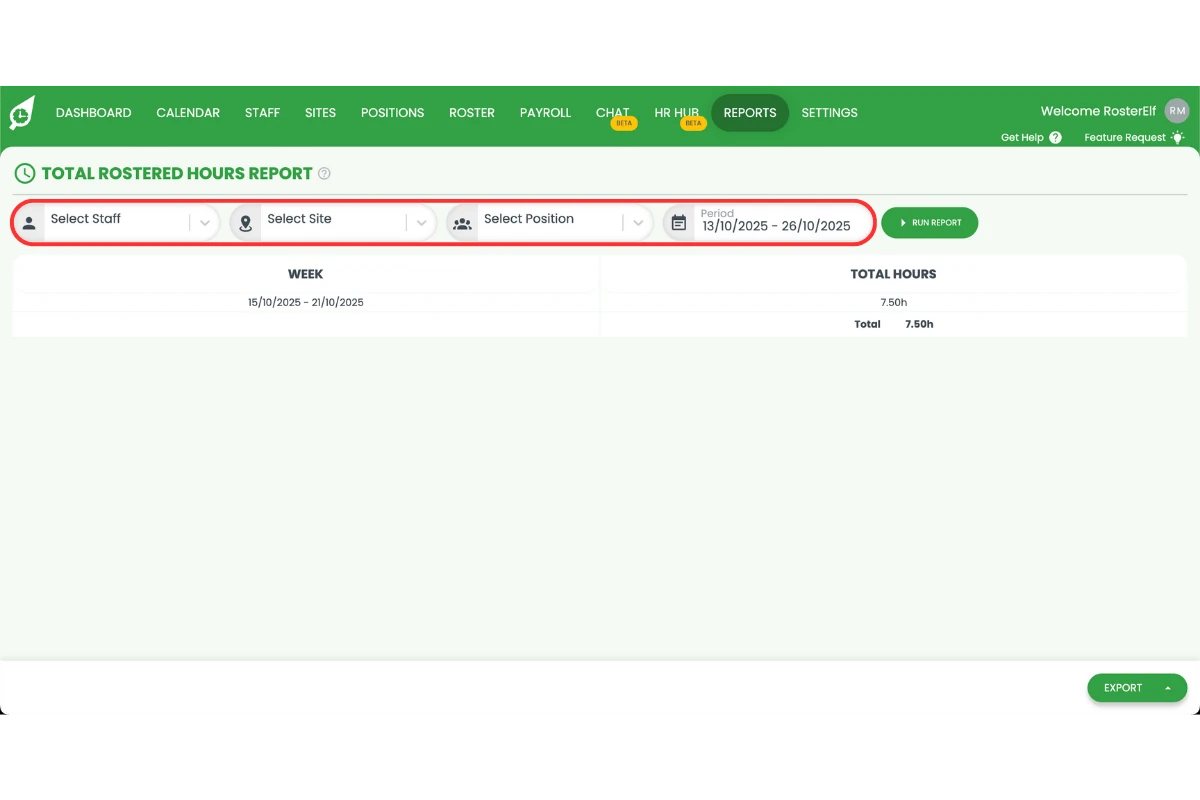
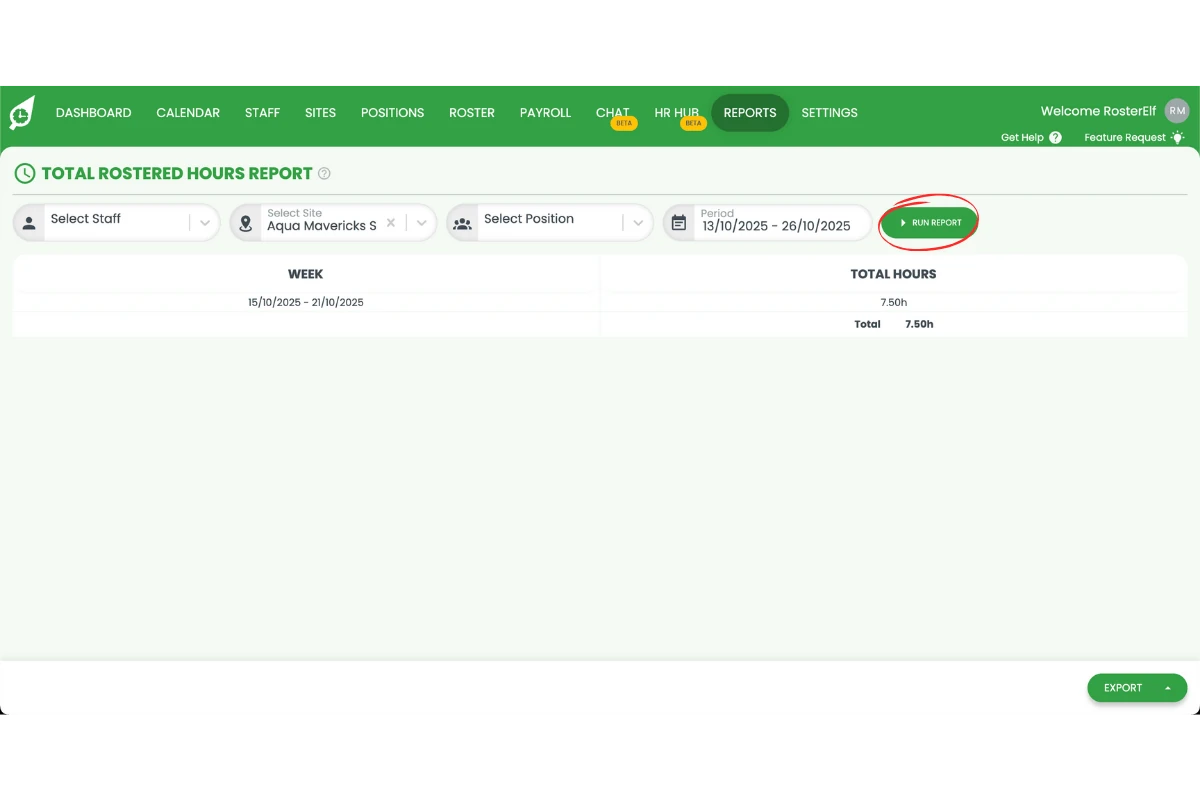
1.3.2 Click Run Report to generate results.
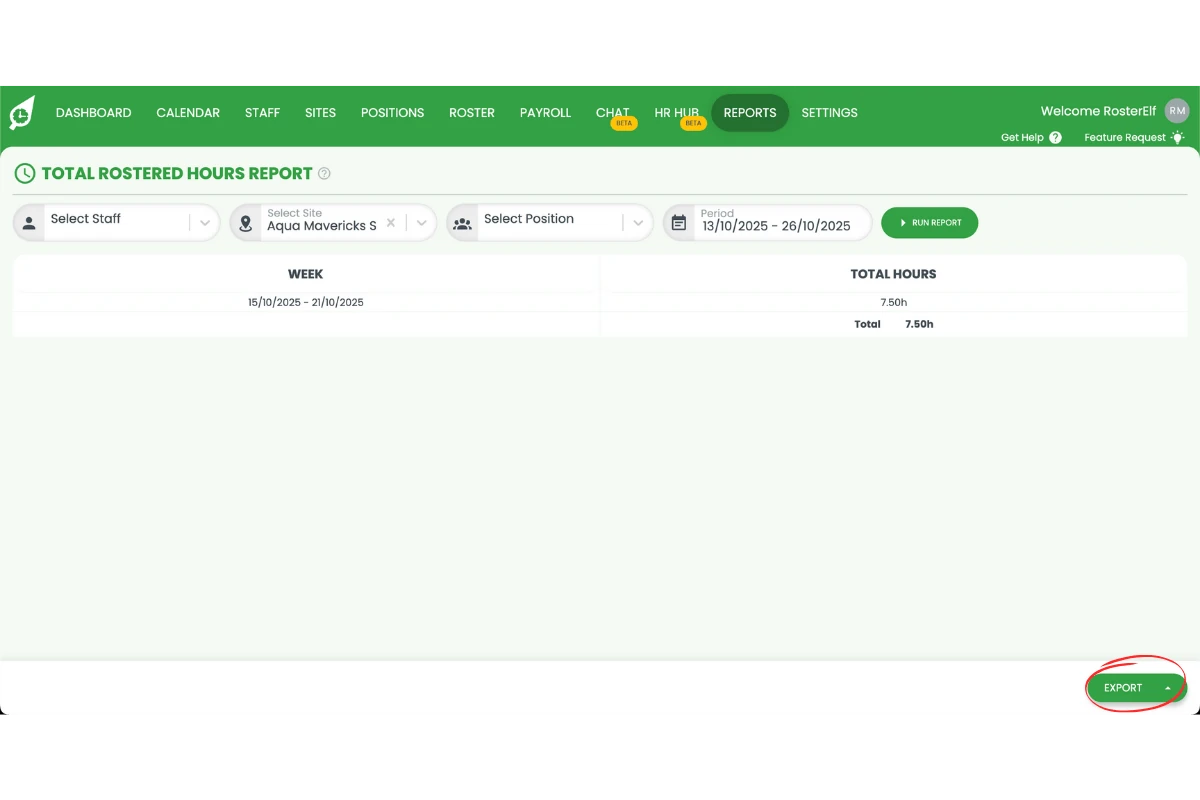
1.4 export the report
1.4.1 Once results are displayed, click Export if you want to download the report.
Frequently asked questions
1. What is the total rostered hours report in RosterElf?
The total rostered hours report in RosterElf shows the total hours each staff member or department is rostered to work within a selected period. It helps managers monitor workload balance, ensure compliance with labour budgets, and assess scheduling efficiency across sites.
2. How do I access the total rostered hours report?
To access the report, log in to your RosterElf account and click the Reports tab on the top menu. Scroll down to find the Total Rostered Hours Report, select it, and apply your filters such as date range or site before running the report.
3. Can I filter the total rostered hours report by site or department?
Yes. You can filter the total rostered hours report by site, department, or date range. This allows you to analyse specific teams or locations and review scheduling patterns more effectively.
4. How do I export the total rostered hours report?
After generating the report, click Export to download a copy. You can save it to your computer for record-keeping, payroll preparation, or further analysis in spreadsheet software.
5. Why should I review the total rostered hours report regularly?
Regularly reviewing this report helps managers identify scheduling trends, prevent staff overwork, and optimise labour allocation. It ensures fair distribution of hours, maintains compliance with labour laws, and supports effective business planning.