

Getting started with the RosterElf smartphone App (Employees)
Welcome to RosterElf on iPhone & Android! This one-page guide bundles the essential “first-week” tasks for employees—editing your profile, checking rosters, requesting leave, clocking in/out, updating availability, switching between companies, and signing out safely. Follow the quick sections below (each with screenshots) and you’ll be ready to use the app like a pro. Every heading links to a full, in-depth article for more detailed information later.
1. Update your personal information
Keep your name, email and phone current so managers can reach you and payroll runs smoothly.
1.1 Tap More in the bottom-right corner.
1.2 Select My Profile.
1.3 Tap any field (photo, name, email, mobile, password, etc.), edit and Save.
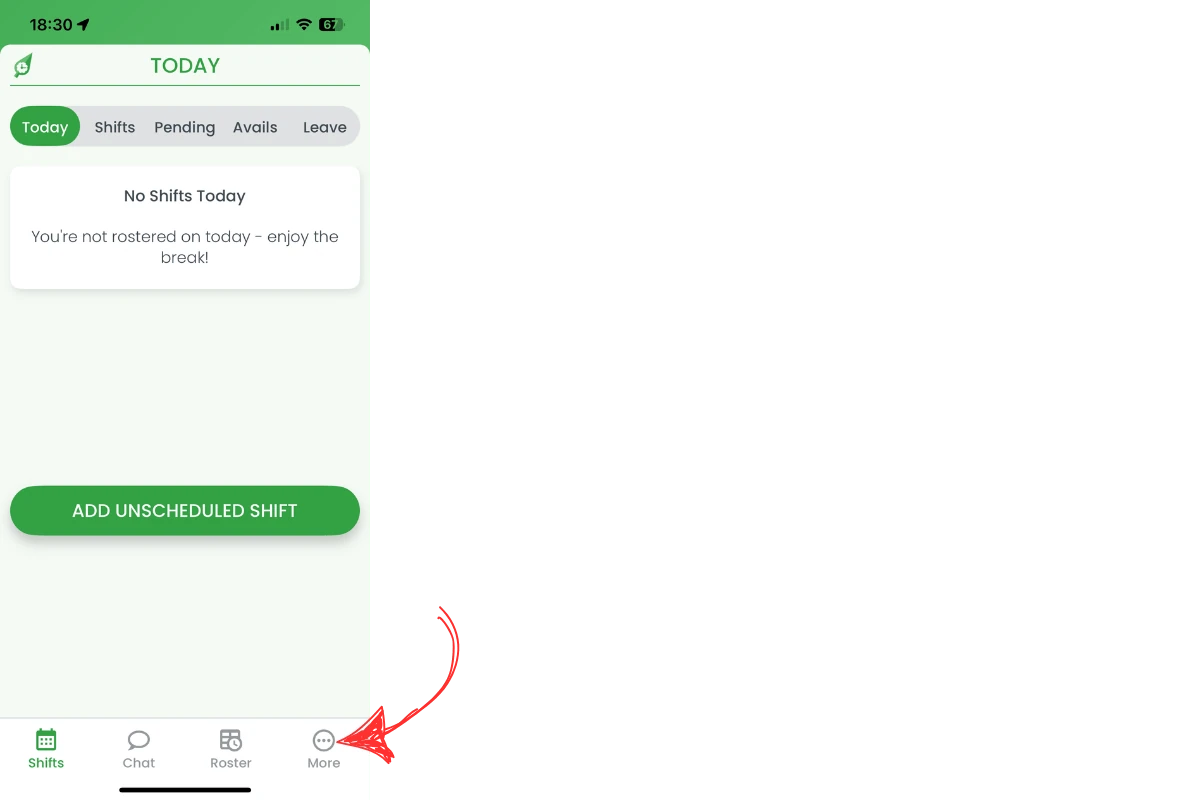
Need extra help? See the complete guide: Updating personal information in RosterElf.
2. View rostered shifts
2.1 Tap Shifts on the bottom bar.
2.2 Choose the top-tab Shifts to see past & future rosters (green dots mark rostered days).
2.3 Tap any shift card for full details, map link and swap options.
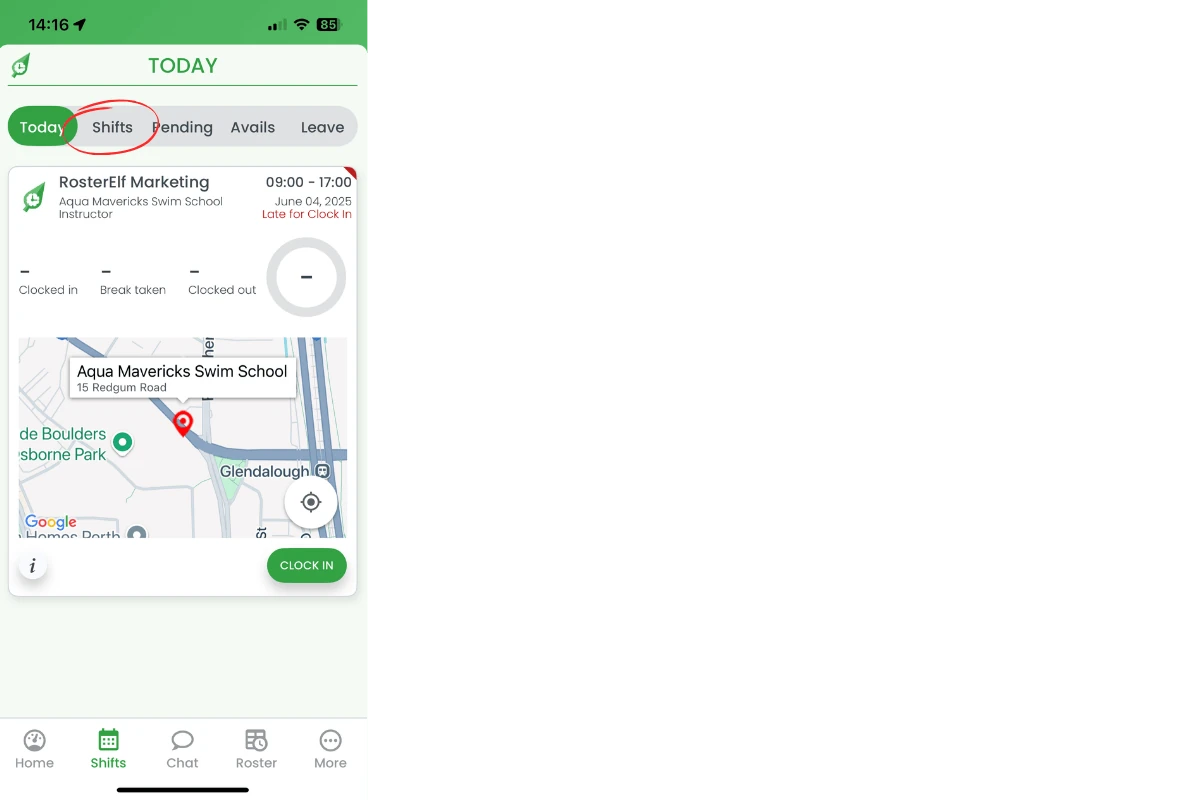
More power features—swap, map, calendar sync—live in How to view and manage rostered shifts.
3. Request leave & view history
3.1 In Shifts, tap the top-tab Leave.
3.2 Press the + icon → complete type, dates, reason → Request leave.
3.3 The banner Success! Your leave request has been added. confirms submission. All past requests stay in the same list.
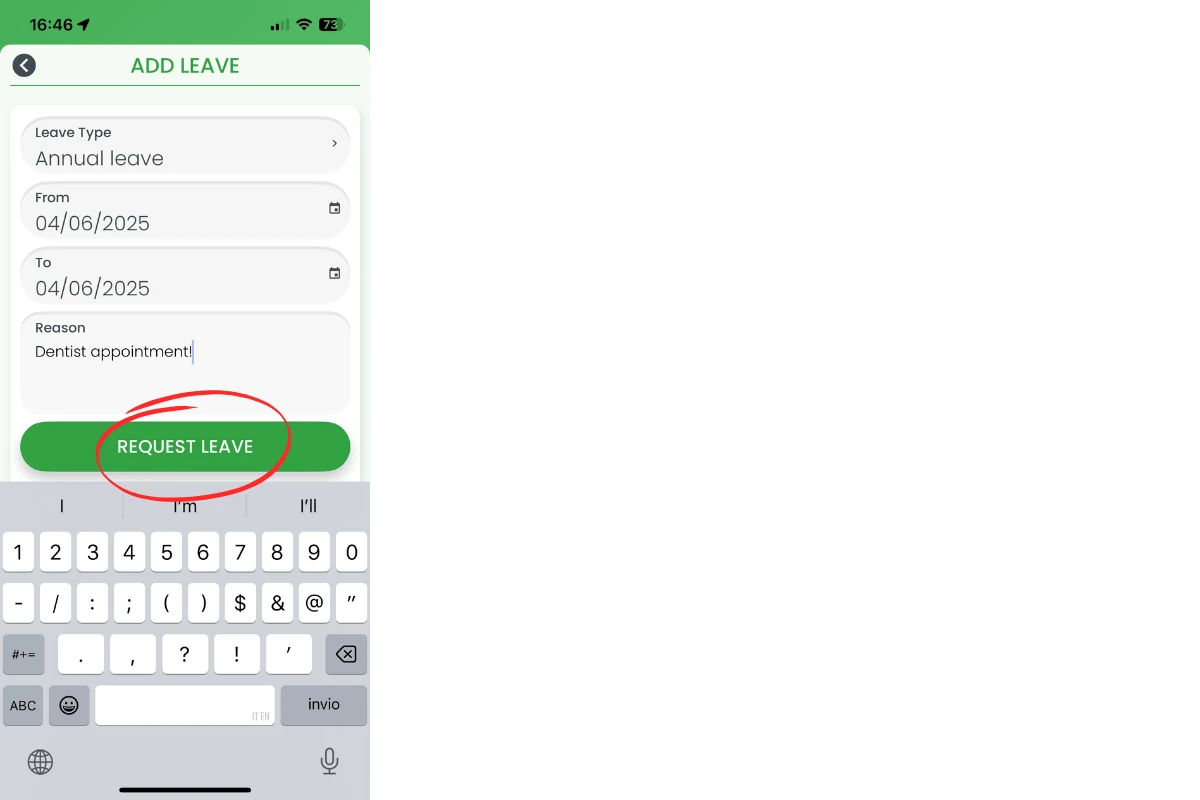
Full workflows—including approvals—are in Request leave on the mobile app and View past leave requests on mobile.
4. Clock in/out and breaks
4.1 Open Shifts > Today and find your shift card.
4.2 Tap Clock In (GPS/late reason/selfie prompts may appear).
4.3 Use Start Break / End Break as needed, then finish with Clock Out.
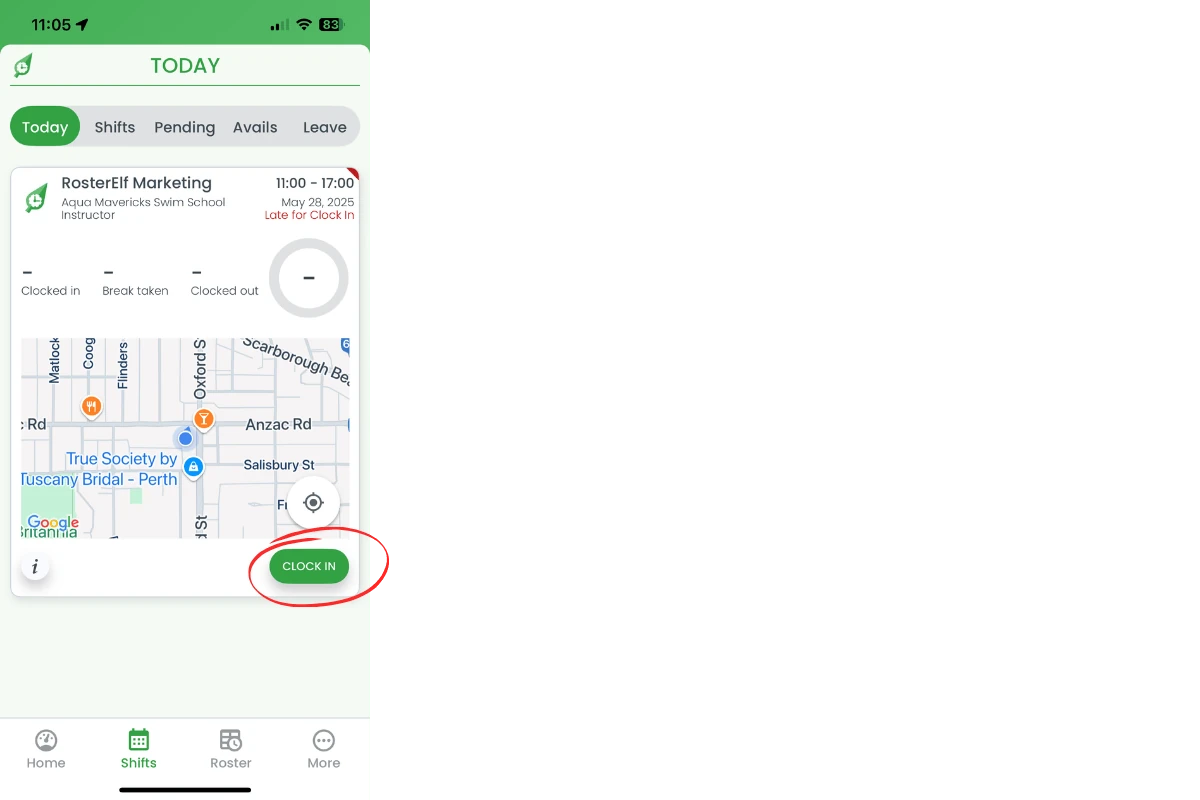
Step-by-step screenshots for every prompt live in How to Clock In/Out Using the Smartphone App.
5. Set or change your availability
5.1 Tap Shifts → Avails.
5.2 Choose Standard Availability for permanent changes or hit + to create a one-week availability block.
5.3 Drag the sliders for each day and Save.
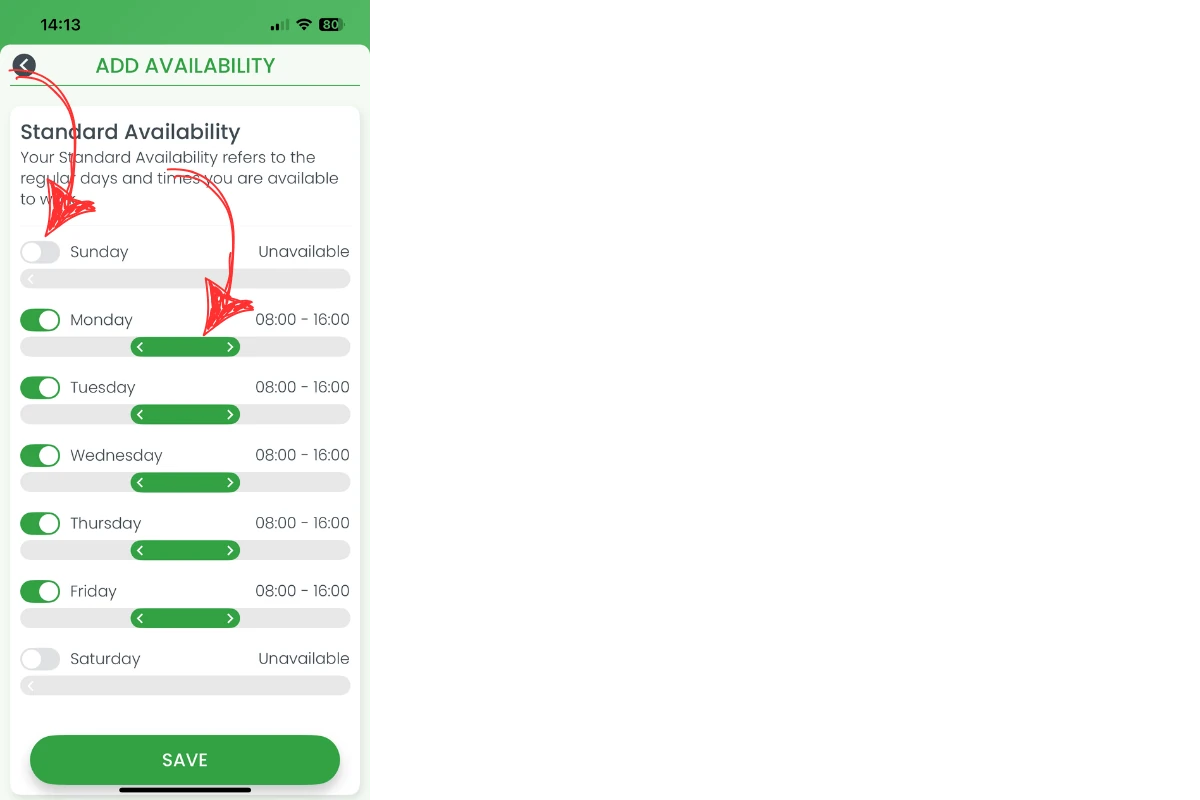
See full examples in Updating Availability in RosterElf.
6. Switch between RosterElf accounts
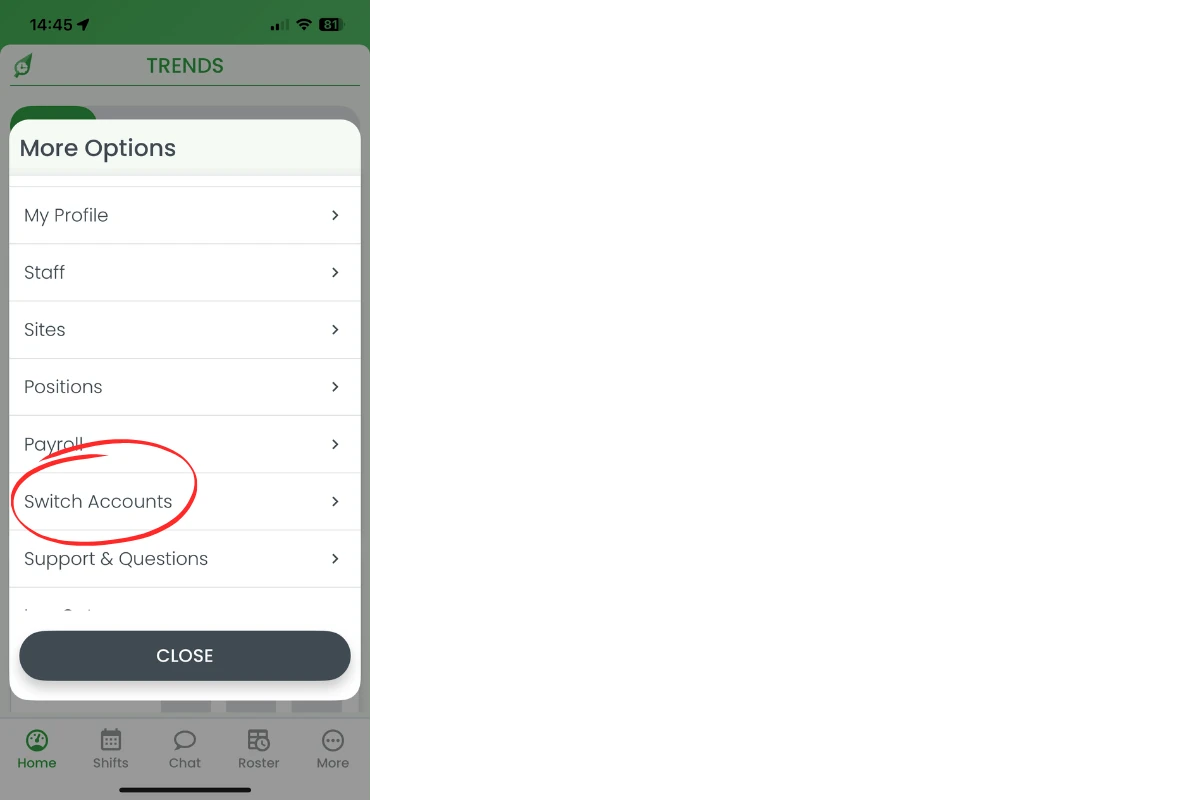
6.1 Tap More → Switch Accounts.
6.2 Select the business you want—no need to log out.
7. Log out or reinstall
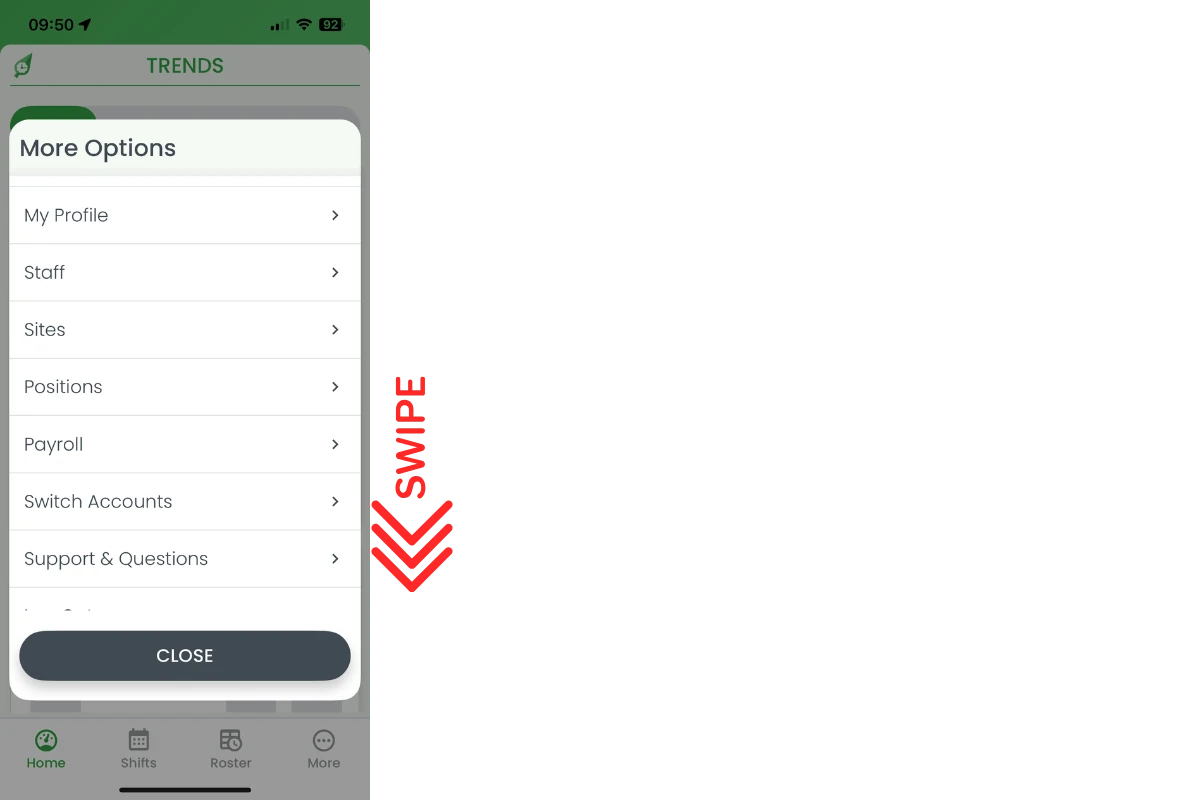
Log out — More > swipe down > Log Out.
Reinstall — Delete the app from your home screen, then download RosterElf again from the App Store or Google Play.
Note
Any change you make—profile edits, leave requests, availability—updates across web and mobile in real-time. Always check the RosterElf app for the latest roster changes.
Frequently asked questions
1. I updated my mobile number—do managers see it instantly?
Yes. The new number syncs to the cloud the moment you tap Save. Managers and payroll will now use that number for SMS and calls.
2. Why can't I clock-in? The button is greyed out.
You must be inside the GPS radius set by your employer. Move closer to the site or enable location services, then try again.
3. How far back can I see my leave history?
Every request you have submitted since joining RosterElf is shown—approved, denied or pending—unless an administrator deletes it.
4. Can I swap a rostered shift on the day it starts?
No. Swap requests are blocked inside the 48-hour window (unless your workplace uses a different rule). Contact your manager directly for last-minute changes.
5. What's the difference between Standard Availability and an Availability Block?
Standard availability is your regular weekly pattern. An availability block is a one-off override for a single week (e.g. exams, holiday) and reverts to your standard settings afterward.