

This article explains how to view the time and attendance report in RosterElf. This report provides detailed insights into when staff clocked in and out, total hours worked, and attendance accuracy across your business.
By following this guide, you’ll learn how to open the Reports tab, locate the Time and Attendance Report, and apply filters to customise your results. Reviewing this report helps ensure payroll accuracy, monitor staff punctuality, and maintain compliance with workplace regulations.
Learn more about Time and attendance settings.
1. Generate a time and attendance report
This section explains how to generate the Time and Attendance Report in the RosterElf web app. Use this report to analyse actual shift times compared to rostered hours. Applying filters ensures your report displays only the data you need — such as by date range, site, or employee.
1.1 Open the reports tab
1.1.1 Log in to your RosterElf account.
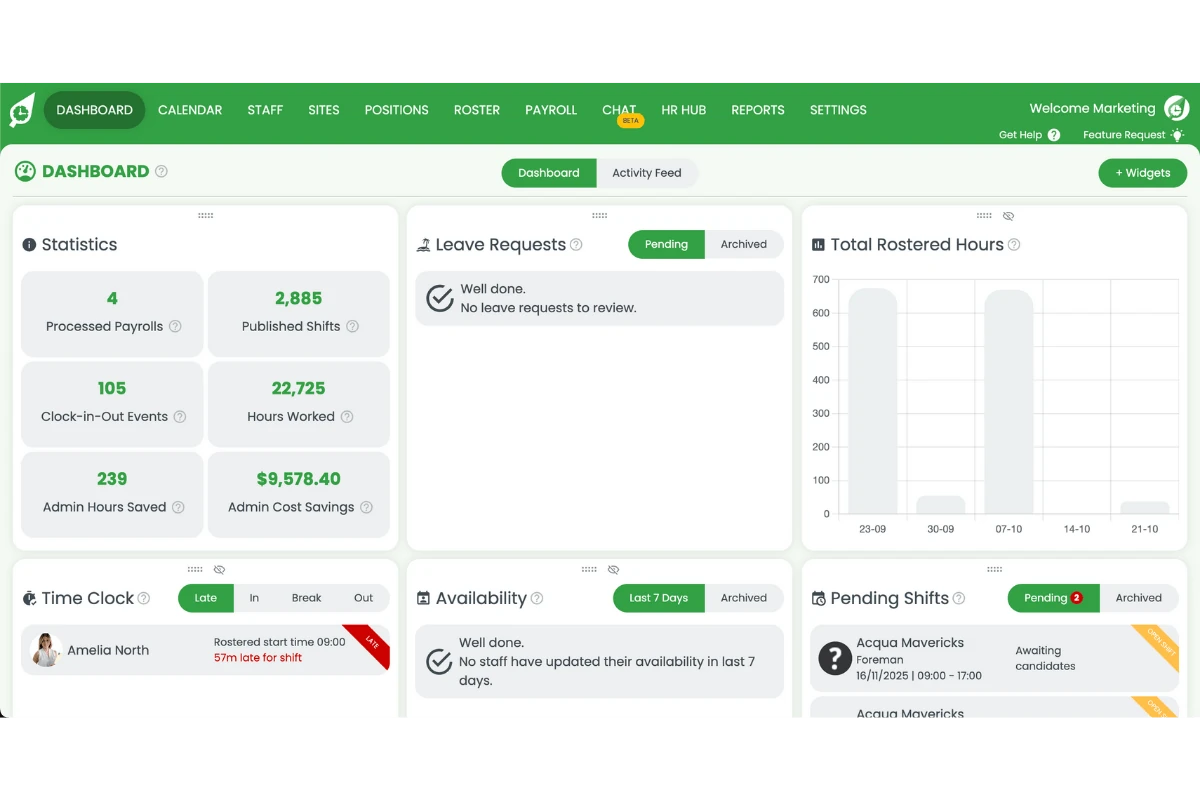
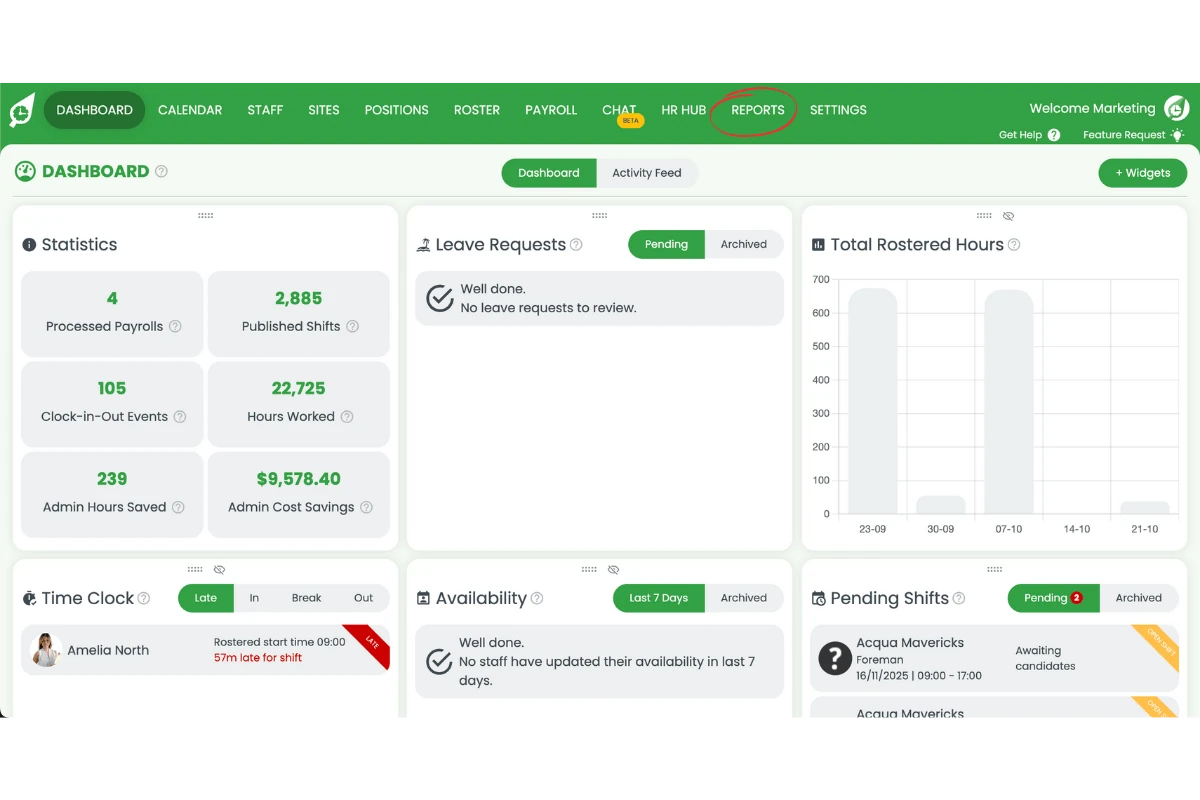
1.1.2 Click the Reports tab on the top menu.
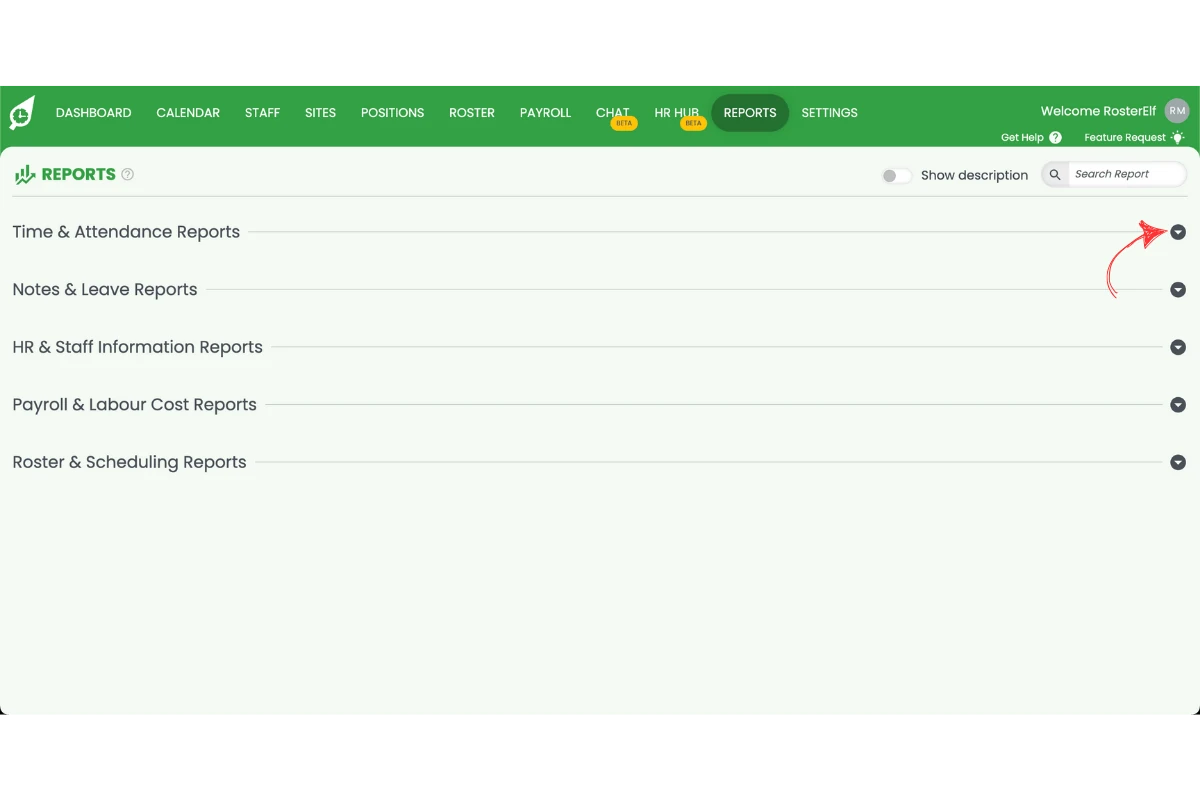
1.2 Access the time and attendance report
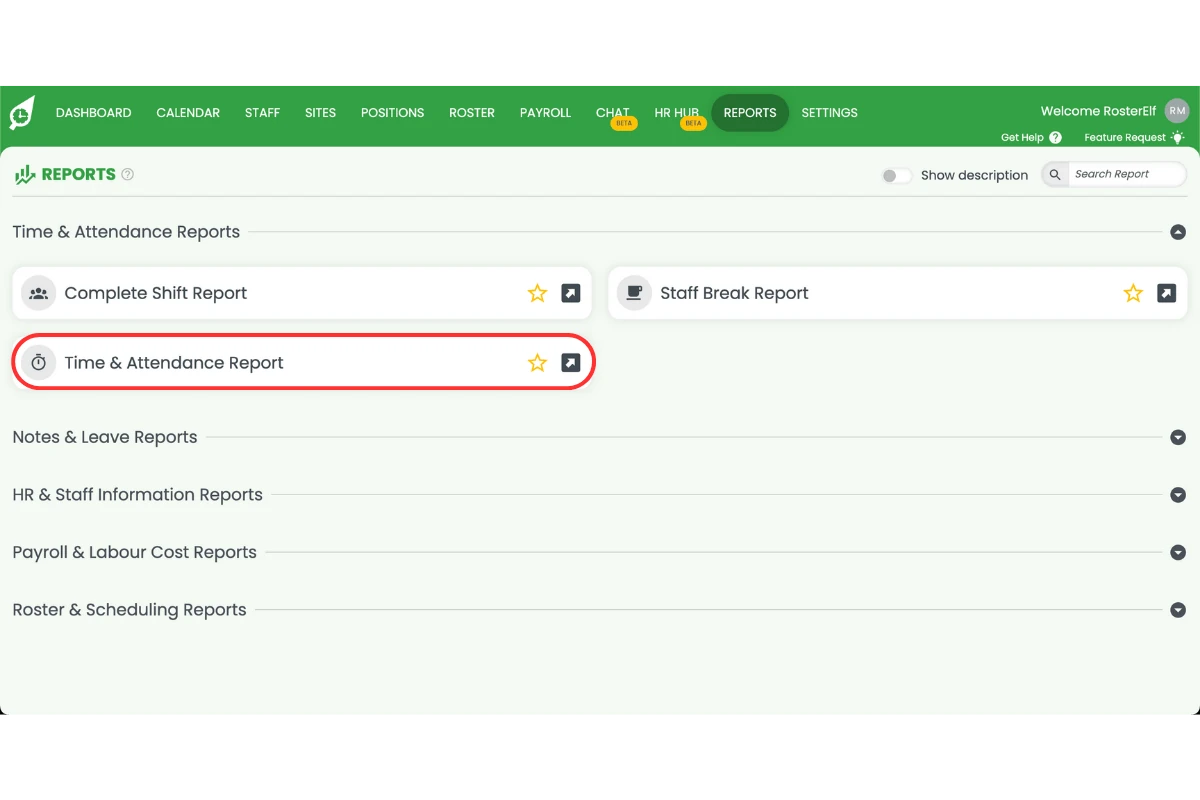
1.2.1 Find Time and Attendance Report in the report list — reports sit in collapsed groups, so expand the group that holds it.
1.2.2 Click to open the report.
1.3 Set report filters
1.3.1 Choose filters such as date range, sites, or staff.
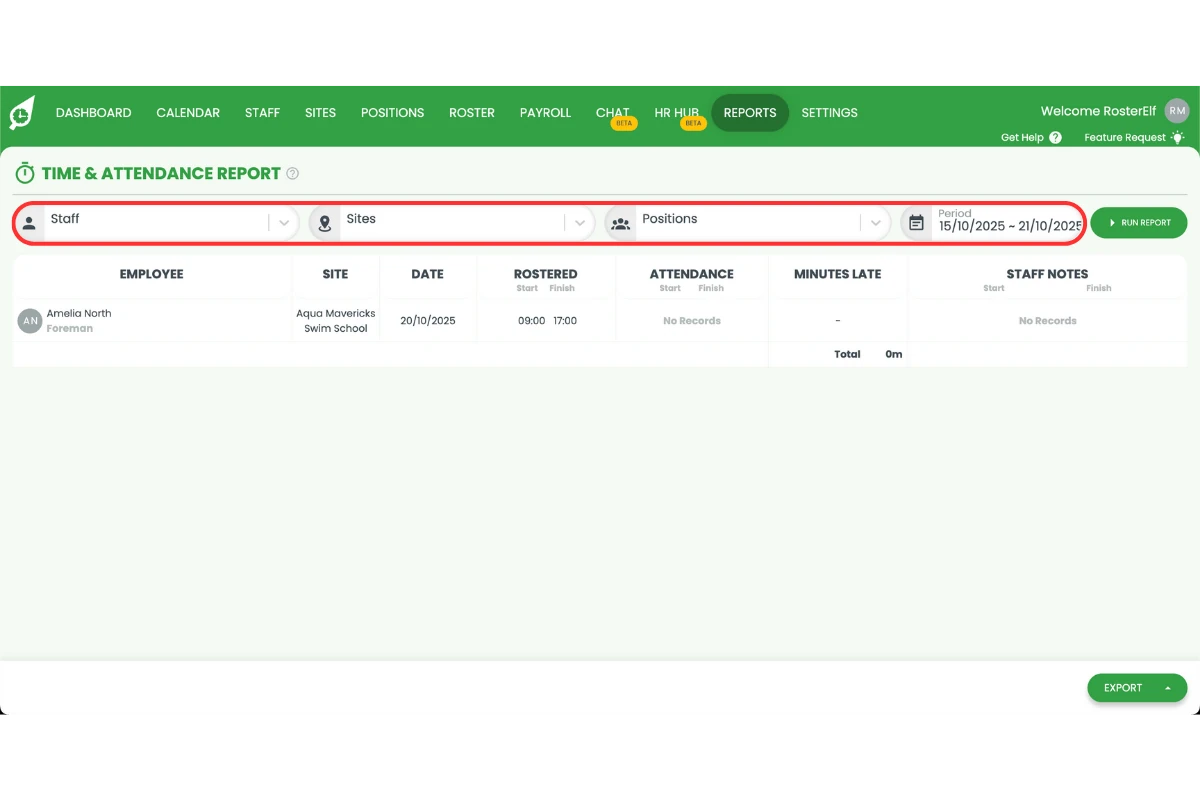
1.3.2 Adjust any filters as needed to refine your results.
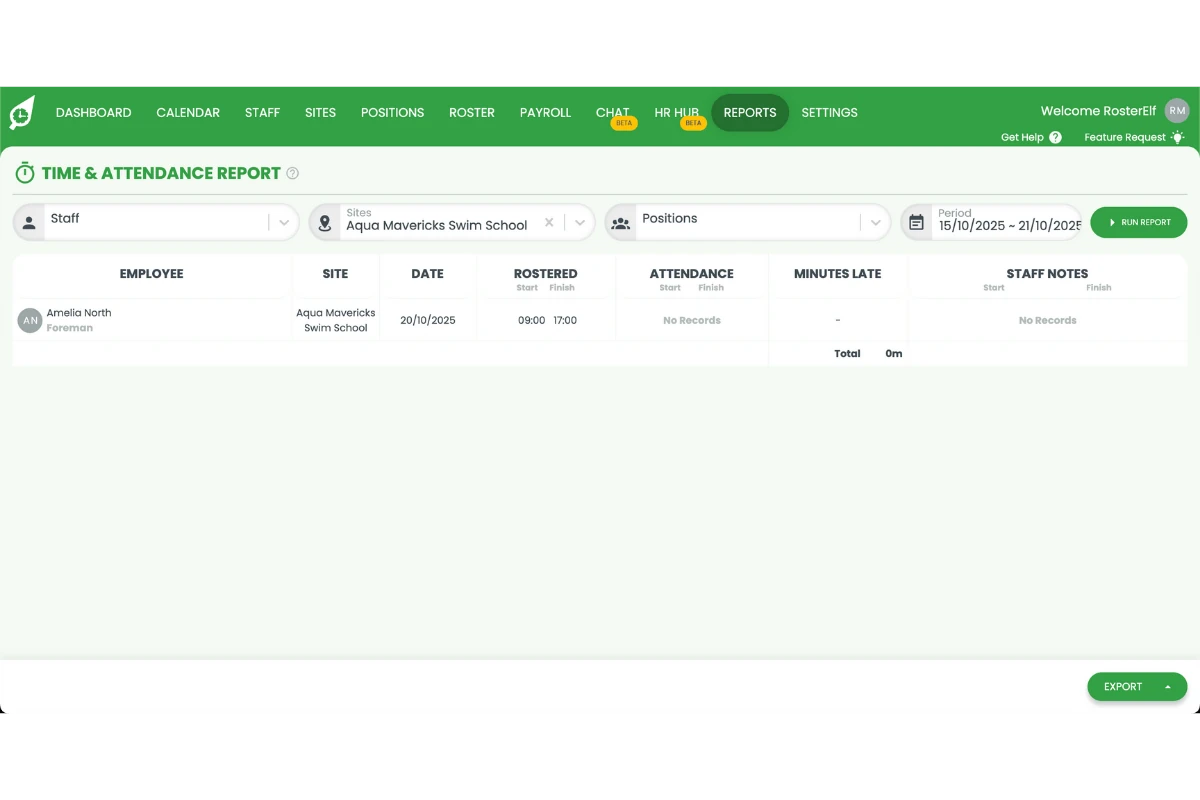
1.4 Run and export the report
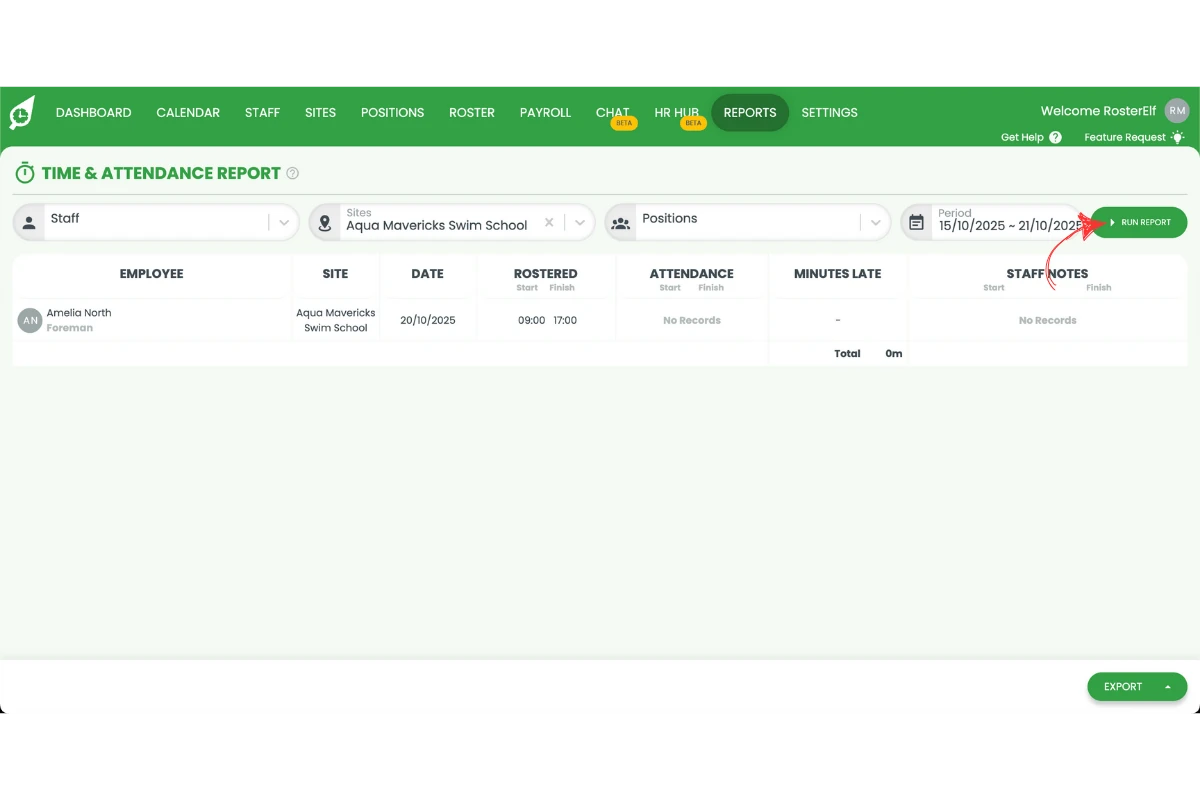
1.4.1 Press Run Report to generate your results.
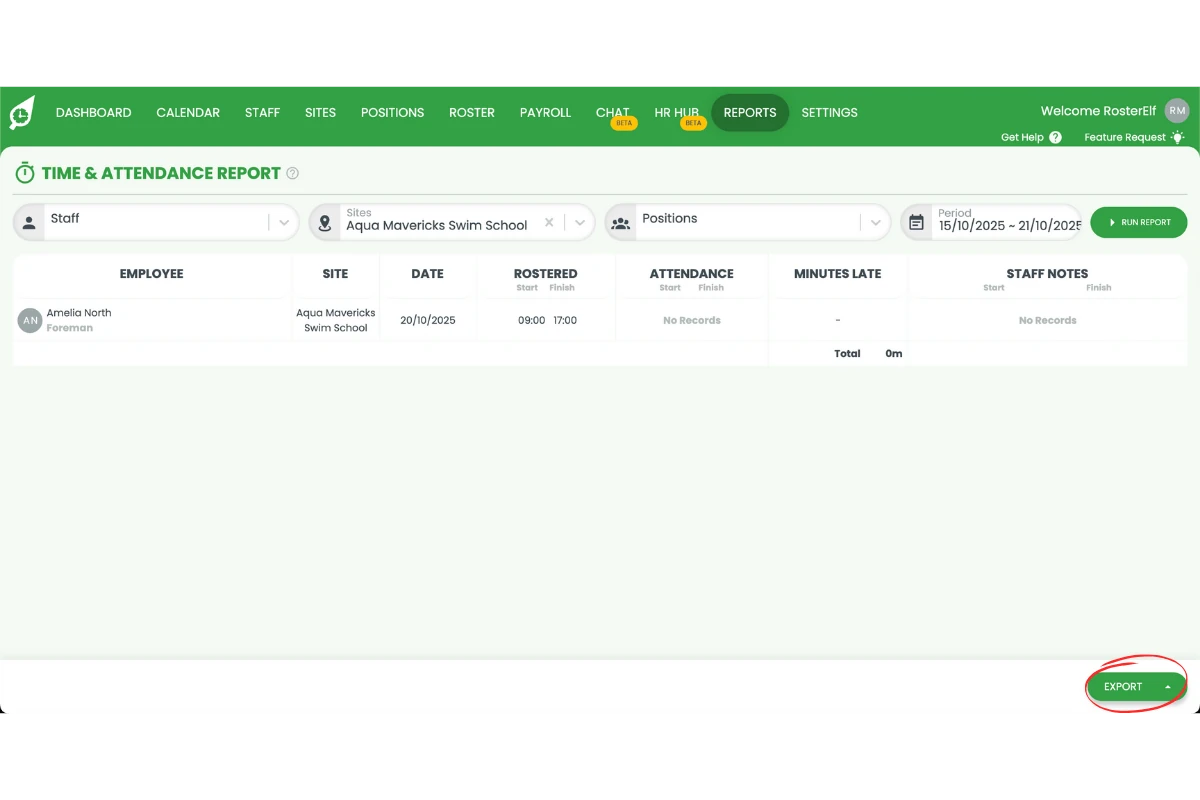
1.4.2 Click Export if you want to download the report for recordkeeping or payroll review.
Frequently asked questions
1. What is the Time and Attendance Report in RosterElf?
The Time and Attendance Report in RosterElf shows when staff clocked in and out, how many hours they worked, and how those hours compare to rostered times. It helps managers verify attendance accuracy, ensure payroll compliance, and monitor staff punctuality.
2. How do I access the Time and Attendance Report?
Log in to your RosterElf account and click the Reports tab on the top menu. Then, search for Time and Attendance Report in the list and click to open it. From there, you can apply filters and generate results based on your needs.
3. Can I filter the Time and Attendance Report by site or date?
Yes. You can use filters to narrow results by date range, site, or employee. This helps you focus on specific teams or periods, ensuring you only review relevant attendance data.
4. How can I export the Time and Attendance Report?
After generating your report, click Export to download it. The exported file can be saved for payroll review, auditing, or recordkeeping purposes, making it easy to share with your payroll or HR team.
5. Why should I use the Time and Attendance Report?
Using this report ensures accurate payroll processing and helps you identify attendance issues, such as late starts or missed shifts. Regularly reviewing this data promotes accountability and keeps your business compliant with workplace regulations.
6. What is the maximum date range for the Time and Attendance Report?
The Time and Attendance Report can display up to 3 months of data in a single report. To review attendance records beyond 3 months, run separate reports for each consecutive 3-month period. You can then export and combine the data to analyze longer timeframes for payroll or compliance purposes.
7. Why can't I see an archived staff member in the Time and Attendance Report?
You cannot view an archived staff member’s data in reports until you reactivate their profile. Go to the Staff tab, select Inactive, open the archived staff member’s profile, and reactivate them. Once you have run your report, you can archive them again. For full steps, see the shift report with inactive staff guide.