

This guide explains how to run a shift notes report in RosterElf. The shift notes report provides detailed insights into notes attached to individual shifts, including staff member details, shift dates, and notes. By following this guide, you’ll learn how to view, filter, and export shift notes reports efficiently. This report helps managers track key shift information and improve operational visibility.
1. Access the reports page
The first step to running a shift notes report is navigating to the reports page. This section explains how to log in and locate your reports.
1.1. Log in to RosterElf.
1.2. Click on Reports in the top page menu.
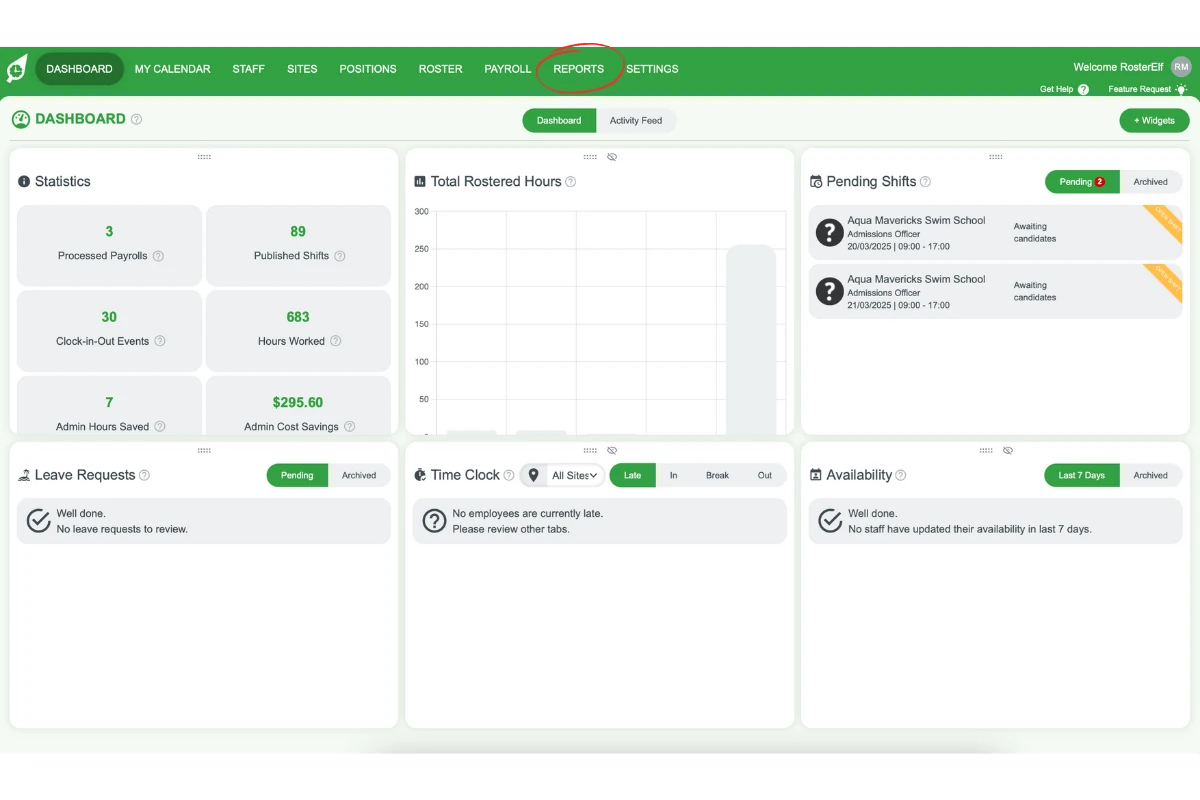
1.3. You’ll now be on the Reports page, where you can see all your custom reports.
1.4. For an overview of custom reports, refer to Overview of custom reports.
2. Select the shift notes report
This section guides you on selecting the shift notes report to view notes attached to shifts.
2.1. Open the Notes & Leave group and click the Shift Notes card (labelled Shift Notes Report on some screens).
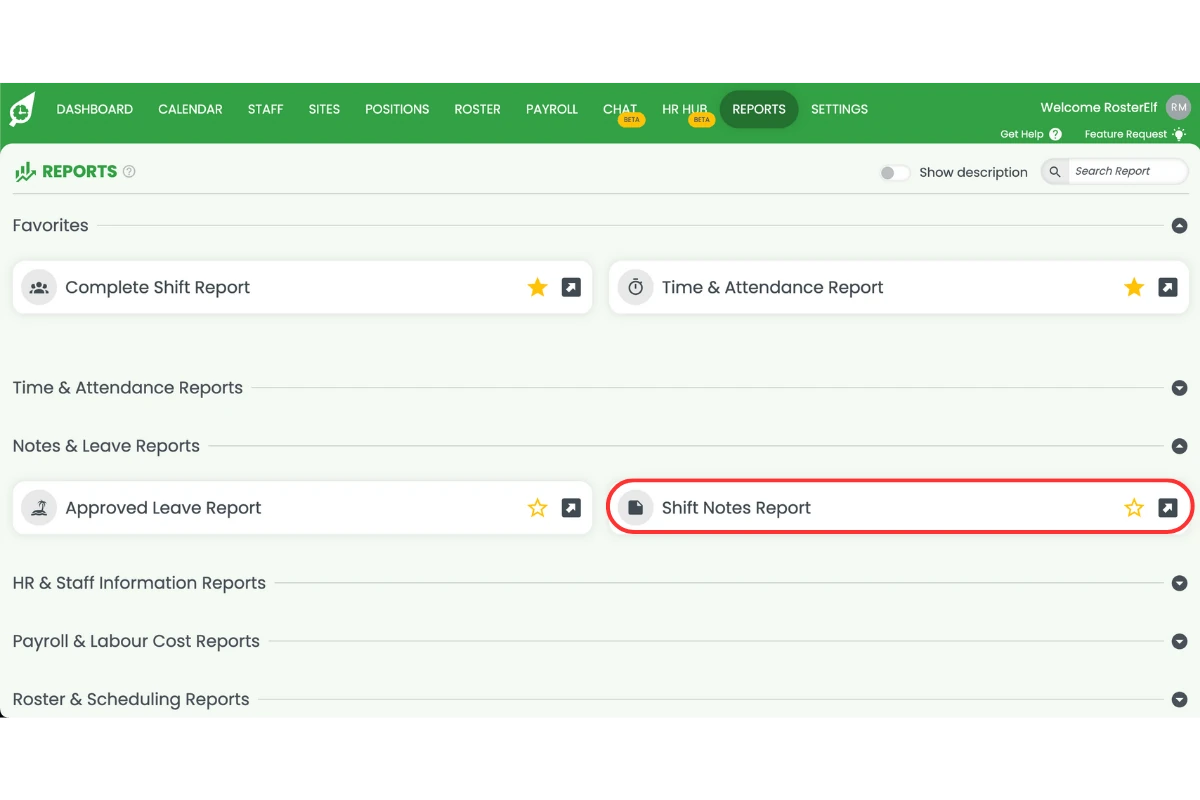
2.2. The report will display details, including the staff member’s first and last names, shift dates, rostered and clocked times, and notes.
3. Apply filters to customise your report
You can filter the report to focus on specific staff, sites, or time periods. This ensures the report is tailored to your needs.
3.1. Use the top menu to filter by:
3.1.1. Staff
3.1.2. Sites
3.1.3. Period
3.1.4. Positions, where shown
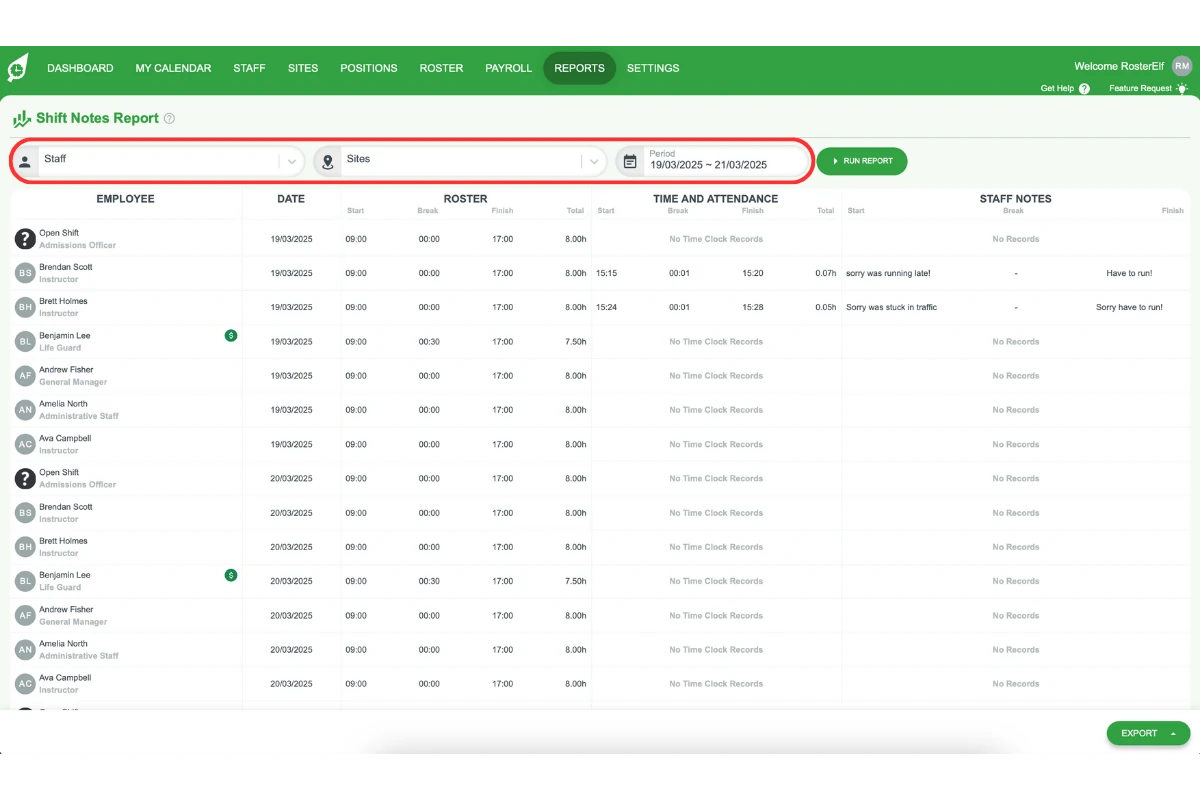
3.2. Once all filters are selected, click Run Report in the top-right corner.
4. View and export the shift notes report
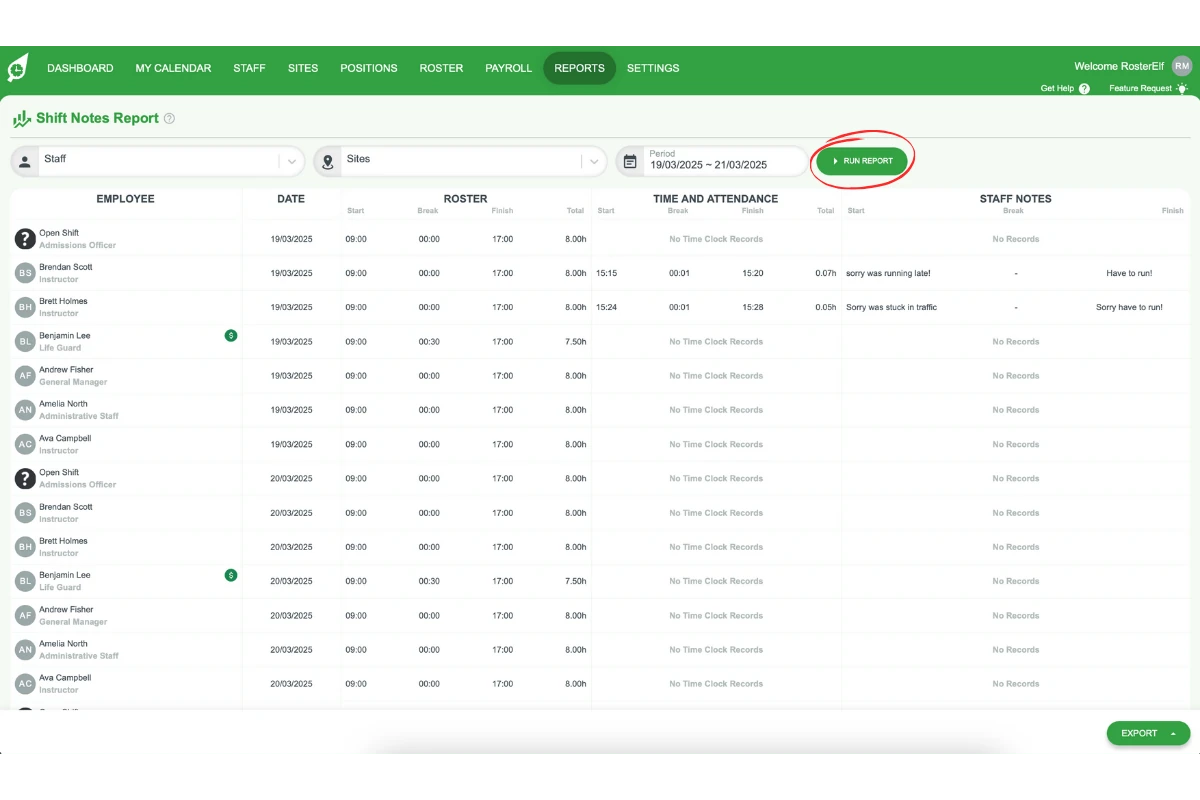
4.1. Review each row for the employee, shift date, rostered and clocked times, and notes.
4.2. Click EXPORT at the bottom right of the page and choose CSV or PDF to download the report.
Frequently asked questions
1. What is a shift notes report in RosterElf?
A shift notes report in RosterElf provides detailed information about individual shifts, including staff member names, shift dates, scheduled times, and notes added by staff. This report helps managers monitor key shift details and improve operational visibility. Learn how to enable shift notes for your staff →
2. How can I access the shift notes report in RosterElf?
To access the shift notes report, log in to RosterElf, navigate to the Reports page from the top menu, open the Notes & Leave group and click Shift Notes. The report will display shift-related details such as employee names, dates, and notes.
3. Can I filter shift notes reports to focus on specific staff or time periods?
Yes, you can filter the shift notes report by staff, site, and time period. Use the top menu in the report to apply filters, then click Run Report to view tailored results.
4. What information is included in a shift notes report?
The shift notes report includes staff member names, shift dates, scheduled times, and notes. This comprehensive information helps managers stay informed about shift-specific requirements and ensures operational clarity.
5. Can I export shift notes reports?
Yes, you can export the shift notes report by clicking EXPORT at the bottom right of the page after running the report. Exporting allows you to save or share the data for record-keeping or further analysis.
6. Why should I use the shift notes report?
The shift notes report is useful for tracking shift-specific information, ensuring staff are informed about their responsibilities, and maintaining clear communication between managers and employees.
7. How far back can I run a shift notes report?
Shift notes reports can include up to 3 months of data per report. If you need shift notes covering a longer period, generate multiple reports using consecutive 3-month date ranges. Export each report separately, and you can combine the data for comprehensive record-keeping.