

The RosterElf dashboard is the first screen you see upon logging in, designed to provide easy access to essential information and tools. With customisable widgets, you can personalise your dashboard to suit your specific role and business needs. In this article, we’ll guide you through each default widget and explain how to move, hide, and add widgets for a streamlined experience. Tailoring your dashboard can help improve your efficiency, giving you quick insights into trends, requests, and staff availability at a glance.
1. Default widgets on the dashboard
The default widgets offer a comprehensive overview of key areas within RosterElf, including business statistics, rostering trends, and time tracking. Each widget is designed to make it easier for you to manage your team’s schedules, monitor business metrics, and streamline essential tasks.
1.1 Account setup
1.1.1 Earlier versions of the dashboard included an Account Setup widget linking to setup guides. It is no longer on the dashboard or in the Widget Manager.
1.1.2 For setup guidance, see the getting started guides.
1.2 Statistics
1.2.1 Displays key business statistics that reflect RosterElf’s impact across your operations.
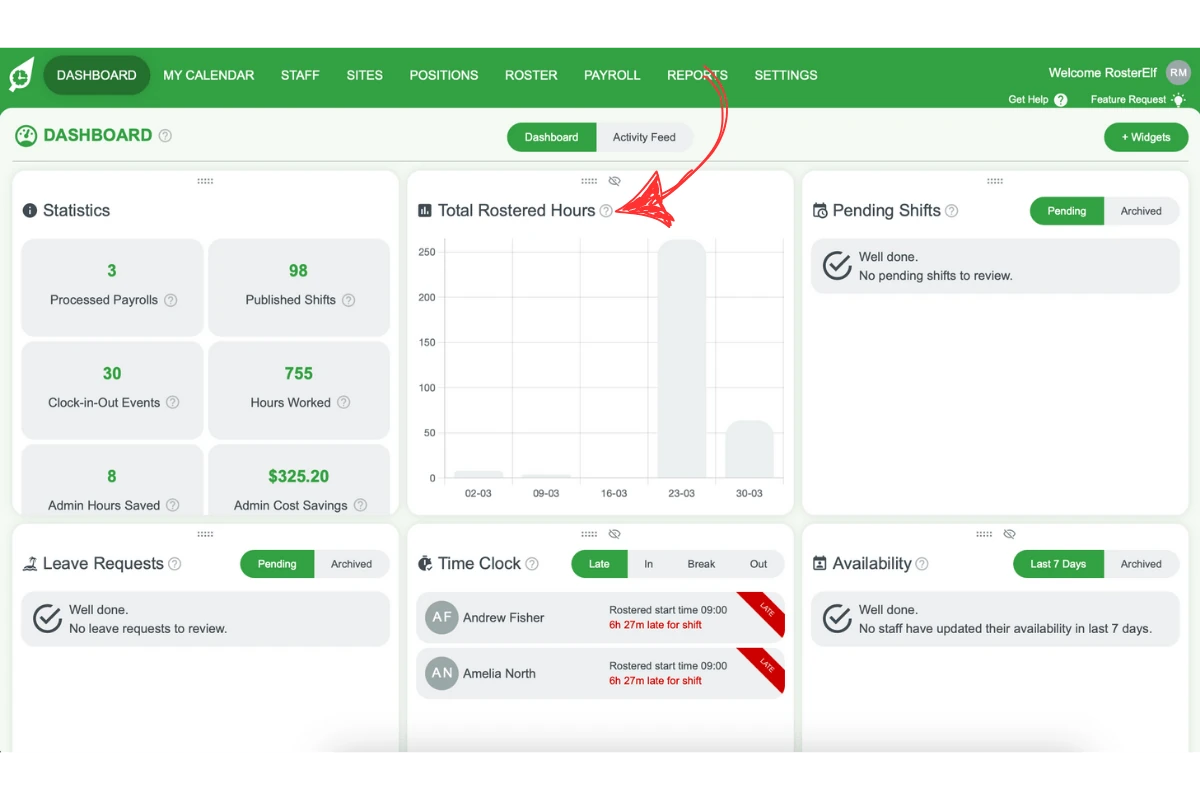
1.2.2 Hover over the ? icon for detailed explanations of each metric displayed.
1.3 Roster trends (Total Rostered Hours)
1.3.1 The roster trends widget is titled Total Rostered Hours on the dashboard (Roster (Hours) in the Widget Manager) and charts the hours on your schedule week by week. Labour cost and average pay rate trends are separate widgets you can add from + Widgets.
1.3.2 Use these widgets to track and optimise scheduling efficiency.
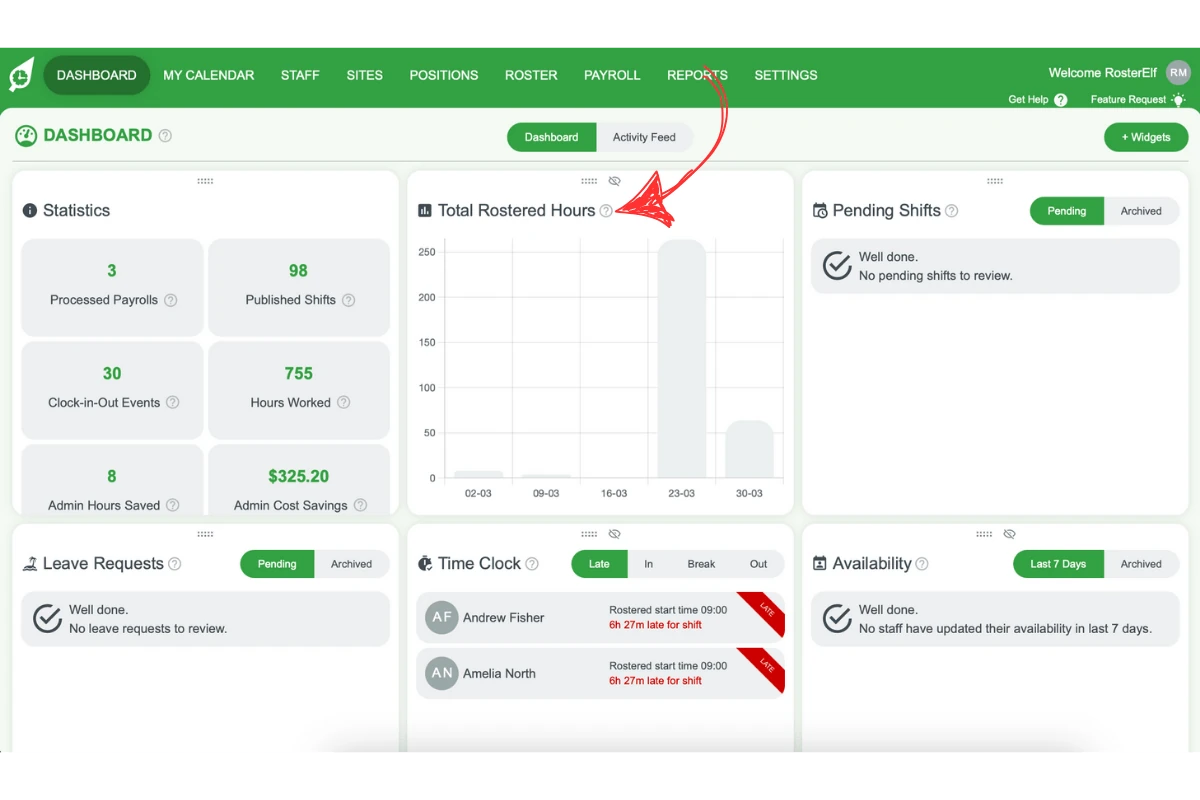
For more information on roster trends, see live roster trends.
1.4 Pending shifts
1.4.1 Manage shift swap requests and open shifts from this widget.
1.4.2 Stay on top of available shifts and changes to staffing with quick access.
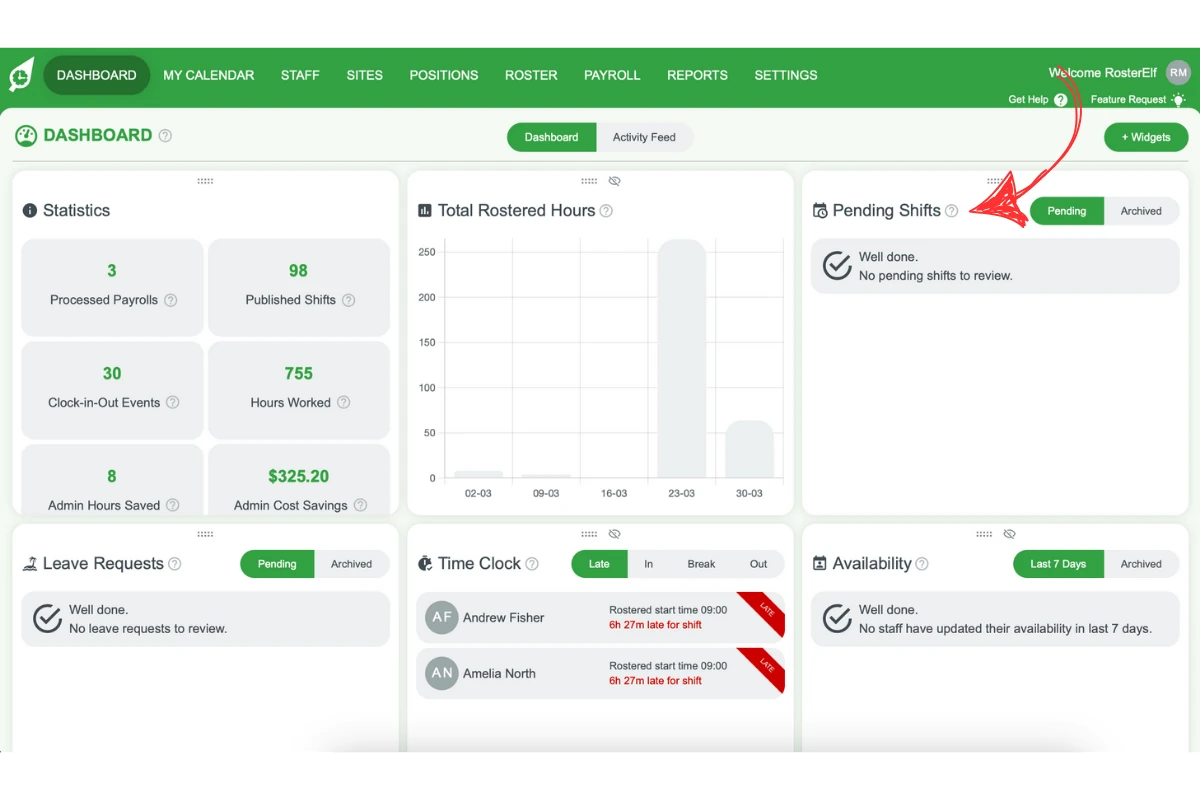
For detailed steps on managing shift swaps and open shifts, refer to the relevant guide.
1.5 Live time clock (Time Clock)
1.5.1 The widget is titled Time Clock. Its Late, In, Break and Out tabs show who is late, in, on a break or out right now, so you can check attendance without leaving the dashboard, and its site picker narrows the list to one site.
1.5.2 For a specific staff member’s shift detail, open the full Live Time Clock feature.
Frequently asked questions
1. How do I move widgets on my RosterElf dashboard?
To move a widget, click and hold the handle in the middle of its header, then drag it to your desired location on the dashboard.
2. Can I hide widgets on the RosterElf dashboard?
Yes, you can hide widgets by clicking the eye icon located on each widget. This helps keep your dashboard focused on the information most relevant to you.
3. How can I add more widgets to my RosterElf dashboard?
To add widgets, select the + Widgets button in the top-right corner of your dashboard. Choose from available widgets that align with your role and business needs.
4. What are the default widgets on the RosterElf dashboard?
Default widgets include Statistics, Total Rostered Hours (the roster trends widget), Pending Shifts, Leave Requests, Time Clock, and Availability, offering a comprehensive overview of essential team and scheduling information.
5. Why are some widgets on the RosterElf dashboard not removable?
Certain widgets are essential for the core functionality of RosterElf and cannot be removed to ensure you have access to critical information for effective staff management.