

This article explains how to view the clock-in status of staff members using the Time and Attendance feature. By understanding these statuses, you can keep track of staff who are late, currently clocked in, on break, or have clocked out. This feature allows you to monitor attendance across all sites or focus on a specific site, helping you manage shift coverage and staff attendance effectively. To set up Time and Attendance, refer to this guide: Setting up Time and Attendance.
Quicker option
If you just need a glance at who’s clocked on right now, check the Live Time Clock widget on your dashboard — it’s the first screen you see when you log in. The steps below are for when you need more, like filtering by site or viewing a specific staff member’s shift detail.
1. Check staff clock-in statuses
This section guides you on viewing the current status of staff members, including those who are late, clocked in, on break, or clocked out. This quick overview helps you understand where each staff member is in their shift, ensuring smooth operations and timely staff management.
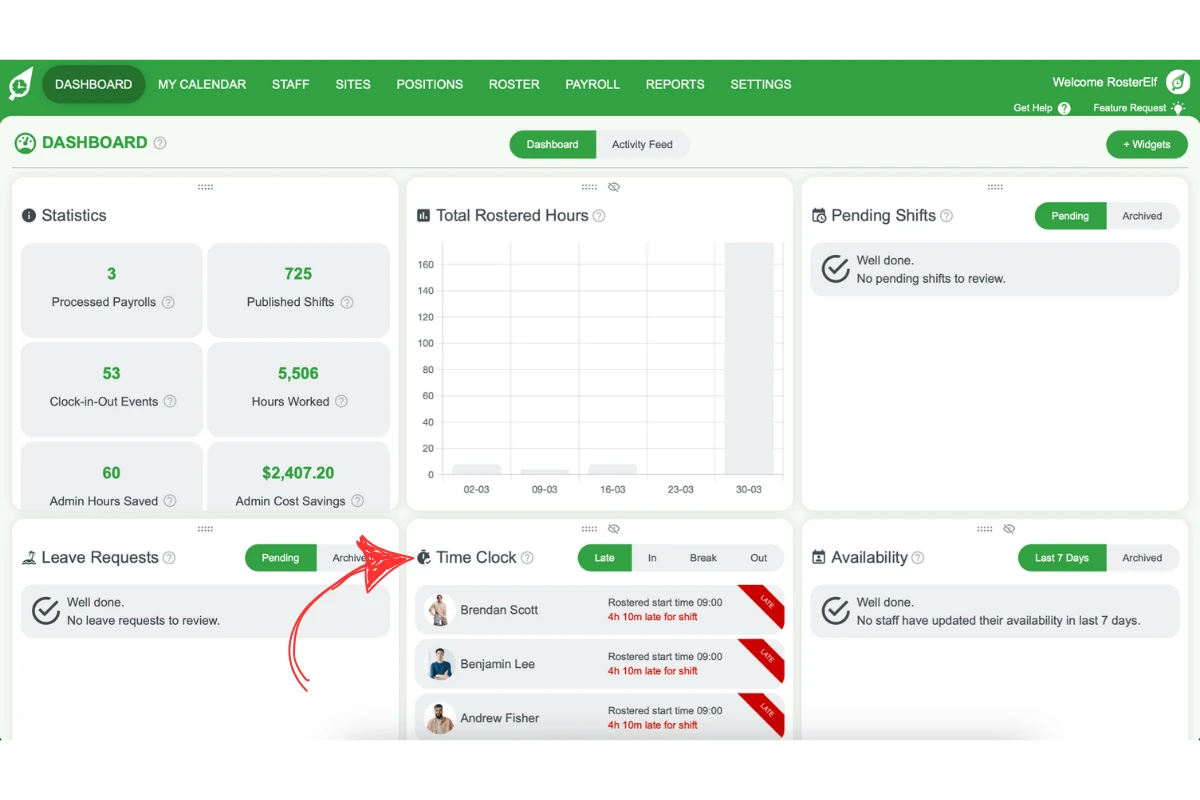
1.1 select clock-in statuses
Follow these steps to view specific staff clock-in statuses:
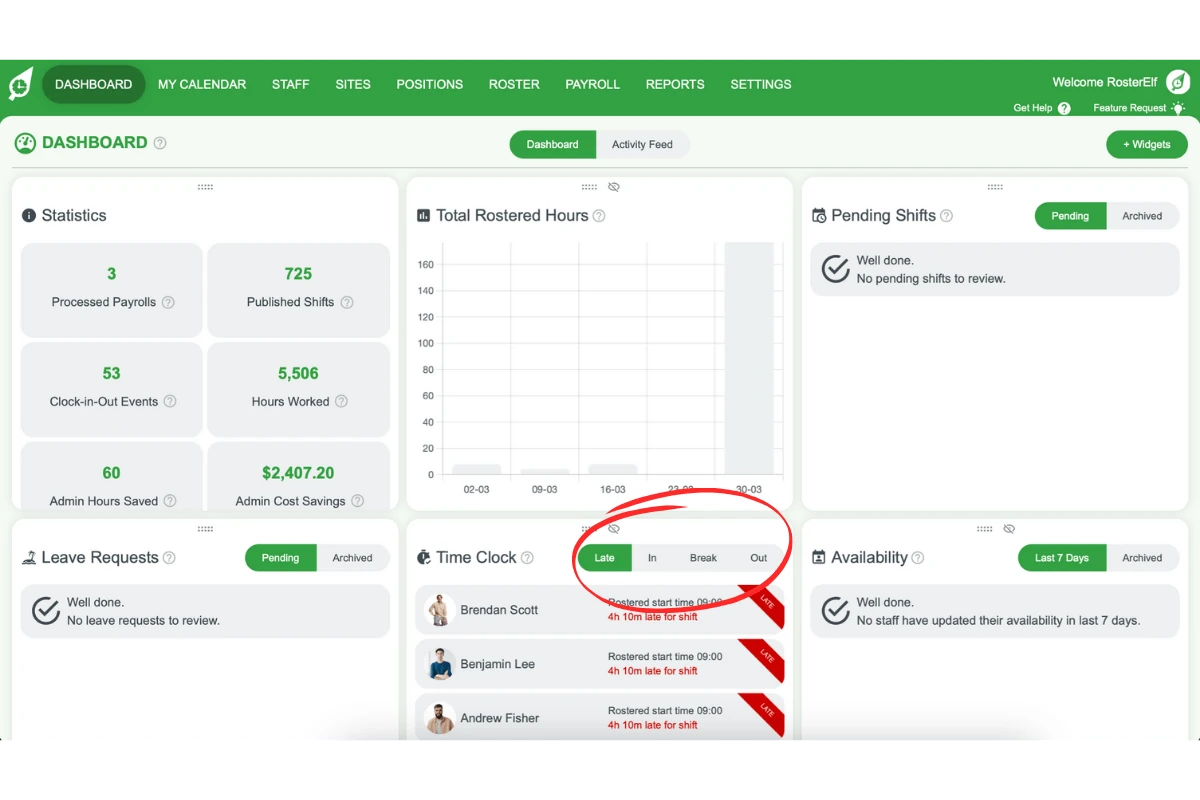
1.1.1 Select Late, In, Break, or Out to view staff in each category.
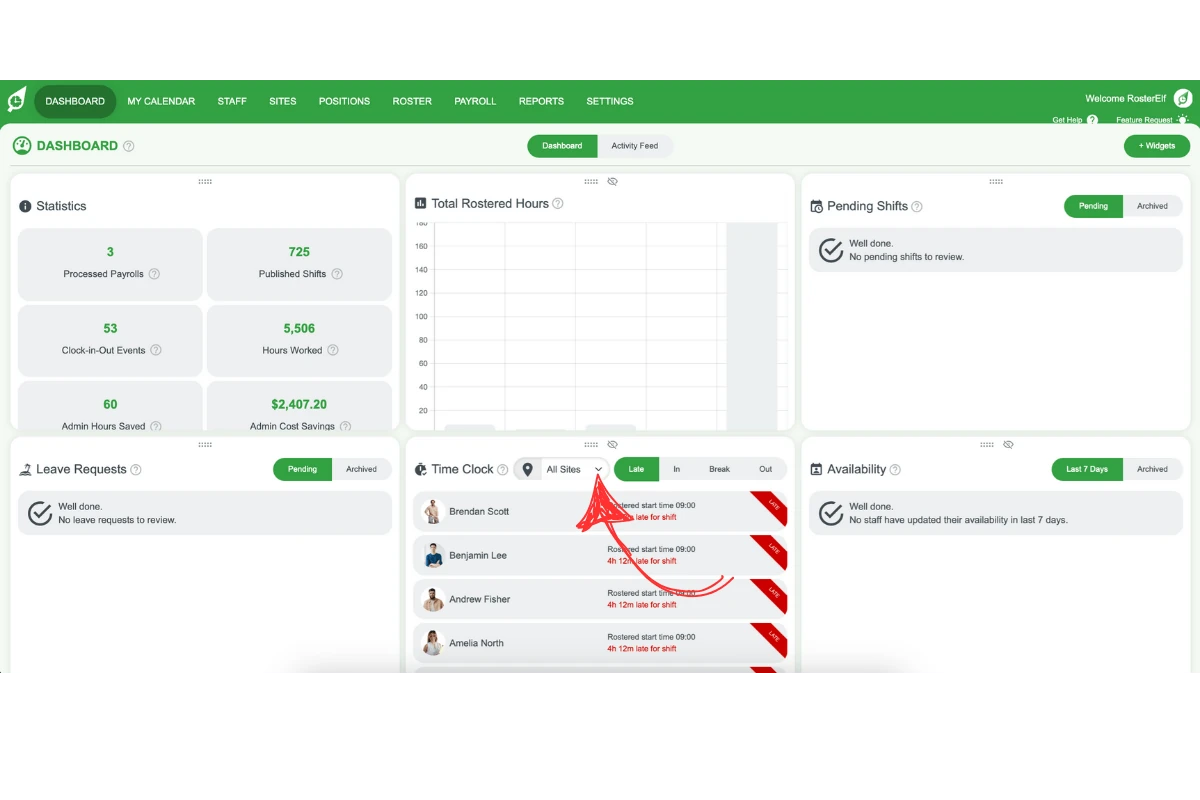
1.1.2 Use the drop-down menu to select all sites or a specific site.
1.2 view staff details
To see more information on individual staff members:
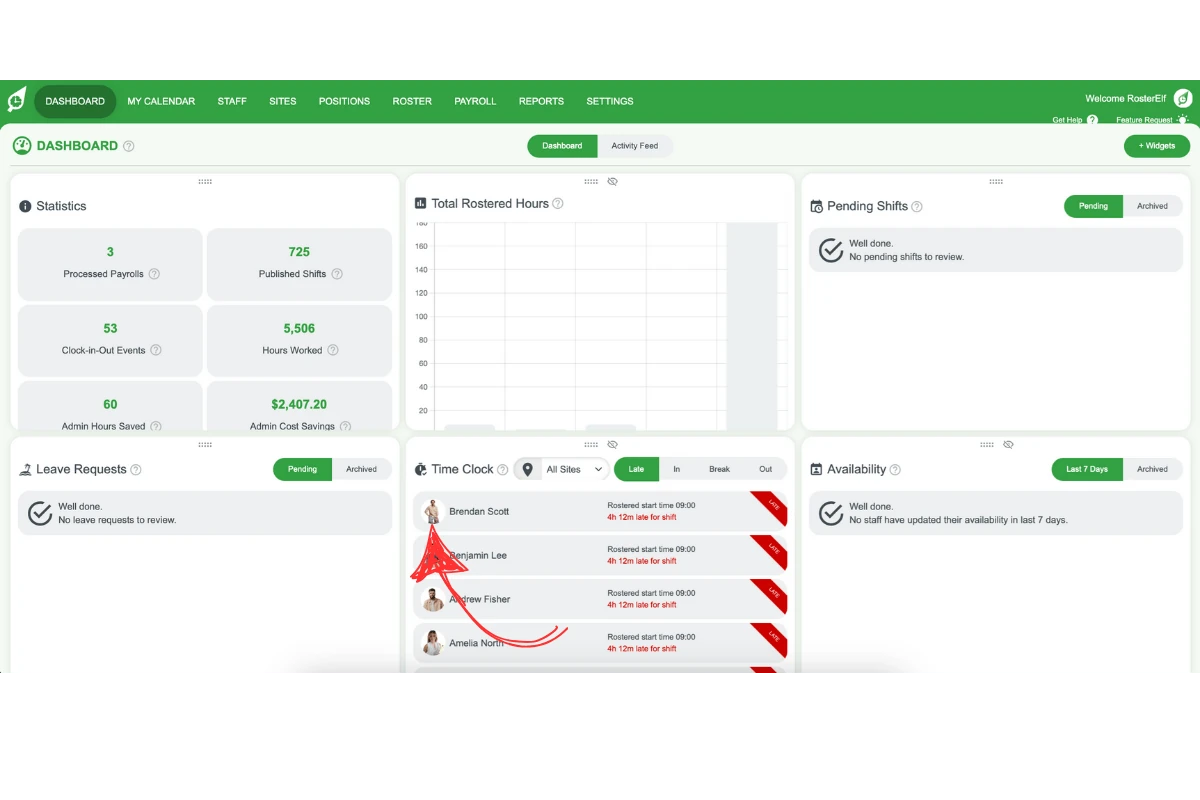
1.2.1 Click on a staff member to view additional details about their shift.
Frequently asked questions
1. Can I check who's clocked in without leaving my dashboard?
Yes. The Live Time Clock widget on your dashboard shows who’s In, on Break, Late or Out at a glance, without navigating away. Use the full Time and Attendance feature below when you need to filter by site or view a staff member’s shift detail.
2. How can I check staff clock-in statuses in RosterElf?
To check staff clock-in statuses, navigate to the Time and Attendance feature. Select Late, In, Break, or Out to see which staff members are in each category. This helps you monitor attendance and manage shift coverage effectively.
3. Can I view clock-in statuses for specific sites only?
Yes, you can view clock-in statuses for all sites or filter by a specific site using the drop-down menu in the Time and Attendance feature.
4. What do the different clock-in statuses mean?
In RosterElf, the statuses include Late for those who missed their start time, Early for those who clocked in before their shift, On Time for punctual clock-ins, and No Show for employees who did not clock in at all.
5. How can I view more details about a staff member’s shift?
To view additional details, click on a staff member’s name in the Time and Attendance section. This will show specific shift information to help you manage attendance closely.
6. How do I set up the Time and Attendance feature in RosterElf?
To set up Time and Attendance, follow the instructions in this guide: Setting up Time and Attendance. This setup is necessary to view staff clock-in statuses and manage attendance.