

Monitoring staff breaks using the RosterElf time clock
Efficient attendance tracking includes monitoring when employees go on break. The RosterElf Time Clock app uses colour-coded banners so you can see who is on a break, clocked in, or running late. By following these guidelines, you will stay informed about staff statuses in real time and better manage shift coverage.
Read on to understand how to interpret colour-coded banners and keep track of employee attendance at a glance. This approach helps managers respond quickly to staffing needs and maintain a smooth workflow throughout the day.
1. Identifying staff statuses on the dashboard
The RosterElf Time Clock dashboard uses colour-coded banners to display employee statuses, making it easy to see who is on break, who is late, and who is clocked in.
1.1 understanding the colour codes
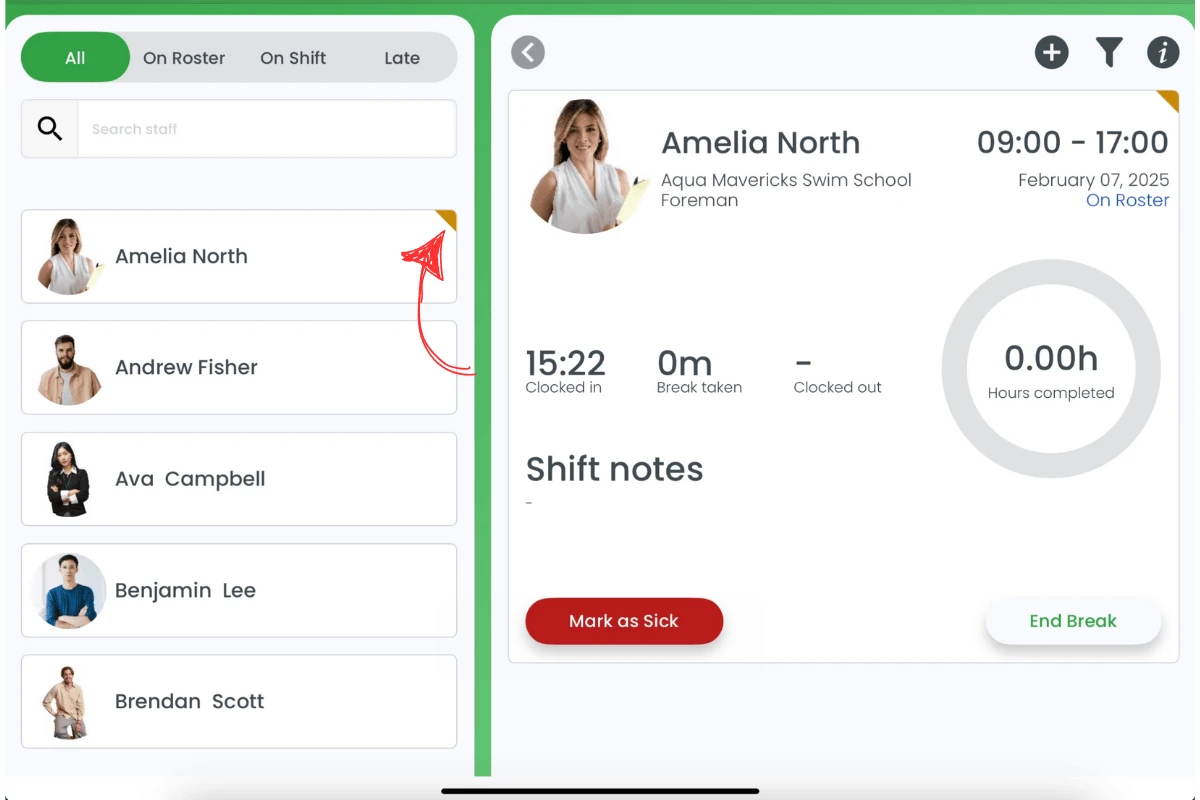
1.1.1 A yellow corner flag on the card, and “On Break” on the shift, indicate employees on a break.
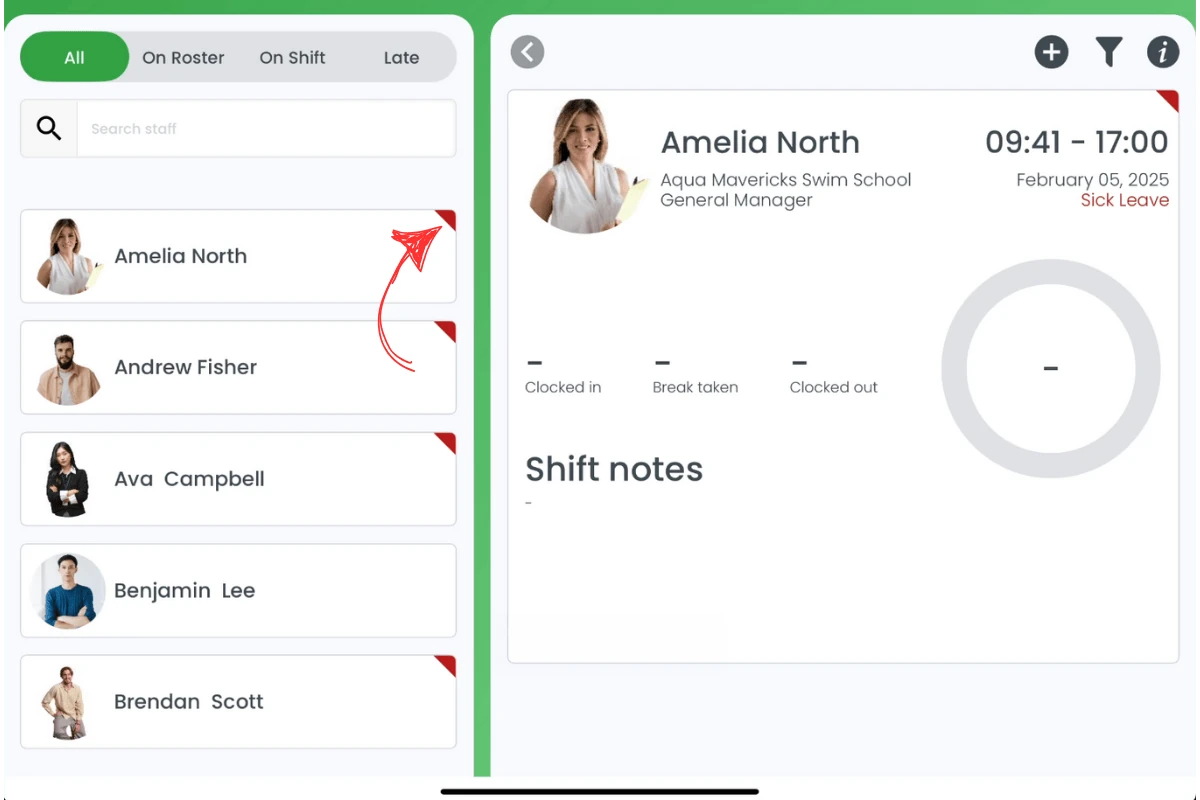
1.1.2 Red banners highlight employees who are late.
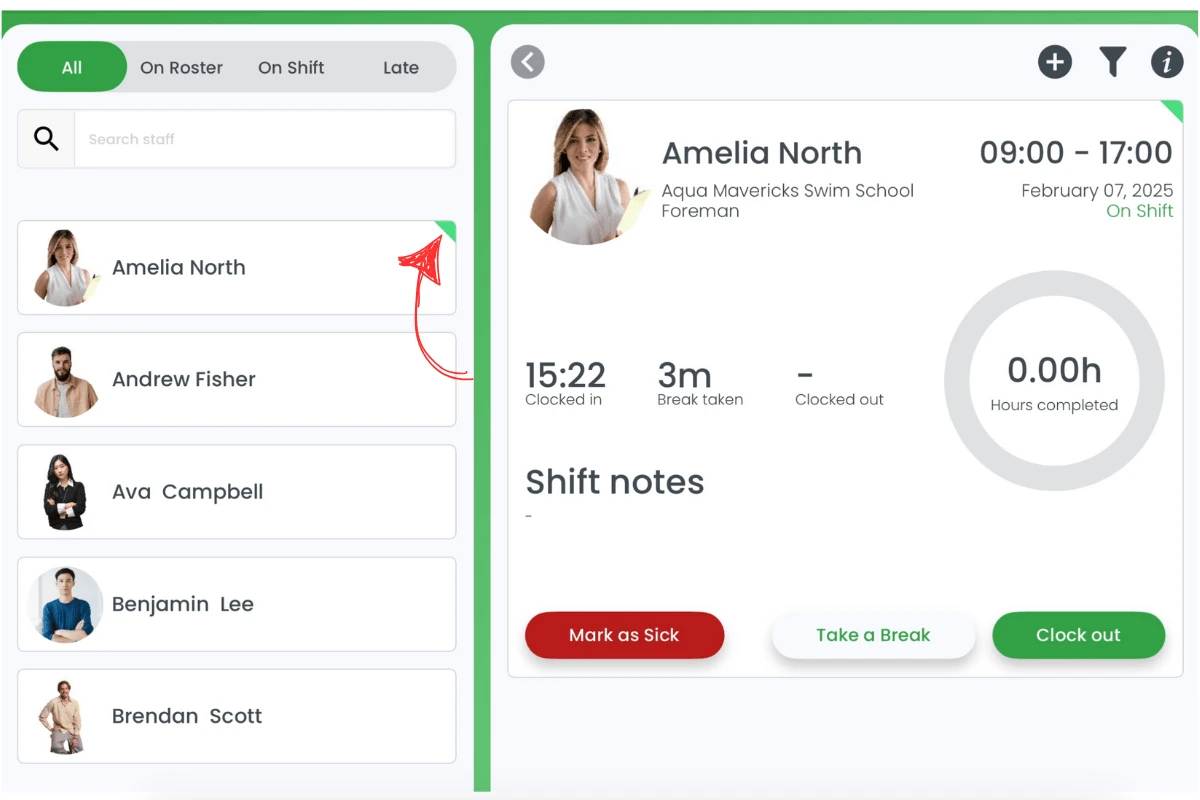
1.1.3 Green banners show employees who are clocked in on time.
1.2 using the dashboard to track attendance
1.2.1 Regularly check the dashboard for real-time updates on employee statuses.
1.2.2 Use the colour-coded banners to manage shift coverage and respond to lateness or extended breaks.
Frequently asked questions
1. How do I identify staff on break in the Time Clock app?
Staff on break are indicated by a yellow corner flag on their card, and the shift reads “On Break”. Check these regularly to monitor break times.
2. What do the different colour-coded banners mean in the Time Clock?
A yellow corner flag indicates employees on a break, red flags highlight employees who are late, and green flags show employees who are clocked in on time.
3. Can I track employee breaks in real time using the Time Clock app?
Yes, the dashboard updates continuously, showing who is on break, clocked in, or late with the respective colour-coded banners.
4. How does the Time Clock dashboard help with staff attendance?
The Time Clock dashboard offers real-time insight into employee statuses, allowing managers to see who is on a break, late, or clocked in at a glance.
5. Do I need manager access to view staff break statuses?
Yes, only users with managerial or admin privileges can access the Time Clock dashboard to monitor staff statuses including breaks.