

This article explains how to set custom hours for staff in RosterElf using both the web browser and mobile app. Setting custom hours allows you to override the automatically calculated hours for any shift. This is useful when staff forget to clock in or out, or when adjustments are needed to reflect actual worked time.
You’ll learn how to open the payroll screen, access the custom column, enter the correct hours, and save your changes. Whether you’re on a computer or smartphone, the steps are simple and quick to follow. Keeping timesheets accurate ensures payroll is correct and compliant with wage rules.
After a site timezone change, re-check your Custom values
A Custom value you have edited is stored exactly as you typed it and does not move when a site’s timezone changes, while Time Clock times do. Custom is the column that determines pay, so re-check every row with a Custom value after a timezone change — see how site timezones affect rosters and payroll.
1. Set custom hours on web browser
This section outlines how to set custom shift hours using the RosterElf web browser platform. It’s ideal when reviewing payroll before approval. Adjusting hours directly in the payroll view helps ensure timesheets are accurate before sending them to payroll systems like Xero or MYOB.
1.1 Open the payroll screen
1.1.1 Log in to your RosterElf account on your web browser.
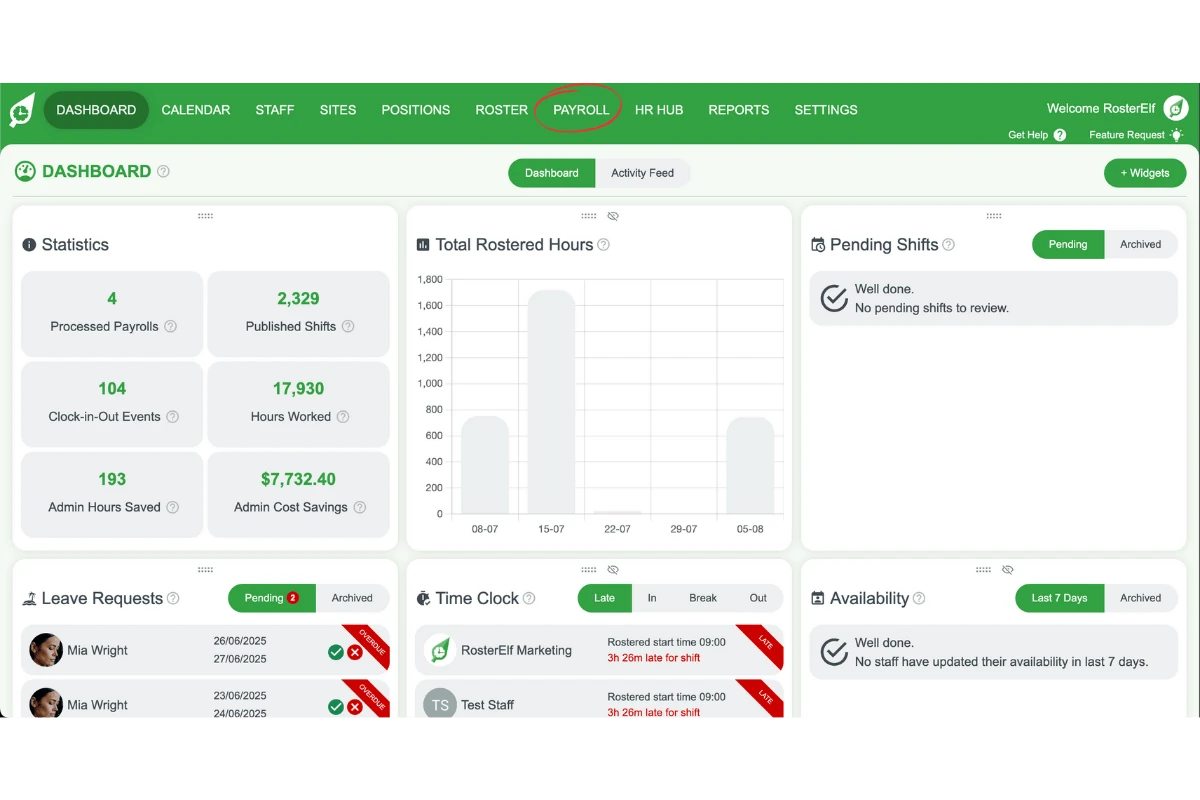
1.1.2 Click the Payroll tab in the menu.
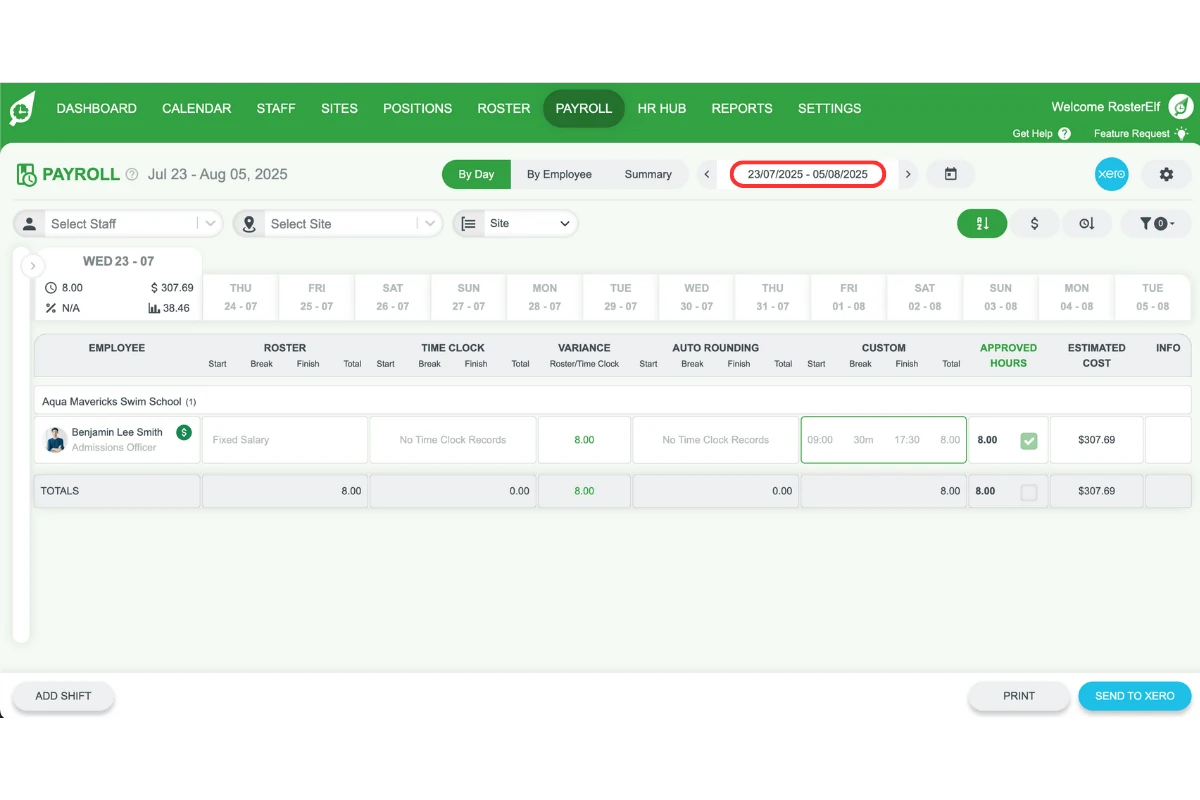
1.1.3 Select the desired date range or select the day you’d like to adjust the times.
1.2 Adjust shift hours using the custom column
1.2.1 Find the staff shift you want to update.
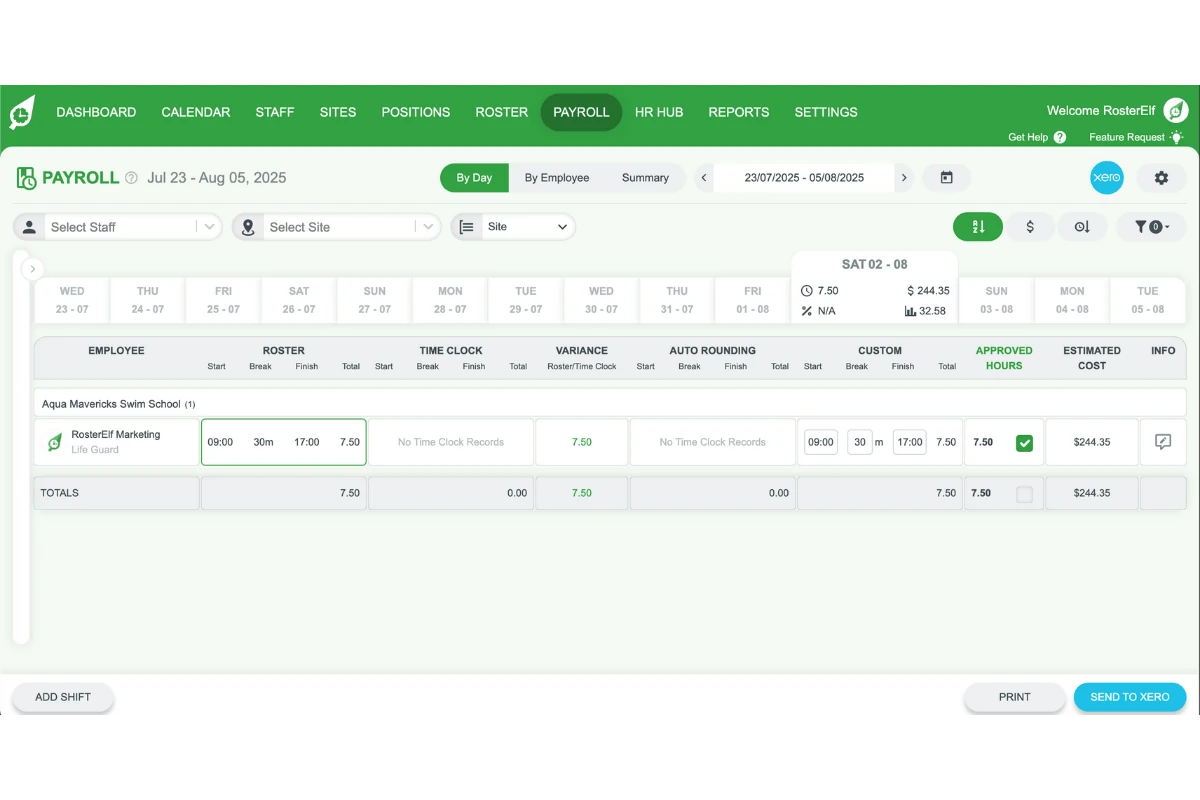
1.2.2 Click into the Custom column next to the shift.
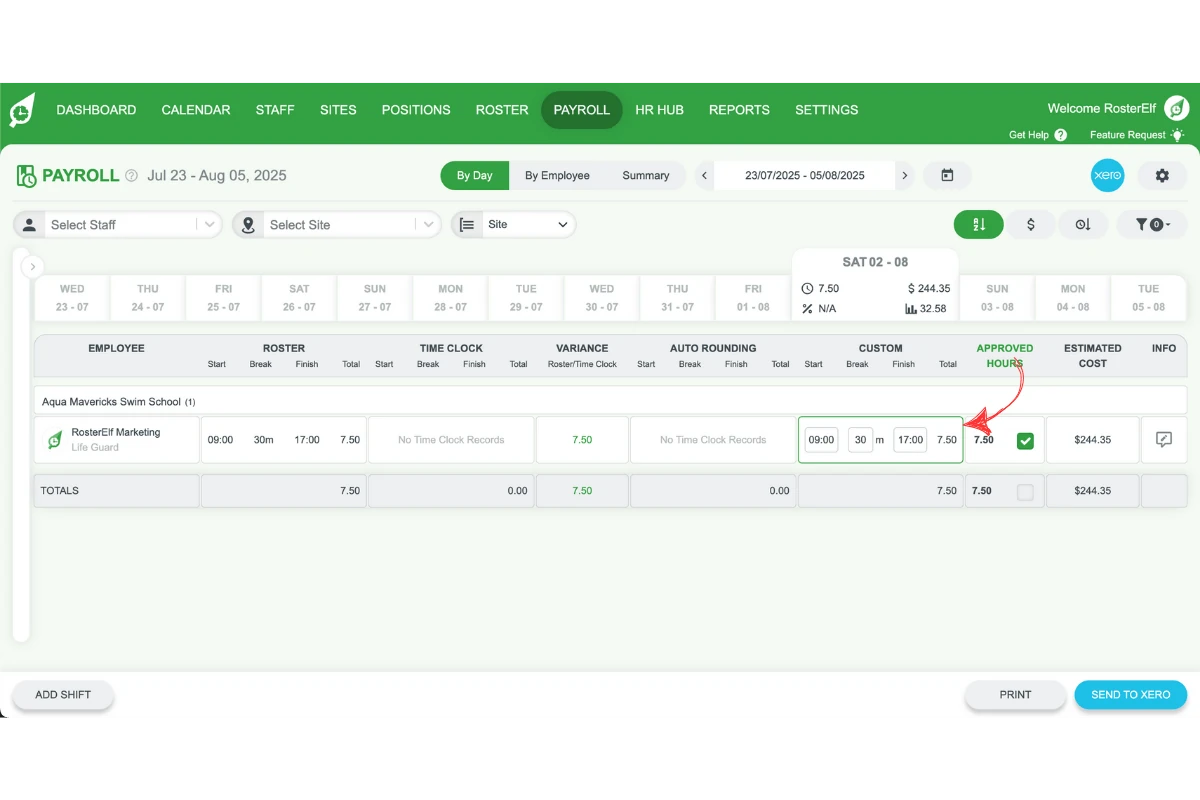
1.2.3 Enter the corrected number of hours worked.
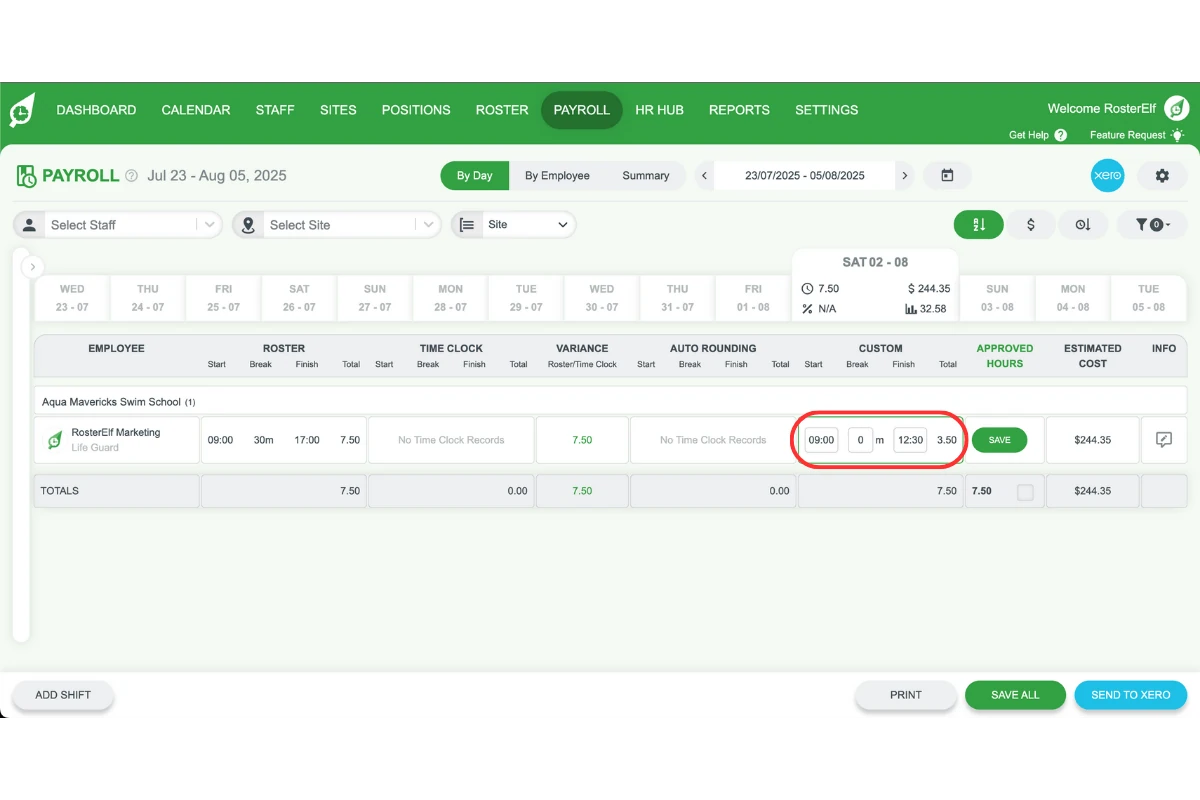
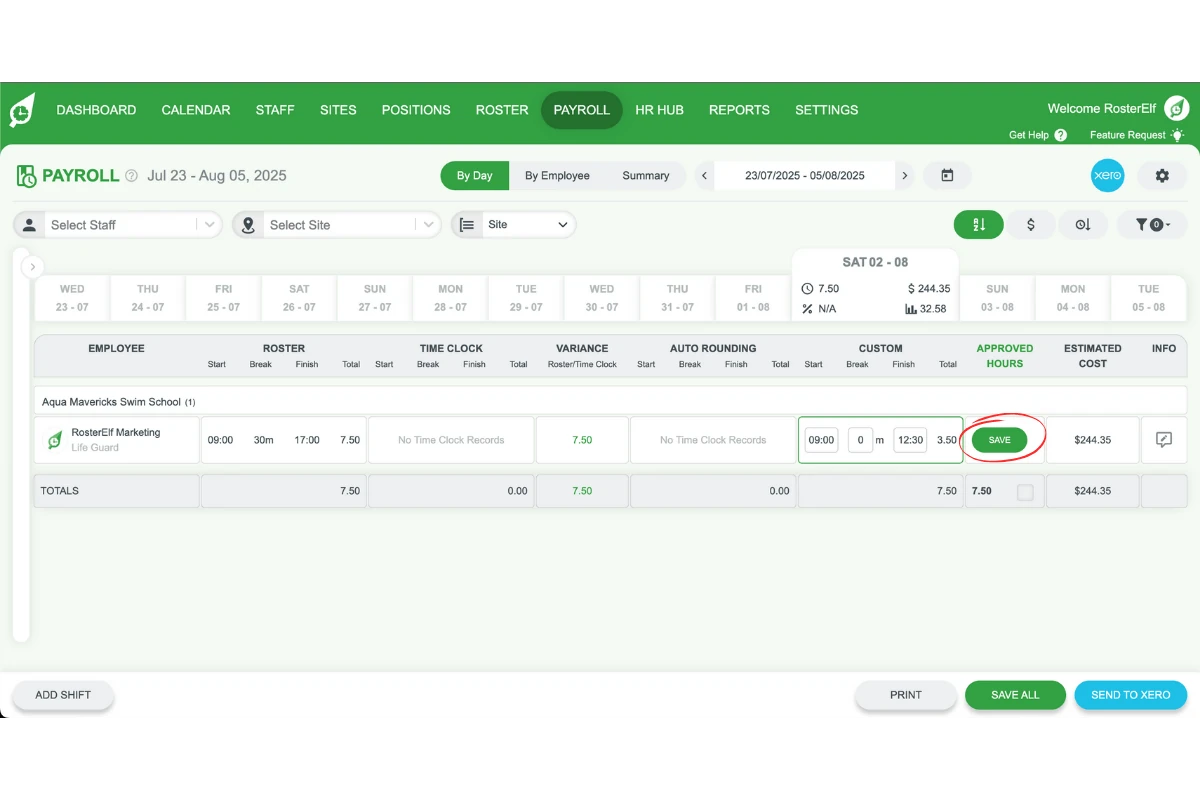
1.2.4 Click Save to confirm your changes or make multiple changes and hit save all.
2. Set custom hours on smartphone app
This section explains how to set custom shift hours using the RosterElf smartphone app. It’s perfect for managers on the go who need to make quick payroll adjustments. The process is simple and ensures accurate records even when you’re not at a computer.
2.1 Navigate to the payroll screen
2.1.1 Open the RosterElf app on your smartphone.
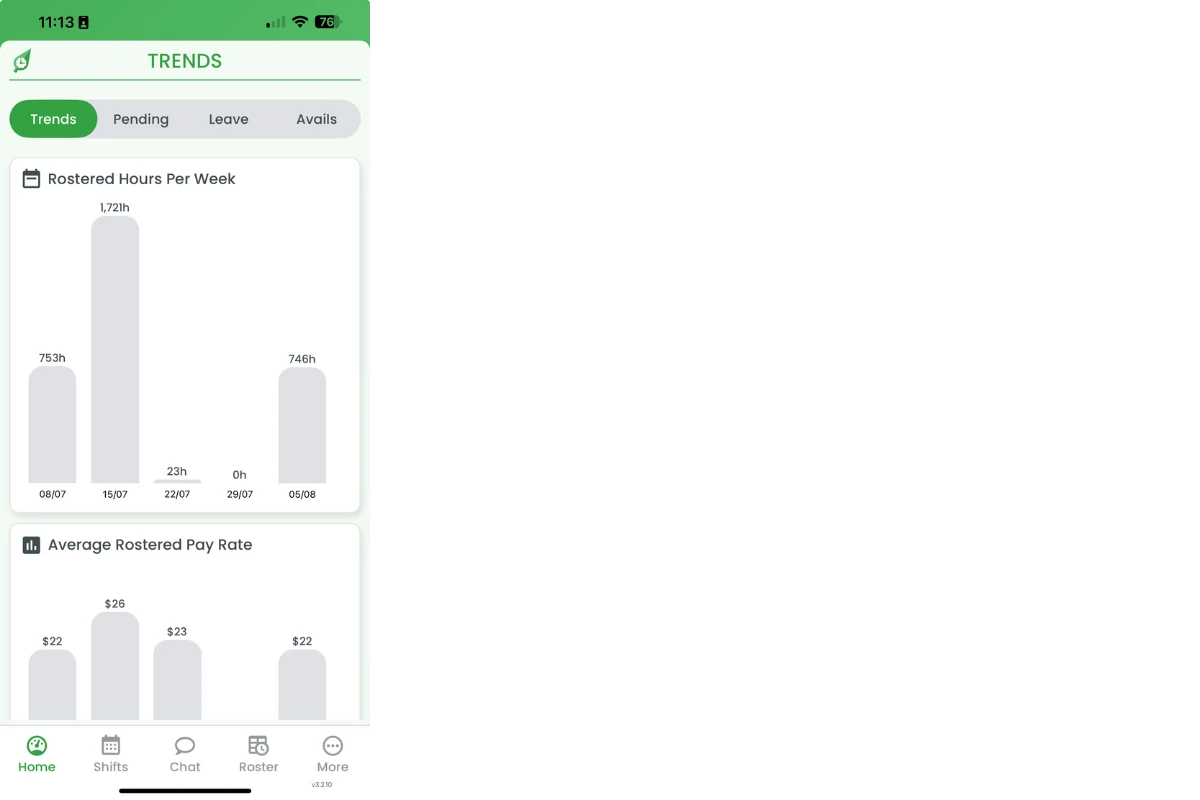
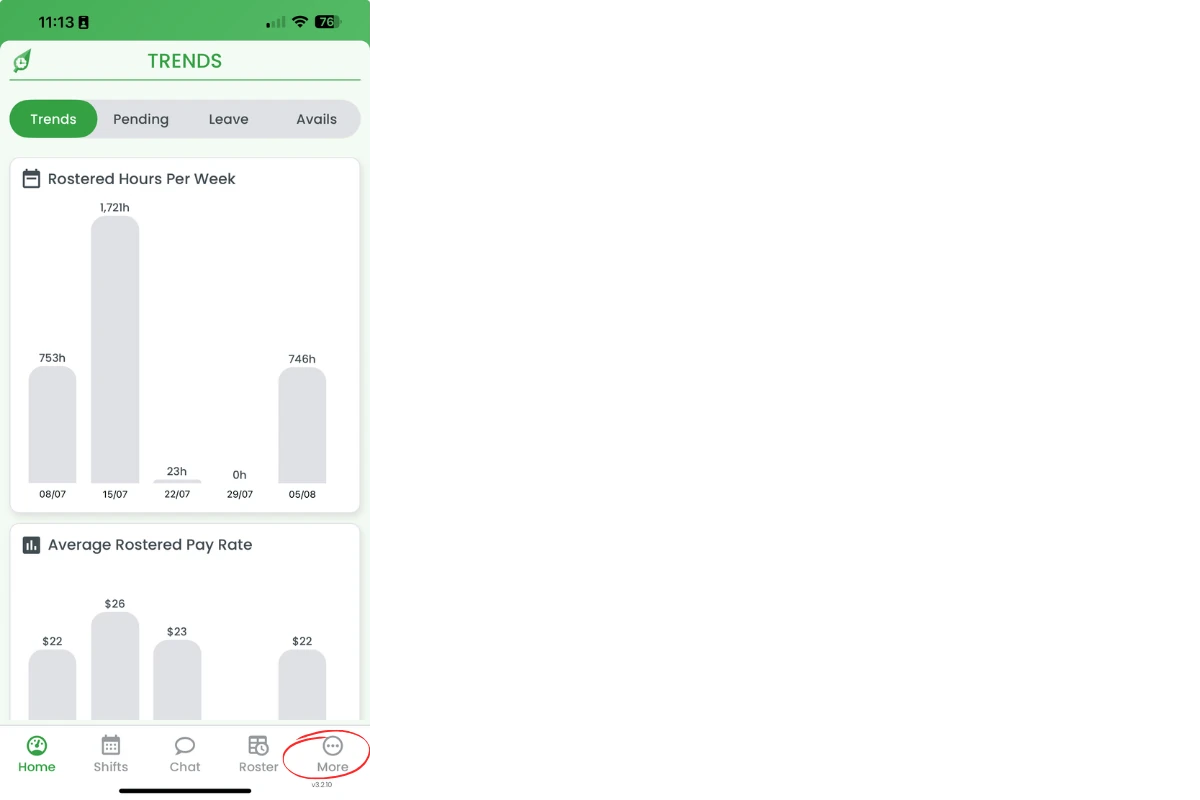
2.1.2 Tap More in the bottom menu.
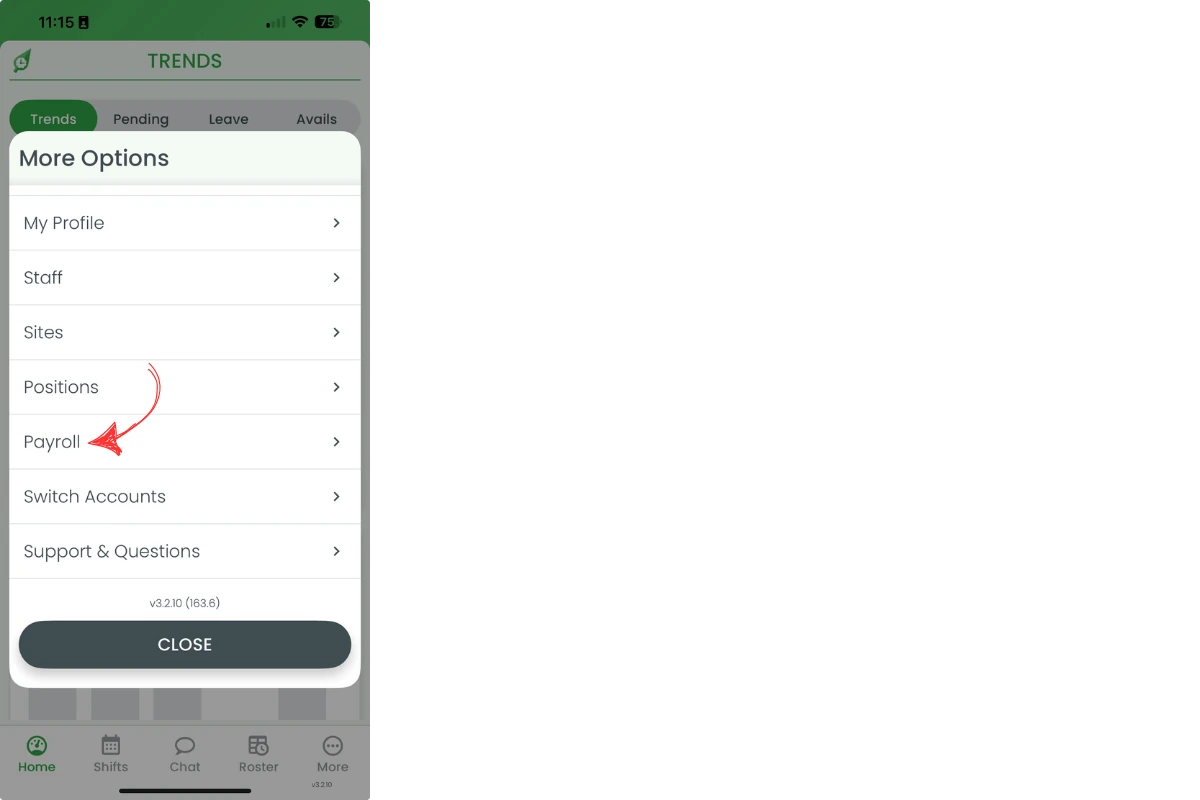
2.1.3 Tap Payroll.
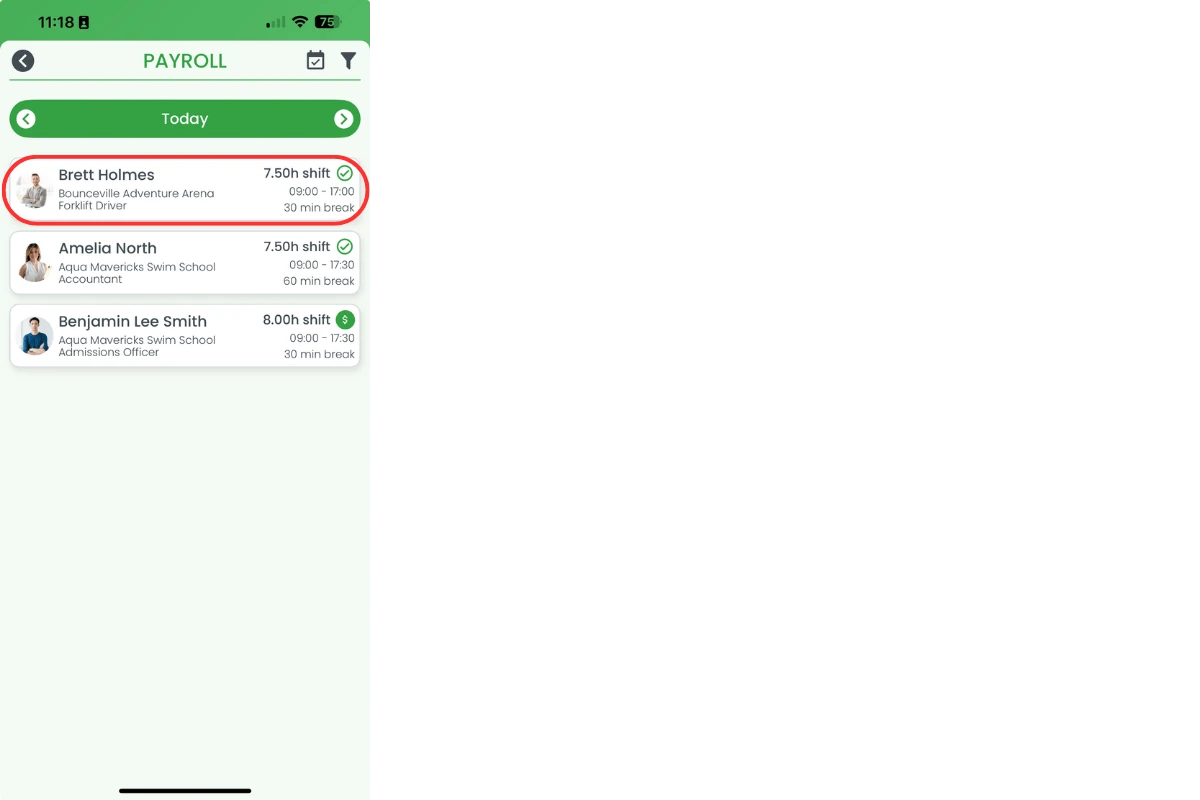
2.1.4 Select the date by pressing Today.

2.2 Edit hours using the custom field
2.2.1 Tap on the shift you want to edit.
2.2.2 Tap the Custom to adjust the hours.
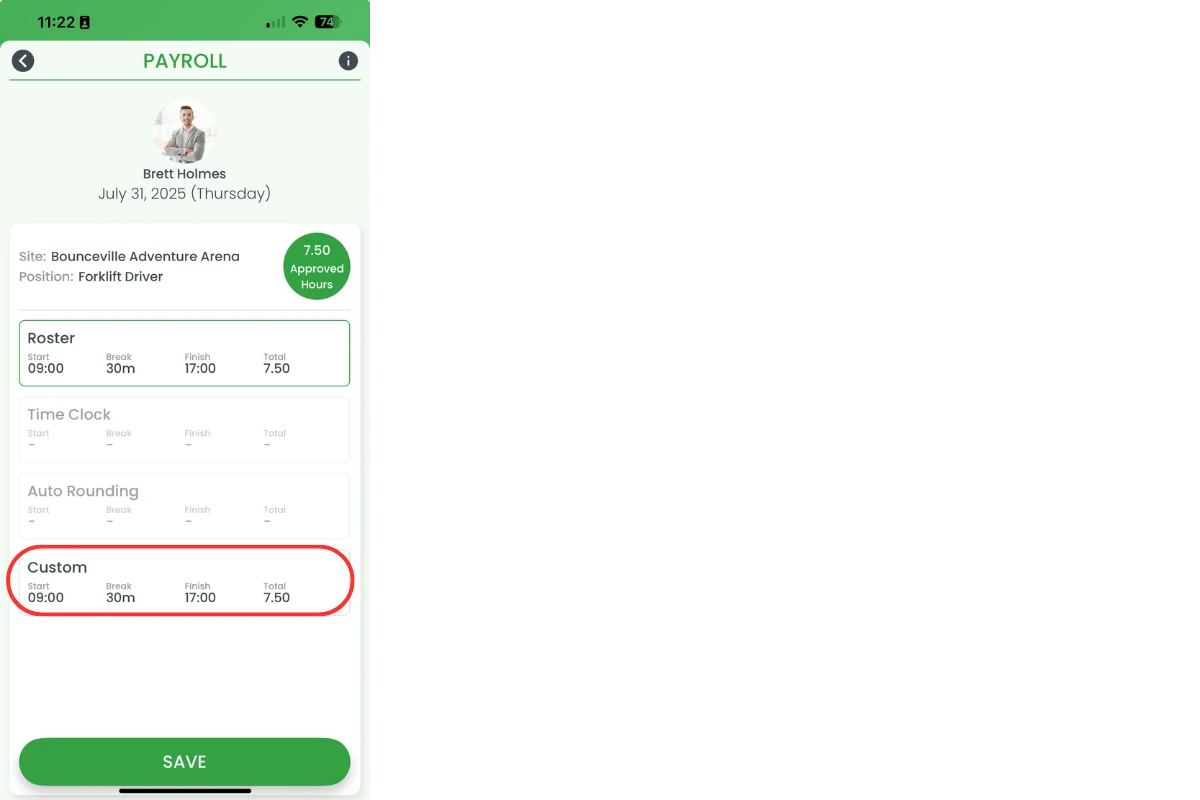
2.2.3 Adjust the number of hours.
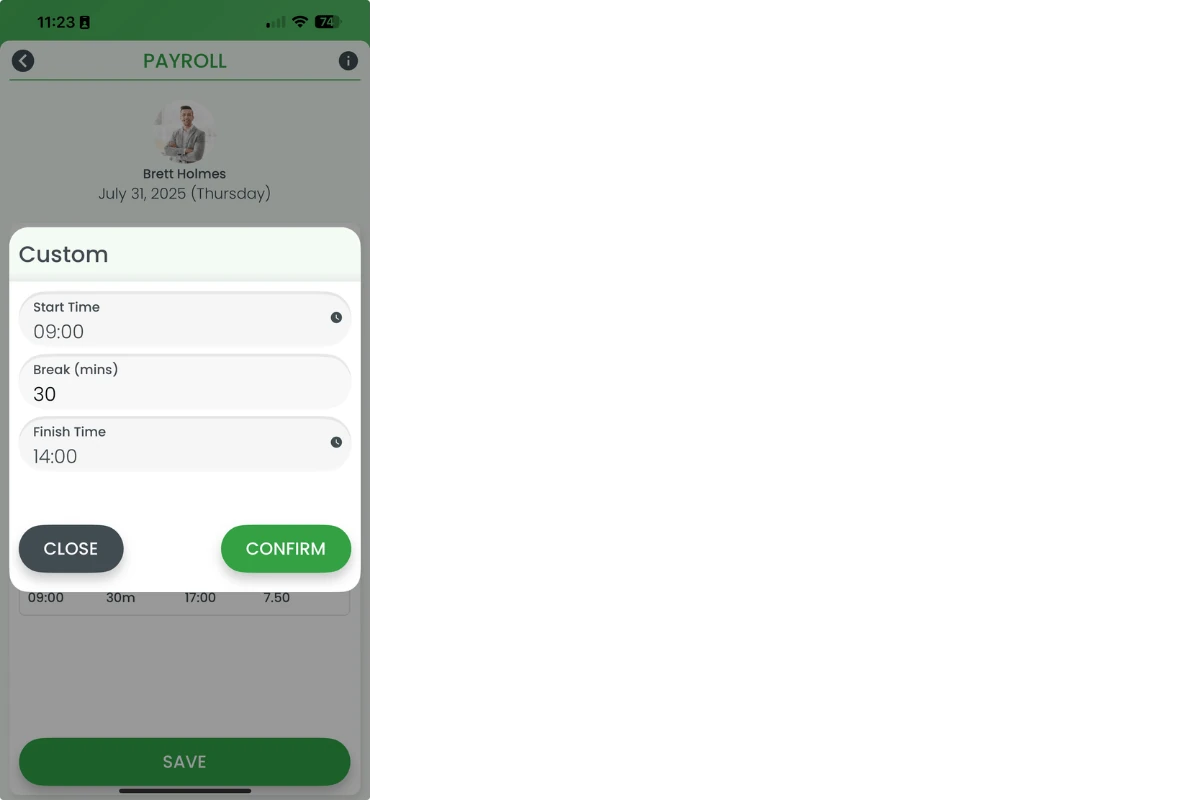
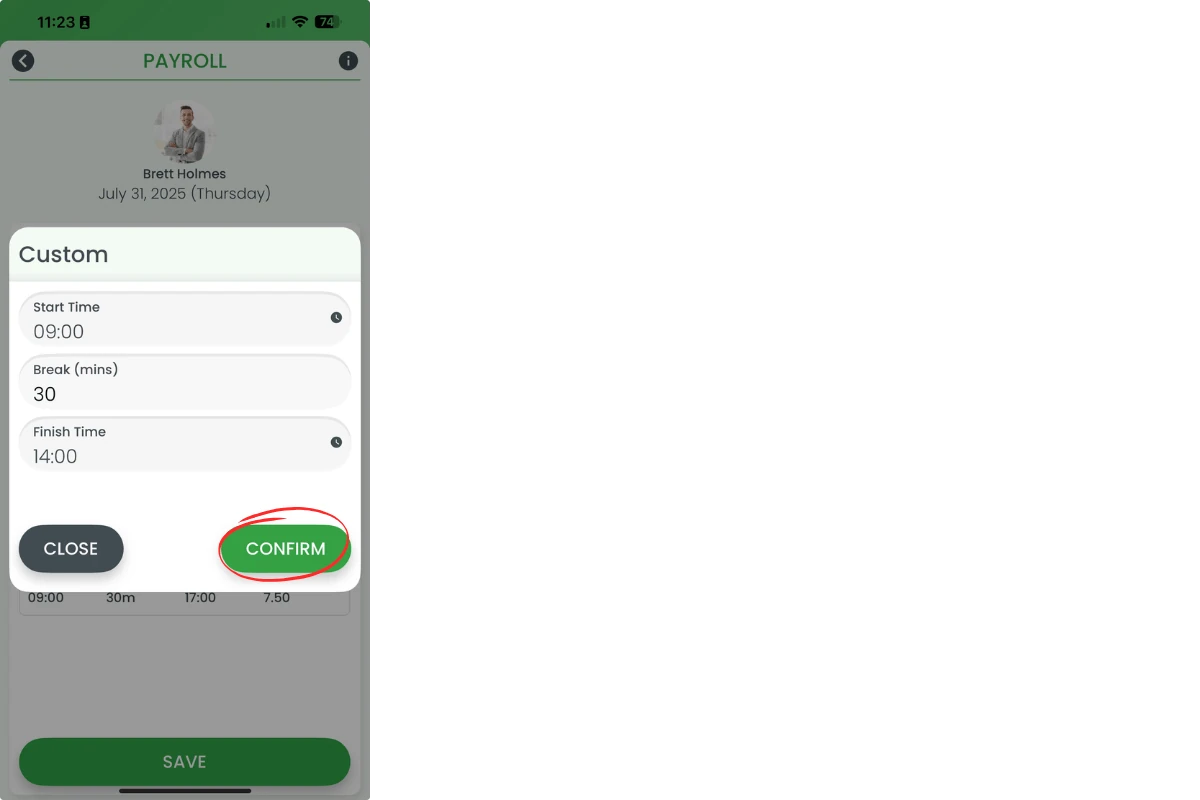
2.2.4 Tap Confirm.
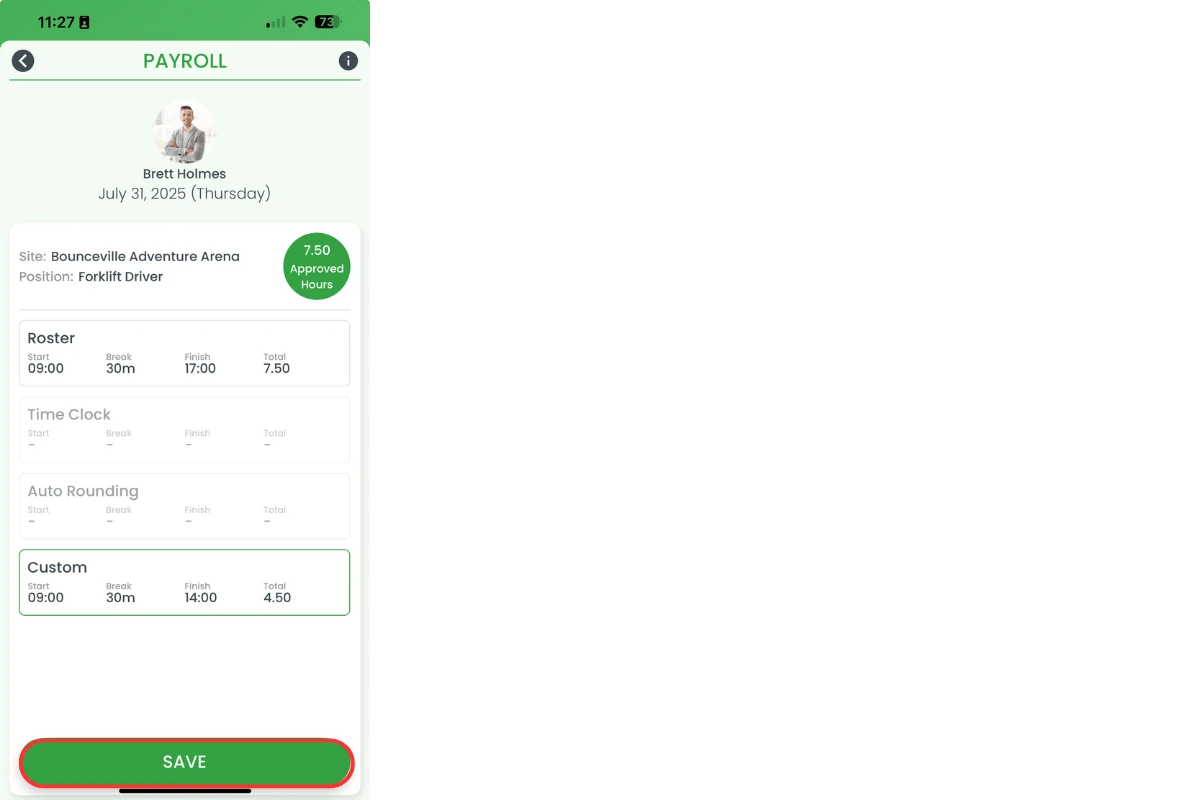
2.2.5 Tap Save to finalise your changes.
Frequently asked questions
1. How do I set custom shift hours in RosterElf on web?
To set custom hours on the RosterElf web version, log in, go to the Payroll tab, select your date range, and locate the shift. Click the Custom column next to the shift, enter the correct hours worked, and click Save. This ensures payroll accuracy before exporting.
2. Can I edit shift hours using the RosterElf mobile app?
Yes. Open the RosterElf app, tap More then Payroll, and choose a date range. Select the shift you want to update, tap Custom, adjust the hours, then tap Confirm and Save.
3. Why should I use the custom column when adjusting hours?
The Custom column lets you override automatically calculated shift hours. It’s useful for correcting missed clock-ins or adjusting hours before exporting to payroll platforms like Xero or MYOB.
4. Will changes in custom hours affect payroll exports?
Yes. Any updates made in the Custom column directly affect the hours that are exported to payroll systems. Always double-check your changes to ensure staff are paid correctly.
5. What's the difference between clocked hours and custom hours?
Clocked hours are pulled from actual time clock data, while custom hours are manually adjusted entries. Use custom hours if there’s a discrepancy or if staff forgot to clock in or out.