

Deleting or reactivating a position
Learn how to delete or reactivate a position in RosterElf. This guide covers the steps to remove a position when it’s no longer needed and how to bring back a previously deleted position. Following these steps will ensure your position list is up to date, making management easier and more organised.
1. Deleting a position
Removing unnecessary positions can help maintain a cleaner and more manageable list of roles. Deleting a position makes it inactive but does not erase any associated data.
1.1 steps to delete a position
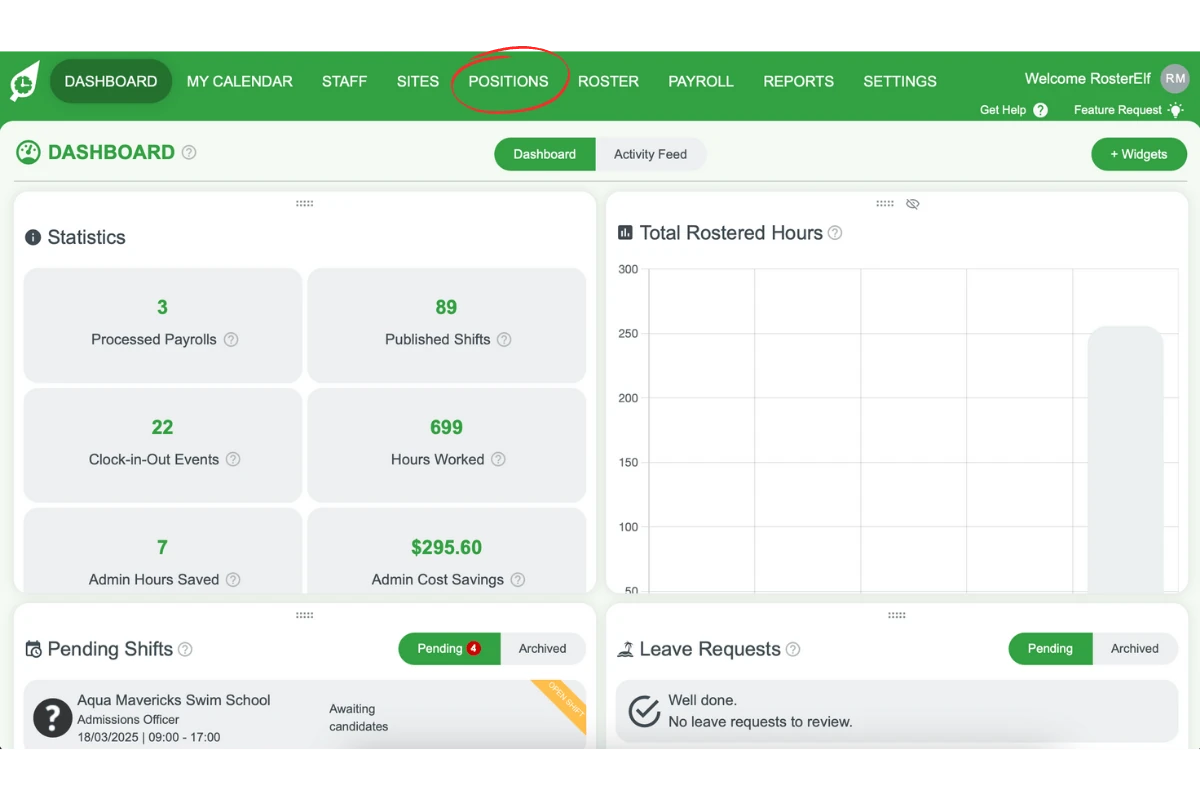
1.1.1 Click on the Positions tab in your RosterElf dashboard.
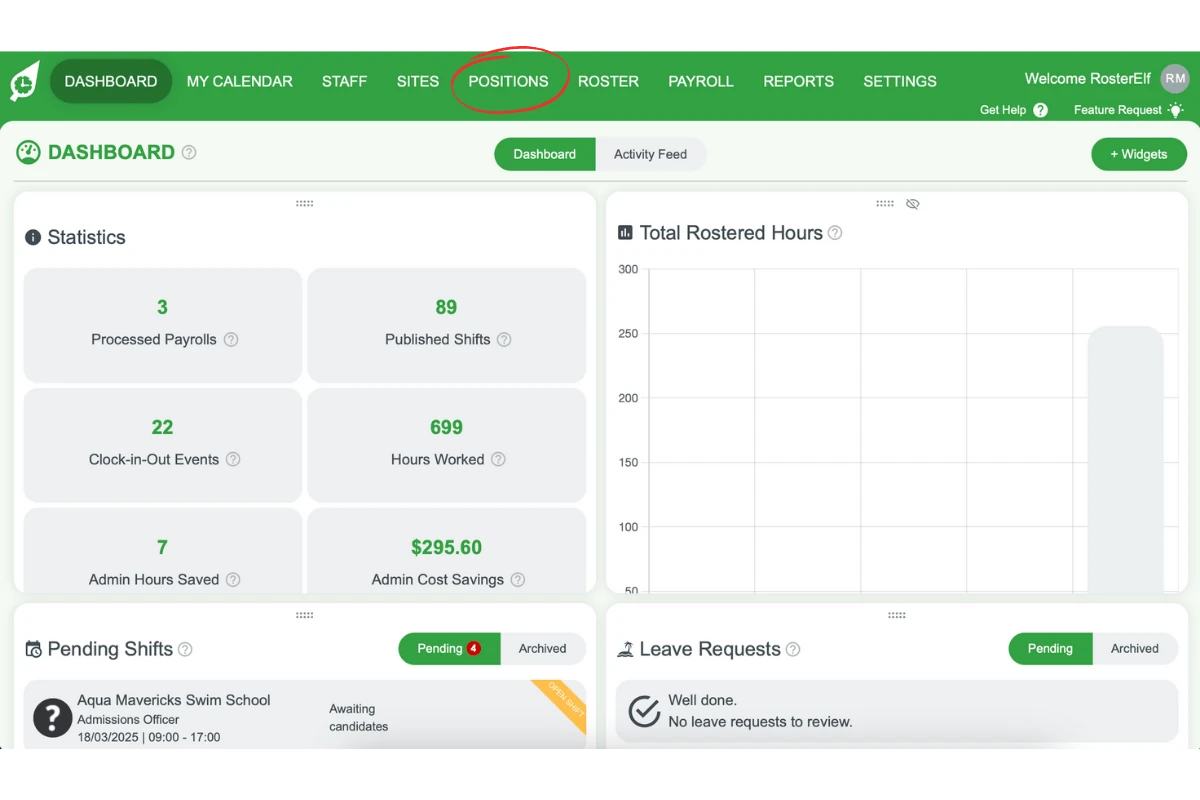
1.1.2 Find the position you want to delete. Hover your mouse over it.
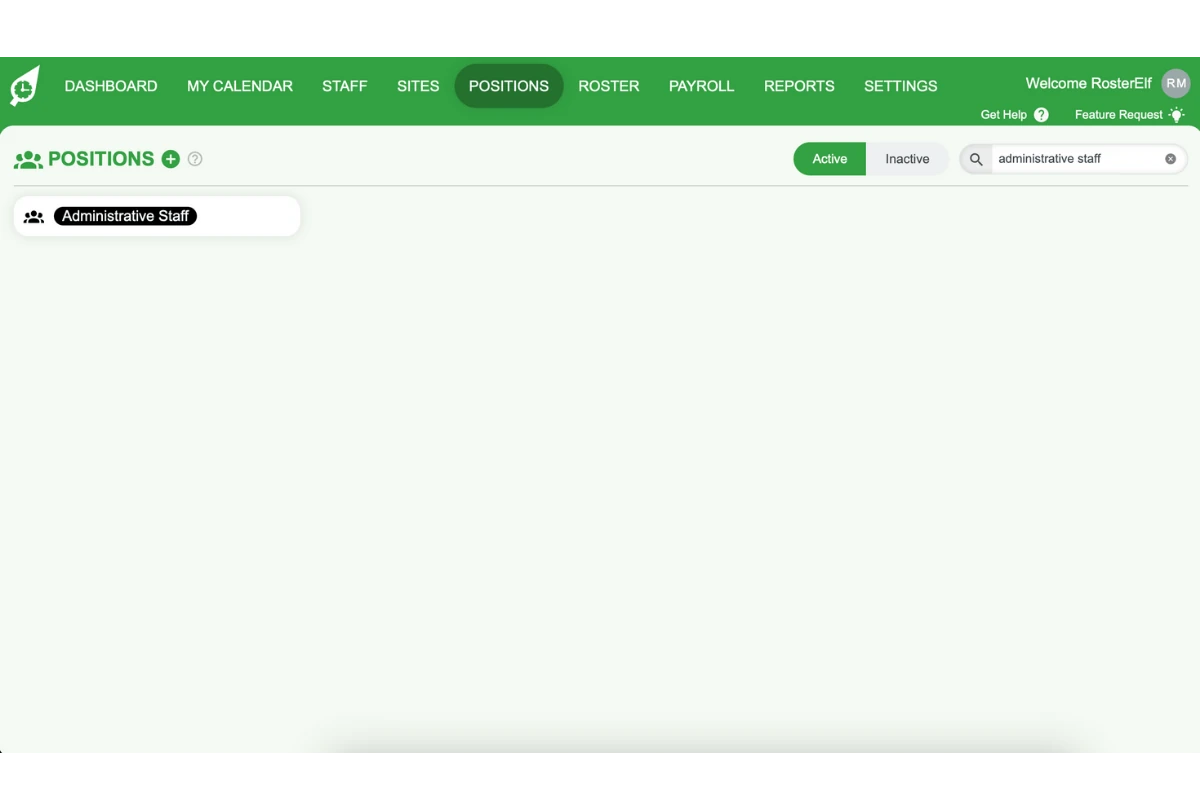
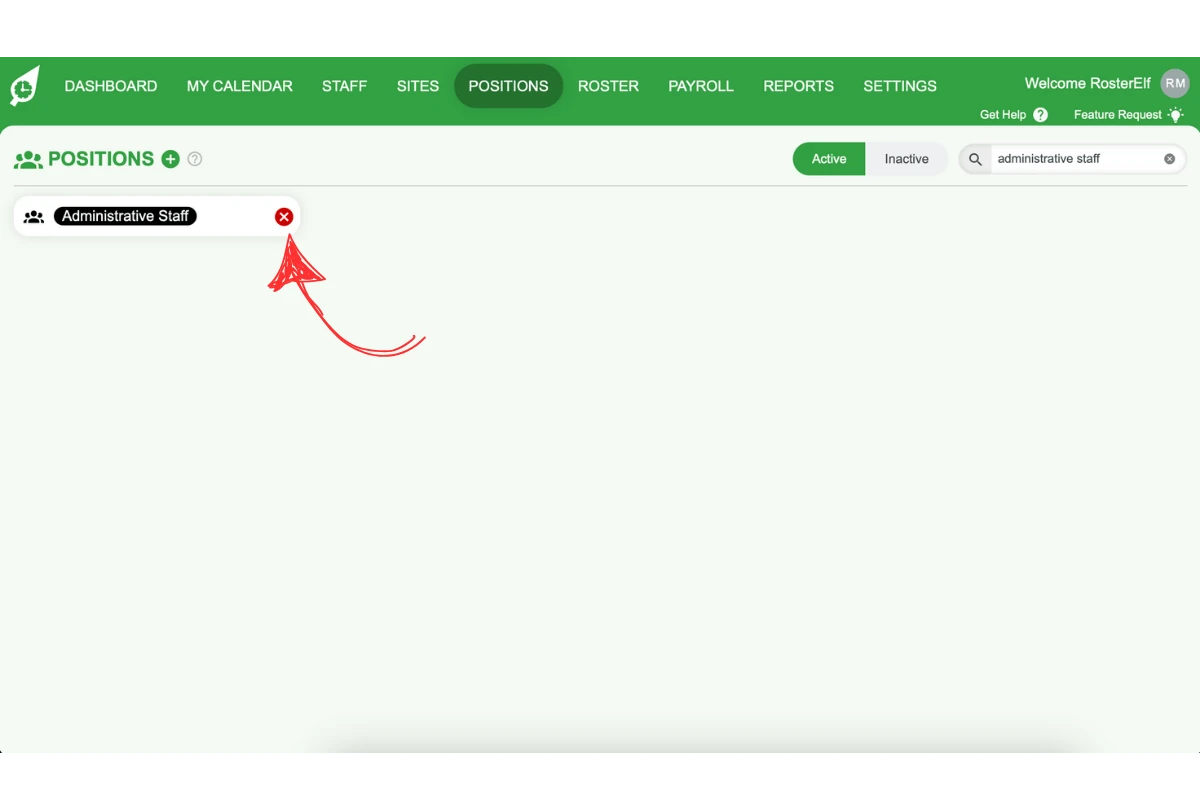
1.1.3 Click the X button that appears beside the position.
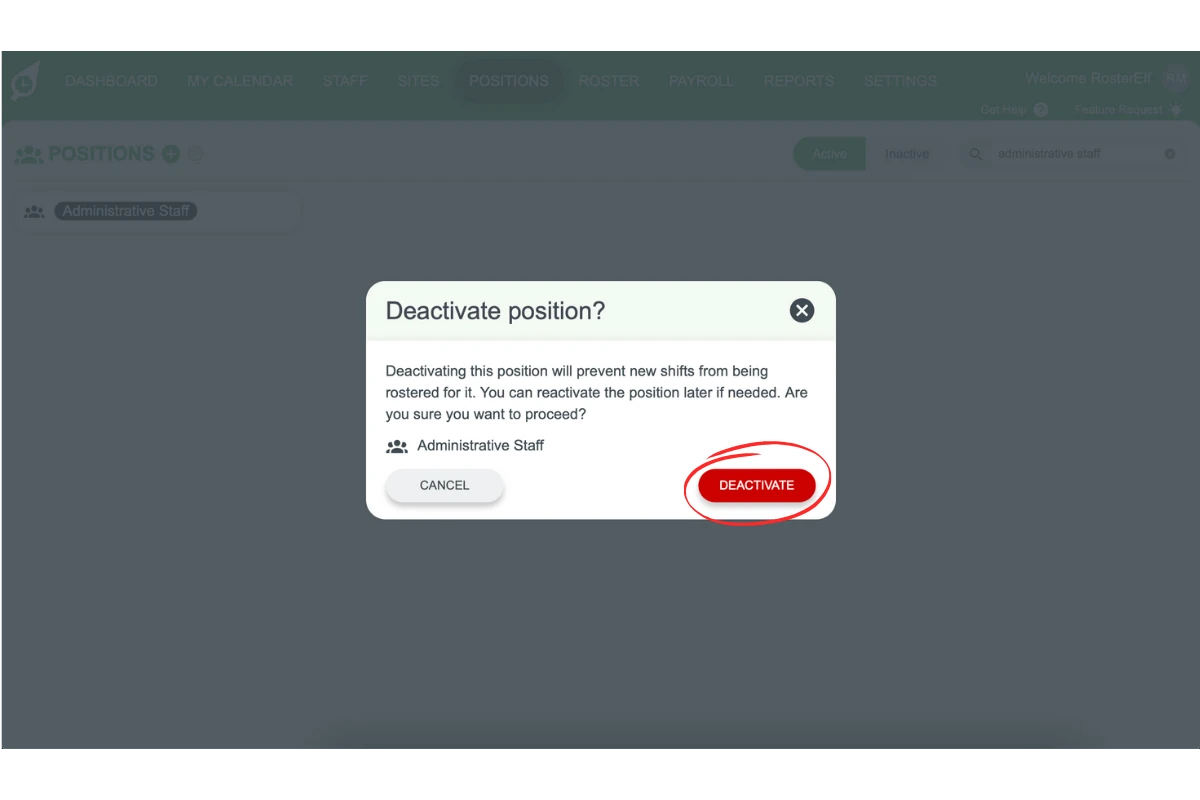
1.1.4 A confirmation pop-up will appear. Click Deactivate to remove the position.
2. Reactivating a position
If you need to restore a previously deleted position, follow these steps. This allows you to recover positions without recreating them, saving time and effort.
2.1 steps to reactivate a position
2.1.1 Click on the Positions tab in your RosterElf dashboard.
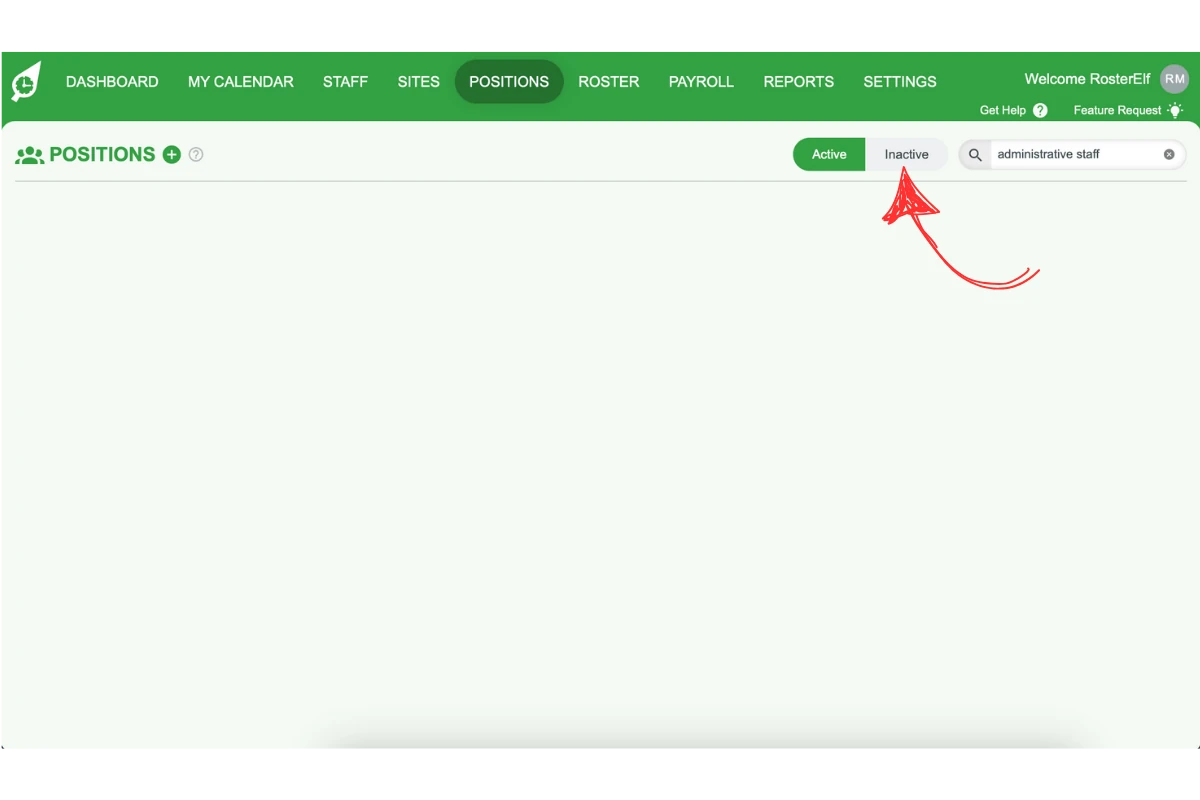
2.1.2 Click on the Inactive button in the top right corner of your screen to display deleted positions.
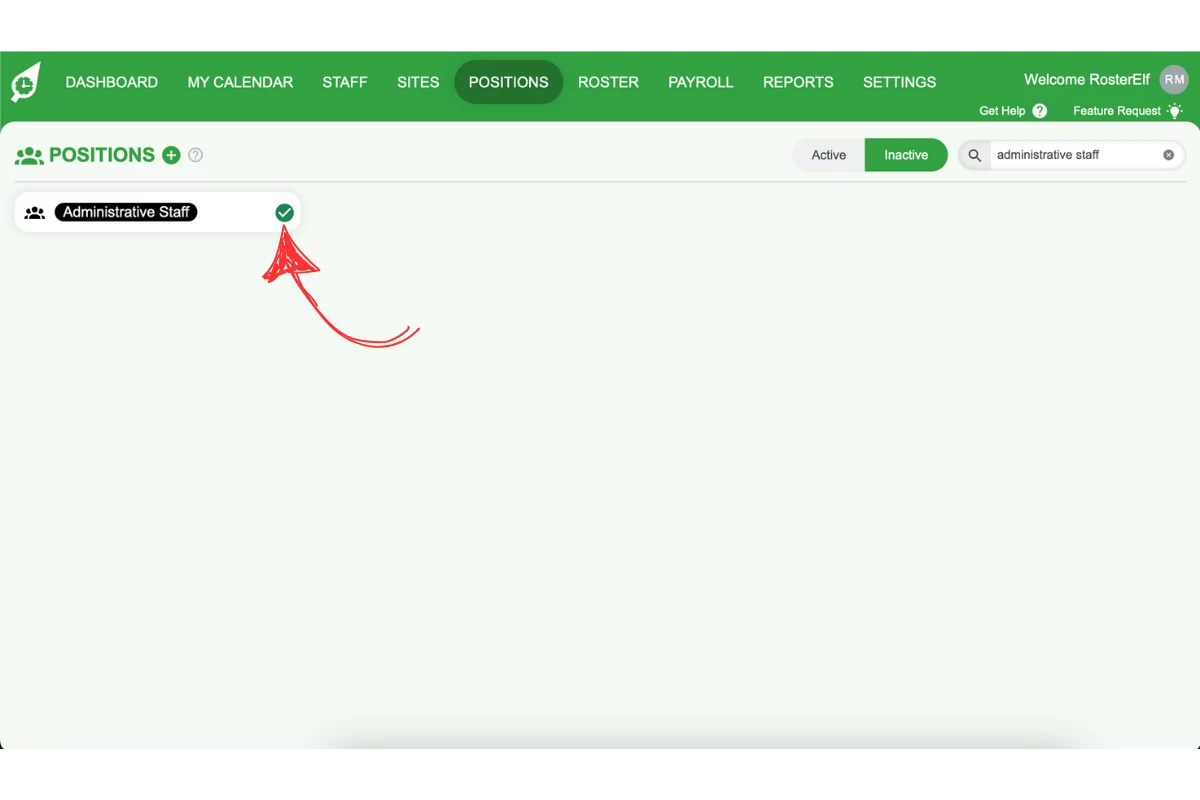
2.1.3 Find the position you want to reactivate. Hover your mouse over it and click on the green tick.
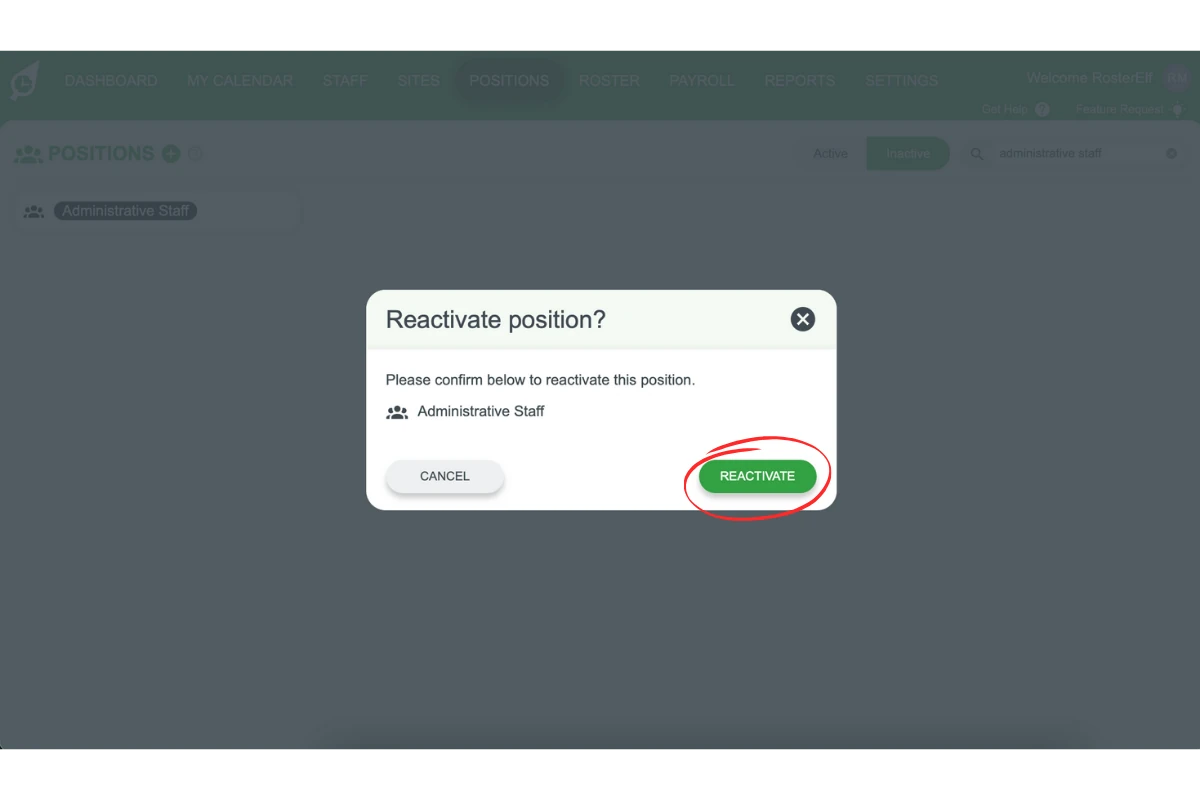
2.1.4 A confirmation pop-up will appear. Click Reactivate to restore the position.
By following these steps, you can easily manage active and inactive positions in RosterElf, ensuring your position list matches your current needs.
Frequently asked questions
1. How do I delete a position in RosterElf?
Go to the Positions tab, find the position, hover over it, and click the X button beside it. Click Delete in the confirmation pop-up to confirm.
2. Can I recover a position after it has been deleted?
Yes, you can reactivate a previously deleted position. Navigate to the Positions tab, click the Inactive button, locate the position, and click the green tick to restore it.
3. Where can I find deleted positions in RosterElf?
Deleted positions are visible under the Inactive section in the Positions tab. Click the Inactive button in the top right corner to see all previously deleted positions.
4. What happens to historical data when I delete a position?
Historical data related to past shifts and rosters remains intact even after deleting a position. This ensures reporting and compliance accuracy.
5. Can I edit a position instead of deleting it?
Yes, positions can be edited to reflect changes such as updated role names or requirements. This feature is available in the Positions tab.