
What are award templates?
Setting up pay templates by hand takes time — every classification needs its own rates for ordinary hours, weekends, public holidays and late nights. Award templates change that: activate a ready-made template for a supported award and use it as your starting point, in a few clicks.
What’s new at a glance
- Pre-built pay templates you activate in a few clicks
- A new Award Templates tab in Settings > Payroll
- Registered Clubs Award (MA000058) available now — more on the way
Award templates are pre-built pay templates RosterElf maintains for specific modern award classifications. They live in a new Award Templates tab under Settings > Payroll > Pay Templates, alongside your Active and Inactive templates.
Why award setup is hard
Modern awards are complex. A single business can span many classifications, each with different base rates and penalties — and clubs are a prime example, with casual, part-time and full-time grades across general, gaming and management streams. Building a template for every one from scratch is slow and error-prone.
Real scenario
A registered club employs staff across dozens of classifications under the Registered Clubs Award (MA000058). Setting up each pay template manually could take hours. With award templates, the club activates the classifications it needs in minutes, reviews the rules, and is ready to roster and run payroll.
How award templates help
Faster setup
Activate a classification and its pay rules are created for you — no entering every weekday, weekend and public holiday rate by hand.
A clear starting point
A sensible structure to review against your circumstances, not a blank page. Once active it works with award interpretation to apply penalties and overtime automatically.
Tidy management
Active, Inactive and Award Templates tabs keep things organised. The elf logo marks RosterElf templates, so you can hide, delete or re-activate as needs change.
Available awards
Award templates launch with the Registered Clubs Award [MA000058], covering casual, part-time and full-time classifications across general, maintenance and management streams, plus apprentices. We’re adding more awards over time.
Want a specific award next? Vote on our feature requests board and help us prioritise what we build.
A starting point only. Award templates are not complete and are not intended to be used as-is. You are responsible for reviewing every pay rule against the current applicable award or agreement before relying on it. See our award and pay templates disclaimer.
How to activate a template
1. Open the Award Templates tab
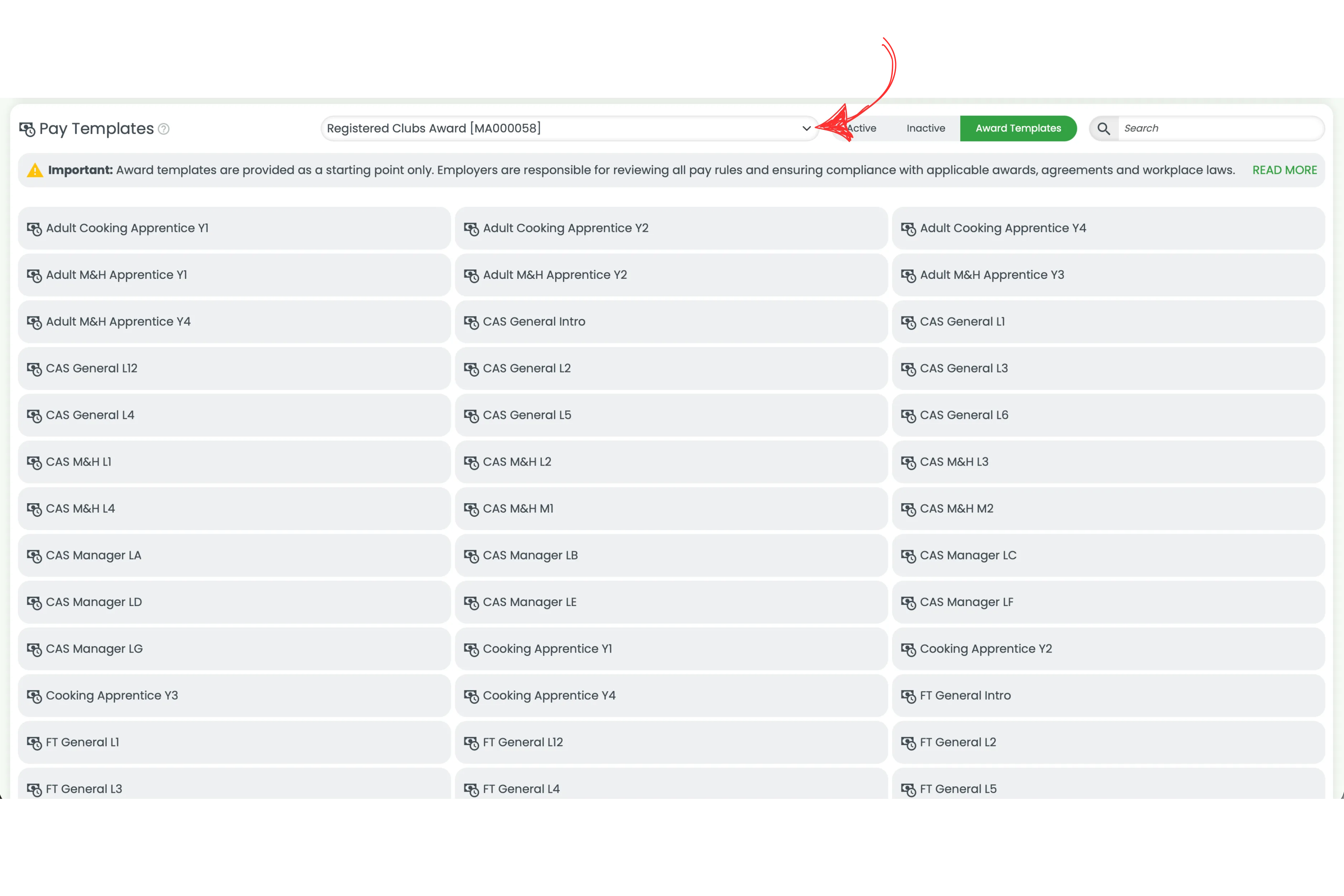
Go to Settings > Payroll, scroll to Pay Templates and select the Award Templates tab.
2. Choose your award
Use the dropdown at the top to pick your award, for example Registered Clubs Award [MA000058].
3. Activate and confirm
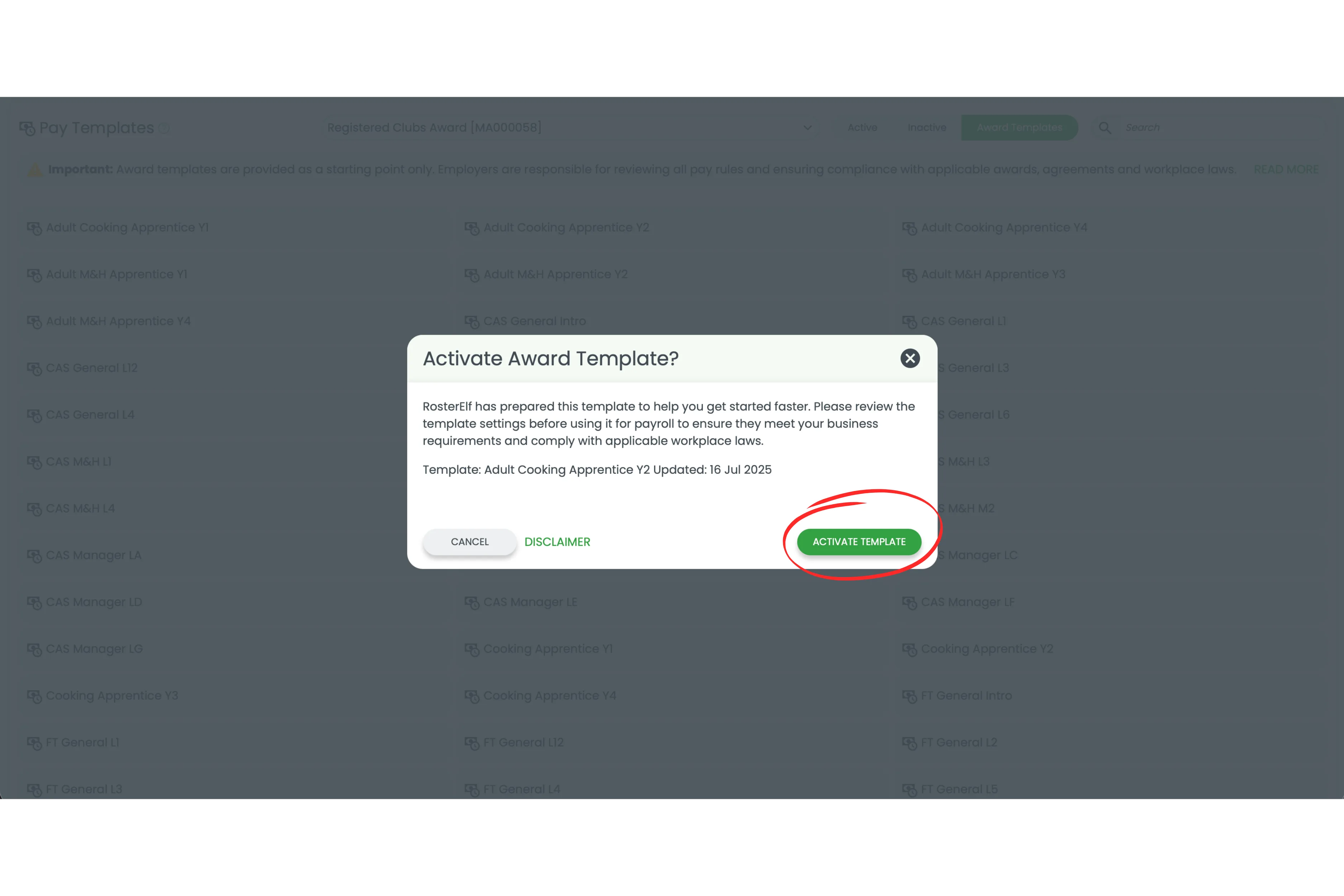
Hover over the template you want, click Activate template, then confirm. It appears in your Active tab, ready to review and assign to staff.
Ready to use award templates?
Follow our step-by-step guide to activate, customise, hide and delete award templates.
View setup guide