What is HR Hub Performance?
Performance is now live in the HR Hub. It gives every staff member one place for reviews, goals and attendance: you run the review, they complete a self-review, and RosterElf sets both beside what the roster and time clock actually recorded.
This article explains what the Performance module does, why reviews are usually the first thing to slip in a shift-based business, and how reviews, goals and the attendance signal fit together. We also cover where it helps most and how to run your first review.
Performance sits in the HR Hub alongside onboarding, training and offboarding, so a staff member's record covers their whole time with you — not just their first and last day.
Why reviews get skipped
In a rostered business there is always something more urgent than a review. Shifts need covering, the week's roster needs publishing, and the conversation you meant to have in March becomes the one you have when someone resigns. When a review does happen, it rests on what each person remembers rather than on what happened.
That costs you twice. Good staff go unrecognised, and when performance genuinely needs addressing there is no record of what was said or agreed. If a dispute follows, a documented process is what you need to show — see our guide to conducting a performance review for the conversation itself.
Real scenario
A café manager wants to talk to a barista about running late. Without a record, it becomes "you're always late" against "only a couple of times". With Performance, the Attendance tab shows the late arrivals over the last 30 days before the meeting, the barista adds their side in a self-review, and the agreed feedback is saved against their record.
How performance works
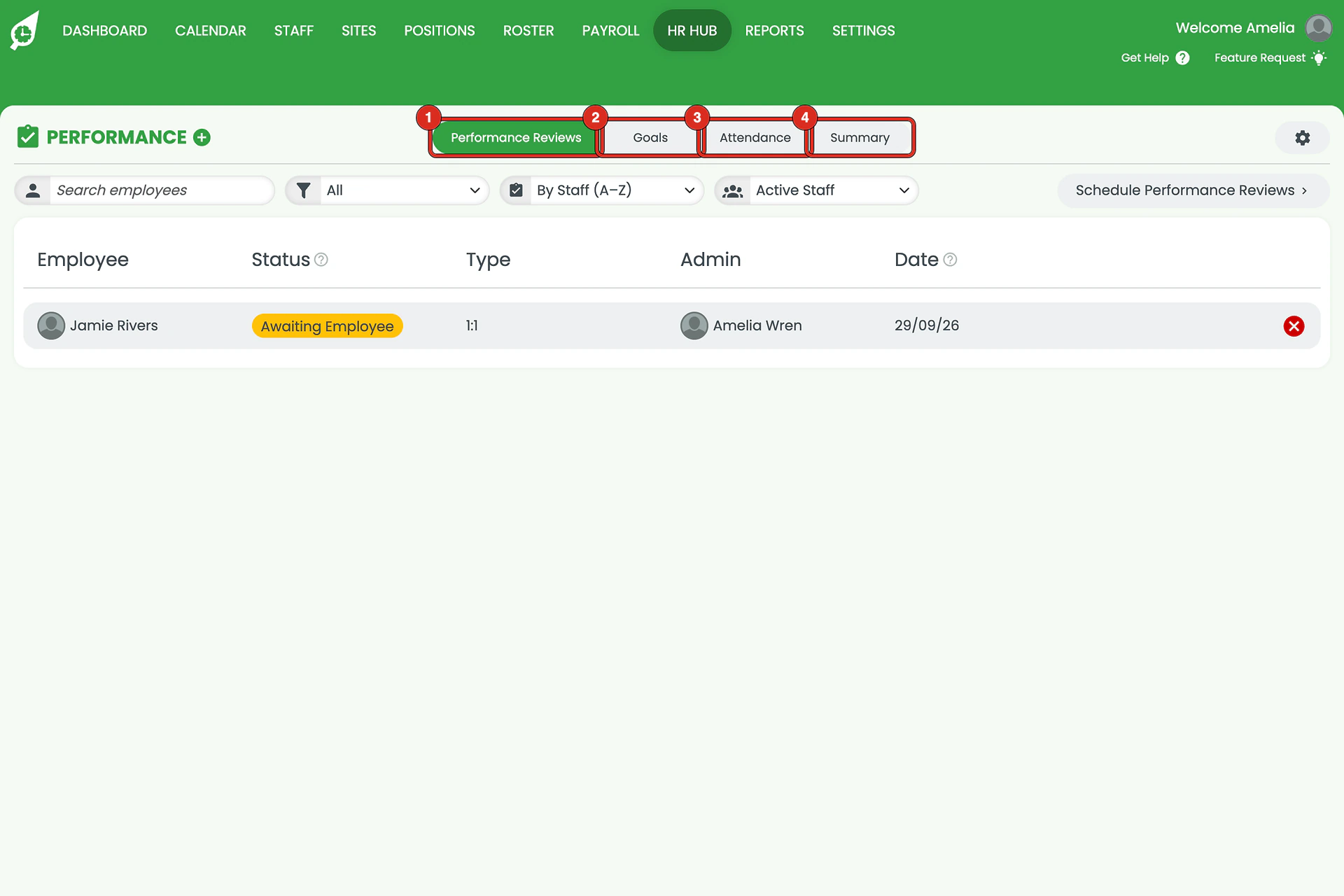
Performance has four tabs: Performance Reviews, Goals, Attendance and Summary.
Reviews both sides complete
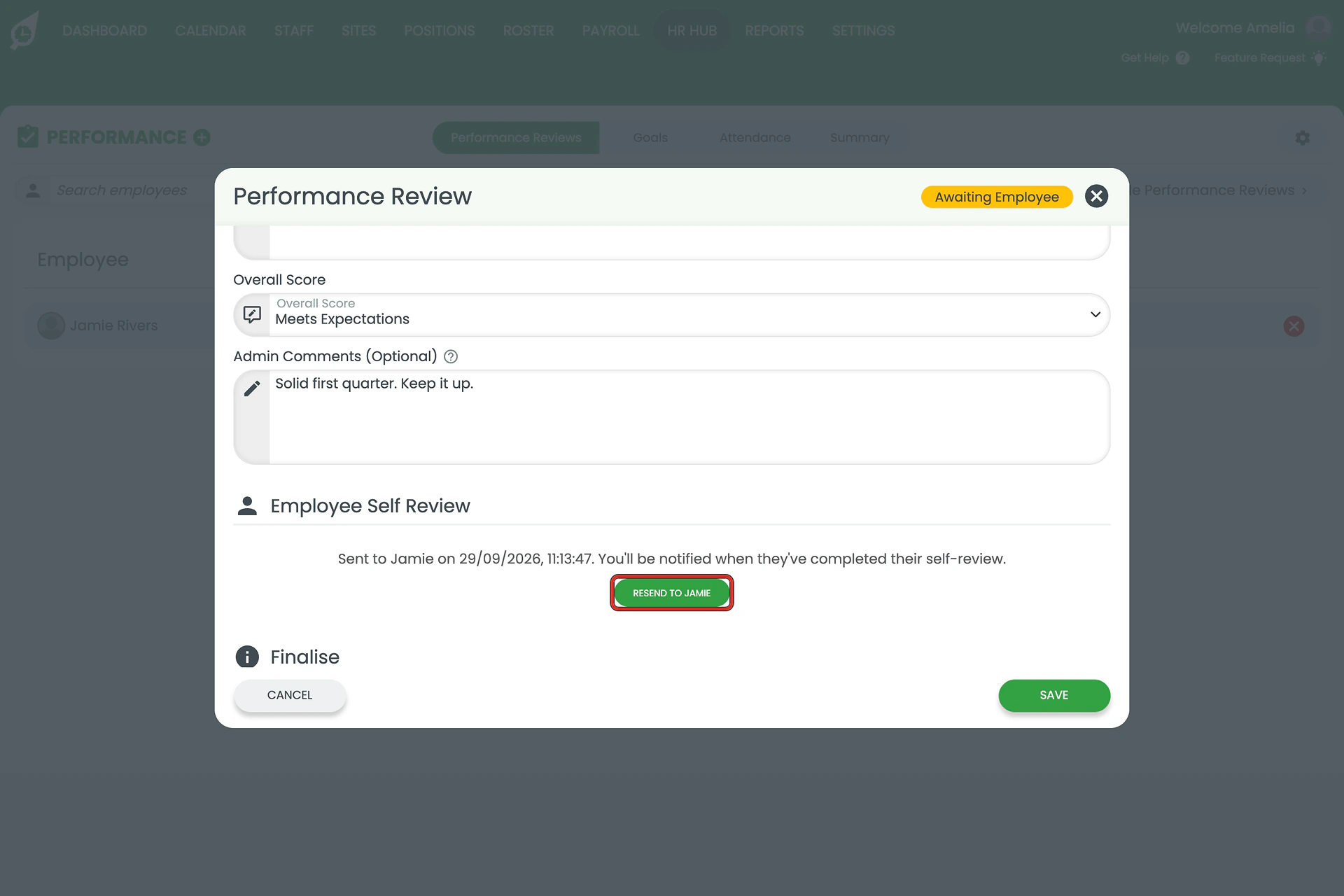
Start a 1:1, probation or disciplinary review, write the wins and improvement areas, and choose an overall score from Outstanding through to Poor Performance. Press SEND and the review lands in the employee's My HR Hub, where they write their own wins, challenges and self-score. After you meet, you add the agreed feedback and finalise it.
Goals with visible progress
Set a goal with a due date and, if you like, action items. Staff tick off each item themselves in My HR Hub and submit the goal for your approval once everything is done, so you can see progress without asking for an update.
Attendance from the roster you already run
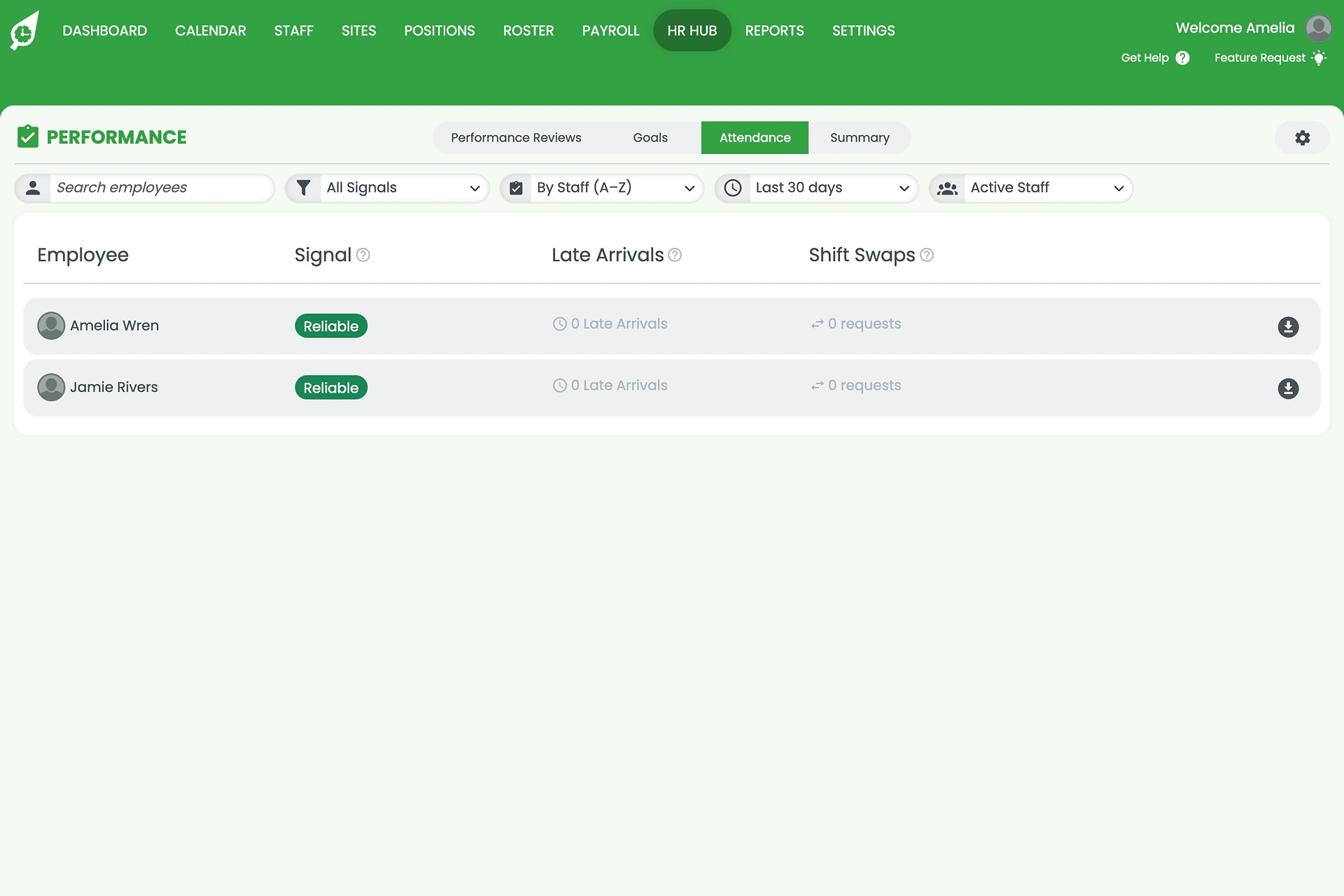
Because RosterElf already runs your roster and time clock, the Attendance tab reads late arrivals and shift-swap requests over the last 30, 60 or 90 days and gives each person a signal: Reliable, Watch or Reliability risk.
One status per person
The Summary tab rolls reviews, goals and attendance into a single status — Performing Well, At Risk or Needs Attention. Nobody sets it by hand: an unfinished review, a stalled goal or a weak attendance signal can each pull it down, so the people who need a conversation are visible today.
Best use cases
Probation periods
A probation review records how a new starter is tracking before the probation period ends, with their own self-review on file. Pair it with digital onboarding and their first months are documented end to end.
Addressing underperformance
When performance needs to improve, a disciplinary review and goals with due dates give you a written plan and a record of each step. Our guide to creating a performance improvement plan covers the process around it.
Multi-site teams
When several managers run reviews, they run them differently. One form, one scale and one Summary tab means a review at one site is recorded the same way as a review at another.
How to get started
Performance is in the HR Hub on Full Suite and HR plans. Three steps:
1. Open Performance
Click HR Hub in the top navigation and choose Performance.
2. Start a review
On the Performance Reviews tab, press the Plus (+) beside PERFORMANCE, choose the employee, date, type and admin, write your notes and score, then press SEND.
3. Set a goal
On the Goals tab, press the Plus (+), name the goal, assign it, set a due date and press ADD GOAL.
Ready to run your first review?
Our step-by-step guide walks through starting a review, sending it to the employee and setting goals.
View setup guide