

1. Your HR Hub tasks
My HR Hub is where you keep your own HR details and respond to what your admin sets for you — including a performance review they’ve asked you to self-review, and goals they’ve set for you to work towards. Performance is currently EARLY ACCESS and may not be on your account yet. If you’re the one running reviews and setting goals for others, see Use the Performance module in HR Hub.
1.1 Open My HR Hub
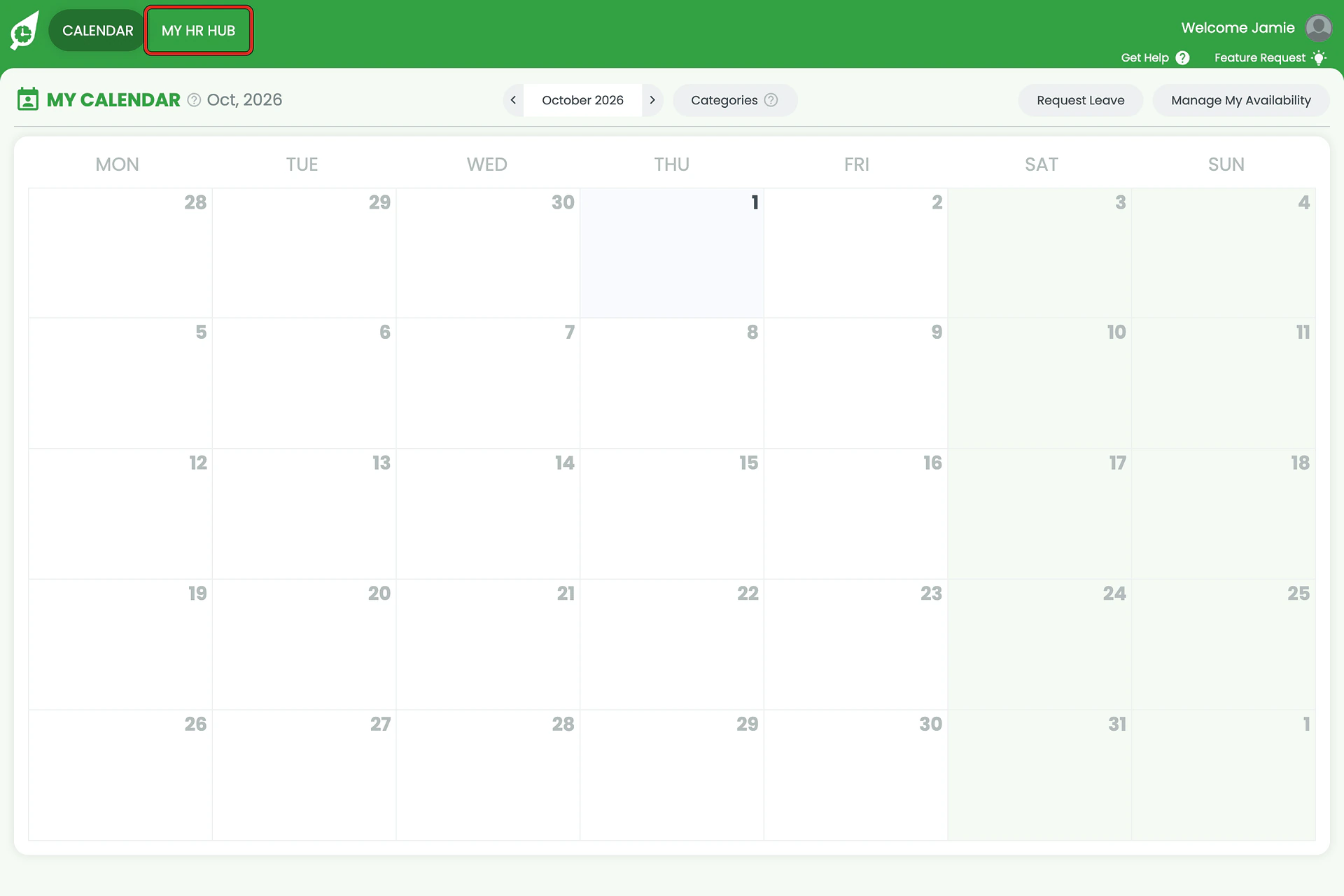
1.1.1 Click MY HR HUB in the top navigation.
1.2 See your tasks
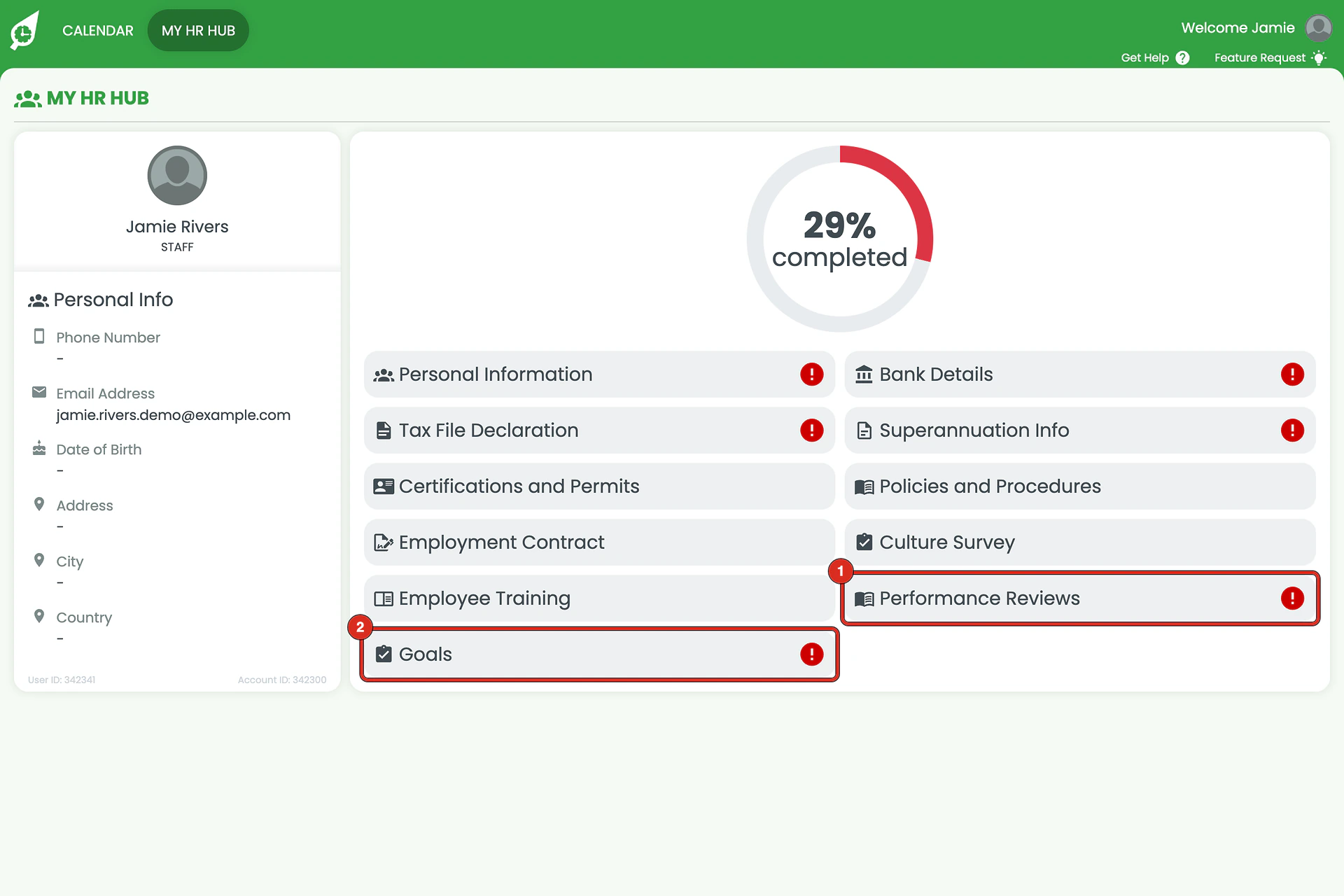
1.2.1 Performance Reviews and Goals each carry a red flag when something is waiting on you — a self-review to complete, or progress to update.
2. Completing a self-review
A self-review appears once your admin starts a Performance Review for you. Your answers are shared with them as part of your check-in meeting.
2.1 Open your pending review
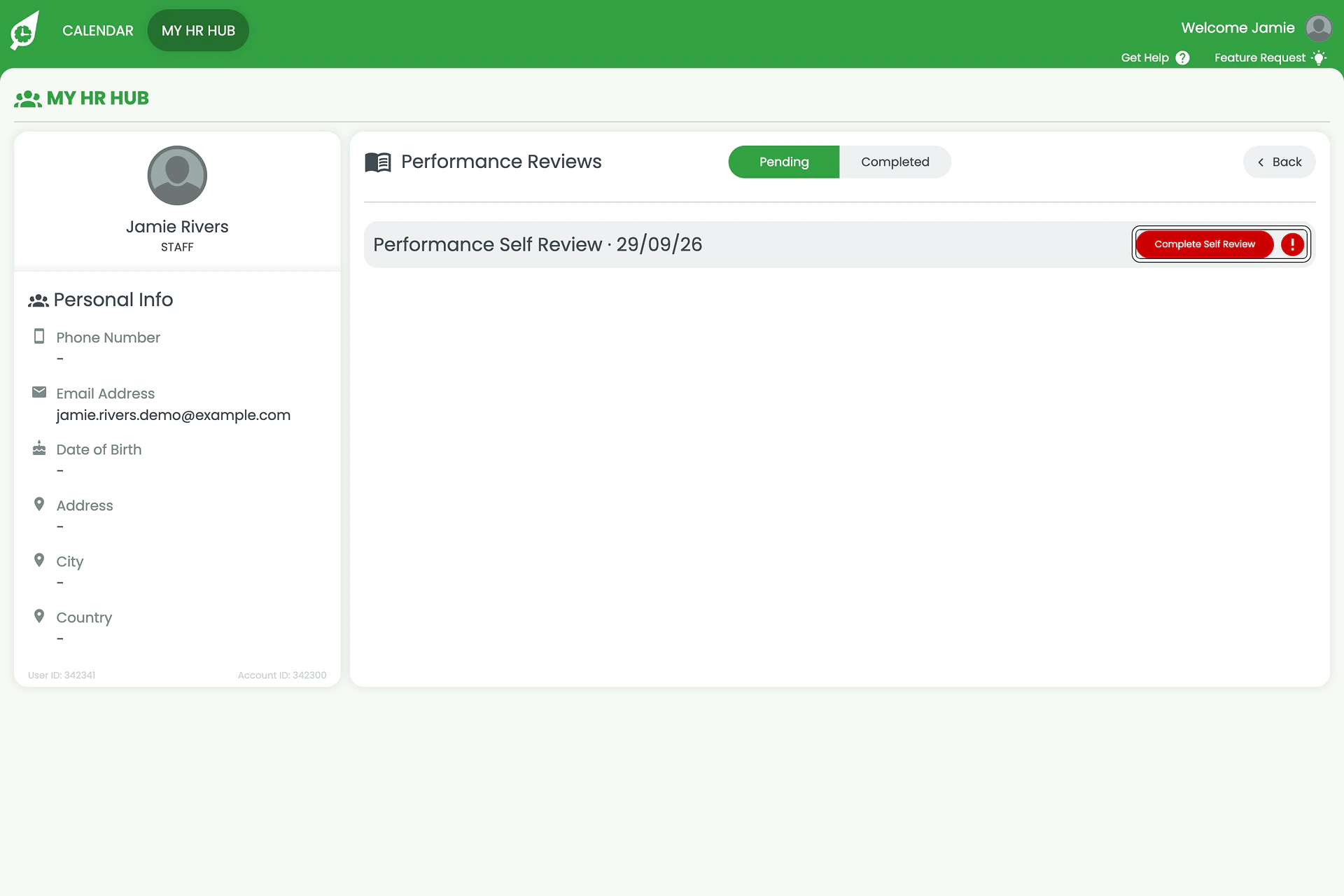
2.1.1 On the Performance Reviews tile, click Complete Self Review.
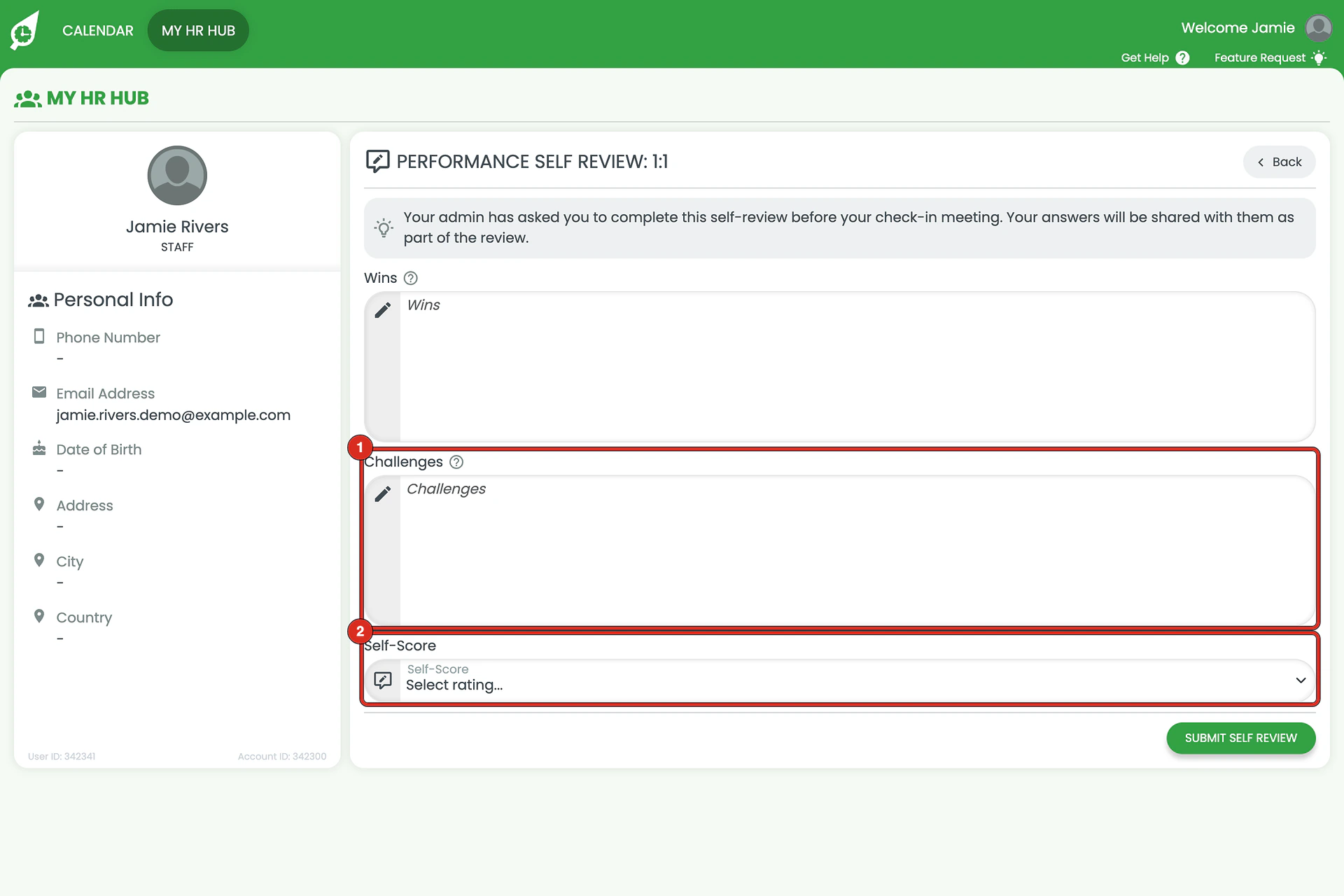
2.2 Write your wins and challenges
2.2.1 Write your Wins — what’s gone well since your last review.
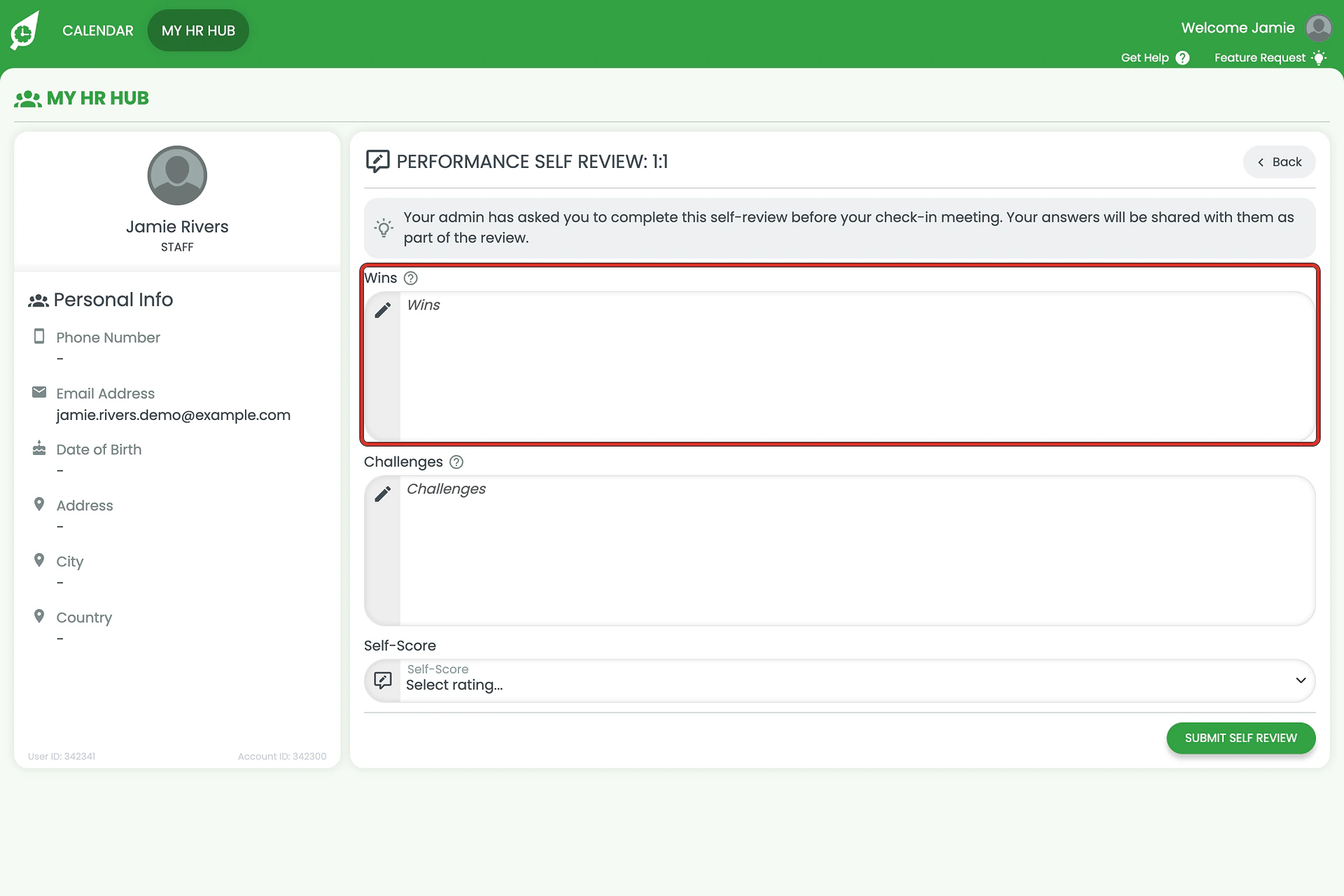
2.2.2 Write your Challenges, then choose a Self-Score — Outstanding, Exceeds Expectations, Meets Expectations, Needs Improvement or Poor Performance.
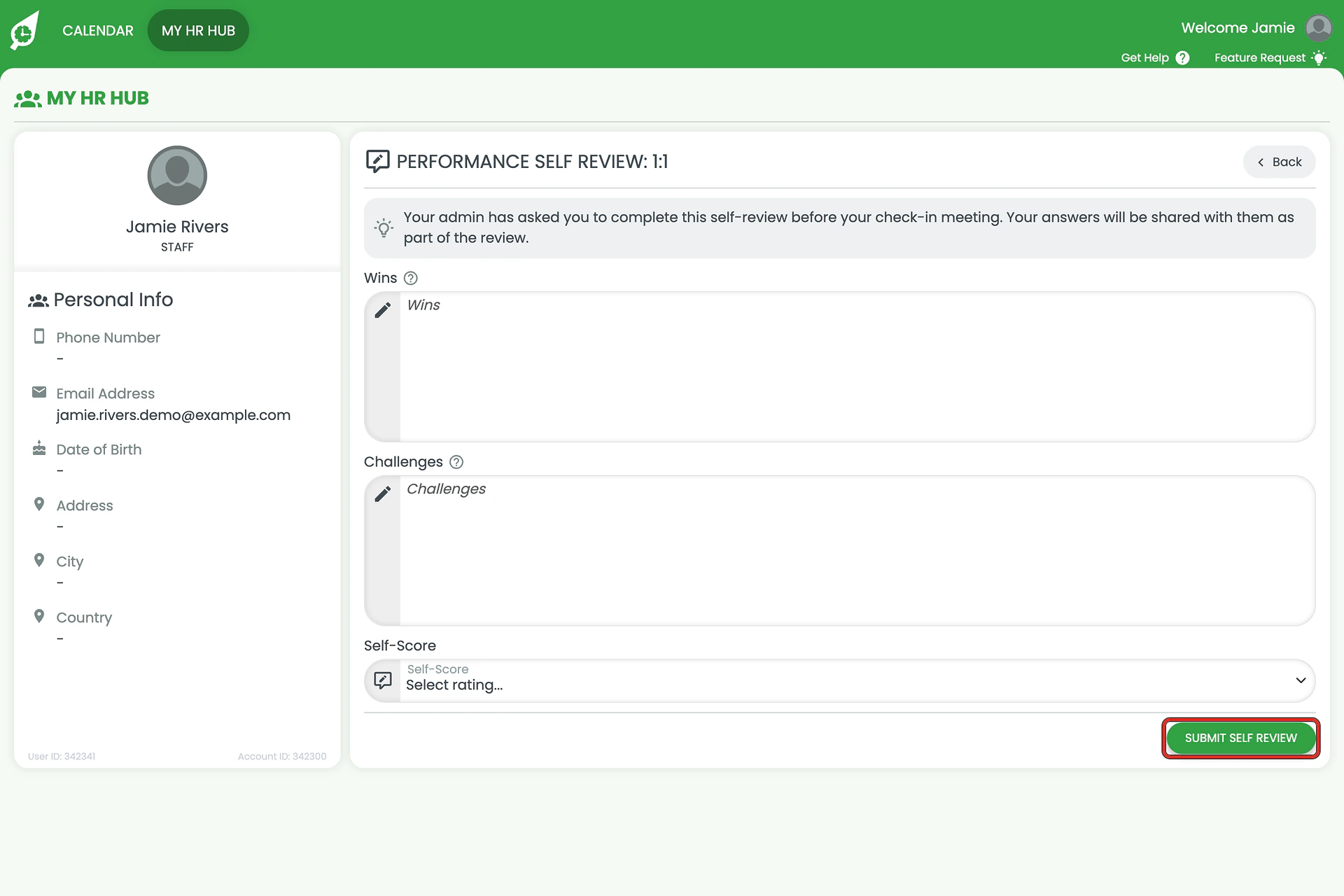
2.3 Submit it
2.3.1 Click Submit Self Review to send your answers to your admin.
3. Updating a goal
A goal’s description and due date are set by your admin. You tick off its action items yourself and send your progress for approval.
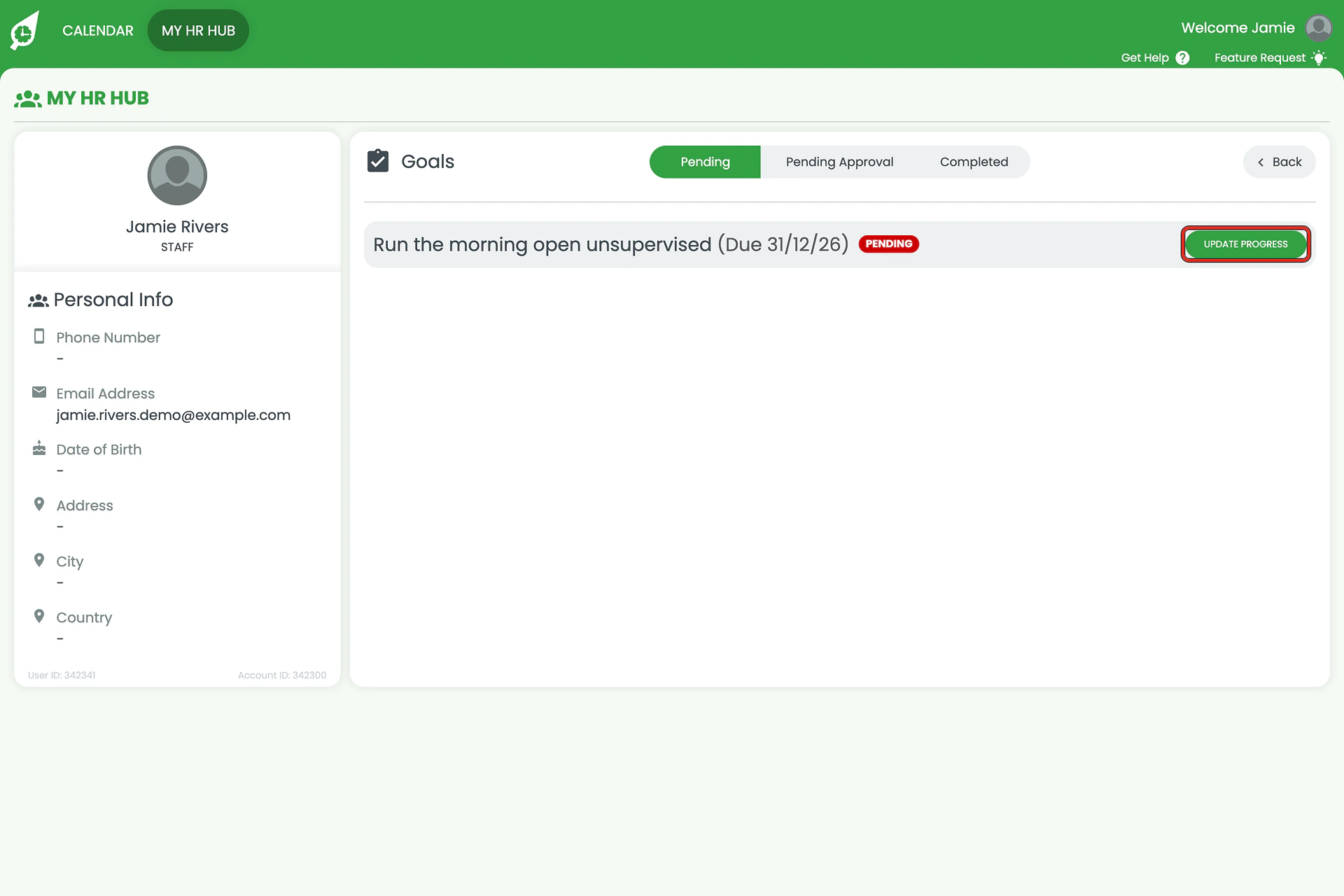
3.1 Open a goal
3.1.1 On the Goals tile, click Update Progress on a goal.
3.2 Tick off action items
3.2.1 Turn on Done for each action item you’ve finished, then click the button in the bottom right to send your update.
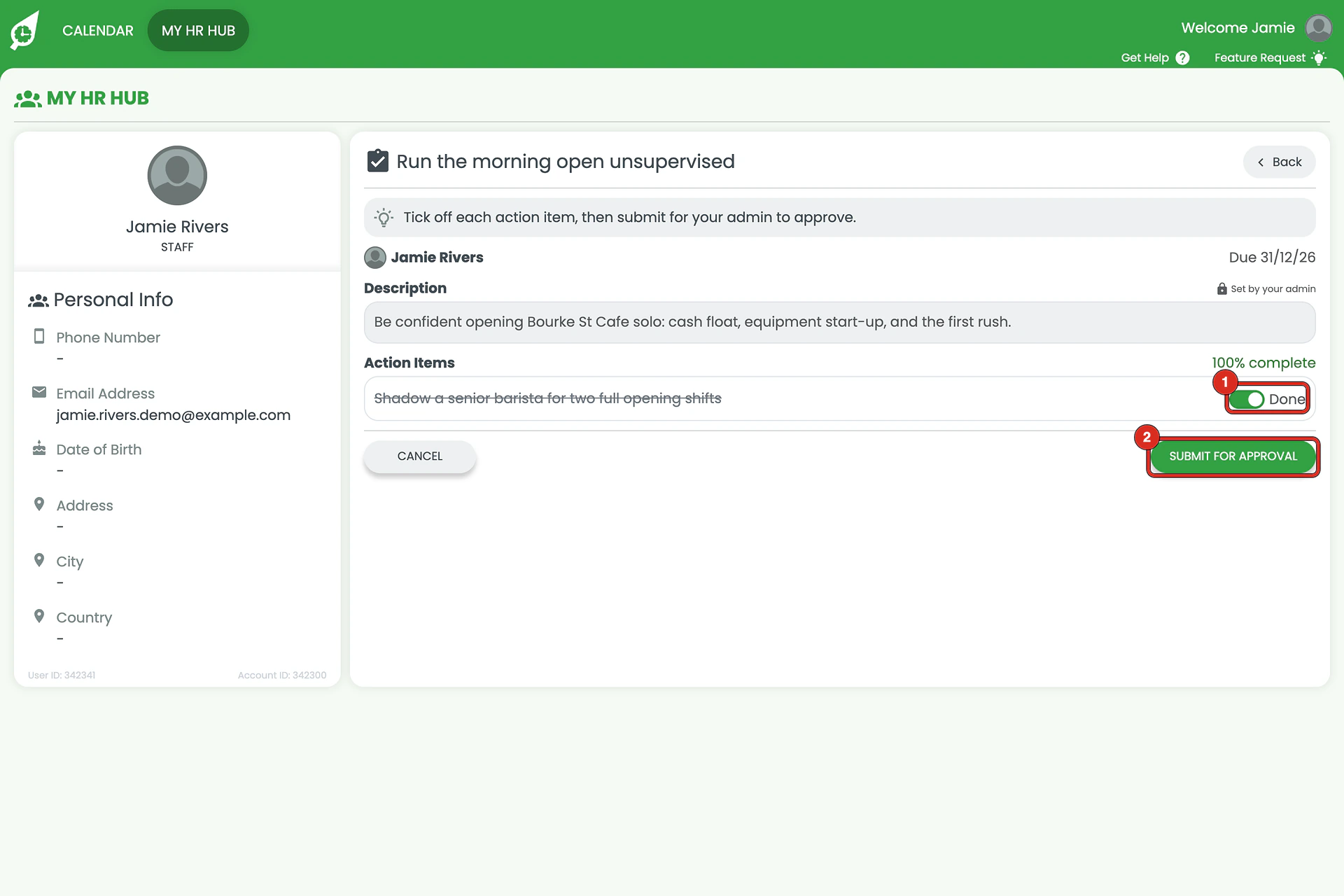
The button's label depends on how much is ticked
It reads Save Progress while any action item is still outstanding, and changes to Submit For Approval once every item is done — the same way a sent Performance Review relabels its own button from SEND to RESEND.
Frequently asked questions
1. Who sees what I write in my self-review?
Your admin — it’s shared with them as part of your check-in meeting.
2. What happens right after I submit my self-review?
The same screen stays open with what you wrote, plus a new field, Agreed Feedback. It stays blank until your admin fills it in from your meeting together, and you’ll be able to sign off once it has been.
3. Can I change a goal's description or due date?
No. Your admin sets the goal’s description and due date. You tick off its action items and send your own progress.
4. What do the three Goals tabs mean?
Pending (still working on it), Pending Approval (sent, waiting on your admin) and Completed.
5. What happens once I've ticked off every action item?
The button at the bottom changes from Save Progress to Submit For Approval. Click it to send your update to your admin — the same way a sent Performance Review relabels its own button from SEND to RESEND.
6. Do I need a particular plan to see Performance in My HR Hub?
It ships under HR Hub, which needs the Full Suite plan or the separate HR add-on. It is also EARLY ACCESS at the time of writing, so it may not be on your account yet.