

Custom placeholder fields in contracts
This article explains how to add your own placeholder fields to an employment contract template, such as {{PAY_RATE}} or {{POSITION}}.
Built-in placeholders fill in from the employee’s details. Custom ones are blank, and you type their value each time you send the contract.
New to contract templates? Start with manage employment contracts in HR Hub.
1. Add a custom placeholder in Simple view
1.1 Open the template
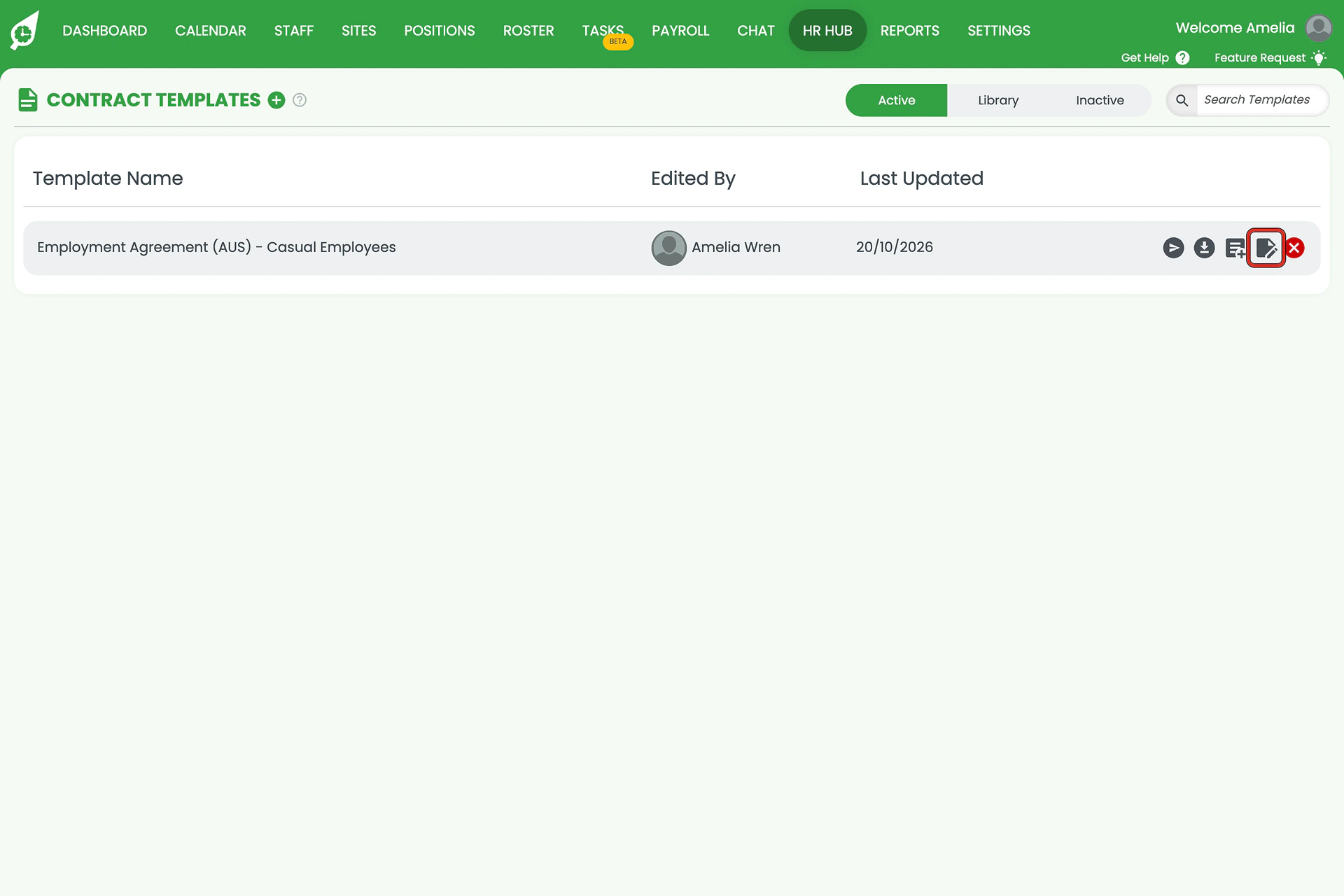
1.1.1 Click HR Hub and select Employment Contracts.
1.1.2 Click the Edit icon beside the template you want to change.
1.2 Type the placeholder
1.2.1 Click the paragraph where the value belongs.
1.2.2 Type the placeholder name in capitals inside double curly brackets, such as {{PAY_RATE}}.
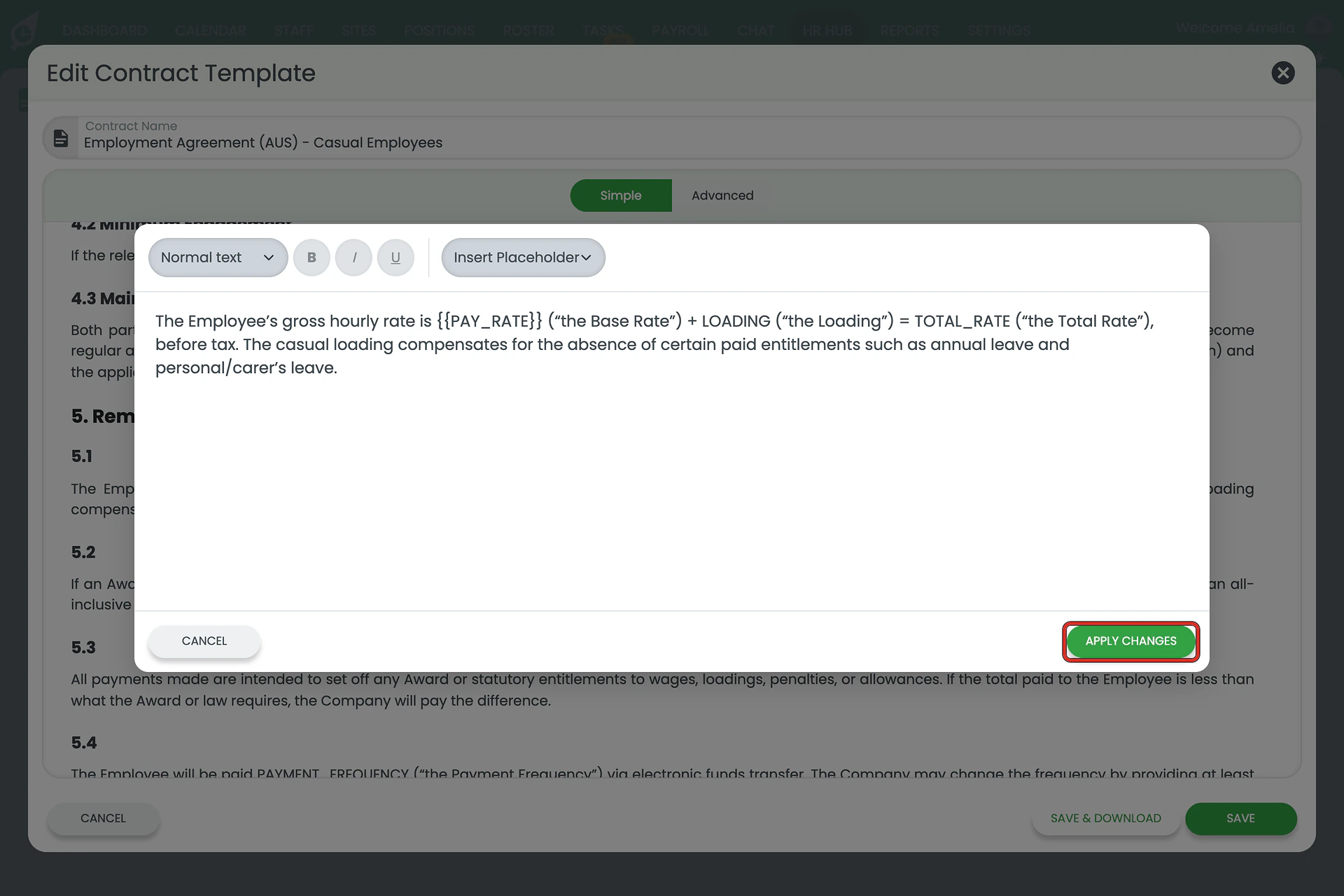
1.2.3 Click APPLY CHANGES.
1.3 Save the template
1.3.1 Each placeholder now shows as a blue tag. Check yours is there.
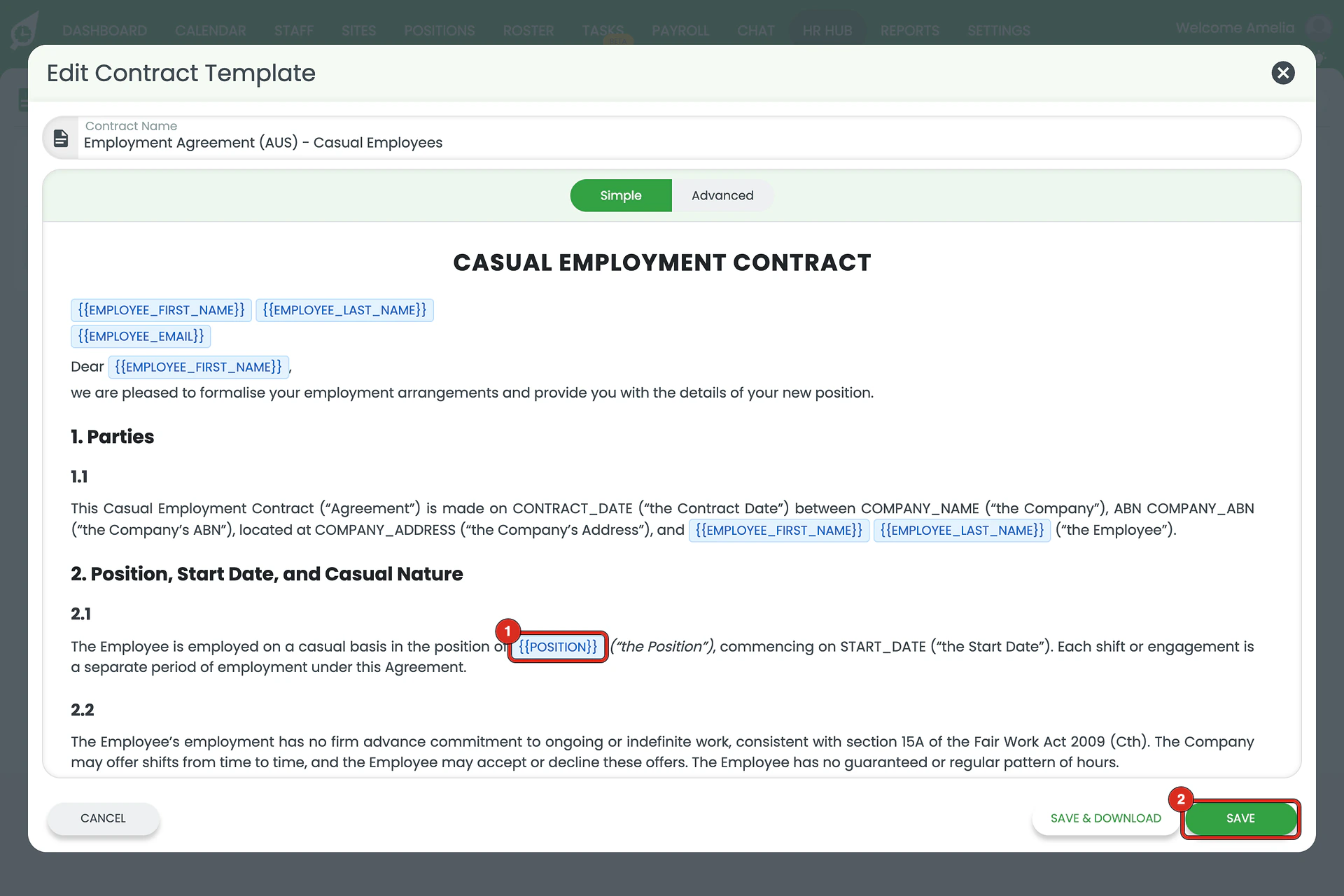
1.3.2 Click SAVE.
2. Or add it in Advanced view
2.1 Type it into the text
2.1.1 In the template editor, click Advanced.
2.1.2 Type the placeholder straight into the text, such as {{POSITION}}.
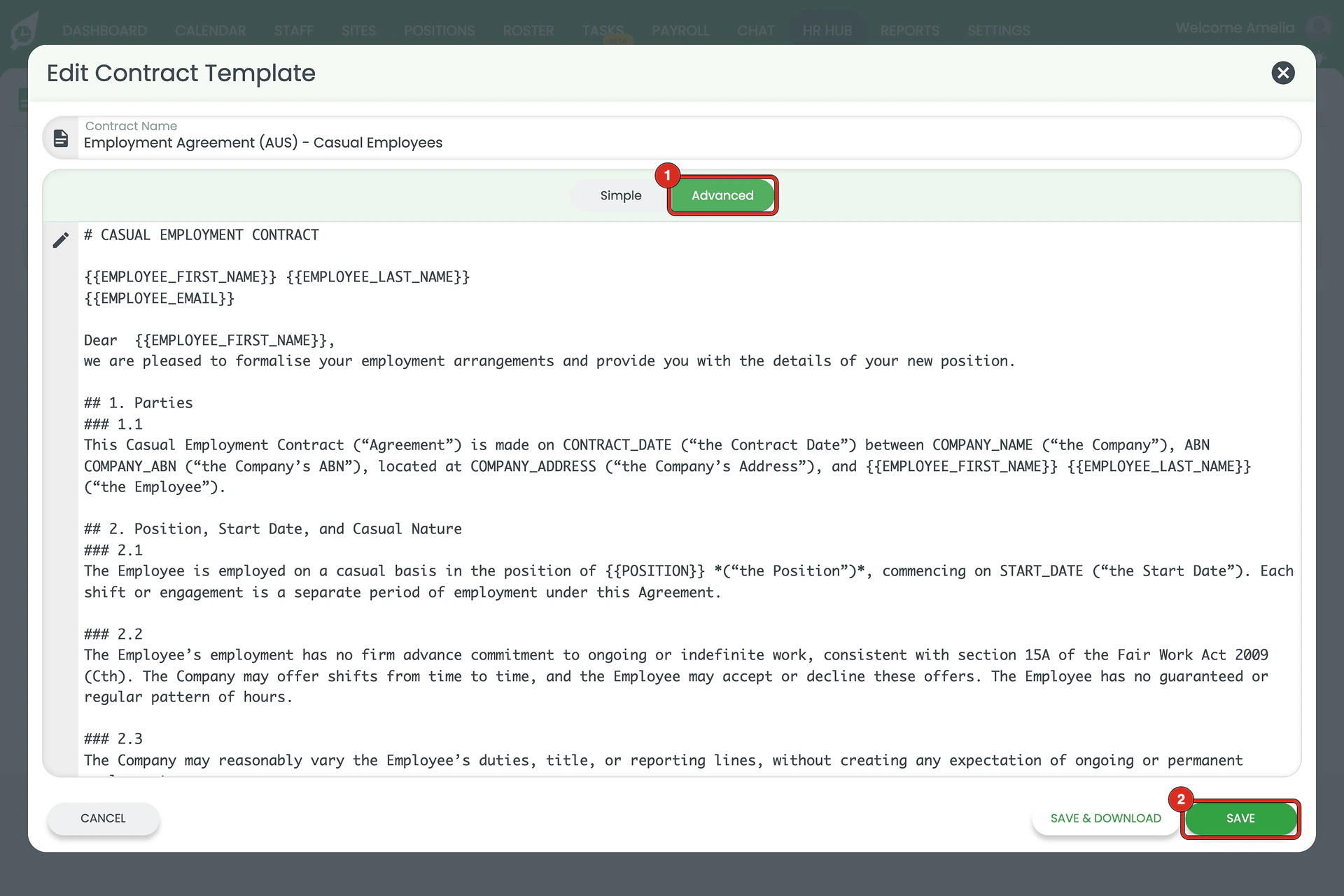
2.1.3 Click SAVE.
Typed, not picked
Custom placeholders do not appear in the Insert Placeholder list, which holds only the built-in fields. For more on the editor, see edit contracts and policies in HR Hub.
3. Fill in custom fields when you send
3.1 Send the contract
3.1.1 On the Active tab, click the Send Contract icon beside the template.
3.1.2 Select the employee.
3.1.3 Under Customise Document Fields, each custom placeholder has its own field, labelled from its name. {{PAY_RATE}} becomes Pay Rate.
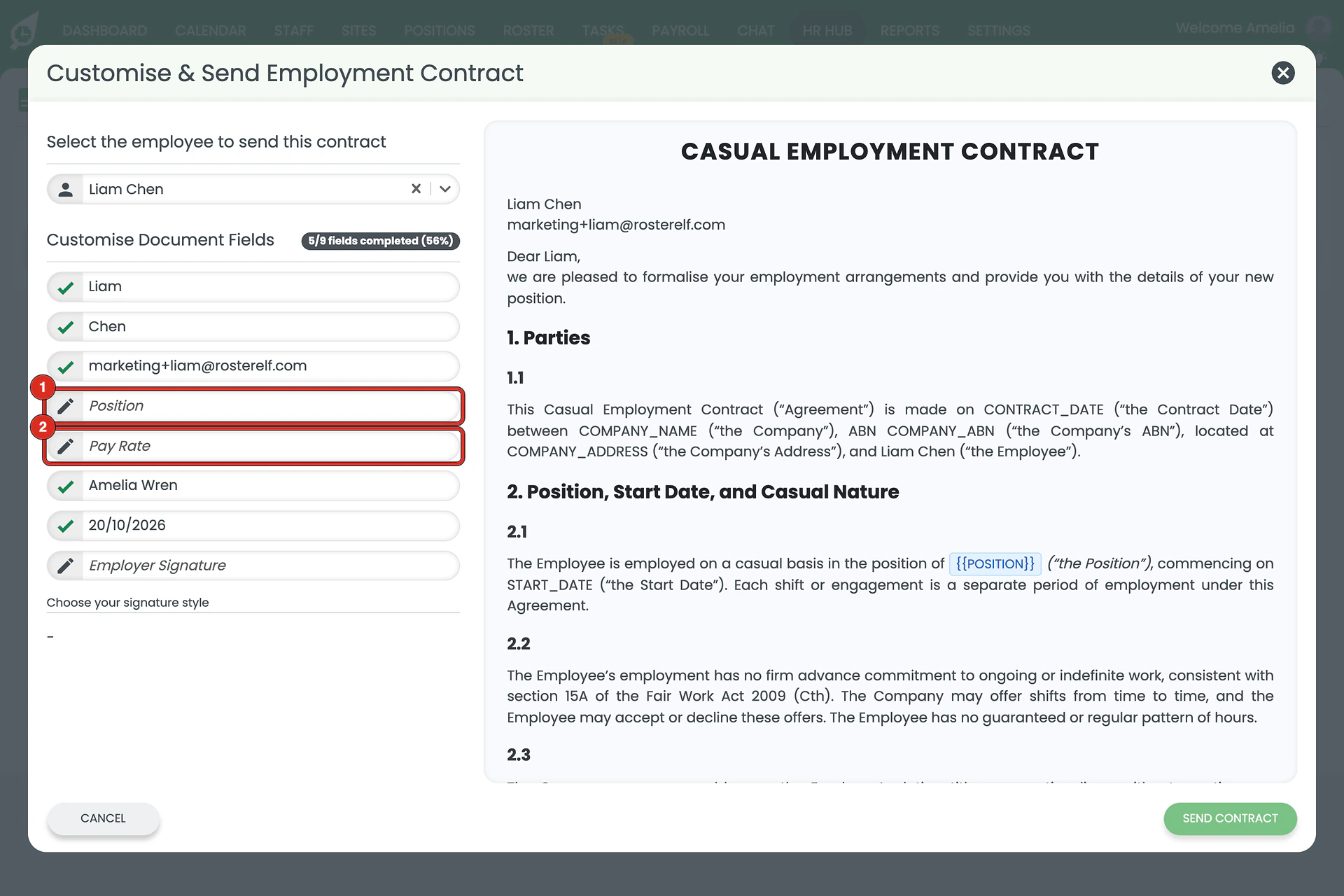
3.1.4 Type a value into each custom field. They are not filled in from the employee’s details.
3.1.5 The contract preview updates as you type. SEND CONTRACT stays unavailable until every field is filled in.
3.1.6 Click SEND CONTRACT, then confirm. For signing and what happens next, see manage employment contracts in HR Hub.
For further help, contact our support team.
Frequently asked questions
1. What is a custom placeholder field?
A field you name yourself in a contract template, such as {{PAY_RATE}} or {{POSITION}}. You type its value each time you send the contract, so one template can serve different roles and pay rates.
2. How do I write a custom placeholder?
Type the name in capitals inside double curly brackets, with underscores between words, the same way the built-in placeholders are written: {{PAY_RATE}}. When you send the contract, the field is labelled from the name, so {{PAY_RATE}} becomes Pay Rate.
3. Why isn't my custom placeholder in the Insert Placeholder list?
Insert Placeholder lists only the built-in fields, such as Employee First Name, Company Name and Employer Signature. Custom placeholders are typed straight into the text in Simple or Advanced view.
4. Do custom placeholders fill in automatically?
No. Built-in fields like the employee’s name and email fill in when you choose the employee, but custom fields stay blank until you type a value.
5. Why can't I click Send Contract?
SEND CONTRACT stays unavailable until every field under Customise Document Fields is filled in, including your custom ones and the Employer Signature. The counter beside the heading shows how many are done.
6. Can I add custom placeholders in both Simple and Advanced view?
Yes. In Simple view, click a paragraph, type the placeholder and click APPLY CHANGES. In Advanced view, type it anywhere in the text. Either way, click SAVE to keep it.