

1. What Performance tracks
Performance lives inside HR Hub and gives every staff member one place for reviews, goals and attendance. It is currently EARLY ACCESS, so treat what follows as a snapshot rather than a finished feature.
1.1 Open Performance
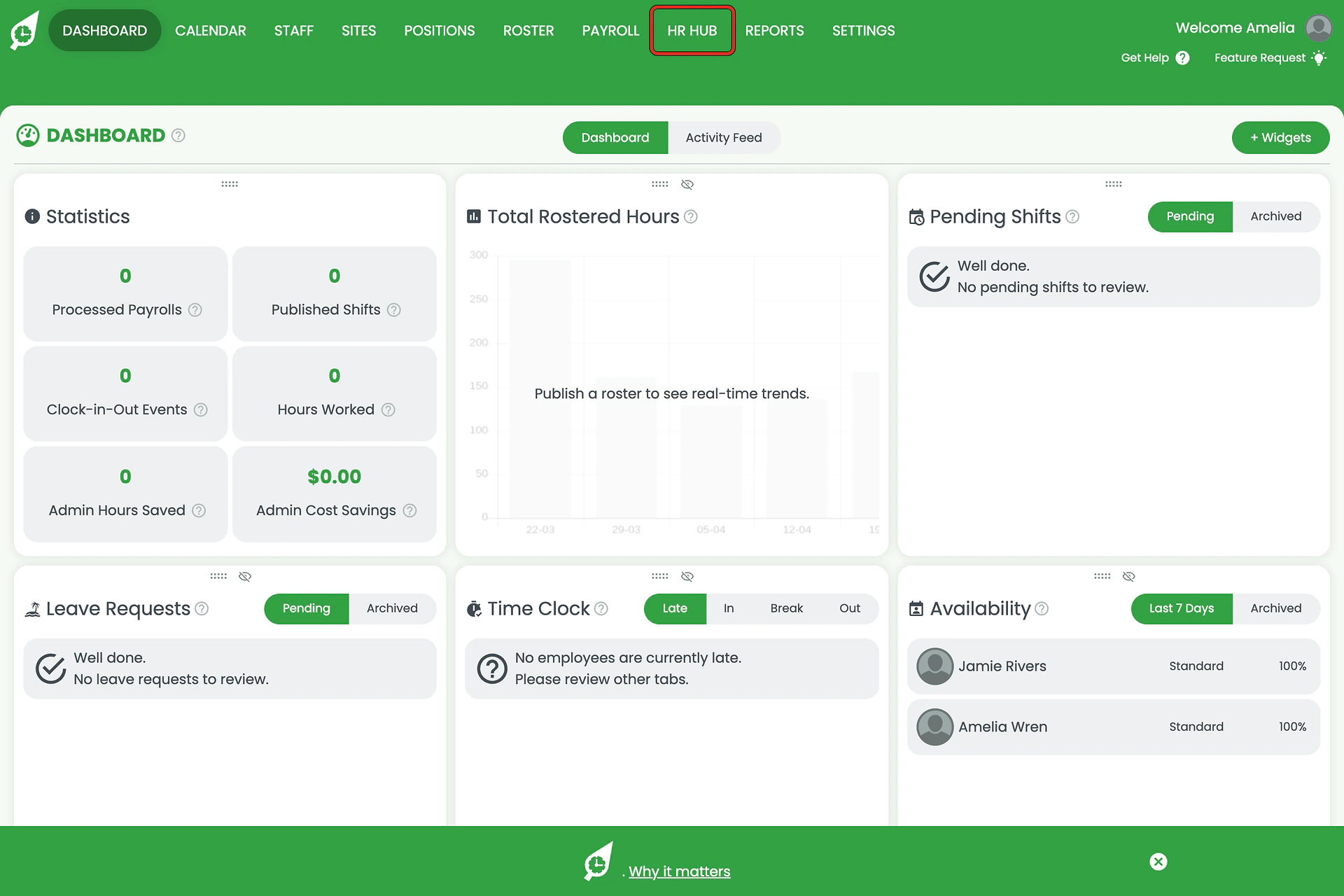
1.1.1 Click HR Hub in the top navigation. It opens as a menu, not a page.
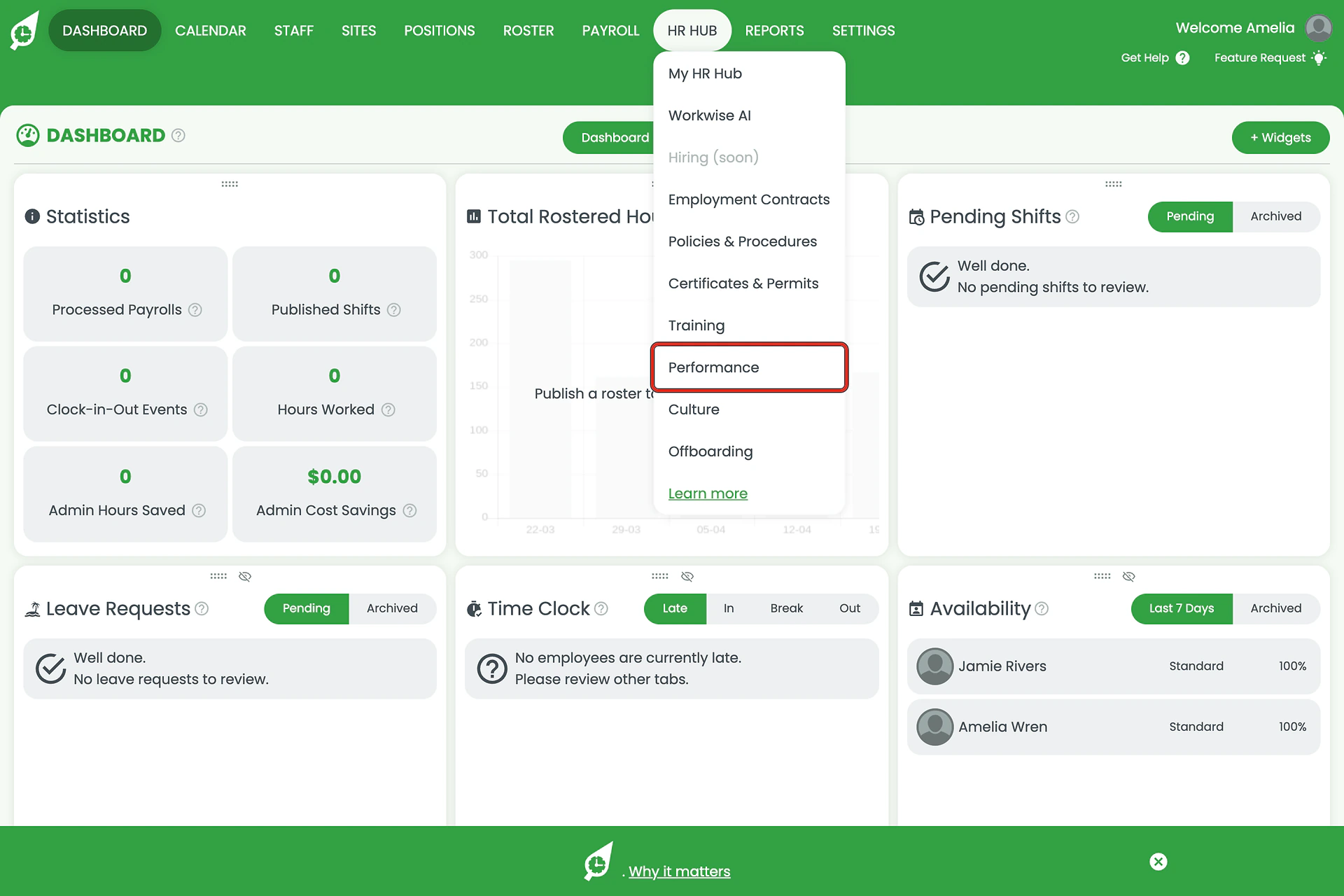
1.1.2 Choose Performance from the menu.
1.2 The four tabs
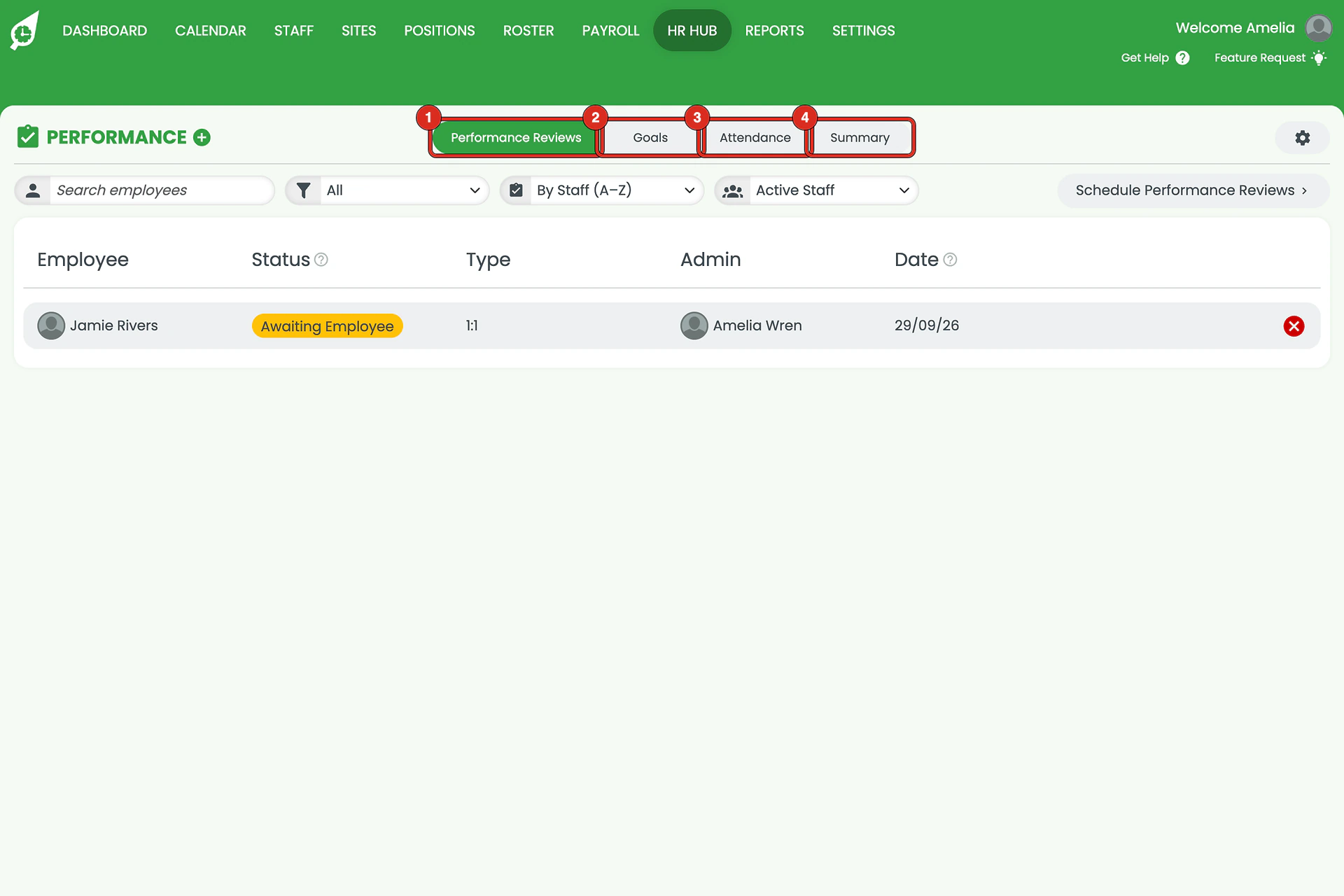
1.2.1 Performance Reviews lists every review and its status. Goals tracks progress against a due date. Attendance reads late arrivals and shift-swap requests. Summary rolls the other three into one status per person.
2. Running a performance review
A review is a single form covering setup, admin notes, the employee’s self-review and a finalise step — not a wizard with separate pages. It scrolls.
2.1 Start a review
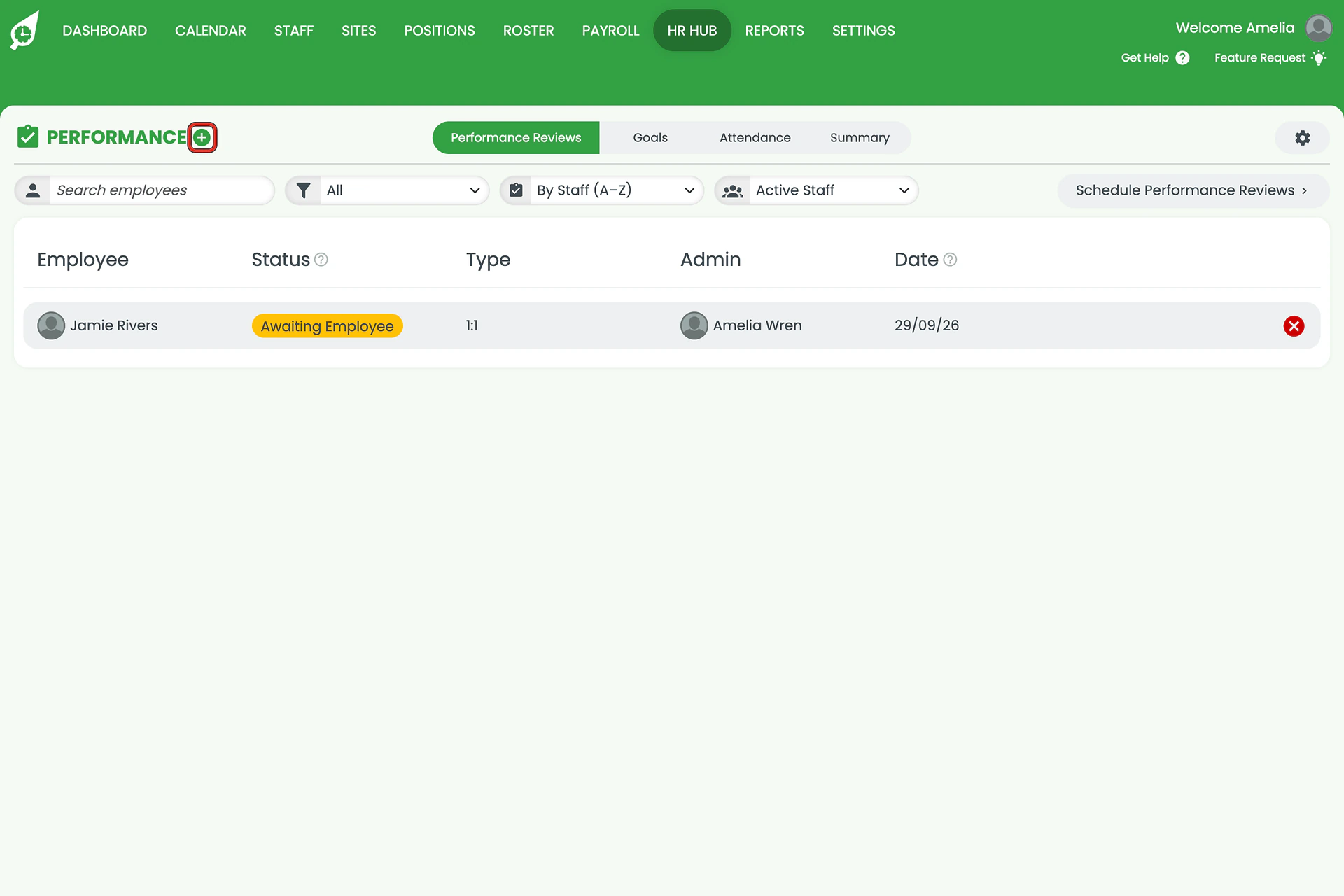
2.1.1 On the Performance Reviews tab, click the Plus (+) beside the PERFORMANCE heading.
Scheduling is not the same as starting
Schedule Performance Reviews, at the top right of the tab, only sets a recurring cadence and a reminder date for the next review — it does not create one. The Plus (+) beside PERFORMANCE is what actually opens a review to fill in.
2.2 Set up the review
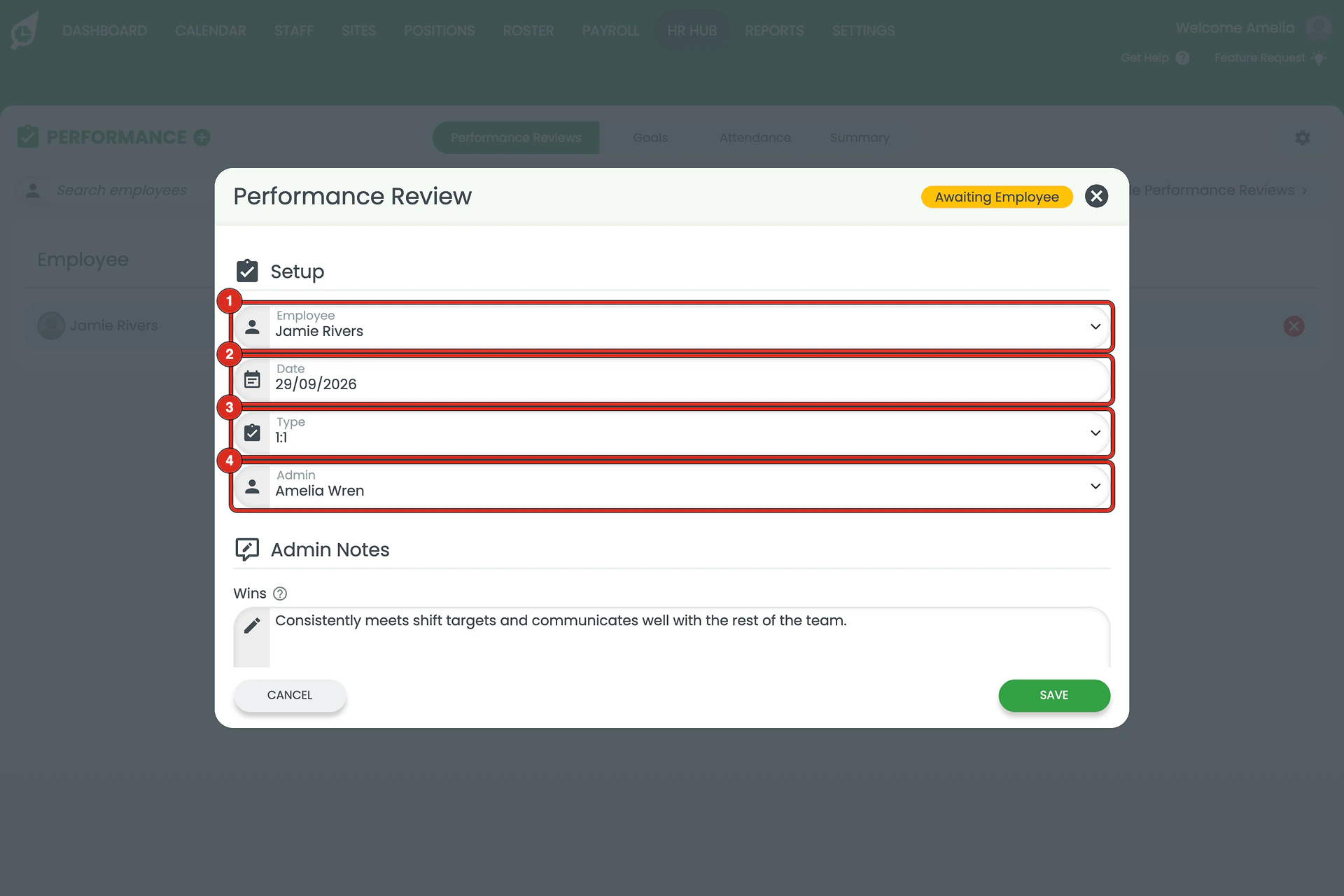
2.2.1 Choose the Employee, the Date, the Type — 1:1, Probation or Disciplinary — and the Admin running it.
2.3 Admin notes and a score
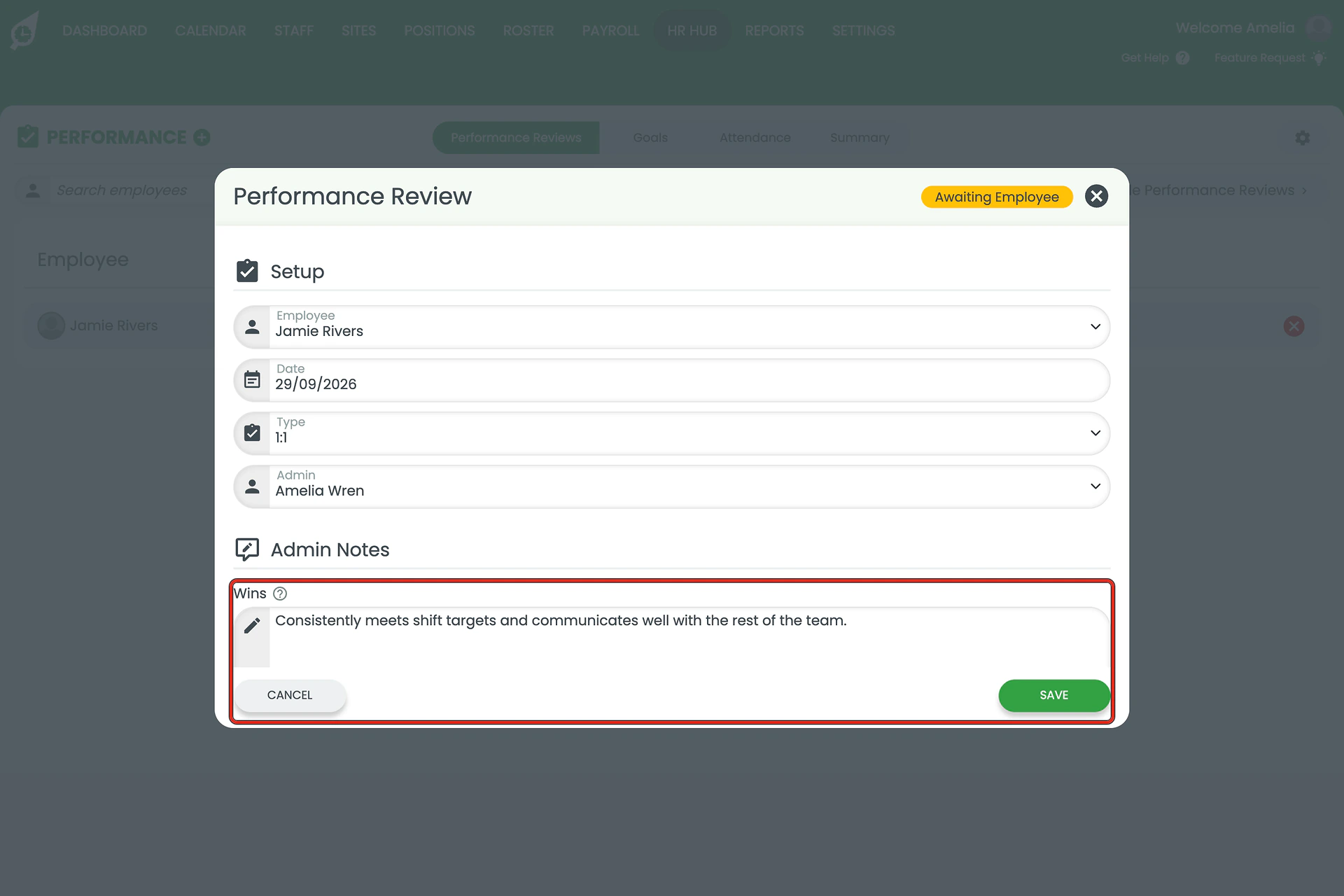
2.3.1 Under Admin Notes, write the Wins — what the person has done well since the last review.
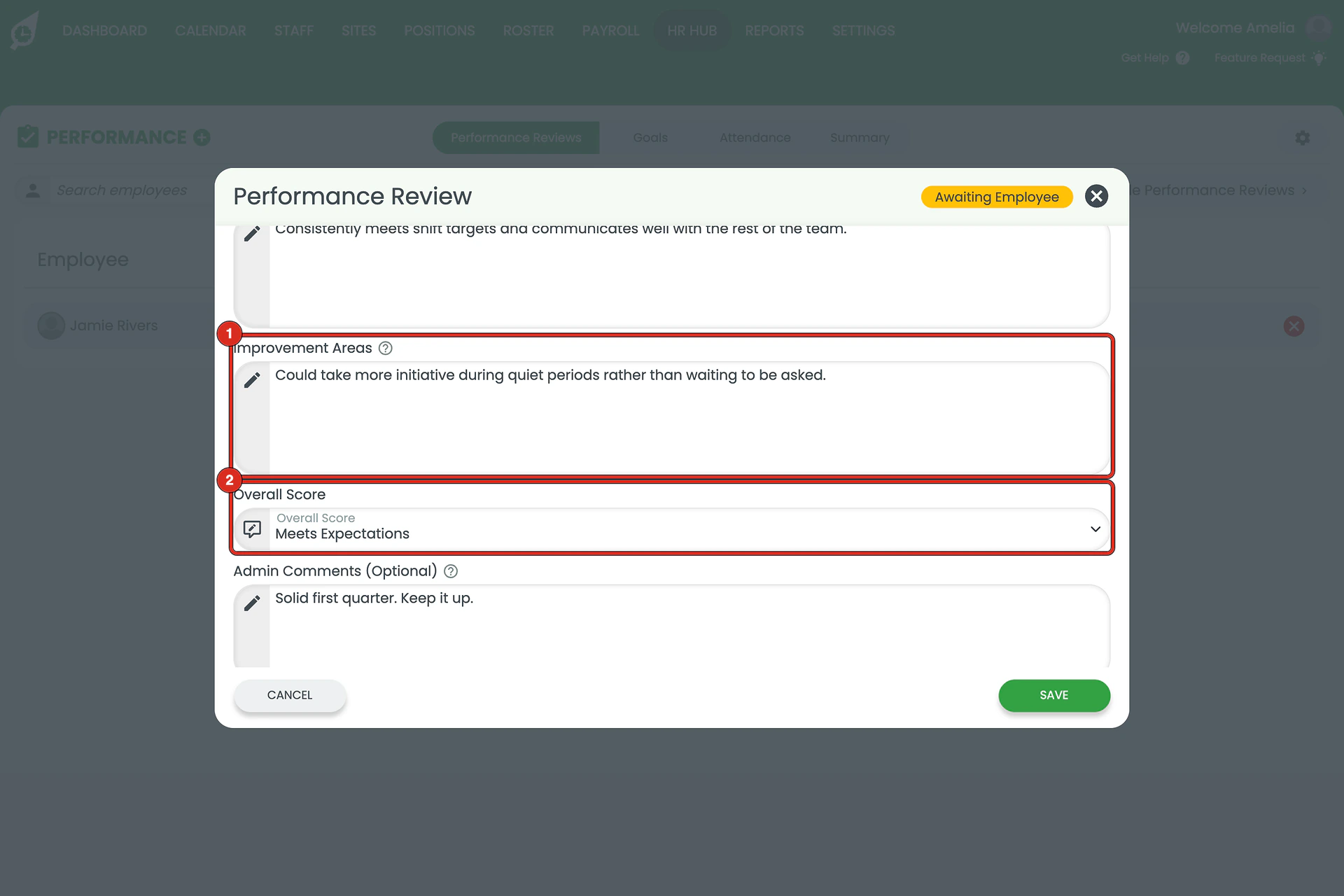
2.3.2 Write the Improvement Areas, then choose an Overall Score — Outstanding, Exceeds Expectations, Meets Expectations, Needs Improvement or Poor Performance. Admin Comments are optional.
Overall Score is a scale, not a number out of five
The five levels read as words, not digits — there is no “3/5” anywhere in the product.
2.4 Send it to the employee
2.4.1 Click SEND to put the review in the employee’s My HR Hub, where they complete a self-review — Wins, Challenges and a Self-Score. Once they submit it, the same screen adds a fourth field, Agreed Feedback, which stays blank until you add it from your meeting together. The review’s status changes to Awaiting Employee, and Finalise stays unavailable until they have submitted.
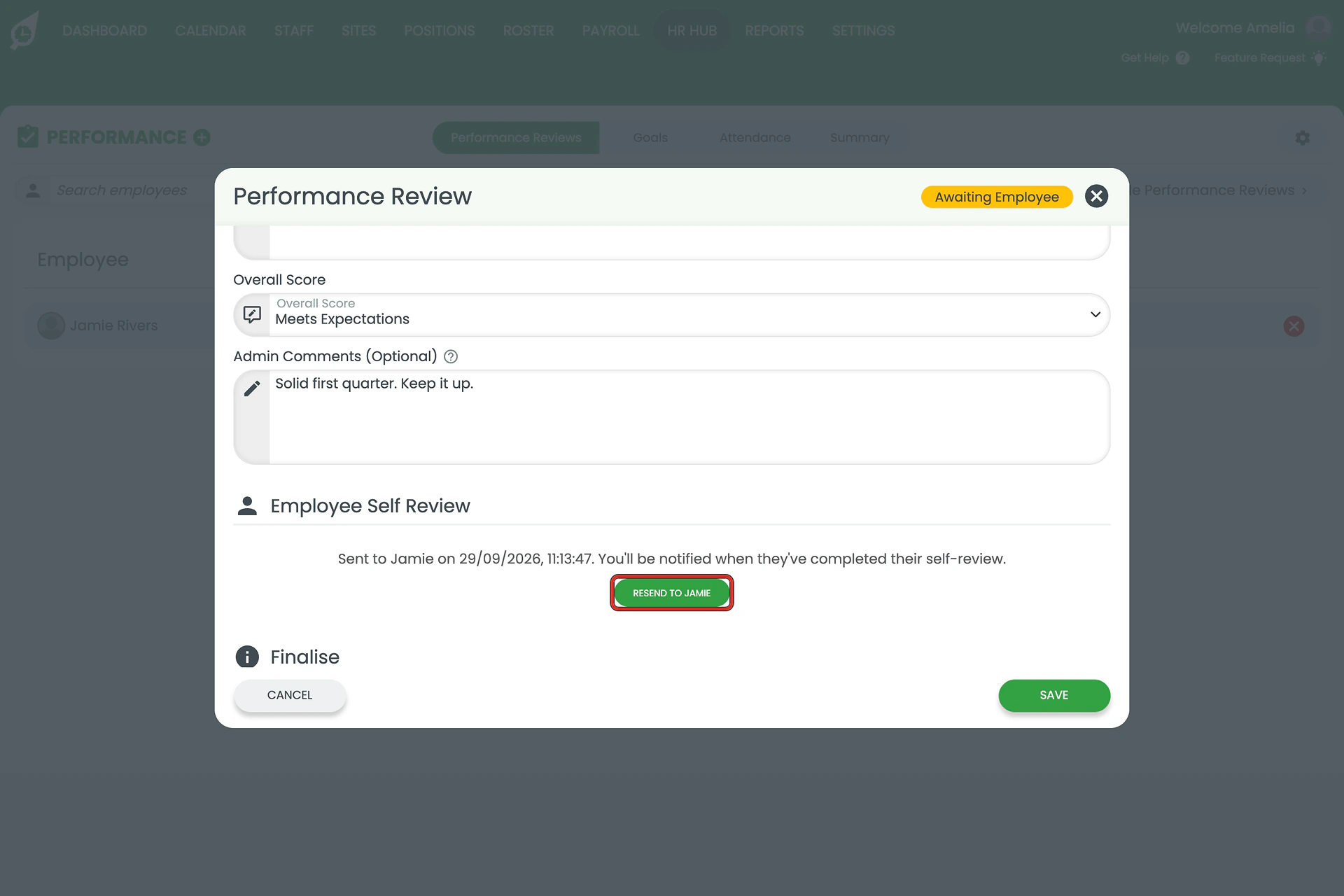
2.4.2 The button reads SEND before the first send and RESEND afterwards — the label only reflects whether the employee has ever received it, not whether they have finished. There is no peer or direct-report input in this flow: it is a two-way conversation between the admin and the employee.
3. Setting a goal
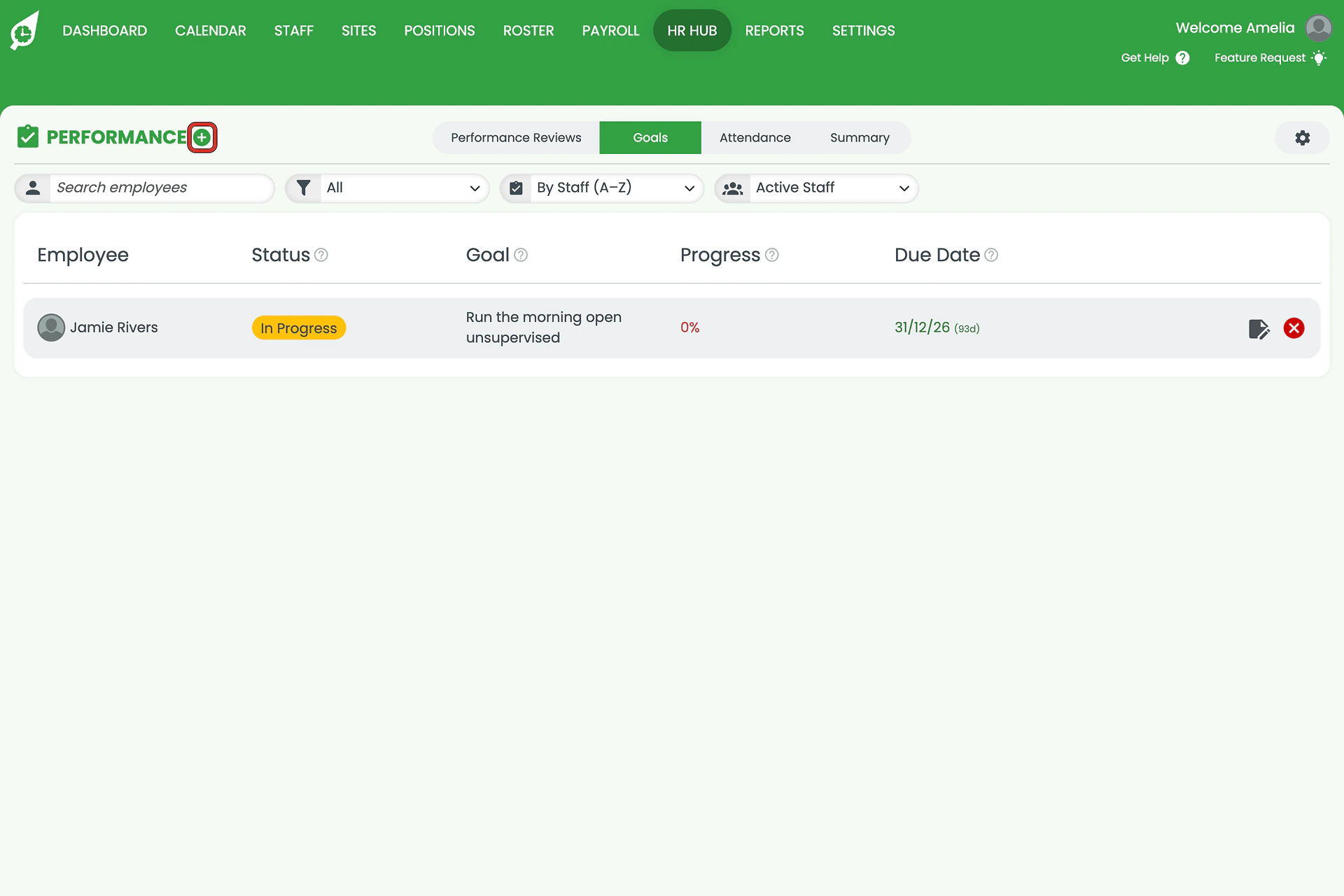
3.1.1 Open the Goals tab and click the Plus (+) beside PERFORMANCE.
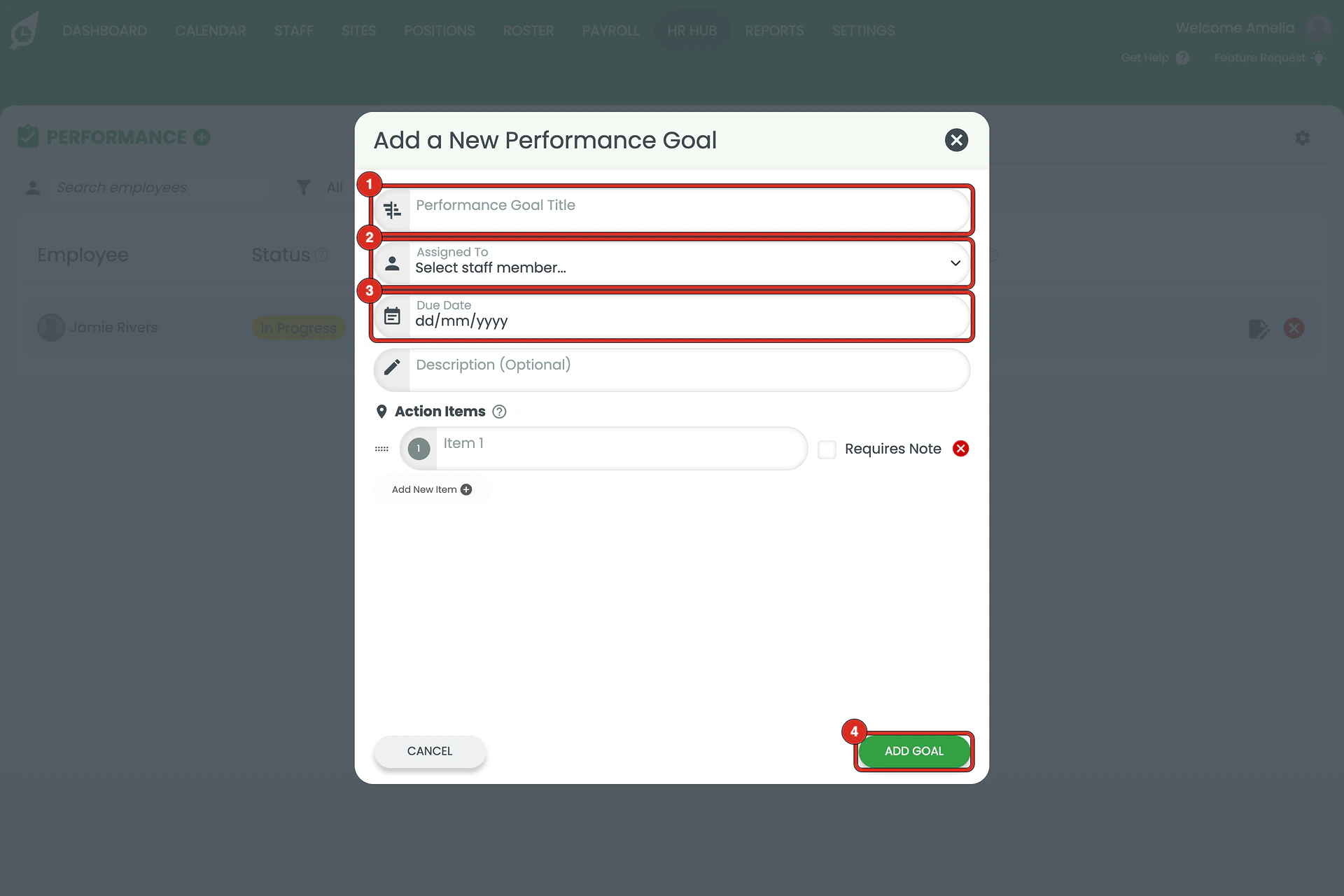
3.1.2 Name the goal, assign it to a staff member, set a Due Date, then click ADD GOAL. Description and action items are optional — an action item can also require a note before it is marked done.
4. Attendance and Summary
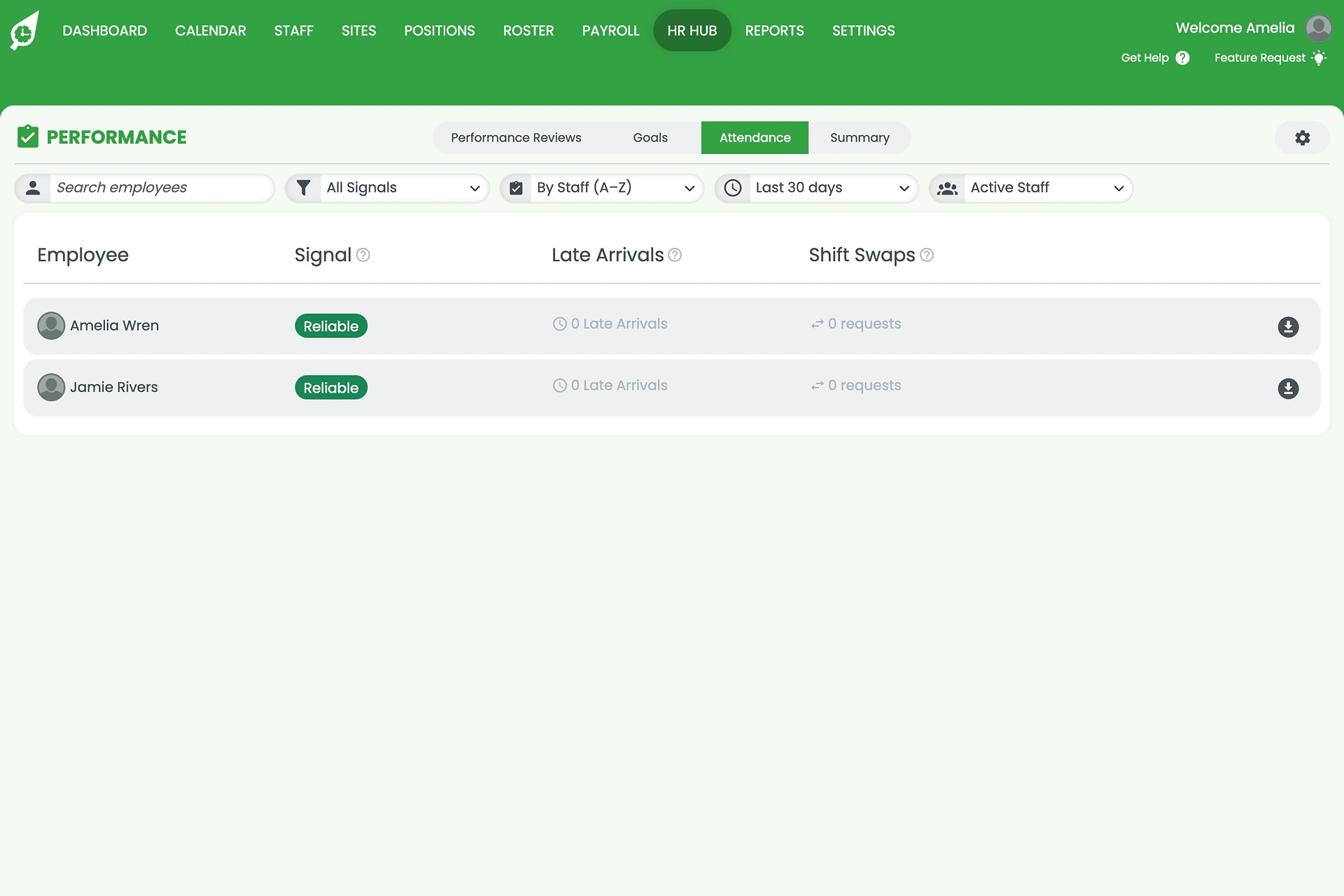
4.1.1 The Attendance tab reads a Signal — Reliable, Watch or Reliability risk — from late arrivals and shift-swap requests over the last 30, 60 or 90 days.
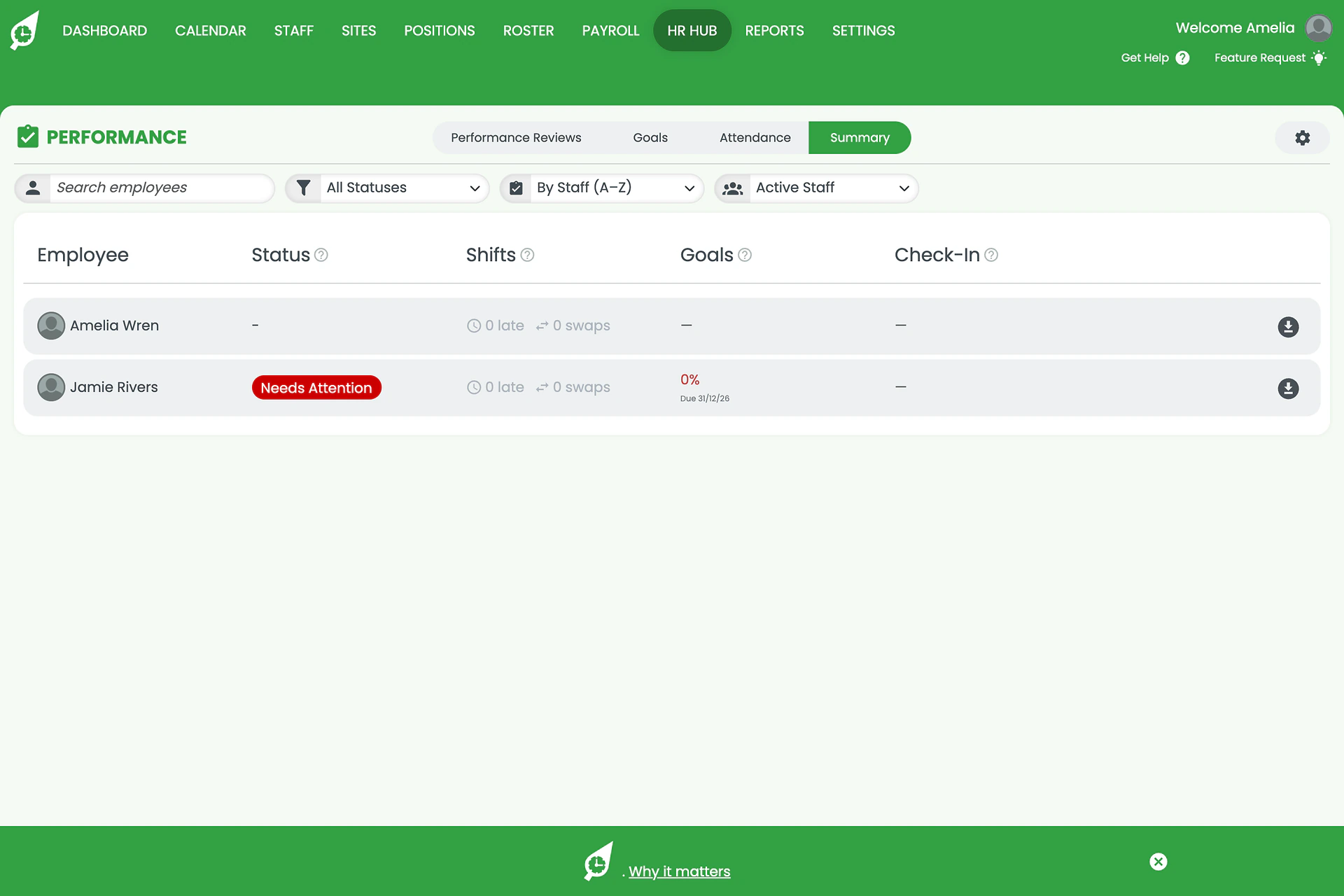
4.1.2 The Summary tab reads Performing Well, At Risk or Needs Attention. It is a computed rollup of the other three tabs, not a field anyone sets directly — an unfinished review, a stalled goal, or a weak attendance signal can all pull it down.
Frequently asked questions
1. What does each tab in the Performance module show?
Performance Reviews lists every review and its status. Goals tracks progress against a due date. Attendance reads late arrivals and shift-swap requests over the last 30, 60 or 90 days. Summary rolls the other three into one status per person.
2. How do I start a performance review?
Open HR Hub, choose Performance, and click the Plus (+) beside the PERFORMANCE heading on the Performance Reviews tab. Choose the employee, date, type and the admin running it, then add your notes.
3. What happens when I click SEND on a review?
The review appears in the employee’s My HR Hub for them to complete a self-review. Its status changes from Ready to Send to Awaiting Employee, and the button relabels to RESEND if you need to send it again.
4. What is the Overall Score scale?
Five levels: Outstanding, Exceeds Expectations, Meets Expectations, Needs Improvement and Poor Performance. It is not a number out of five.
5. How is a status like Needs Attention on the Summary tab worked out?
It is calculated from the other three tabs together, not entered directly — an open goal with no progress, a review that has not been completed, or an attendance signal below Reliable can all pull it down.
6. What do the Attendance signals mean?
Reliable, Watch or Reliability risk, worked out from late arrivals and shift-swap requests over the window you choose — the last 30, 60 or 90 days.
7. Do I need a particular plan to use Performance?
Yes — it ships under HR Hub, which needs the Full Suite plan or the separate HR add-on. It is also EARLY ACCESS at the time of writing, so expect it to change.