

Manage shift swaps and open shifts on mobile
This guide shows managers how to process shift swaps and open shifts in the RosterElf iPhone and Android apps. Once the feature is enabled in roster settings, you can review pending requests, assign them to the best candidate or deny them, and consult archived actions later. Quick steps and screenshots help you keep rosters full, reduce manual calls and notify staff of outcomes instantly— all from your phone.
1. Review pending shift swaps and open shifts
Start in the Pending tab to view every un-actioned swap or open shift. From here you can open each card, compare candidates and approve the transfer with one tap.
1.1 open the pending tab
1.1.1 Tap Pending on the top menu bar.

1.1.2 Tap a shift swap or open shift card to view details.

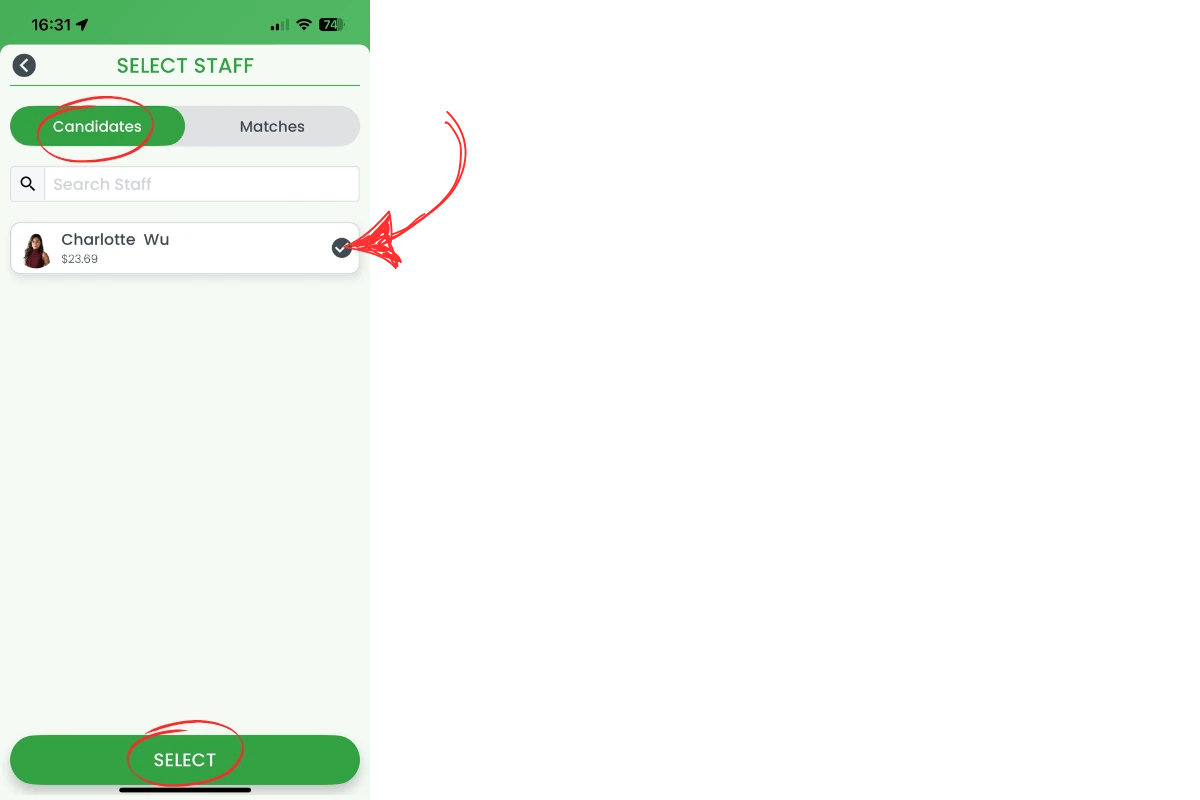
1.2 approve from candidates list
1.2.1 Tap Candidates, choose the employee and press Select.
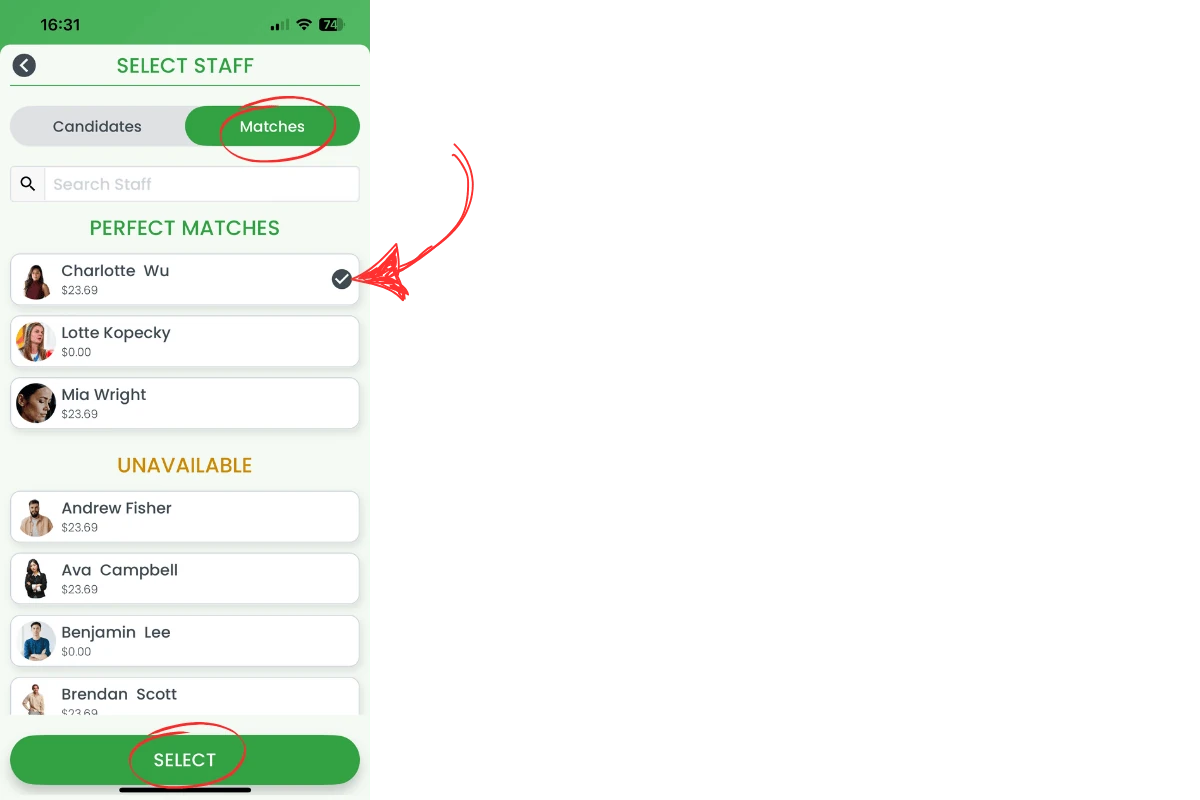
1.3 approve via matches list
1.3.1 Tap Matches, pick the best-fit staff member and press Select.
Staff receive a push notification when you approve or deny a request.
2. View archived shift swap history
Need to check previous decisions? Filter the list to show archived swaps and open shifts. You can open any card for full details, handy for audits or follow-up queries.
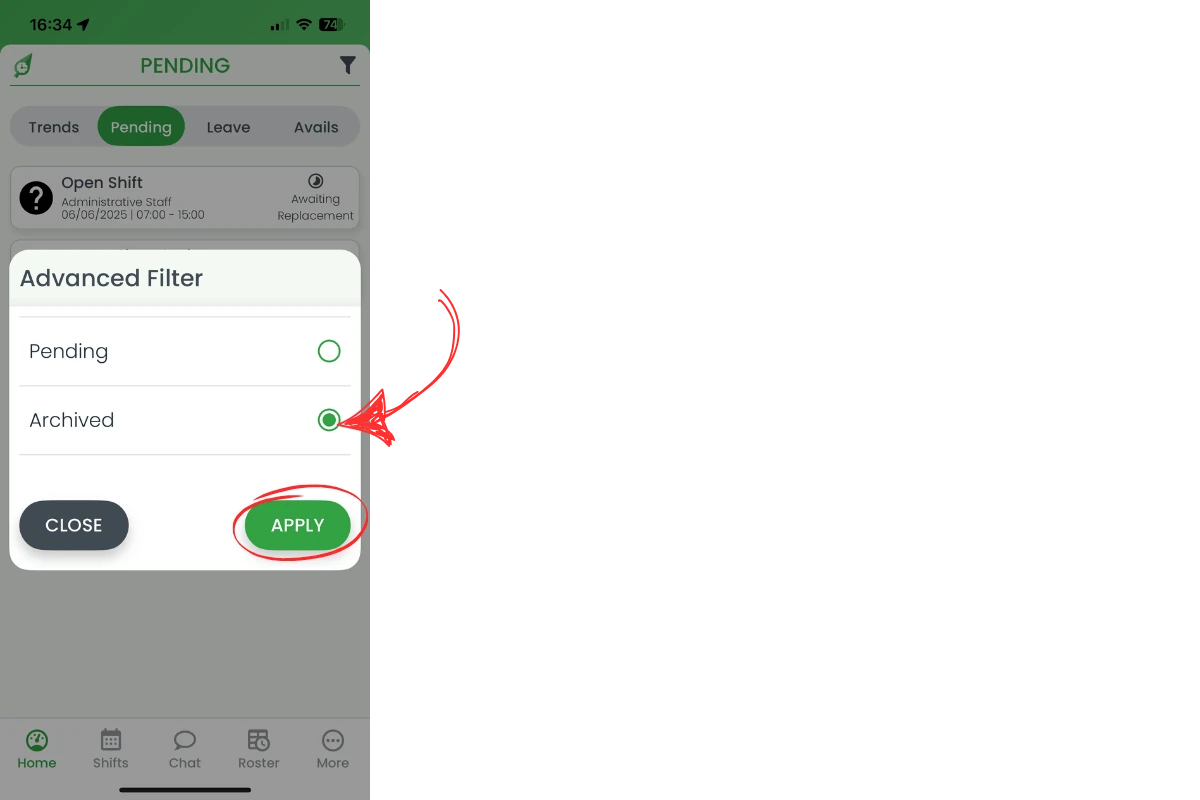
2.1 filter for archived records
2.1.1 Tap the filter icon in the top-right of the Pending screen.

2.1.2 Select Archived, then tap Apply.
2.2 review archived request
2.2.1 Review the list to see all archived cards relating to the swap or open shift.

Frequently asked questions
1. Why don't I see shift swaps in the app?
A manager or admin must enable the feature in Roster Settings first — see activate or deactivate shift swaps. Once enabled, shift swaps and open shifts will appear in the Pending tab.
2. What's the difference between Candidates and Matches?
Candidates shows staff who volunteered for the shift. Matches lists staff the system rates as the best fit based on skills and availability.
3. Does approving a swap update the roster?
Yes. Once you press Select, the roster updates automatically and notifies all nominated staff about the decision. For a shift swap specifically, the original employee who requested the swap is also notified — open shifts don’t have this extra notification since there’s no original requester.
4. Can I undo an approval?
Use the web platform to reopen the request, then assign it to a different employee if needed.
5. How long do archived swaps stay available?
Archived requests are retained in the system indefinitely for auditing and reporting purposes.
6. Why are some staff missing from the Candidates list?
Only staff who meet all of RosterElf’s eligibility criteria are notified and appear as Candidates: assigned to the shift’s site and position, availability covering the full shift time, no clashing shift, no approved leave, and an active status. Staff missing one or more of these can still be found and assigned via the Matches list. See Add open shift with auto-approval for the full criteria.