What is HR Hub offboarding?
Most businesses have a process for people joining and almost none for people leaving. HR Hub offboarding turns every staff exit into the same recorded process: you deactivate a departing employee, and RosterElf captures their exit date, exit type and reason, then sends them an exit survey automatically.
This article explains what the offboarding module does, why exits are usually the least documented part of the employee lifecycle, and how the exit survey works. We also cover which businesses get the most out of it and how to set it up.
Offboarding sits in the HR Hub alongside onboarding, contracts and training, so a staff member's record stays complete from their first day to their last.
Why exits go unrecorded
Exits happen under time pressure. Someone resigns, the roster needs covering, and the administrative side gets done from memory or not at all. The exit reason lives in a manager's inbox, the exit interview never happens, and six months later nobody can say why three people left the same site.
That matters for two reasons. Practically, you lose the only honest feedback you will ever get about working at your business. Legally, exits are the point where obligations become enforceable — final pay is due within seven days of the employment ending under most modern awards, and records of why and when someone left are exactly what you need if a claim follows.
Real scenario
A hospitality venue loses four casual staff over a summer. Each exit is handled by a different duty manager, so one is recorded as a resignation, two as "no longer available" and one not at all. When the owner reviews turnover in autumn, there is no usable pattern to act on. With offboarding switched on, all four exits carry a date, a type and a stated reason, collected the same way.
How offboarding works
The module does three things, and the design point is that none of them add a step to your day.
The survey sends itself
There is no separate "send survey" button to remember. Deactivating a departing staff member is what triggers the exit survey, so the record gets created as part of the action you were going to take anyway. That is the difference between a process that runs and one that depends on someone remembering.
You choose what it asks
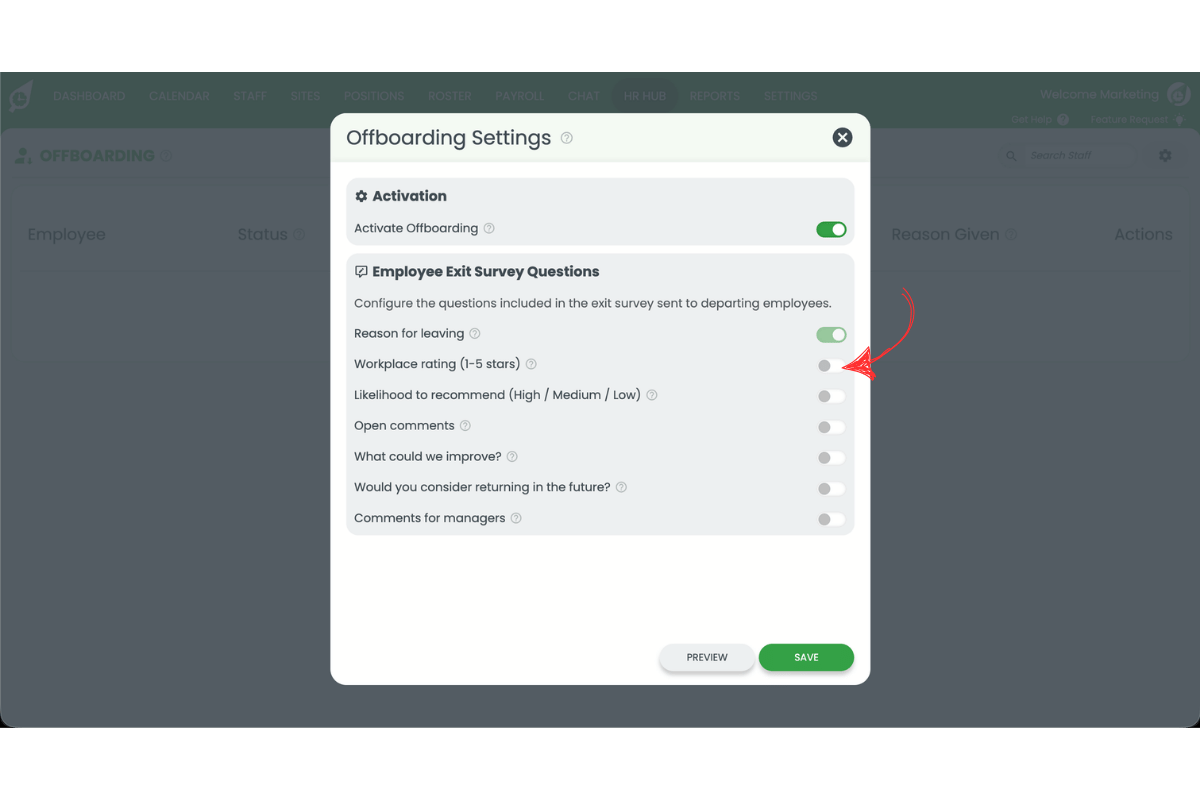
Only Reason for leaving is switched on to start with, which keeps the survey short enough that people actually finish it. You can add a workplace rating, likelihood to recommend, open comments, and whether they would consider returning. Preview shows the questionnaire as your staff will see it before you save.
Every exit in one list
The Offboarding page lists departing employees under Pending, Done and Archived, with exit date, exit type and reason against each. Responses stay attached to the employee's digital HR record rather than sitting in a spreadsheet.
Best use cases
Offboarding earns its keep wherever exits are frequent, spread across managers, or carry compliance weight.
High-turnover teams
Casual-heavy hospitality and retail teams see enough departures that patterns are worth reading. Consistent exit reasons turn turnover from a number into something you can act on.
Multi-site operations
When several managers handle exits, they handle them differently. A single survey and a single list means a departure at one site is recorded the same way as a departure at another, and you can compare them.
Compliance-heavy industries
Healthcare, aged care and childcare businesses need to show when someone stopped working and why. Pair the exit record with a structured exit interview and you have both the data and the conversation documented.
How to set it up
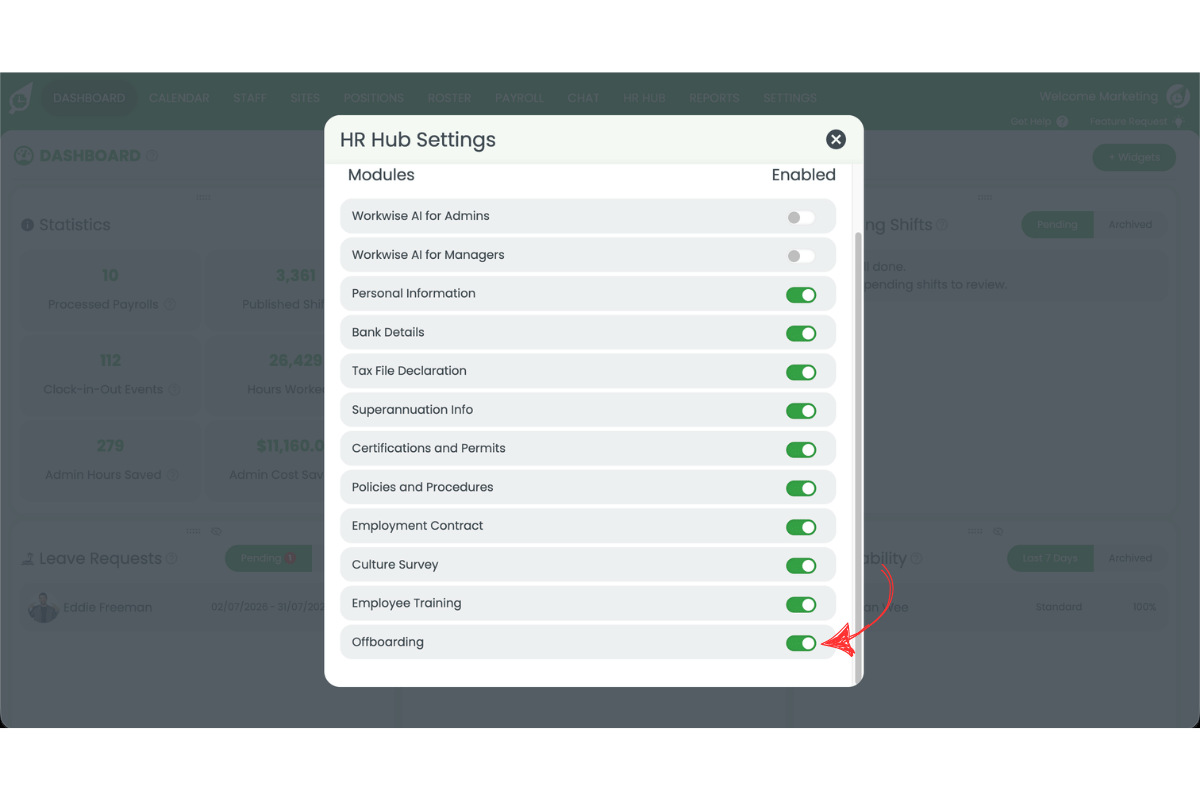
Offboarding is on by default on Full Suite and HR plans, so there is nothing to enable. Two steps:
1. Set up your exit survey
Open Offboarding, press the settings cog, and toggle on the questions you want. Use Preview to check it, then save.
2. Deactivate departing staff as normal
On the Staff tab, deactivate the employee and record their exit date and reason. The survey goes out automatically and their status appears on the Offboarding page.
If you are formalising your whole exit process, our exit interview form and guide to ending employment fairly cover the parts that happen outside the software.
Ready to set up offboarding?
Our step-by-step guide walks through enabling the module, customising your exit survey, and sending it to a departing employee.
View setup guide