
What is the timesheet submissions feature?
RosterElf now allows staff to submit their own timesheets directly through the platform. Instead of managers manually correcting hours after a shift, employees can enter their actual worked hours and submit them for review. Managers approve or deny submissions before payroll is processed — keeping records accurate and the approval workflow in manager hands.
Staff can submit timesheets from the RosterElf web app or from the smartphone app. Managers review all submissions from the payroll section and choose to accept or deny each one. Denied submissions can be corrected and resubmitted by the employee.
This article explains what the feature does, why it matters for Australian businesses, how the submission and approval workflow operates, and how to enable it in your account settings.
Why timesheet submissions matter
Payroll errors are costly. When hours are recorded manually by managers or admins, mistakes happen — missed breaks, incorrect start times, or shifts not recorded at all. Each error adds admin overhead, creates disputes, and risks underpaying or overpaying staff.
Timesheet submissions shift the responsibility of accurate time entry to the person who worked the shift — the employee. Staff know their actual hours better than anyone. By allowing them to submit corrections, businesses capture more accurate data at the source, reducing the back-and-forth between staff and managers at payroll time.
Real scenario: retail store
A retail staff member finishes a shift 45 minutes late due to a busy close. The rostered hours don't reflect this. With timesheet submissions, the employee submits the corrected finish time with a brief note. The manager reviews it the next morning, approves it, and payroll reflects the actual hours worked — no phone calls, no spreadsheet corrections.
Three key benefits
More accurate payroll
Hours are submitted by the person who worked them, reducing discrepancies between rostered and actual hours.
Employee accountability
Staff take ownership of their time records. Submissions create a clear audit trail for every shift.
Less admin overhead
Managers review submissions instead of chasing down corrections. Payroll prep takes less time with fewer manual fixes.
How timesheet submissions work
The feature has two sides: the employee submission and the manager review. Each side has a clear, simple workflow that connects through the payroll section.
Staff: submit worked hours
Staff open their shift in My Calendar (web app) or the smartphone app. They enter their actual worked hours, add an optional reason for the change, and press Submit. The timesheet is sent to the manager for review and the shift is marked as pending approval.
Managers: review and approve
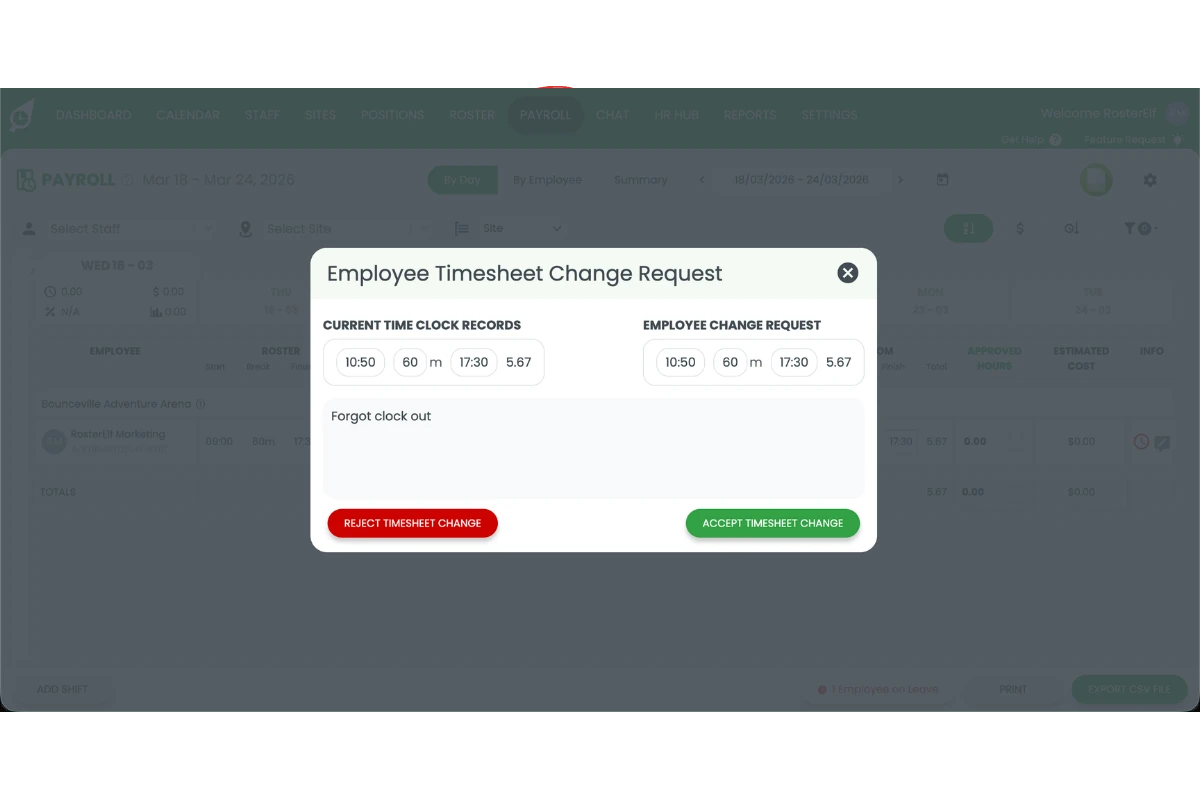
Managers open the Payroll section and locate the shift with a submitted timesheet. Pressing the timesheet icon shows the proposed hours alongside the original rostered hours. Managers press Accept to approve or Deny to reject. Accepted hours flow directly into payroll.
How to enable timesheet submissions
There are two steps to set up the feature. Both must be completed for the Timesheet button to appear for staff.
Step 1: Turn off auto-approved payroll
The Timesheet button is only visible on shifts that have not been approved. If auto-approved payroll is on, every shift is automatically marked as approved on creation — hiding the button from staff.
Go to Payroll → Settings cog → Approvals, toggle off Auto approve payroll hours, and press Save.
Step 2: Enable My Timesheets in settings
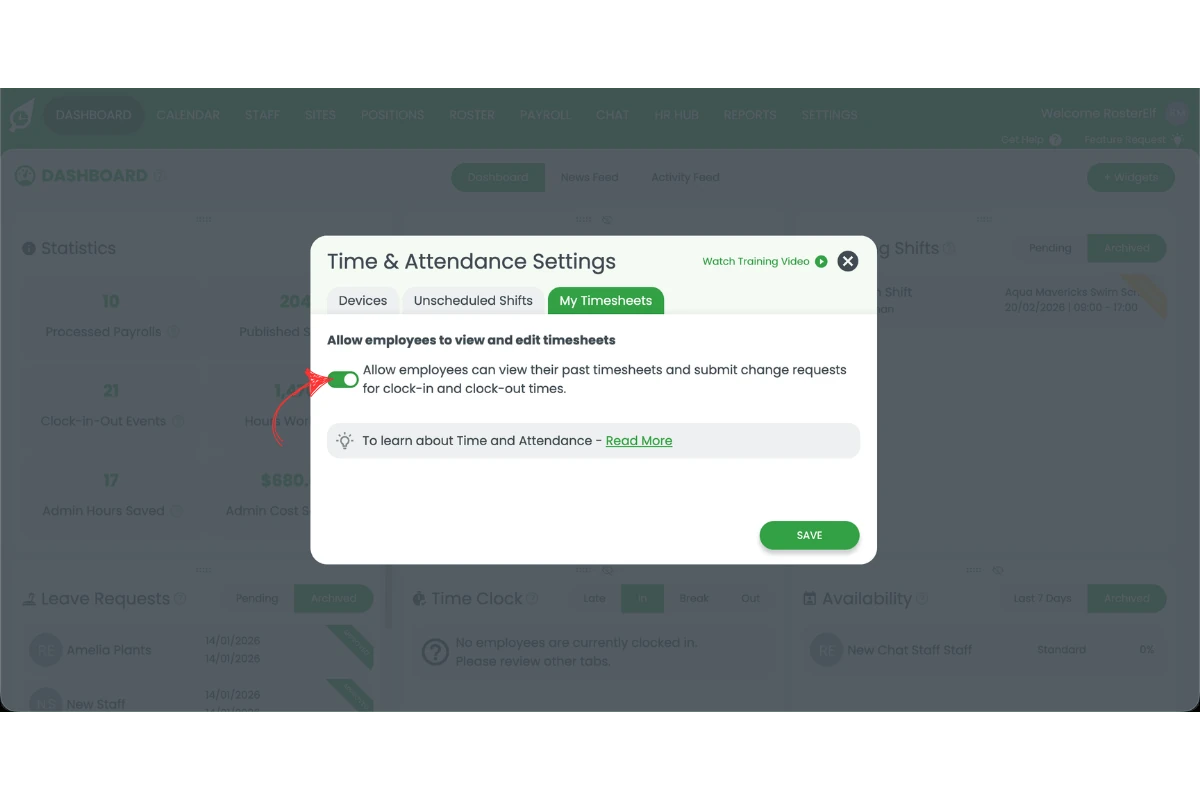
Go to Settings → Time and Attendance Settings → My Timesheets. Toggle on My Timesheets and press Save. Staff
will now see the Timesheet button on unapproved shifts and can submit their worked hours.
Ready to enable timesheet submissions?
Follow the step-by-step guides for each part of the workflow: