

Submit timesheet in web app in RosterElf
This article explains how to submit timesheet in web app RosterElf. This process allows employees to record their worked hours directly from the web platform. It is useful when you need to confirm your start and finish times or correct any missing or inaccurate records.
Submitting your timesheet ensures your hours are accurate before your manager reviews and approves them. This helps prevent payroll errors and ensures you are paid correctly for the time you worked. It also supports a clear approval process and keeps your records up to date.
The RosterElf web app makes it simple to submit a timesheet in just a few steps. You can access your calendar, select your shift, and enter your work times quickly. To learn how managers review and approve submitted timesheets, see how to accept employee submitted timesheets in RosterElf. If you prefer to submit from your phone, see how to amend your timesheet on the smartphone app.
1. Submit timesheet in web app RosterElf
This section explains how to submit timesheet in web app RosterElf using your calendar. You will learn how to open your shift, enter your worked hours, and submit your timesheet for review.
This process ensures your recorded hours are accurate and ready for manager approval. Submitting your timesheet correctly helps avoid delays in payroll and reduces the risk of errors. It also ensures your work hours are clearly documented and easy to review.
Before you start
You can only submit a timesheet once your admin has turned on My Timesheets — see allow staff to submit timesheets. The option only appears on shifts that have not yet been approved in payroll.
1.1 Submit timesheet from My calendar
1.1.1 Open RosterElf in your web browser.
1.1.2 Press My Calendar in the main navigation.
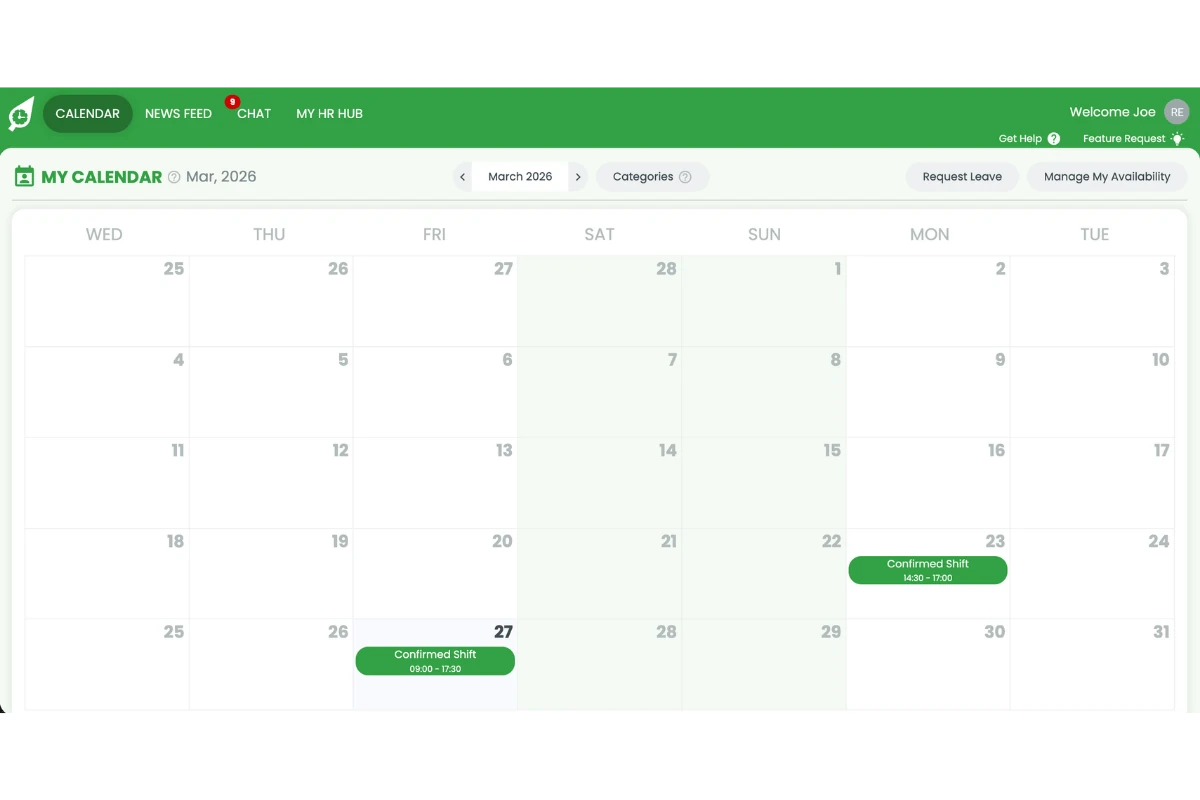
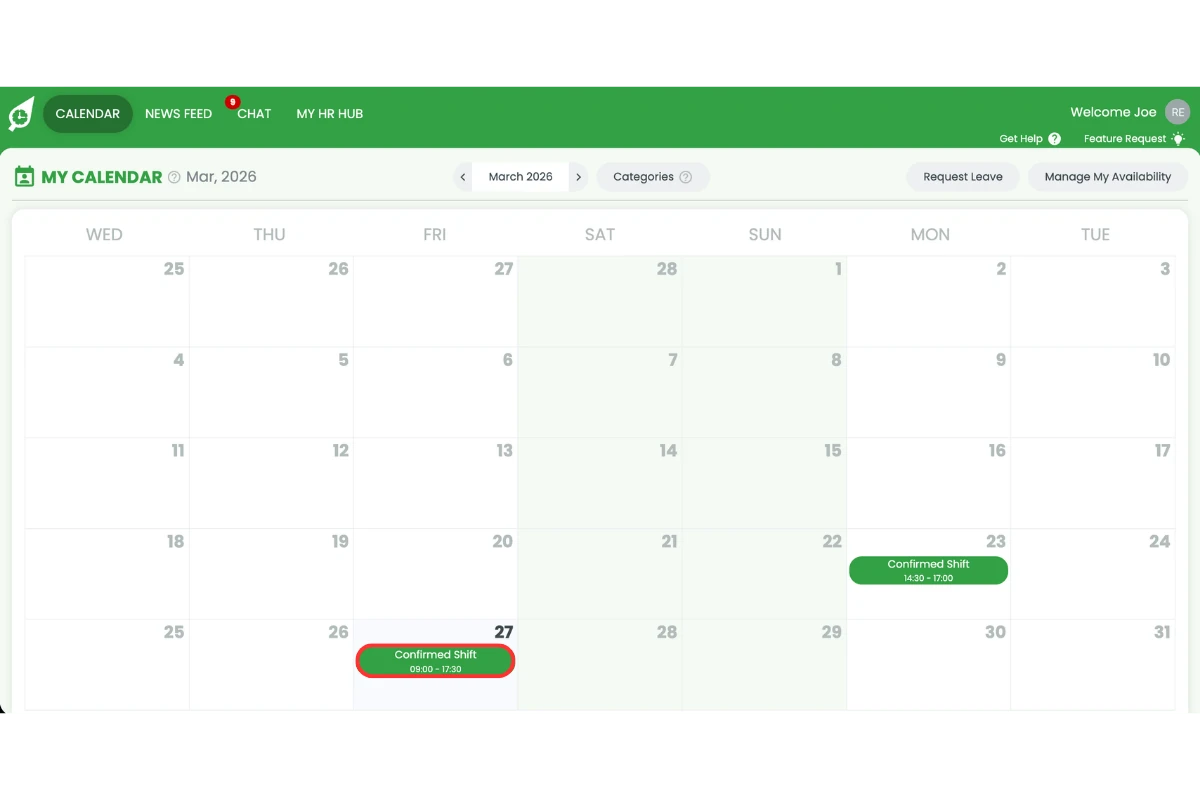
1.1.3 Select the shift you want to submit.
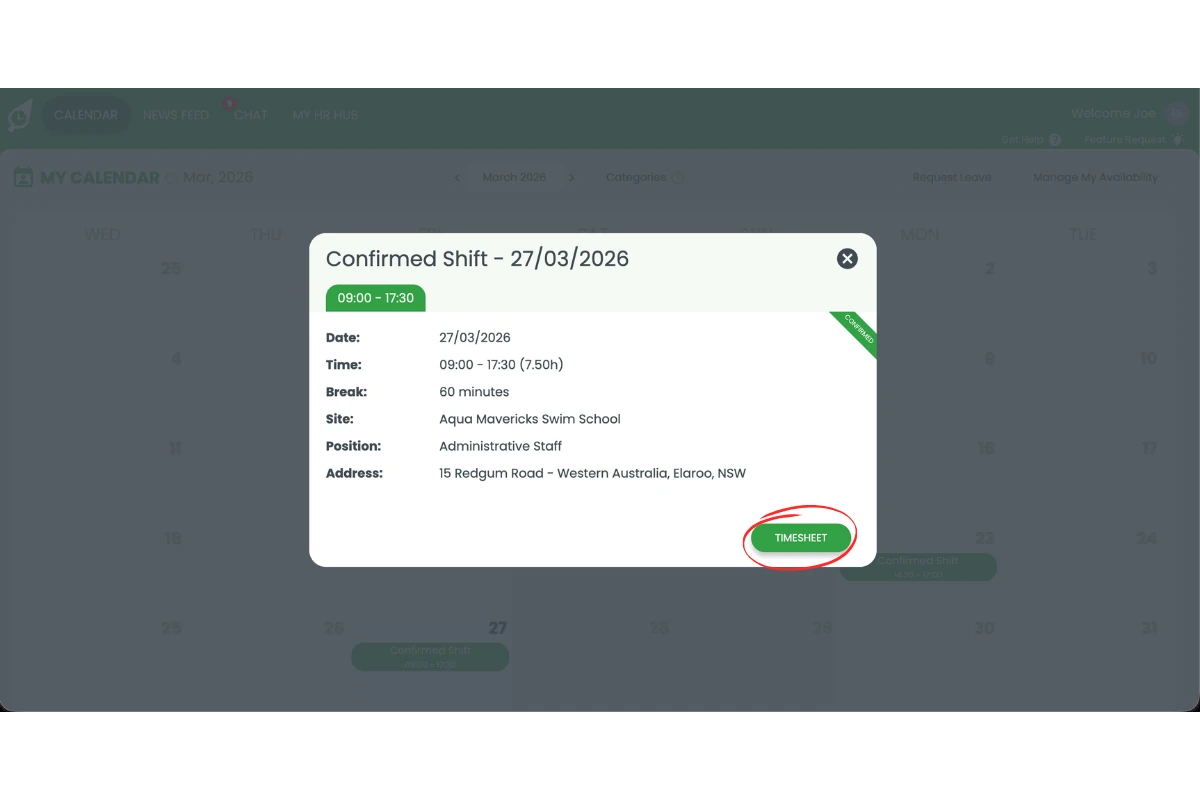
1.1.4 Press Request Review.
1.1.5 In the Timesheet Review form, enter your correct start time, finish time or Break (mins).
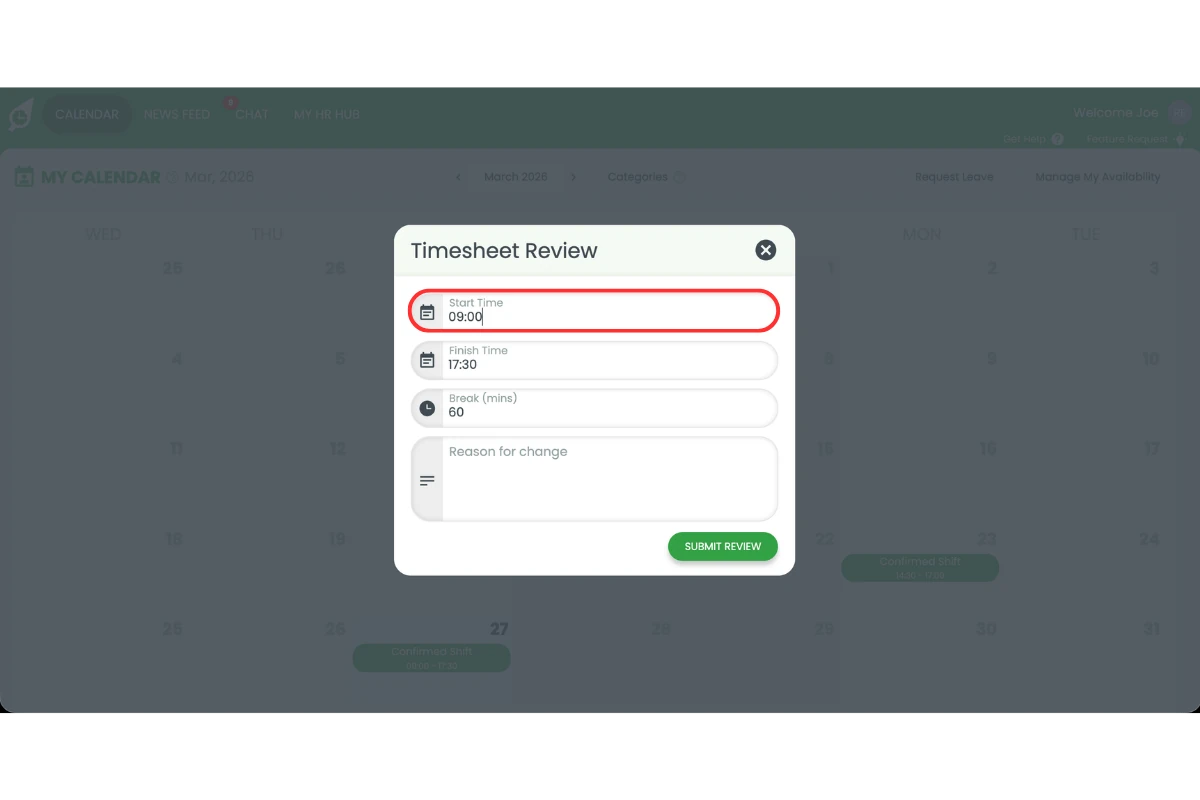
1.1.6 Add a reason for the change.
1.1.7 Press Submit Review.
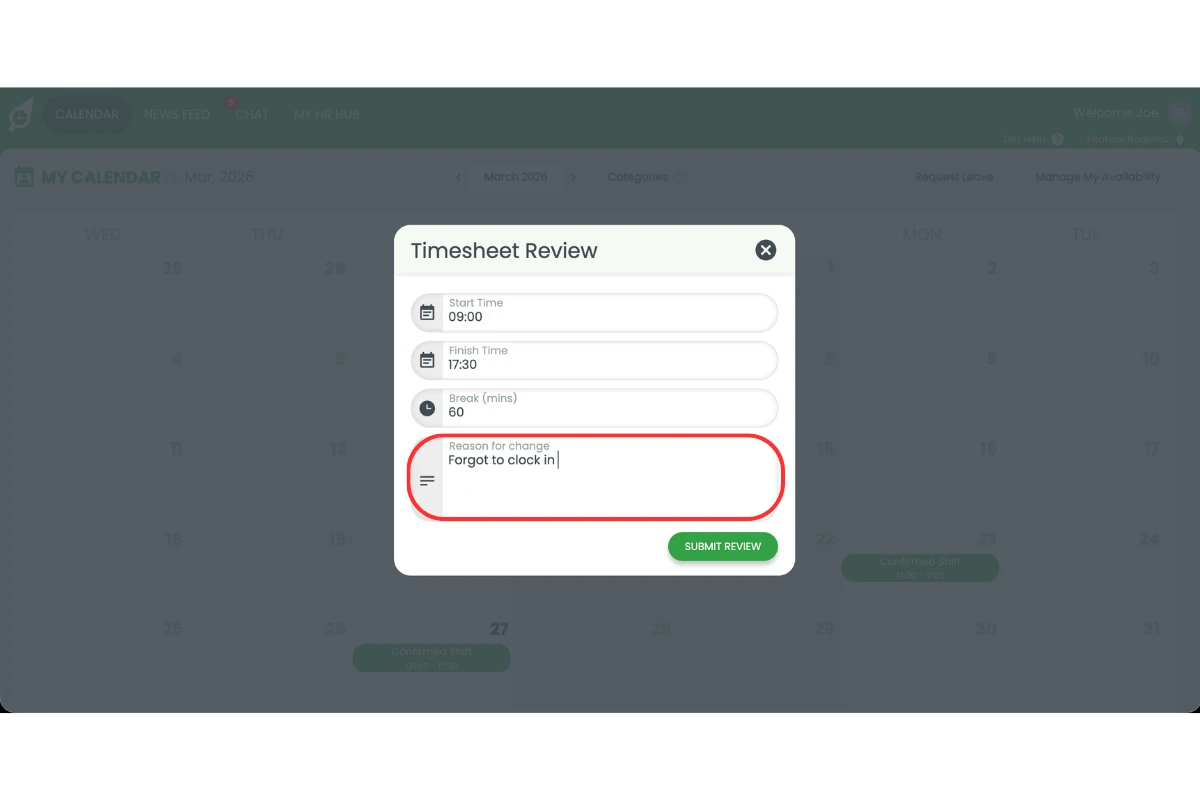
Your timesheet has been submitted. Your manager will review the submitted hours and either approve or deny the request. Your updated hours will only apply once the request is approved. For a full overview of how managers process timesheets, see reviewing and approving shifts on payroll.
Frequently asked questions
1. How do I submit timesheet in web app RosterElf?
Open RosterElf in your web browser and go to My Calendar. Select your shift and press Request Review. Enter your start and finish times, add a reason if required, and press Submit Review to send your timesheet to your manager.
2. Can I submit a timesheet for a past shift?
Yes. You can select a past shift from My Calendar and submit your timesheet. Make sure the hours are accurate before submitting.
3. Why do I need to add a reason when I submit timesheet in web app?
Adding a reason helps your manager understand any changes to your recorded hours. This supports a faster review process and improves accuracy.
4. What happens after I submit timesheet in web app RosterElf?
Your timesheet is sent to your manager for review. They will check your submitted hours and either approve or deny the request.
5. Can I edit my timesheet after I submit it?
No. Once you submit your timesheet, you cannot edit it unless your manager denies the request. If denied, you can update your timesheet and submit it again.