

This article explains how to adjust hours for a shift using the payroll tab. Following these steps will ensure accurate payroll management. By the end of this guide, you’ll know how to locate a shift, make the necessary adjustments, and save changes efficiently.
1. Open the payroll tab
The first step is accessing the payroll tab. This allows you to view and edit shifts for employees.
1.1. Click on the Payroll tab in the main menu.
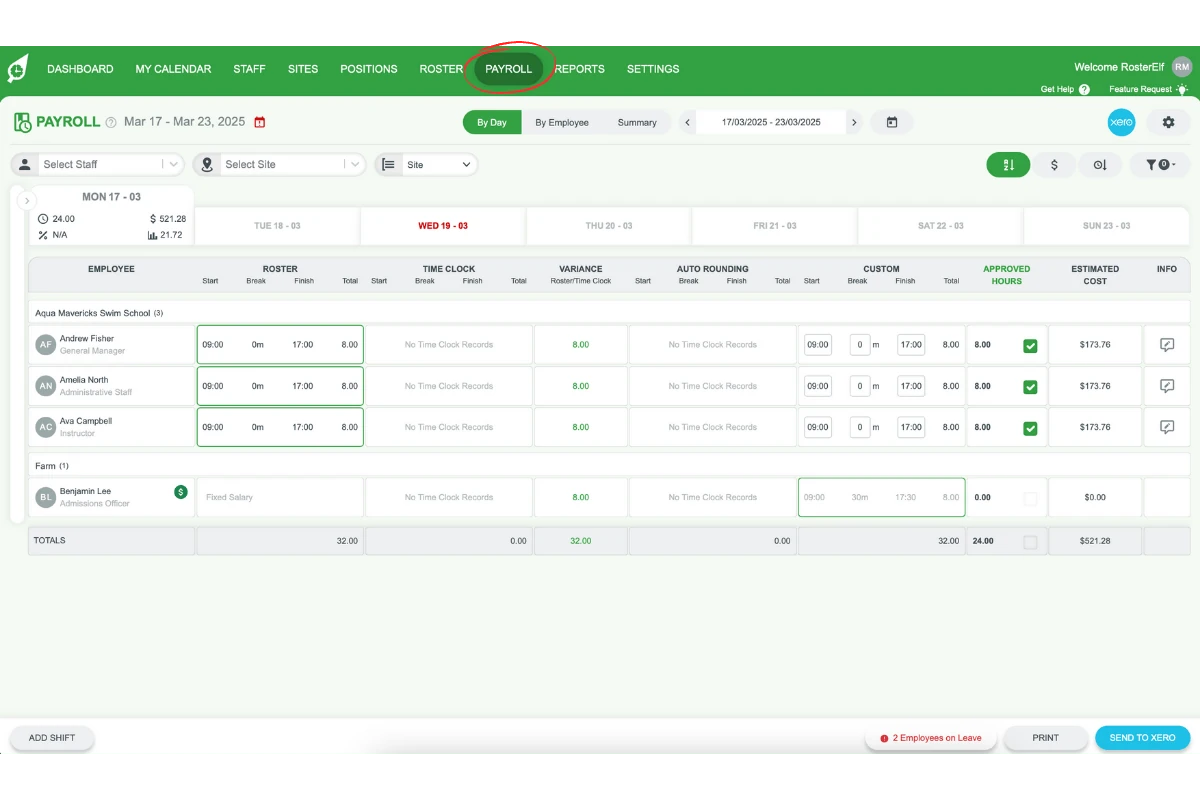
1.2. Wait for the payroll overview to load.
2. Locate the shift by selecting the day
Next, find the specific shift you want to adjust by selecting the relevant day. This step ensures you are editing the correct entry.
2.1. Select the day in the payroll screen.
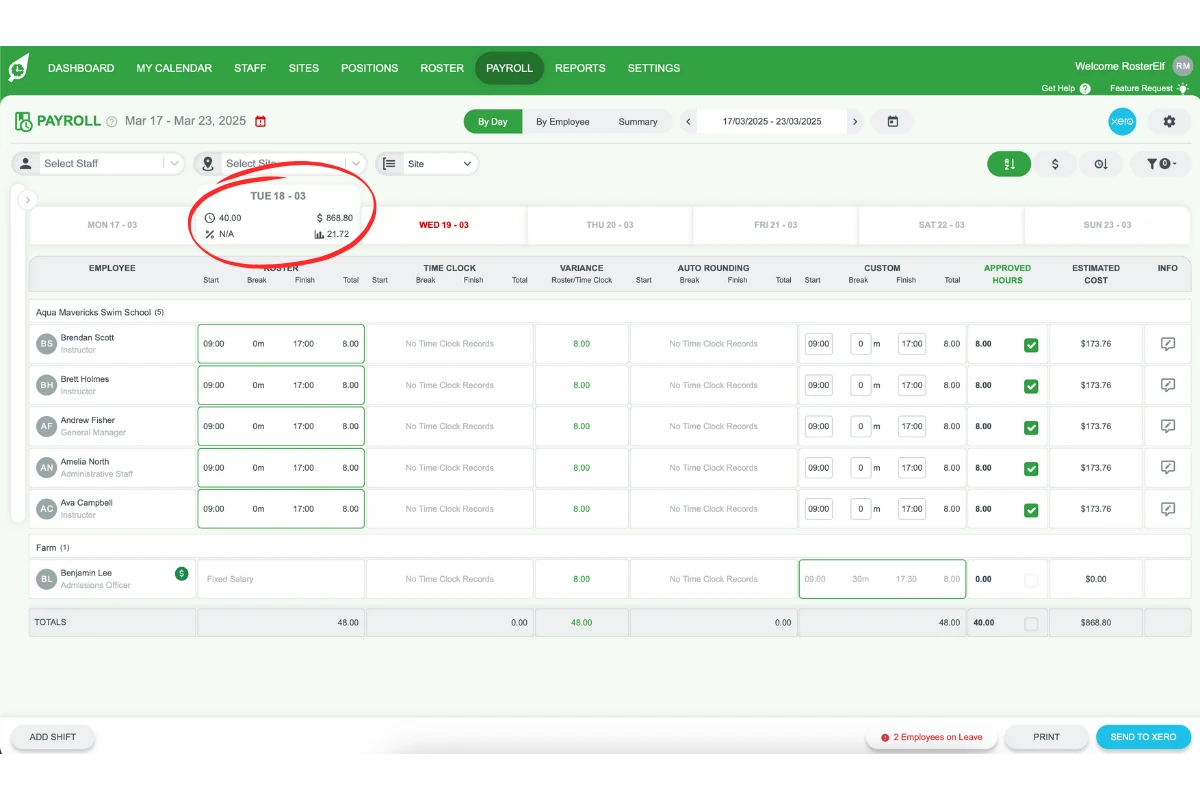
2.2. Browse through the shifts listed for that day.
2.3. Identify the shift requiring adjustments.
3. Adjust the hours in the custom column
Once you’ve located the shift, use the custom column to adjust the hours as needed. This ensures accurate time records.
3.1. Click on the Custom column for the selected shift.
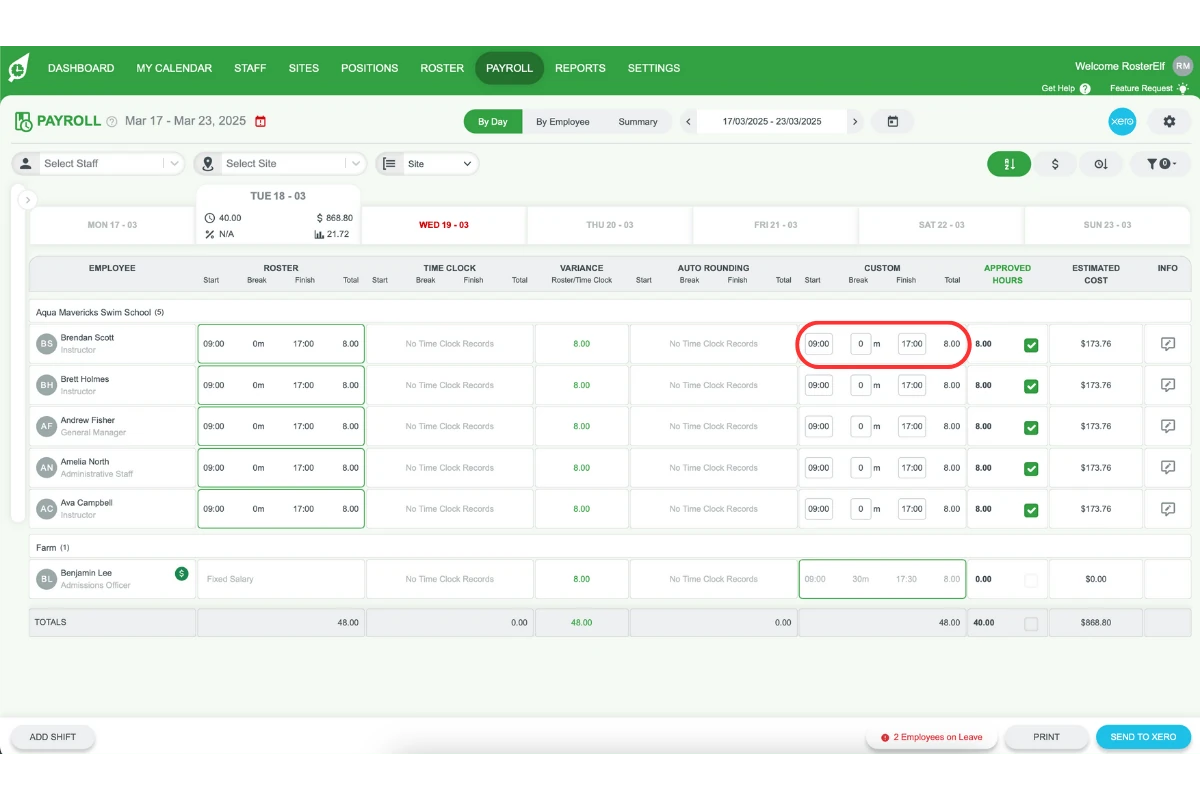
3.2. Enter the new hours in the provided field.
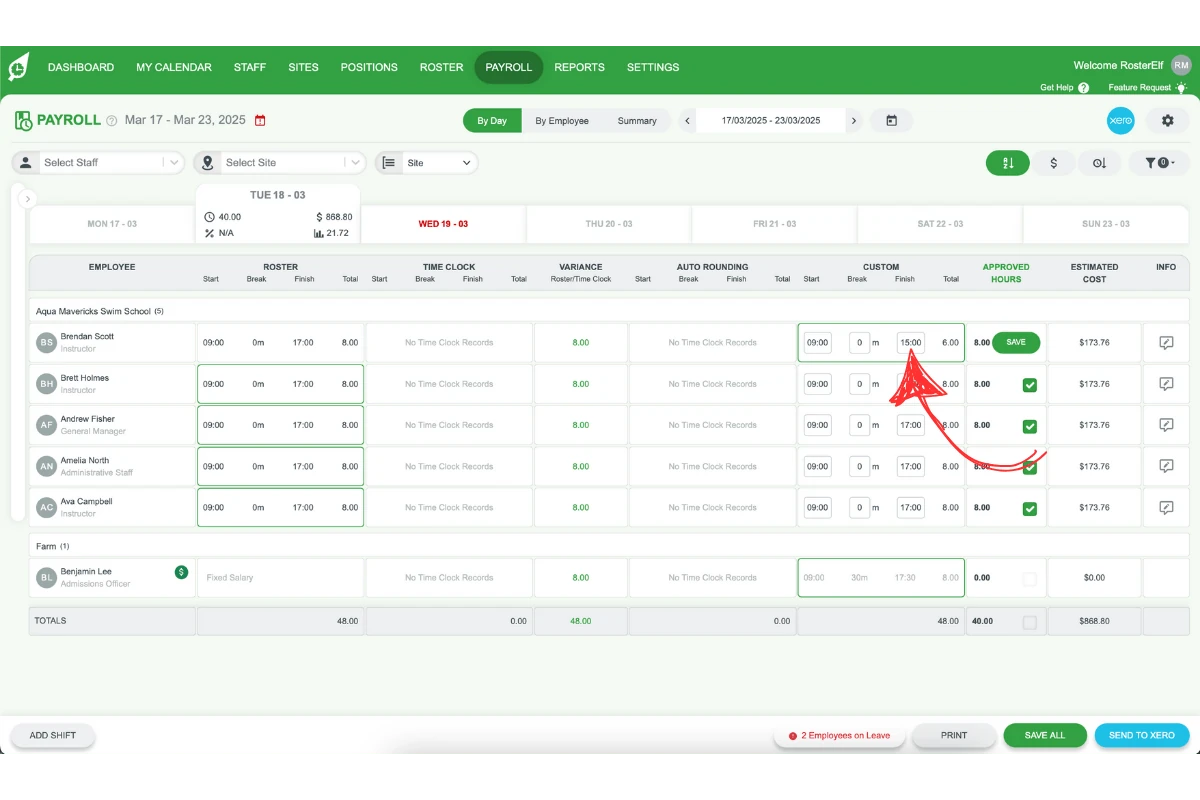
4. Save the changes
After making adjustments, saving your changes ensures they are applied.
4.1. Click the Save button.
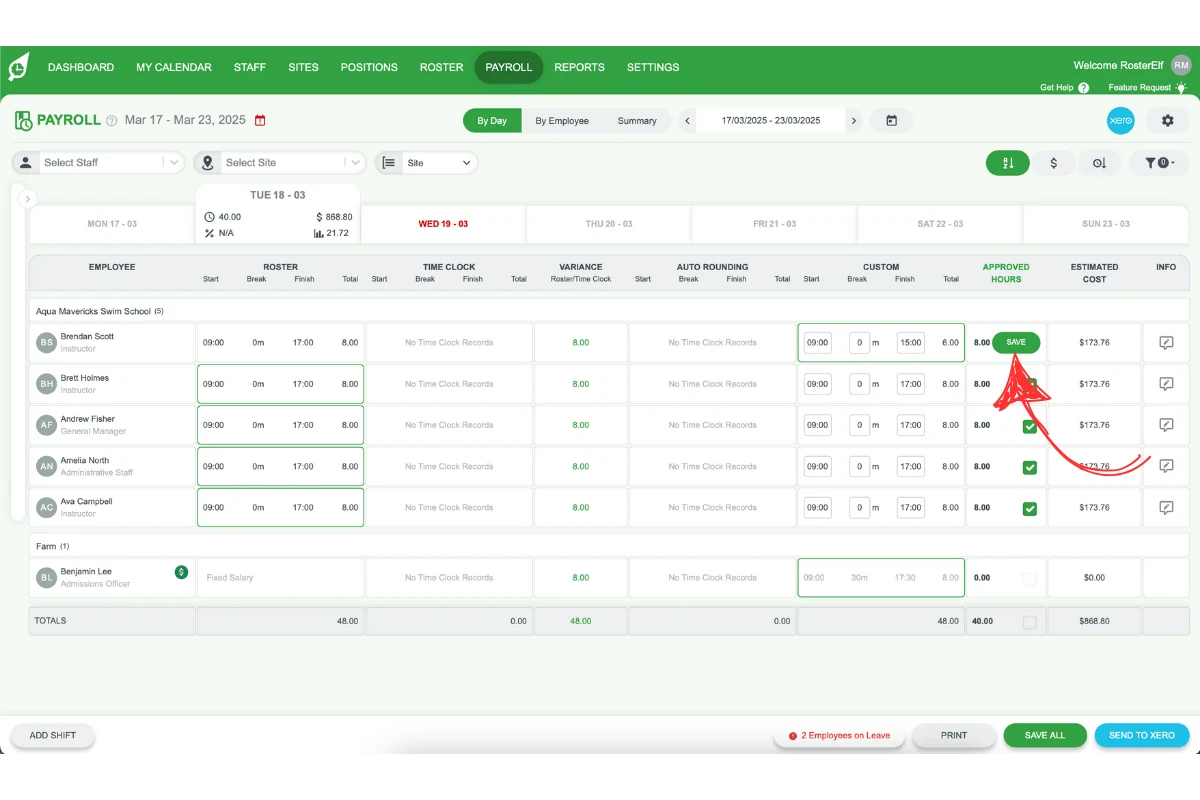
4.2. Confirm that the updated hours are reflected.
Frequently asked questions
1. How do I access the payroll tab to adjust hours?
To access the payroll tab, click on the Payroll tab in the main menu. Wait for the payroll overview to load to view and edit shifts.
2. How can I locate a specific shift to adjust hours?
You can locate a specific shift by selecting the relevant day from the calendar view. Browse the shifts listed for that day and identify the one requiring adjustments.
3. Where do I adjust hours for a shift in the payroll tab?
Adjust hours in the Custom column of the payroll tab. Click on the column for the selected shift and enter the new hours in the provided field.
4. How do I save changes after adjusting shift hours?
After adjusting the hours, click the Save button. Verify that the updated hours are reflected to ensure the changes are applied.
5. What happens if I don't save the changes after editing hours?
If you don’t save the changes, the adjustments will not be applied. Always click Save to confirm and secure your updates.