

Allow staff to submit timesheets in RosterElf
This article explains how to allow staff to submit timesheets in RosterElf. Enabling timesheet submissions allows your staff to record their working hours directly in the platform. This is useful for businesses that track hours manually or require staff to submit time worked for approval.
Using this feature improves accuracy and ensures all worked hours are captured correctly. Staff can enter their own timesheets, which managers can then review and approve. This reduces errors, improves accountability, and streamlines payroll preparation. It also ensures your team follows a consistent process when recording hours.
RosterElf makes it simple to enable timesheet submissions from your account settings. You can access your time and attendance settings, enable the My Timesheets feature, and save your changes in just a few steps. For a full overview of what you can configure, see the overview of time and attendance settings.
1. Turn off automatically approved payroll
Before staff can submit timesheets, you must turn off automatically approved payroll. When this setting is enabled, RosterElf automatically approves payroll hours for every shift. This hides the Timesheet button from staff, preventing them from submitting their worked hours.
Disabling auto-approved payroll ensures shifts remain unapproved until a manager reviews them. This is what makes the Timesheet button visible to staff. For a full walkthrough, see how to adjust payroll approval settings in RosterElf.
1.1 Disable auto-approved payroll
1.1.1 Open RosterElf and go to Payroll in the main navigation.
1.1.2 Press the settings cog icon at the top right of the payroll page. The Payroll Settings window opens.
1.1.3 Select the Approvals tab.
1.1.4 Toggle off Auto-approve payroll hours.
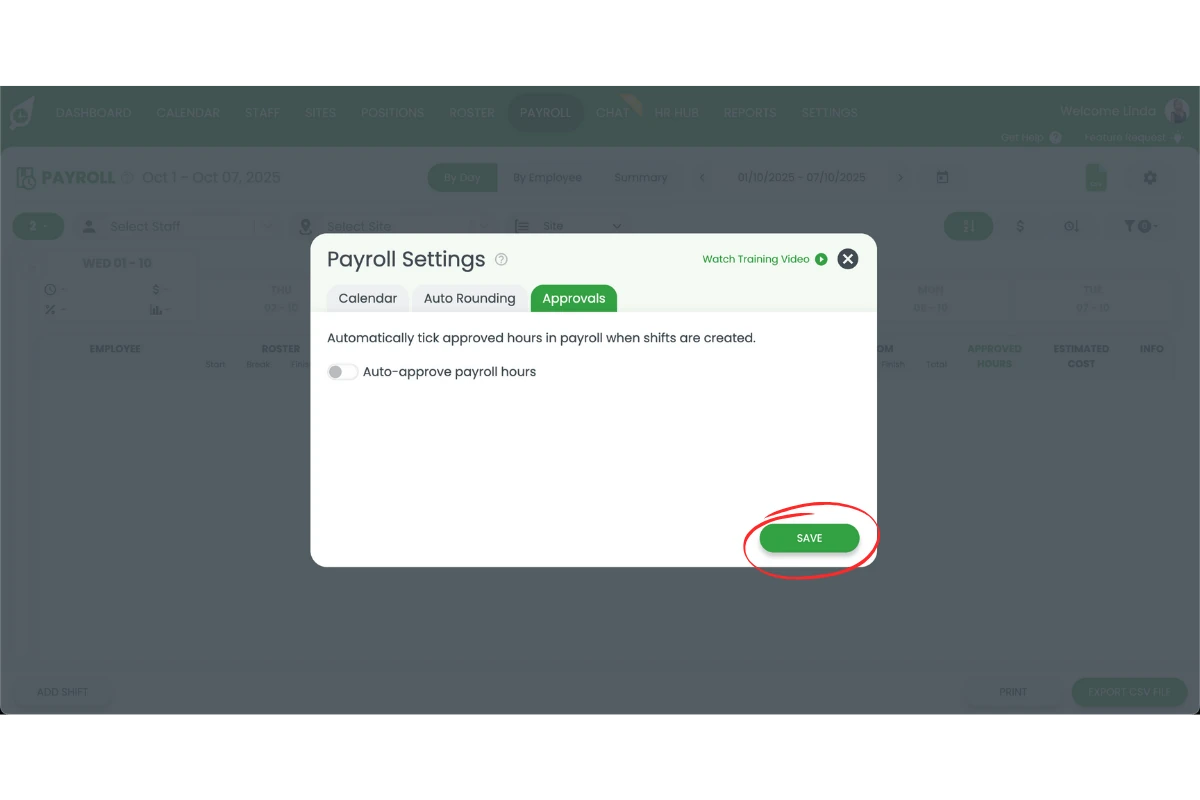
1.1.5 Press Save. Shifts will no longer be automatically approved, and the Timesheet button will become visible to your staff.
2. Allow staff to submit timesheets in settings
This section explains how to allow staff to submit timesheets in RosterElf using your account settings. You will learn how to access the correct settings area and enable the My Timesheets feature. Enabling this setting allows your staff to submit their worked hours directly through the platform.
This is beneficial for businesses that require manual time entry or approval workflows. It ensures all hours are recorded in one place and can be reviewed before processing payroll. Following these steps will help you quickly enable timesheet submissions and improve your time tracking process.
2.1 Allow staff to submit timesheets via settings
2.1.1 Open RosterElf and log in to your account.
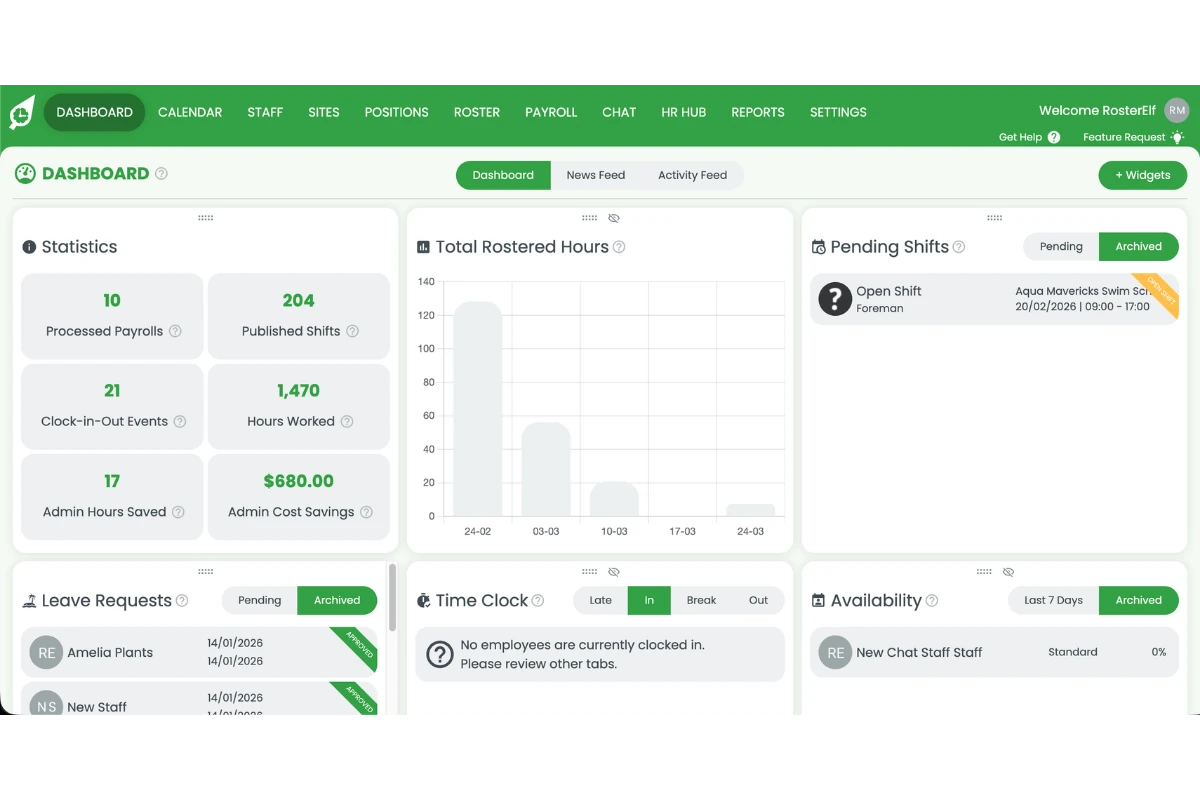
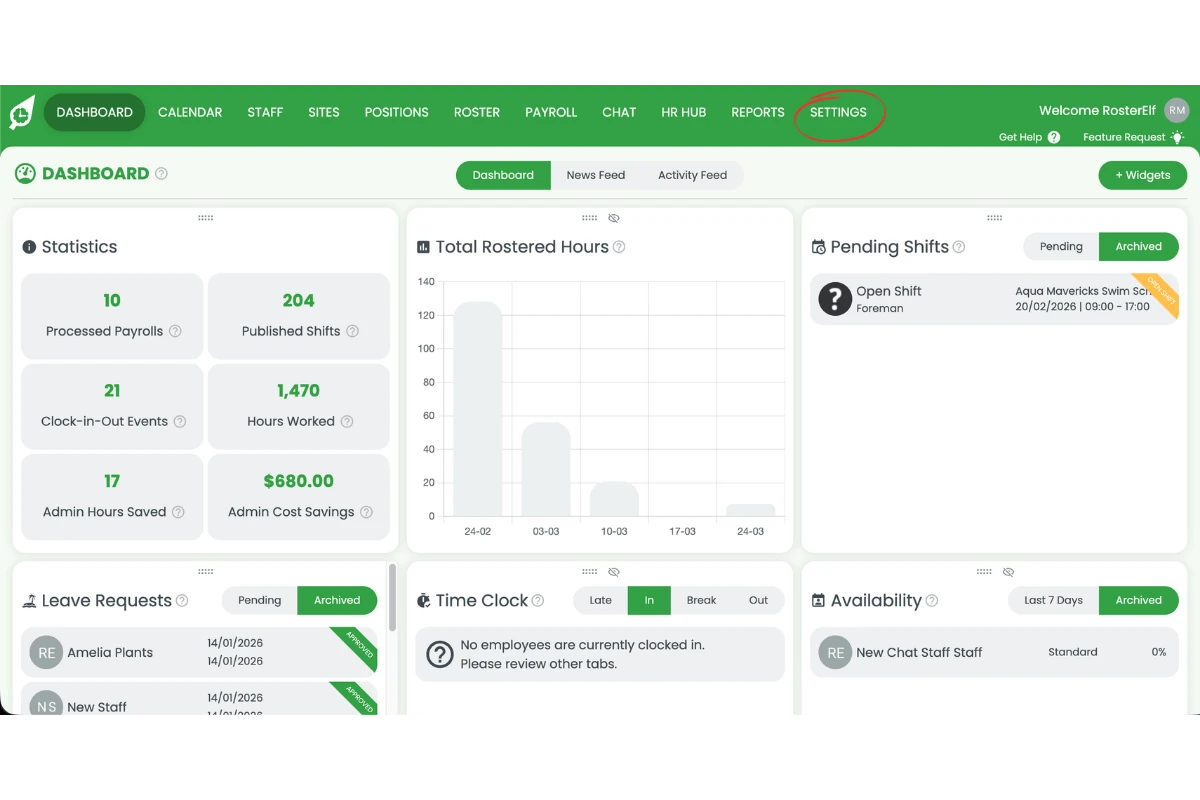
2.1.2 Press Settings in the main navigation.
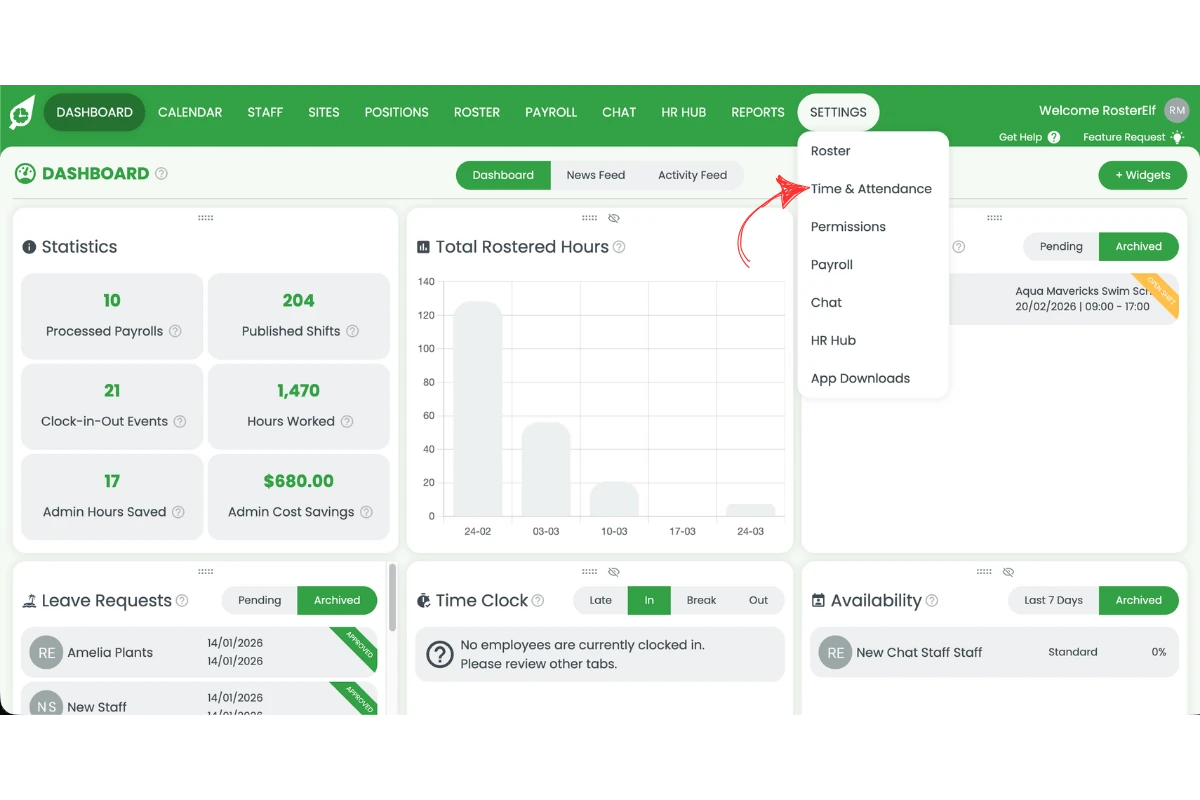
2.1.3 Press Time & Attendance in the Settings menu. The Time & Attendance Settings window opens.
2.1.4 Press the My Timesheets tab, the third tab in the window.
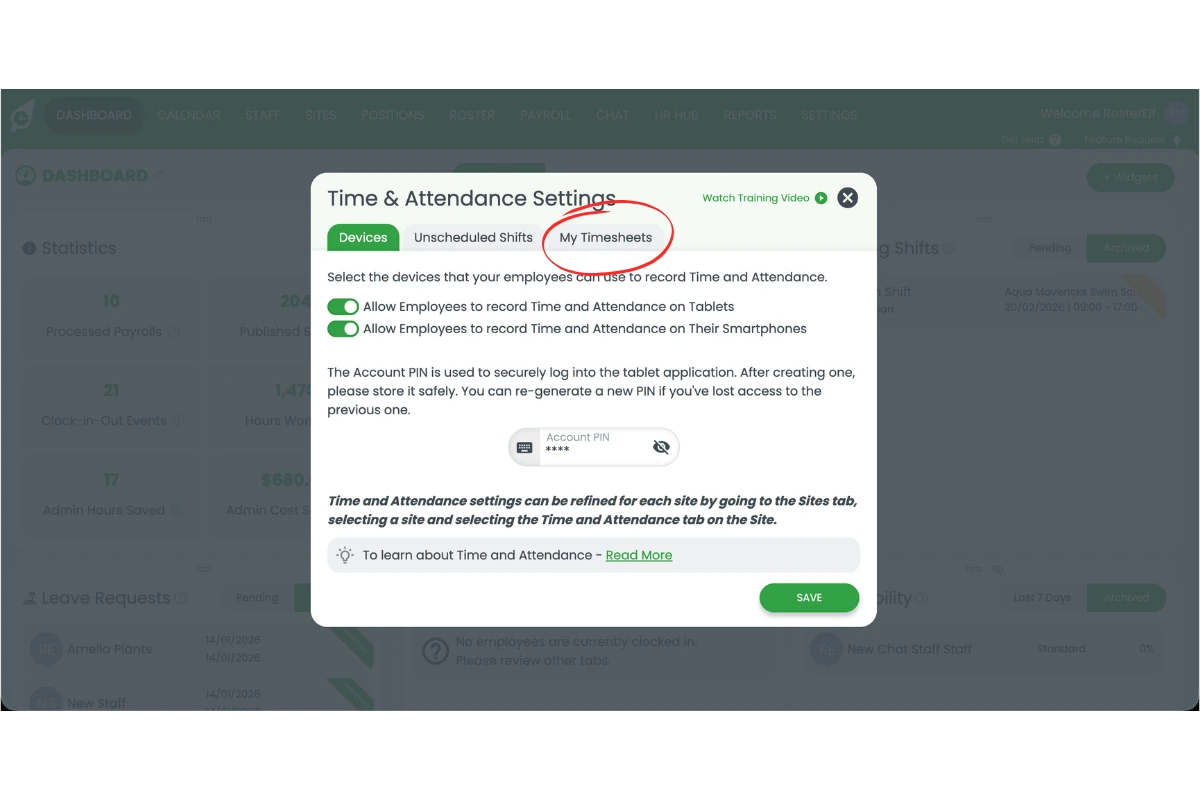
2.1.5 Under Allow employees to view and edit timesheets, toggle on the switch. Staff can then view their past timesheets and submit change requests for clock-in and clock-out times.
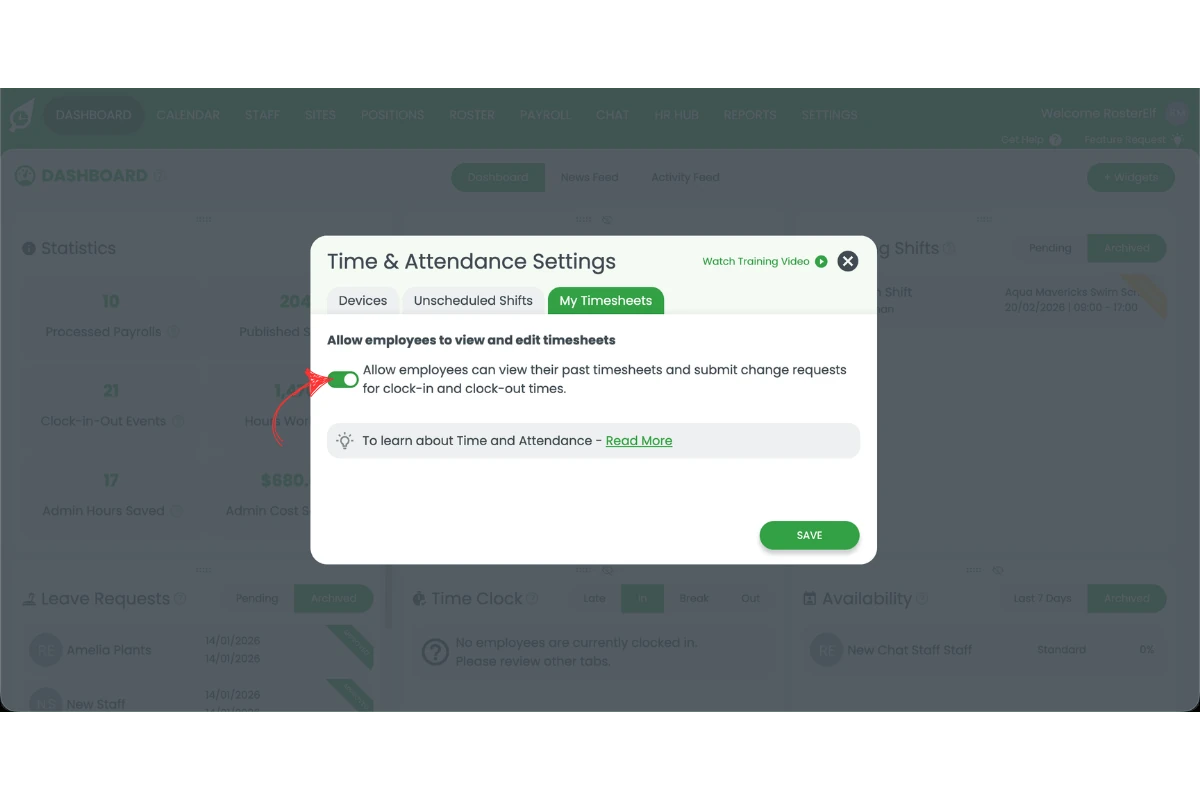
2.1.6 Press Save to apply your changes.
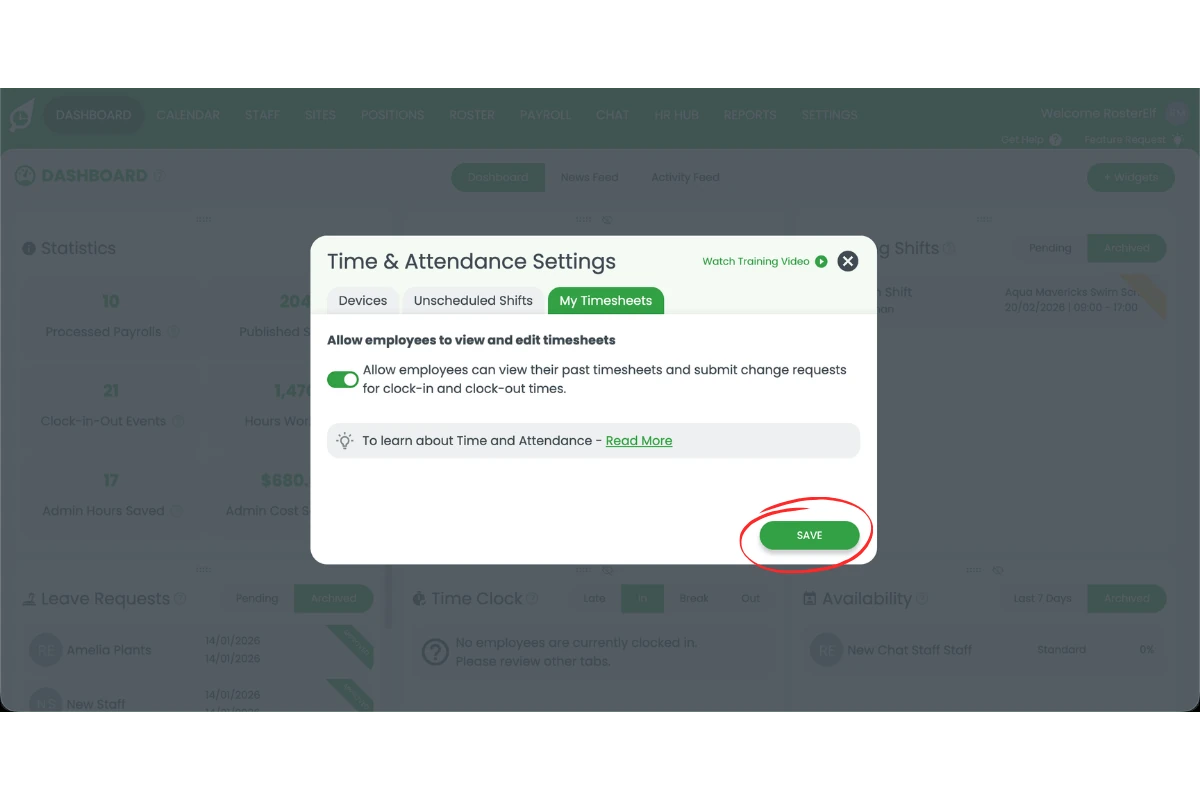
Staff timesheet submissions are now enabled. Your staff can view their past timesheets and request changes to their clock-in and clock-out times in RosterElf, for manager review and approval before payroll is processed.
Frequently asked questions
1. How do I allow staff to submit timesheets in RosterElf?
To allow staff to submit timesheets in RosterElf, open your account and go to Settings. Select Time & Attendance, then open the My Timesheets tab. Turn on the switch under Allow employees to view and edit timesheets and press Save. Staff can then view their past timesheets and submit change requests for their clock-in and clock-out times.
2. What is the My Timesheets feature in RosterElf?
The My Timesheets feature lets staff view their past timesheets in RosterElf and submit change requests for their clock-in and clock-out times, for review and approval. This ensures accurate time tracking and supports a consistent process for payroll preparation.
3. Why should I allow staff to submit timesheets in RosterElf?
Allowing staff to submit timesheets improves accuracy and accountability. It ensures all worked hours are recorded correctly and reduces manual errors. It also streamlines payroll preparation by providing a clear approval workflow for managers.
4. Can managers review timesheets submitted by staff in RosterElf?
Yes, managers can review timesheets submitted by staff in RosterElf. Once staff submit their hours, managers can check and approve them before processing payroll. This helps maintain accuracy and ensures all hours are verified.
5. When should I use the timesheet submission feature in RosterElf?
You should use the timesheet submission feature when your business requires manual time entry or approval workflows. It is useful for tracking worked hours that are not captured through automated time tracking. This ensures all hours are recorded in one central system.
6. Why can't my staff see the Timesheet button in RosterElf?
The Timesheet button is only visible on shifts that have not been approved. There are two common reasons it may be hidden: (1) Auto-approved payroll is enabled — RosterElf automatically approves payroll hours for every shift, hiding the button. To fix this, go to Payroll, press the settings cog to open Payroll Settings, select the Approvals tab, turn off Auto-approve payroll hours, and press Save. (2) The shift has already been manually approved — if a manager has already approved the shift in payroll, the Timesheet button will no longer appear. The shift must be unapproved first before staff can submit a timesheet.
7. Do I need to turn off auto-approved payroll before staff can submit timesheets?
Yes. For the Timesheet button to be visible to staff, auto-approved payroll must be disabled. When auto-approve is on, shifts are automatically marked as approved and staff cannot submit a timesheet. Disable it in Payroll Settings (the settings cog on the Payroll page) on the Approvals tab by turning off Auto-approve payroll hours and pressing Save.
8. When can a staff member change their timesheet?
Staff can only request changes to past and current timesheets. Future timesheets become available to update on the day of the shift.