

Amend timesheet on the smartphone app in RosterElf
This article explains how to amend your timesheet on the smartphone app in RosterElf. This process allows employees to update their recorded work hours directly from the mobile app. It is useful when you forget to clock in or out, or when your recorded hours are incorrect.
Amending your timesheet ensures your work hours are accurate before they are reviewed and approved by your manager. This helps prevent payroll errors and ensures you are paid correctly for the time you worked. It also allows managers to review and approve changes through a structured process.
The RosterElf smartphone app makes it simple to request a timesheet amendment in just a few steps. You can access your timesheets, select the relevant shift, and submit a request for review. To learn how managers accept or deny timesheet amendments, see how to accept employee submitted timesheets in RosterElf. To submit your timesheet using the web app instead, see how to submit timesheet in web app in RosterElf.
1. Amend timesheet on smartphone app in RosterElf
This section explains how to amend your timesheet on the smartphone app in RosterElf. You will learn how to access your timesheets, select the correct shift, and submit a request to update your recorded hours. This process ensures your working hours are accurate and ready for manager approval.
Using the smartphone app allows you to quickly fix any errors in your timesheet without needing desktop access. It ensures your updates are submitted in real time and tracked for review. Following these steps will help you correctly amend your timesheet and avoid delays in payroll processing.
1.1 Amend timesheet on smartphone app steps
1.1.1 Open the RosterElf smartphone app on your device.
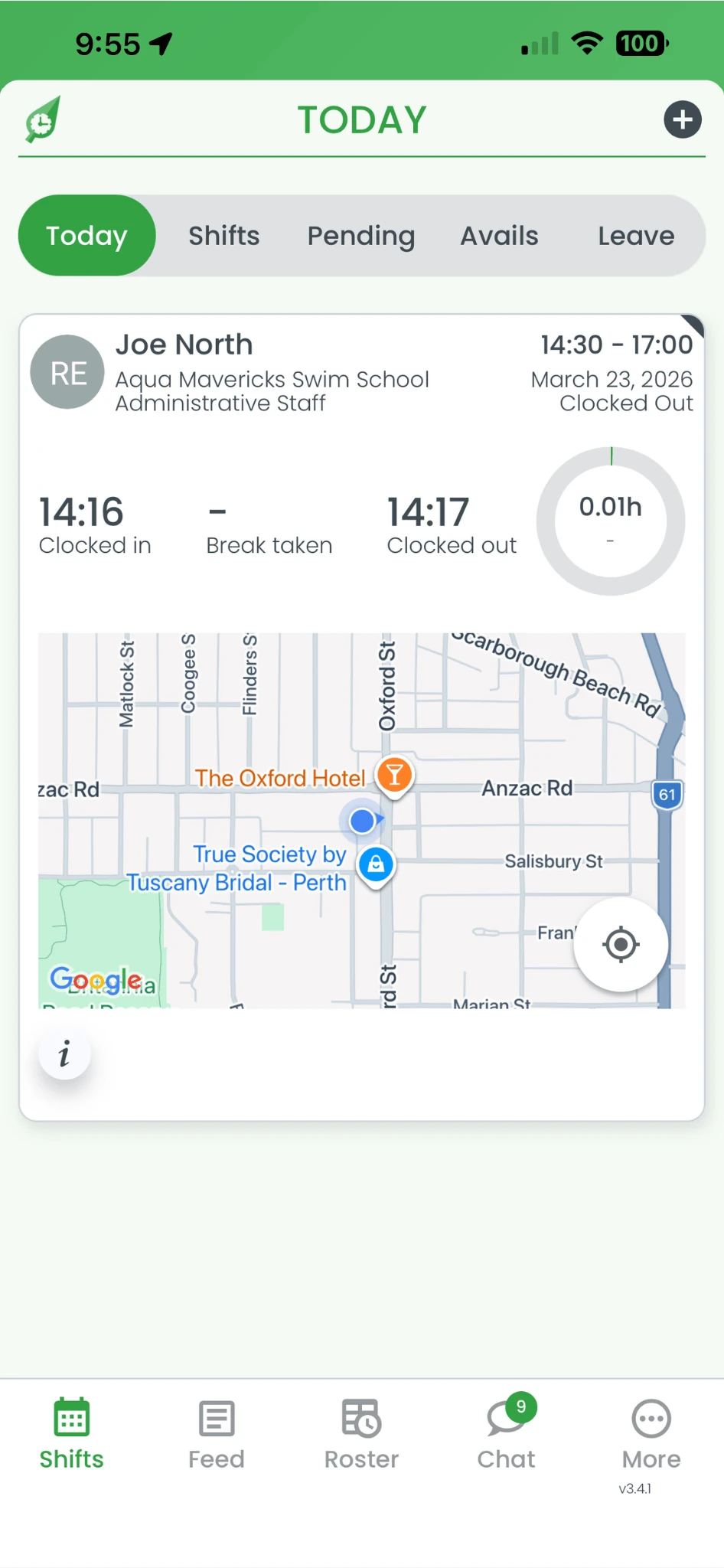
1.1.2 Press More in the bottom navigation bar.
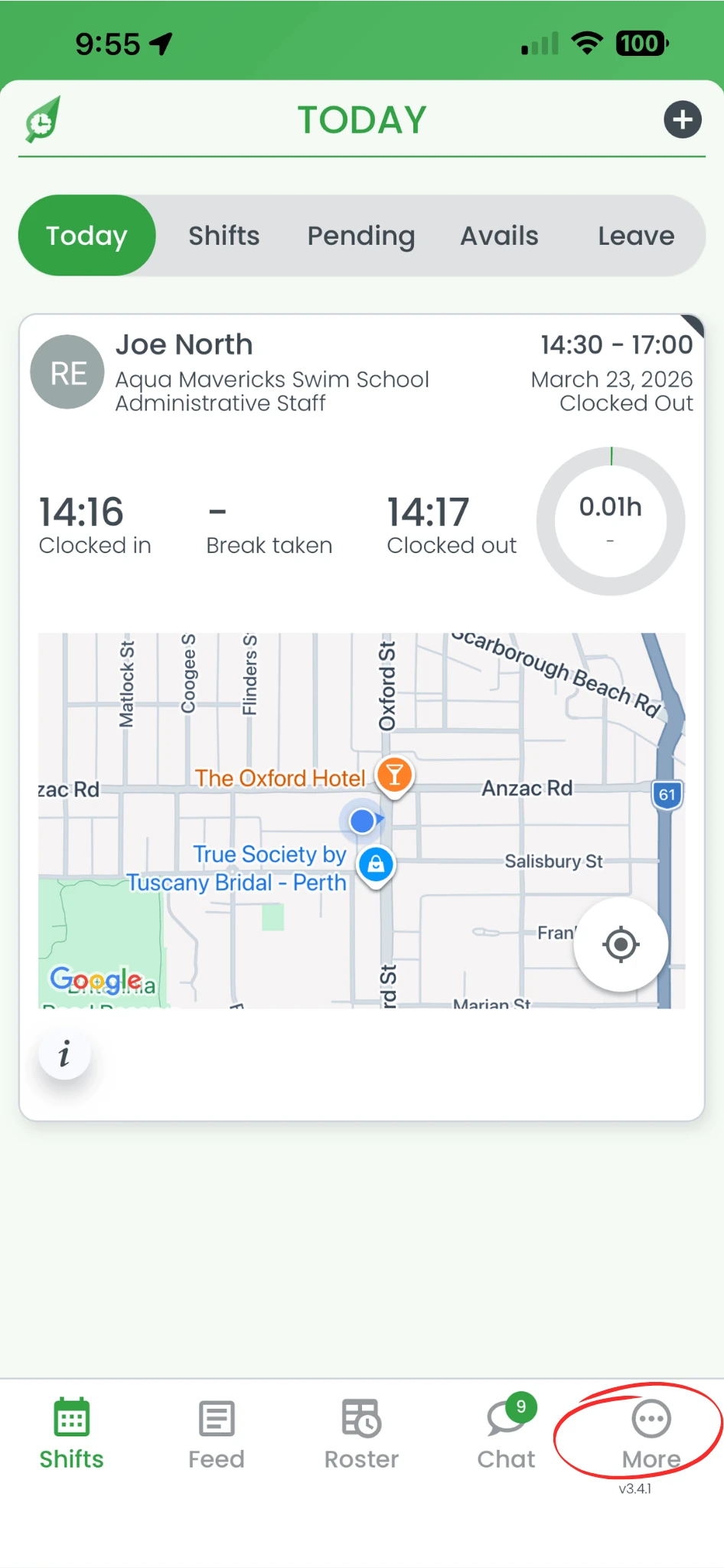
1.1.3 Select My Timesheets from the menu. It is only listed once your admin has turned on My Timesheets — if it has just been turned on, close and reopen the app.
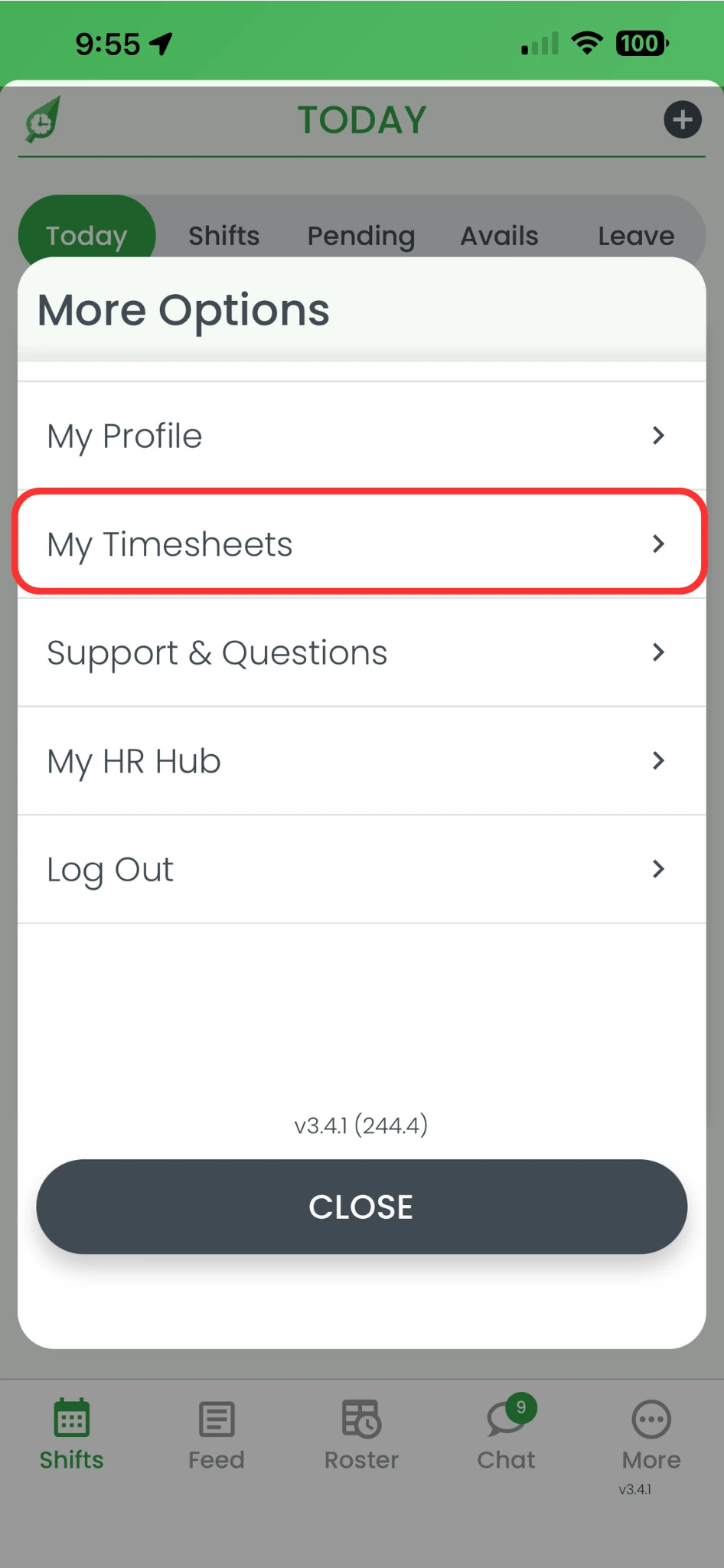
1.1.4 Select the shift you want to amend.

1.1.5 Press Request Review.
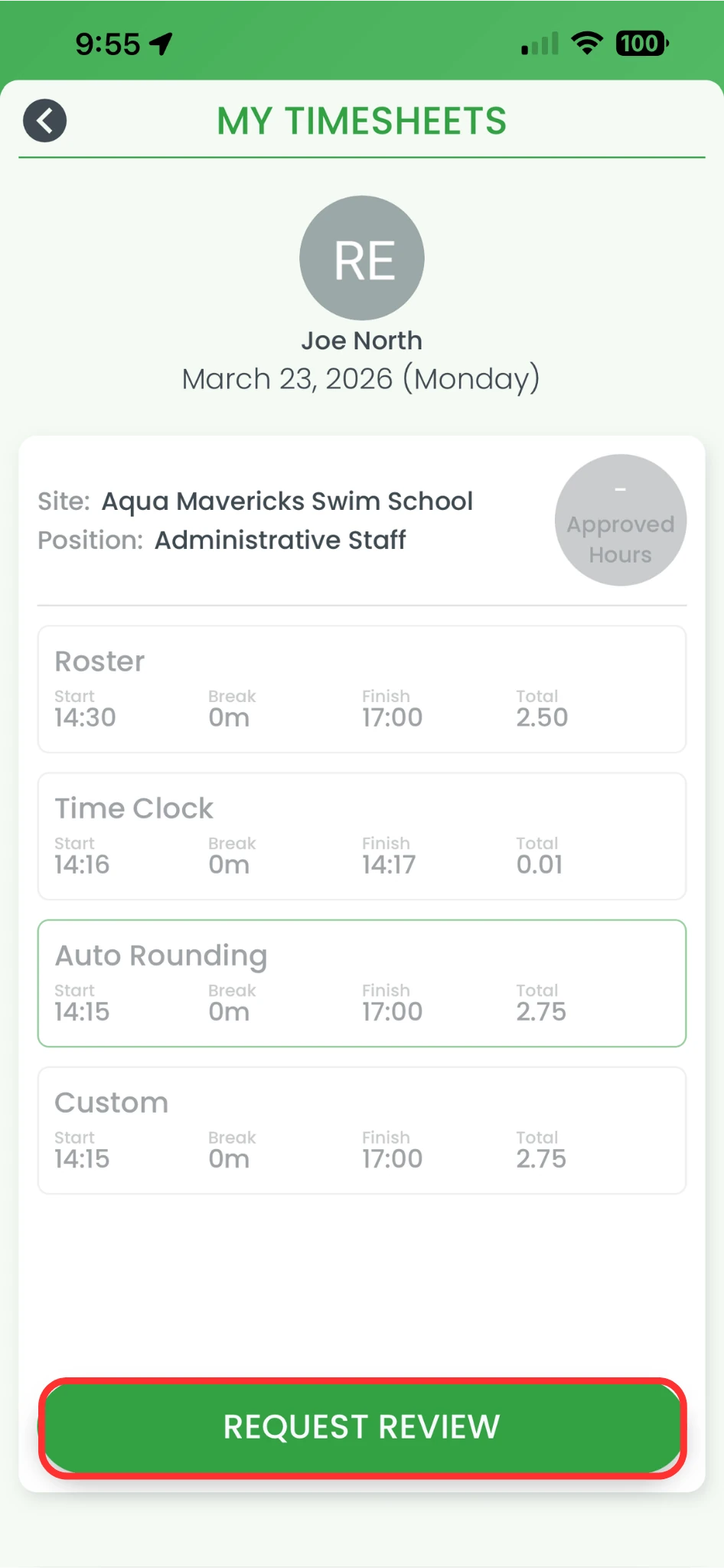
1.1.6 Set your correct start and end time with the clock picker, and adjust Break (mins) if needed.
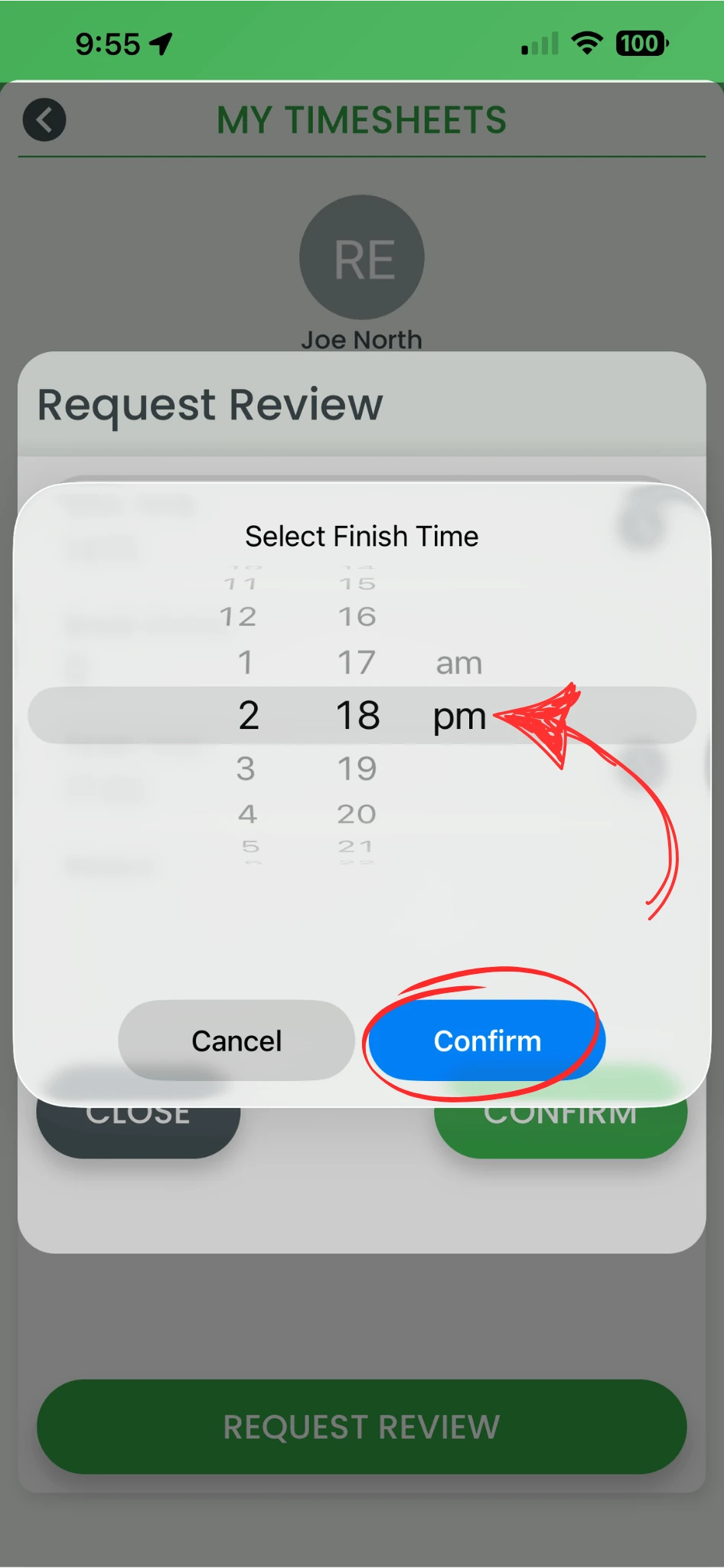
1.1.7 Press Confirm to submit your amendment for manager approval.
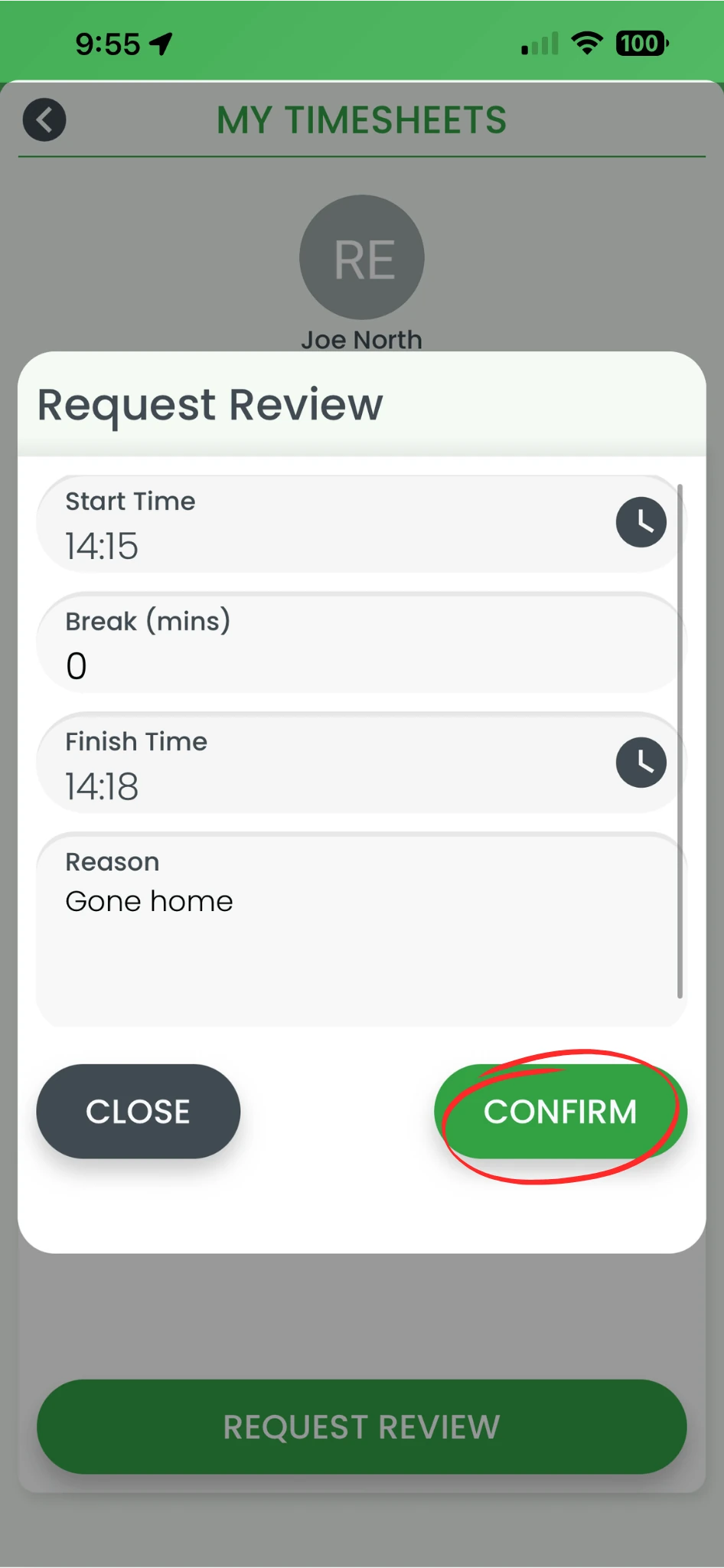
Your amendment request has been submitted. Your manager will review and either approve or deny the change. Your updated hours will only apply once the request is approved.
Frequently asked questions
1. How do I amend my timesheet on the smartphone app in RosterElf?
To amend your timesheet on the smartphone app in RosterElf, open the app and go to More. Select My Timesheets and choose the shift you want to update. Press Request Review, enter your correct time, and confirm the change. This sends your amendment to your manager for approval.
2. Can I amend my timesheet on smartphone after submitting it?
No, you cannot amend your timesheet on smartphone after submitting it.
3. Why should I amend my timesheet on the smartphone app in RosterElf?
You should amend your timesheet on the smartphone app to ensure your recorded hours are accurate. This helps prevent payroll errors and ensures you are paid correctly. It also allows your manager to review and approve accurate working hours.
4. What happens after I amend my timesheet on the smartphone app?
After you amend your timesheet on the smartphone app, your request is sent to your manager for review. The manager can approve or deny the change. Your updated hours will only apply once the request is approved.
5. Can my manager reject my timesheet amendment request?
Yes, your manager can reject your timesheet amendment request if the changes are incorrect or require clarification. If this happens, you may need to update the timesheet again and submit a new request for review.
6. When can I change my timesheet?
You can only request a review to past and current timesheets. Future timesheets become available to update on the day of the shift.