

Efficient shift review and approval are essential for accurate payroll management. This guide explains how to review and approve shifts in RosterElf, ensuring precise and up-to-date payroll records. By following these steps, you’ll minimise payroll errors, maintain compliance, and keep your payroll process streamlined.
1. Reviewing shift details in RosterElf
When reviewing shifts in RosterElf, you’ll find key details that help in making informed approvals. Reviewing these details carefully ensures that the payroll reflects the actual hours worked, promoting accuracy.
1.1 viewing shift details
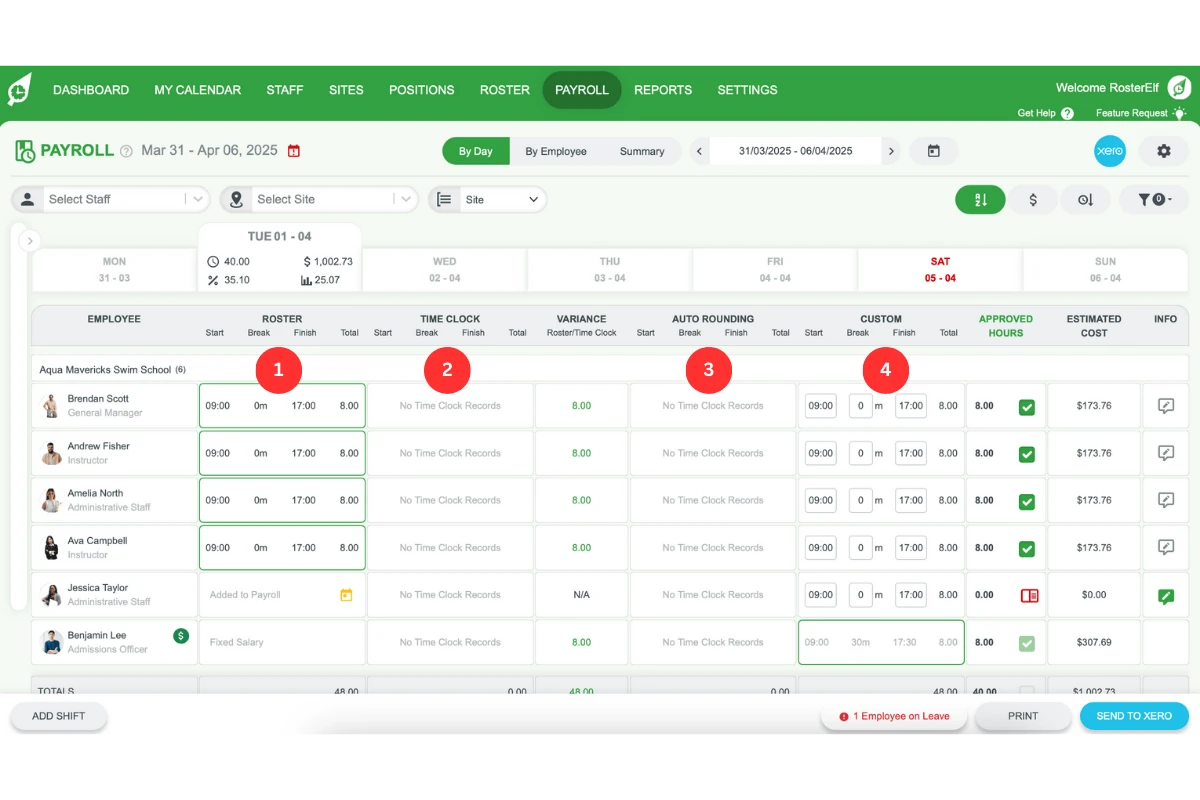
For each shift, you’ll see these four columns:
1.1.1. Roster: Displays the scheduled start, break, and finish times for each shift.
1.1.2. Time clock: Shows the clock-in and clock-out times recorded via the RosterElf app.
1.1.3. Auto rounding: Automatically rounds start, break, and finish times based on your settings.
1.1.4. Custom: Reflects any times set during the payroll review process.
2. Approving shift times
Approving shift times in RosterElf is simple. Follow these steps to select and confirm the correct hours, ensuring accurate payroll data.
2.1 selecting approved times
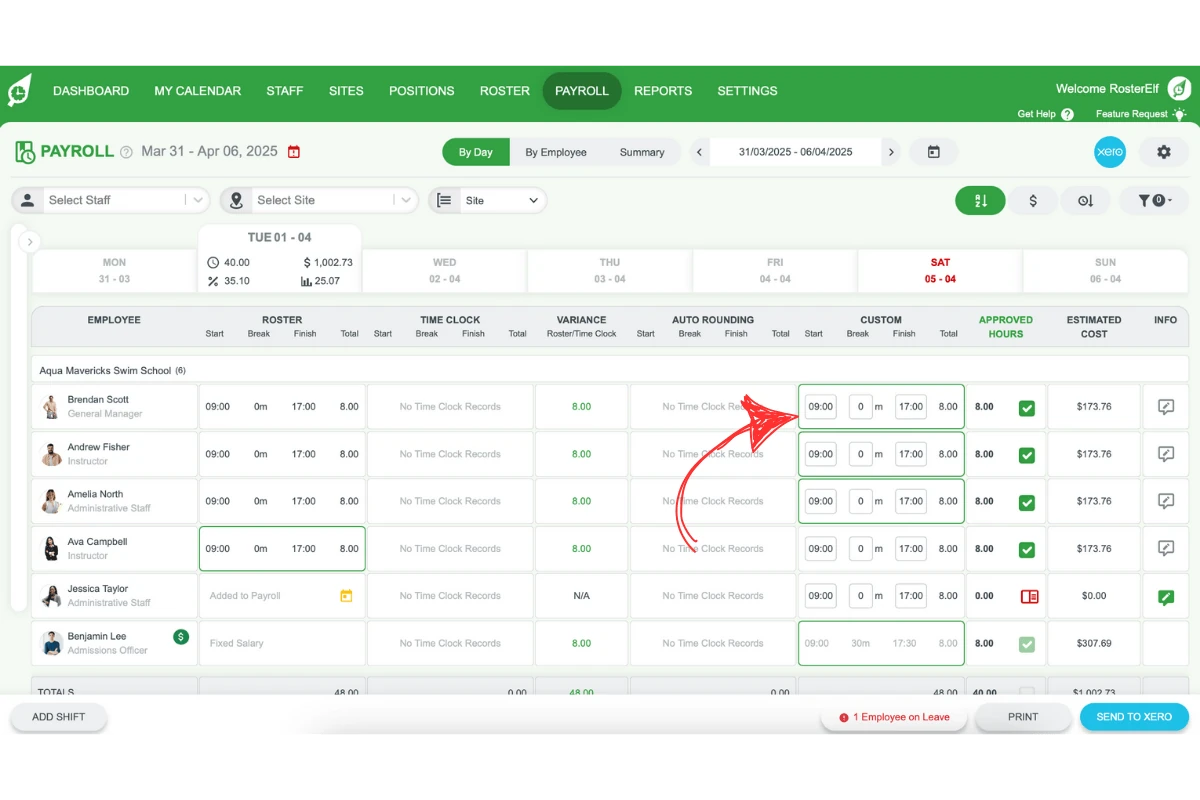
2.1.1. Click on the relevant cell to choose the approved time for each shift.
2.1.2. Once approved and saved, a green outline will appear around the cell, confirming the selection.
3. Making custom payroll changes
You may need to adjust shift times based on additional review. Custom payroll changes allow for precise adjustments to meet payroll requirements.
3.1 setting custom times
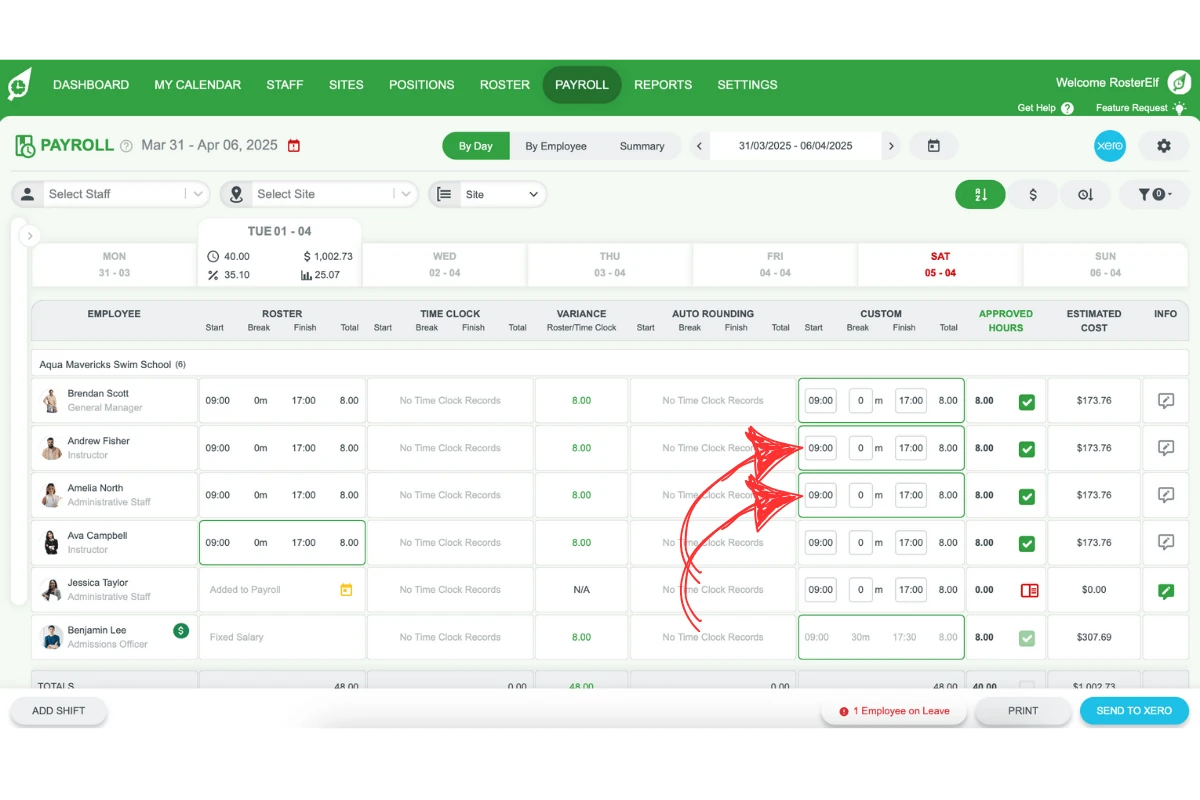
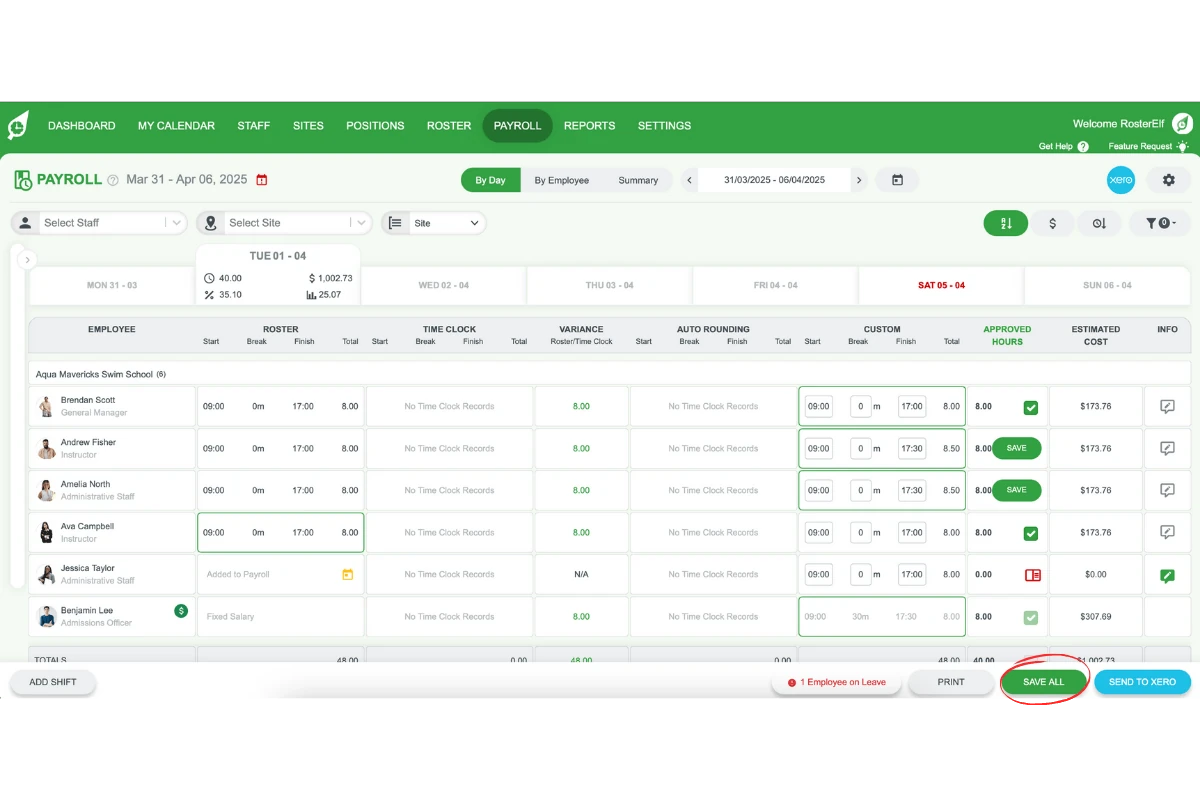
3.1.1. Click on the custom payroll cell to enter your chosen time for each shift.
3.1.2. Save individual changes: Click the save button under approved hours to save each shift individually.
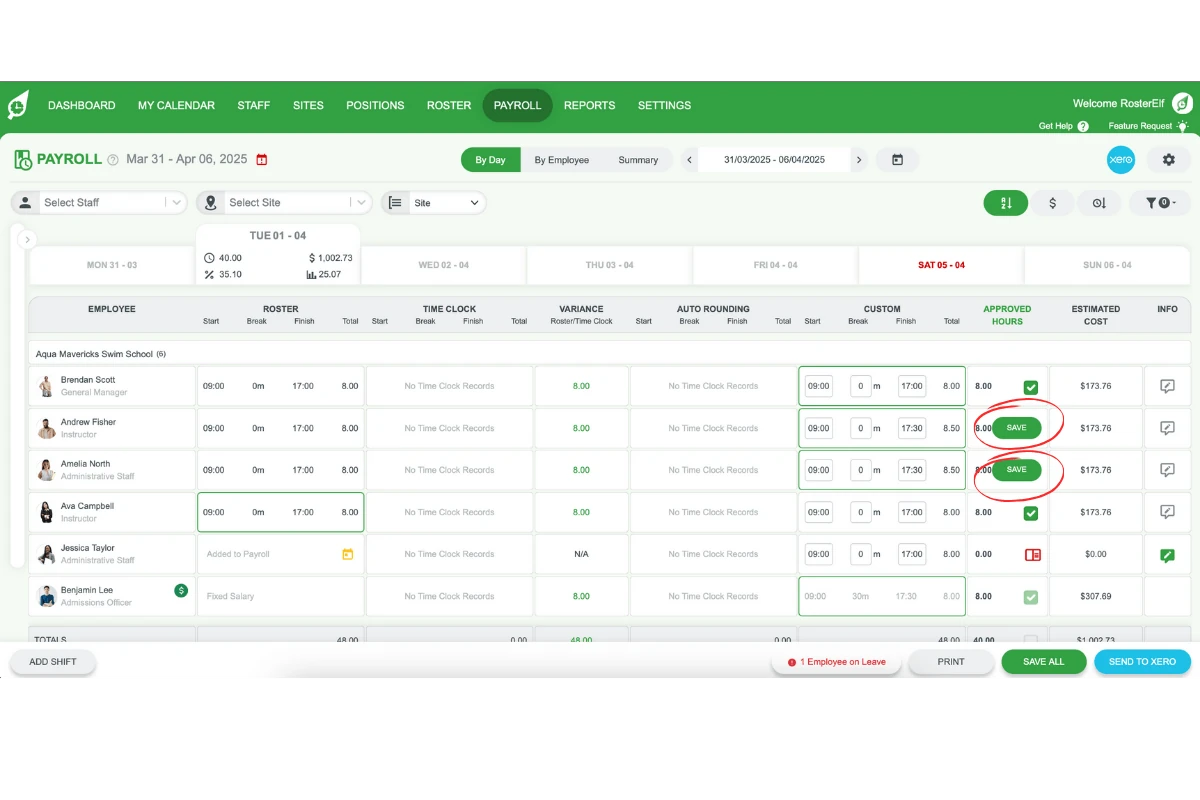
3.1.3. Save in bulk: Click the save all button at the bottom right of your screen to save all custom entries at once.
4. Excluding employees from export
Excluding employees from payroll export can streamline your data, especially if certain shifts should not be included in the final payroll.
4.1 excluding shifts from export
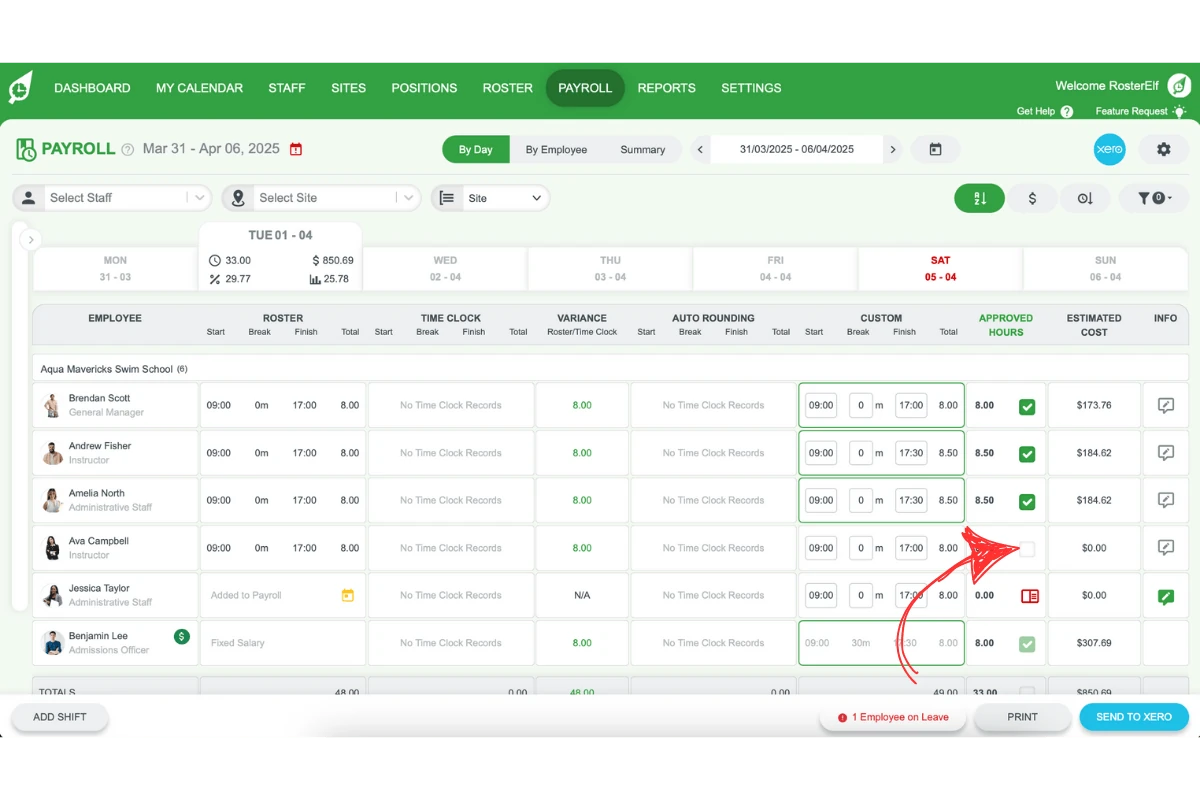
4.1.1. Untick the records of employees you want to exclude from the exported payroll.
5. Viewing total approved hours
RosterElf calculates the total approved hours automatically based on your selected roster, auto-rounding, time clock, or custom times. This summary gives a quick overview of the hours ready for payroll export.
5.1 checking total hours
5.1.1. Review the approved hours summary to confirm payroll accuracy.
Want to export timesheets to PDF? See our reporting roadmap and add a request to help prioritise it.
Frequently asked questions
1. How do I review shift details in RosterElf?
To review shift details in RosterElf, check the Roster, Time clock, Auto rounding, and Custom columns for each shift. These columns display scheduled times, actual clock-in/clock-out data, automatic rounding adjustments, and any custom times you’ve set for payroll accuracy.
2. How can I approve shift times in RosterElf?
To approve shift times, click on the relevant cell for each shift to select the approved time. Once saved, a green outline will appear around the cell, confirming the time as approved and ready for payroll.
3. Can I make custom payroll adjustments in RosterElf?
Yes, RosterElf allows custom payroll adjustments. To set a custom time, click the custom payroll cell and enter your chosen time. Save individual changes by clicking save or save all changes at once with the save all button.
4. How do I exclude employees from the payroll export in RosterElf?
To exclude an employee from the payroll export, untick their record in the payroll section. This feature is useful for keeping your payroll data focused on relevant shifts only.
5. Where can I view the total approved hours for payroll in RosterElf?
The total approved hours summary is automatically calculated based on your selected roster, auto-rounding, time clock, or custom times. Reviewing this summary ensures that your payroll export reflects accurate total hours.