

This guide explains how to set up and manage payroll in RosterElf. By following these steps, you’ll ensure accurate payroll data, improving efficiency and payroll accuracy. This process includes accessing the payroll tab, selecting relevant date ranges, filtering data, and reviewing shift notes and photos. By the end, you’ll have the skills to navigate RosterElf\‘s payroll features, making payroll management straightforward and hassle-free.
1. Setting up payroll
This section covers how to access the payroll tab and select your desired date range. By completing these steps, you’ll be ready to organise payroll data according to specific time frames, making it easier to review, filter, and manage.
1.1 access the payroll tab
1.1.1 Log in to your RosterElf account.
1.1.2 Select the Payroll tab from the top menu.
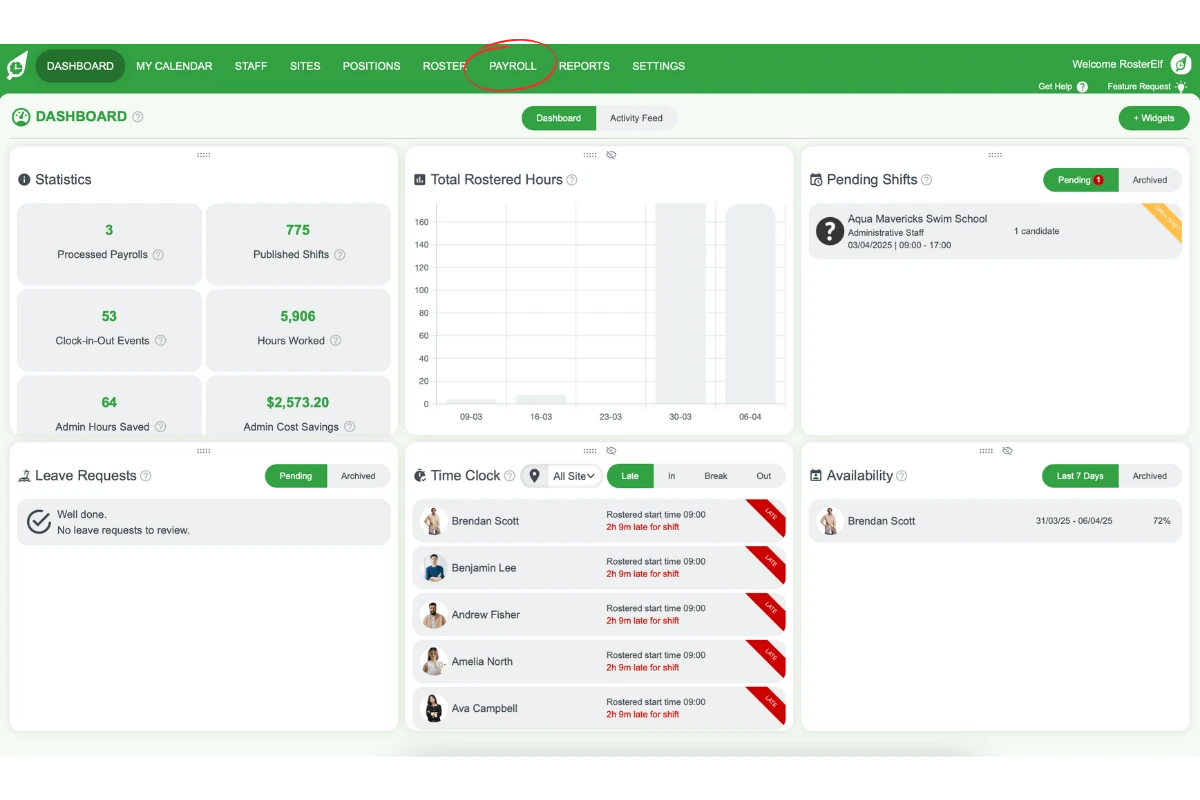
1.2 select the date range
1.2.1 Choose the relevant date range at the top centre of your screen.
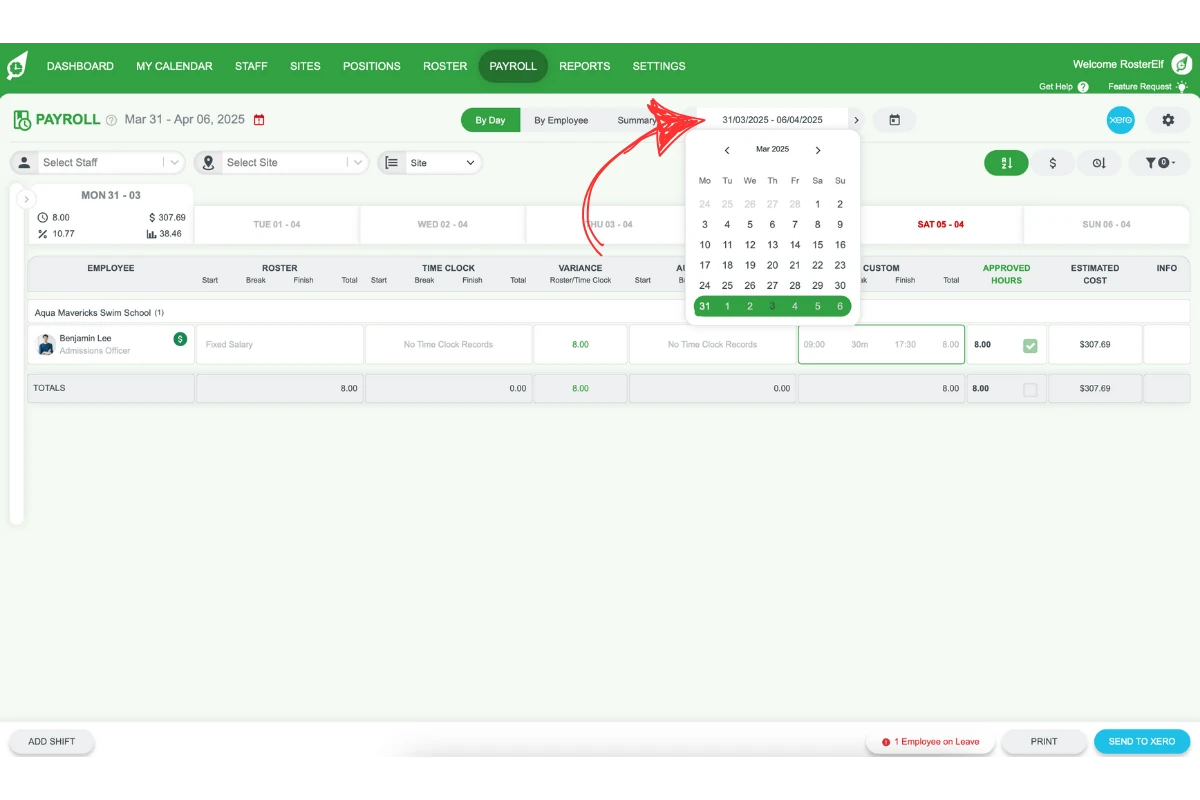
1.2.2 If you’re in daily view, click on each relevant day at the top of your screen.
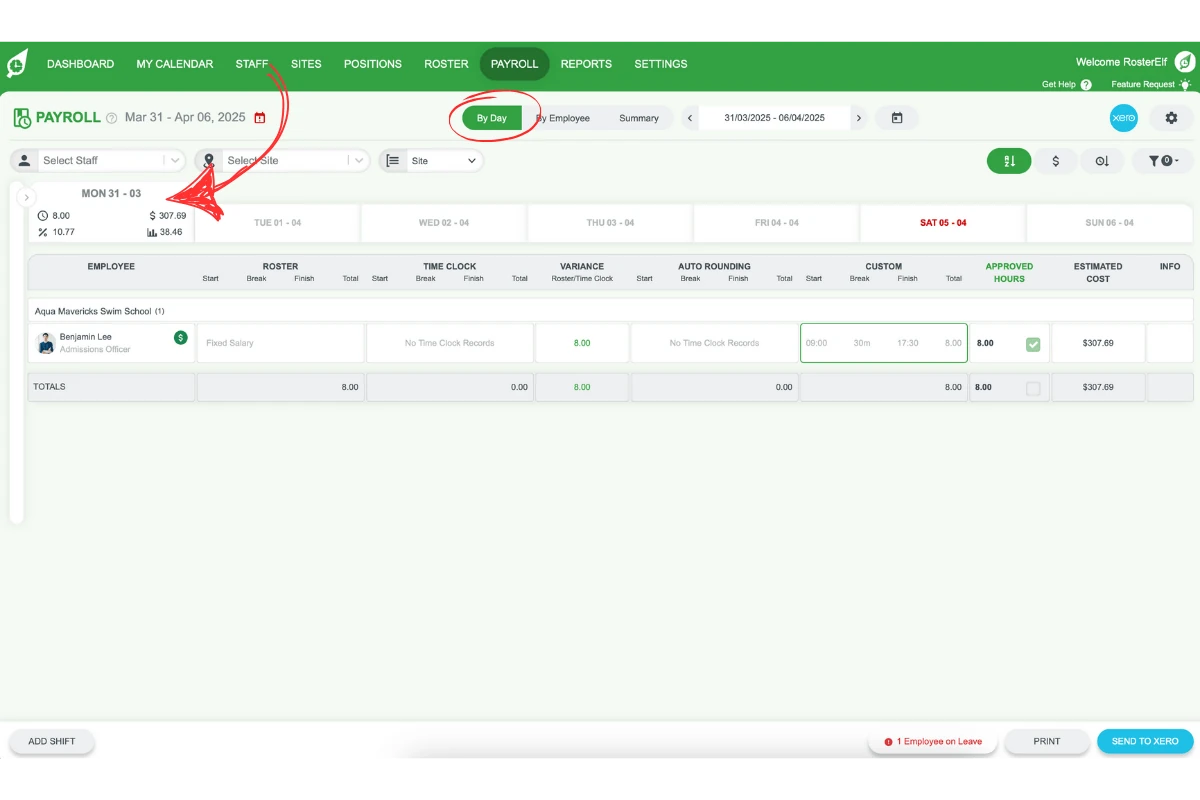
2. Filtering payroll data
This section details how to filter payroll data to meet your needs. You can sort payroll by day, employee, or summary, as well as filter by staff, site, or position. This makes it easier to focus on specific payroll data and streamline the payroll process.
2.1 choose filters
2.1.1 Filter by Day, Employee, or Summary by choosing your preferred filter.
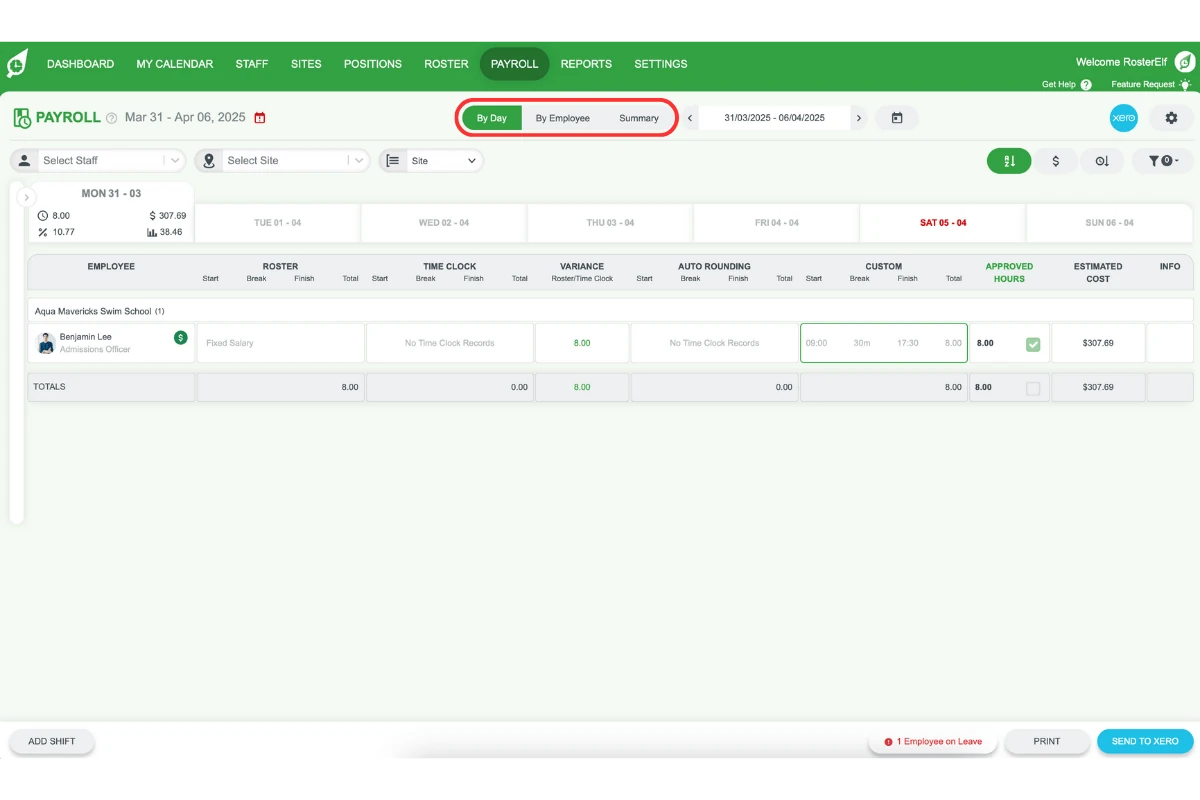
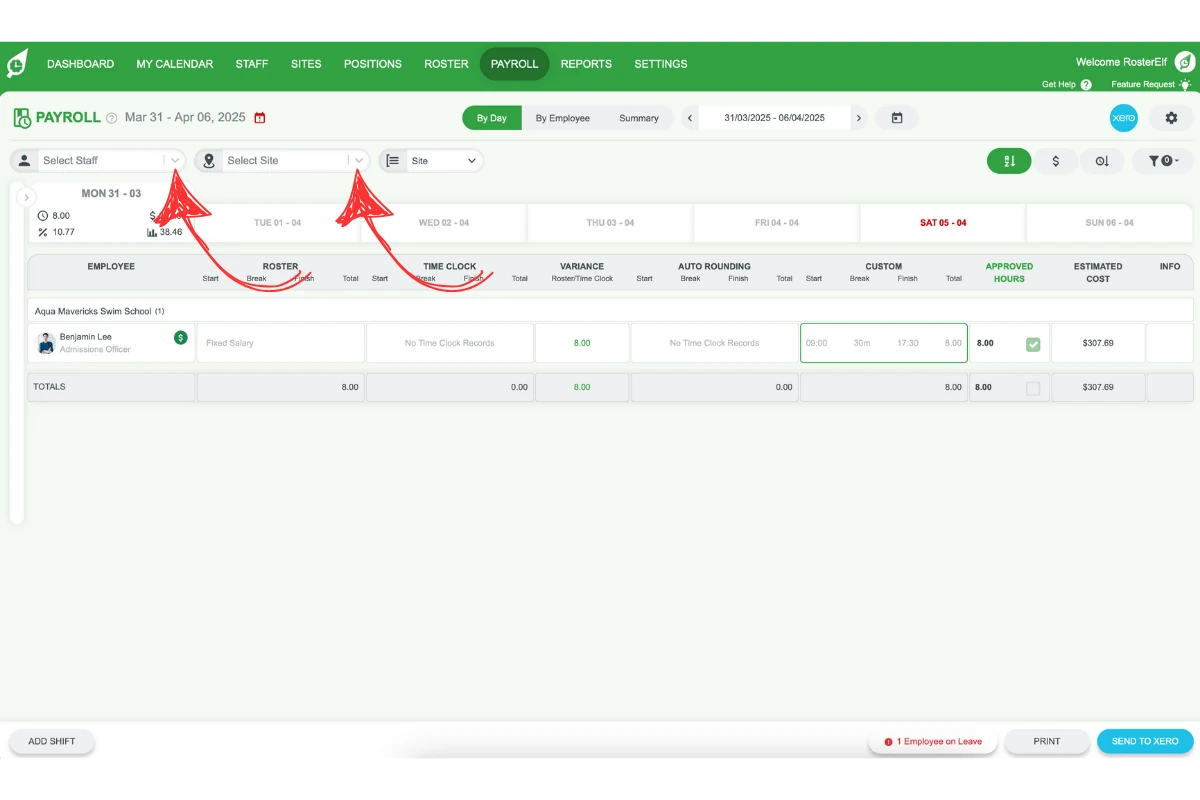
2.1.2 Use the drop-down menus to view by Staff, Site, and/or Position for flexibility.
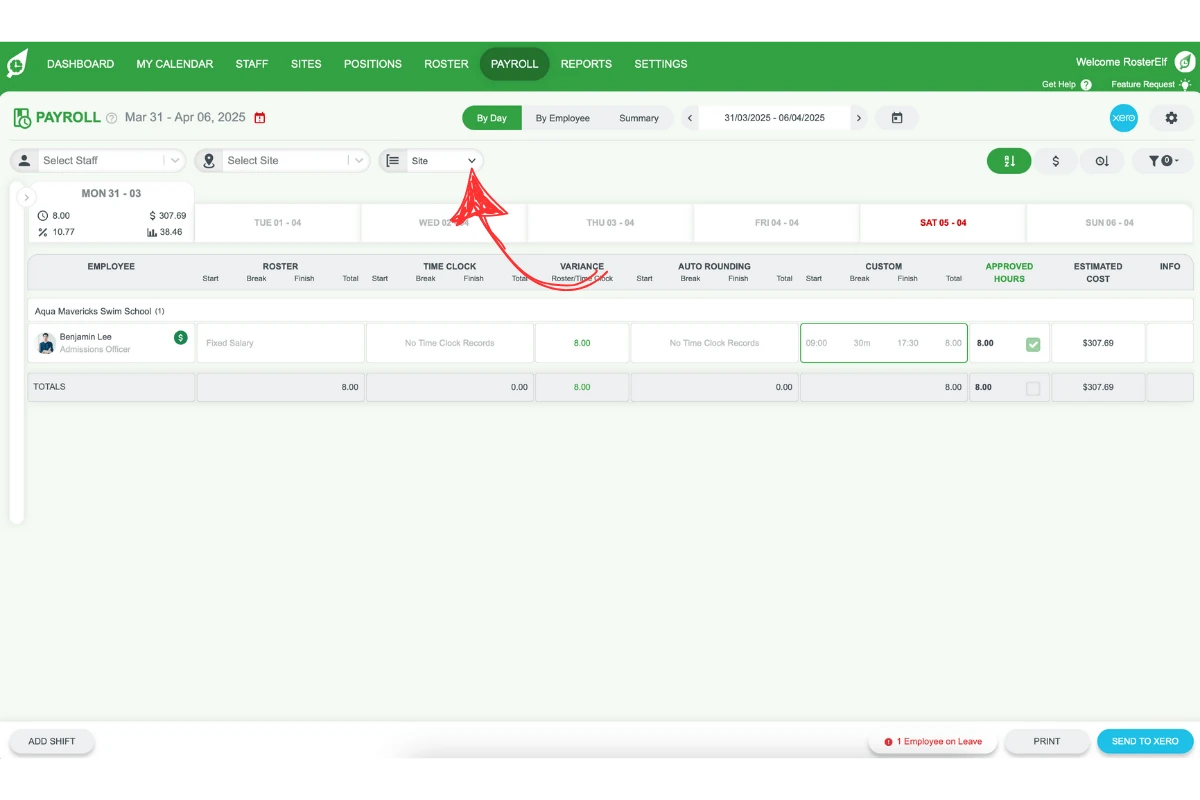
2.1.3 To view specific staff by Site or Position, select the desired option from the filters available on your screen.
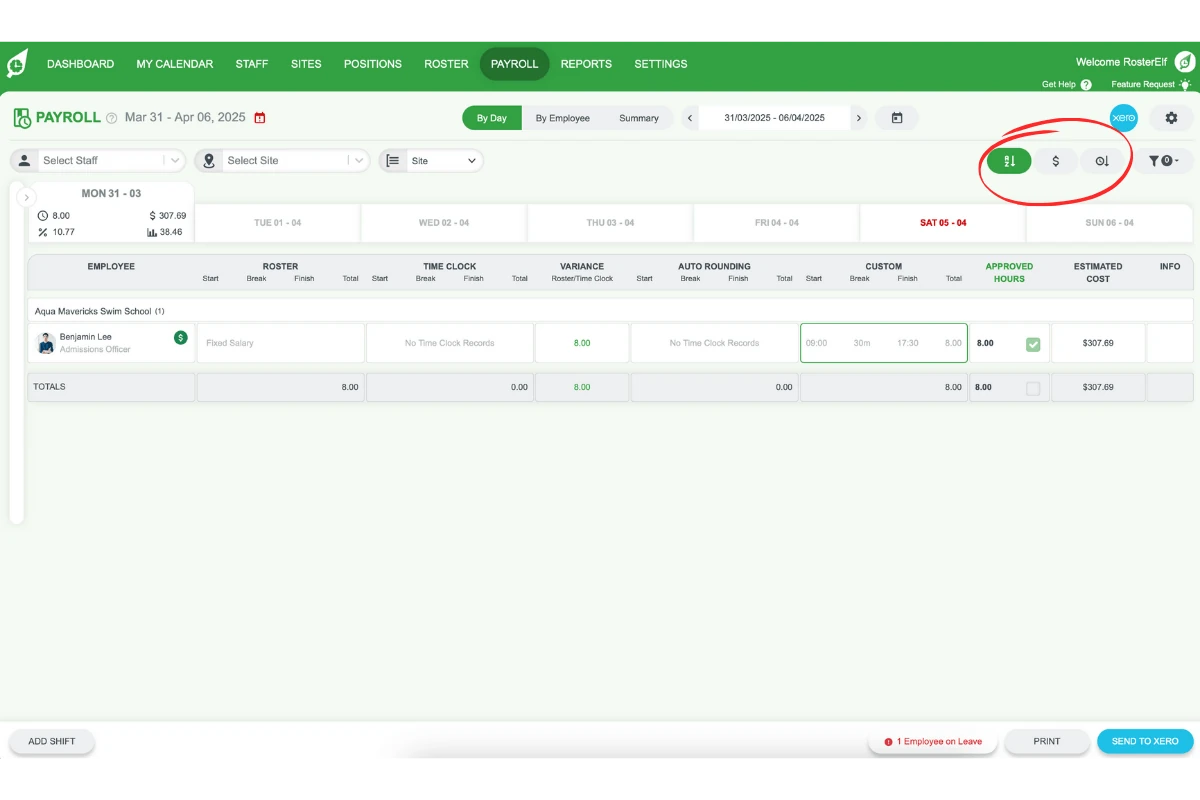
2.2 order data
2.2.1 Click on the icons at the top right to order data by name, cost, or shift length.
3. Accessing shift notes and photos
This section shows how to access shift-related notes and photos in payroll. Reviewing these details, such as payroll notes, clock-in/out notes, and associated photos, ensures you have a complete picture of each shift.
3.1 view shift notes and photos
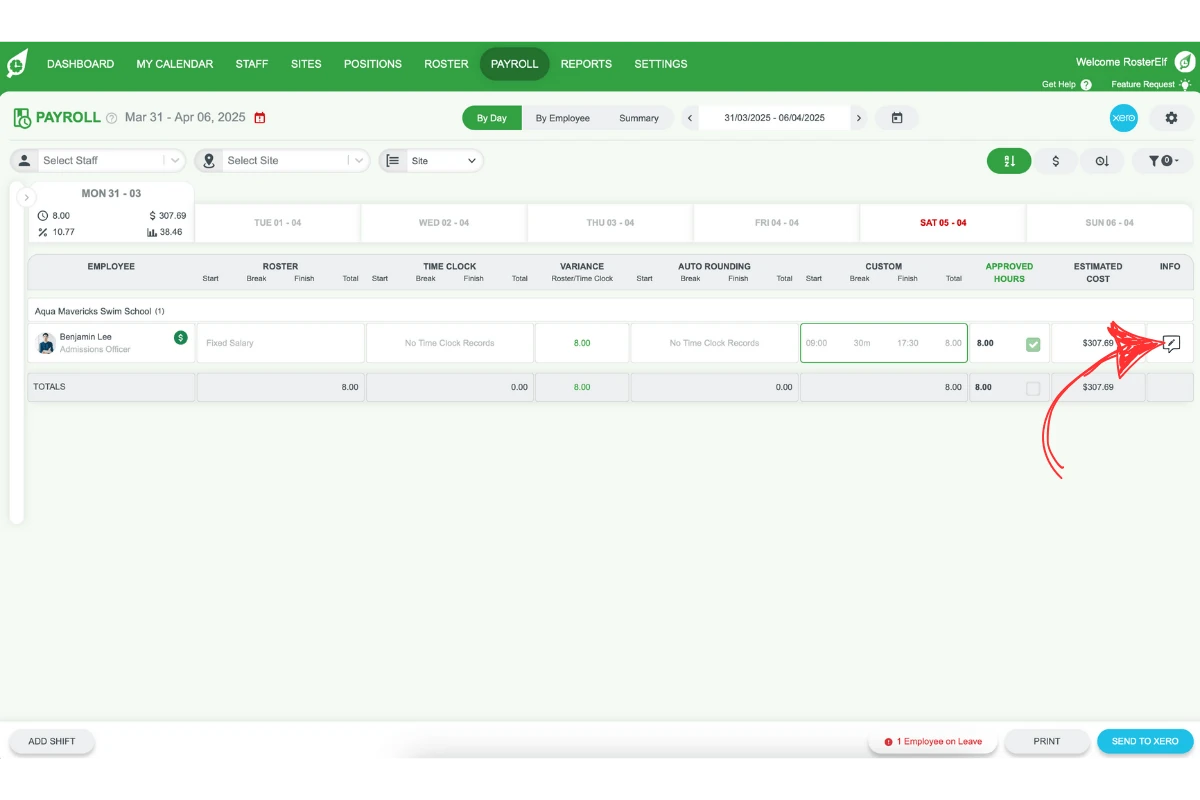
3.1.1 Click on the icons to view payroll notes, clock-in/out notes, and photos associated with shifts.
3.1.2 If photos for clock-in/out are enabled, you’ll see photos linked to each shift in this section.
Frequently asked questions
1. How do I access the payroll tab in RosterElf?
Log in to your RosterElf account and select the Payroll tab from the top menu. This will give you access to payroll features and data management options.
2. Can I filter payroll data by employee or site?
Yes, you can filter payroll data by day, employee, or summary. Additionally, use the drop-down menus to filter by specific staff members, site, or position to tailor the view to your needs.
3. How do I select a date range for payroll in RosterElf?
Choose the desired date range at the top centre of your screen. If you’re in the daily view, select each relevant day from the top of the screen to focus on specific dates.
4. What details can I view in shift notes and photos?
You can view payroll notes, clock-in/out notes, and any associated photos for each shift. If clock-in/out photos are enabled, you’ll see photos linked to each shift, providing a complete view of employee attendance.
5. How do I order payroll data by name or shift length?
Click on the icons at the top right of the payroll screen to order data by name, cost, or shift length, allowing for easy data management and review.