

Auto rounding in RosterElf streamlines the payroll approval process by automatically rounding start, break, and finish times for shifts. This ensures times are consistent across your team and reduces the need for manual corrections. This guide explains how auto rounding works in both rostered and clock-in-out scenarios, with step-by-step instructions for configuring the settings.
1. What is auto rounding?
Auto rounding is a payroll setting in RosterElf that automatically adjusts clock-in and clock-out times to consistent increments based on configurable rules. Rather than recording the exact second an employee taps in or out, the system rounds times to the nearest logical point — either to the scheduled start time or to the nearest 5-minute increment.
This feature is particularly useful for businesses using time and attendance tracking with a high volume of staff, where reviewing and manually correcting every minor clock-in variation would be impractical. Auto rounding can be applied differently depending on whether shifts are rostered in advance or simply clocked in and out.
2. Access auto rounding settings
Auto rounding is configured in the Payroll settings. Follow the steps below to access the settings panel.
2.1 go to payroll
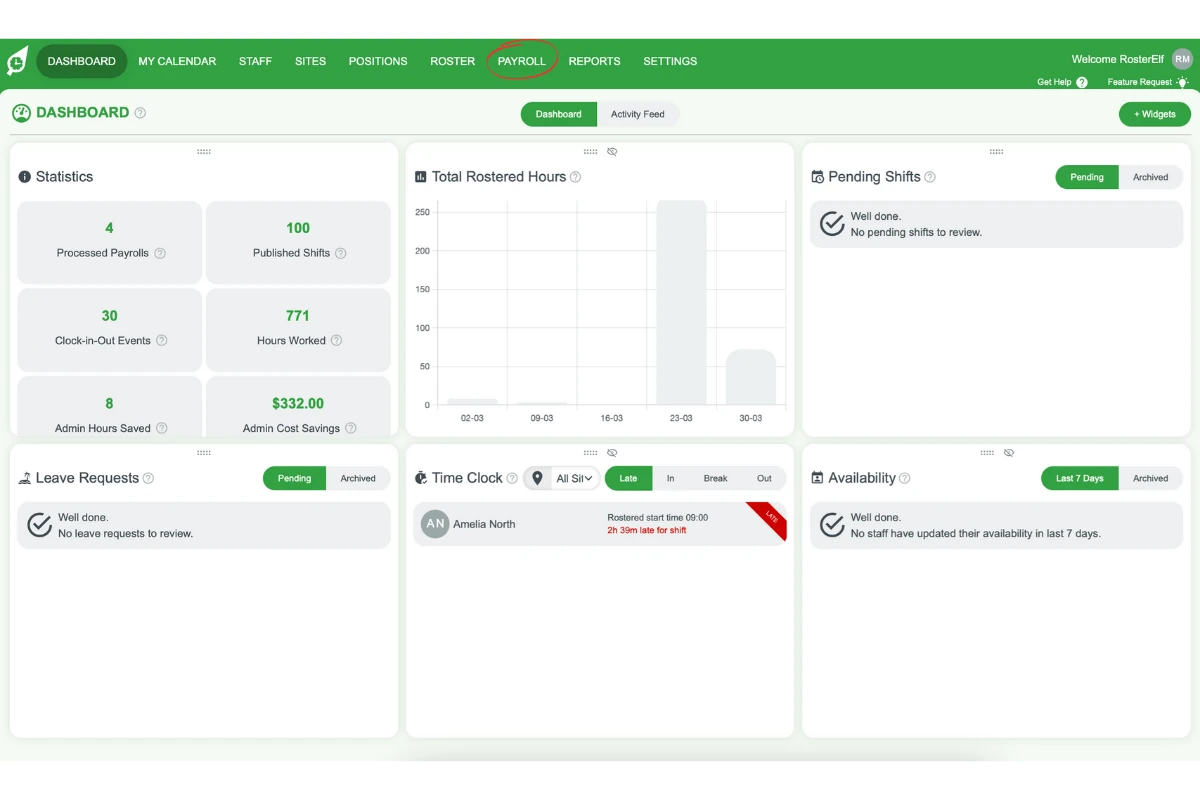
2.1.1 Go to Payroll located in the top menu.
2.2 open settings
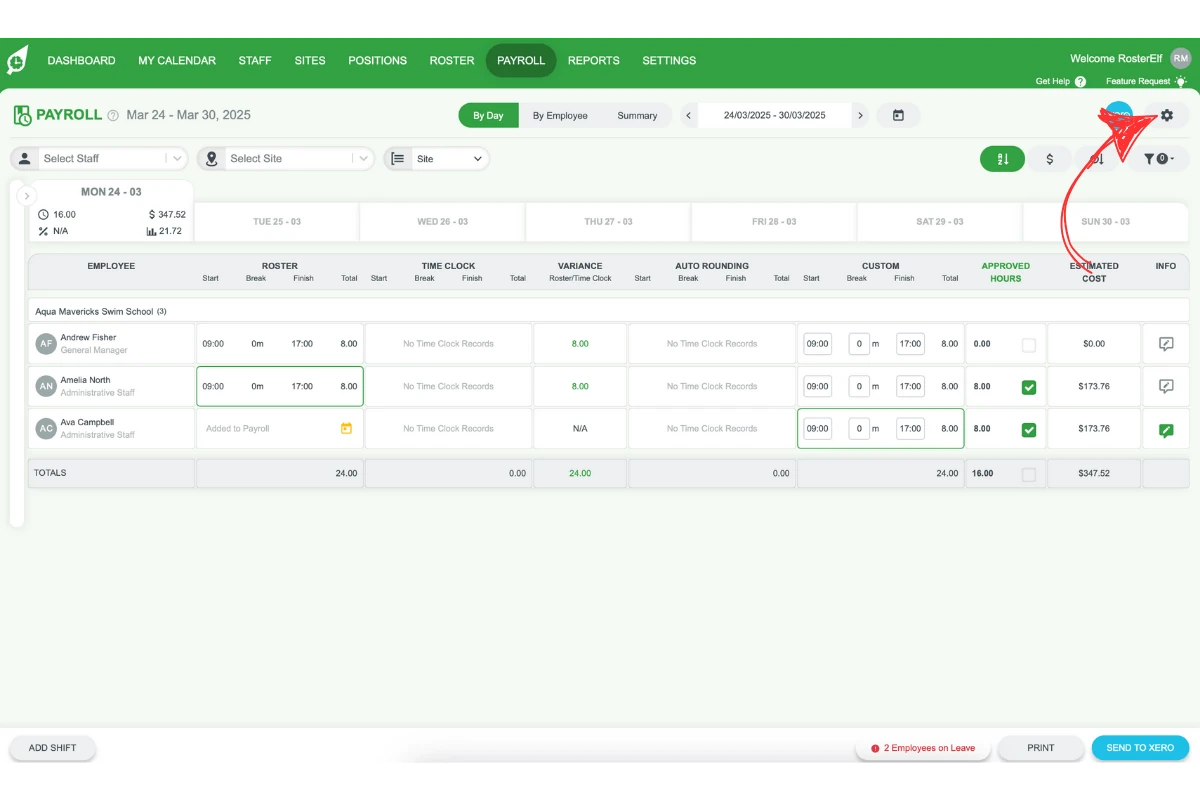
2.2.1 Click on the gear settings icon in the top right of the screen.
2.3 select auto rounding
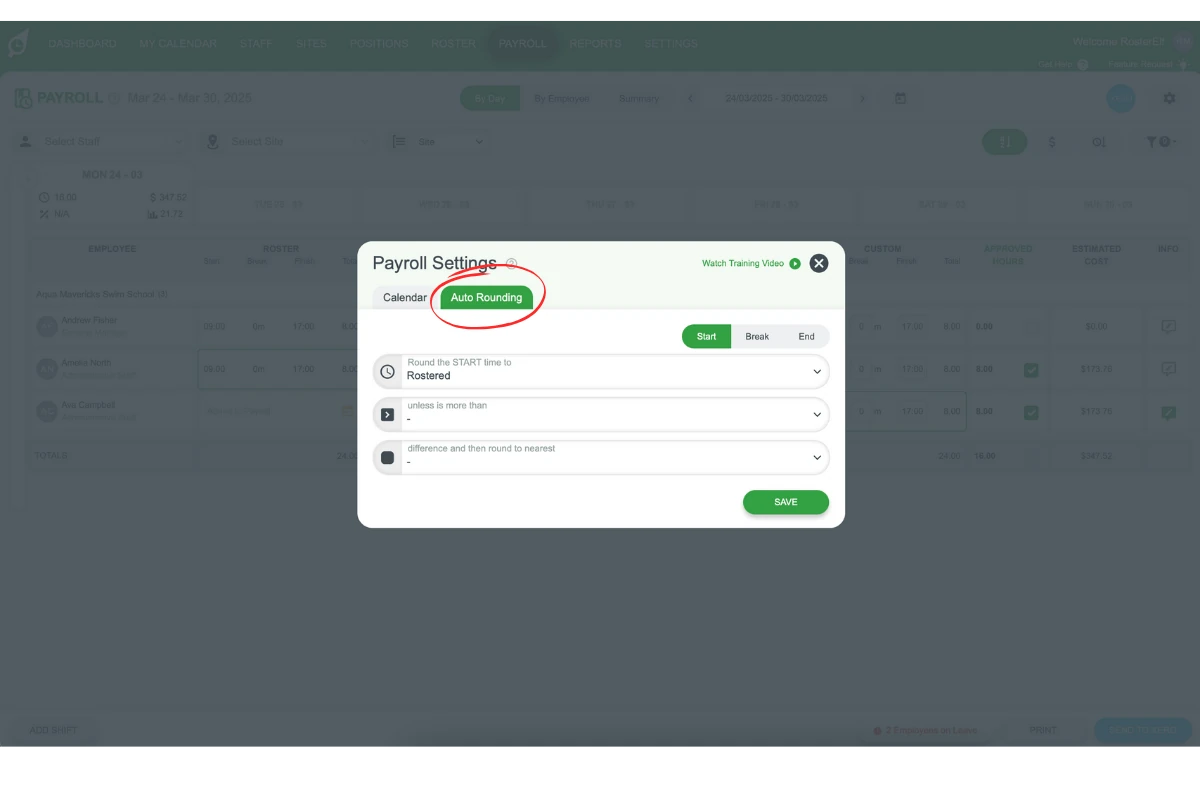
2.3.1 Select Auto Rounding from the top menu options of the pop-up modal.
3. Rostered example of auto rounding
In the rostered scenario, auto rounding adjusts the clock-in time to match the scheduled start time when the employee clocks in close to their roster. This keeps payroll consistent with planned schedules and avoids minor over or under-payments caused by small timing variations.
3.1 applying rostered rounding rules
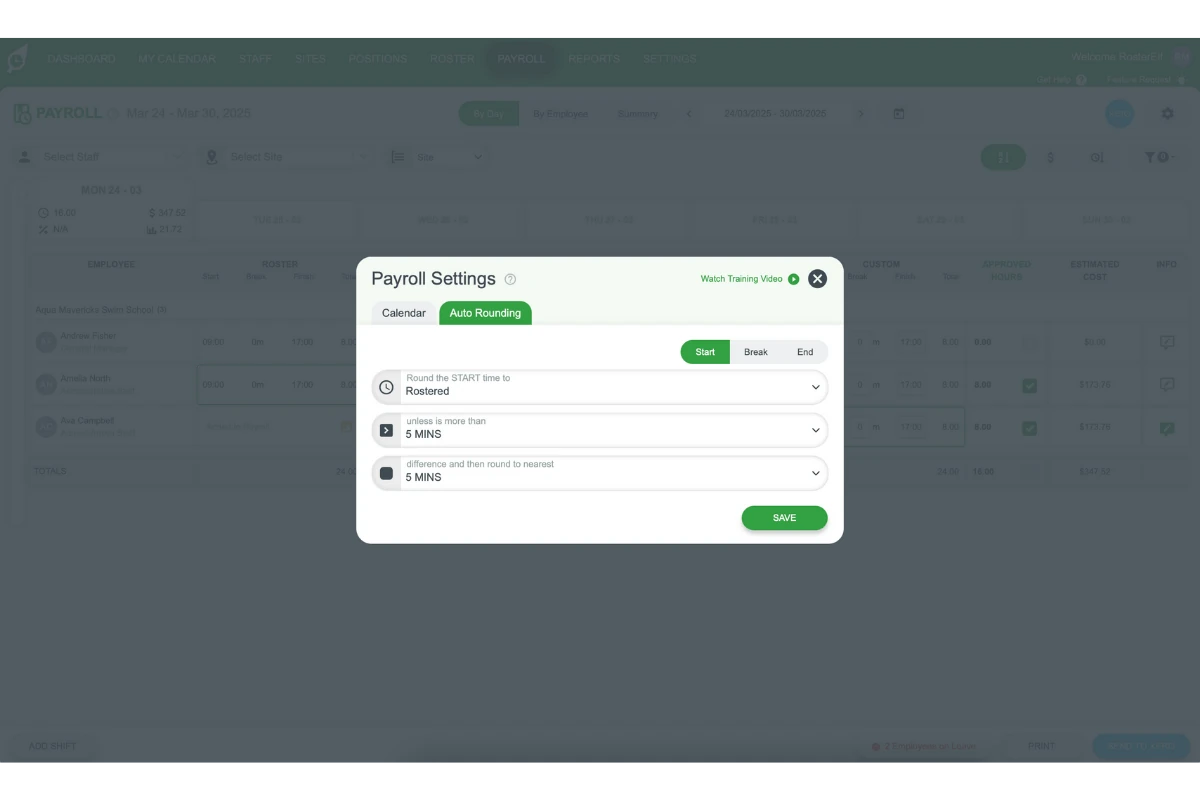
3.1.1 If a staff member clocks in within 5 minutes of their scheduled start, the clock-in time rounds to the rostered start time.
3.1.2 If clock-in occurs more than 5 minutes before or after the scheduled time, it rounds to the closest 5-minute increment.
Example: For a shift starting at 9:00am — if John clocks in at 8:56am (within the 5-minute window), his time rounds to 9:00am. If Jill clocks in at 9:11am (outside the window), her time rounds to 9:10am, the nearest 5-minute increment.
4. Clock-in-out example of auto rounding
The clock-in-out scenario offers more flexibility. The employee’s exact clock-in time is used when it falls within a set window of the scheduled start, but is rounded if they clock in significantly earlier or later. This is useful when you want to capture genuine early starts without rounding them all back to the roster time.
4.1 applying clock-in-out rounding rules
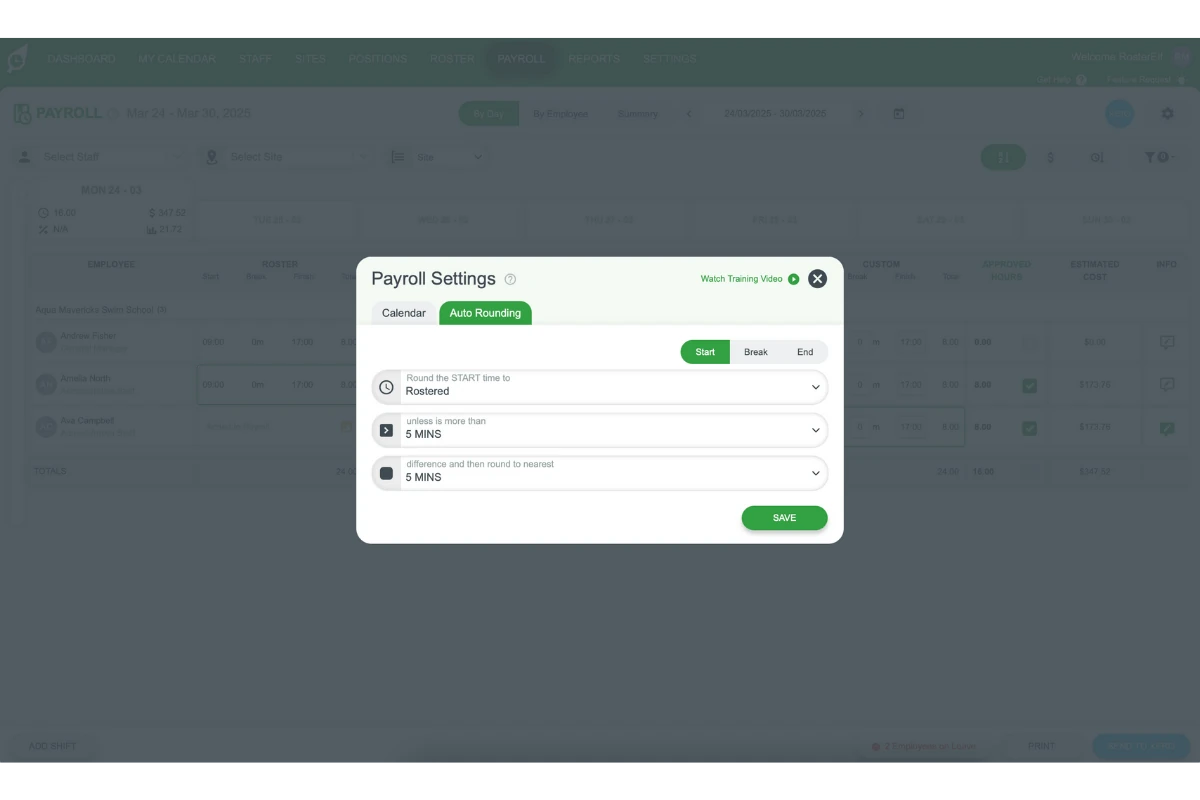
4.1.1 If a staff member clocks in within 10 minutes of their scheduled start, their exact clock-in time is recorded.
4.1.2 If the clock-in time exceeds the 10-minute window, it rounds to the nearest 5-minute increment.
Example: For a 9:00am shift — if John clocks in at 9:14am (outside the 10-minute window), his time rounds to 9:15am. If Jill clocks in at 8:51am (within the 10-minute window before the start), her time rounds to 9:00am, the scheduled start time.
Frequently asked questions
1. What is auto rounding in payroll?
Auto rounding in RosterElf automatically adjusts start, break, and finish times for shifts to ensure consistency in payroll. This feature saves time by reducing the need for manual adjustments during payroll approval, and ensures clock-in/out times are rounded to predictable increments.
2. How does auto rounding work for rostered shifts?
For rostered shifts, auto rounding aligns the clock-in time with the scheduled start time if the staff member clocks in within a 5-minute window of their roster. If they clock in outside this window, the time rounds to the closest 5-minute increment.
3. How does auto rounding apply to clock-in-out shifts?
For clock-in-out shifts, auto rounding uses the employee’s exact clock-in time if it falls within 10 minutes of the scheduled start. If it’s outside the 10-minute window, the clock-in time rounds to the nearest 5-minute increment.
4. Can I customise auto rounding rules in RosterElf?
Yes. You can configure auto rounding settings in the Payroll settings by clicking the gear icon and selecting Auto Rounding. You can set rounding rules, specify time windows, and choose rounding increments for start, break, and finish times.
5. Why is auto rounding important for payroll?
Auto rounding helps maintain consistency and accuracy in payroll records, minimising manual adjustments and ensuring that payroll approvals are processed efficiently. It is particularly useful for businesses with high staff volumes where individual time corrections would be time-consuming.