

This article explains how to enable the monthly payroll calendar in your system. A properly set payroll calendar ensures your team gets paid on time and helps streamline your payroll processes. By following these steps, you’ll have a fully configured payroll system tailored to your needs. This guide also highlights the importance of having complete pay templates to avoid errors during payroll processing.
Access payroll settings
This section shows you how to access the payroll settings in your account. Configuring payroll settings is the first step to setting up a monthly payroll calendar.
1.1 navigate to settings
1.1.1 Log in to your account.
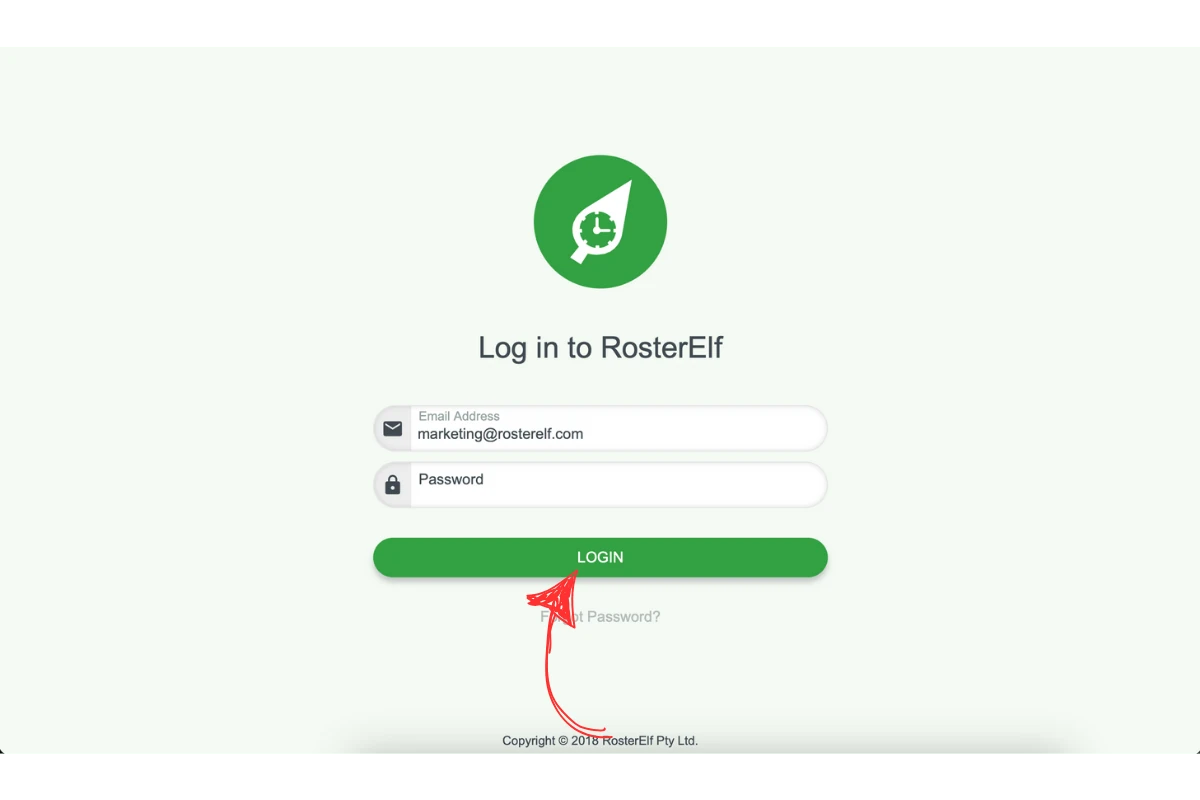
1.1.2 Click on Payroll in the top menu.
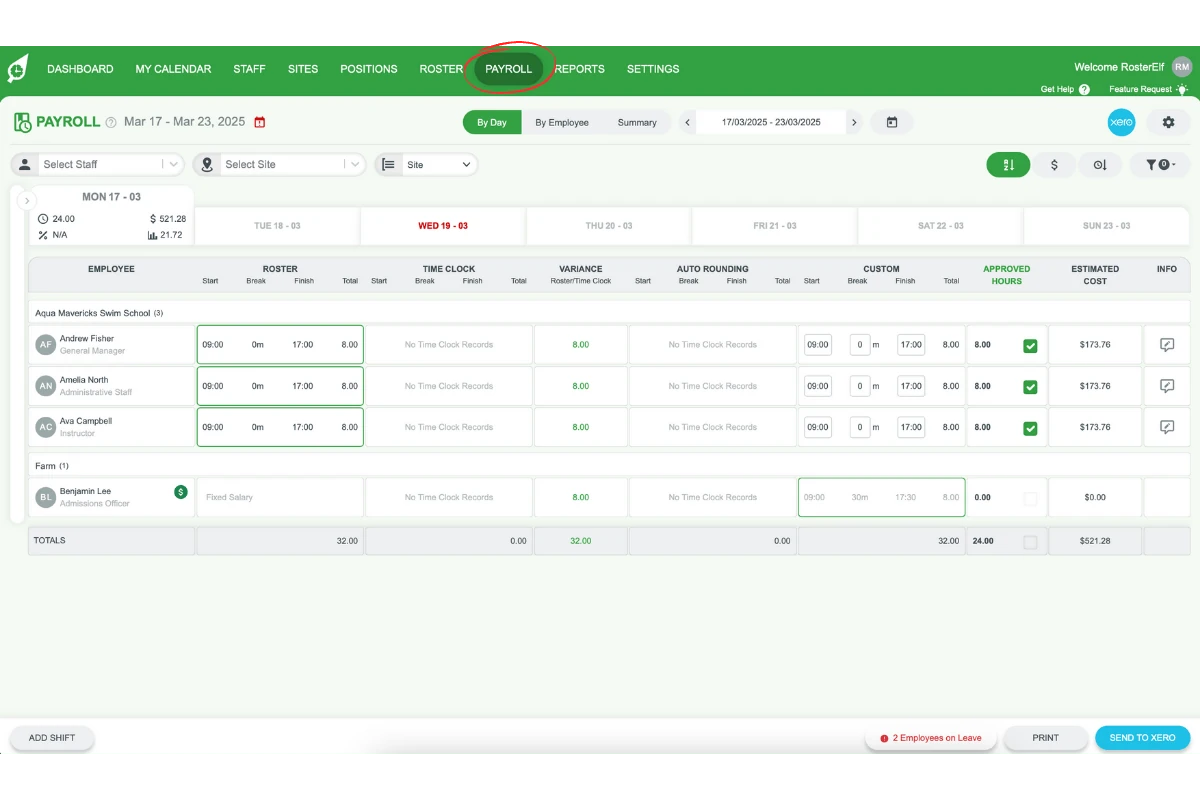
2. Enable monthly payroll calendar
Once you’ve accessed payroll settings, you can enable the monthly payroll calendar. This ensures regular monthly payments for your team.
2.1 activate monthly payroll calendar
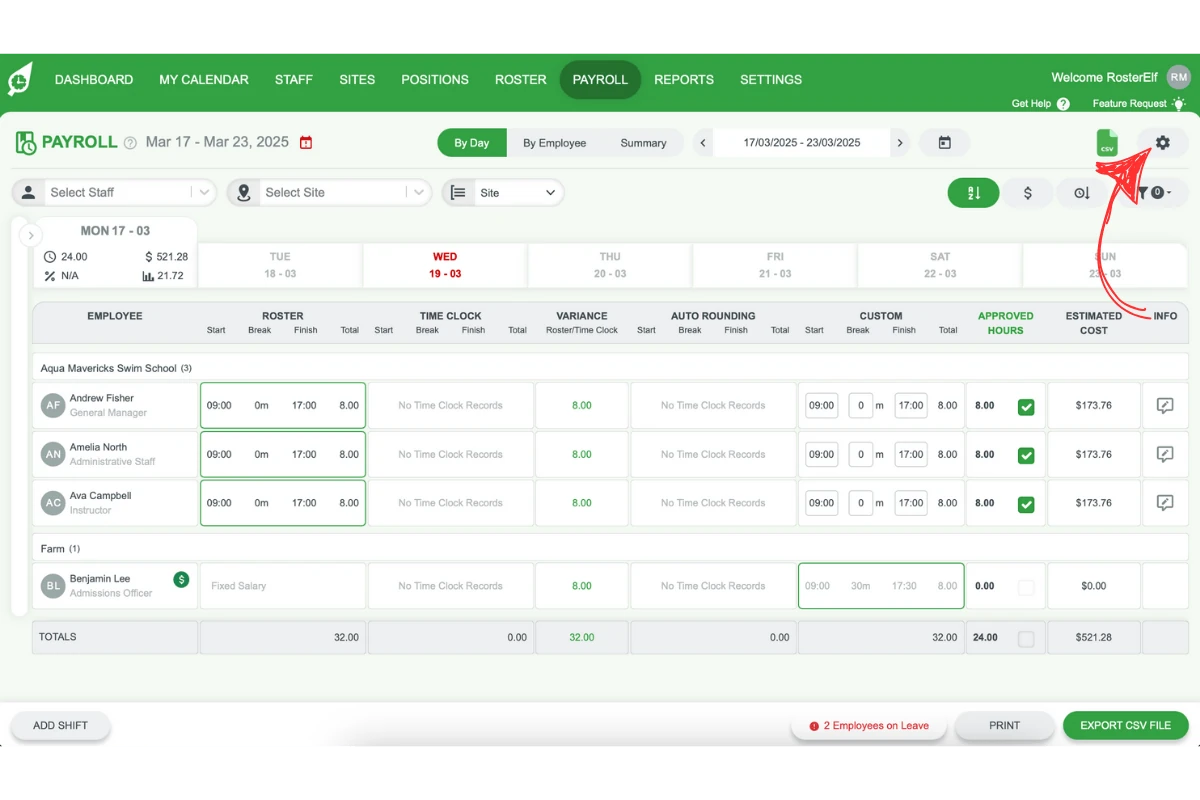
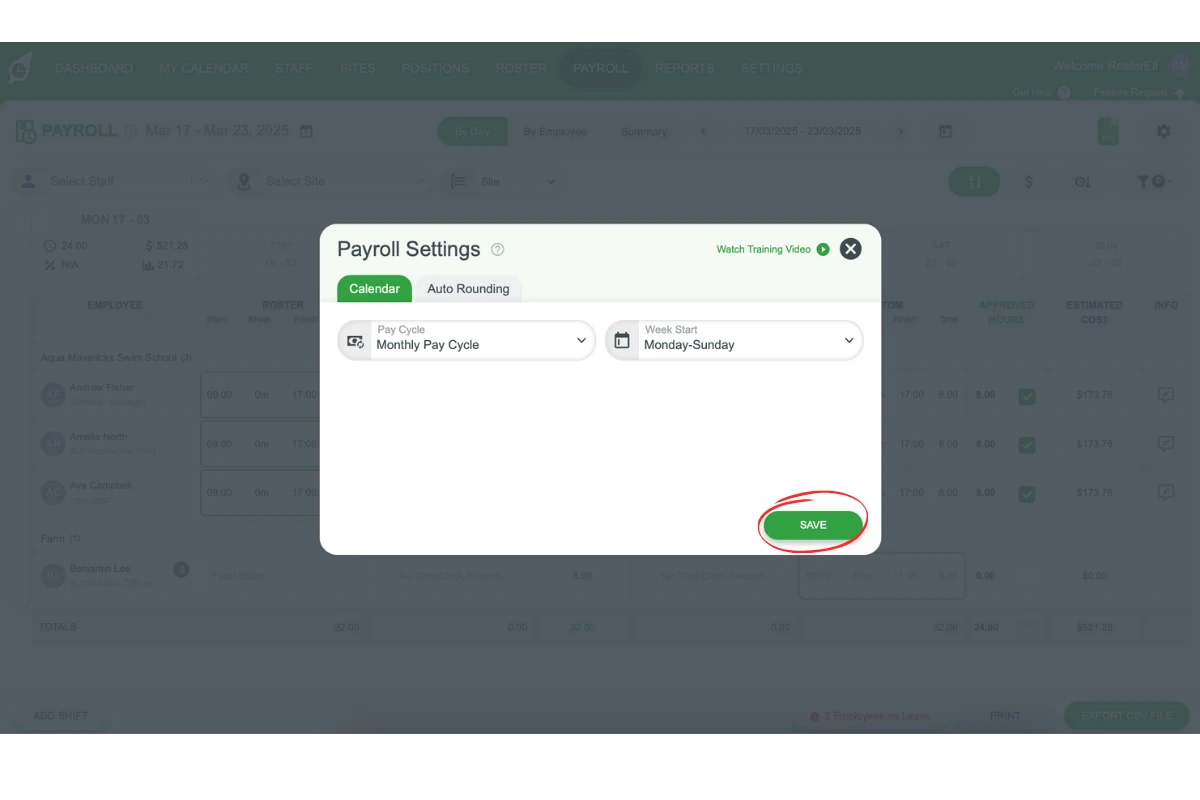
2.1.1 On the top-right corner of the screen, click the gear (settings) icon.
2.1.2 From the pop-up modal, select the Monthly Pay Cycle from the list of options.

2.1.3 Choose the appropriate Week Start Cadence from the available selections.
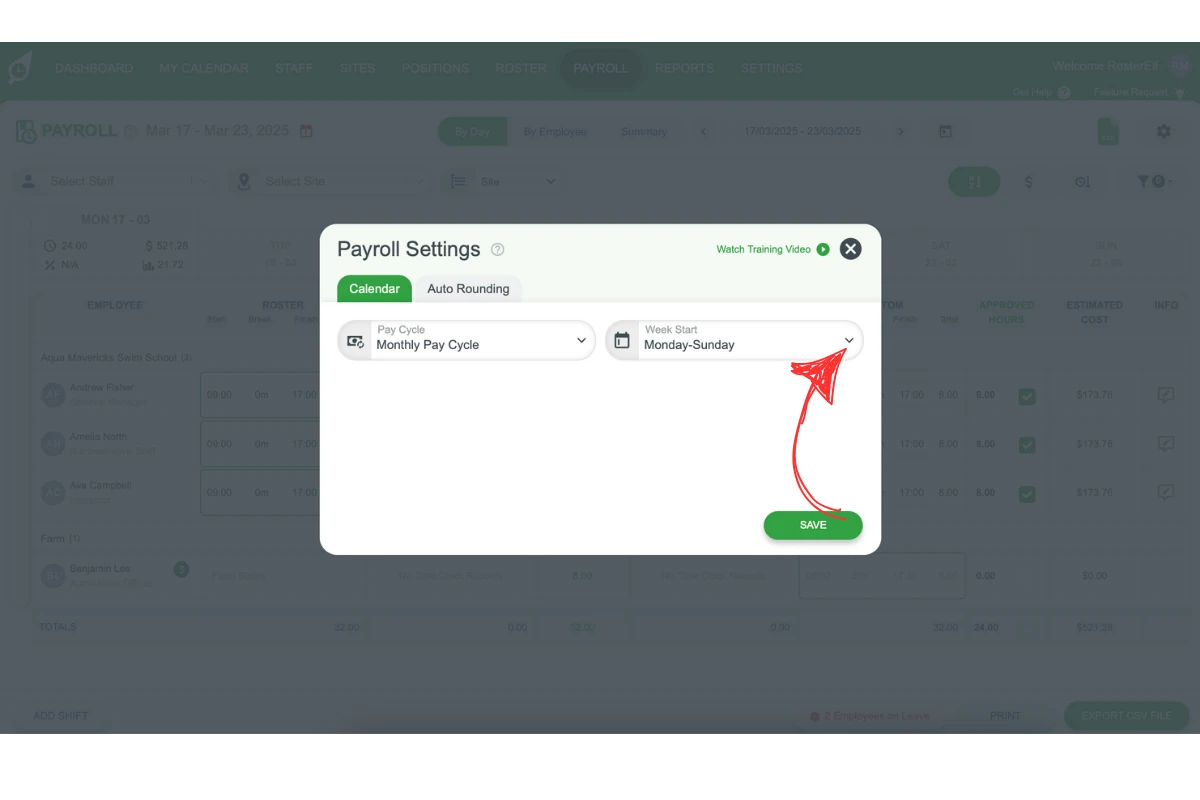
2.1.4 Click Save.
3. Verify pay templates
Before finalising the payroll calendar, ensure your pay templates are correctly set up. Pay templates define the payment structure for your employees and prevent payroll errors.
3.1 review pay templates
3.1.1 Access the pay templates section in your account.
3.1.2 Check that all roles and pay rates are assigned correctly.
3.1.3 Make adjustments if necessary.
3.2 refer to the pay templates guide
3.2.1 If you’re unsure about pay template setup, refer to the Pay templates introduction guide.
3.2.2 Follow the steps outlined in the guide to finalise your templates.
Frequently asked questions
1. How do I access payroll settings in my account?
To access payroll settings: Log in to your account, go to the settings menu on the dashboard, and select the Payroll option from the settings menu.
2. How can I enable the monthly payroll calendar?
To enable the monthly payroll calendar: Navigate to the payroll calendar settings, choose the Monthly payroll option, and save your changes.
3. Why is verifying pay templates important?
Verifying pay templates ensures that employee roles and pay rates are correctly assigned, preventing errors during payroll processing. It helps streamline payroll operations and ensures accurate payments.
4. Where can I find guidance on setting up pay templates?
If you’re unsure about setting up pay templates, see the Pay templates introduction guide and follow the steps outlined there to finalise your templates.
5. What are the benefits of a properly configured payroll calendar?
A properly configured payroll calendar ensures timely payments for your team, reduces payroll errors, and simplifies your payroll management processes.