

If a site is missing from your payroll system, you can manually link it. This ensures all locations are included in payroll calculations. Follow these steps to add a missing site.
1. Linking missing sites in payroll
If a site does not appear in payroll, you can manually link it. This allows payroll records to stay accurate and up to date.
1.1. add a missing site
Follow these steps to link a missing site in payroll:
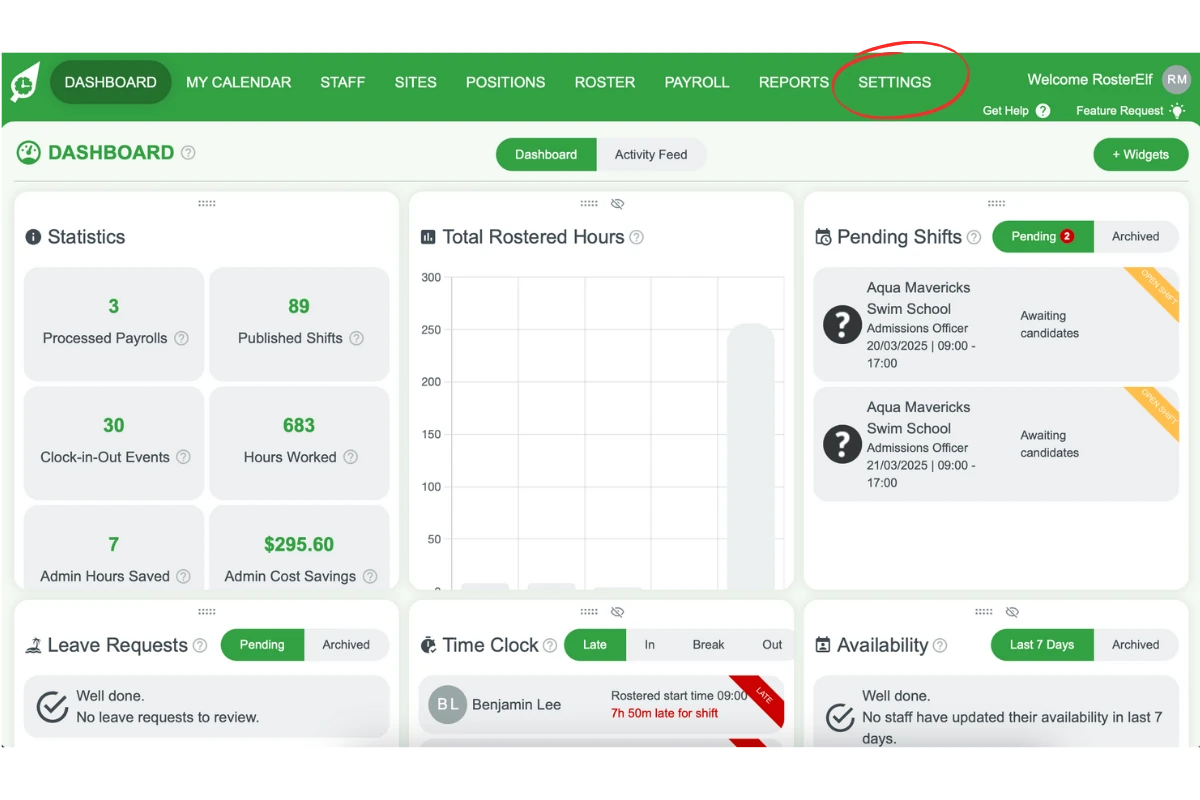
1.1.1 Click Settings.
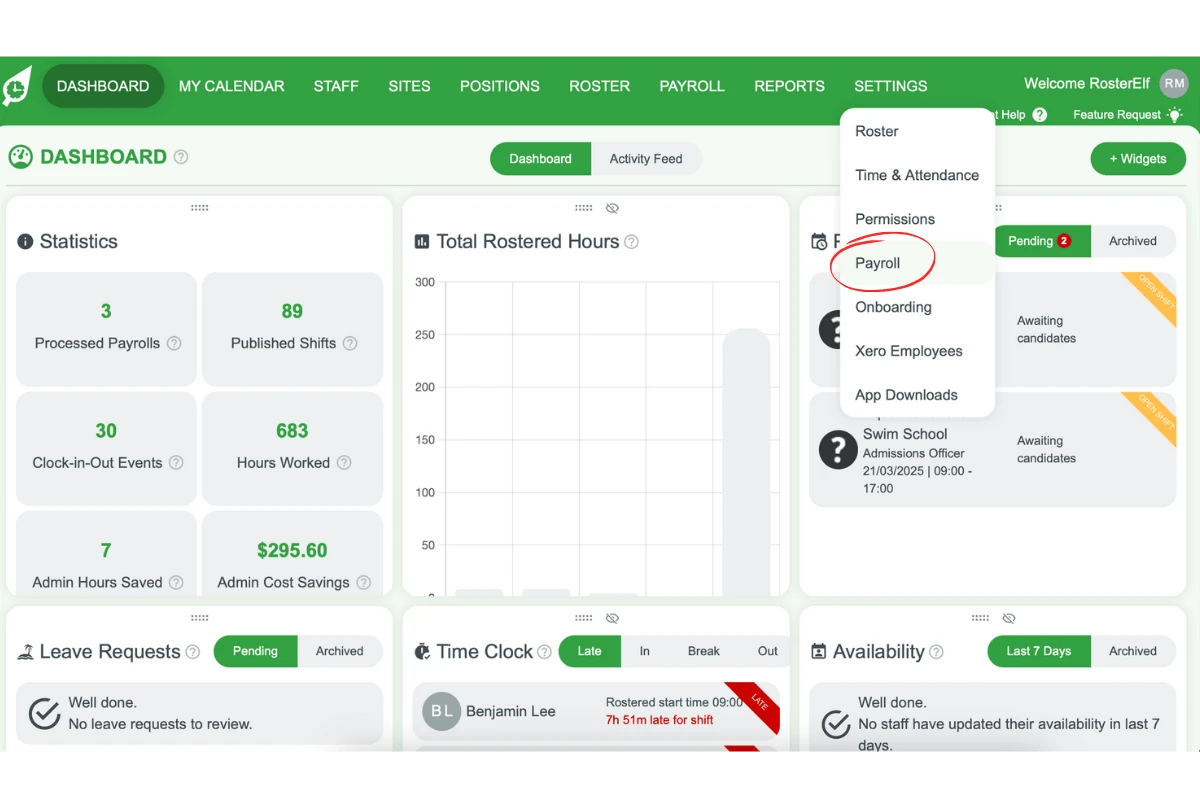
1.1.2 Select Payroll from the dropdown menu.
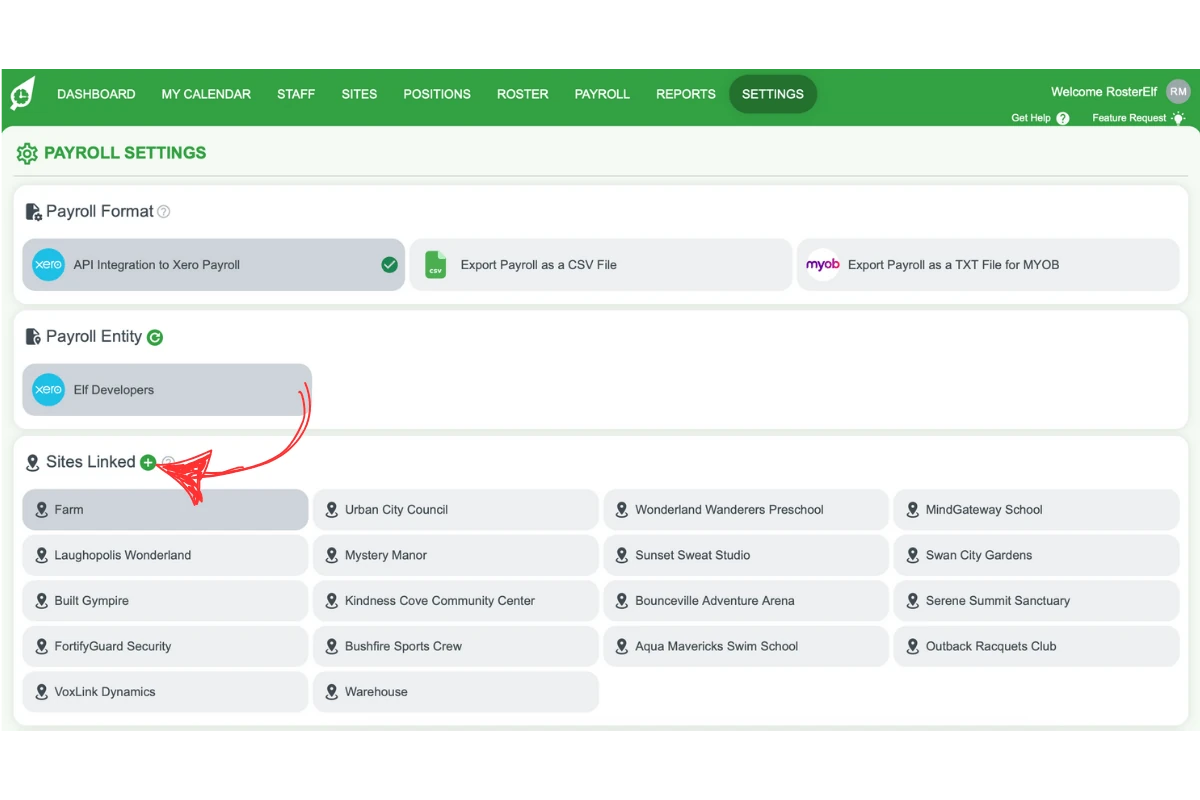
1.1.3 Click the plus (+) symbol to add a site.
1.1.4 Choose the correct site from the list.
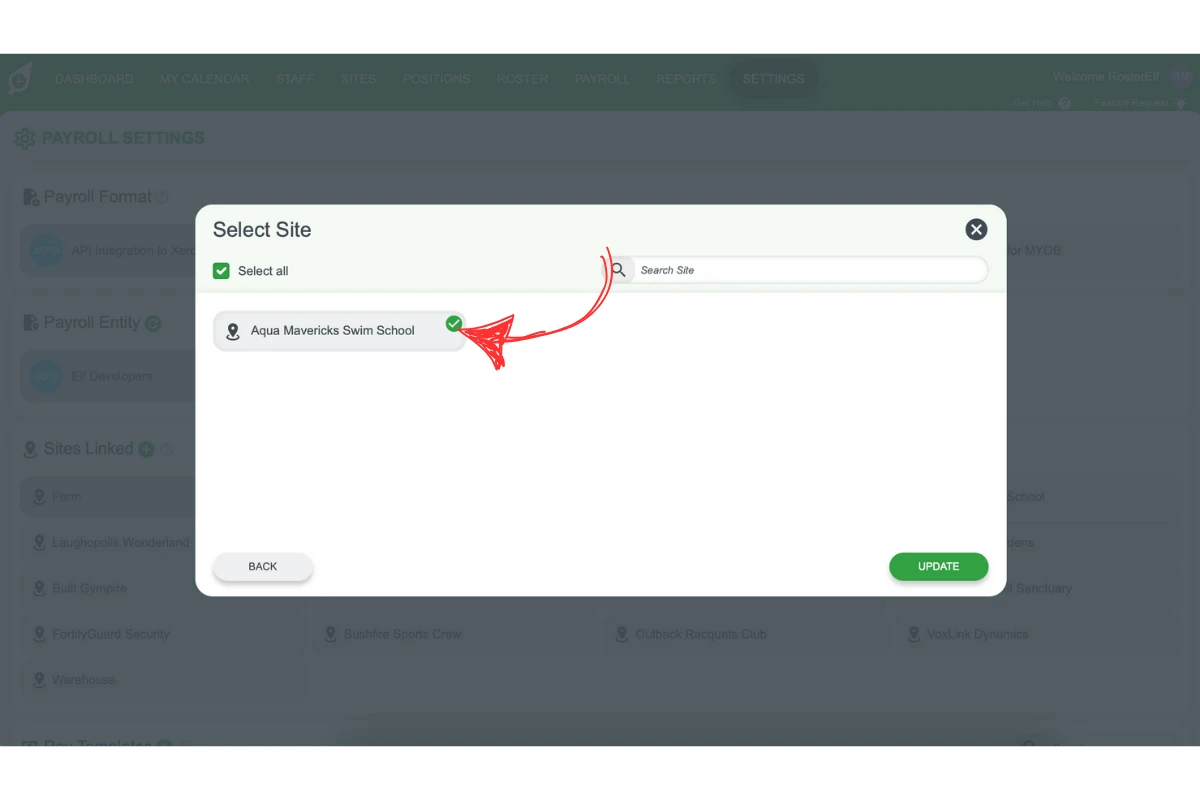
1.1.5 Click Save to confirm.
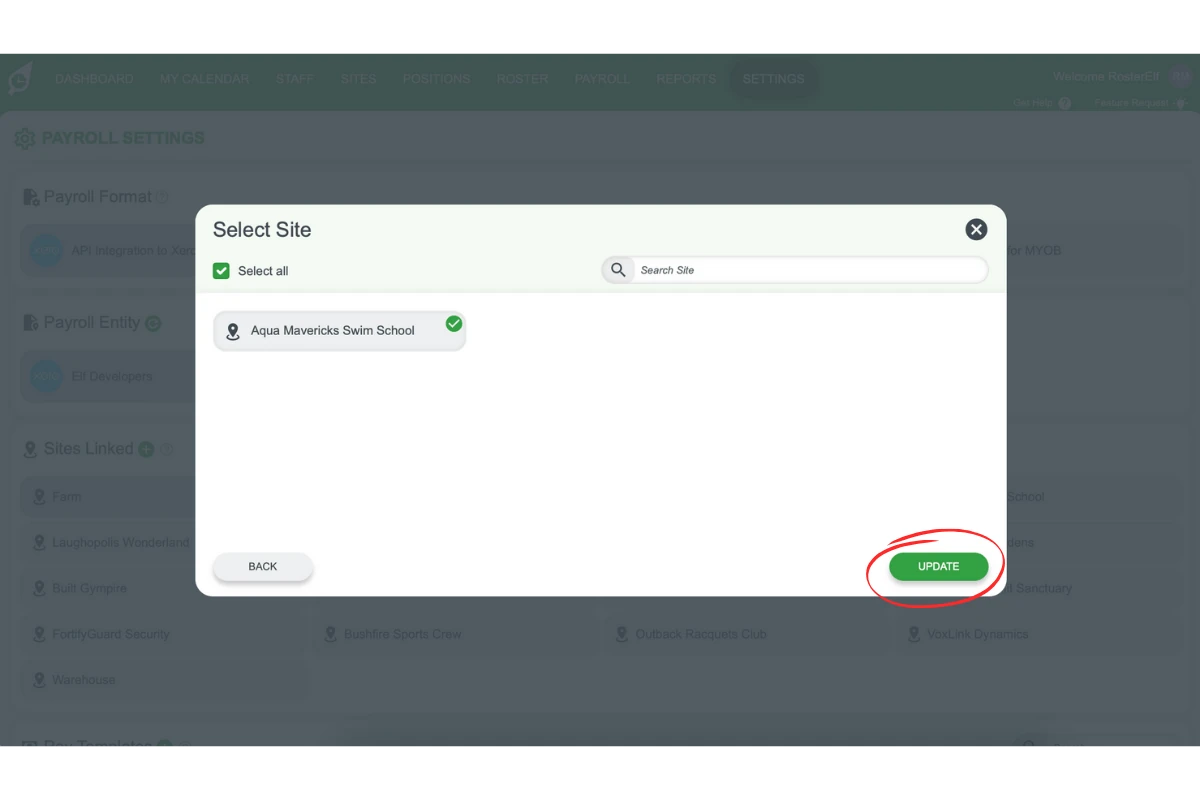
The site is now linked to payroll. Repeat these steps if more sites are missing.
Frequently asked questions
1. Why is a site missing from my payroll system?
A site may be missing due to setup errors, permissions issues, or it not being added correctly in your system. Manually linking the site ensures payroll records stay accurate.
2. How do I manually add a missing site to payroll?
To manually link a missing site, go to Settings > Payroll, click the plus (+) symbol, select the correct site, and click Save. This ensures all locations are included in payroll calculations.
3. What happens after I link a missing site in payroll?
Once you save the changes, the site will appear in your payroll system. Payroll calculations will update to include the new site.
4. Can I link multiple missing sites at once?
No, you need to add each site individually. Follow the same steps for each missing site to ensure all locations are included in payroll.
5. Do I need admin access to link a missing site?
Yes, only users with the correct permissions can add missing sites in payroll. If you cannot see the option, check your access level or contact an administrator.