

This article explains how to set up a pay template for Christmas Eve and New Year’s Eve. This ensures that staff working during these dates are paid correctly under public holiday conditions. You’ll learn how to create the template, set the correct pay item activation times, and assign it to staff.
Following this process helps you support your compliance efforts with award requirements and ensures staff are compensated fairly. You can assign templates to specific staff, sites, or positions, giving you flexibility in managing public holiday pay.
1. Create the pay template in rosterelf
This section shows you how to create a new pay template for Christmas Eve and New Year’s Eve. You’ll add the public holiday pay item, set the correct activation time, and save the template so it’s ready to assign to staff.
1.1 add a new pay template
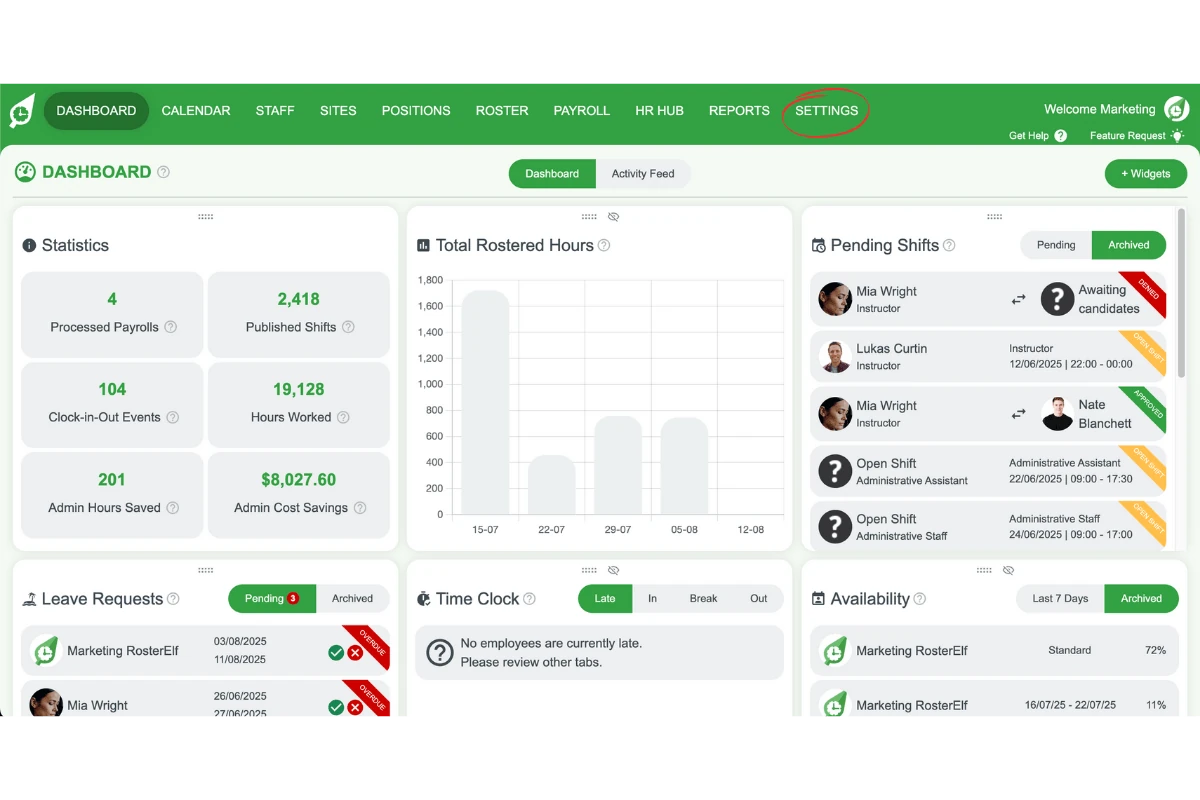
1.1.1 Go to Settings.
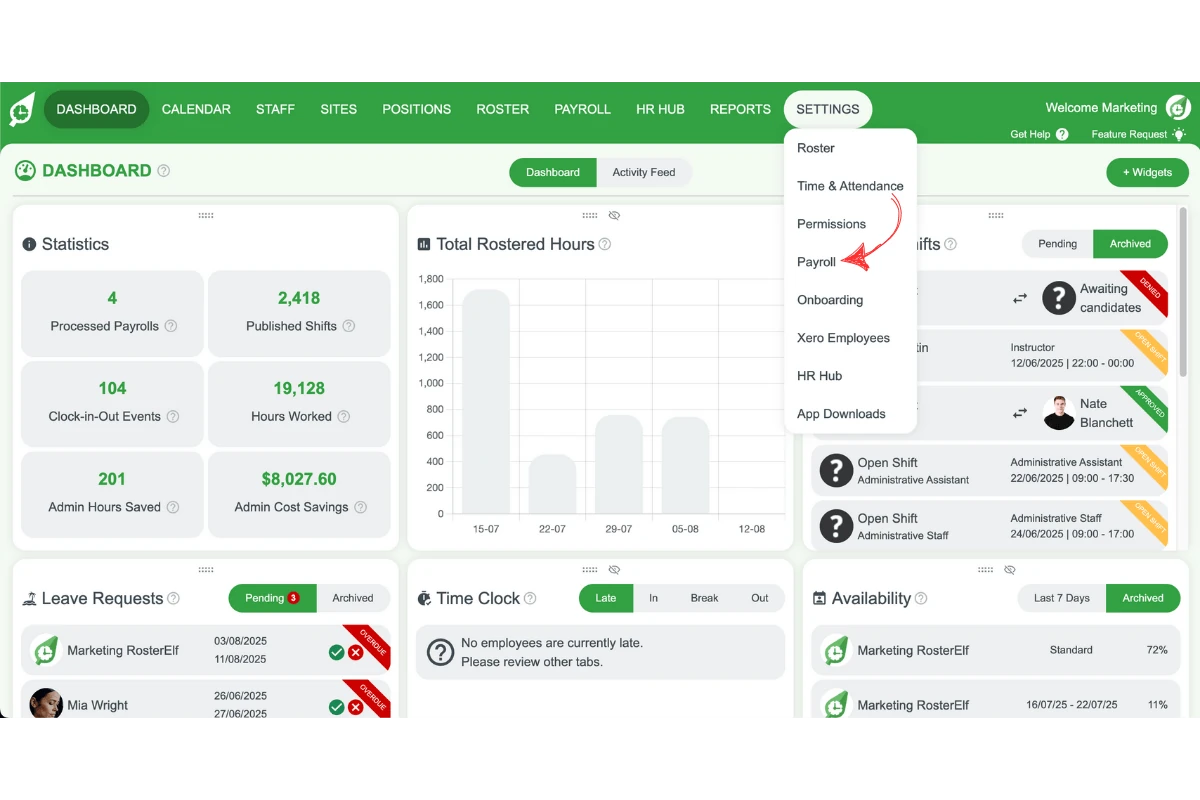
1.1.2 Click Payroll.
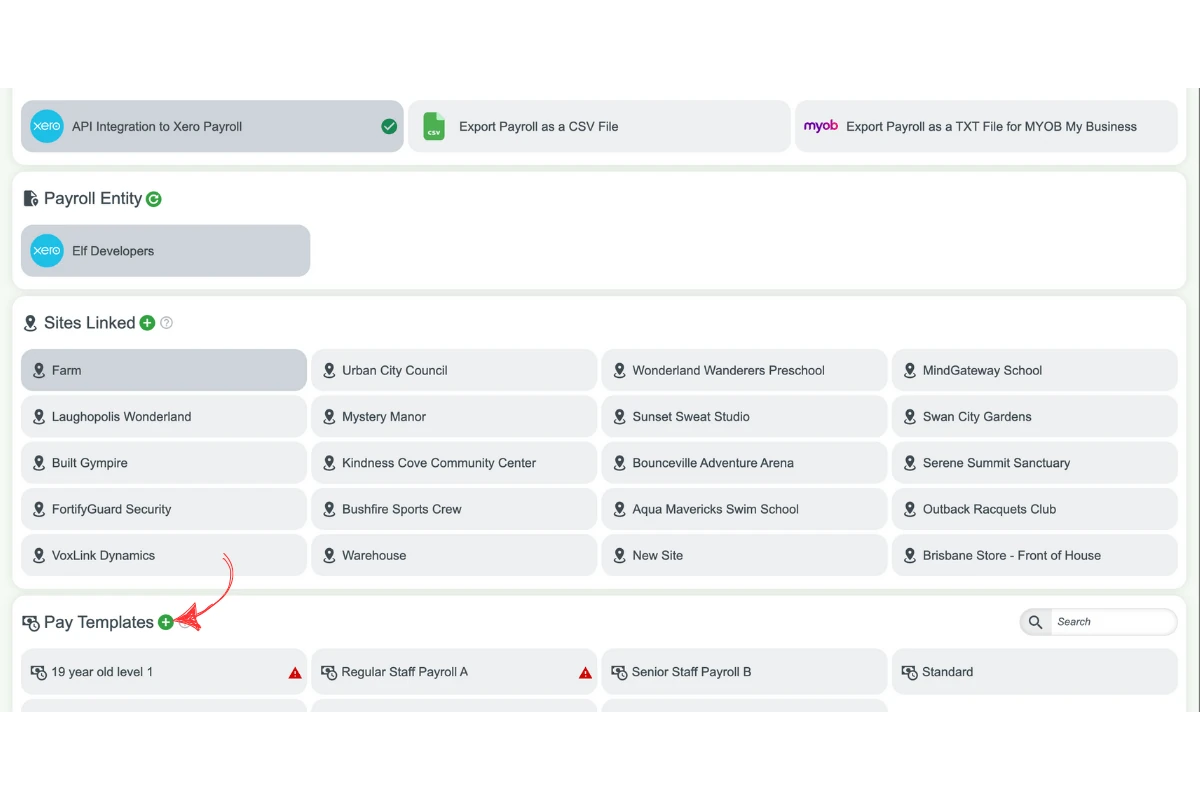
1.1.3 Select Add a template.
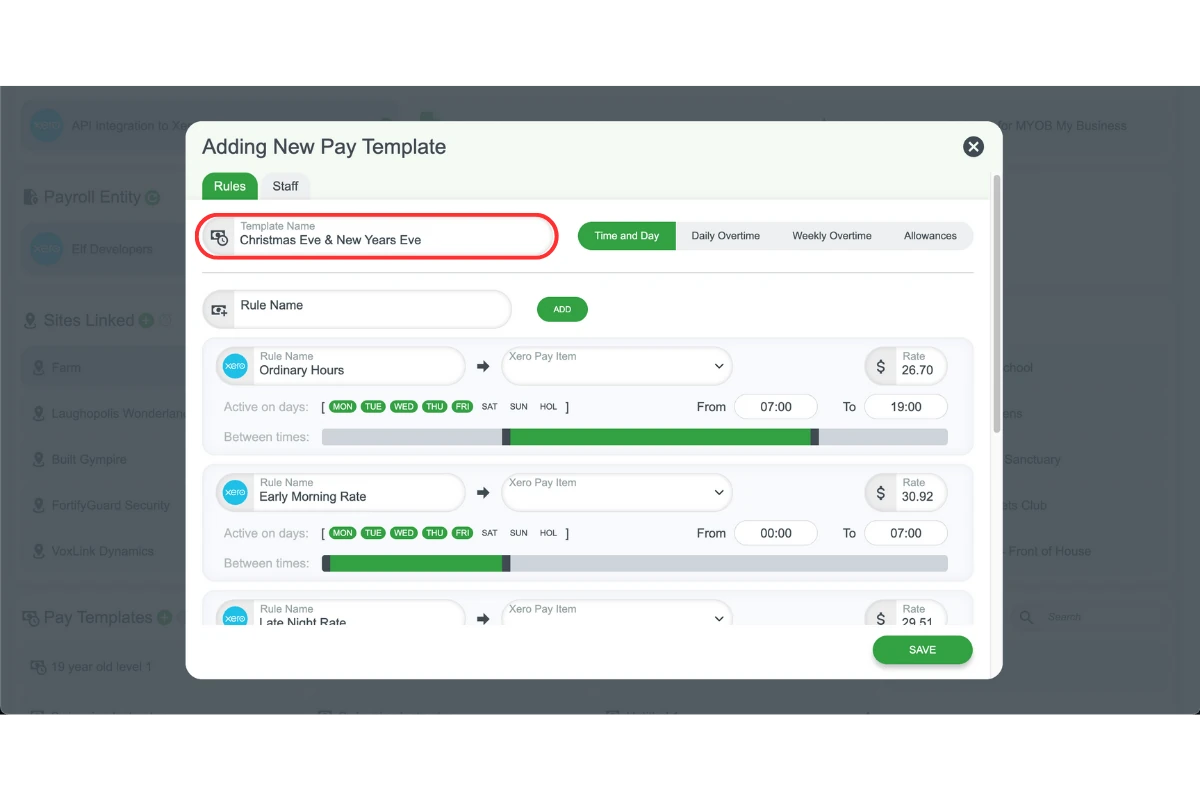
1.1.4 Name the template clearly (e.g., Christmas Eve Public Holiday).
1.2 configure public holiday settings
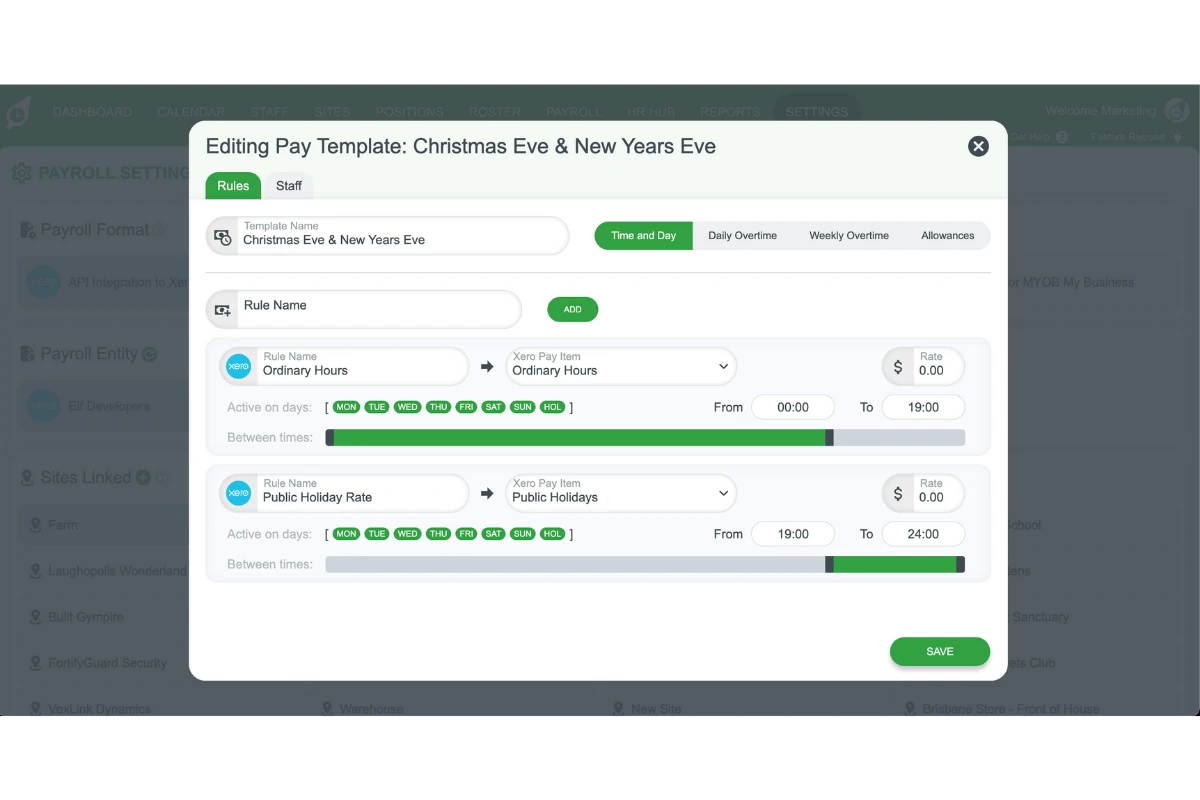
1.2.1 Set the public holiday pay item to activate from 7:00 pm (6pm if in QLD) to midnight.
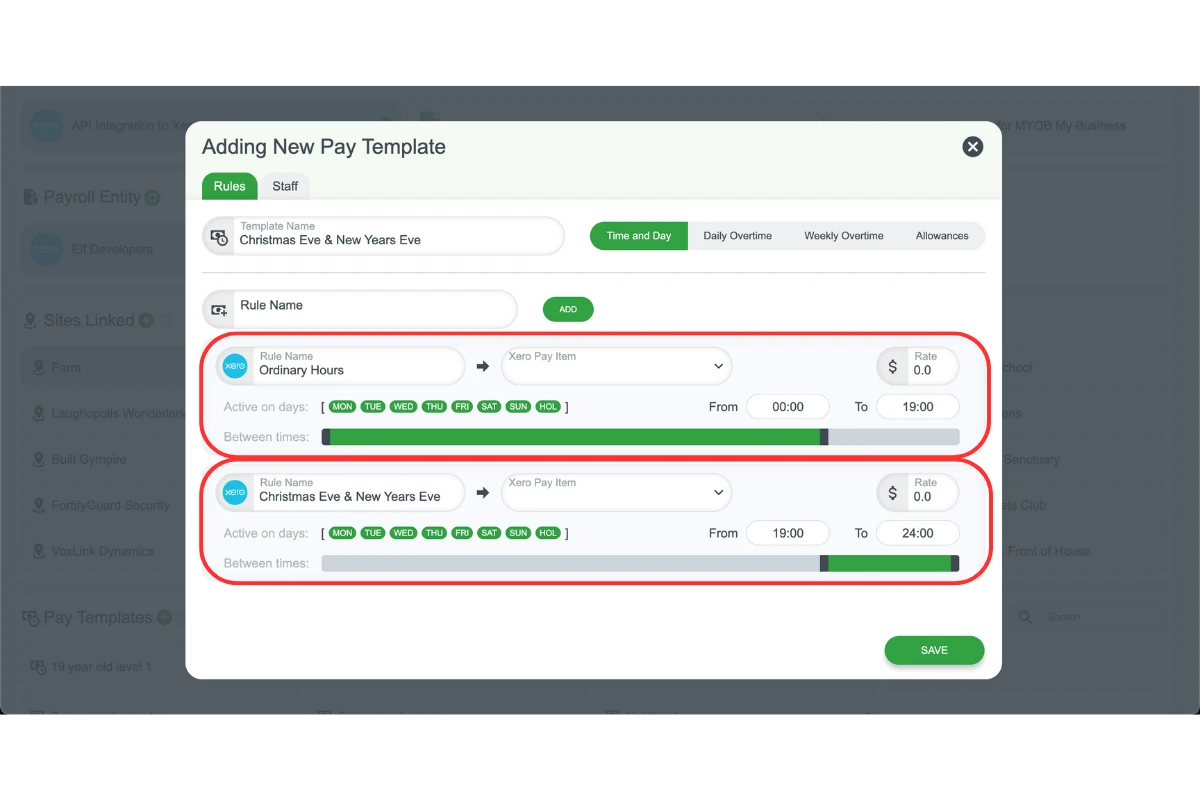
1.2.2 Apply any other required pay items.
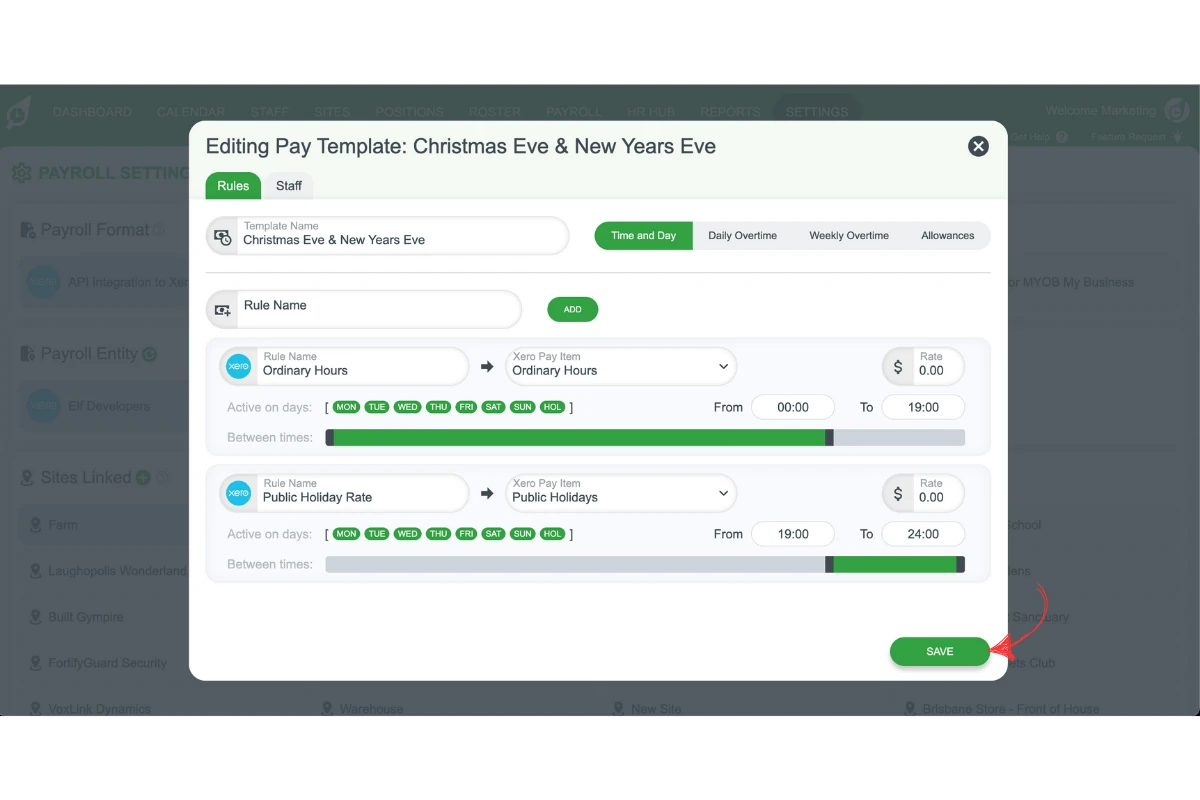
1.2.3 Click Save.
2. Assign the pay template to staff
Once the template is created, you can assign it to specific staff. You can do this by linking it to their site or position. For easier management, you may also create a new position dedicated to public holiday shifts.
2.1 assign to staff
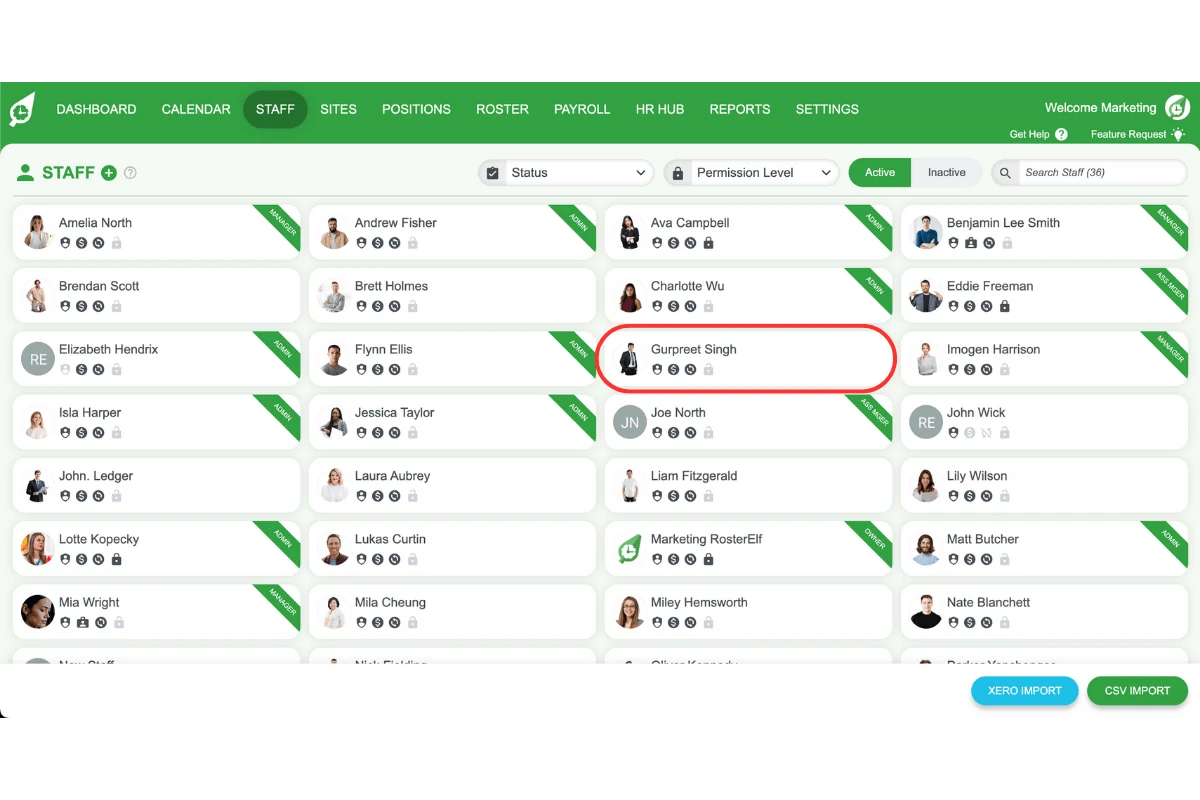
2.1.1 Go to the Staff tab.
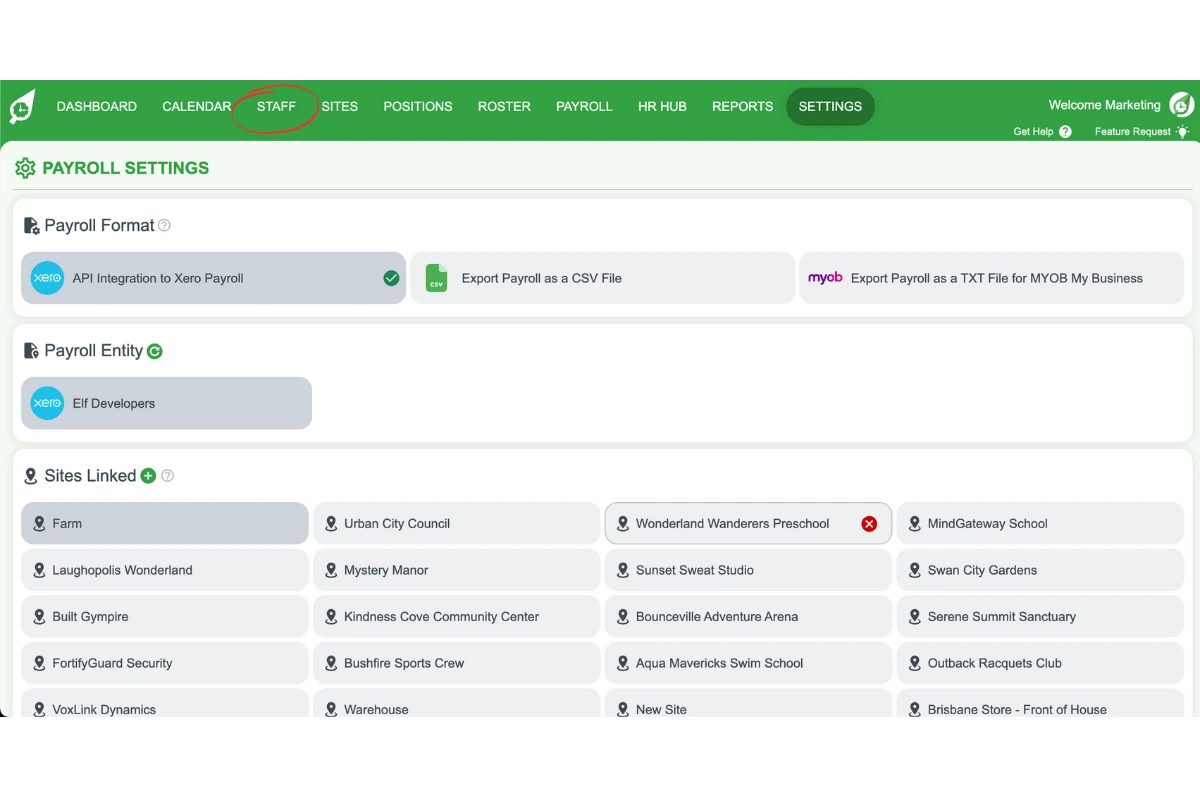
2.1.2 Click on a staff member’s profile.
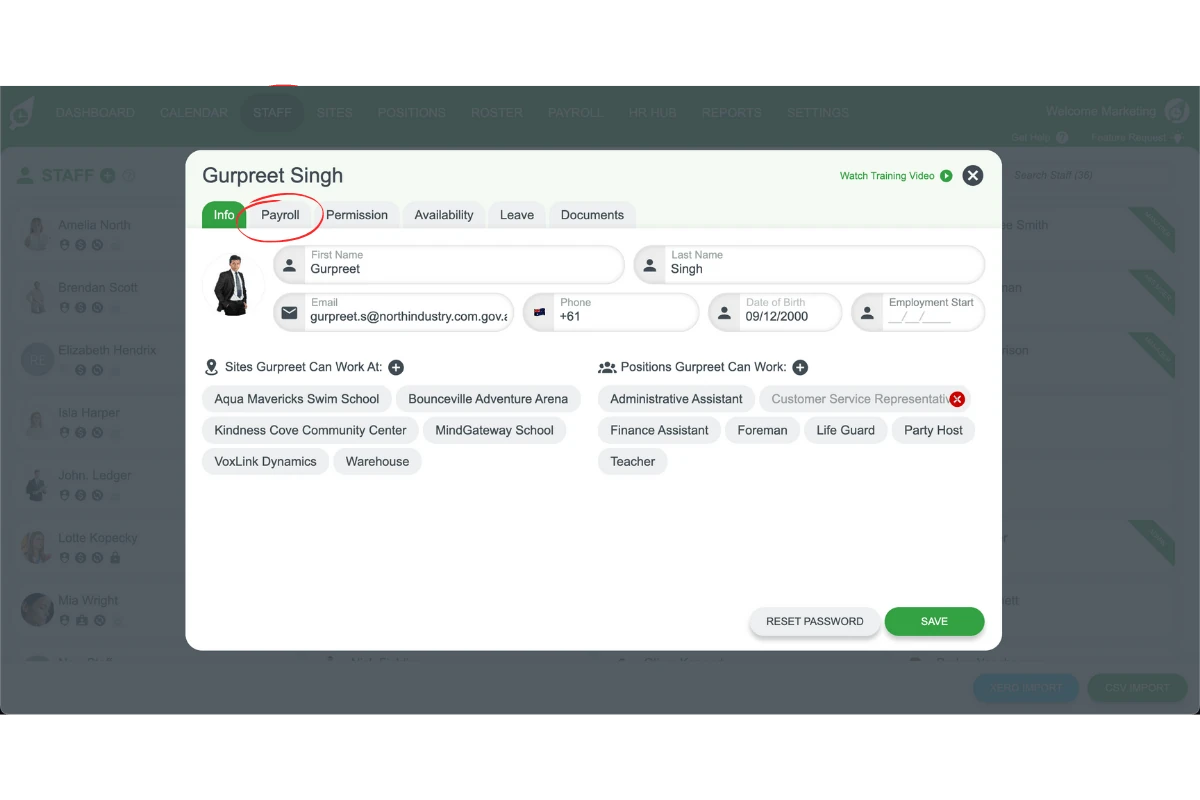
2.1.3 Select Payroll.
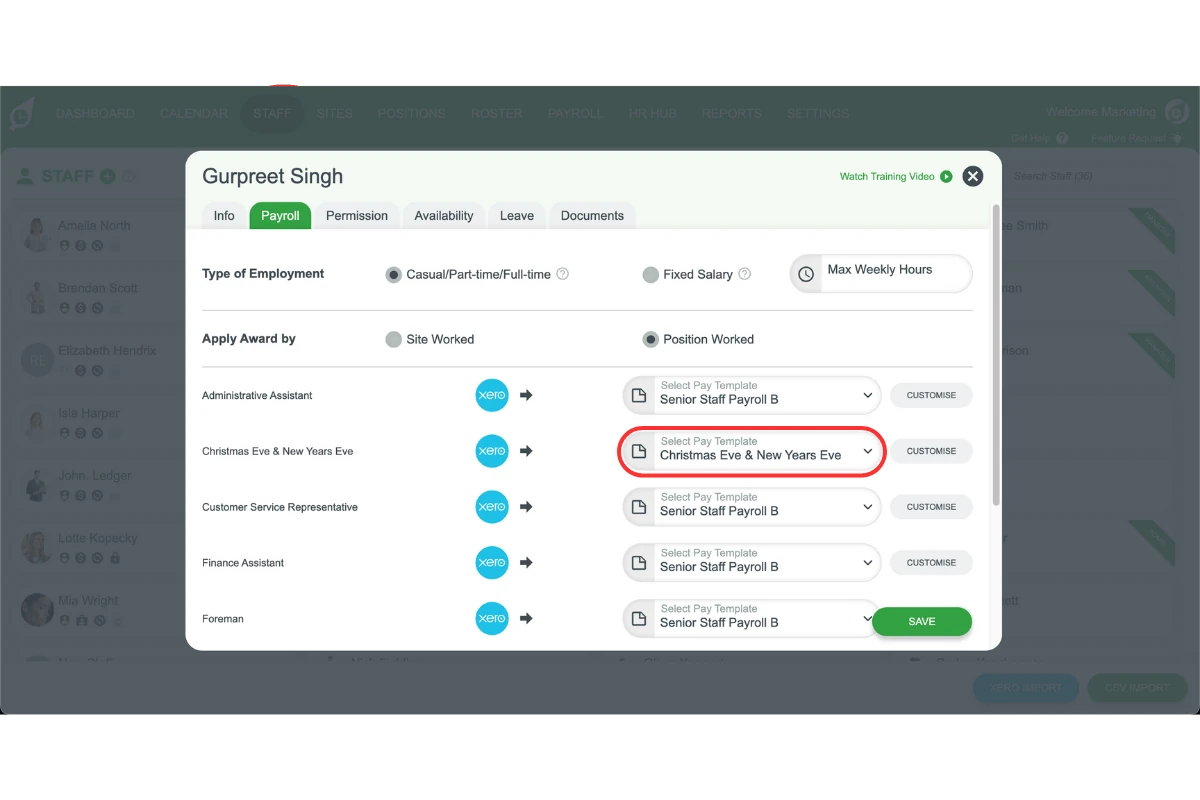
2.1.4 Assign the pay template by either site or position.
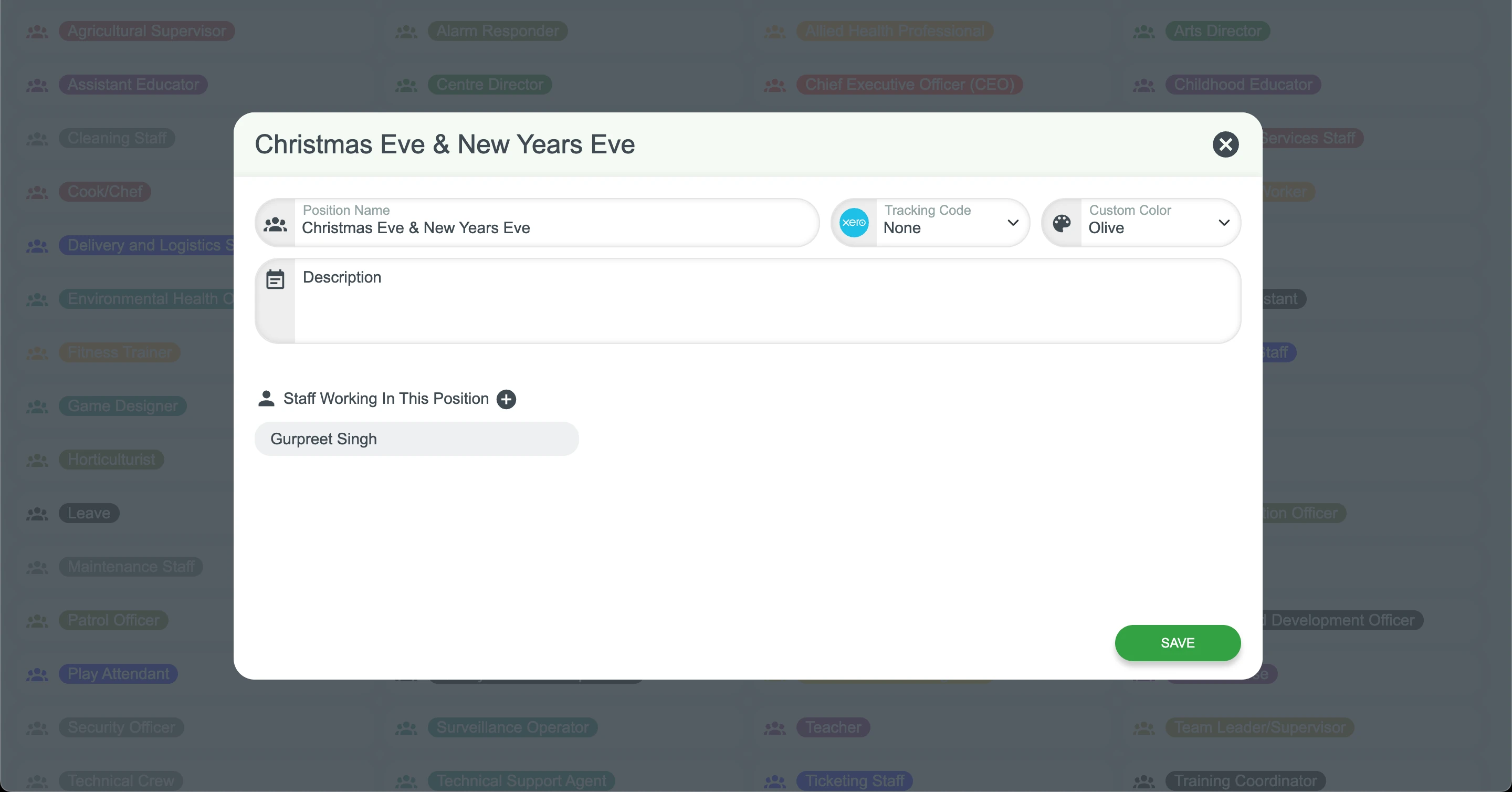
2.1.5 Consider creating a new position for public holiday shifts to assign by position.
Frequently asked questions
1. How do I set up a pay template for Christmas Eve and New Year's Eve?
Go to Settings > Payroll > Add a template. Name it clearly, add the public holiday pay item, and set it to activate from 7:00 pm to midnight (or 6:00 pm for QLD). Apply other required pay items, then save.
2. What time should the public holiday pay rate start on Christmas Eve and New Year's Eve?
In Queensland, the activation should start at 6:00 pm. In South Australia and the Northern Territory, and other applicable states, set the public holiday pay rate to activate from 7:00 pm to midnight.
3. Can I assign the pay template to only certain staff?
Yes. You can assign the pay template to specific staff through their profile under Payroll, by linking it to their site or position.
4. Should I create a new position for public holiday shifts?
Creating a dedicated position for public holiday shifts can make managing pay templates easier, especially if only certain staff work during those hours.
5. Why is it important to set up a public holiday pay template?
It supports compliance with award requirements and guarantees that staff working on Christmas Eve or New Year’s Eve are paid the correct public holiday rates.