

Leave and availability settings
This article explains the account-wide rules for leave requests and staff availability. Only admins can change them.
You can require notice for leave, block leave on busy dates, choose which leave types staff see, and control when staff can change their availability.
1. Set the rules for leave requests
1.1 Open Leave & Availability settings
1.1.1 Click Settings on the top menu and select Leave & Availability.
1.1.2 The window opens on the Leave Settings tab.
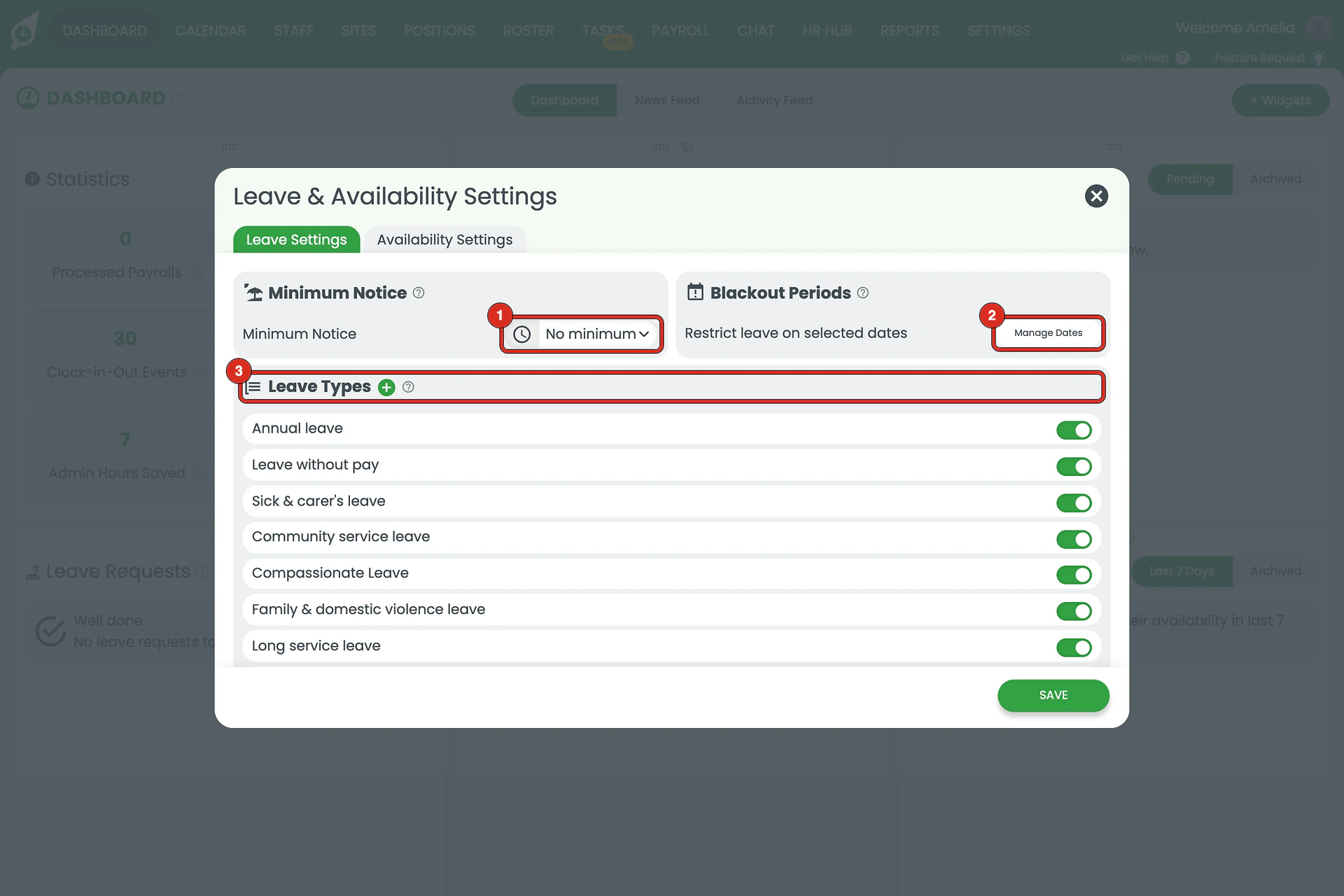
1.2 Require notice for leave
1.2.1 Select a Minimum Notice (1): No minimum, or 1, 2, 3, 7 or 14 days before the leave starts.
1.2.2 Staff then see the notice period when they request leave, and a request with less notice is refused.
1.3 Block leave on busy dates
1.3.1 Click Manage Dates (2) beside Blackout Periods.
1.3.2 Click the plus beside Future Black-out Dates.
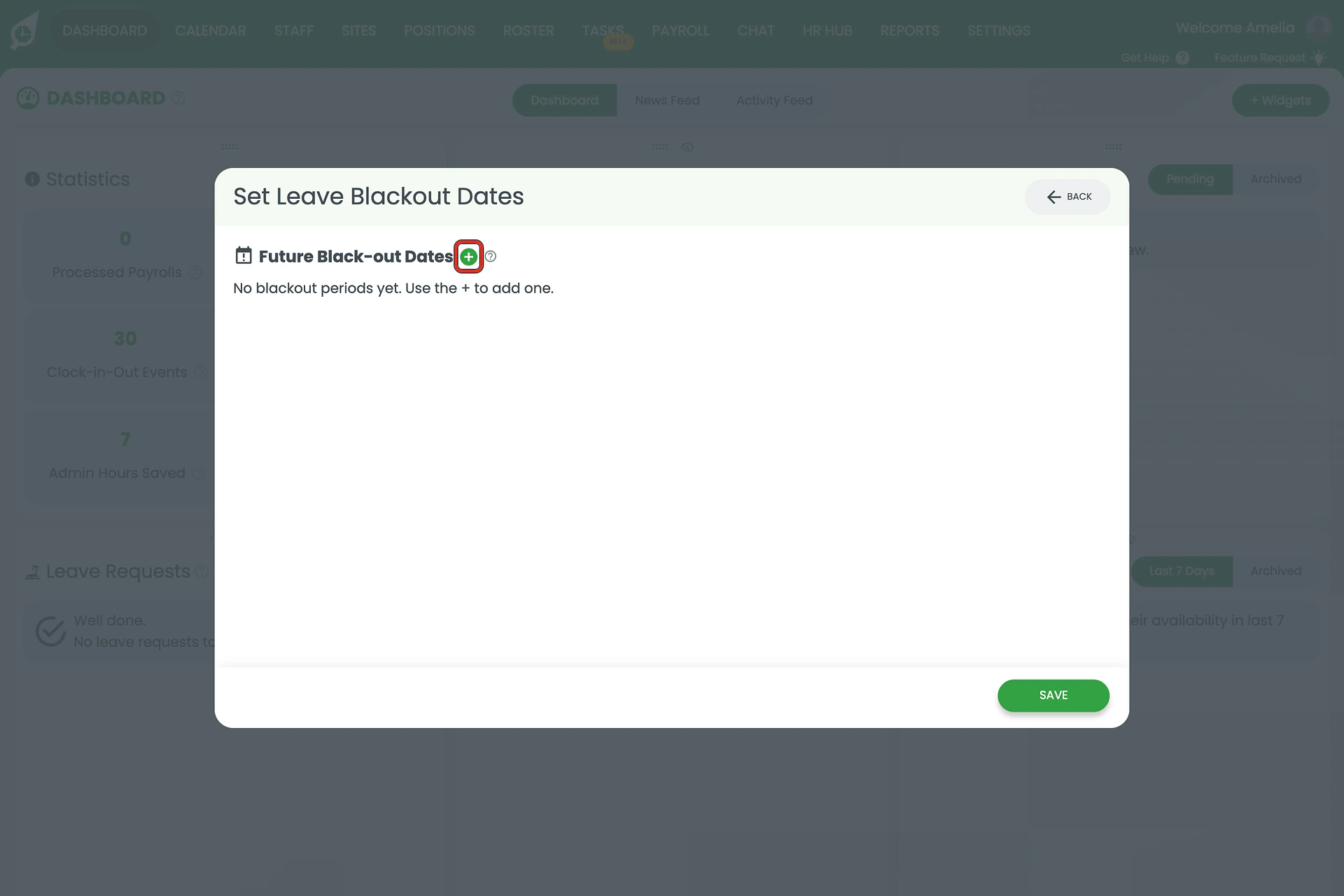
1.3.3 Enter a Name, such as Stocktake, and pick the From and To dates.
1.3.4 Click Add, then SAVE. Leave requests for those dates are now blocked, and staff see the reason.
1.4 Choose the leave types staff can request
1.4.1 Under Leave Types (3), switch on each type staff can choose and switch off the rest.
1.4.2 Click the plus beside Leave Types to add a type of your own. See leave types in RosterElf.
1.4.3 Click SAVE.
2. Set the rules for availability
2.1 Click the Availability Settings tab.
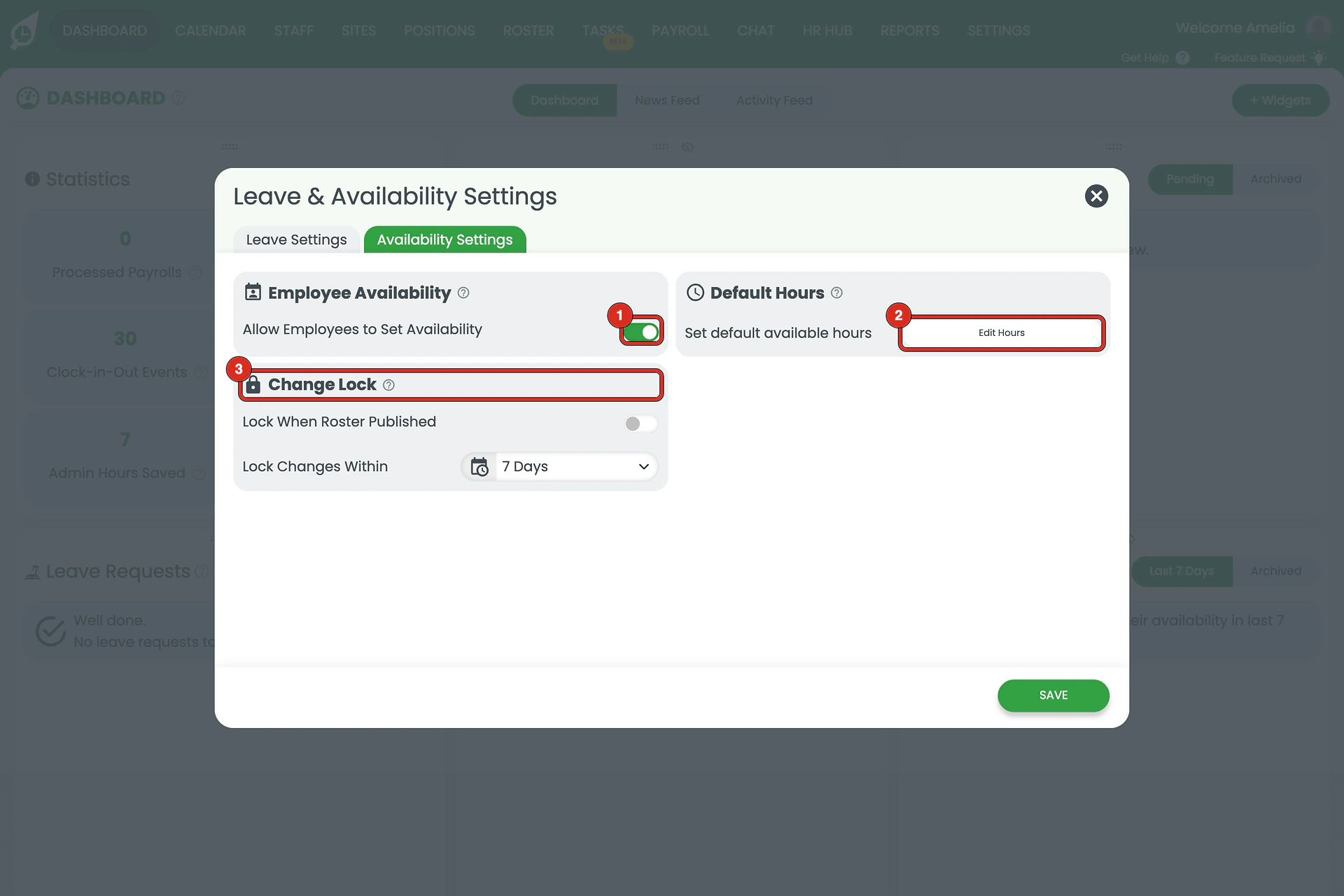
2.2 Switch off Allow Employees to Set Availability (1) to stop staff changing their own availability.
2.3 Click Edit Hours (2) to set the default available hours each new employee starts with, then UPDATE.
2.4 Under Change Lock (3), switch on Lock When Roster Published and choose 7, 14, 21 or 28 days. Staff then can’t change their availability while they have a published shift within that many days.
2.5 Click SAVE.
Managers keep control
These settings limit what staff can do themselves. To update a staff member’s availability for them, see view and update staff availability.
For further help, contact our support team.
Frequently asked questions
1. Where are the leave and availability settings?
Click Settings on the top menu and select Leave & Availability. The window has two tabs: Leave Settings and Availability Settings.
2. What does minimum notice do?
It sets how many days before the leave start date staff must request leave: no minimum, or 1, 2, 3, 7 or 14 days. A request with less notice is refused when the staff member submits it.
3. What is a blackout period?
A named date range, such as a stocktake or the Christmas peak, when staff cannot request leave. Leave requests for those dates are blocked automatically.
4. Can I stop staff requesting some leave types?
Yes. Each leave type on the Leave Settings tab has its own switch. Staff can choose only the types that are switched on. Use the plus beside Leave Types to add your own.
5. Can I stop staff changing their availability?
Yes. Switch off Allow Employees to Set Availability on the Availability Settings tab. Staff then see Availability Disabled instead of the form, and RosterElf refuses the change even if it is sent another way.
6. What does Change Lock do?
With Lock When Roster Published on, staff can’t change their availability while they have a published shift within the number of days you choose (7, 14, 21 or 28). They see Availability can’t be changed while you have a published shift in the next 7 days (with your number). It stops late changes without turning availability off.
7. What are default hours?
The standard availability each new employee starts with, by day. Staff can adjust it for their own schedule once they are added.
8. Do these settings apply on the phone app?
Turning off availability is enforced by RosterElf itself, not only by the web page. This article covers the web app: the phone app’s leave screens may not show the notice and blackout messages yet.