

View and update staff availability
This article explains how to view and update a staff member’s availability in RosterElf. Keeping availability up to date helps managers schedule shifts efficiently and ensures employees are only rostered for times when they’re available. Staff can also update their own availability from a browser, but managers can adjust it directly from the staff profile using the steps below.
1. Access staff availability
This section shows how to navigate to a staff member’s availability details. These details reflect when the employee is available for shifts, based on the information they provide in the app. Keeping them accurate helps managers plan rosters more effectively.
1.1 Open the staff member's profile
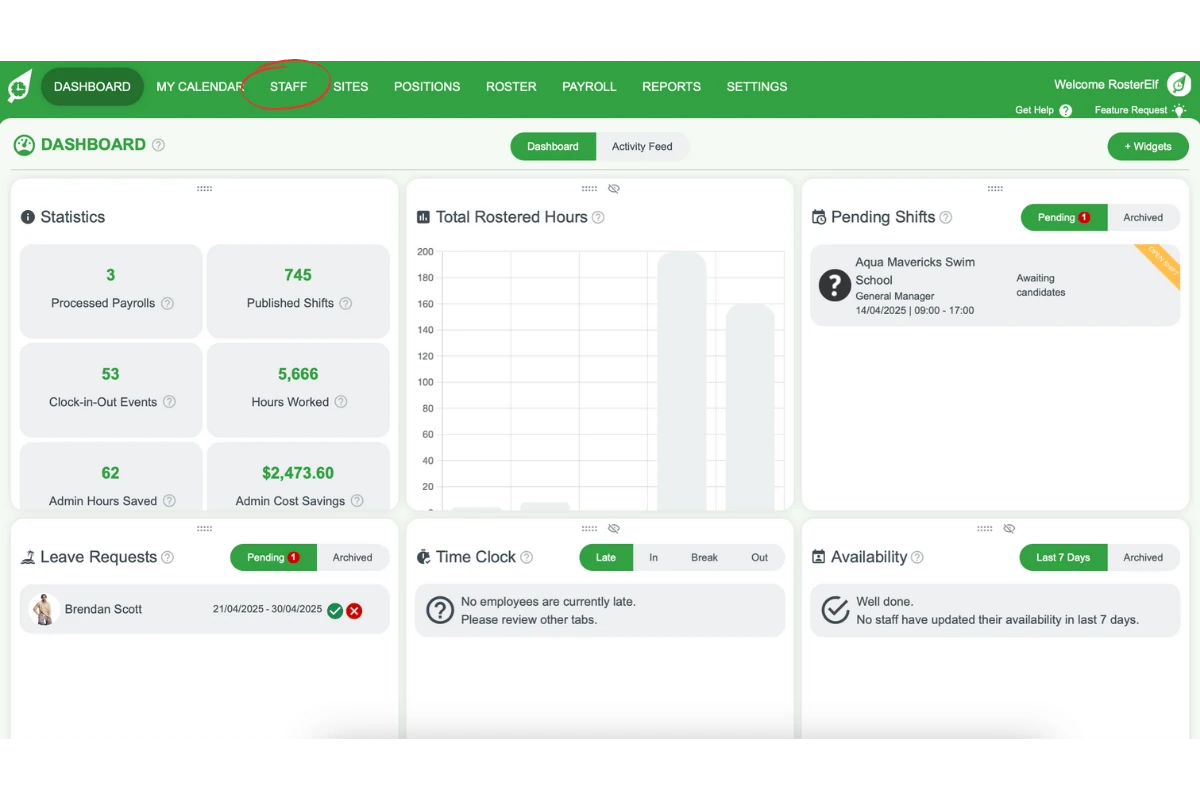
1.1.1 Click the Staff tab in the menu.
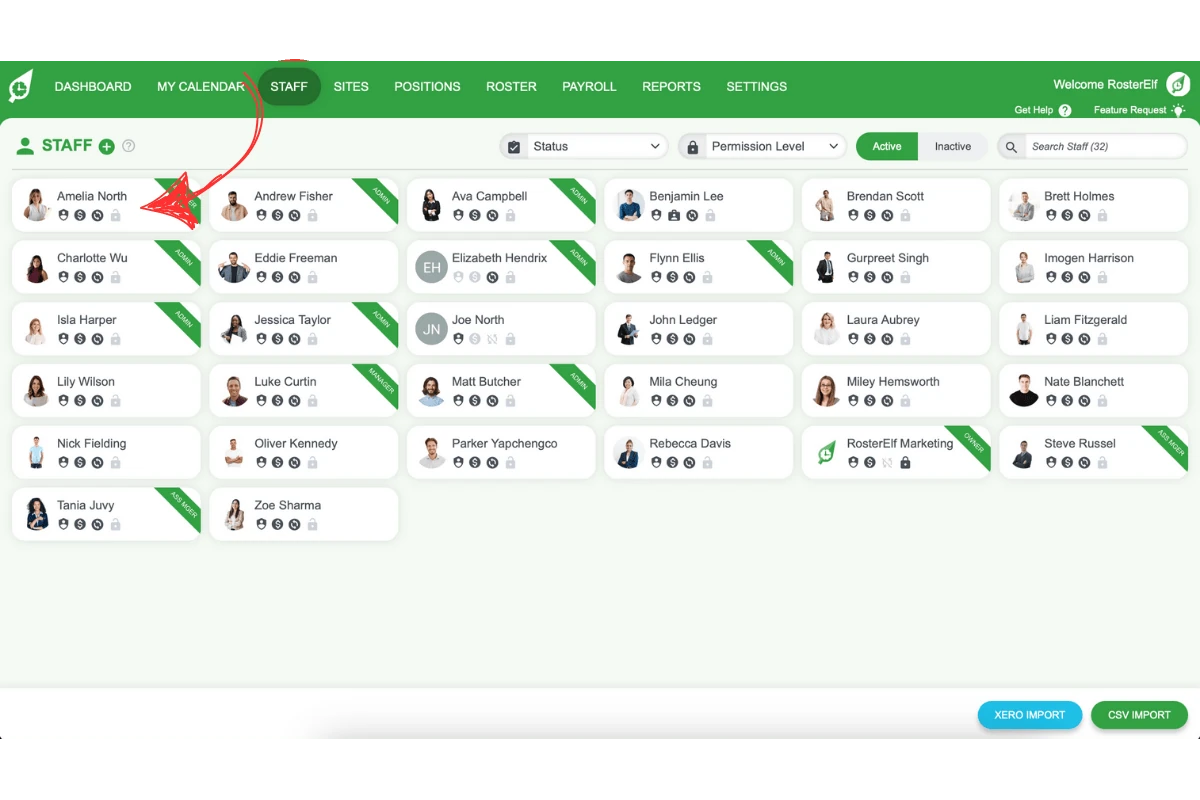
1.1.2 Select the staff member whose availability you want to check.
1.2 View availability
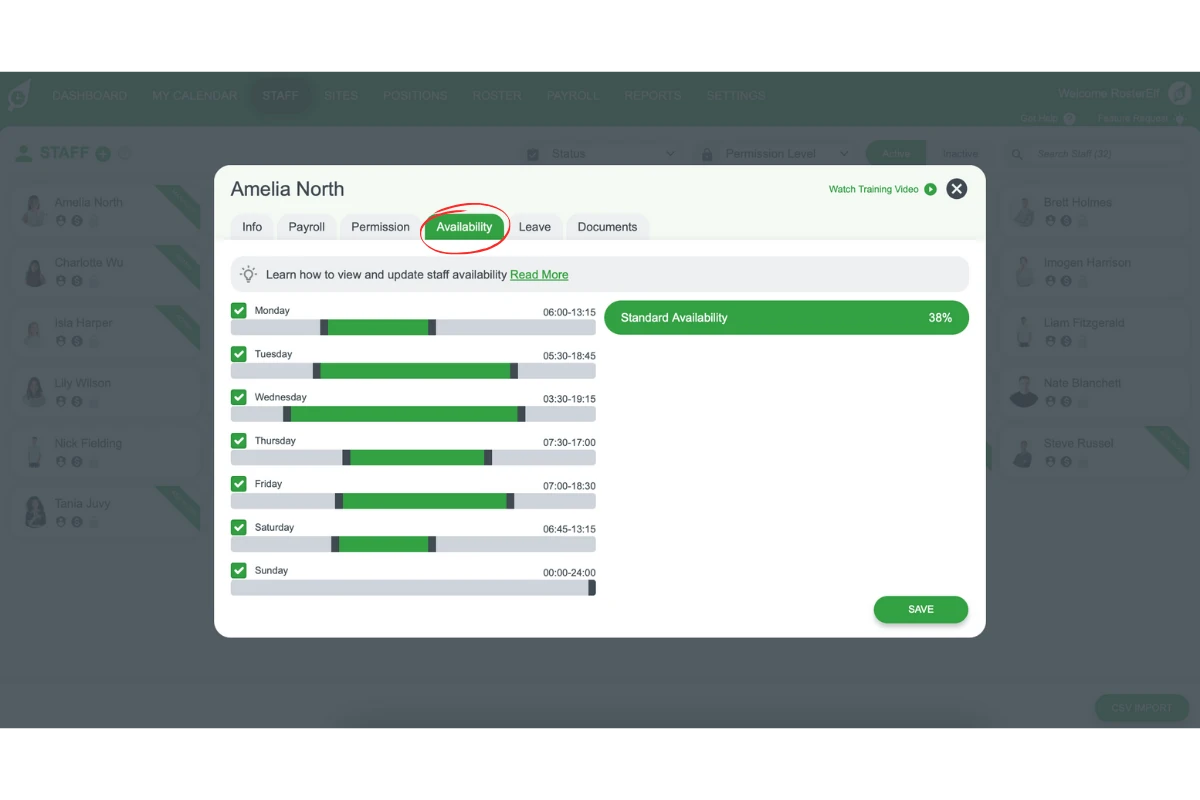
1.2.1 Within the staff member’s profile, click the Availability tab.
1.2.2 Review the displayed days and hours of availability, as set by the employee.
2. Update staff availability
This section covers how to adjust a staff member’s availability. Managers can update availability whenever it changes to keep scheduling accurate.
2.1 Modify availability
2.1.1 In the Availability tab, each day is a slider. Drag its Start and Finish handles to adjust the available hours, or use the tick beside a day to switch that day off.
2.2 Save changes
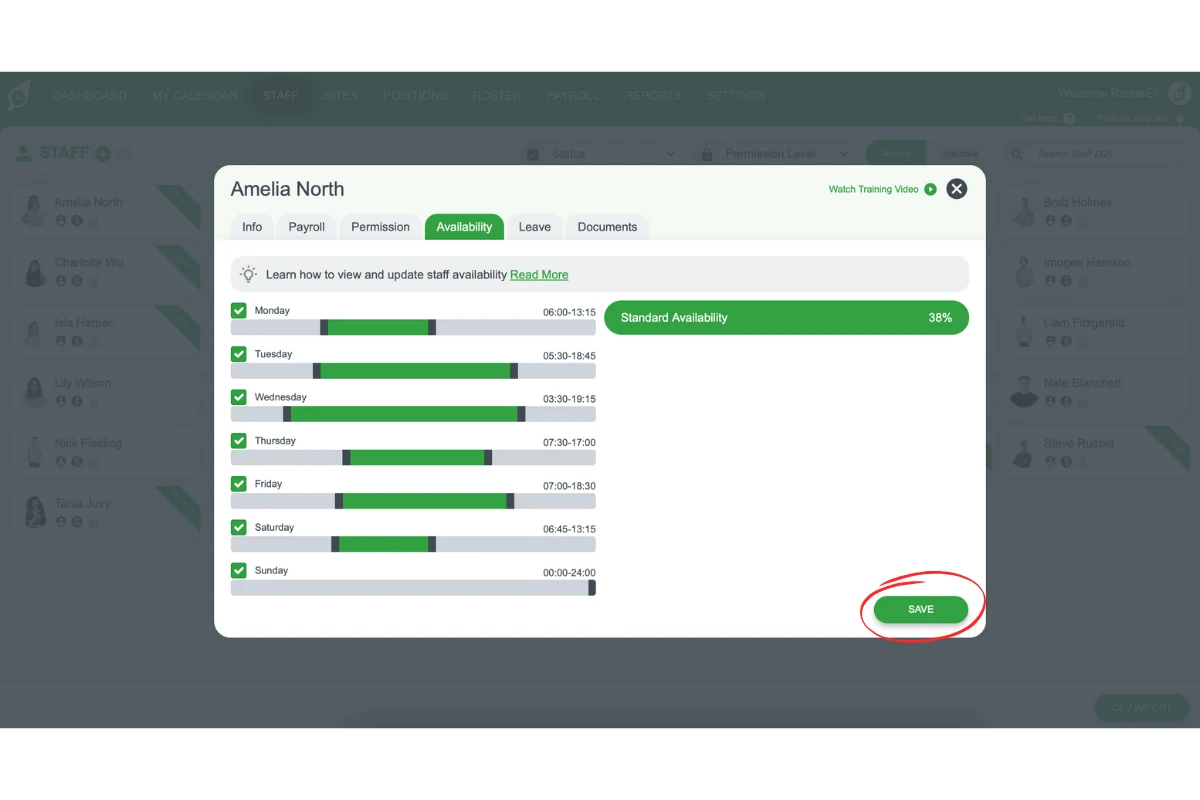
2.2.1 Once your adjustments are made, click Save to store the new availability information.
Frequently asked questions
1. How do I check a staff member's availability?
Go to the Staff tab, select the staff member, and open their Availability tab. Here you’ll see the days and hours they’re available.
2. Can managers update staff availability directly?
Yes. Managers can update standard availability in the Availability tab of the staff member’s profile. Adjust the hours by dragging each day’s Start and Finish handles (or use the tick to switch a day off), then click Save.
3. What is the benefit of updating staff availability regularly?
Keeping availability up to date helps managers schedule shifts more efficiently, ensuring employees are only rostered when they’re available.
4. How do I save changes after updating availability?
After modifying the availability, click Save to store the changes in the system.
5. Where can I find the availability settings?
Availability settings are located within the Availability tab in each staff member’s profile, accessible through the Staff section in the menu. Account-wide rules, such as whether employees may set their own availability and when changes lock, are under Settings › Leave & Availability. See leave and availability settings.
6. Can I set standard working hours for casual and part-time staff?
Yes. Recurring hours work for casual, part-time and full-time staff — set them from the staff member’s payroll section. See set recurring staff hours for the full steps.
7. Can I block the availability feature?
Yes. An admin can stop employees changing their own availability: open Settings, select Leave & Availability, open the Availability Settings tab and switch off Allow Employees to Set Availability. Employees then see Availability Disabled — Your employer doesn’t allow employees to set their availability instead of the form. To allow changes but stop late ones, use Change Lock on the same tab. See leave and availability settings.
8. Can a manager add a temporary availability block on behalf of a staff member?
Yes. An Assistant Manager or higher can add a one-off availability block for a staff member from their profile.