

Introduction to processing sick leave
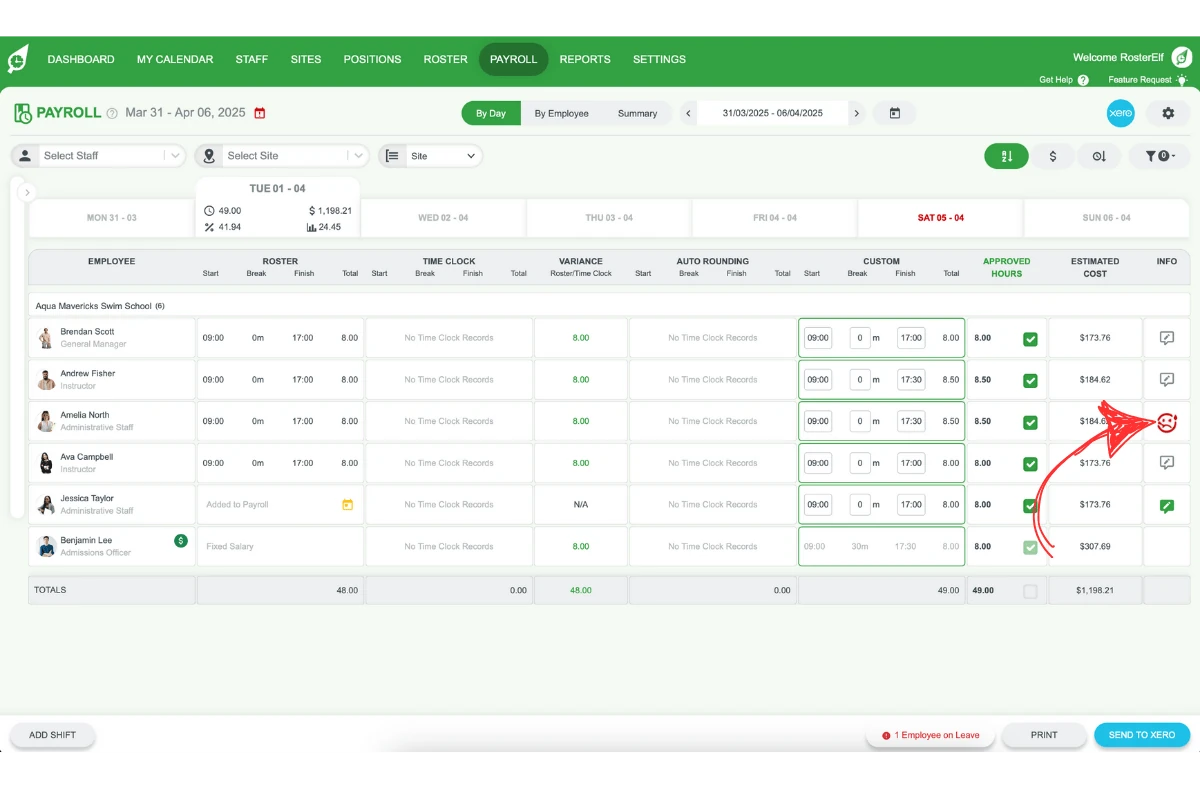
This article guides you through processing sick leave for staff in payroll using RosterElf’s leave management features. When a manager marks an employee as sick on the Browser, Smartphone, or Time Clock tablet app, the sick leave will automatically be approved and appear in the payroll for the relevant pay cycle. If a staff member is marked as sick on the Time Clock App, the clock-in-out data will be empty, showing No Time Clock Records. On the shift notes on the far right, a sick emoticon will be displayed. Following these steps ensures accurate sick leave processing in payroll. For more on requesting leave, see Requesting leave from a browser.
If an employee worked part of their shift before going home sick, see the guide on managing half day sick leave in RosterElf for the combined workflow covering roster, payroll hours, and leave export.
For additional information on managing leave entitlements, refer to Australia’s Fair Work guidelines on leave.
1. Viewing sick leave shift notes
After marking an employee as sick, their shift will display No Time Clock Records for Time Clock data and include a sick emoticon in the shift notes on the far right. Follow these steps to access the shift notes for more details.
1.1 accessing sick leave shift notes
1.1.1 On the Payroll screen, locate the shift showing No Time Clock Records.
1.1.2 Click the icon on the right side of the shift to open the shift notes, where the sick emoticon is displayed.
2. Approving sick leave and entering hours
Once you’ve reviewed the shift notes, you can proceed to approve the sick leave and enter the necessary hours.
2.1 approving leave and entering sick leave hours
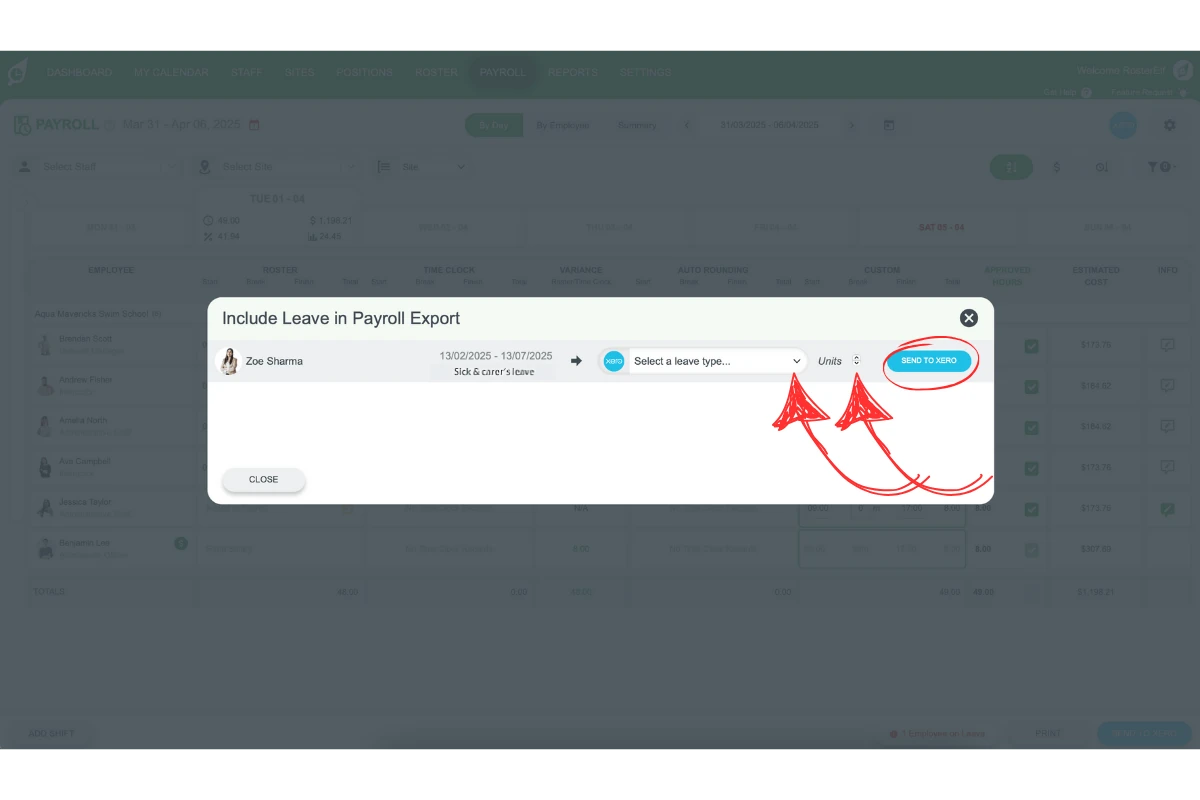
2.1.1 Click the Employee on Leave notification at the bottom of the Payroll screen.
2.1.2 Enter the number of hours to pay as sick leave.
2.1.3 Type the leave description.
2.1.4 Click Save / Send to Xero.
3. Selecting the correct leave pay item
For accurate payroll processing, it’s essential to select the appropriate Leave Pay Item based on your payroll system. RosterElf’s integration with Xero simplifies this for Xero users.
3.1 choosing leave pay item for Xero and other software
3.1.1 Xero Customers: Select the correct Leave Pay Item from the dropdown menu. For more details, refer to:
3.1.2 Other Customers: Enter the correct Leave Pay Item name as it appears in your payroll software, then click Save.
3.2 troubleshooting Xero leave processing errors
If you encounter issues when sending leave to payroll in Xero, refer to:
- Xero errors when sending leave to payroll
- Unable to process the leave request - Xero error
Note: Do I need to untick the approved hours for a staff member who has been marked as sick? Yes, you will need to untick the approved hours for that shift if it hasn’t been assigned to another staff member.
Frequently asked questions
1. How do I process sick leave in payroll with RosterElf?
To process sick leave in payroll with RosterElf, mark the employee as sick using the Browser, Smartphone, or Time Clock tablet app. The sick leave will then automatically be approved and appear in the payroll for the relevant pay cycle. Sick leave hours will show as No Time Clock Records on the Payroll screen with a sick emoticon in the Shift Notes.
2. Where can I find shift notes for an employee marked as sick?
You can view shift notes by locating the sick leave entry on the Payroll screen. Click on the icon next to the shift with No Time Clock Records to access the notes related to the sick leave. For more details on managing shift notes, see our guide on enabling and managing shift notes.
3. How do I approve sick leave and enter hours in payroll?
To approve sick leave, select the Employee on Leave notification at the bottom of the Payroll screen. Tick the box to approve, then enter the appropriate number of hours to be paid as sick leave.
4. What is the correct Leave Pay Item for Xero in RosterElf?
For Xero users, select the appropriate Leave Pay Item from the dropdown menu in RosterElf for accurate payroll processing. Refer to Export leave to Xero for further details on managing leave exports.
5. How can I troubleshoot Xero errors when processing leave?
If you encounter errors when sending leave to payroll in Xero, consult the support resources like Xero errors when sending leave to payroll and Unable to process the leave request - Xero error for detailed guidance on resolving issues.