

Efficient staff leave management for payroll
Efficiently managing staff leave is crucial for accurate payroll processing. This guide provides a step-by-step process for handling leave requests during your payroll cycle using RosterElf. By following these instructions, you’ll ensure that leave entries are recorded accurately, helping maintain correct payroll data. This process is designed to be simple and efficient, so you can streamline leave management and reduce potential payroll errors. For further assistance on exporting leave, handling sick leave, and troubleshooting Xero errors, see the linked guides within each step.
1. Process leave requests for payroll
This section explains how to process leave requests for staff within the payroll cycle. When a staff member has requested leave, RosterElf will notify you to ensure it is accurately recorded. By promptly attending to these alerts, you can manage leave efficiently and keep your payroll data up-to-date. If you need additional steps, refer to our guides on exporting leave to Xero, processing public holidays, and resolving Xero errors.
1.1 processing leave alerts
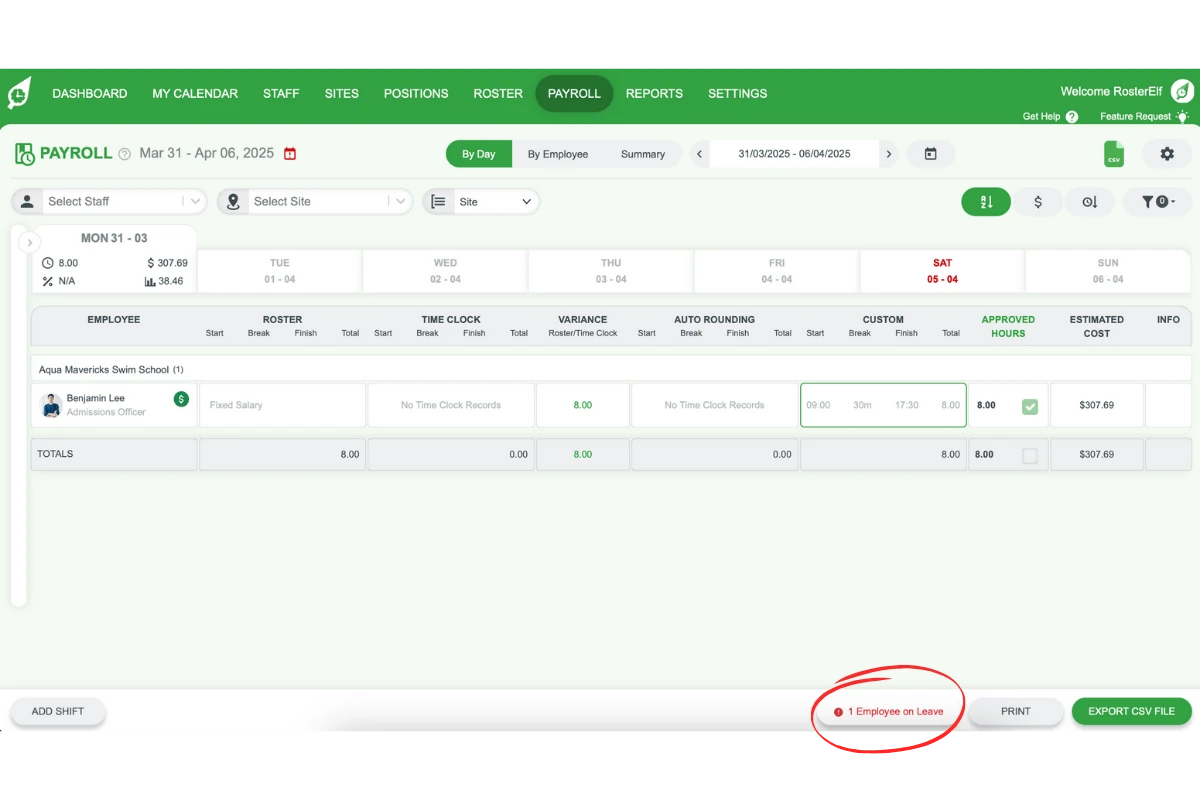
1.1.1 Click on the leave alert that appears in RosterElf during the payroll cycle.
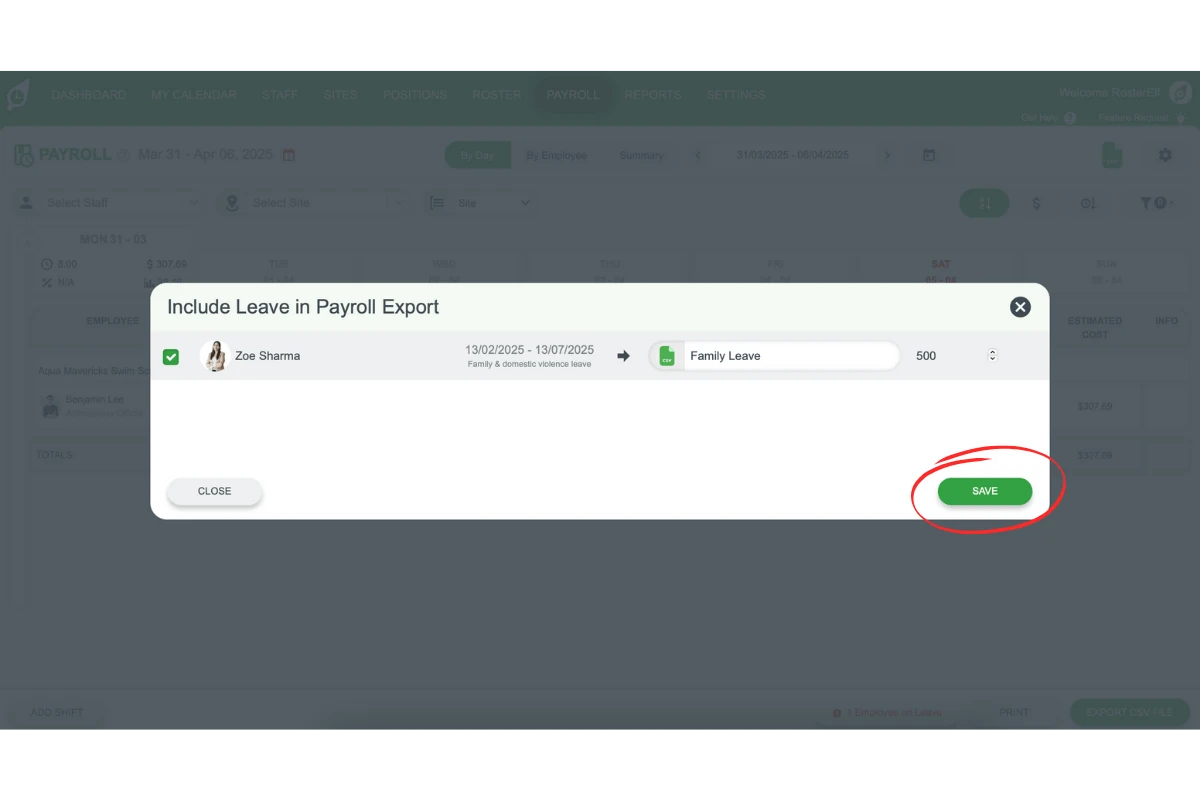
1.1.2 Tick the checkbox next to the staff member’s leave entry. If the leave is a public holiday, refer to our Export public holiday leave to Xero guide.
1.1.3 Enter the number of leave hours for the staff member. For sick leave processing, see Process sick leave in payroll.
1.1.4 Type in the leave type (e.g., annual, sick).
1.1.5 Click Save to confirm and record the leave details.
1.2 exporting leave to Xero
If your organisation uses Xero for payroll, you can export approved leave entries directly. For instructions, refer to the Export Leave to Xero guide. If you encounter any errors during the export, see our Xero Errors When Sending Leave to Payroll guide or Unable to Process the Leave Request - Xero Error guide for troubleshooting.
1.3 requesting leave from a browser
If employees need to request leave directly, they can do so through the RosterElf platform. To guide employees, refer to our Requesting Leave from a Browser guide.
Frequently asked questions
1. How do I process a leave request in RosterElf for payroll?
To process a leave request in RosterElf during payroll, click the leave alert, tick the checkbox next to the entry, enter leave hours, specify the leave type, and click Save. This ensures leave is recorded accurately for payroll.
2. Can I export leave data from RosterElf to Xero?
Yes, RosterElf allows you to export approved leave entries directly to Xero. For detailed instructions, refer to the Export Leave to Xero guide.
3. What should I do if I encounter errors exporting leave to Xero?
If errors arise when exporting leave to Xero, consult the Xero Errors When Sending Leave to Payroll guide or the Unable to Process the Leave Request - Xero Error guide for troubleshooting.
4. How do I manage public holiday leave for payroll in RosterElf?
To manage public holiday leave, tick the leave entry checkbox and follow the steps outlined in Export public holiday leave to Xero. This ensures accurate holiday leave recording for payroll.
5. How can staff request leave through RosterElf?
Staff can request leave directly from a browser using the RosterElf platform. For detailed instructions, refer to the Requesting Leave from a Browser guide.