

Mark a shift as sick in RosterElf
This article explains how to mark a shift as sick in RosterElf. Whether a staff member calls in sick on the day or notifies you after the shift, you can easily update the roster to reflect this. Recording sick leave helps with accurate record-keeping and ensures payroll is correct.
You’ll learn how to find the shift, mark it as sick, and add a reason. These simple steps help you manage attendance, reduce confusion, and support your compliance efforts with leave policies. If the employee worked part of the shift before going home sick, see the guide on managing half day sick leave in RosterElf.
1. How to mark a shift as sick
This section shows how to open a rostered shift and update its status to sick. You can do this for current or past dates. Marking shifts accurately ensures that sick leave is recorded properly for reporting and payroll.
1.1 mark shift as sick
1.1.1 Log in to your RosterElf account.
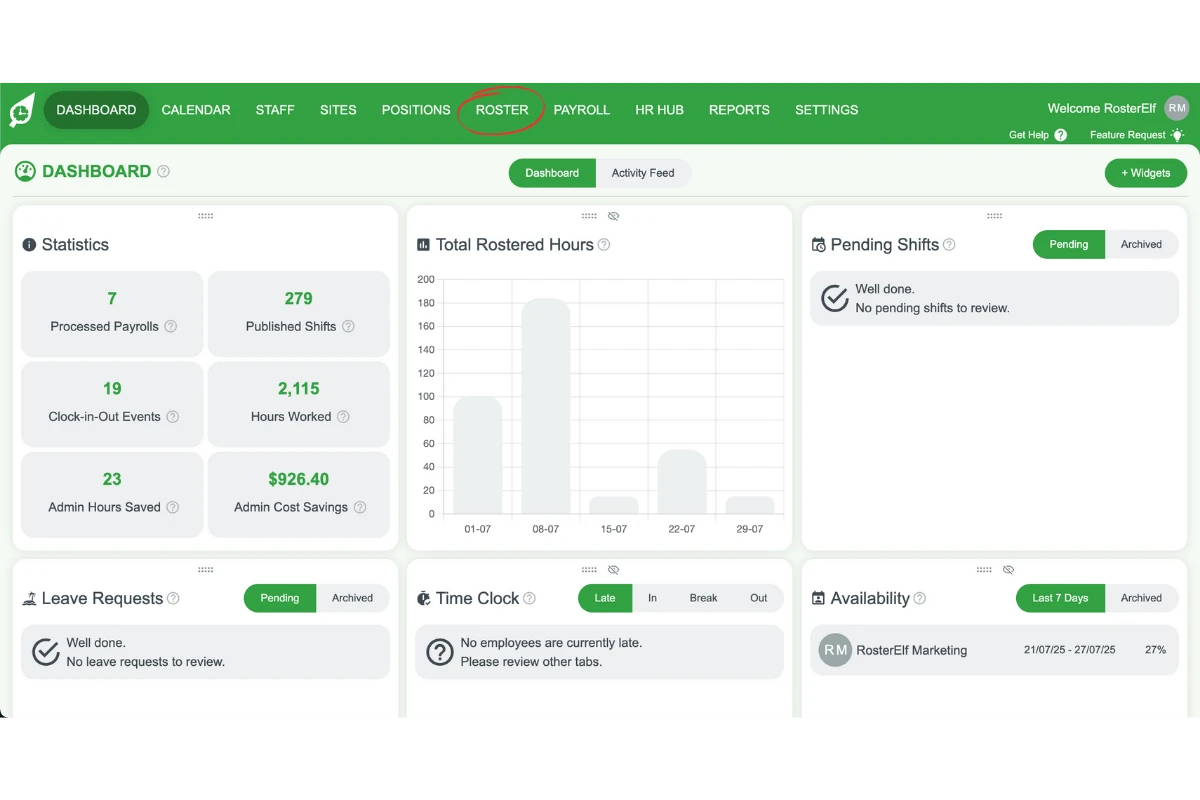
1.1.2 Click the Roster tab from the left-hand menu.
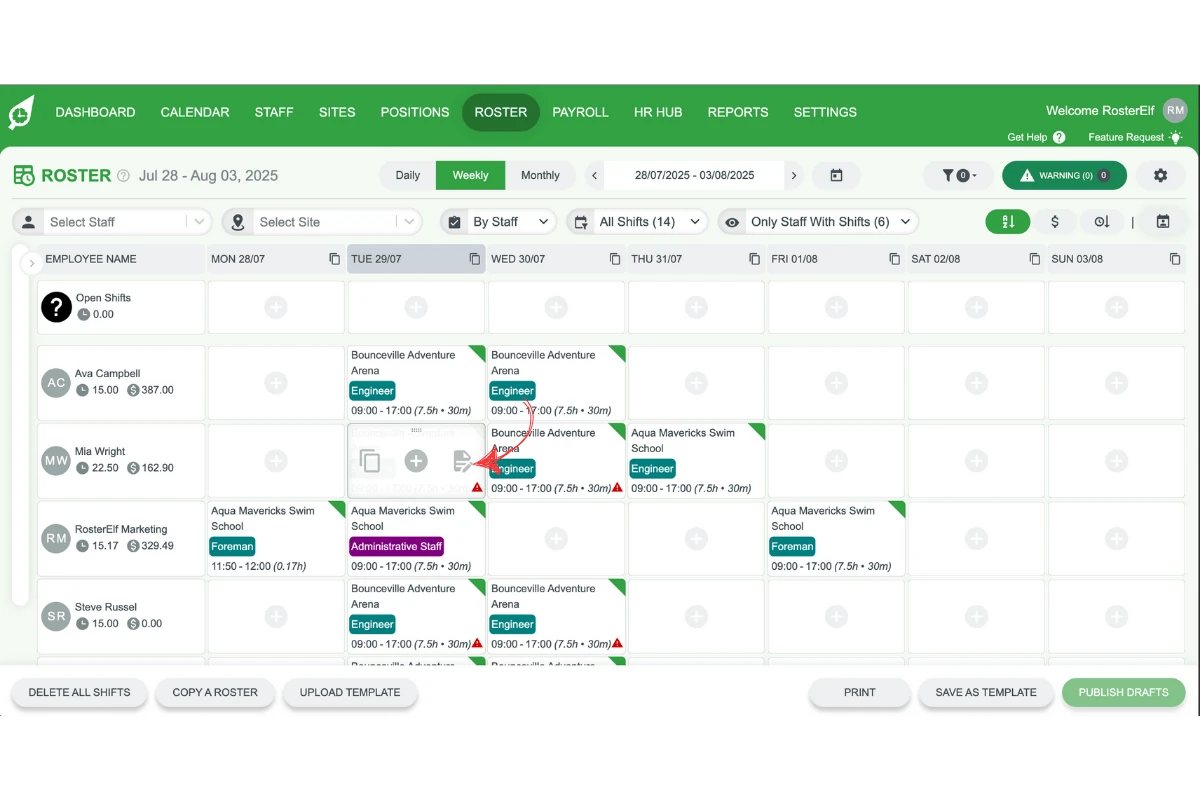
1.1.3 Find and click on the relevant shift (on the day or in the past).
1.1.4 Select the Sick option for the shift status.
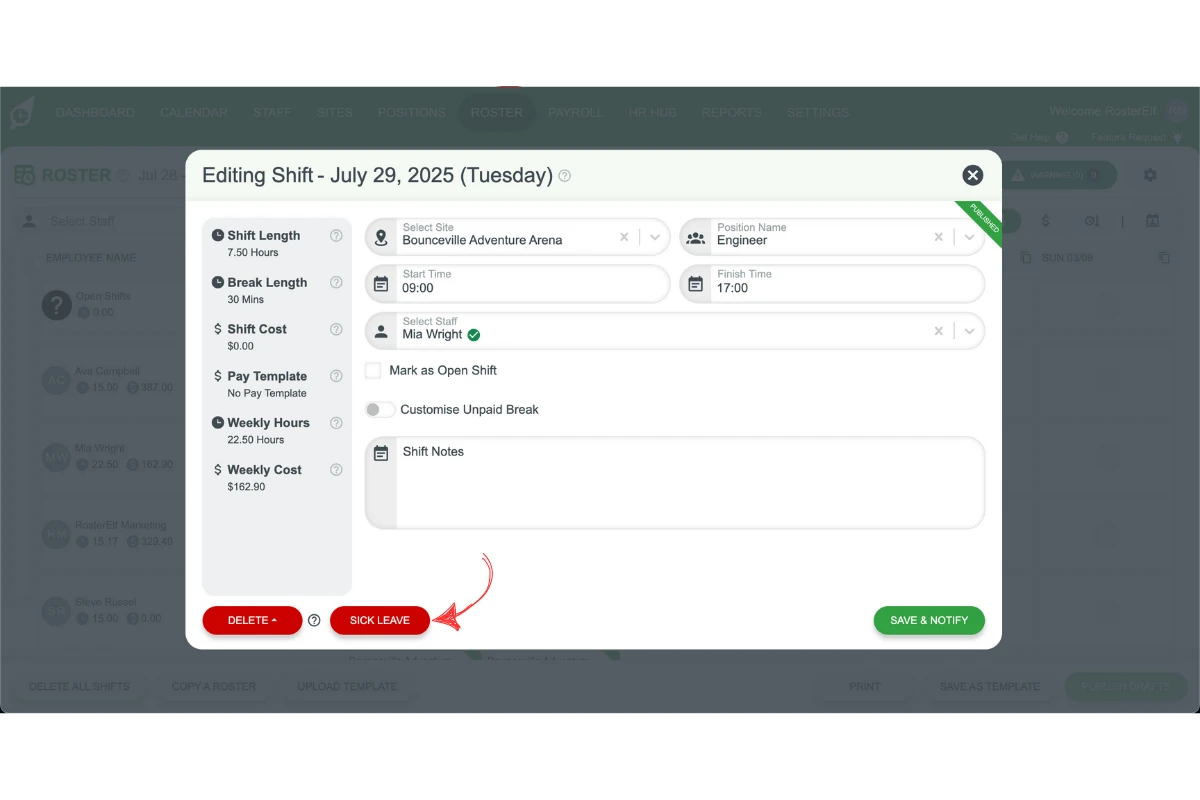
1.1.5 Enter the reason for the sick leave in the text field.
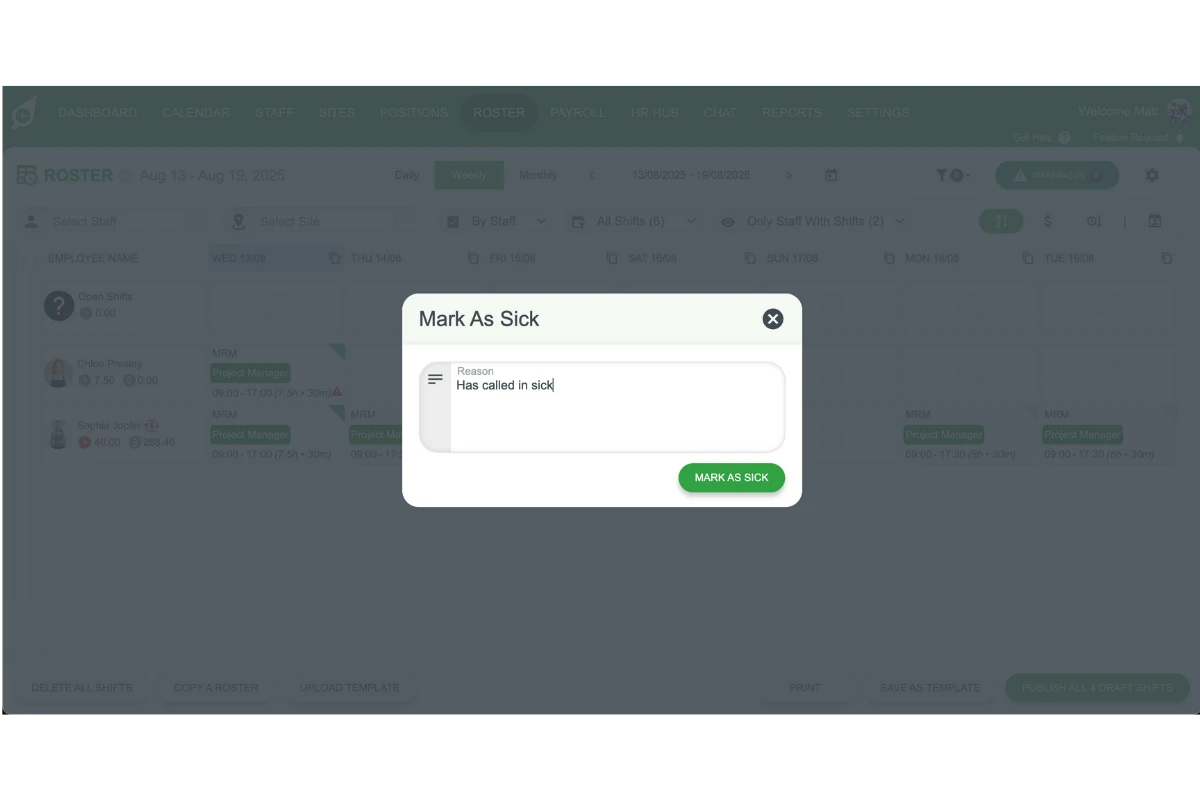
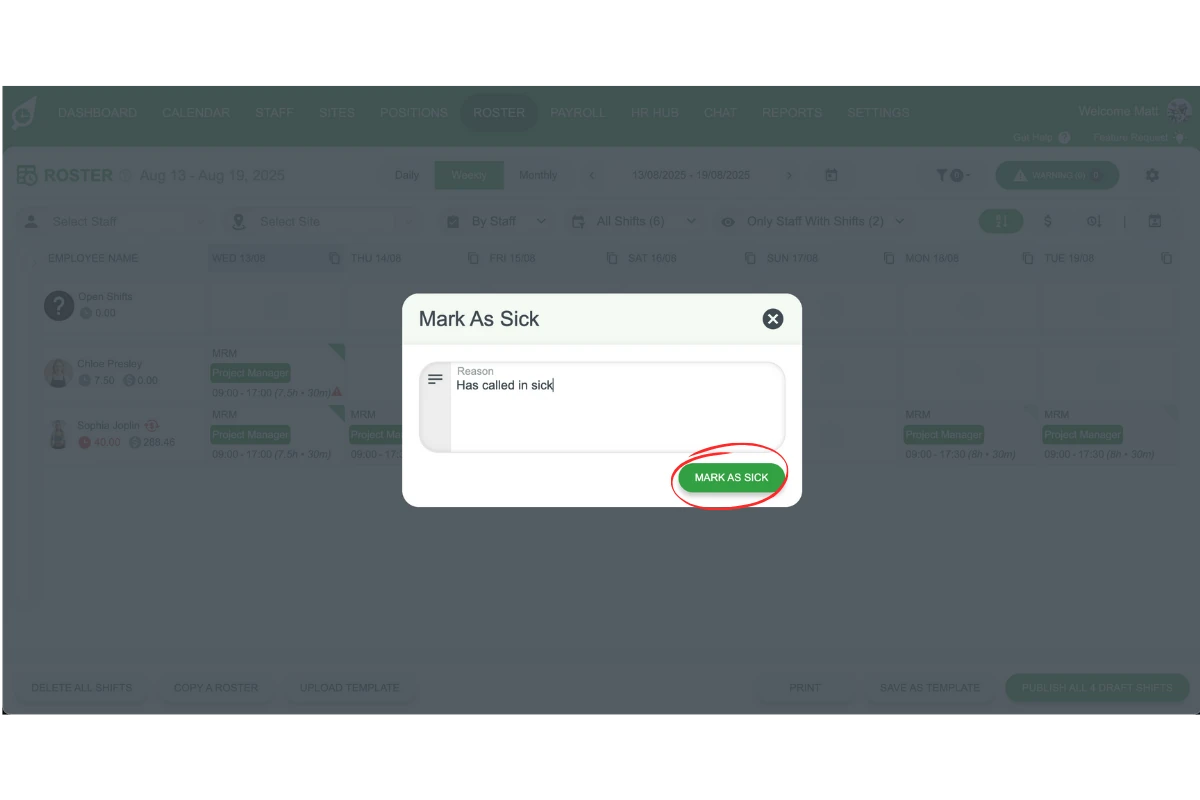
1.1.6 Click Mark As Sick to confirm the change.
Frequently asked questions
1. How do I mark a shift as sick in RosterElf?
To mark a shift as sick in RosterElf, go to the Roster tab, select the relevant shift (either current or past), choose the Sick option, add a reason, and click Mark As Sick.
2. Can I mark a past shift as sick in RosterElf?
Yes, you can mark any previous shift as sick. Simply locate the past shift in the Roster tab, update its status to Sick, enter the reason, and save the changes.
3. Does marking a shift as sick affect payroll in RosterElf?
Yes. Marking a shift as sick helps ensure payroll is accurate by recording the correct leave type, which is essential for compliant reporting and staff entitlements.
4. Do I need to enter a reason when marking a shift as sick?
Yes. RosterElf requires a reason to be entered when you mark a shift as sick. This helps with documentation and future reference for leave audits.
5. Can I edit a shift marked as sick later?
Yes. You can go back to the shift in the Roster tab at any time to update or remove the sick status if needed. Just open the shift, make the change, and save.