

How to refresh your Xero connection in RosterElf
If the connection between RosterElf and Xero pauses, payroll stops reaching Xero. Refreshing the connection is the first thing to try, and it takes under a minute. This guide shows you how to reconnect RosterElf to Xero so your payroll integration keeps working.
When to refresh your Xero connection
Refresh the connection first if you see any of these:
- Process Payroll or Send to Xero fails with a 500 error. Your browser may show it as “500 (Internal Server Error)” on
process-export. - Send to Xero says “You don’t have permission to send timesheets to this account”. Check your Xero permissions first (below).
- Send to Xero finishes, but nothing appears in Xero.
- A Xero Connection Error message, once you’ve checked payroll is enabled in Xero.
- The Payroll Settings page says You must connect your account to Xero.
The quick fix
Go to Settings > Payroll and click the green refresh arrow beside Payroll Entity. Then send your payroll to Xero again.
If the message mentions permission
Check whether permissions changed in Xero recently, then refresh while signed in to Xero as a user with Standard or Adviser access and Payroll Admin. See required Xero permission levels.
1. Access payroll settings
The first step is to access your payroll settings in RosterElf. This section explains how to navigate to the payroll settings where you can refresh the Xero connection.
1.1 Go to payroll settings
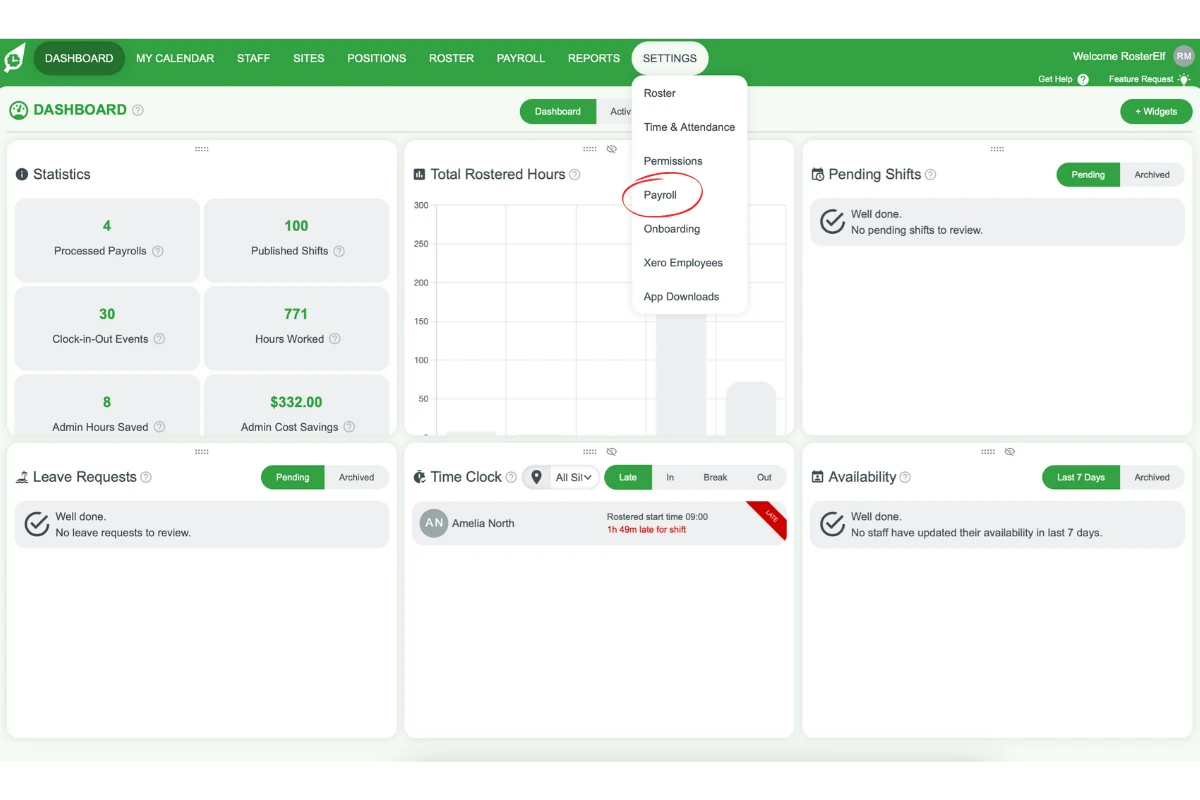
1.1.1 In the top menu, click Settings.
1.1.2 Select Payroll to open the Payroll Settings page.
2. Refresh the connection
After accessing payroll settings, you can refresh the Xero connection. This will restart the connection process for RosterElf and Xero.
2.1 Click the refresh arrow beside Payroll Entity
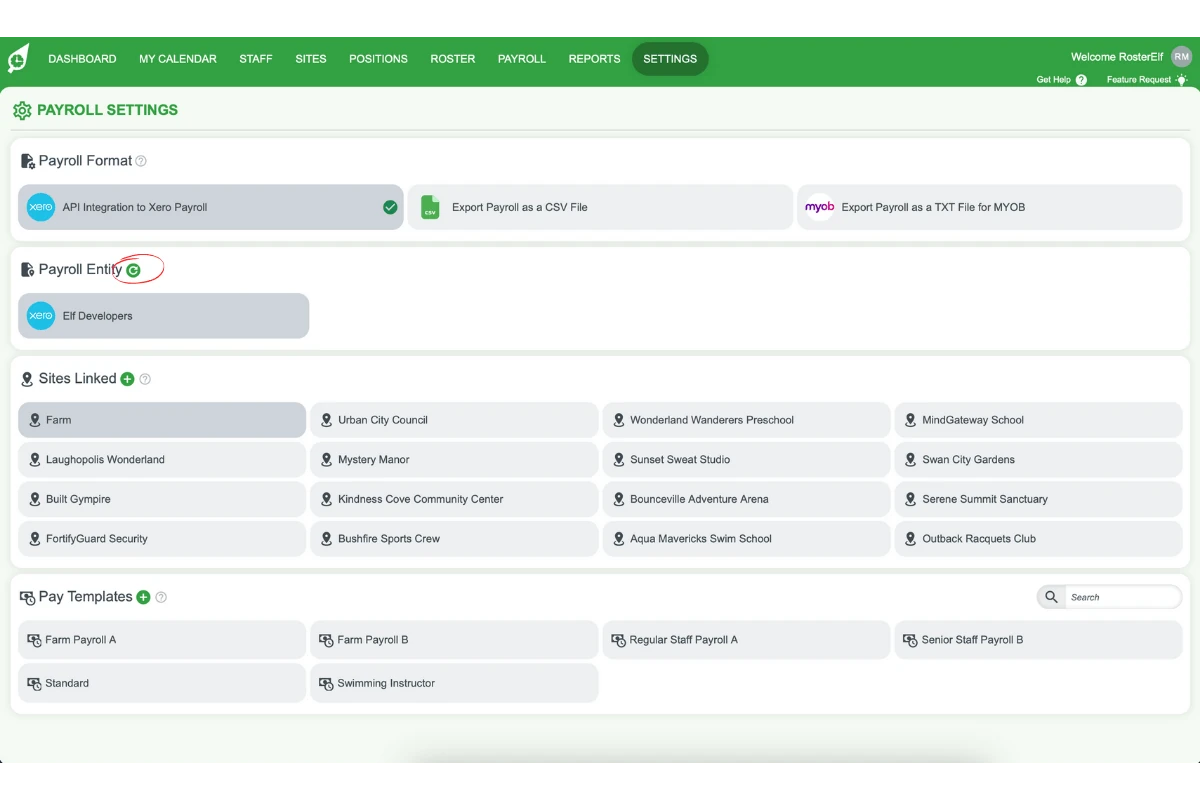
2.1.1 Find the Payroll Entity section on the Payroll Settings page.
2.1.2 Click the green refresh arrow beside Payroll Entity.
3. Connect to Xero
Now you can reconnect to Xero in the pop-up that appears, allowing RosterElf to link to your Xero account for payroll integration.
3.1 Click Connect in the pop-up
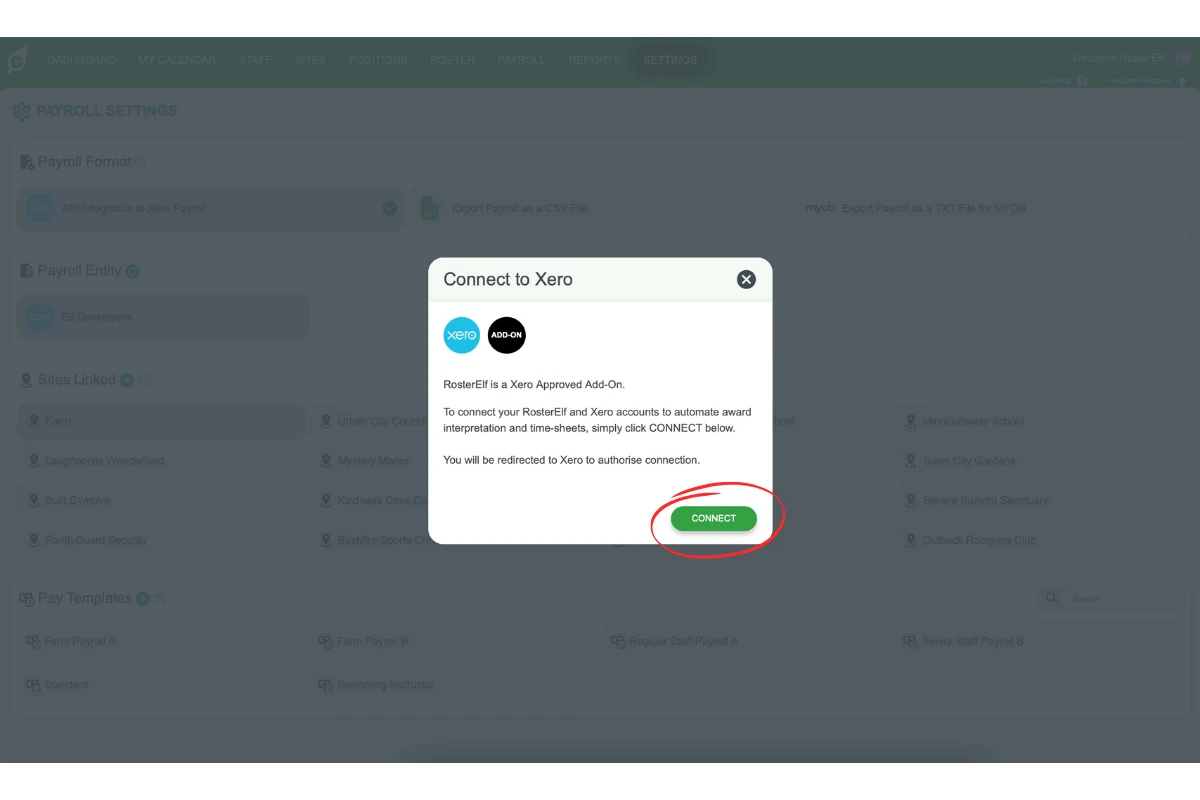
3.1.1 When the pop-up appears, locate the Connect button in the bottom right.
3.1.2 Click Connect.
4. Manage pop-up blockers
If your browser blocks the Xero connection pop-up, follow these steps to allow the pop-up and proceed with the reconnection.
4.1 Allow the pop-up
4.1.1 Check for a pop-up blocker icon near the URL in your browser.
4.1.2 Click the icon.
4.1.3 Allow the pop-up, then click the refresh arrow again.
5. Select Xero organisation
After allowing the pop-up, follow the prompts to select the correct Xero organisation. This will finalise the connection.
5.1 Choose the Xero organisation
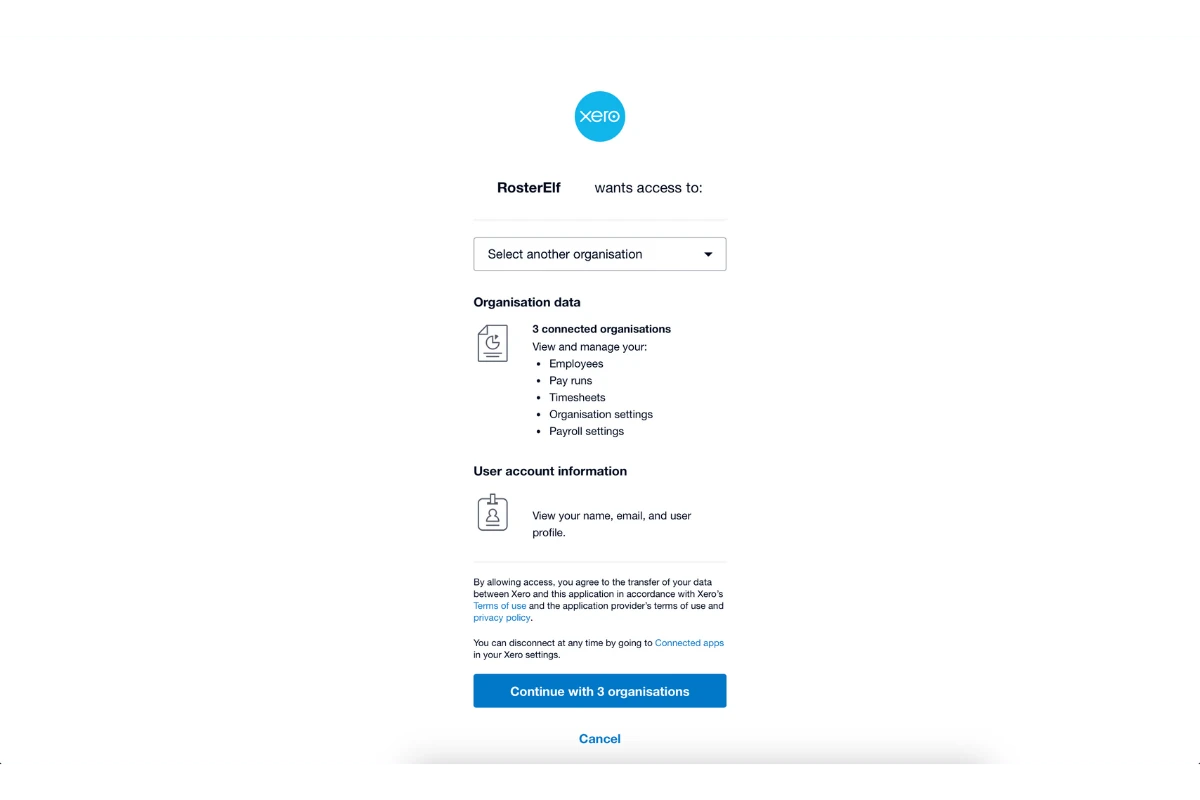
5.1.1 Follow the instructions in the pop-up window.
5.1.2 Select the Xero organisation you want to connect with RosterElf.
5.1.3 If Xero asks you to log in, use a Xero login with Payroll Admin access.
6. Send your payroll again
Completing these prompts reconnects your RosterElf account with Xero. Now send the payroll that failed.
6.1 Resend to Xero
6.1.1 Click Payroll in the top menu and open the same pay period.
6.1.2 Click Send to Xero, then Process Payroll. For one employee only, see resend timesheets to Xero.
Still not sending?
If Xero names a specific error, look it up in common Xero errors and solutions. If it says you don’t have permission, see required Xero permission levels. If the error continues after a refresh, contact our support team and tell us the pay period, roughly when you clicked Process Payroll, and the error you saw.
Frequently asked questions
1. What should I do if I get a 500 error when sending payroll to Xero?
Refresh the Xero connection first. Go to Settings > Payroll in RosterElf and click the green refresh arrow beside Payroll Entity, follow the prompts to reconnect, then send your payroll again. This applies to “500 (Internal Server Error)” on Process Payroll or Send to Xero.
2. Will refreshing fix "You don't have permission to send timesheets to this account"?
Often, yes, as long as you reconnect as a Xero user with Payroll Admin. First check whether permissions changed in Xero recently, then refresh from Settings > Payroll and send again. See required Xero permission levels.
3. How do I reconnect RosterElf to Xero?
Go to Settings > Payroll, click the green refresh arrow beside Payroll Entity, and follow the prompts to connect. Make sure pop-ups are allowed if a pop-up blocker is active.
4. Where do I find the refresh icon to reconnect RosterElf to Xero?
On the Payroll Settings page (Settings > Payroll), it is the green refresh arrow beside the Payroll Entity heading. Click it to start the reconnection.
5. What should I do if the Xero connection pop-up is blocked?
If your browser blocks the Xero pop-up, find the pop-up blocker icon near the URL, click it, and allow the pop-up to proceed with the connection.
6. How do I select the correct Xero organisation when reconnecting?
Once the pop-up appears, follow the on-screen prompts to choose the Xero organisation you use for payroll with RosterElf.
7. Why is reconnecting to Xero important for payroll?
Reconnecting keeps RosterElf and Xero in sync, so your timesheets reach Xero and payroll is not delayed.
8. What if the 500 error continues after I refresh the connection?
Contact our support team with the pay period, roughly when you clicked Process Payroll, and the error you saw, so we can check it for you.