

This article explains how to process payroll on an iPad using Safari (CSV). Processing payroll on an iPad gives you flexibility when reviewing employee hours and completing your payroll tasks. It is helpful when you need to make quick adjustments, approve hours, or finalise pay runs away from your computer. Using Safari ensures you can access all payroll features in RosterElf while keeping your workflow simple and efficient.
In this guide, you will learn how to prepare Safari for payroll, log into your RosterElf account, review your employee hours, and complete the payroll process. Each step is direct and easy to follow, helping you avoid errors and maintain accurate records. By following these instructions, you can finalise payroll confidently and keep your team paid on time, even when working from an iPad.
1. Prepare safari to process payroll on iPad
This section explains how to prepare Safari on your iPad before processing payroll. Setting the correct zoom level ensures that all payroll buttons display correctly on the screen. This makes it easier to review hours, make adjustments, and complete the payroll workflow without layout issues.
Following these steps helps you optimise Safari for the best experience, so you can process payroll smoothly and avoid missing any required actions.
1.1 set the safari display to process payroll on iPad
1.1.1 Open Safari on your iPad.
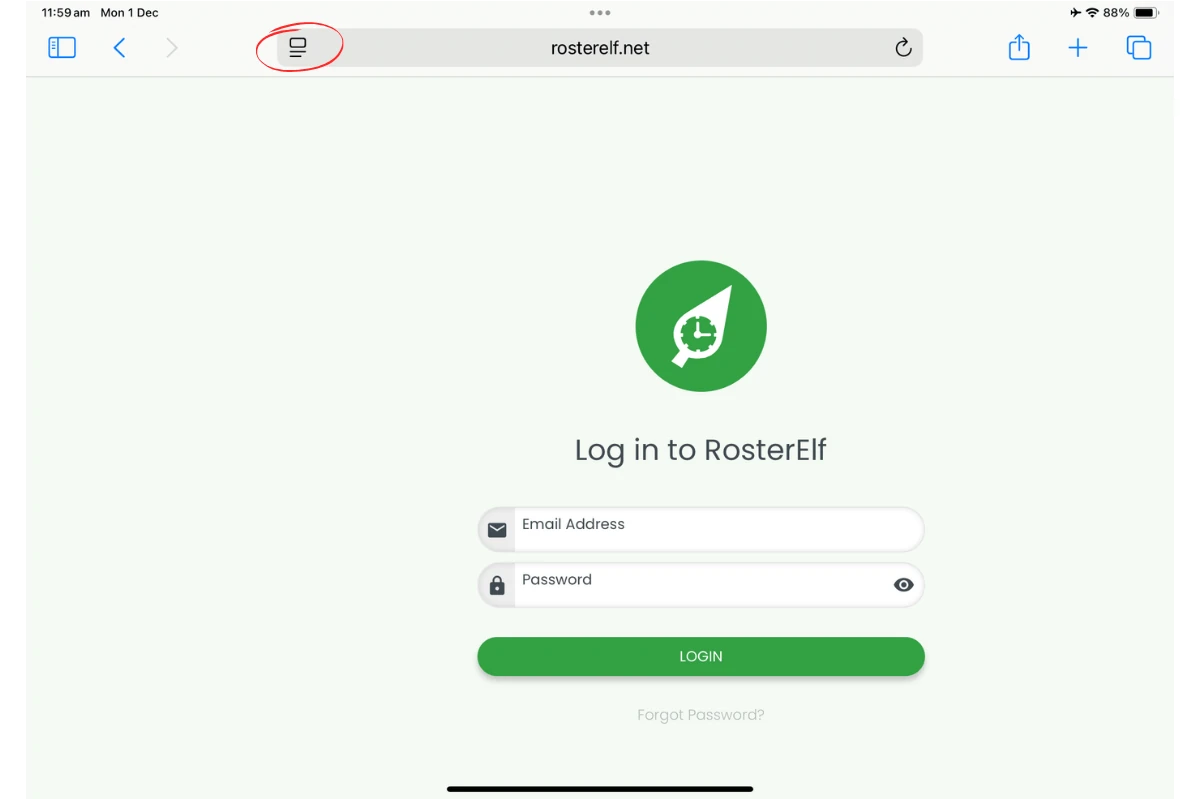
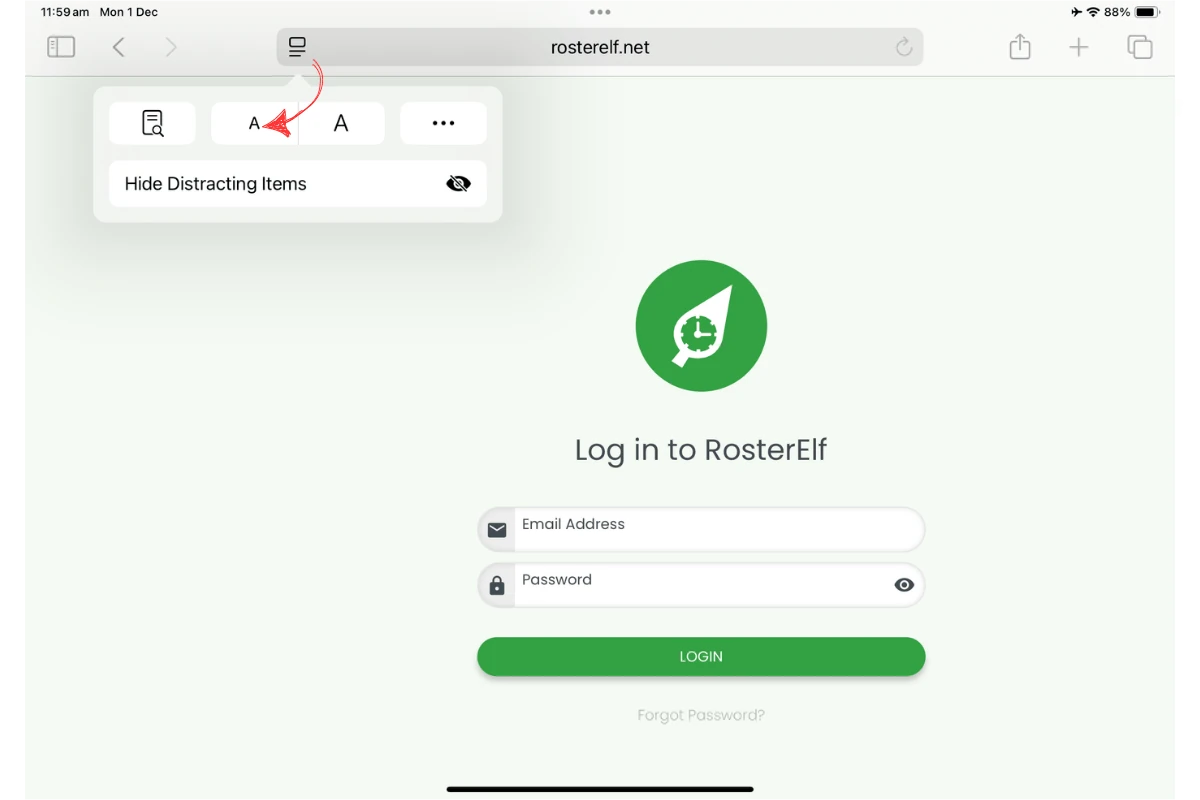
1.1.2 Adjust the zoom level to 85%.
2. Open RosterElf and process payroll on iPad
This section explains how to log into RosterElf and process your payroll using an iPad. You will learn how to access the payroll page, review employee hours, make any necessary changes, and complete the payroll processing steps. These instructions guide you through the full workflow so you can manage payroll quickly and accurately from your iPad.
2.1 access payroll to process payroll on iPad
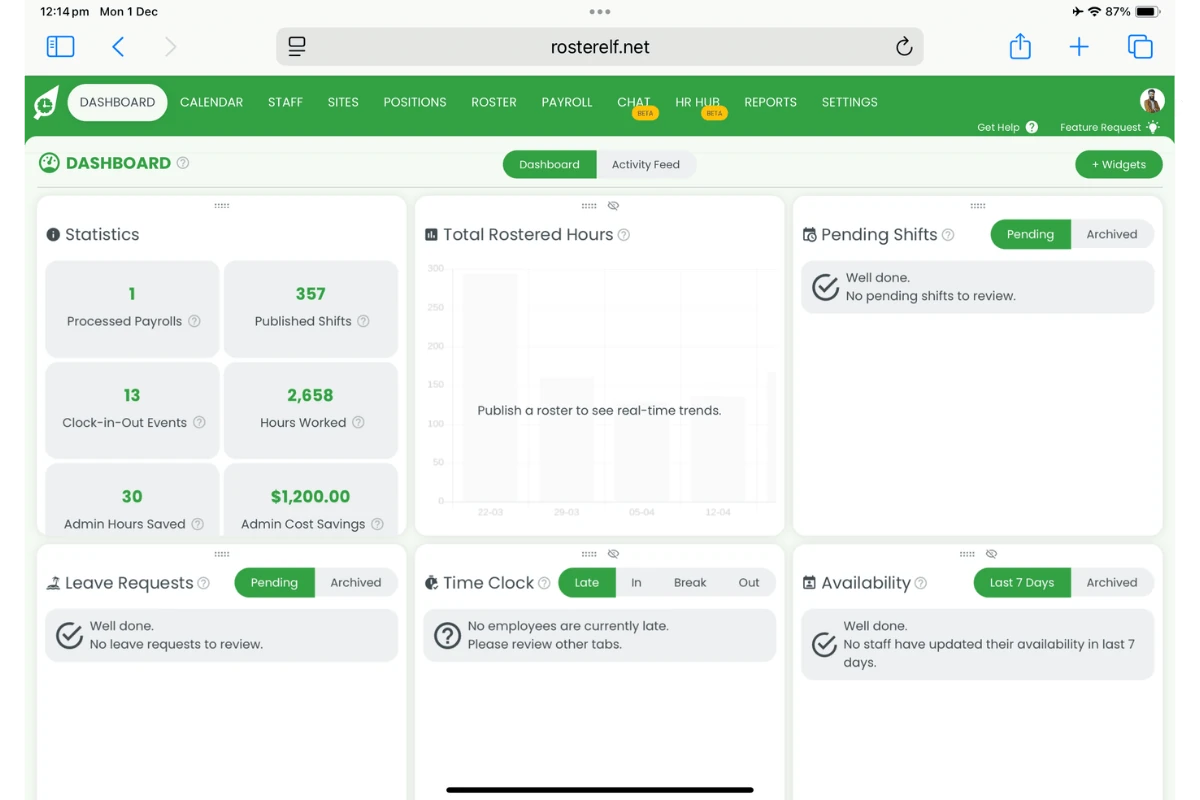
2.1.1 Log in to your RosterElf account.
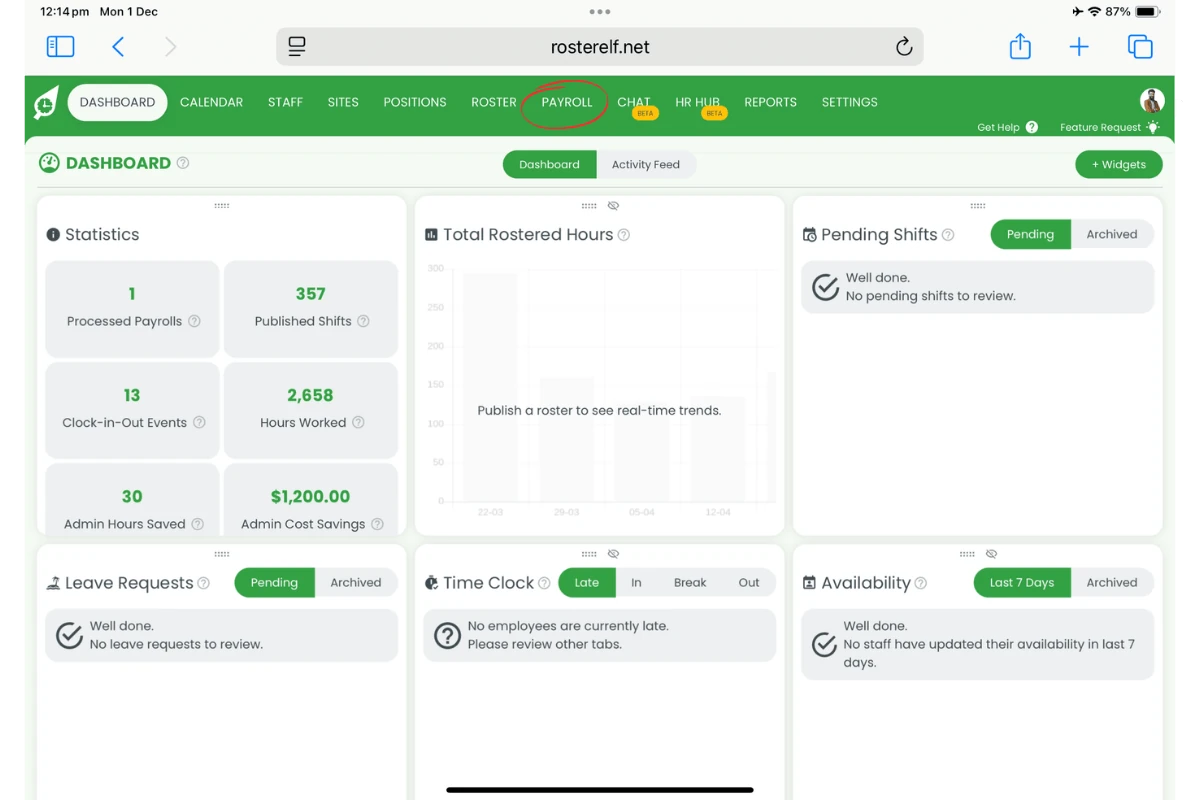
2.1.2 Press Payroll.
2.2 finalise payroll to process payroll on iPad
2.2.1 Review and amend employee hours if needed.
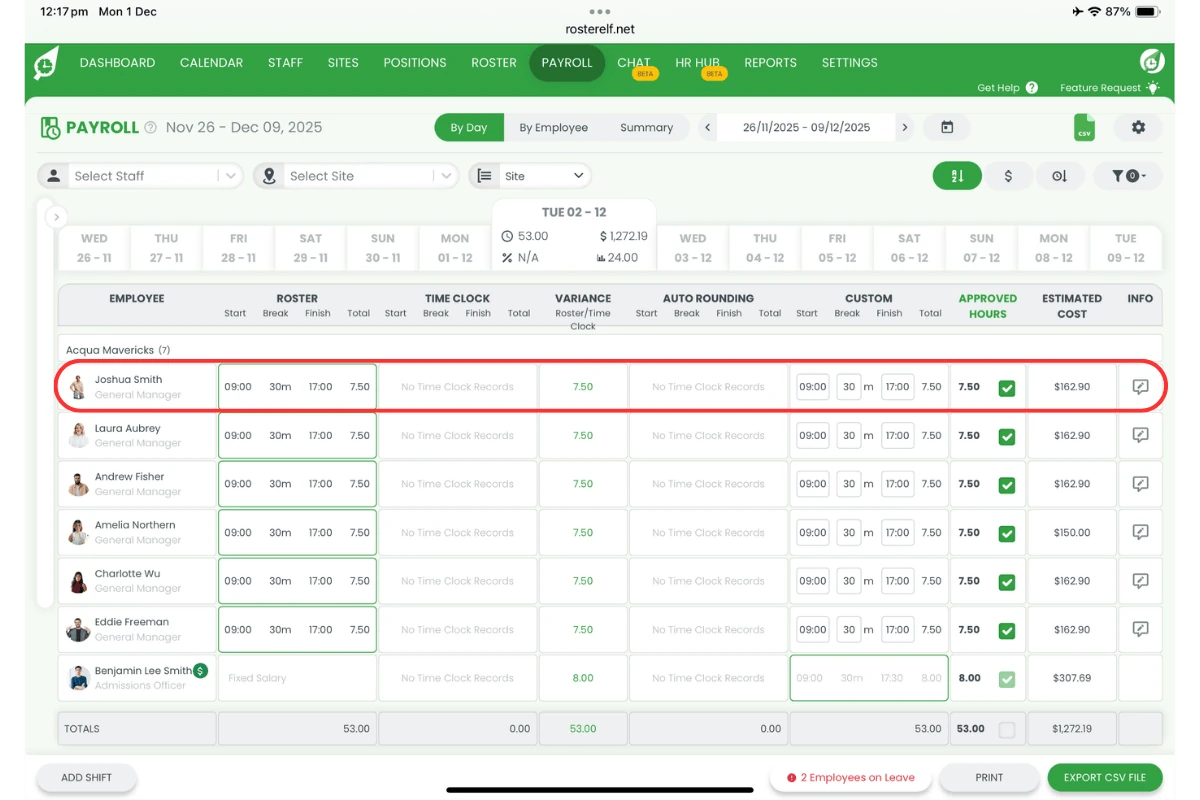
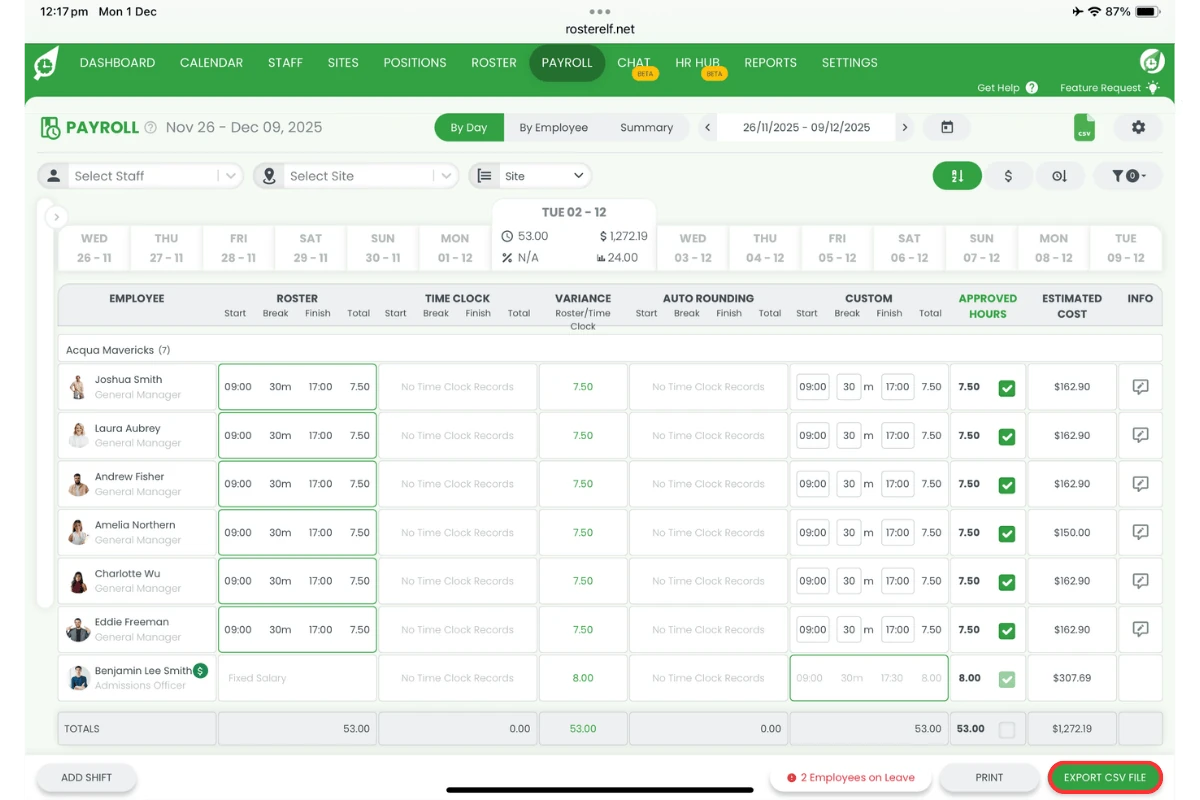
2.2.2 Press Export Payroll to CSV.
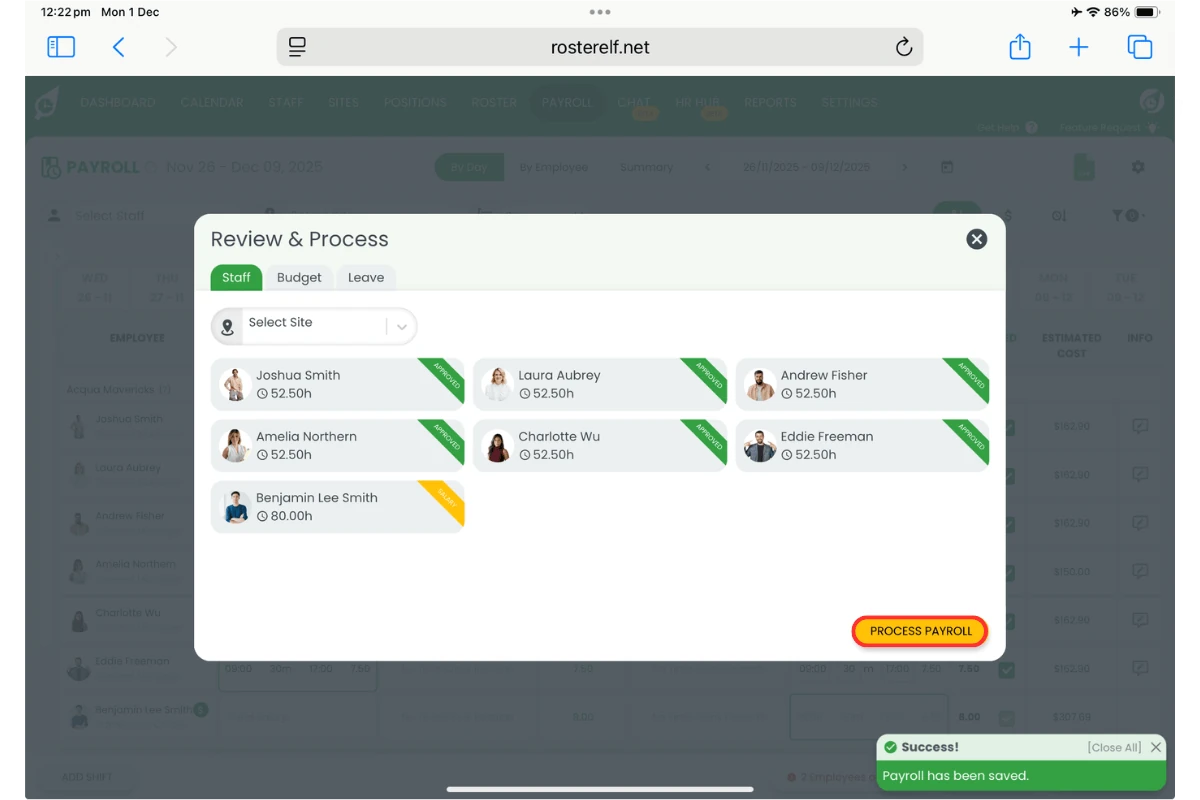
2.2.3 Press Process payroll to confirm.
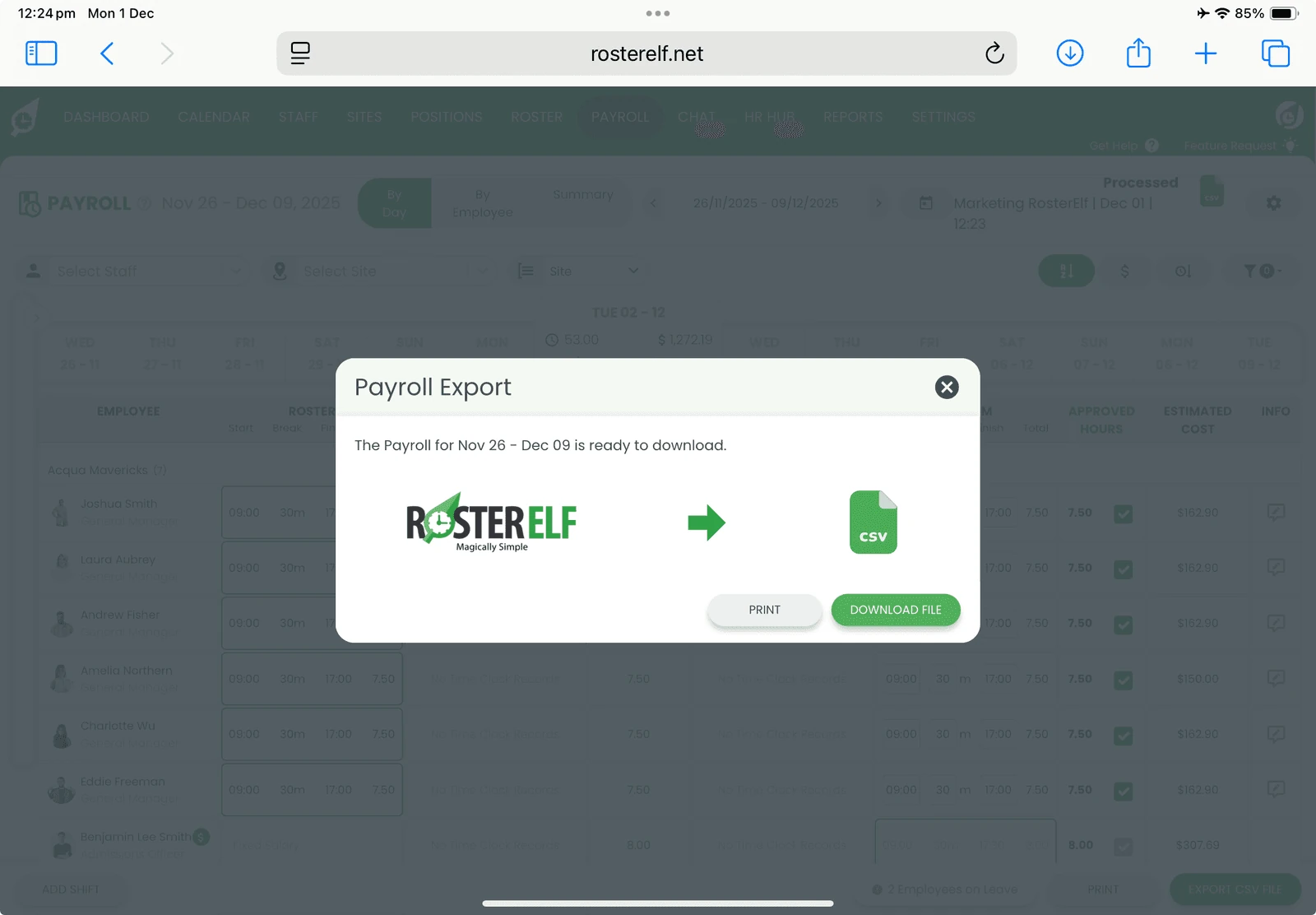
2.2.4 Press Download file to save your CSV Payroll Export.
Frequently asked questions
1. Can I review and edit employee hours on an iPad?
Yes. When you open the Payroll page in RosterElf on your iPad, you can review employee hours and make any required adjustments before finalising payroll with Xero payroll integration.