

How to process payroll for a single staff member in Xero
Processing payroll ensures employees are paid correctly and on time. This guide explains how to process payroll for one staff member efficiently. You’ll learn how to review employee’s hours and complete payroll processing in a few simple steps.
1. Open payroll and review employees
To start, you need to open payroll and check the employees being processed. This ensures accuracy before finalising payments.
1.1 open payroll
Follow these steps to access payroll:
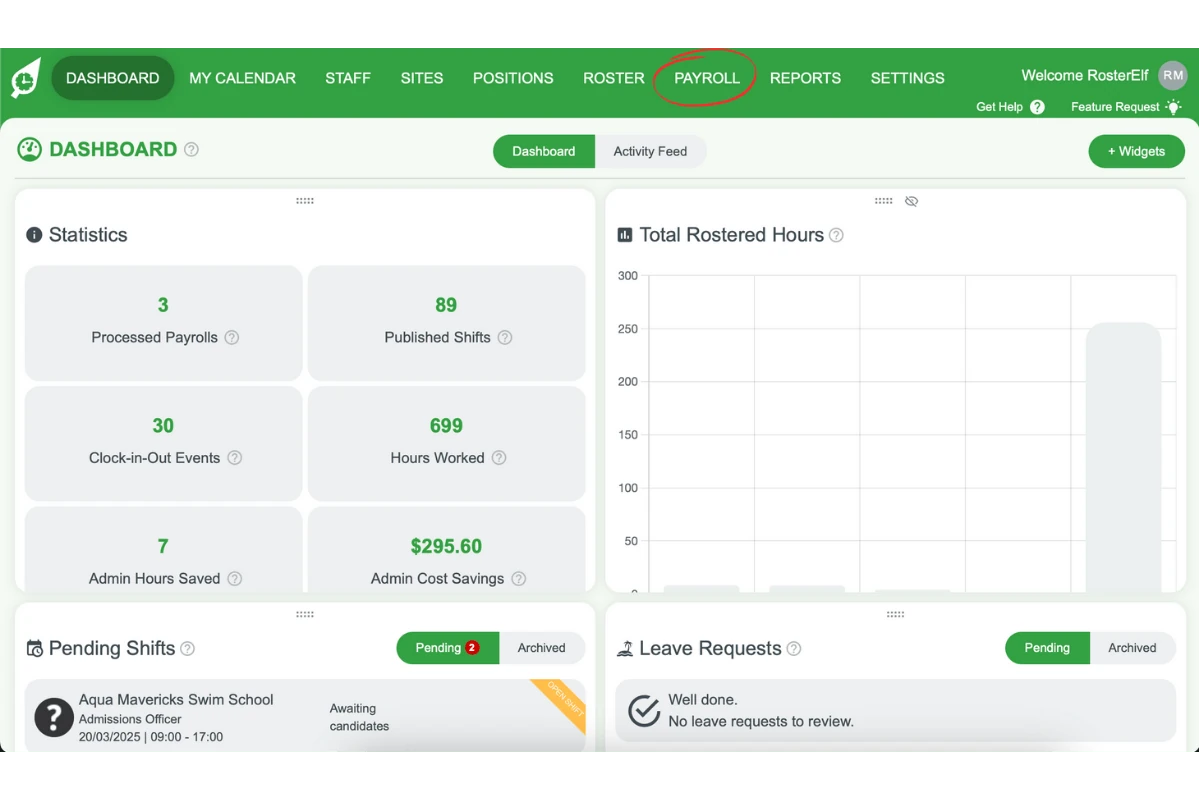
1.1.1 Click on Payroll in the system.
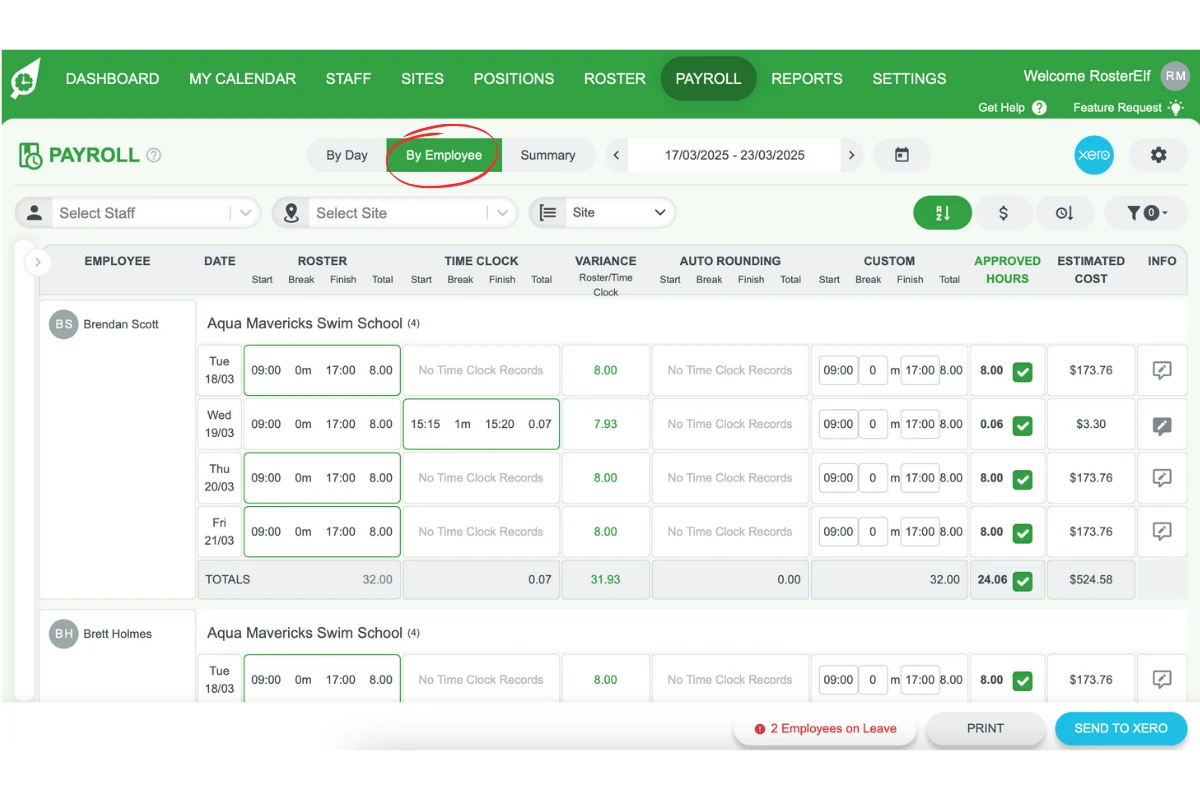
1.1.2 Select View by employee to see individual records.
1.2 select employees for processing
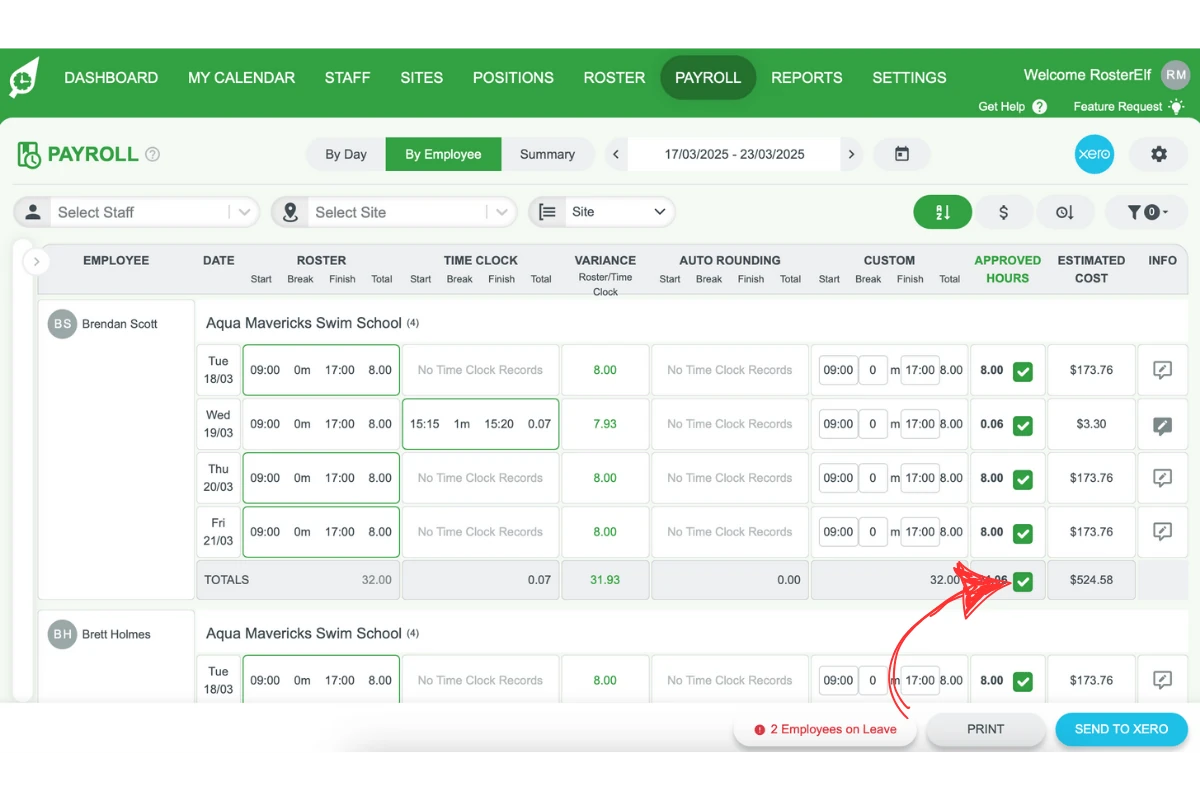
Remove employees who are not being processed to avoid incorrect payments.
1.2.1 Untick Total hours for staff who are not included.
2. Process and finalise payroll
Once you’ve selected the correct employees, you can proceed with payroll processing.
2.1 process payroll
Follow these steps to complete payroll:
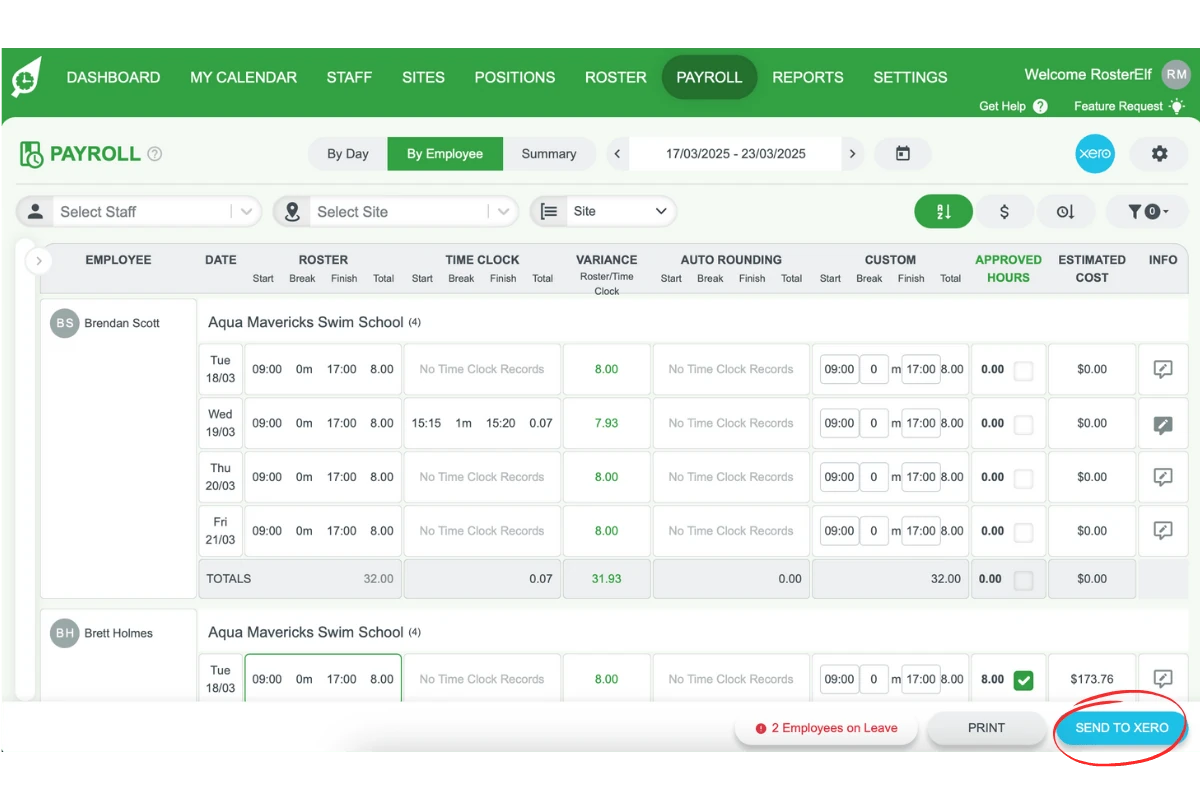
2.1.1 Click process payroll / send to Xero.
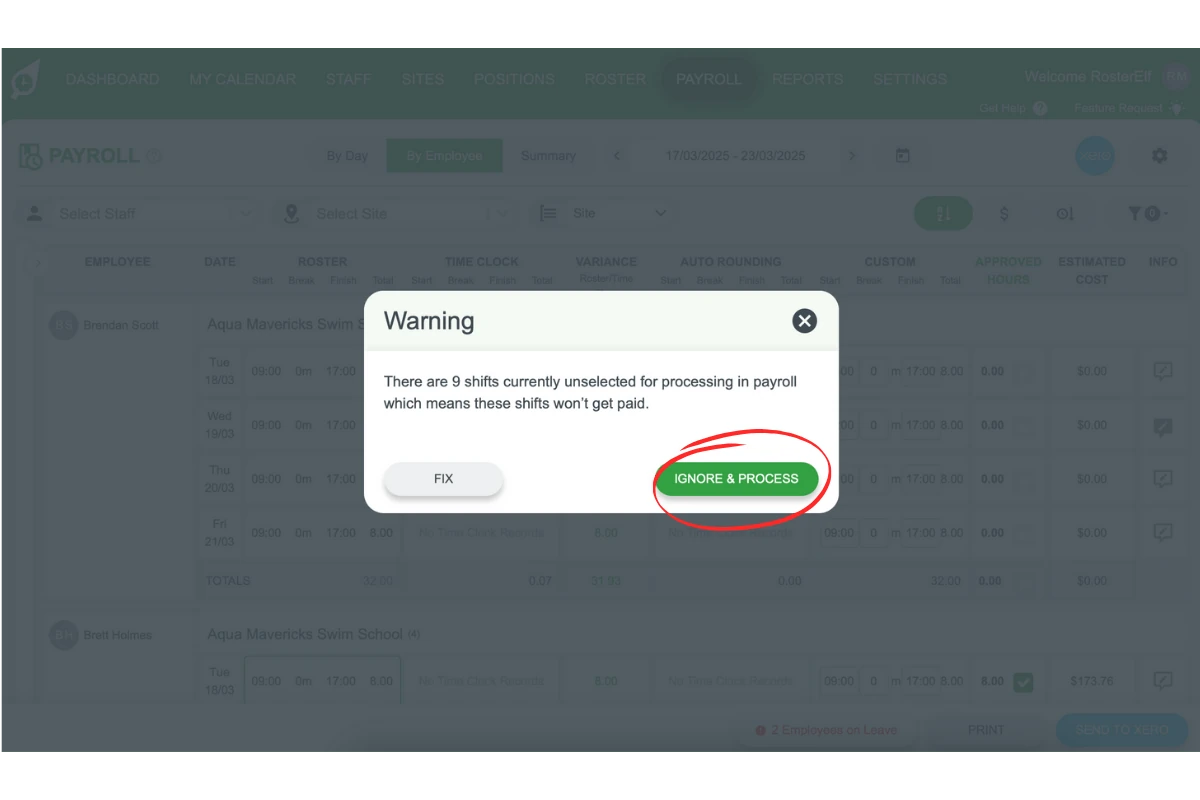
2.1.2 Click ignore & process for the unticked shift warning.
2.1.3 Click Process payroll again to finalise.
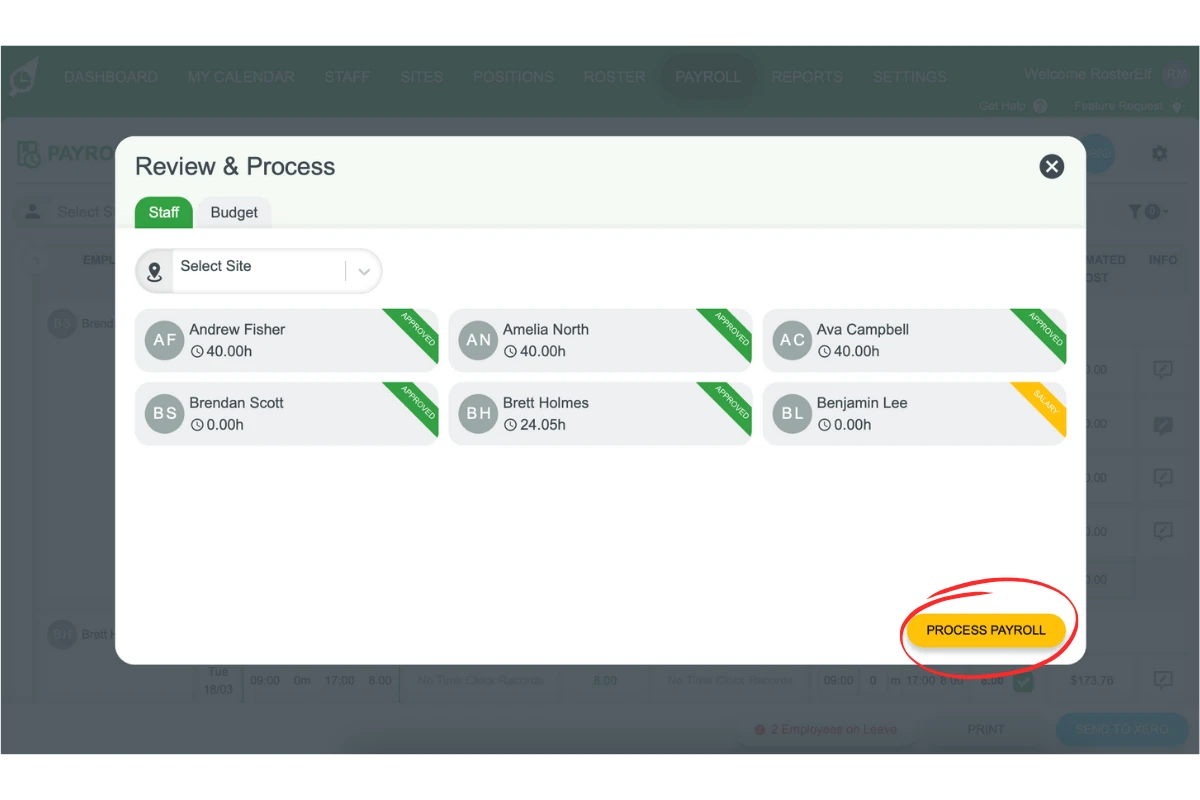
Payroll is now processed, and employees will receive their payments accordingly.
Frequently asked questions
1. What happens after I finalise payroll?
Once payroll is finalised, the Xero payroll integration processes payments accordingly. Employees will receive their salaries as per the designated pay cycle.
2. Why is it important to review payroll details before processing?
Reviewing payroll details helps prevent errors, such as incorrect hours or missing payments. This ensures employees are paid correctly and on time.