

Required Xero permission levels for RosterElf integration
RosterElf sends timesheets to Xero through the Xero login that connected it, so the right permissions matter twice: when you first connect, and every time you send payroll. This guide shows the access you need in Xero and RosterElf, how to check it, and what to do if sending to Xero says you don’t have permission.
If Xero says you don't have permission to send timesheets
If Send to Xero or Process Payroll shows “You don’t have permission to send timesheets to this account”, the timesheets did not reach Xero. This usually means the Xero login connected to RosterElf no longer has payroll access. Work through these steps in order.
- Check whether permissions changed in Xero recently. For example, the person who connected RosterElf has a new role, lost payroll access or has left the business. Check access with the steps in 1.2: you need Standard or Adviser access with Payroll Admin.
- Refresh the Xero connection. Sign in to Xero as a user with Payroll Admin. In RosterElf, go to Settings > Payroll and click the green refresh arrow beside Payroll Entity, then follow the prompts. Full steps are in refresh Xero connection.
- Send the payroll again. Open the same pay period in Payroll and click Send to Xero, then Process Payroll. See resend timesheets to Xero.
Still seeing the message?
Check that you are an Admin or Payroll Admin in RosterElf (the steps in 1.1). If it still fails, contact our support team with the pay period and the exact message.
1. Check your permissions in Xero and RosterElf
To connect Xero and RosterElf, you must have the correct permissions in both systems. In RosterElf, this means Admin or Payroll Admin access, and in Xero, Standard or Adviser access with Payroll Admin privileges. Here’s how to check your access level.
1.1 Verify permissions in RosterElf
To connect RosterElf to Xero, confirm you have Admin or Payroll Admin access in RosterElf.
1.1.1 Log in to RosterElf and follow this guide on viewing permissions via the staff tab.
1.2 Verify permissions in Xero
Ensure you have the required permissions in Xero for the connection to work correctly.
1.2.1 Go to Xero.com, and log in.
1.2.2 Click on the entity name at the top left, then select Settings from the dropdown menu.
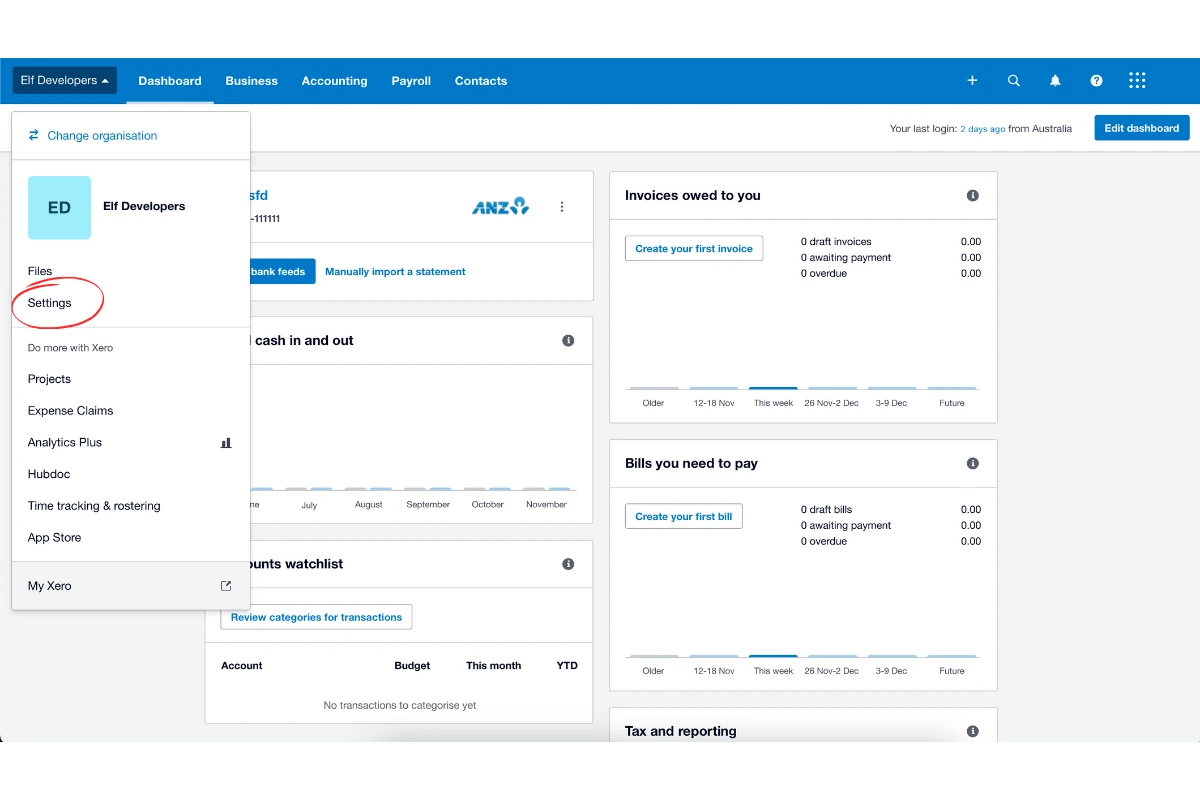
1.2.3 Select Users and locate your name on the list.
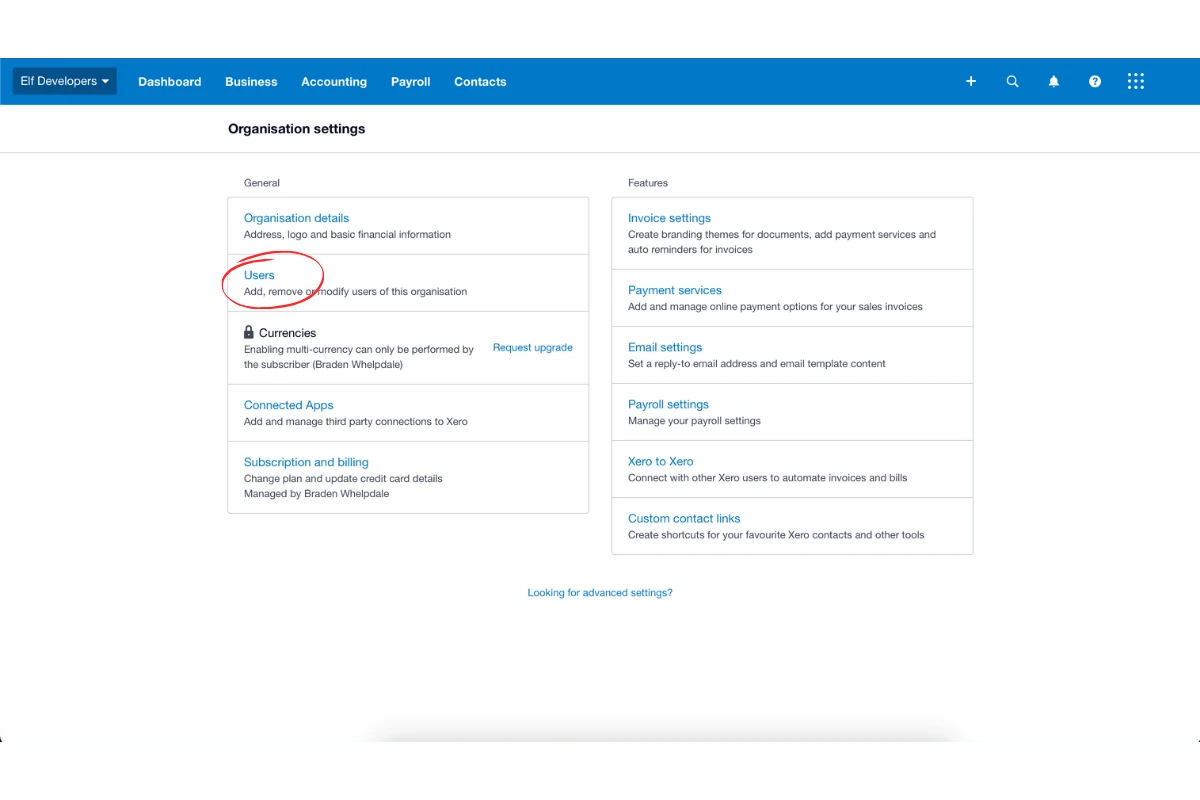
1.2.4 Confirm that you have Standard or Adviser access with Payroll Admin permissions.
2. Setting up Xero for payroll processing
Once you have confirmed your permissions, you can proceed to set up Xero for payroll processing with RosterElf. Follow the Xero setup guide for detailed instructions. If a send to Xero later fails, see common Xero errors and solutions.
Frequently asked questions
1. What permissions do I need to connect Xero and RosterElf?
To connect Xero and RosterElf, you need Admin or Payroll Admin access in RosterElf and Standard or Adviser access with Payroll Admin privileges in Xero. These permissions allow you to manage payroll functions seamlessly across both platforms. Learn more about Xero payroll integration.
2. What does "You don't have permission to send timesheets to this account" mean?
The timesheets did not reach Xero, usually because the Xero login connected to RosterElf no longer has payroll access. Check whether permissions changed in Xero recently, then refresh the connection from Settings > Payroll (the green refresh arrow beside Payroll Entity) while signed in to Xero as a user with Payroll Admin. See refresh Xero connection.
3. Do I need to reconnect Xero after permissions change?
Yes. If the person who connected RosterElf loses Payroll Admin in Xero or leaves the business, refresh the connection as a Xero user who has Standard or Adviser access with Payroll Admin, then send your payroll again.
4. How do I check my permissions in RosterElf?
Log in to RosterElf and follow this guide on viewing permissions via the staff tab. Check your role to confirm you have Admin or Payroll Admin access, as this is necessary to connect with Xero.
5. How do I verify my permissions in Xero?
Log in to Xero, click on the entity name at the top left, and select Settings from the dropdown. Go to Users, locate your name, and confirm that you have Standard or Adviser access with Payroll Admin permissions.
6. Why do I need payroll admin access in Xero?
Payroll admin access in Xero ensures that you can fully integrate and manage payroll functions through RosterElf, enabling a smooth connection between the two platforms for efficient payroll processing.
7. Where can I find more information about setting up Xero for payroll?
For detailed guidance, visit the Xero setup guide, which provides step-by-step instructions for configuring Xero to work with RosterElf.