

This article explains how to re-run your payroll into Xero from RosterElf. If you’ve already processed a payroll but need to make changes, you can resend the updated timesheets easily. This process ensures your payroll data in Xero remains accurate after adjustments.
By following this guide, you’ll learn how to resend a full payroll or only resend timesheets for one employee. Re-running your payroll helps correct errors, update changes, and maintain accurate records in both RosterElf and Xero.
Did the first send fail with an error?
If Send to Xero showed a 500 error, refresh the Xero connection before you resend. Go to Settings > Payroll and click the green refresh arrow beside Payroll Entity. See refresh Xero connection. If it said “You don’t have permission to send timesheets to this account”, check your Xero permission levels first, then refresh while signed in to Xero as a user with Payroll Admin.
1. Re-send your full payroll to Xero
This section explains how to re-send a complete payroll to Xero after making updates in RosterElf. Use this process when multiple staff timesheets need adjustments or reprocessing to ensure Xero reflects all the latest data.
1.1 Re-run a full payroll
1.1.1 Open your RosterElf account and navigate to Payroll.
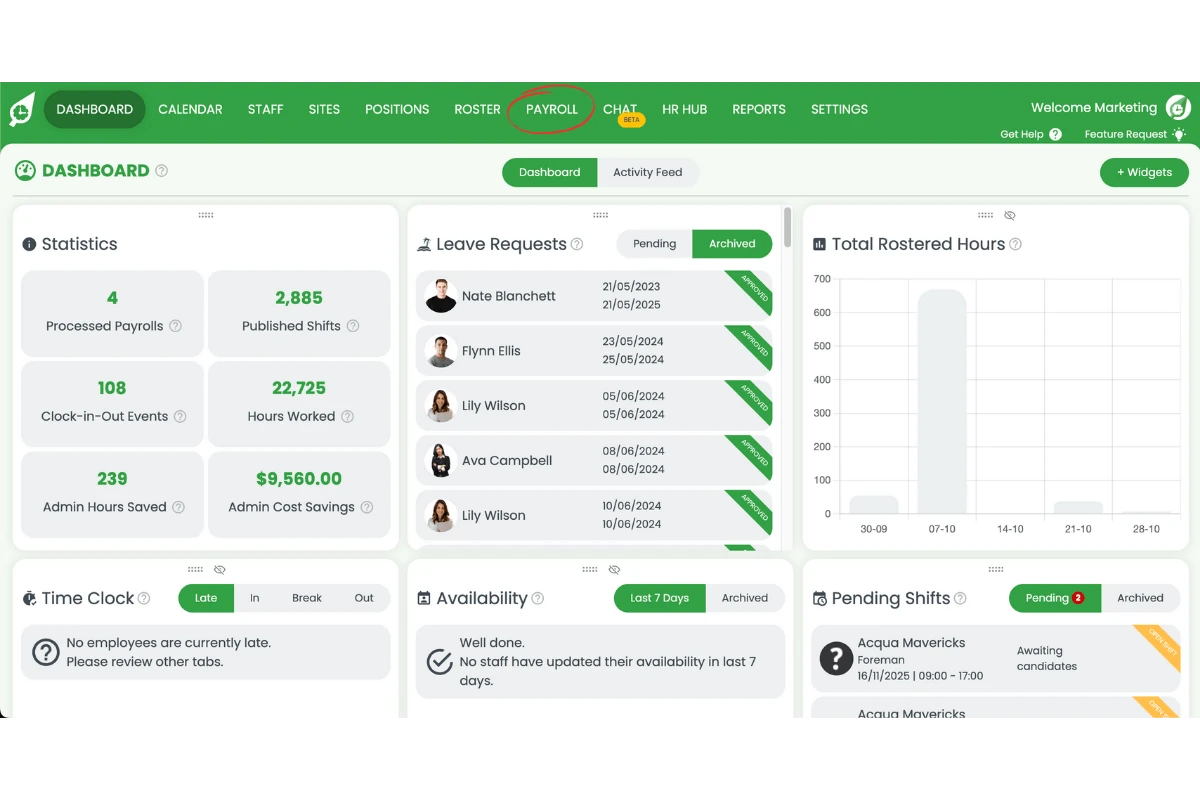
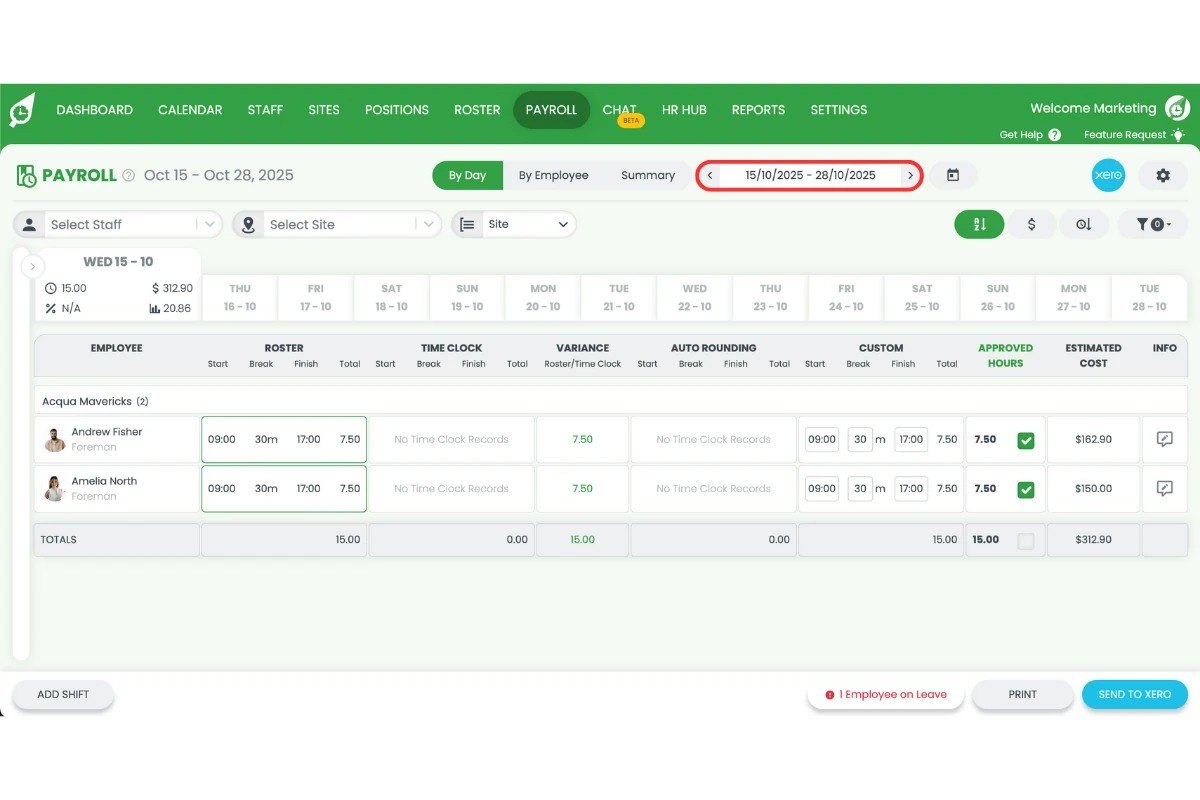
1.1.2 Select the relevant pay period date.
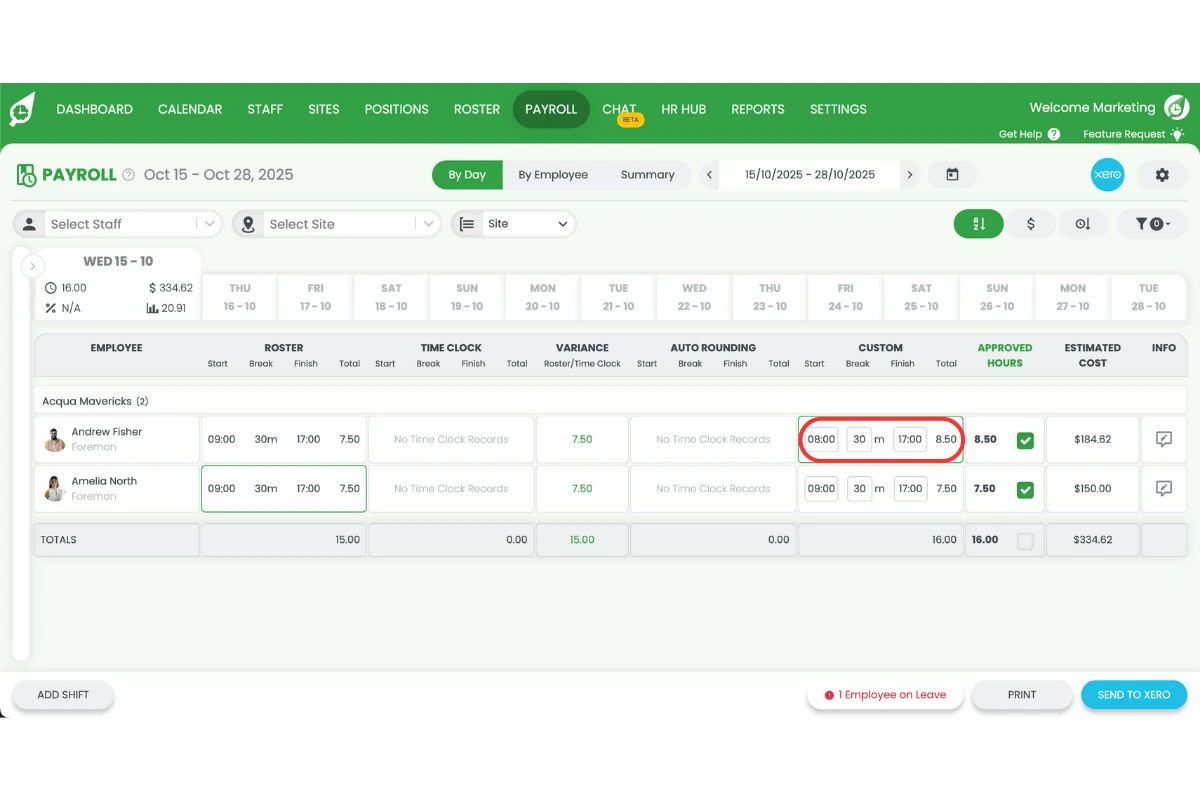
1.1.3 Make any necessary changes or adjustments to shifts or hours.
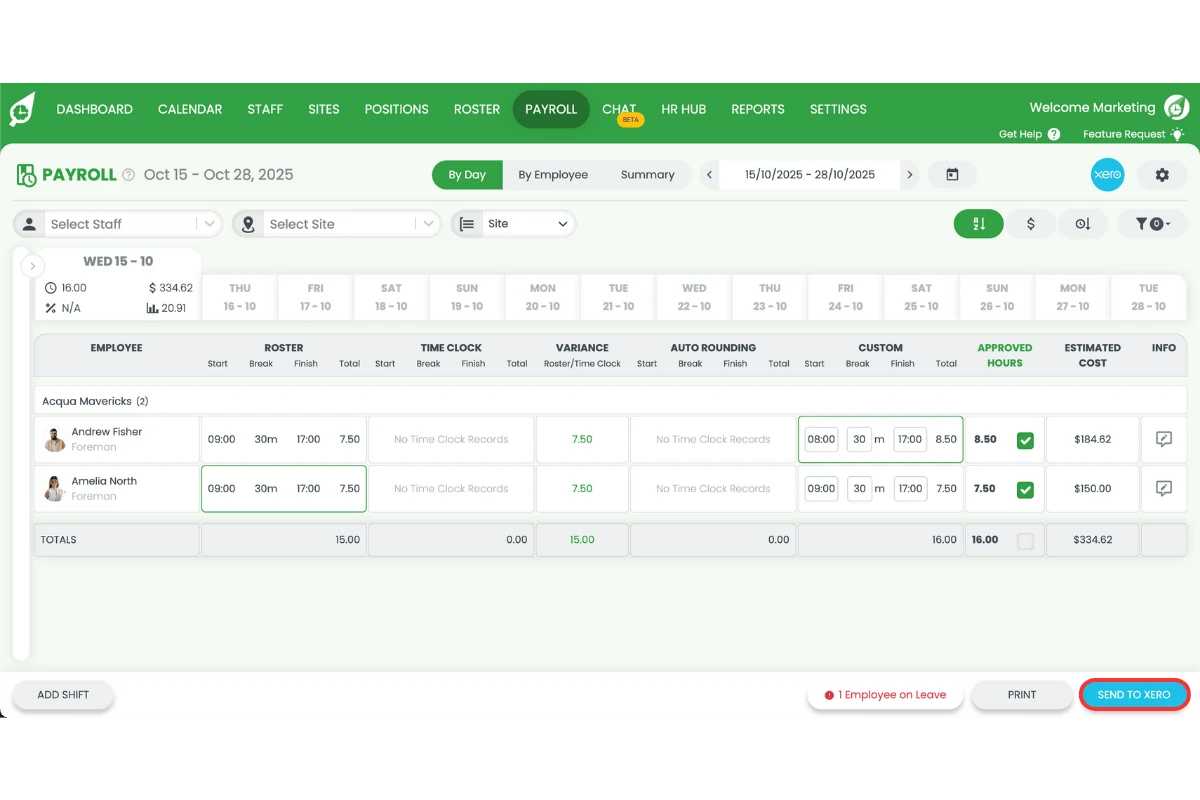
1.1.4 Click Send to Xero to reprocess and update the payroll.
2. Re-send payroll for one staff member
This section explains how to re-send payroll data for an individual employee. Use this method if only one staff member’s timesheet needs to be corrected or re-sent to Xero without affecting others in the same pay period.
2.1 Send a single staff member's timesheet
2.1.1 Open your RosterElf account and go to Payroll.
2.1.2 Select the relevant pay period date.
2.1.3 Choose View by employee to display individual staff.
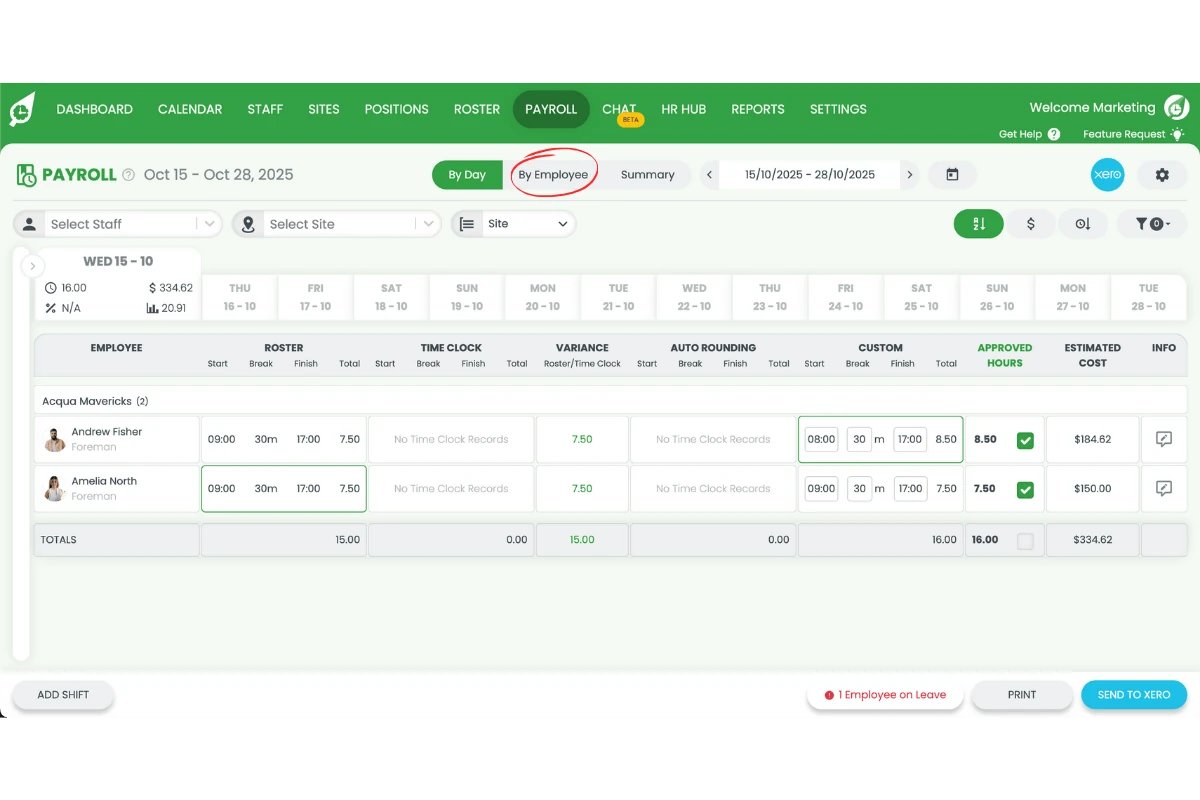
2.1.4 Make any required adjustments to that employee’s data.
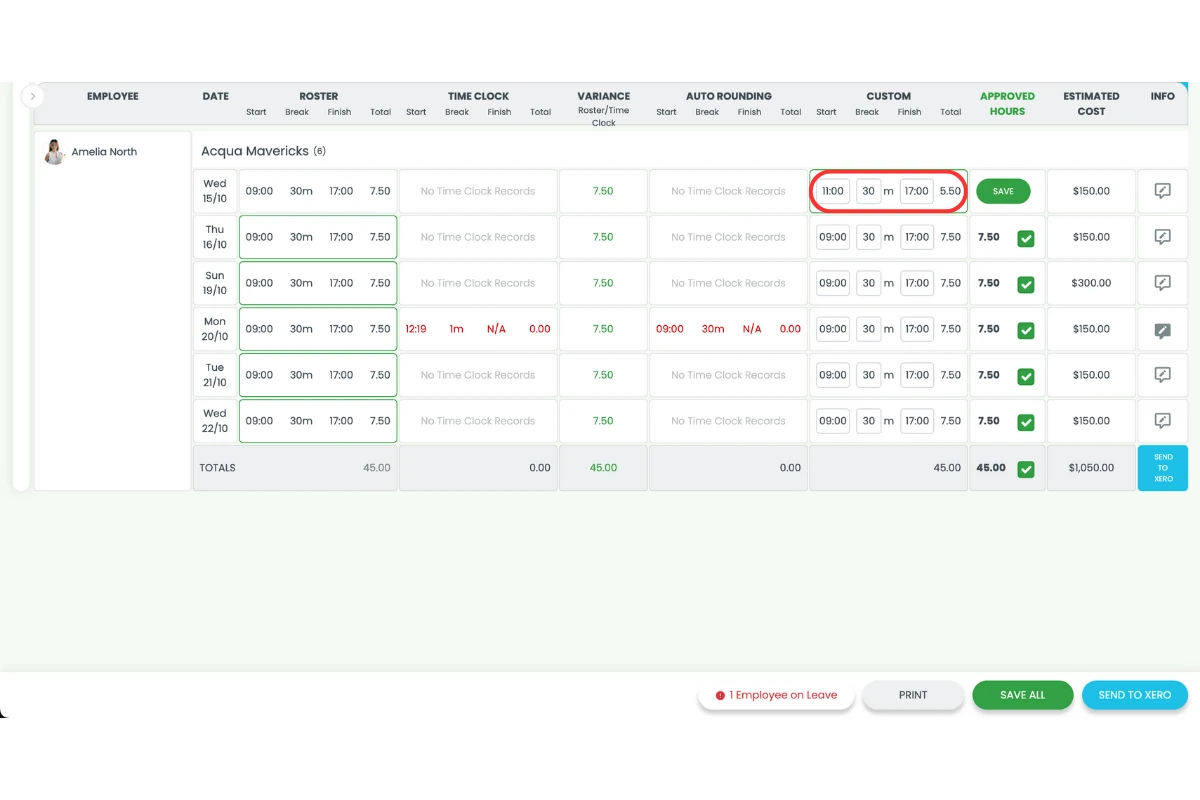
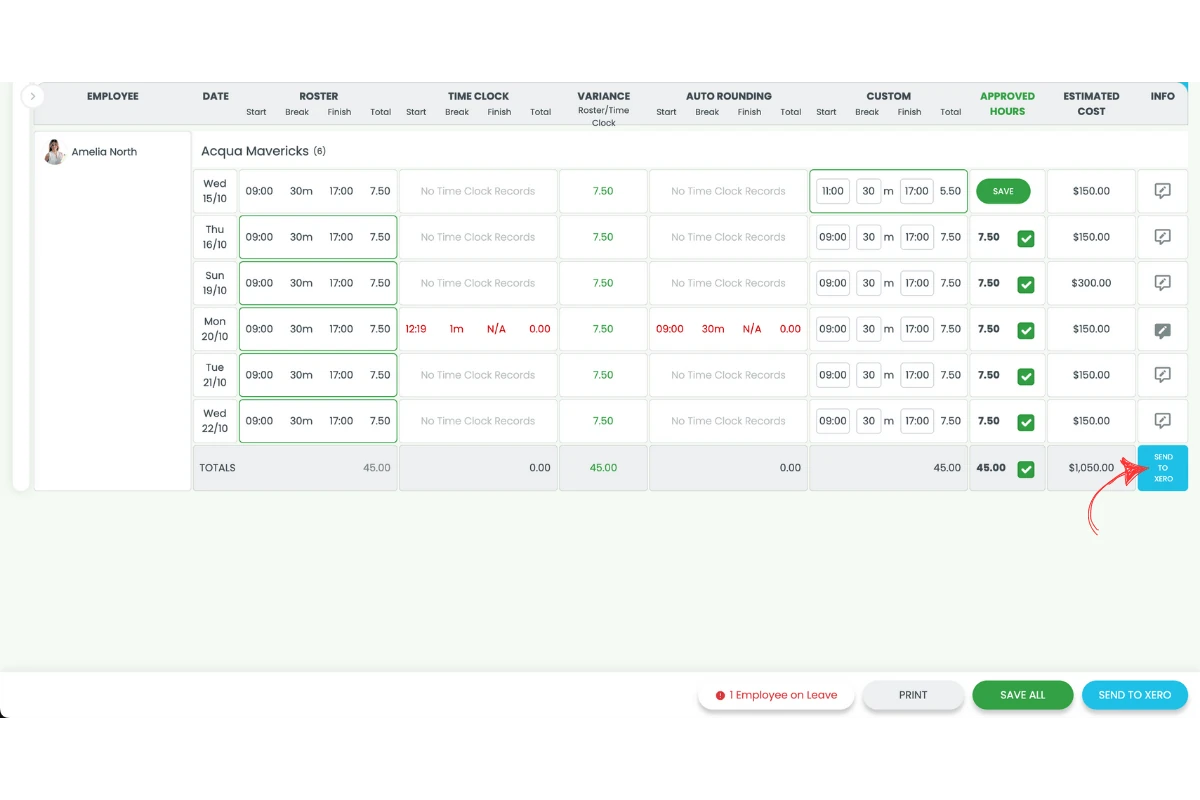
2.1.5 Click Send to Xero to reprocess the single employee’s payroll.
Frequently asked questions
1. When should I re-run payroll into Xero?
You should re-run payroll after correcting timesheets, updating hours, or making roster changes post-processing. Doing so ensures that Xero reflects the most recent and accurate payroll data from RosterElf to Xero.
2. Will re-running payroll overwrite data in Xero?
Re-running payroll updates only the affected timesheets or staff records in Xero. It doesn’t delete your existing data but replaces the relevant payroll entries with the latest information from RosterElf.
3. Should I refresh the Xero connection before resending?
Yes, if the first send failed with an error such as a 500 or “you don’t have permission to send timesheets”. Go to Settings > Payroll, click the green refresh arrow beside Payroll Entity, then resend. For a permission message, reconnect as a Xero user with Payroll Admin.