

This article explains how to identify which staff member has submitted a timesheet through Xero Me. When a staff member sends their timesheet via Xero Me, it blocks their payroll in RosterElf. This can prevent you from completing payroll until the timesheet is removed. By following this guide, you will learn how to check who submitted the timesheet and how to confirm it inside payroll. Once you know which staff member has submitted, you can ask them to delete their timesheet in Xero Me. This process ensures payroll in RosterElf runs smoothly without errors or delays.
1. Open payroll by employee
This section explains how to start payroll in RosterElf and set the correct view. Using the by employee view lets you see payroll information for each individual staff member. This makes it easier to identify who has submitted their timesheet via Xero Me.
1.1 access payroll
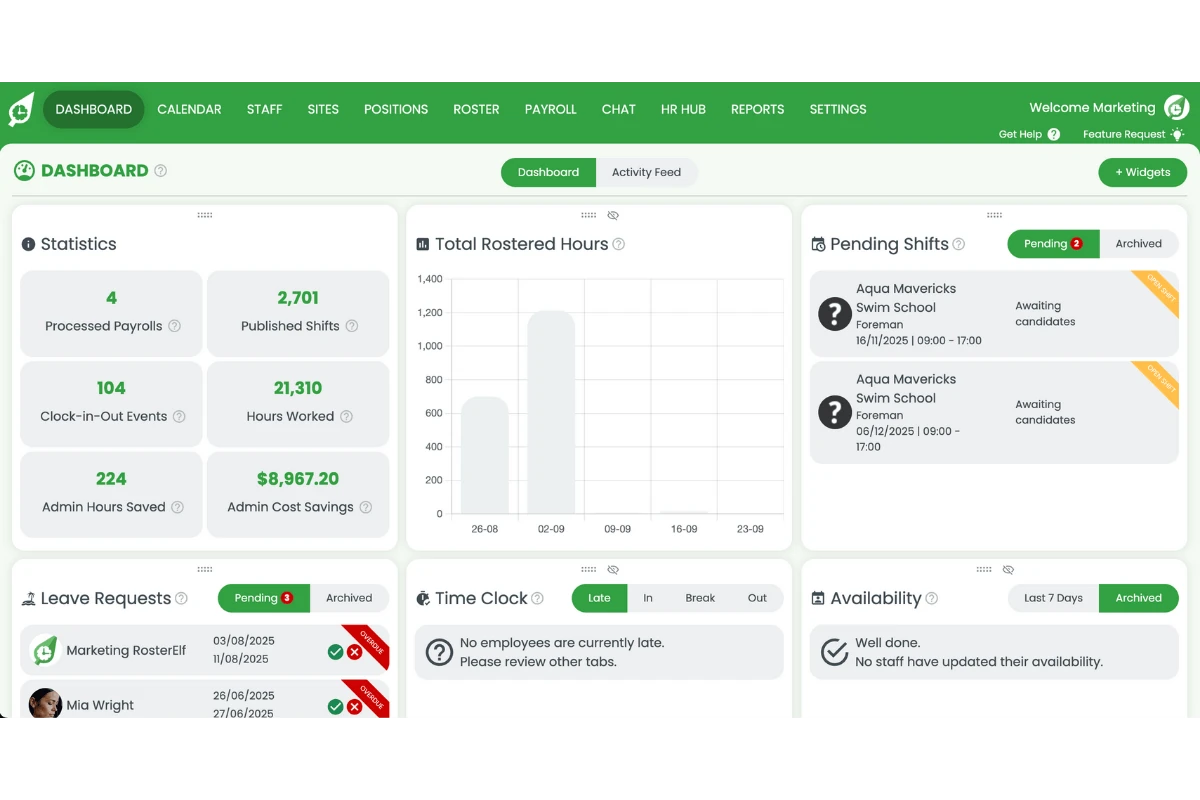
1.1.1 Log in to RosterElf.
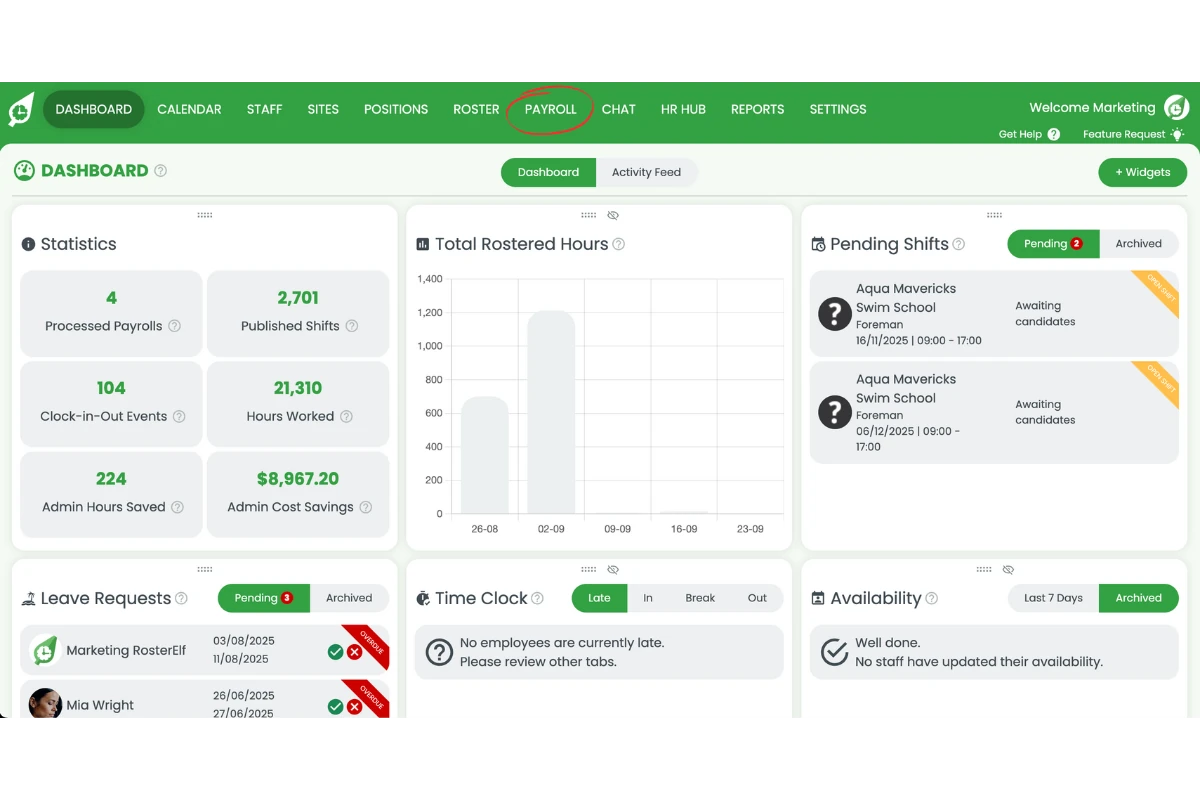
1.1.2 Go to Payroll.
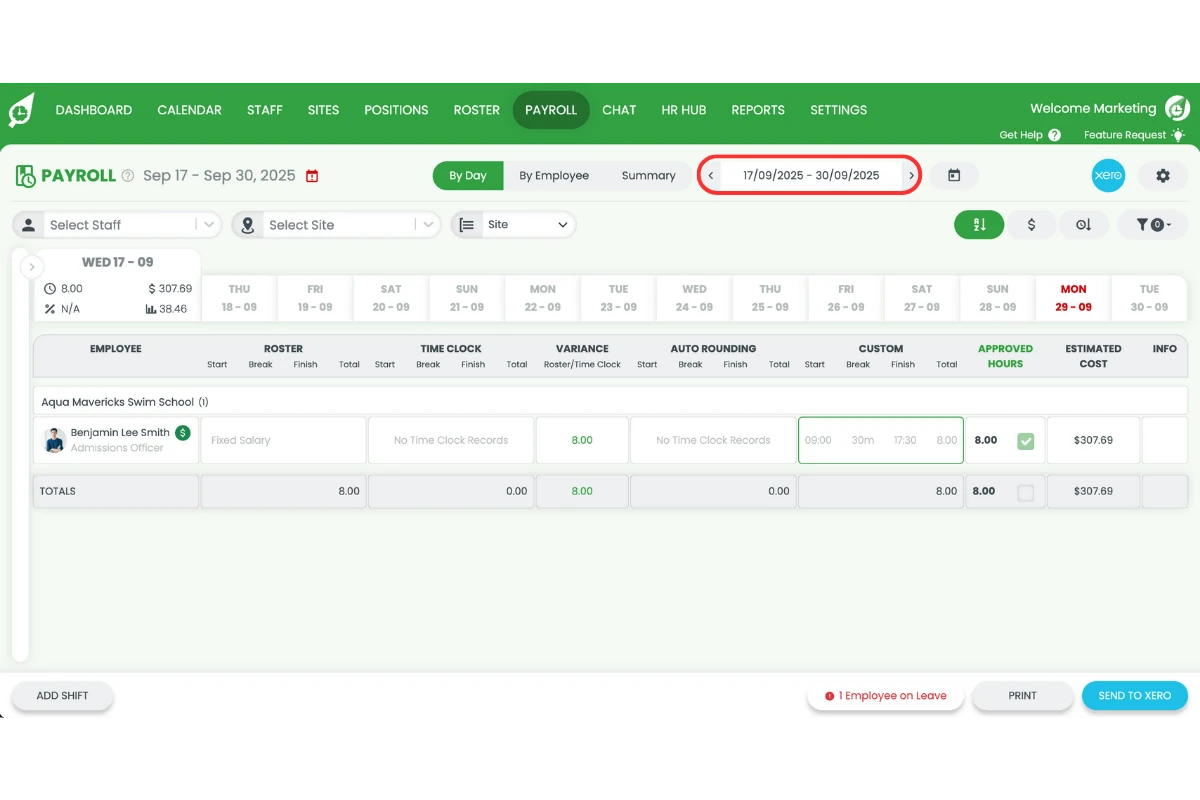
1.1.3 Set your payroll date.
1.2 change payroll view
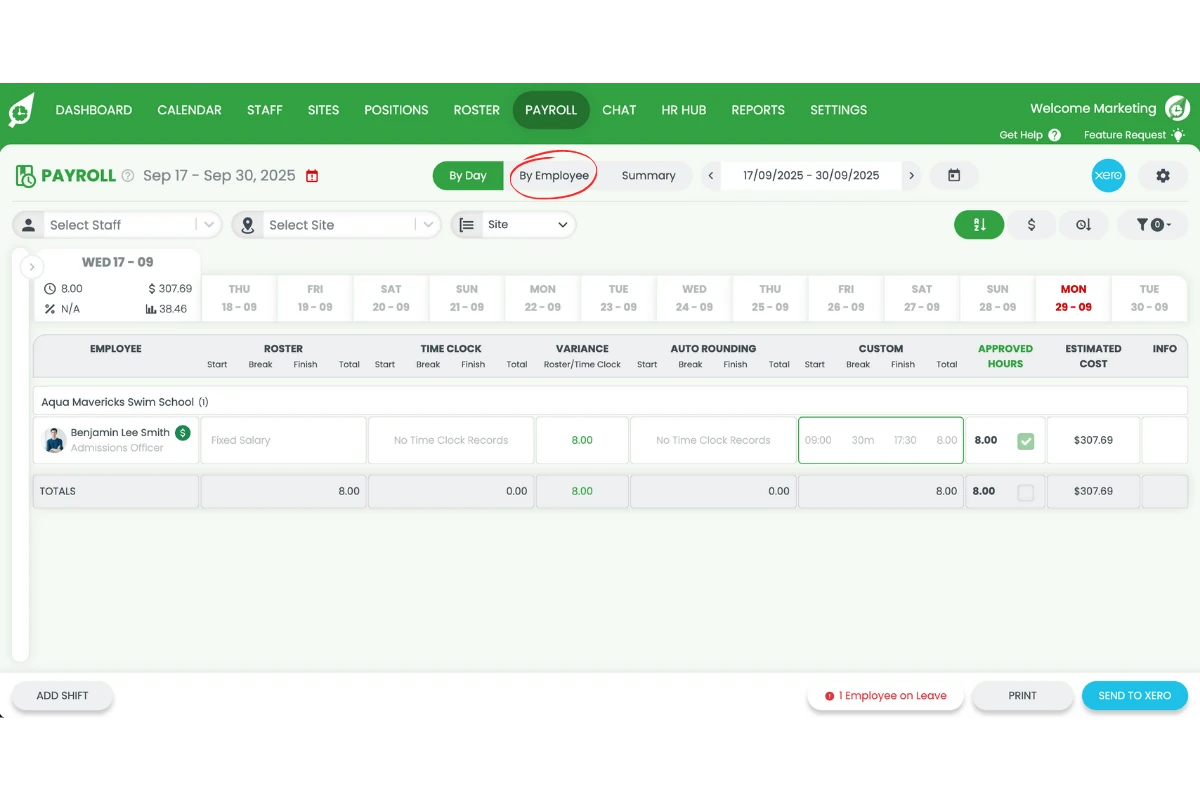
1.2.1 Select the view By employee.
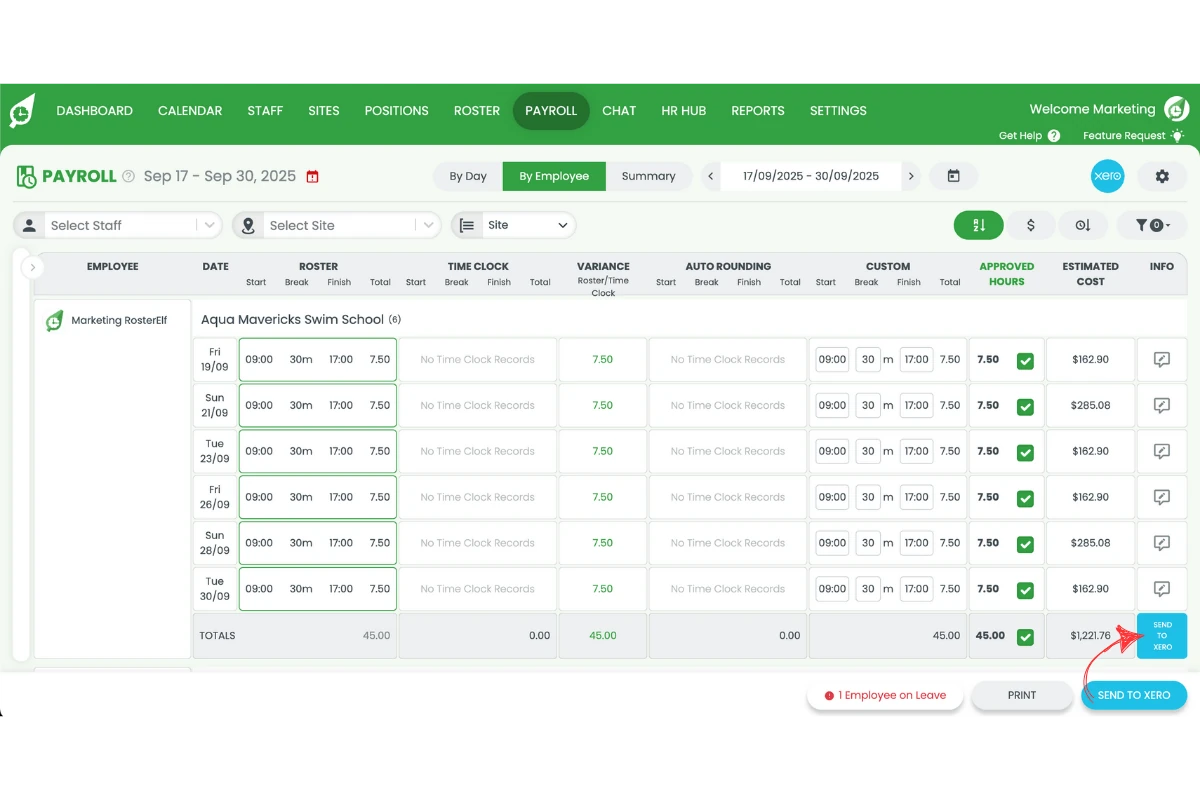
2. Send payroll to Xero
This section explains how to send payroll data from RosterElf to Xero. This step highlights which staff members already have a timesheet in Xero Me. You can then identify the staff member causing the block.
2.1 send payroll
2.1.1 Press Send to Xero.
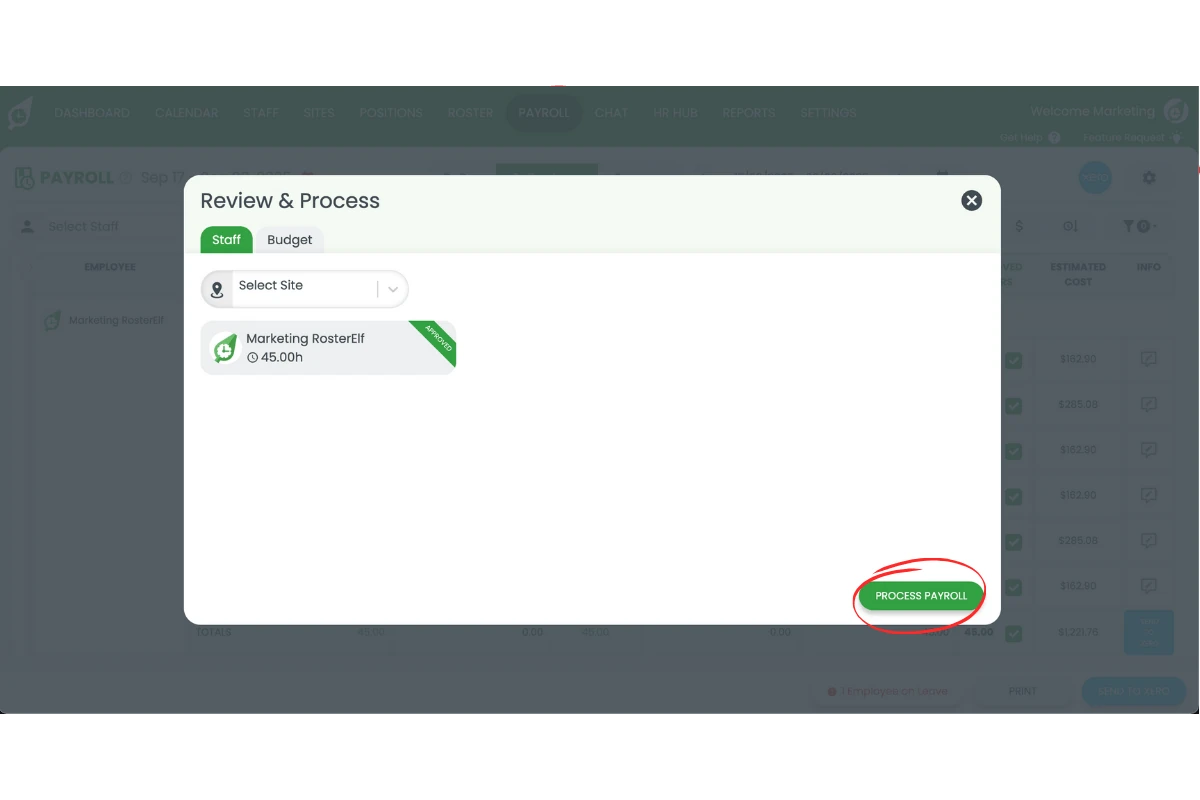
2.1.2 Select Process payroll.
Frequently asked questions
1. Why does payroll in RosterElf get blocked by Xero Me timesheets?
RosterElf blocks payroll for any employee who has an active Xero Me timesheet. This avoids conflicts and duplicate entries when processing payroll in Xero. Learn more about Xero payroll integration.