

How to send timesheets from RosterElf to Xero
This article explains the process of sending payroll data from RosterElf to Xero. By following these steps, you’ll experience seamless data transfer without manual uploads, saving time and reducing errors. You’ll also learn how to confirm and review your payroll information for accuracy. This integration helps make payroll processing more efficient.
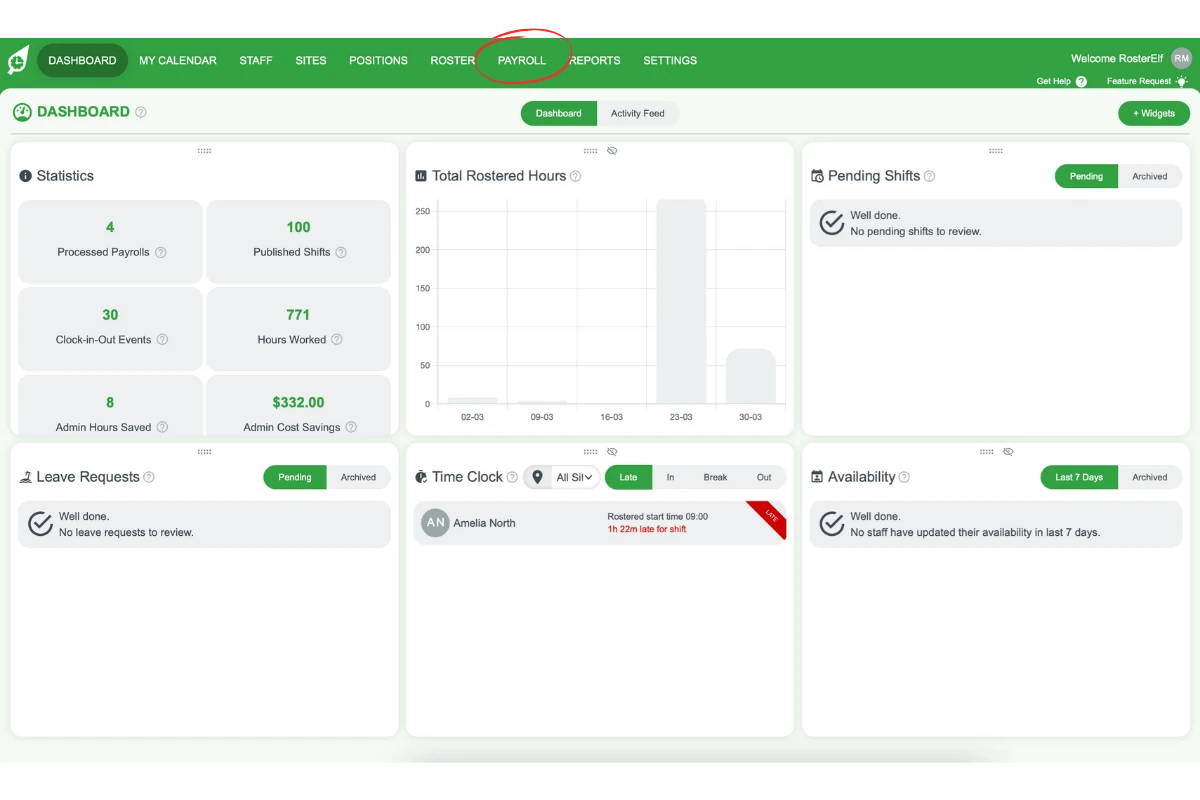
1. Access the payroll tab
This section covers how to access the payroll tab in your RosterElf account to start the process of transferring payroll data to Xero.
1.1. Steps:
• 1.1.1: Log in to your RosterElf account.
• 1.1.2: Click on the Payroll tab located in the top menu.
2. Send approved shifts to Xero
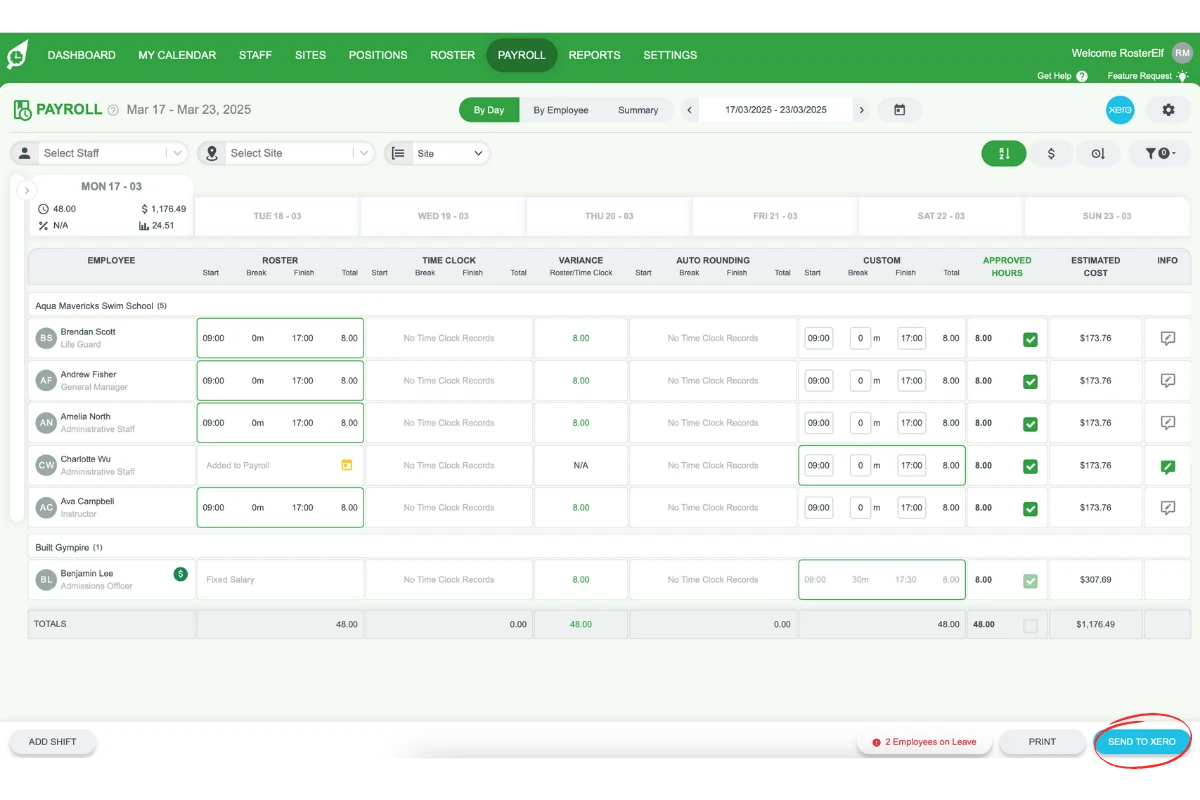
Here, you’ll learn how to send approved shifts from RosterElf to Xero, ensuring your payroll data is transferred accurately.
2.1. Steps:
• 2.1.1: Approve the shifts you need to send.
• 2.1.2: Click Send to Xero at the bottom right of the page.
3. Review payroll information
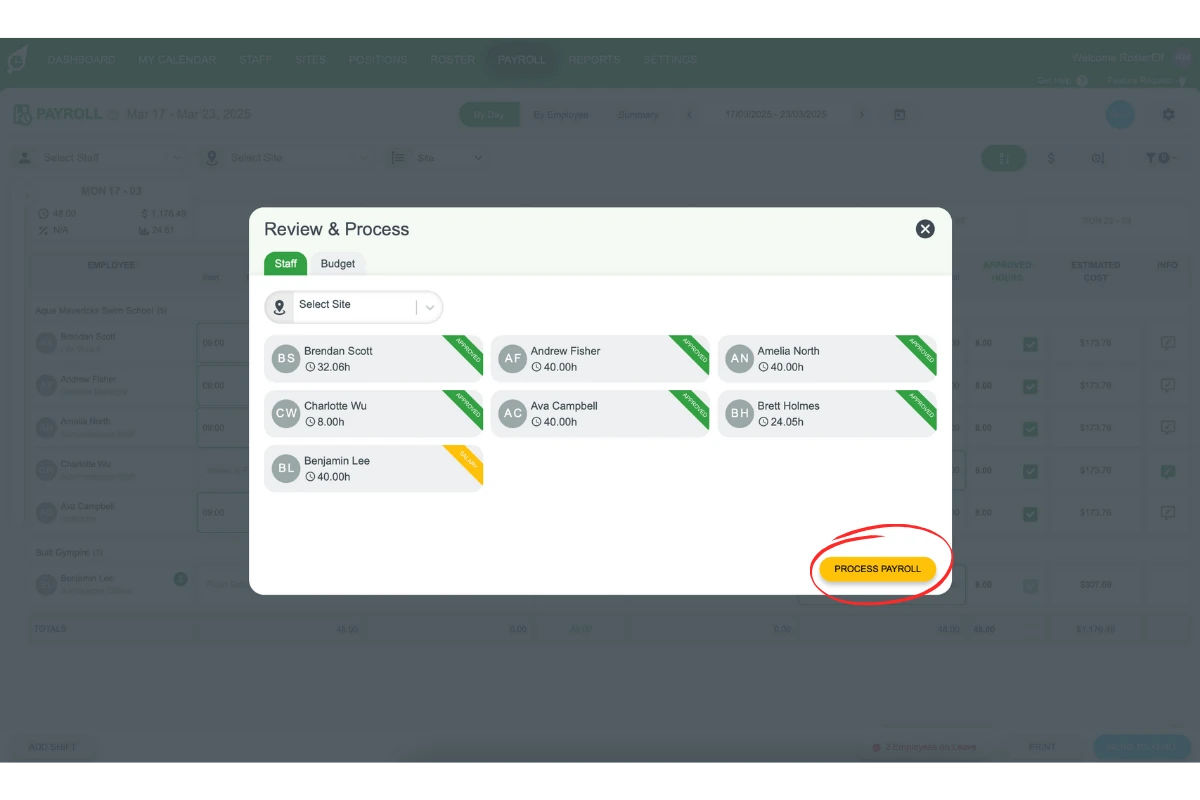
This section explains how to review the payroll information before finalising the process in Xero.
3.1. Steps:
• 3.1.1: A pop-up will display your payroll details.
• 3.1.2: Review the information carefully.
• 3.1.3: If correct, click Process Payroll at the bottom right.
4. Confirm payroll processing
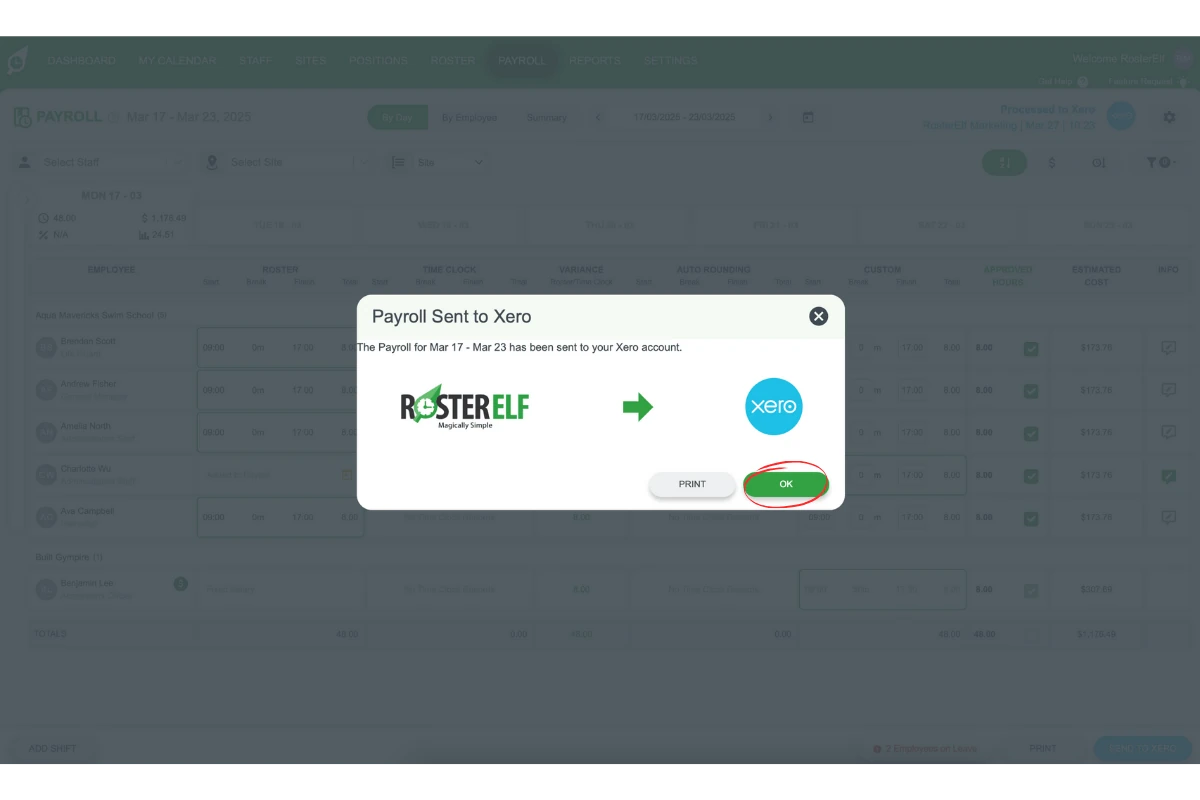
Learn how to confirm that your payroll has been successfully sent to Xero.
4.1. Steps:
• 4.1.1: A confirmation pop-up will appear.
• 4.1.2: Click OK to finalise.
5. Verify draft timesheets in Xero
This section explains how to check your timesheets in Xero after the payroll data has been transferred.
5.1. Steps:
• 5.1.1: Open Xero and navigate to your timesheets section.
• 5.1.2: Verify that the transferred shifts appear as draft timesheets with the correct data.
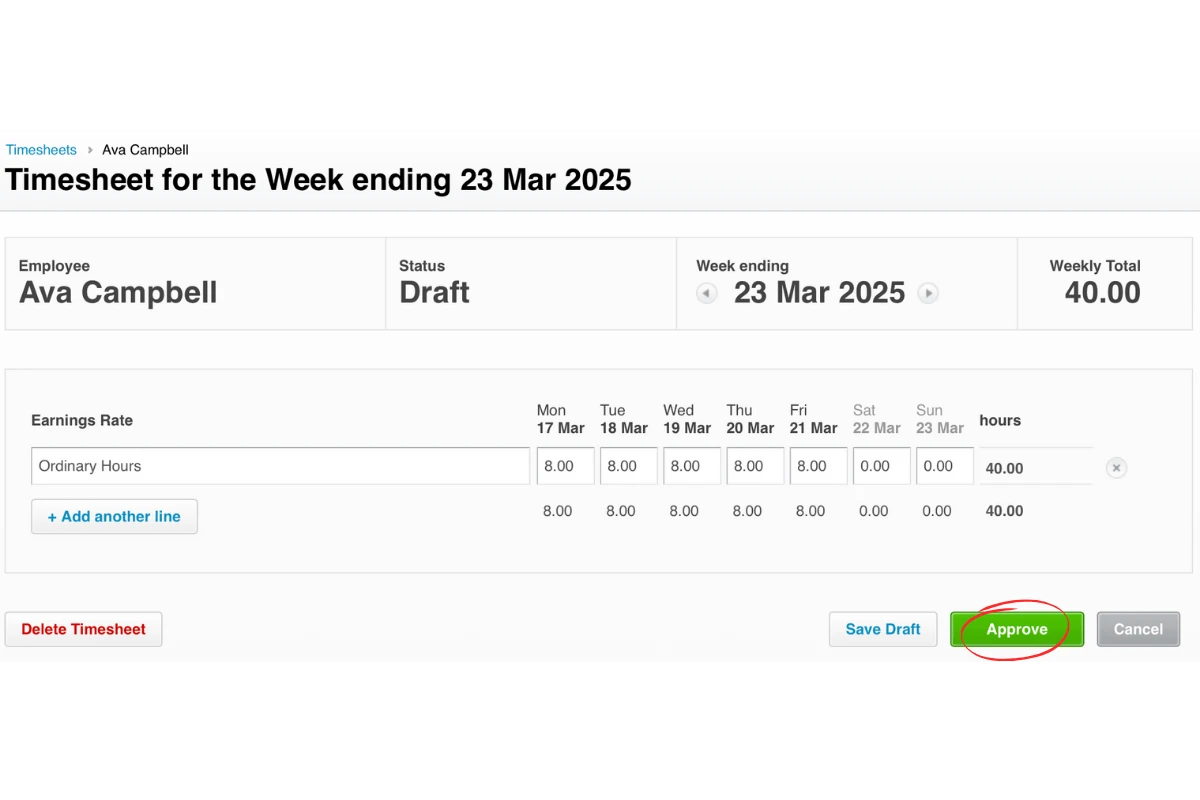
Following these steps ensures that your payroll data transfers from RosterElf to Xero smoothly, making your payroll process faster and error-free.
6. If your payroll doesn't reach Xero
If Process Payroll shows an error, such as “500 (Internal Server Error)” or “You don’t have permission to send timesheets to this account”, or it finishes but nothing appears in Xero, work through these in order.
6.1. Steps:
• 6.1.1: Refresh the Xero connection. Go to Settings > Payroll and click the green refresh arrow beside Payroll Entity. See refresh Xero connection. If the message says you don’t have permission, first check whether permissions changed in Xero and reconnect as a user with Payroll Admin. See required Xero permission levels.
• 6.1.2: Go back to Payroll and send again. See resend timesheets to Xero.
• 6.1.3: If Xero names a specific error, look it up in common Xero errors and solutions.
Frequently asked questions
1. How do I access the payroll tab in RosterElf?
To access the payroll tab, log in to your RosterElf account and click on the Payroll tab located in the top menu.
2. How can I send approved shifts from RosterElf to Xero?
After approving the shifts you want to send, use the Xero payroll integration by clicking Send to Xero button located at the bottom right of the page.
3. How do I confirm payroll has been sent to Xero?
Once your payroll has been sent to Xero, a confirmation pop-up will appear. Click OK to finalise the process.
4. How do I verify that my shifts have been transferred to Xero as draft timesheets?
Log in to Xero and go to the timesheets section. Check that the transferred shifts appear as draft timesheets with the correct data.
5. What should I do if Send to Xero fails with a 500 error?
Refresh the Xero connection first: go to Settings > Payroll and click the green refresh arrow beside Payroll Entity, then send the payroll again. See refresh Xero connection.
6. What if Send to Xero says "You don't have permission to send timesheets to this account"?
Check whether permissions changed in Xero recently, then refresh the Xero connection while signed in as a user with Payroll Admin, and send again. See required Xero permission levels.