

How to set up monthly payroll cycles in Xero
This article explains how to configure a monthly payroll cycle in Xero. You’ll discover how to activate the monthly calendar and assign all staff to this new schedule. By following these steps, you’ll ensure pays are processed on time and with accuracy. This guide suits anyone who wants a straightforward way to manage monthly pay runs.
When you set up monthly payroll in Xero, you gain a clear overview of your outgoings. You also save time by reducing the need for multiple pay runs. This monthly structure helps with predictable pay dates, so your team understands when to expect their wages. In turn, you build trust within your workforce by delivering consistent, timely pays. You also streamline internal processes and reduce administrative burdens.
In this article, you’ll learn how to enable the monthly calendar and make sure every staff member is aligned. Each step is brief and direct. Use this as your simple guide to monthly payroll in Xero.
1. Enable monthly payroll in Xero
This section shows you how to activate your monthly payroll calendar. Once enabled, Xero will calculate wages on a monthly basis, reducing the need to process frequent pay runs. A single monthly run can lessen your administrative load and make budgeting simpler. This is especially helpful for businesses that prefer a straightforward approach to managing wages.
You’ll find that once you set a monthly calendar, each pay cycle will arrive like clockwork. Staff will also benefit from consistent payment dates, which helps them plan personal finances. By following these instructions, you’ll ensure a smooth transition from other pay frequencies to the monthly schedule. Get ready for a clear and predictable payroll timeline.
1.1 access monthly payroll in Xero
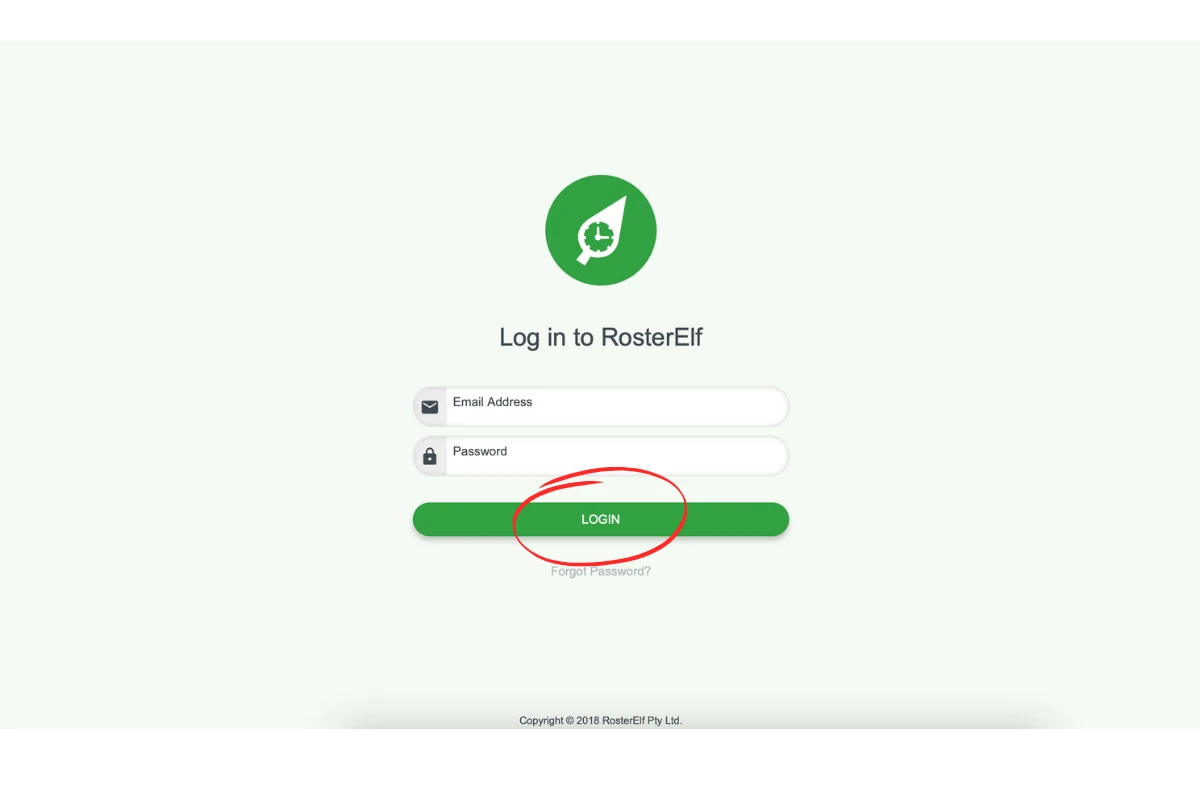
1.1.1 Log in to your Xero account.
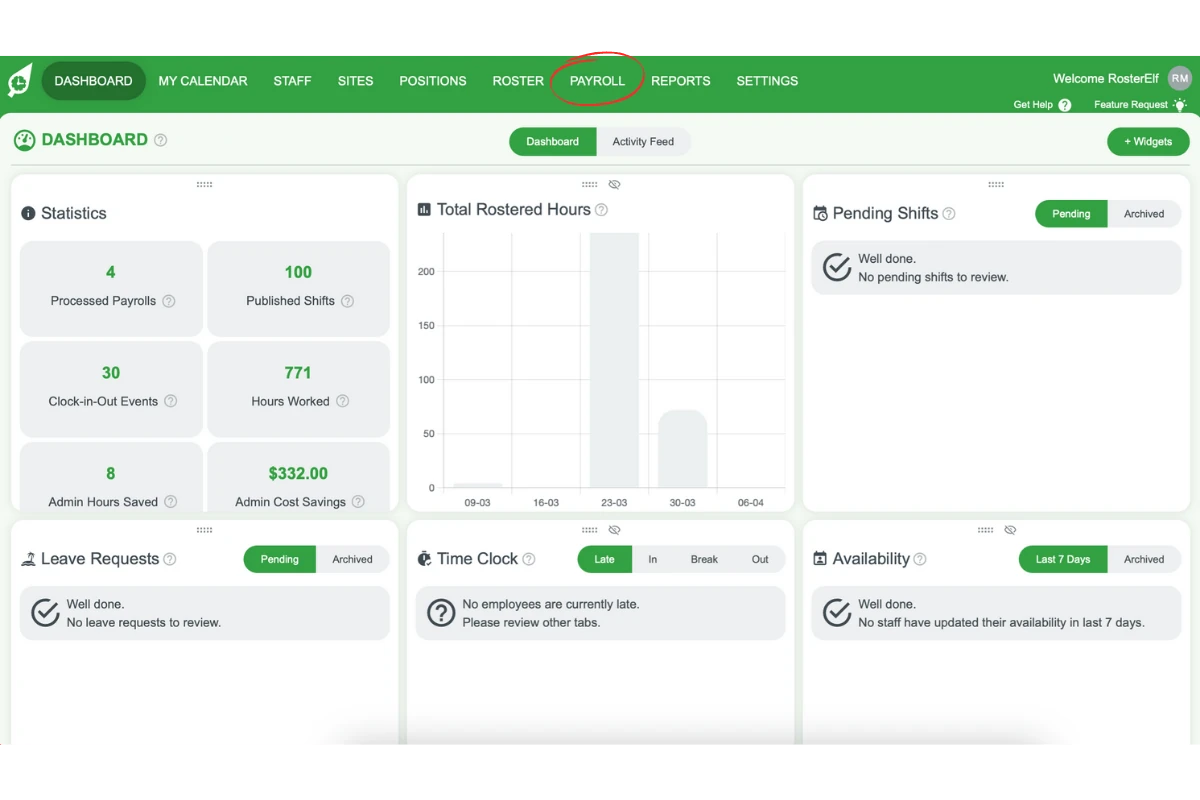
1.1.2 Go to the Payroll menu.
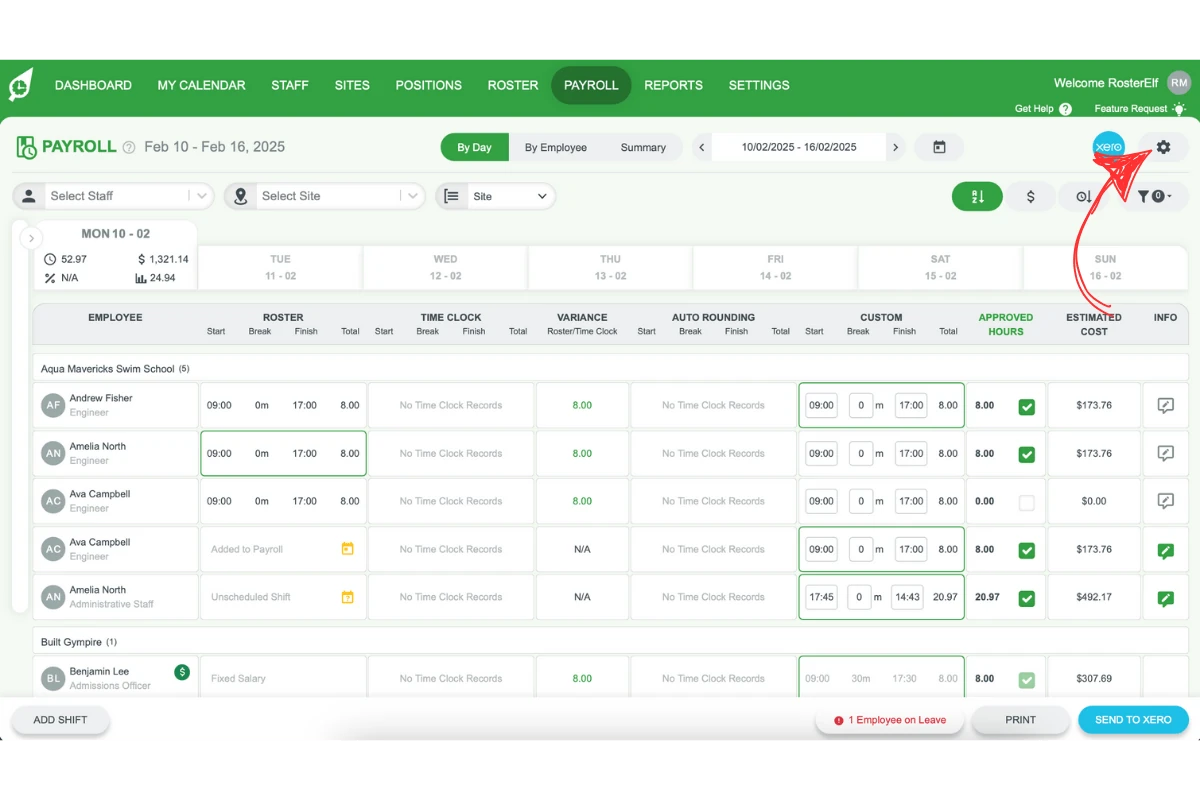
1.1.3 Select the settings gear in the top right corner.
1.2 enable monthly payroll in Xero
1.2.1 Find the Payroll Calendars section.
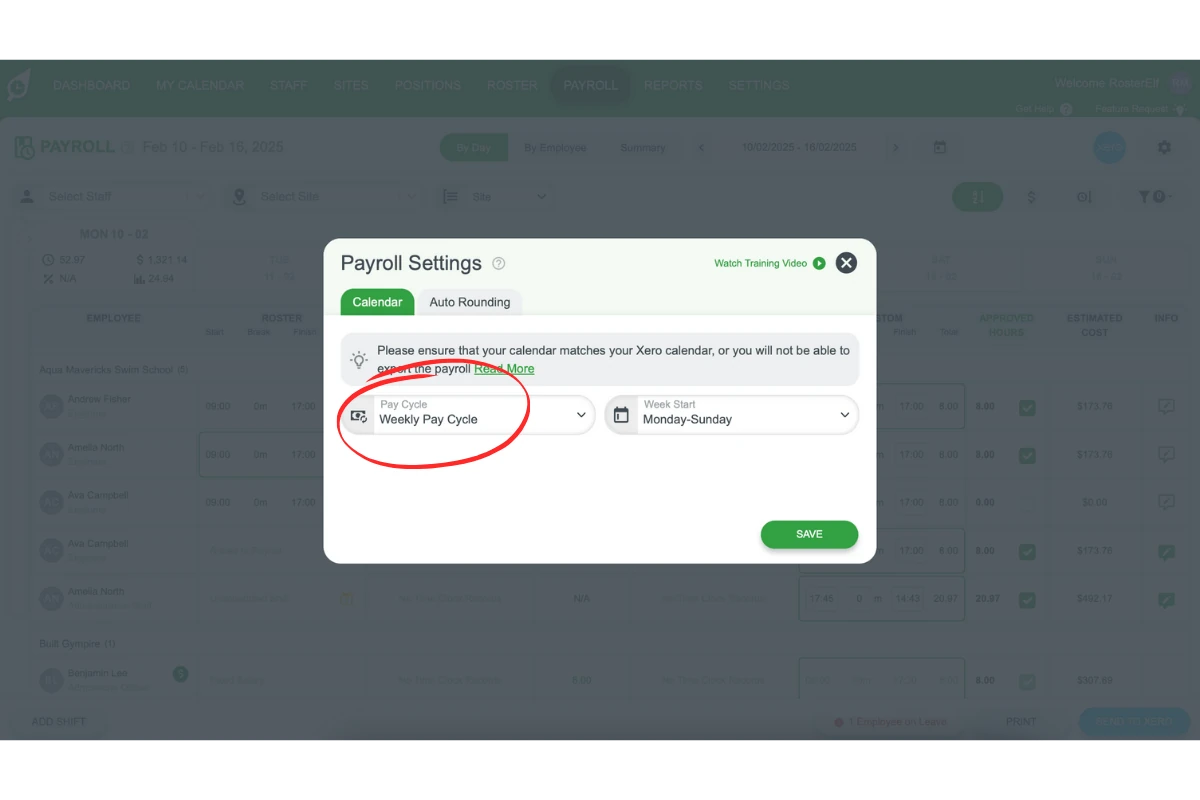
1.2.2 Set the frequency to Monthly.
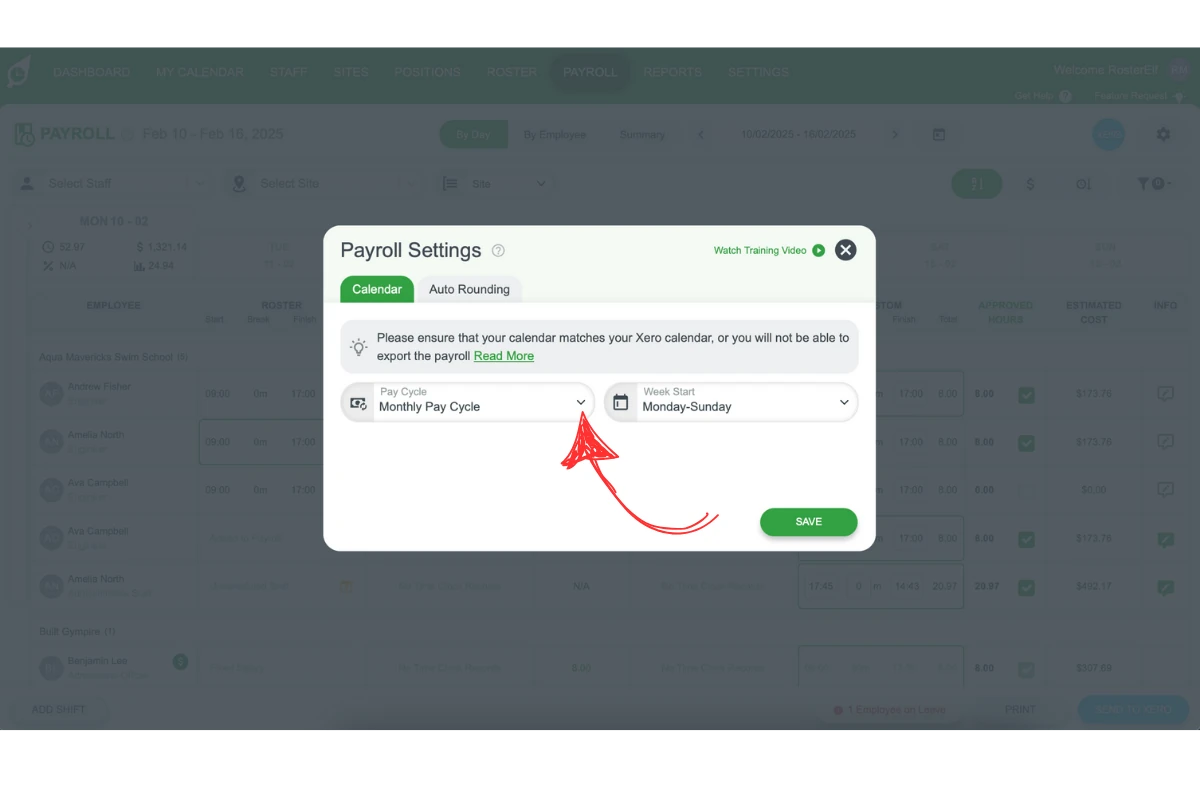
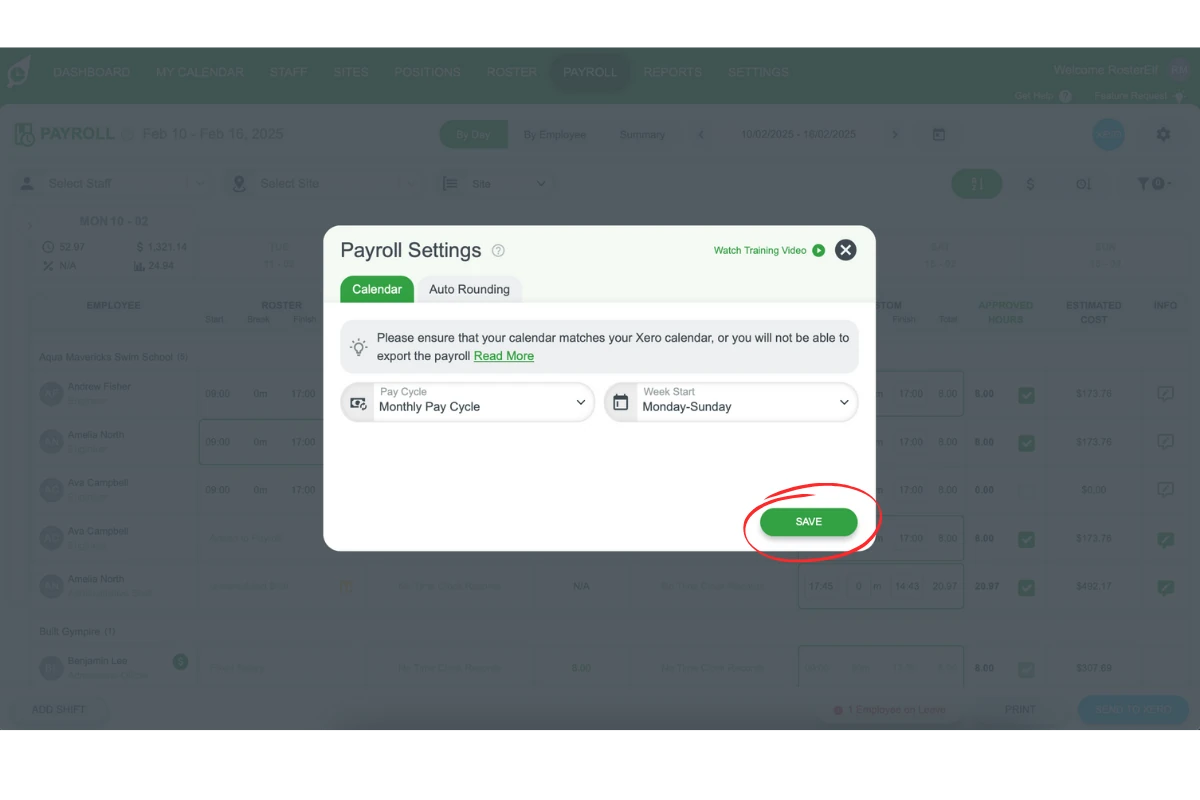
1.2.3 Click Save.
2. Assign staff to monthly payroll in Xero
This section helps you move all employees to the monthly payroll calendar. When everyone is on the same schedule, your pay run becomes simpler to manage. It also prevents errors that come from mixing different pay frequencies. Assigning staff correctly ensures Xero calculates all wages in one unified run.
By aligning all employees to a single monthly calendar, you save time in checking individual settings. It also gives your staff clarity about when to expect their payments. Consistent payroll builds trust in the workplace, reducing confusion and pay-related queries. Follow these steps to assign each team member to the monthly payroll calendar.
2.1 check current staff assignments
2.1.1 Click Payroll Settings in Xero.
2.1.2 Select Employees from the dropdown menu.
2.1.3 Review each employee’s assigned payroll calendar.
2.2 update employee payroll calendars
2.2.1 Open an employee’s profile in the Employees tab.
2.2.2 Click Edit, then go to the Employment tab.
2.2.3 Select the monthly payroll calendar.
2.2.4 Save your changes and repeat for all employees.
Frequently asked questions
1. Where do I set a monthly pay frequency in Xero?
In your Xero account, go to the Payroll menu, select the settings gear in the top right corner, then find the Payroll Calendars section and set the frequency to Monthly.
2. Do I need to move every employee onto the monthly calendar myself?
Yes. Creating the monthly calendar only makes it available — each employee must be individually assigned to it from their Employment tab under Employees in Xero’s Payroll settings.
3. Why should all staff be on the same pay calendar in Xero?
Mixing pay frequencies across staff means Xero can’t process them in a single pay run, which increases the chance of errors and makes it harder for RosterElf’s exported timesheets to line up with the correct pay period.
4. How do I check which payroll calendar an employee is currently on?
In Xero, click Payroll Settings, select Employees from the dropdown, then review each employee’s assigned payroll calendar before updating it if needed.