

Photo proof for clock-ins
This article explains how to turn on photo proof. With it on, staff take a selfie each time they clock in, take a break or clock out at that site.
The photo is saved with the clock record, so you can see who actually clocked in before you approve their hours.
1. Turn on photo proof for a site
Photo proof is set per site, on the site’s Time & Attendance tab. Repeat these steps for each site that needs it.
1.1 Open the site's Time & Attendance tab
1.1.1 Click Sites on the top menu and select the site.
1.1.2 Click the Time & Attendance tab in the site window.
1.2 Switch on Photo Proof
1.2.1 Switch on Photo Proof.
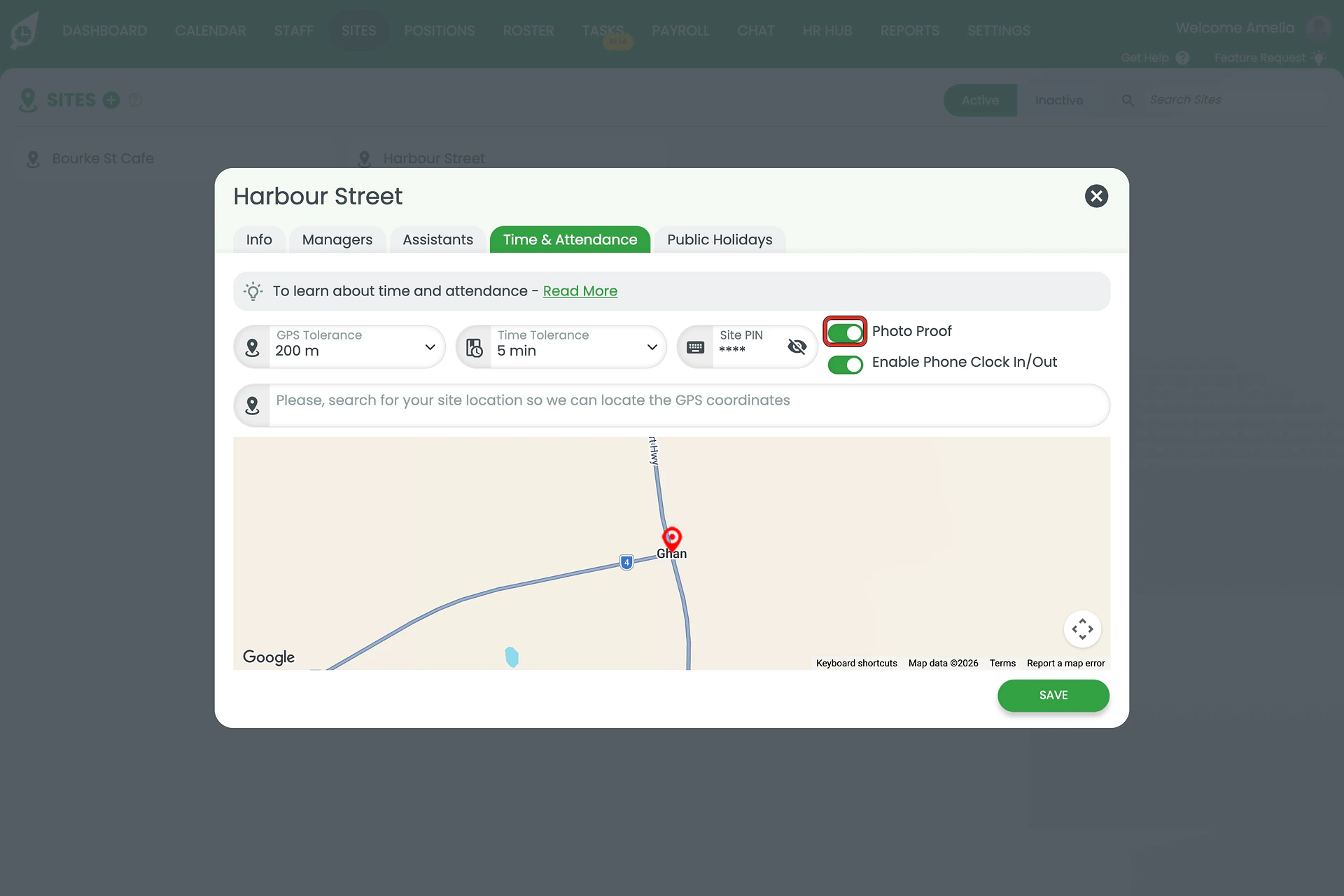
1.2.2 Click SAVE. SAVE stores the whole site, so check the other fields on the tab before you save.
Other settings on this tab
GPS tolerance, time tolerance, the site PIN and phone clock-in sit beside Photo Proof. See time and attendance settings.
2. What staff see when they clock in
- Tablet Time Clock: after entering their PIN, staff tap take a photo, then confirm. See clocking in on the site’s tablet.
- Smartphone app: the Please verify yourself with a selfie screen opens. Staff take the selfie and tap Confirm, or Retake photo. See clocking in from a smartphone.
The same prompt appears when they start or end a break and when they clock out.
3. Review the photos
In the RosterElf mobile app, open a shift from payroll approval. Its Shift Details page has a Photo Proof tab beside Clock In, Breaks and Clock Out.
Check the photo before you approve the hours. See approve payroll shifts in the mobile app.
For further help, contact our support team.
Frequently asked questions
1. Is photo proof set for the whole account or per site?
Per site. Photo Proof is a switch on each site’s Time & Attendance tab, so you can require a selfie at one site and not at another. There is no account-wide photo setting.
2. When do staff take a photo?
At each clock event at a site with photo proof on. On the tablet Time Clock that includes clocking in, starting and ending a break, and clocking out. There is no setting to require a photo for some of these and not others.
3. Does photo proof work on the tablet and on phones?
Yes. On the tablet Time Clock, staff tap take a photo and then confirm. On the smartphone app, the Please verify yourself with a selfie screen opens, and staff tap Confirm or Retake photo.
4. Where do I see the photos?
In the RosterElf mobile app, open the shift from payroll approval: its Shift Details page has a Photo Proof tab next to Clock In, Breaks and Clock Out. See approve payroll shifts in the mobile app.
5. Can I set how long photos are kept?
No. RosterElf has no photo retention setting in Time & Attendance settings. If you need photos removed, contact our support team.
6. What if a staff member's camera does not work?
On the web clock-in, RosterElf shows We had problems accessing your camera device rather than failing silently. Check the browser or device has camera permission for RosterElf, then try again.