

How to clock In/Out using the smartphone App
This article explains how to clock in and out for your shift using the smartphone app. Clocking accurately records your work hours for payroll purposes. You will learn how to locate your shift, clock in (including reasons for lateness and photo verification), start and end breaks, and clock out. Follow these steps to meet any system requirements set by your employer.
Prerequisites
Before clock-in controls appear on your shift card, two settings must both be enabled by your administrator:
- Global setting: Smartphone Clock In and Out must be turned on in Settings → Time and Attendance.
- Site setting: The specific site your shift belongs to must also have Enable Smartphone Clock In and Out toggled on (Sites → [site name] → Time and Attendance).
If either setting is off, the shift card stays collapsed and no clock-in controls are shown — regardless of whether you are already clocked in. Contact your manager or administrator if the Clock In button does not appear on your shift card.
1. Accessing your shift details
1.1 viewing today's shift information
1.1.1 Tap Shifts in the bottom navigation bar.
1.1.2 Select the Today tab to see your rostered shift card.
1.1.3 Review the site, position, start and finish times, and current status (e.g. Late for Clock In).
1.1.4 Tap the ℹ︎ info icon on the shift card to open the Shift Information modal and confirm details such as the address, comments, and any shift notes.
2. Clocking in for your shift
2.1 starting your shift
2.1.1 Tap Clock In on the shift card.
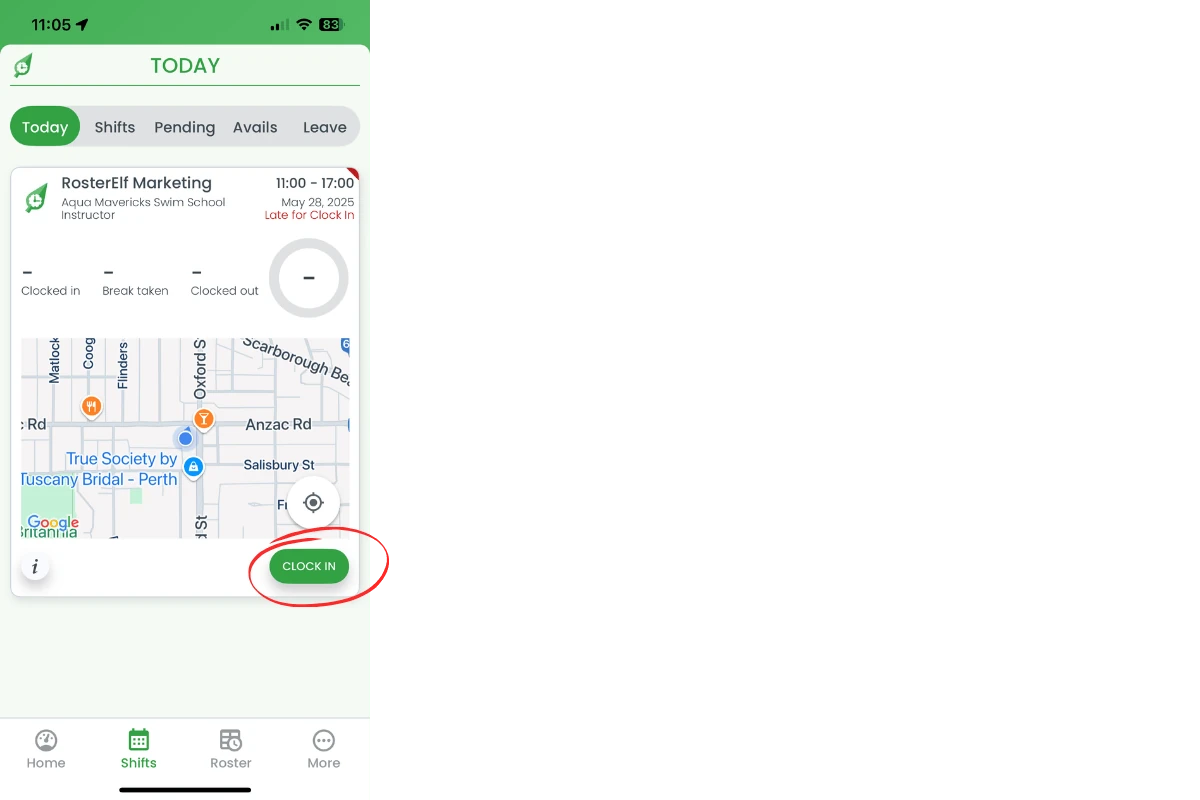
2.1.2 Ensure your GPS location is within the required tolerance—otherwise the Clock In button is disabled.
If the Clock In button is not visible at all, confirm with your manager that both the global and site-level Smartphone Clock In and Out settings are enabled for your account and site. See the Prerequisites section above.
2.2 adding a reason if late
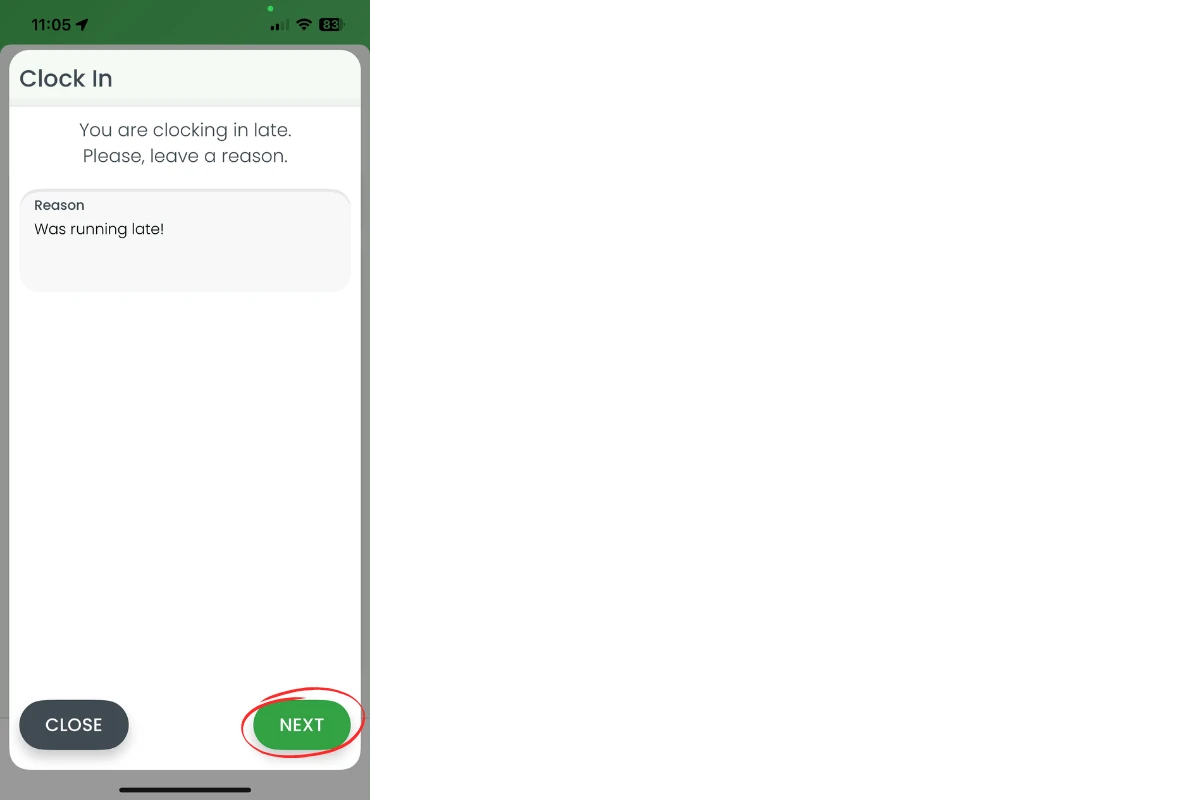
2.2.1 A Clock In Late window appears automatically if the app detects you are late.
2.2.2 Enter the reason (e.g. “I was running late!”) and tap Next.
2.3 taking a selfie for verification
2.3.1 The Please verify yourself with a selfie screen opens if photo proof is required.
2.3.2 Capture your selfie and tap Confirm (or Retake photo if needed).

2.4 confirmation
2.4.1 Wait briefly—your shift card updates to Clocked In, and the Start Break and Clock Out buttons appear.
3. Taking a break
3.1 starting your break
3.1.1 Tap Start Break on the shift card.
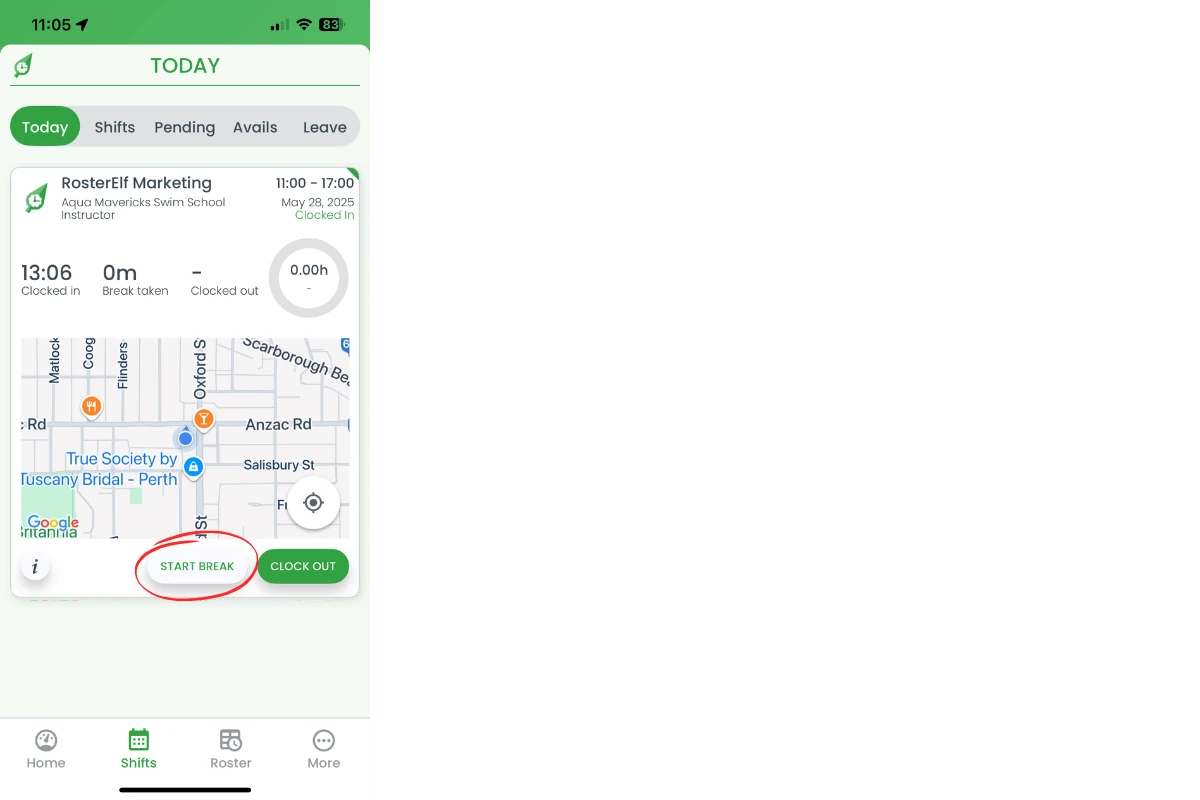
3.1.2 Follow any prompts (GPS and/or selfie) and tap Confirm.
3.1.3 The status changes to On Break, and an End Break button is shown.
3.2 ending your break
3.2.1 Tap End Break when you return.
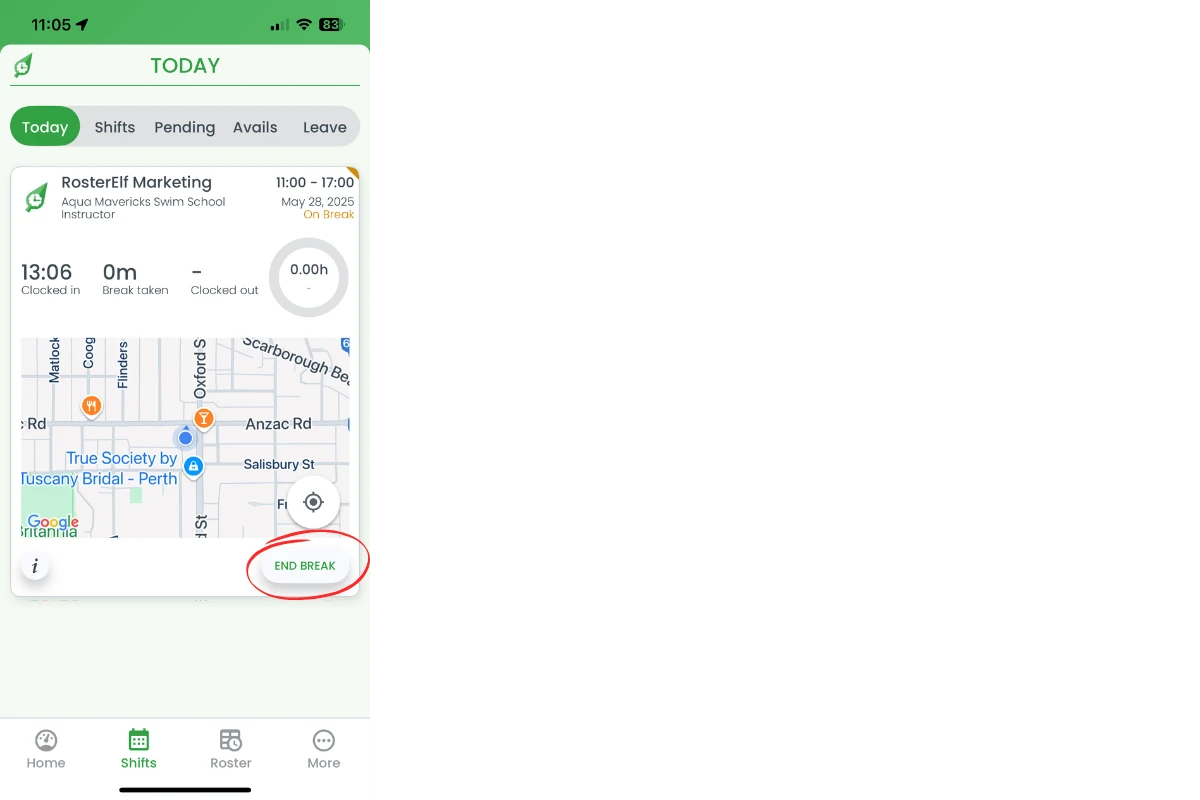
3.2.2 Complete any required selfie and tap Confirm.
3.2.3 The shift card reverts to Clocked In.
4. Clocking out
4.1 Tap Clock Out.
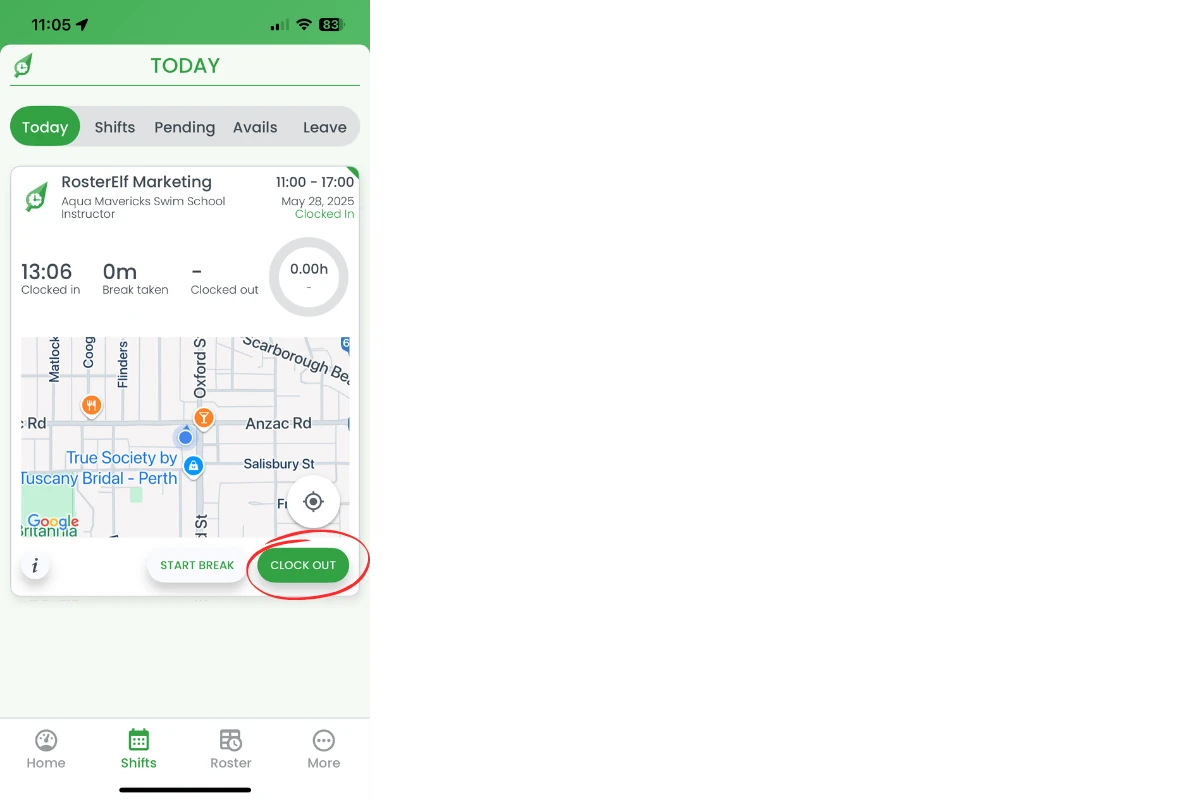
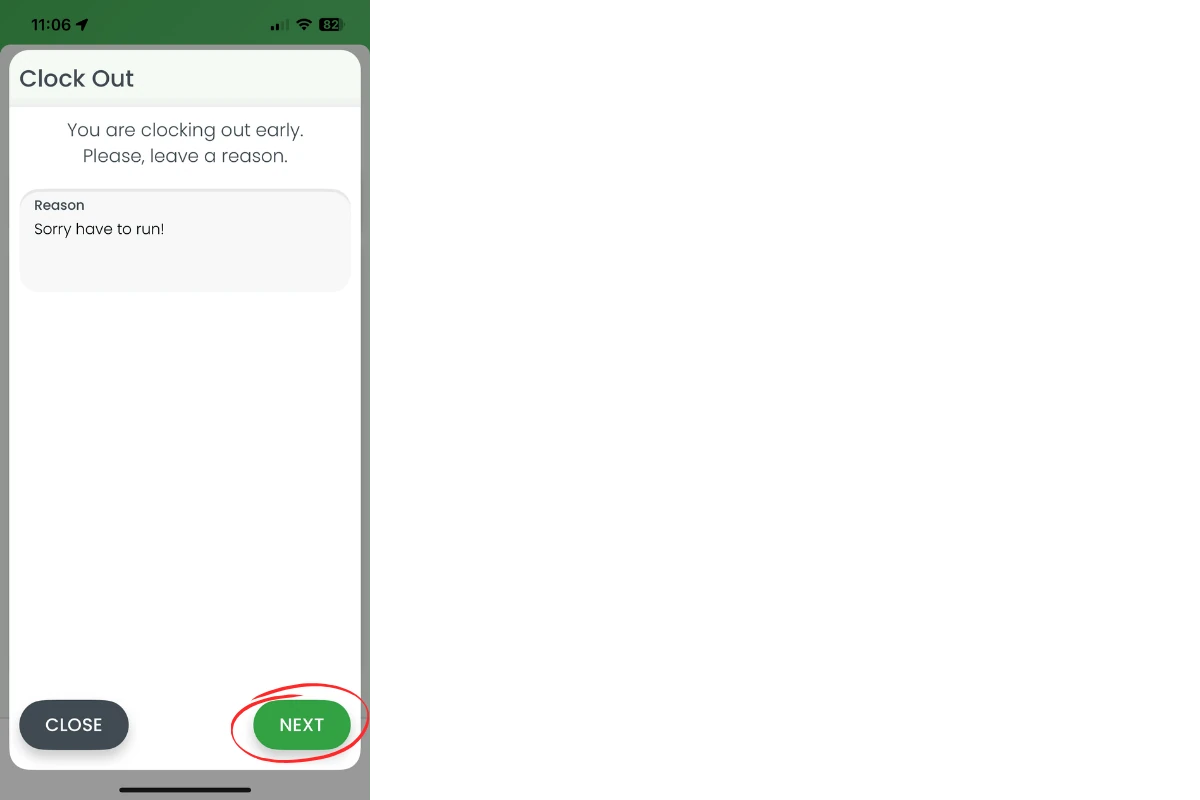
4.2 If you are clocking out early, the app asks for a reason—enter it and tap Next.
4.3 Take a selfie (if required) and tap Confirm.
4.4 The shift card updates to Clocked Out, displaying your clock-in, break and clock-out times for verification.
Frequently asked questions
1. How do I view my shift details before clocking in?
Tap Shifts in the bottom navigation, select the Today tab, then tap the ℹ︎ info icon on your shift card to open the Shift Information modal with full details.
2. Can I clock in if I am outside the GPS location tolerance?
No. You must be within the required GPS radius set by your employer. Move closer to the site until the Clock In button is enabled.
3. How do I start and end a break during my shift?
Tap Start Break on your shift card to begin, complete any selfie prompts, then tap End Break when you return to work.
4. What happens if I clock out early?
When clocking out early, the app asks for a reason. Enter your explanation so your manager can review it during payroll approval.
5. How do I confirm my clock-in or clock-out was successful?
The status on your shift card changes immediately (e.g. Clocked In, On Break, Clocked Out) and times populate, confirming the action was recorded.
6. Why can't I see the Clock In button on my shift card?
Two settings must both be enabled for clock-in controls to appear on your shift card: (1) Smartphone Clock In and Out must be turned on globally in Settings → Time and Attendance, and (2) the specific site your shift belongs to must also have it enabled. If either setting is off, the shift card stays collapsed and no clock-in controls are shown. Contact your manager or administrator to confirm both settings are active for your account and site.